

If you’ve got S.M.A.R.T Repair alert on your computer,then as you probably already suspect you’re computer has been infected with a rogue software.
S.M.A.R.T Repair has changed your desktop background,hidden your files and shortcuts and it’s causing browsing redirects.T
S.M.A.R.T Repair is a malicious software that will display fake alerts, claiming that several hard drive errors were detected on your computer.In reality, none of the reported issues are real, and are only used to scare you into buying S.M.A.R.T Repair and stealing your personal financial information.
This rogue software has changed your desktop background,hidden your files and shortcuts and it’s causing browsing redirects.
We strongly advise you to follow our S.M.A.R.T Repair removal guide and ignore any alerts that this malicious software might generate.Under no circumstance should you buy this rogue security software as this could lead to identity theft.
If you’ve got a S.M.A.R.T Repair infection , you’ll be seeing this screens :
![[Image: Smart-HDD.png]](https://malwaretips.com/blogs/wp-content/uploads/mwt-media/76/76745db2abb00a4205d12bdea1c6b0e9bf3595af13eacd860c111c3d87c4dada/5de2d330f5cf6012b6e9ff4cd11983b79c9fcbb3d90e30cf67027911a4231a3e-715.webp "S.M.A.R.T Repair")
![[Image: Smart-HDD.png]](https://malwaretips.com/blogs/wp-content/uploads/mwt-media/2c/2ce2504070f721f471c8489d95da3ce4c910f4203d5453c83a4e4604e092791e/74e32ae2a9a69b0ac8948e56a5066e0e329f912138445d5d9c2b9a660d7b2981-715.webp "S.M.A.R.T Repair")
![[Image: Smart-HDD.png]](https://malwaretips.com/blogs/wp-content/uploads/mwt-media/f1/f1ceb2f793541e453f26d2ff8d09133861e2907646af0c76ebd8c54627a6aad8/ec239ebfc6fea776304b1a2cc45036893c150328e62fcd642a90115509bad525-586.webp "S.M.A.R.T Repair")
Registration codes for S.M.A.R.T Repair
As an optional step,you can use the following license key to register S.M.A.R.T Repair and stop the fake alerts.
08869246386344953972969146034087
Please keep in mind that entering the above registration code will NOT remove S.M.A.R.T Repair from your computer , instead it will just stop the fake alerts so that you’ll be able to complete our removal guide more easily.
Removal guide for S.M.A.R.T Repair
STEP 1 : Start your computer in Safe Mode with Networking
- Remove all floppy disks, CDs, and DVDs from your computer, and then restart your computer.
- Press and hold the F8 key as your computer restarts.Please keep in mind that you need to press the F8 key before the Windows start-up logo appears.
- On the Advanced Boot Options screen, use the arrow keys to highlight Safe Mode with Networking , and then press ENTER.
![[Image: Safemode.jpg]](//malwaretips.com/images/removalguide/safemode.jpg "Safe Mode with Networking screen")
- Log on to your computer with a user account that has administrator rights
![[Image: Safemode.jpg]](http://malwaretips.com/images/removalguide/safemode.jpg "Safe Mode with Networking screen")
STEP 2: Remove S.M.A.R.T Repair malicious proxy server
S.M.A.R.T Repair may add a proxy server which prevents the user from accessing the internet,follow the below instructions to remove the proxy.
- Start Internet Explorer
![[Image: S.M.A.R.T Repair- IE]](//malwaretips.com/images/removalguide/Ieicon.png "IE 9") and if you are using Internet Explorer 9 ,click on the gear icon
and if you are using Internet Explorer 9 ,click on the gear icon ![[Image: IE gear icon]](//malwaretips.com/images/removalguide/icongear.jpg "Gear Icon") (Tools for Internet Explorer 8 users) ,then select Internet Options.
(Tools for Internet Explorer 8 users) ,then select Internet Options.
![[Image: Internet-options-IE.png]](//malwaretips.com/images/removalguide/ie1.png "Internet Options in IE")
- Go to the tab Connections.At the bottom, click on LAN settings.
![[Image: Remove-proxy-server2.png]](//malwaretips.com/images/removalguide/ie2.png "Connections tab in Internet Explorer")
- Uncheck the option Use a proxy server for your LAN. This should remove the malicious proxy server and allow you to use the internet again.
![[Image: Remove-proxy-server3.png]](//malwaretips.com/images/removalguide/ie3.png "Uncheck the option Use a proxy server for your LAN")
![[Image: S.M.A.R.T Repair- IE]](http://malwaretips.com/images/removalguide/Ieicon.png "IE 9") and if you are using Internet Explorer 9 ,click on the gear icon
and if you are using Internet Explorer 9 ,click on the gear icon ![[Image: IE gear icon]](http://malwaretips.com/images/removalguide/icongear.jpg "Gear Icon") (Tools for Internet Explorer 8 users) ,then select Internet Options.
(Tools for Internet Explorer 8 users) ,then select Internet Options.![[Image: Internet-options-IE.png]](http://malwaretips.com/images/removalguide/ie1.png "Internet Options in IE")
![[Image: Remove-proxy-server2.png]](http://malwaretips.com/images/removalguide/ie2.png "Connections tab in Internet Explorer")
![[Image: Remove-proxy-server3.png]](http://malwaretips.com/images/removalguide/ie3.png "Uncheck the option Use a proxy server for your LAN")
If you are a Firefox users, go to Firefox(upper left corner) → Options → Advanced tab → Network → Settings → Select No Proxy
STEP 3: Run RKill to terminate known malware processes associated with S.M.A.R.T Repair.
RKill is a program that attempts to terminate any malicious processes associated with S.M.A.R.T Repair ,so that your normal security software can then run and clean your computer of infections.
As RKill only terminates a program’s running process, and does not delete any files, after running it you should not reboot your computer as any malware processes that are configured to start automatically will just be started again.
- While your computer is in Safe Mode with Networking ,please download the latest official version of RKill.

- Double-click on the RKill iconin order to automatically attempt to stop any processes associated with S.M.A.R.T Repair.
![[Image: run-rkill-1.png]](//malwaretips.com/images/removalguide/rkill1.png "RKILL ICON")
- RKill will now start working in the background, please be patient while the program looks for various malware programs and tries to terminate them.
![[Image: run-rkill-2.png]](//malwaretips.com/images/removalguide/rkill2.png "RKILL Command prompt")
IF you receive a message that RKill is an infection, that is a fake warning given by the rogue. As a possible solution we advise you to leave the warning on the screen and then try to run RKill again.Run RKill until the fake program is not visible but not more than ten times.
IF you continue having problems running RKill, you can download the other renamed versions of RKill from here. - When Rkill has completed its task, it will generate a log. You can then proceed with the rest of the guide.
![[Image: S.M.A.R.T Repair rkill3.jpg]](//malwaretips.com/images/removalguide/rkill3.png "RKILL LOG")
![[Image: run-rkill-1.png]](http://malwaretips.com/images/removalguide/rkill1.png "RKILL ICON")
![[Image: run-rkill-2.png]](http://malwaretips.com/images/removalguide/rkill2.png "RKILL Command prompt")
![[Image: S.M.A.R.T Repair rkill3.jpg]](http://malwaretips.com/images/removalguide/rkill3.png "RKILL LOG")
WARNING: Do not reboot your computer after running RKill as the malware process will start again , preventing you from properly performing the next step.
STEP 4: Remove S.M.A.R.T Repair malicious files with Malwarebytes Anti-Malware FREE
- Please download the latest official version of Malwarebytes Anti-Malware FREE.
- Install Malwarebytes’ Anti-Malware by double clicking on mbam-setup.
![[Image: malwarebytes-installer.png]](//malwaretips.com/images/removalguide/mbam1.png "Malwarebytes Anti-Malware Installer")
- When the installation begins, keep following the prompts in order to continue with the installation process. Do not make any changes to default settings and when the program has finished installing, make sure you leave both the Update Malwarebytes’ Anti-Malware and Launch Malwarebytes’ Anti-Malware checked. Then click on the Finishbutton. If Malwarebytes’ prompts you to reboot, please do not do so.
![[Image: install-malwarebytes.png]](//malwaretips.com/images/removalguide/mbam2.png "Install Malwarebytes Anti-Malware")
- Malwarebytes Anti-Malware will now start and you’ll be prompted to start a trial period , please select ‘Decline‘ as we just want to use the on-demand scanner.
![[Image: decline-trial-malwarebytes.png]](//malwaretips.com/images/removalguide/mbam3.PNG "Decline trial period in Malwarebytes Anti-Malware")
- On the Scanner tab,please select Perform full scan and then click on the Scan button to start scanning your computer for any possible infections.
![[Image: malwarebytes-full-system-scan.png]](//malwaretips.com/images/removalguide/mbam4.png "Perform a Full System Scan")
- Malwarebytes’ Anti-Malware will now start scanning your computer for S.M.A.R.T Repair malicious files as shown below.
![[Image: malwarebytes-scanning.png]](//malwaretips.com/images/removalguide/mbam5.png "Malwarebytes Anti-Malware scanning for S.M.A.R.T Repair")
- When the scan is finished a message box will appear, click OK to continue.
![[Image: malwarebytes-scan-finish.png]](//malwaretips.com/images/removalguide/mbam9.png "Malwarebytes when the scan is finished")
- You will now be presented with a screen showing you the malware infections that Malwarebytes’ Anti-Malware has detected.Please note that the infections found may be different than what is shown in the image.Make sure that everything is Checked (ticked) and click on the Remove Selected button.
![[Image: malwarebytes-scan-results.png]](//malwaretips.com/images/removalguide/mbam6.png "S.M.A.R.T Repair infection scan results")
- Malwarebytes’ Anti-Malware will now start removing the malicious files.If during the removal process Malwarebytes will display a message stating that it needs to reboot, please allow this request.
![[Image: malwarebytes-reboot-prompt.png]](//malwaretips.com/images/removalguide/mbam10.png "Reboot prompt from Malwarebytes")
![[Image: malwarebytes-installer.png]](http://malwaretips.com/images/removalguide/mbam1.png "Malwarebytes Anti-Malware Installer")
![[Image: install-malwarebytes.png]](http://malwaretips.com/images/removalguide/mbam2.png "Install Malwarebytes Anti-Malware")
![[Image: decline-trial-malwarebytes.png]](http://malwaretips.com/images/removalguide/mbam3.PNG "Decline trial period in Malwarebytes Anti-Malware")
![[Image: malwarebytes-full-system-scan.png]](http://malwaretips.com/images/removalguide/mbam4.png "Perform a Full System Scan")
![[Image: malwarebytes-scanning.png]](http://malwaretips.com/images/removalguide/mbam5.png "Malwarebytes Anti-Malware scanning for S.M.A.R.T Repair")
![[Image: malwarebytes-scan-finish.png]](http://malwaretips.com/images/removalguide/mbam9.png "Malwarebytes when the scan is finished")
![[Image: malwarebytes-scan-results.png]](http://malwaretips.com/images/removalguide/mbam6.png "S.M.A.R.T Repair infection scan results")
![[Image: malwarebytes-reboot-prompt.png]](http://malwaretips.com/images/removalguide/mbam10.png "Reboot prompt from Malwarebytes")
STEP 5: Double check your system for any left over infections with HitmanPro
- This step can be performed in Normal Mode ,so please download the latest official version of HitmanPro.
- Double click on the previously downloaded file to start the HitmanPro installation.
![[Image: hitmanpro-icon.png]](//malwaretips.com/images/removalguide/hpro1.png "HitmanPro Installer")
NOTE : If you have problems starting HitmanPro, use the “Force Breach” mode. Hold down the left CTRL-key when you start HitmanPro and all non-essential processes are terminated, including the malware process. (How to start HitmanPro in Force Breach mode – Video) - Click on Next to install HitmanPro on your system.
![[Image: installing-hitmanpro.png]](//malwaretips.com/images/removalguide/hpro2.png "HitmanPro installation process")
- The setup screen is displayed, from which you can decide whether you wish to install HitmanPro on your machine or just perform a one-time scan, select a option then click on Next to start a system scan.
![[Image: hitmanpro-setup-options.png]](//malwaretips.com/images/removalguide/hpro3.png "HitmanPro setup options")
- HitmanPro will start scanning your system for malicious files. Depending on the size of your hard drive, and the performance of your computer, this step will take several minutes.
![[Image: hitmanpro-scanning.png]](//malwaretips.com/images/removalguide/hpro4.png "HitmanPro scanning for S.M.A.R.T Repair")
- Once the scan is complete,a screen displaying all the malicious files that the program found will be shown as seen in the image below.After reviewing each malicious object click Next.
![[Image: hitmanpro-scan-results.png]](https://malwaretips.com/blogs/wp-content/uploads/mwt-media/9f/9feb7abb654153bc5a2bf97edc3d34ffb7aea688f5c28914a45fb58e7daae6c0/0aa5d57daf07172341f1f30474be2c55820b88d105c13d5f3f0847b03570180d-532.webp "HitmanPro S.M.A.R.T Repair scan results")
- Click Activate free license to start the free 30 days trial and remove the malicious files.
![[Image: hitmanpro-activation.png]](//malwaretips.com/images/removalguide/hpro6.png "Activate HitmanPro free license to remove detected infections")
- HitmanPro will now start removing the infected objects, and in some instances, may suggest a reboot in order to completely remove the malware from your system. In this scenario, always confirm the reboot action to be on the safe side.
![[Image: hitmanpro-icon.png]](http://malwaretips.com/images/removalguide/hpro1.png "HitmanPro Installer")
![[Image: installing-hitmanpro.png]](http://malwaretips.com/images/removalguide/hpro2.png "HitmanPro installation process")
![[Image: hitmanpro-setup-options.png]](http://malwaretips.com/images/removalguide/hpro3.png "HitmanPro setup options")
![[Image: hitmanpro-scanning.png]](http://malwaretips.com/images/removalguide/hpro4.png "HitmanPro scanning for S.M.A.R.T Repair")
![[Image: hitmanpro-activation.png]](http://malwaretips.com/images/removalguide/hpro6.png "Activate HitmanPro free license to remove detected infections")
STEP 6: Unhide your files and folders
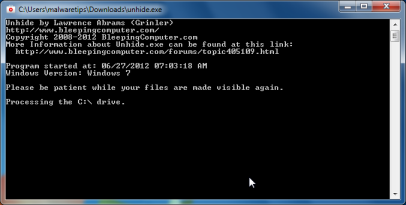
S.M.A.R.T Repair modifies your file system in such a way that all files and folders become hidden, to restore the default settings , you’ll need to run the below program.
- Download Unhide.exe, to unhide your files and folders.
- Double-click on the Unhide.exe icon on your desktop and allow the program to run.The whole process should not take more than 5 minutes to complete,and at the end this utility will generate a report.
STEP 7 : Restore your shortcuts and remove any left over malicious registry keys
S.M.A.R.T Repair has moved your shortcuts files in the Temporary Internet folder and added some malicious registry keys to your Windows installation , to restore your files we will need to perform a scan with RogueKiller.
- Please download the latest official version of RogueKiller.
- Double click on RogueKiller.exe to start this utility and then wait for the Prescan to complete.This should take only a few seconds and then you can click the Start button to perform a system scan.
![[Image: roguekiller-1.png]](https://malwaretips.com/blogs/wp-content/uploads/mwt-media/a0/a0d25d880942dfa26618376c62dfb6122db4dce6da1f98af88226492d891c726/3b18c4b4589830dce38a71c95707969fb78876e99bee478a38dc5859de121469-600.webp "Click on the Start button to perform a system scan")
- After the scan has completed, press the Delete button to remove any malicious registry keys.
![[Image: roguekiller-2.png]](https://malwaretips.com/blogs/wp-content/uploads/mwt-media/9f/9f4f19530cf788dadd63ca5cb2b699db64b2c458570562cf64119031399aa734/977a2f35e7391111faf80a98edc26af95eb5f7edac47e879725c2d4fde16a6b2-600.webp "Press Delete to remove the malicious registry keys")
- Next we will need to restore your shortcuts, so click on the ShortcutsFix button and allow the program to run.
![[Image: roguekiller-1.png]](https://malwaretips.com/blogs/wp-content/uploads/mwt-media/d2/d2d5b2f67b85190aa179638d6aa94e89ca7023db0ec35f9c16d68935570e08b6/2de9d31cb58b1ff8a2e883c0d10cdfea8395222e382421e03405f12bab6af683-600.webp "Click on the Start button to perform a system scan")
STEP 8: Get your desktop look back!
S.M.A.R.T Repair changes your desktop background to a solid black color,to change it back to default one follow the below instruction.
- Windows XP : Click on the Start button and then select Control Panel. When the Control Panel opens, please click on the Display icon. From this screen you can now change your Theme and desktop background.
- Windows 7 and Vista : Click on the Start button and then select Control Panel. When the Control Panel opens, please click on the Appearance and Personalization category. Then select Change the Theme or Change Desktop Background to revert back to your original Theme and colors.
What’s next? Join our amazing community and build up your malware defenses !

Join the discussion
75 commentsShare your experience or ask a question about this article.
Discussion
Thank you so much Stelian for this helpful tutorial.
My computer popped up with the SMART file and I freaked out….all my pictures of my daughter were gone as were all my work files. I calmly searched on my phone for something to help, and found this. It took quite a while to fix, but I’m so glad I came across this. Thanks for saving my computer and my pocket book from techs that would have taken advantage of me.
I was just infected with this today. Operating Windows 7. Finally got to the internet in Safe Mode and have run every link to RKill that you’ve posted and each log states that no processes were terminated. Is this a problem? I am now running ESET as you instructed someone earlier.
In reply to Beth
No,if rKill didn’t find any malicous process running than,that’s great!;D
Let the ESET scan complete and get back to us!
you guys are the greatest…clearly written…well supported…and most of all it works!
thanks for taking the time to do this.
m
So far so good – you are a genious. I can’t get roguekiller.exe to download, no matter what I try – any suggestions on that piece?
In reply to Christine C
1.Download any re-named version of Rkill (direct download links bellow):
http://download.bleepingcomputer.com/grinler/WiNlOgOn.exe
http://download.bleepingcomputer.com/grinler/uSeRiNiT.exe
http://download.bleepingcomputer.com/grinler/rkill.scr
2.Next,please perform a scan with RogueKiller and ESET Online Scanner.
Run a scan with ESET Online Scanner
ESET Online Scanner Download Link (This link will automatically download ESET Online Scanner on your computer.)
I read the instruction and pre-downloaded all the recommended applications. Then with the applications on a flash drive I went through the process step by step. Once the procedure was complete I realized a complete restoration.
Thanks so much and I recommend supporting all the developers who help facilitate this type of support against rogue marauders.
In reply to dfischbone
I spoke too soon. My shortcut restore was unsuccesful.
In reply to dfischbone
Please follow the steps from this guide: http://malwaretips.com/Thread-Files-still-hidden-after-smart-hdd-removal-and-unhide-exe?pid=55462#pid55462
Worked great! Thank you so much:)
In reply to Jessica
Agreed, talk about a pain in the a$$. I was trying to go to a website to look up a great quote on teamwork (for a meeting) and blamo I got nuked this morning at around 7AM. I’m just now back to productive thanks 100% to this article. +1 for the good guys. Thanks so much Stelian…
In reply to Jessica
Just worked fine for me! Saved my day! Thanks for the useful tips!
I can’t get any response when I reboot and press F8. My only options are F2 and F11 which have nothing to do with Safe Mode. Any ideas on how I can get around this? I’ve tried pressing F8, depressing F8, CTRL F8 but nothing happens.
Thanks.
In reply to Jake
Follow the instructions from this comment: http://malwaretips.com/blogs/s-m-a-r-t-repair-rogue-removal-instructions/#comment-2536
You advised backing up important files before attempting to get rid of the SMART malware. I tried accessing my photos in Safe Mode, but was not able to do so. I am also concerned about saving files that may be infected. How can I backup the files I need to?
In reply to SuCa
Run Rkill,than try to run Unhide.exe.. This should make your files visible again…….Next you can save your personal files.Do not save .EXE files.
For what is worth I think you can also perform the MBAM scan before saving any files as this program has a very low amount of false positive.
In reply to Stelian Pilici
Rkill would not run; neither would MBAM. I get a messaage: Internal error: “failed to expand shell folder constant “userappdata.” I have no idea what that means. Has this menace filled my hard drive, and would it help to use a flash drive for extra capacity?
In reply to SuCa
The only “solution” that has come anywhere near helping anyone is the following for the related Error 1606. Follow these steps to change your registry settings: (Of course, you should back up the registry before making any changes)
Click on “Start-Run, type “regedit” (without the quotes)
Navigate to this registry path:
HKEY_CURRENT_USER –> Software –> Microsoft –> Windows –> Current Version –> Explorer –> User Shell Folders
Clear the key: Recent (right mouse click on the key/folder, choose “Delete”)
Close the Registry Editor and restart the computer.
If this fails to correct your problem, the question is – how long has this been a problem? If it has just recently surfaced, you might try a System Restore to a point in time before the problem started. Here are the steps:
The System Restore tool
If the issue that you are experiencing started occurring recently, you can use the System Restore tool. By using this tool, you can restore the computer to an earlier point in time. Using the System Restore tool may not necessarily help you determine the issue. When you use System Restore to restore the computer to a previous state, programs and updates that you installed are removed.
To restore the operating system to an earlier point in time, follow these steps:
1. Click Start, type system restore in the Start Search box, and then click System Restore in thePrograms list. If you are prompted for an administrator password or confirmation, type your password or click Continue.
2. In the System Restore dialog box, click Choose a different restore point, and then click Next.
3. In the list of restore points, click a restore point that was created before you began to experience the issue, and then click Next.
4. Click Finish.
The computer restarts, and the system files and settings are returned to the state that they were in at the time that the restore point was created.
Next,try to run RKILL and then Malwarebytes!Let us know how is everything going!
Hi
My desktop has been infected with the subject virus. I am trying to use the
Malwarebytes (MWB) process to remove it and restore hidden files. I have a Dell XPS running W 7. I have followed the instructions to input the MWB
provided bogus activation code, and then shut the computer down. Problem: When I restart and hold down the F8 key, I get a very quickly flashed screen with a couple of options in the lower left corner about modes (not there long enough to read) and then it goes to “resume windows”. If I go ahead and let windows open, the S.M.A.R.T. stuff is still there. At that point, I shut the system down again for fear of getting more damage/infection. I have tried it several times, with varying lengths of time holding down F8, etc., but keep getting the same results. Can you help me get to SAFE MODE?
Thanks.
TomB
In reply to TomB
I just tried restart with FORCEBREACH and it worked. Hopefully I will not have to come back, again
In reply to TomB
If you remove all the infected files…it won’t!
Additionally ,you can perform a scan with ESET Online Scanner
Hold down Control and click on the following link to open ESET OnlineScan in a new window. > ESET OnlineScan Link
Also it would be a very good idea to register on our forums and start a thread in our Security Configuration Wizard forum to build up your PC protection.
In reply to TomB
Please follow the below instructions:
STEP 1 : While in NORMAL MODE,download HitmanPro and then start this program in ForceBreach Mode
1.Here are the direct download links for HitmanPro,
– http://dl.surfright.nl/HitmanPro36.exe (For 32bit)
– http://dl.surfright.nl/HitmanPro36_x64.exe (For 64bit)
2.Hold down the left CTRL-key when you start HitmanPro and all non-essential processes are terminated, including this rogue malicious process
Here is a video that explains with graphic details how to do this : http://www.youtube.com/watch?v=m6eRWTv2STk
3. Let HitmanPro scan and remove all the detected threats.
STEP 2: Download/Run Rkill and then run a scan with Malwarebytes.
1.Download any re-named version of Rkill (direct download links bellow):
http://download.bleepingcomputer.com/grinler/WiNlOgOn.exe
http://download.bleepingcomputer.com/grinler/uSeRiNiT.exe
http://download.bleepingcomputer.com/grinler/rkill.scr
2.Next,please perform a scan with Malwarebytes as seen on the guide.
STEP3 : Perform a system scan with Emsisoft Anti-Malware:
Make sure that everything is Checked (ticked) and click on the ‘Quarantine selected objects’ button.
If during the removal process Emsisoft will display a message stating that it needs to reboot, please allow this request.
Most helpful guide, worked like a peach!
Ran Malwarebtytes again, No Objects Detected! Thanks!
Can’t connect to internet in safe mode. When i hit F8, i choose safe mode with networking from there, I can’t connect to the internet at all. When I do try and follow the steps and go to internet options, LAN settings, the proxy server box is already unchecked.
How can i get on internet in safe mode with networking? Pleaseeeeee help!!!!!!
In reply to Ryan
Hello,
Ok,try to do this…
STEP 1 : While in NORMAL MODE,download HitmanPro and then start this program in ForceBreach Mode
1.Here are the direct download links for HitmanPro,
– http://dl.surfright.nl/HitmanPro36.exe (For 32bit)
– http://dl.surfright.nl/HitmanPro36_x64.exe (For 64bit)
2.Hold down the left CTRL-key when you start HitmanPro and all non-essential processes are terminated, including this rogue malicious process
Here is a video that explains with graphic details how to do this : http://www.youtube.com/watch?v=m6eRWTv2STk
3. If it start ,let it scan and remove all the detected threats.
STEP 2: Download/Run Rkill and then run a scan with Malwarebytes.
1.Download a different named Rkill (direct download links bellow):
http://download.bleepingcomputer.com/grinler/WiNlOgOn.exe
http://download.bleepingcomputer.com/grinler/uSeRiNiT.exe
http://download.bleepingcomputer.com/grinler/rkill.scr
2.And then follow the guide starting with the Malwarebytes scan.
STEP3 : Perform a system scan with Emsisoft Anti-Malware:
Make sure that everything is Checked (ticked) and click on the ‘Quarantine selected objects’ button.
If during the removal process Emsisoft will display a message stating that it needs to reboot, please allow this request.
If you are still experiencing problems , start a thread in our Malware Removal Support forum : http://malwaretips.com/Forum-Malware-Removal-Assistance
My system configuration utility does not work now. When I type “msconfig” I get the following message “Windows cannot find ‘msconfig’. Make sure you typed the name correctly, and then try again. To search for a file….”
In reply to Hodgy
Did you remove all the detect threats?
Your directions worked flawlessly. The rogue is removed and my computer is working as was, except that now everytime I boot up, the Windows Zero Configuration does not start automatically. I went into the settings from services.msc and set to automatic, but once I restart it the utility does not start. If I start it manually from the Properties it works fine. Any suggestions?
In reply to Hodgy
Have you looked for errors in your Event Logs? That might tell you why it’s not starting.
Also, many manufacturers include their own utility software for managing connections. That will disable WZC. Do you have another program, somewhere on your start menu, that will let you manage your wireless?
You can also run msconfig and look under services – is it enabled in there?
I got infected, and i can’t get the internet work. Any idea of getting around to the internet?
In reply to jon
Did you check for a proxy server?
This infection should not block your internet connection… did you check the cables/wifi?
Do you have any previously created restore points?
Yes, I followed the instructions using Malwarebytes, Hitman, and Tweaking. But I reached a stumbling block with RogueKiller. And now it won’t download the Emisoft file. Is it safe at this point to restart my laptop, or will it re-initiated the S.M.A.R.T. infection? I’m running McAfee. Could that be blocking these downloads?
In reply to Cathy
Yes, restart you computer…… :)
Next , please try to Run a scan with ESET Online Scanner
Hold down Control and click on the following link to open ESET OnlineScan in a new window.
ESET OnlineScan
If a log has been produced post it in your next reply.
The instructions to removed the S.M.A.R.T. virus have worked for me up until the downloading of RogueKiller. I cannot get it to download from your link. I have also tried downloading it from other sites, but Internet Explorer (9) keeps locking up. Any suggestions?
In reply to Cathy
Here is the direct download link for RogueKiller: http://www.sur-la-toile.com/RogueKiller/RogueKiller.exe
Did you remove the detected infections by HitmanPro and Malwarebytes?
Lets check with Emsisoft Emergency Kit to see if there are any active infection :
Make sure that everything is Checked (ticked) and click on the ‘Quarantine selected objects’ button.
If during the removal process Emsisoft will display a message stating that it needs to reboot, please allow this request.
Hi,
Can you tell me why EVERYTIME I use this page to remove “SMART repairs”, I have to pay for HitmanPRO, why am I the only person in the world who has to pay for the software to clean the computer with a 12mth license.
I have used your very helpful pages, this and the other page ‘Remove Data Recovery, S.M.A.R.T HDD,Repair and Check virus’ BUT this point: 7. Click Activate free license to start the free 30 days trial ….. there is NO Activate free license button available and I am forced to pay for HotmanPro to clean.
Altho it is not expensive, your instructions need to make users aware of the possible payment.
HitmanPro software sales tell me there was never an option to “Activate free license”, so where did this option come from.
In reply to Corey W. Winters
Hello Corey,
Did you install HitmanPro on your computer or you’ve just selected to perform a one time scan???
Lets try to remove the infection with another software:
Lets check with Emsisoft Emergency Kit to see if there are any active infection :
Make sure that everything is Checked (ticked) and click on the ‘Quarantine selected objects’ button.
If during the removal process Emsisoft will display a message stating that it needs to reboot, please allow this request.
NEXT,install again HitmanPro and perform another scan,this time however write down the path of the infection so that we may remove them manually!
I’ll wait for your reply and help you remove them!:)
THANKS for sharing your wise knowledge. This is a simple guide to use and easy to understand.
very helpful!!!! Thank u!!!!