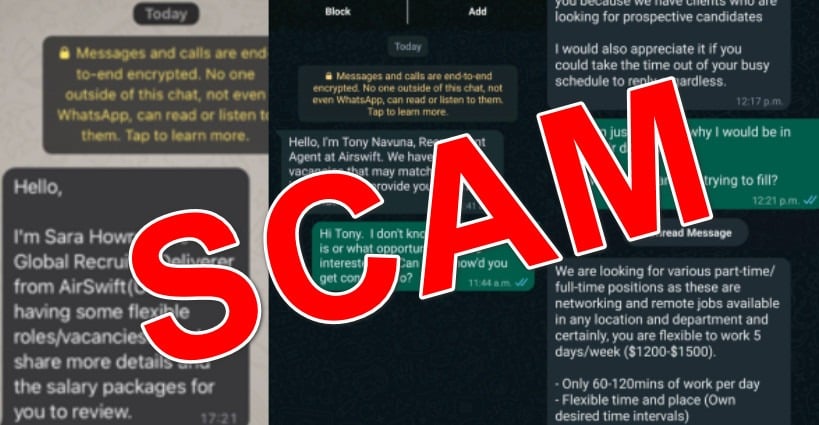
Lately, thousands of people across the internet have reported receiving suspicious messages claiming to come from Scion Staffing. These scam texts often promise easy remote work, huge daily pay, and even “paid trial periods.” On the surface, they might look convincing, especially since Scion Staffing is a real staffing agency. But here’s the truth: these messages are not from Scion Staffing. Instead, they are scams designed to trick you into handing over money or personal information.
If you’ve received one of these texts, you may be wondering whether it’s a real job opportunity or just another scam. In this detailed guide, we’ll break down everything you need to know about the Scion Staffing scam texts, how they work, what to do if you’ve fallen victim, and most importantly, how to protect yourself.
Scam Overview: Understanding the Scion Staffing Scam Texts
The Scion Staffing scam texts are a form of employment scam, a common type of fraud where scammers impersonate legitimate staffing agencies, recruiters, or HR professionals. Their goal is simple: to trick unsuspecting victims into believing they’ve been offered a legitimate job so that they can either steal money, collect sensitive personal data, or both.
What the Messages Say
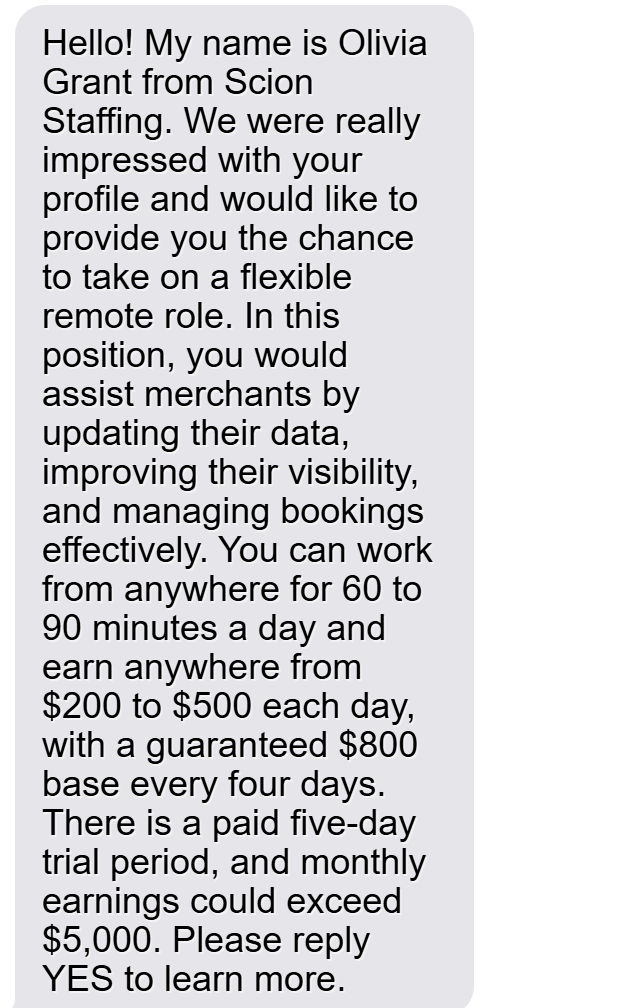
The messages typically follow the same script. Here’s a common example:
“Hello! My name is Olivia Grant from Scion Staffing. We were really impressed with your profile and would like to provide you the chance to take on a flexible remote role. In this position, you would assist merchants by updating their data, improving their visibility, and managing bookings effectively. You can work from anywhere for 60 to 90 minutes a day and earn anywhere from $200 to $500 each day, with a guaranteed $800 base every four days. There is a paid five-day trial period, and monthly earnings could exceed $5,000. Please reply YES to learn more.”
Sounds tempting, right? Less than 2 hours of work a day, thousands of dollars in guaranteed income, and the freedom to work remotely. For anyone seeking flexible work, this might sound like the opportunity of a lifetime. But in reality, it’s too good to be true.
Red Flags in These Messages
When analyzing these scam texts, several warning signs immediately jump out:
Unrealistic Pay Claims: $200–$500 daily for just 60–90 minutes of work is not realistic.
Guaranteed Income: No legitimate employer offers guaranteed daily or weekly pay before any work is done.
“Paid Trial Period”: Legitimate companies don’t ask workers to pay upfront for training or trials.
Copy-Paste Scripts: Victims report receiving nearly identical messages, only with different phone numbers or names.
No Direct Contact Information: Instead of professional company emails or phone numbers, scammers use random numbers or Gmail/Yahoo accounts.
Why Scammers Use the Name Scion Staffing
Scion Staffing is a legitimate staffing agency that has been in business for years. By using a real company’s name, scammers make their fake job offers appear more credible. Many people assume that if the message mentions a real business, it must be authentic. This psychological trick increases the chances that someone will respond without questioning the legitimacy.
Reports Across the Internet
Hundreds of complaints have surfaced across scam reporting platforms, Reddit threads, YouTube videos, and consumer protection sites. Victims consistently report receiving the exact same type of message, with only minor variations in wording. This consistency reveals that it’s part of a mass scam campaign rather than isolated incidents.
What Scammers Want
The scammers behind these texts typically have two main goals:
Steal Your Money: By asking you to pay for a “trial period,” “training materials,” or “account setup fees.”
Steal Your Information: By requesting personal details like your Social Security number, bank account details, or copies of IDs under the guise of “employment paperwork.”
Once you hand over money or personal information, it’s almost impossible to get it back. Worse, stolen information can be used for identity theft, opening credit accounts in your name, or committing fraud that could damage your financial future.
How the Scam Works
To better understand the Scion Staffing scam texts, let’s walk through how the scam typically plays out from start to finish.
Step 1: The Initial Message
The scam begins with a text message or email, usually containing a flattering introduction. The sender may claim to have found your “profile” or “resume” online, suggesting they’ve specifically chosen you. This creates a sense of validation and makes you more likely to trust them.
Key phrases often include:
“We were really impressed with your profile”
“Flexible remote role”
“Earn $200–$500 per day”
“Guaranteed base pay every 4 days”
This approach hooks job seekers who are looking for quick, flexible income opportunities.
Step 2: The Bait (Too-Good-To-Be-True Offer)
The scammer then outlines the supposed job. The responsibilities are always vague, such as “updating data,” “helping merchants improve visibility,” or “managing bookings.” These tasks sound legitimate but don’t require specialized skills, making the offer appealing to a wide audience.
To sweeten the deal, the scammer highlights extremely high pay rates, minimal work hours, and even a “trial period” that supposedly proves the job’s legitimacy.
Step 3: The Hook (Paid Trial or Training Fee)
At this stage, the scammer shifts from convincing to extracting value. They might say:
You need to pay a small upfront fee for training, software, or certification.
You must deposit money into an account for work supplies that will later be reimbursed.
You must purchase a work kit or similar product to get started.
This is the critical moment. Once you send money, it goes directly into the scammer’s pocket. Victims report never receiving training, supplies, or a real job afterward.
Step 4: Information Harvesting
In addition to asking for money, scammers often request sensitive personal details. This can include:
Social Security number
Date of birth
Address and phone number
Bank account details (for “direct deposit”)
Scans of your ID or passport
This information is then used for identity theft or sold on the dark web.
Step 5: Ghosting or Ongoing Manipulation
Once the scammer has extracted money or data, one of two things happens:
They disappear completely, leaving you with no job and no way to get your money back.
They continue stringing you along, asking for more fees with promises of higher rewards.
For example, after a “training fee,” they might claim you need to pay a “processing fee” or “tax deposit” before receiving your first paycheck. Each payment is just another way to drain your wallet.
Step 6: Spreading the Scam Further
Scammers often ask victims to recruit friends or acquaintances into the “program,” promising referral bonuses. This expands their scam network and allows them to reach new potential victims.
What To Do If You Have Fallen Victim to the Scion Staffing Scam
If you suspect you’ve been scammed by one of these fake Scion Staffing texts, don’t panic. Instead, take immediate action. The faster you respond, the more you can minimize damage.
1. Stop All Communication
Do not reply to further texts, calls, or emails from the scammer. Every interaction increases the risk of losing more money or exposing more personal data.
2. Document Everything
Take screenshots of the messages, emails, and any payment receipts. Save phone numbers, email addresses, and any communication details. This evidence may be useful for reporting and protecting others.
3. Contact Your Bank or Credit Card Company
If you sent money, immediately inform your bank or card provider. They may be able to stop the transaction, reverse charges, or at least flag your account for suspicious activity.
Internet Crime Complaint Center (IC3): File a complaint at ic3.gov
State Attorney General’s Office: Each state has a consumer protection division.
Better Business Bureau (BBB): Report misuse of Scion Staffing’s name.
5. Freeze or Monitor Your Credit
If you provided sensitive information such as your SSN, place a fraud alert or credit freeze with the major credit bureaus: Equifax, Experian, and TransUnion. This helps prevent identity theft.
6. Change All Affected Passwords
If you provided any login credentials, change those passwords immediately. Use unique, strong passwords for each account, and enable two-factor authentication where possible.
7. Warn Others
Share your experience on scam reporting websites, social media, or consumer protection forums. The more awareness spreads, the fewer victims these scammers will be able to trick.
Is Your Device Infected? Scan for Malware
If your computer or phone is slow, showing unwanted pop-ups, or acting strangely, malware could be the cause. Running a scan with Malwarebytes Anti-Malware Free is one of the most reliable ways to detect and remove harmful software. The free version can identify and clean common infections such as adware, browser hijackers, trojans, and other unwanted programs.
Malwarebytes works on Windows, Mac, and Android devices. Choose your operating system below and follow the steps to scan your device and remove any malware that might be slowing it down.
Malwarebytes for WindowsMalwarebytes for MacMalwarebytes for Android
Run a Malware Scan with Malwarebytes for Windows
Malwarebytes stands out as one of the leading and widely-used anti-malware solutions for Windows, and for good reason. It effectively eradicates various types of malware that other programs often overlook, all at no cost to you. When it comes to disinfecting an infected device, Malwarebytes has consistently been a free and indispensable tool in the battle against malware. We highly recommend it for maintaining a clean and secure system.
Download Malwarebytes
Download the latest version of Malwarebytes for Windows using the official link below. Malwarebytes will scan your computer and remove adware, browser hijackers, and other malicious software for free.
(The above link will open a new page from where you can download Malwarebytes)
Install Malwarebytes
After the download is complete, locate the MBSetup file, typically found in your Downloads folder. Double-click on the MBSetup file to begin the installation of Malwarebytes on your computer. If a User Account Control pop-up appears, click “Yes” to continue the Malwarebytes installation.
Follow the On-Screen Prompts to Install Malwarebytes
When the Malwarebytes installation begins, the setup wizard will guide you through the process.
You’ll first be prompted to choose the type of computer you’re installing the program on—select either “Personal Computer” or “Work Computer” as appropriate, then click on Next.
Malwarebytes will now begin the installation process on your device.
When the Malwarebytes installation is complete, the program will automatically open to the “Welcome to Malwarebytes” screen.
On the final screen, simply click on the Open Malwarebytes option to start the program.
Enable “Rootkit scanning”.
Malwarebytes Anti-Malware will now start, and you will see the main screen as shown below. To maximize Malwarebytes’ ability to detect malware and unwanted programs, we need to enable rootkit scanning. Click on the “Settings” gear icon located on the left of the screen to access the general settings section.
In the settings menu, enable the “Scan for rootkits” option by clicking the toggle switch until it turns blue.
Now that you have enabled rootkit scanning, click on the “Dashboard” button in the left pane to get back to the main screen.
Perform a Scan with Malwarebytes.
To start a scan, click the Scan button. Malwarebytes will automatically update its antivirus database and begin scanning your computer for malicious programs.
Wait for the Malwarebytes scan to complete.
Malwarebytes will now scan your computer for browser hijackers and other malicious programs. This process can take a few minutes, so we suggest you do something else and periodically check the status of the scan to see when it is finished.
Quarantine detected malware
Once the Malwarebytes scan is complete, it will display a list of detected malware, adware, and potentially unwanted programs. To effectively remove these threats, click the “Quarantine” button.
Malwarebytes will now delete all of the files and registry keys and add them to the program’s quarantine.
Restart your computer.
When removing files, Malwarebytes may require a reboot to fully eliminate some threats. If you see a message indicating that a reboot is needed, please allow it. Once your computer has restarted and you are logged back in, you can continue with the remaining steps.
Once the scan completes, remove all detected threats. Your Windows computer should now be clean and running smoothly again, free of trojans, adware, and other malware.
If your current antivirus allowed this malicious program on your computer, you may want to consider purchasing Malwarebytes Premium to protect against these types of threats in the future. If you are still having problems with your computer after completing these instructions, then please follow one of the steps:
Malwarebytes for Mac is an on-demand scanner that can destroy many types of malware that other software tends to miss without costing you absolutely anything. When it comes to cleaning up an infected device, Malwarebytes has always been free, and we recommend it as an essential tool in the fight against malware.
Download Malwarebytes for Mac.
You can download Malwarebytes for Mac by clicking the link below.
When Malwarebytes has finished downloading, double-click on the setup file to install Malwarebytes on your computer. In most cases, downloaded files are saved to the Downloads folder.
Follow the on-screen prompts to install Malwarebytes.
When the Malwarebytes installation begins, you will see the Malwarebytes for Mac Installer which will guide you through the installation process. Click “Continue“, then keep following the prompts to continue with the installation process.
When your Malwarebytes installation completes, the program opens to the Welcome to Malwarebytes screen. Click the “Get started” button.
Select “Personal Computer” or “Work Computer”.
The Malwarebytes Welcome screen will first ask you what type of computer are you installing this program, click either Personal Computer or Work Computer.
Click on “Scan”.
To scan your computer with Malwarebytes, click on the “Scan” button. Malwarebytes for Mac will automatically update the antivirus database and start scanning your computer for malware.
Wait for the Malwarebytes scan to complete.
Malwarebytes will scan your computer for adware, browser hijackers, and other malicious programs. This process can take a few minutes, so we suggest you do something else and periodically check on the status of the scan to see when it is finished.
Click on “Quarantine”.
When the scan has been completed, you will be presented with a screen showing the malware infections that Malwarebytes has detected. To remove the malware that Malwarebytes has found, click on the “Quarantine” button.
Restart computer.
Malwarebytes will now remove all the malicious files that it has found. To complete the malware removal process, Malwarebytes may ask you to restart your computer.
After scanning, delete any detected threats. Your Mac should now be free from adware, unwanted extensions, and other potentially harmful software.
If your current antivirus allowed a malicious program on your computer, you might want to consider purchasing the full-featured version of Malwarebytes Anti-Malware to protect against these types of threats in the future. If you are still experiencing problems while trying to remove a malicious program from your computer, please ask for help in our Mac Malware Removal Help & Support forum.
Run a Malware Scan with Malwarebytes for Android
Malwarebytes for Android automatically detects and removes dangerous threats like malware and ransomware so you don’t have to worry about your most-used device being compromised. Aggressive detection of adware and potentially unwanted programs keeps your Android phone or tablet running smooth.
Download Malwarebytes for Android.
You can download Malwarebytes for Android by clicking the link below.
In the Google Play Store, tap “Install” to install Malwarebytes for Android on your device.
When the installation process has finished, tap “Open” to begin using Malwarebytes for Android. You can also open Malwarebytes by tapping on its icon in your phone menu or home screen.
Follow the on-screen prompts to complete the setup process
When Malwarebytes will open, you will see the Malwarebytes Setup Wizard which will guide you through a series of permissions and other setup options. This is the first of two screens that explain the difference between the Premium and Free versions. Swipe this screen to continue. Tap on “Got it” to proceed to the next step. Malwarebytes for Android will now ask for a set of permissions that are required to scan your device and protect it from malware. Tap on “Give permission” to continue. Tap on “Allow” to permit Malwarebytes to access the files on your phone.
Update database and run a scan with Malwarebytes for Android
You will now be prompted to update the Malwarebytes database and run a full system scan.
Click on “Update database” to update the Malwarebytes for Android definitions to the latest version, then click on “Run full scan” to perform a system scan.
Wait for the Malwarebytes scan to complete.
Malwarebytes will now start scanning your phone for adware and other malicious apps. This process can take a few minutes, so we suggest you do something else and periodically check on the status of the scan to see when it is finished.
Click on “Remove Selected”.
When the scan has been completed, you will be presented with a screen showing the malware infections that Malwarebytes for Android has detected. To remove the malicious apps that Malwarebytes has found, tap on the “Remove Selected” button.
Restart your phone.
Malwarebytes for Android will now remove all the malicious apps that it has found. To complete the malware removal process, Malwarebytes may ask you to restart your device.
When the scan is finished, remove all detected threats. Your Android phone should now be free of malicious apps, adware, and unwanted browser redirects.
If your current antivirus allowed a malicious app on your phone, you may want to consider purchasing the full-featured version of Malwarebytes to protect against these types of threats in the future. If you are still having problems with your phone after completing these instructions, then please follow one of the steps:
Restore your phone to factory settings by going to Settings > General management > Reset > Factory data reset.
After cleaning your device, it’s important to protect it from future infections and annoying pop-ups. We recommend installing an ad blocker such as AdGuard. AdGuard blocks malicious ads, prevents phishing attempts, and stops dangerous redirects, helping you stay safe while browsing online.
Frequently Asked Questions About the Scion Staffing Scam Texts
1. What is the Scion Staffing scam text?
The Scion Staffing scam text is a fraudulent employment message that impersonates the legitimate staffing agency Scion Staffing. These messages typically claim to offer high-paying remote jobs with minimal work hours. Victims are often promised daily pay of $200 to $500 for just 60–90 minutes of work, along with a guaranteed base salary and a so-called paid trial period. In reality, these messages are scams designed to trick people into sending money or sharing personal information.
2. Is Scion Staffing a real company?
Yes, Scion Staffing is a legitimate staffing agency that connects job seekers with employers across various industries. However, the scam texts circulating are not from Scion Staffing. Scammers are misusing the company’s name without permission to make their offers look credible. If you want to apply for a real position with Scion Staffing, only do so through their official website or trusted job boards.
3. How can I tell if a Scion Staffing job text is fake?
Here are the red flags to look for in a fake Scion Staffing text message:
Promises of unrealistic pay ($200–$500 a day for under two hours of work).
Claims of guaranteed income regardless of effort.
Mention of a paid trial period or requests for upfront money.
Vague job descriptions like “updating data” or “improving visibility.”
Messages that look copy-pasted, sometimes with different phone numbers or names.
Contact information that does not match Scion Staffing’s official channels.
If you see one or more of these warning signs, it’s almost certainly a scam.
4. What happens if I reply to the scam text?
If you reply to a Scion Staffing scam text, the scammer will attempt to lure you deeper into the fraud. They may ask you to:
Pay for training, a work kit, or a trial period.
Provide personal details such as your Social Security number, bank account, or ID.
Download files or apps that could contain malware.
Once you engage, scammers may continue pressuring you for money or information. It’s best to ignore and block the number immediately.
5. Why do scammers use the name Scion Staffing?
Scammers often use the names of real companies to make their offers sound more convincing. By impersonating Scion Staffing, they leverage the company’s reputation to gain trust. This is a common tactic in job-related scams, as victims are less likely to question the authenticity of a message linked to a well-known business.
6. Can I lose money from the Scion Staffing scam?
Yes. Victims of this scam often lose money by paying for:
Fake training or certification programs.
Nonexistent trial fees.
“Work materials” that never arrive.
Even if you haven’t sent money, sharing personal details could lead to identity theft, fraudulent accounts opened in your name, or unauthorized bank transactions.
7. What should I do if I already sent money or personal information?
If you’ve fallen victim to the Scion Staffing scam:
Stop all communication with the scammer.
Contact your bank or credit card company to try and block or reverse payments.
Report the scam to the Federal Trade Commission (FTC) at reportfraud.ftc.gov.
Place a fraud alert or credit freeze with Equifax, Experian, and TransUnion if you shared sensitive personal details.
Change passwords for any accounts that might have been compromised.
Acting quickly can help reduce the financial and personal impact.
8. How do I report the Scion Staffing scam text?
You can report the scam to multiple organizations:
Better Business Bureau (BBB): File a complaint about misuse of Scion Staffing’s name.
Your state attorney general’s office for local investigation.
Scion Staffing directly through their official website, so they’re aware of the impersonation.
Reporting helps authorities track these scams and protect others from falling victim.
The Bottom Line
The Scion Staffing scam texts are nothing more than a clever impersonation tactic used by scammers to exploit job seekers. While Scion Staffing is a legitimate agency, these fraudulent messages are not from them. Instead, they are designed to steal your money and personal information by offering job opportunities that sound too good to be true.
If you ever receive such a text, remember the red flags: unrealistic pay, guaranteed earnings, vague job descriptions, and requests for money upfront. Protect yourself by ignoring these messages, reporting them, and only applying for jobs through official company websites or trusted job platforms.
Scams will continue to evolve, but awareness and caution are your strongest defenses. Stay alert, spread the word, and help others avoid falling into the same trap.
Thomas is an expert at uncovering scams and providing in-depth reporting on cyber threats and online fraud. As an editor, he is dedicated to keeping readers informed on the latest developments in cybersecurity and tech.