

“Smart Address Bar” is an extension for Internet Explorer and Firefox, which will suggest keywords and websites while you type. These suggestions will be shown as relevant keywords, and if you click on them, it will use search.smartaddressbar.com as your search engine.
![[Image: Smart Address Bar virus]](https://malwaretips.com/blogs/wp-content/uploads/mwt-media/dc/dca02fd14448720dc58c676e9a8191faf98aaeb9627fb0d4a44830be369f440c/acb9abe1fd8ac14a3adda32b403a9a59ecf0dc1ae93705016fa9bf586c823f8d-1280.webp "Smart Address Bar Search")
Smart Address Bar is an extension for Internet Explorer and Firefox that is typically added when you install other free programs. When you install these free programs, they will also install Smart Address Bar as well. Some of the programs that are known to bundle Smart Address Bar include 1ClickDownload, Yontoo and FBPhotoZoom.
Once installed, whenever you type anything in your URL bar, Smart Address Bar will show relevant keywords that can be searched on search.smartaddressbar.com.
You should always pay attention when installing software because often, a software installer includes optional installs, such as this Smart Address Bar browser hijacker. Be very careful what you agree to install.
Always opt for the custom installation and deselect anything that is not familiar, especially optional software that you never wanted to download and install in the first place. It goes without saying that you should not install software that you don’t trust.
“Smart Address Bar” and search.smartaddressbar.com – Virus Removal Instructions
STEP 1 : Uninstall Smart Address Bar from your computer
Smart Address Bar has installed a program on your computer (Smart Address Bar by Think Tank Labs LLC) which we will need to uninstall.
- To uninstall Smart Address Bar from your computer, click the Start button, then select Control Panel, and click on Uninstall a program.
If you are a Windows 8 user, you can right-click on a bottom left hot corner (formerly known as the Start button) and select Control panel from there, then select Uninstall a program.
![[Image: Uninstall a program]](https://malwaretips.com/blogs/wp-content/uploads/mwt-media/2a/2a46a9e643eeeb764fb164177551c571817a8b4d4fe8141504dca801f8abc8cc/f2a64da5c9bbae588b1c04059e9f6a1e9a413554048666c6db3aa65196a7b99a-557.webp "Click on Uninstall a program")
- Search and uninstall Smart Address Bar for IE from your computer.
![[Image: Uninstall Smart Address Bar program]](https://malwaretips.com/blogs/wp-content/uploads/mwt-media/85/85595dc868b261f819c840e8513fa10c95bce9832785eaef5798f9561741cfc3/5e631d365d1f61ebca4343b635da36b0863e1adb5f0473f6ee3ae9afb709b35d-840.webp "Uninstall Smart Address Bar program")
Please keep in mind that on some computers or missing, search for any program developed by Think Tank Labs LLC, and uninstall it from your computer.
Because Smart Address Bar is installed with other additional programs, we recommend that you search and uninstall any other unwanted or unknown programs from your computer.
STEP 2 : Remove the Smart Address Bar residual damage from your browser
Remove “Smart Address Bar” extension from Internet Explorer
- Open Internet Explorer,then click on the gear icon
![[Image: icongear.jpg]](//malwaretips.com/images/removalguide/icongear.jpg "Remove Smart Address Bar search redirect (Removal Guide) 1") (Tools for Windows XP users) at the top (far right), then select Manage add-ons.
(Tools for Windows XP users) at the top (far right), then select Manage add-ons.
![[Image: Manage Add-ons in Internet Explorer]](https://malwaretips.com/blogs/wp-content/uploads/mwt-media/b1/b15165ae3ea3ccbe687127c65fc8d76071fd45c9afa5a600da19f460eac33df1/fe702ac9ac6e23093b64107fe319fb280b7923e95eee99283b8afcf935a0787a-435.webp "Select Manage Add-ons in Internet Explorer")
- From the Toolbars and Extensions tab, select Smart Address Bar plugin, and click on Disable.
![[Image: Smart Address Bar Internet Explorer extension]](https://malwaretips.com/blogs/wp-content/uploads/mwt-media/72/727a2e701ac705e5f0f180cb107d8ab0505c04ed2e6b923526fd908824eda813/ec392b485a9507c0a349447e4503a267fec83ac9ed9f4a2077f137b9a1deb8a1-1000.webp "Smart Address Bar Internet Explorer extension")
![[Image: icongear.jpg]](http://malwaretips.com/images/removalguide/icongear.jpg "Remove Smart Address Bar search redirect (Removal Guide) 1") (Tools for Windows XP users) at the top (far right), then select Manage add-ons.
(Tools for Windows XP users) at the top (far right), then select Manage add-ons.Remove “Smart Address Bar” extension from Mozilla Firefox
- At the top of the Firefox window, click the Firefox button, then select Add-ons.
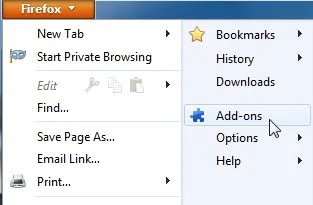
- Select the Extensions tab, then remove Smart Address Bar extension from Mozilla Firefox.
![[Image: Smart Address Bar Firefox extension]](https://malwaretips.com/blogs/wp-content/uploads/mwt-media/45/454d944afa126373afbcf62b1481085e492884ac5283524b0c00b904ba9f2c73/007eef9b3074869517baf566dadb6d60b8ec07736276284ac6453b884b680a50-900.webp "Smart Address Bar Firefox extension")
Please keep in mind that on some computers, this browser add-on might have a different name, if you can’t find Smart Address Bar on your list, then carefully look for any other unknown or unwanted extension and remove it from your browser.
STEP 3: Remove “Smart Address Bar” registry keys with Adwcleaner
- You can download AdwCleaner from the below link.
Download AdwCleanerFree official download. Nothing to install. - Before starting this utility,close all open programs and internet browsers.
- Double click on adwcleaner.exe to run the tool.
- Click on Delete,then confirm each time with Ok.
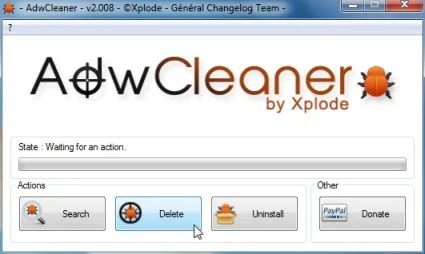
- Your computer will be rebooted automatically. A text file will open after the restart.
- NEXT,double click on adwcleaner.exe to run the tool.
- Click on Uninstall,then confirm with yes to remove this utility from your computer.
STEP 4: Scan your computer for malware
Run a computer scan with Malwarebytes Anti-Malware
- You can download Malwarebytes Anti-Malware Free from the below link,then double click on it to install this program.
Download MalwarebytesFree official installer. Your download starts right away. - When the installation begins, keep following the prompts in order to continue with the setup process.
DO NOT make any changes to default settings and when the program has finished installing, make sure you leave both the Update Malwarebytes’ Anti-Malware and Launch Malwarebytes’ Anti-Malware checked,then click on the Finish button.
![[Image: Malwarebytes Anti-Malware final installation screen]](https://malwaretips.com/blogs/wp-content/uploads/mwt-media/47/471448d4dd5aa1d55ea545effccf0ac9c8ccb5a29622da4e38ac677b5d8c37b5/9f473303c15a00262451cc5a56b904de929157b59e19e3cfb2c03ec88f643390-402.webp "Malwarebytes Anti-Malware final installation screen")
- On the Scanner tab,select Perform quick scan and then click on the Scan button to start scanning your computer.
![[Image: Malwarebytes Anti-Malware Quick Scan]](https://malwaretips.com/blogs/wp-content/uploads/mwt-media/1e/1eb209597ca2f06e596fd060345ac7e3100355f1ec8fc8ea2d9dec7abbb05ea0/3afba9b0b97b56945ffc33817ac48f7433c799241a22e422966180b76473a906-521.webp "Run a Quick Scan with Malwarebytes Anti-Malware")
- Malwarebytes’ Anti-Malware will now start scanning your computer as shown below.
![[Image: Malwarebytes Anti-Malware scanning for malware]](https://malwaretips.com/blogs/wp-content/uploads/mwt-media/f6/f6ecfba43df64204df40586070483f260cb91fa07d5cc90cb4c3a588d159ff30/5b6b2687853201a40d29fe27e142cc66b0852745bbad3900a21030a10399cb4c-521.webp "Malwarebytes Anti-Malware scanning for Smart Address Bar virus")
- When the Malwarebytes scan will be completed,click on Show Result.
![[Image: Malwarebytes Anti-Malware scan results]](https://malwaretips.com/blogs/wp-content/uploads/mwt-media/84/84c62dd46289424dbc686abc53672cb0810111920c8c0bbd69e973844d0a9ab0/a4c04aa700e641f47afec9965f79ff346740668e5952955ccbe5b4c3658b5897-521.webp "Malwarebytes when the system scan has completed")
- You will now be presented with a screen showing you the malware infections that Malwarebytes’ Anti-Malware has detected.Please note that the infections found may be different than what is shown in the image.Make sure that everything is Checked (ticked) and click on the Remove Selected button.
![[Image:Malwarebytes removing malware]](https://malwaretips.com/blogs/wp-content/uploads/mwt-media/d8/d86b6a8bac0e4ece9fd2d259a83db71487943f6b04b567edb0e9adcc3200f492/4eb94651b0e34cc99689c56dc71cd0a49444498ed05c5803ea55fda1cfee1b1f-521.webp "Click on Remove Selected to get rid of malware")
Run a computer scan with HitmanPro
- Download HitmanPro from the below link,then double click on it to start this program.
Download HitmanProOfficial Sophos download. Free scan, free 30-day trial to remove threats. - HitmanPro will start and you’ll need to follow the prompts (by clicking on the Next button) to start a system scan with this program.
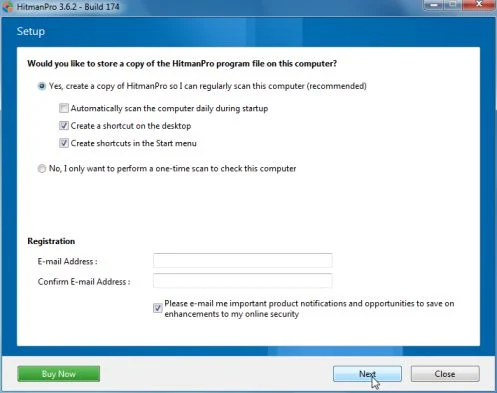
- HitmanPro will start scanning your computer for malware, as seen in the image below.
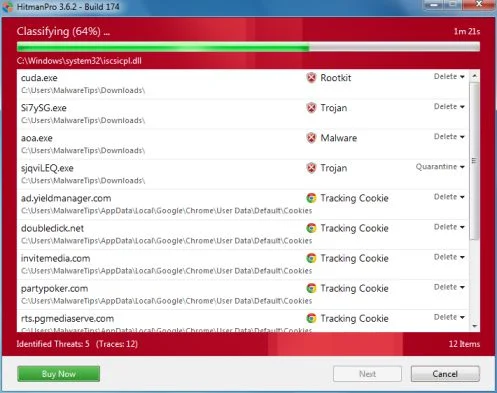
- Once the scan is complete,you’ll see a screen which will display all the infected files that this utility has detected, and you’ll need to click on Next to remove these malicious files.
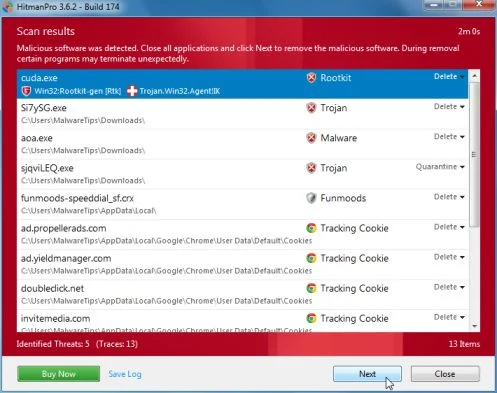
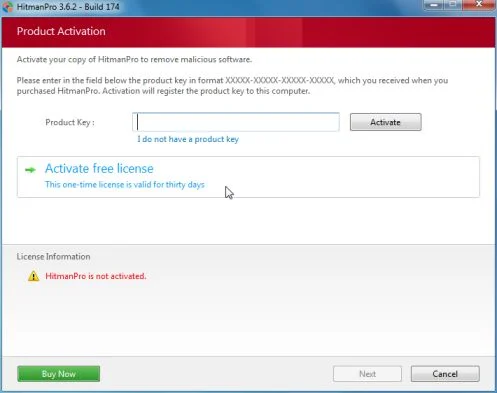
- Click Activate free license to start the free 30 days trial and remove all the malicious files from your computer.

Join the discussion
3 commentsShare your experience or ask a question about this article.
Your progress
Did these steps help?
Let us know how the guide worked for you.
Describe what you see and the step you reached. Keep passwords and other private information out.
Discussion
i cant find my smartadress uninstall thing i been looking for hours
In reply to siiim
Hello,
Lets try to remove this infection:
STEP 1: Run a scan with AdwCleaner
1. Download AdwCleaner from here: http://general-changelog-team.fr/fr/downloads/finish/20-outils-de-xplode/2-adwcleaner
2.Close all open programs and internet browsers.
3.Double click on adwcleaner.exe to run the tool.
4.Click on Delete, then confirm each time with Ok.
STEP 2: Run a scan with Junkware Removal Tool
1.Download Junkware Removal Tool to your desktop from the below link:
JUNKWARE REMOVAL TOOL : http://thisisudax.org/download…
2. Double-click on the JRT.exe icon to start this utility.
3. The tool will open and start scanning your system. Please be patient as this can take a while to complete depending on your system’s specifications
Stay safe!
I am very thankful to your help for getting rid of snap.do websearch from my firefox .The reasson I am writing this is that i tried help FAQ from mozilla and several other sites , spent nearly two hours but to no aval , untill I chanced upon your site and it worked like a breeze. thanks