Emails threatening to expose private secrets, demanding Bitcoin ransoms, and claiming “I’ve known you for a while” are circulating — and they can alarm even savvy users. But behind the fear and urgency is a scam, not a real hacker watching you.
What the “We’ve Known Each Other For A While” email scam is and why it works
Exactly how the scam operates (step by step)
What to do if you’ve been targeted or actually paid
How to protect yourself in the future
If you or someone you know ever sees such a threatening message, you’ll be armed with knowledge — and less likely to fall for it.
Scam Overview
What is the “We’ve Known Each Other For A While” email scam?
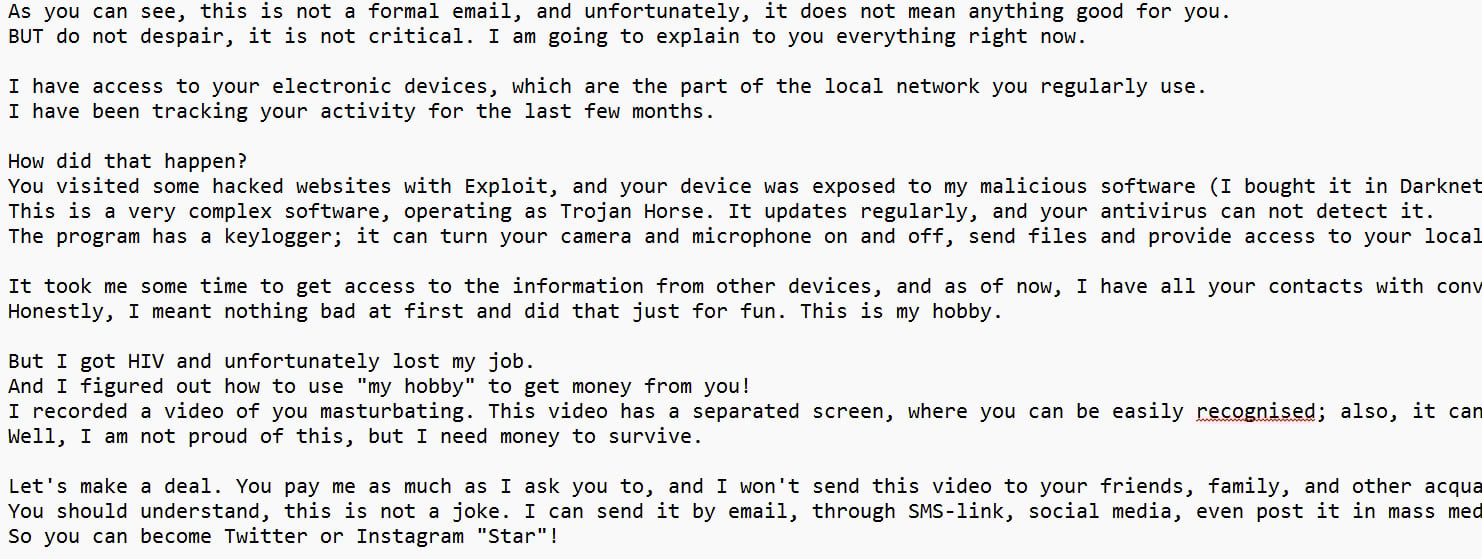
The “We’ve Known Each Other For A While” email scam is a type of sextortion / blackmail email. The scammer claims (falsely) that they have infiltrated your computer or device—accessing your webcam, microphone, browsing history, and files—and recorded embarrassing or compromising video or audio footage. Then they demand a ransom (commonly in Bitcoin or another cryptocurrency) or else they threaten to release that alleged content to your contacts, social networks, or publicly.
In your example, the email says:
“Well, hello there Do Not Reply to this email, if you got questions ? email me at: [email] Let’s get straight to the point. We’ve known each other for a while, at least I know. A few months ago, I gained access to your device, including your internet history and webcam. And I captured some footage (with audio) of you doing something you wouldn’t want anyone to see. Let’s just say it involves activities that are far from your usual routine. It’s unlikely that you’d want your family, colleagues, or contacts to see what I have. (we both know what I’m talking about), I also plan to release these data on many websites and expose the real you. At this stage, it will be impossible to undo it. You may ask how did I do that? You allowed my ransomware to your device. After that, I gained remote access to it. After infecting one device, I was able to access all other devices and your WiFi network without any issue. I’ll just lay out a condition for you now. A little payment to save your reputation is a fair deal. Transfer Exactly 1200 USD to my bіtсοіո wallet. WALLET: 1EHyhZnwNymJ8Pr6KQP8rfe2YQjjBSBTS Once the transfer is confirmed, I will remotely remove the virus from your devices, the data will be permanently deleted and you will never hear from me again. Yes, it’s a very tiny amount to pay to avoid ruining your reputation in the eyes of people who believe you to be a good person. You have 48 hours – I’ll be notified as soon as you open this email, and from then on it’s a countdown. If you’ve never dealt with сrурtοсսrrеոсу before, it’s super easy – search for “btс exchanger” “MoonPay” “ΒіtΡау”, or else you can use cash to buy using “ВТᏟ ATM” within your local area.”
This is a classic modern sextortion template. It uses fear, urgency, and intimidation to pressure the recipient into paying, even though the threat is almost always baseless.
Such extortion emails have been widely reported by cybersecurity firms, consumer protection agencies, and tech media.
Why this scam is so frightening
These emails succeed precisely because they prey on fear, shame, and urgency. A recipient may think:
“What if it’s true?”
“If this spreads, my family, friends, or colleagues will see it.”
“I must act quickly else I’ll be ruined.”
When a message uses threatening language, a countdown timer, or claims deep access (“I have your devices, I have your contacts, I have your webcam footage”), people may panic and pay before verifying.
Moreover, scammers often include a few real details (e.g. an old password, an email address, or data from a past leak) to make the claim feel more credible. But those details are usually unrelated to the scam—they were acquired via data breaches or “dumps” of public data and used opportunistically.
Common patterns & variants
Although content can vary, many of these emails share common traits:
They begin with something personal or familiar: “We’ve known each other for a while,” or “Hello my perverted friend.”
They threaten to publicize private content (photos, videos, audio) unless paid.
They claim to have installed malware or a “Trojan,” “njRAT,” or another remote access tool (RAT) to spy on you.
They demand cryptocurrency (especially Bitcoin) to an address they provide.
They impose a time limit (e.g. “48 hours,” “24 hours,” “50 hours”) to heighten panic.
They warn you not to respond or report, or threaten that if you do, the contents will be released immediately.
They may include personal details (name, email, a past password, address) to intimidate you.
Sometimes they attach a PDF or image (often to bypass spam filters).
Despite the confident tone and threatening complexity, these messages rarely indicate a real breach or actual video. They are designed to bluff.
Why it’s not usually real
Here’s why most security experts agree the threat is fake:
No evidence of actual hacking The scammers do not actually have access to your webcam, microphone, or files. They make that claim to instill fear—but in nearly all cases, they possess only your email address and perhaps a password from a past leak.
Spoofed sender address The email may appear to come from your own address (or something very close). But that is typically done via email spoofing—a technique that fakes the “From:” field. It does not mean they truly control your account.
Bitcoin addresses are untraceable / dynamic Even if someone pays, there is no guarantee they will delete anything or leave you alone. Scammers often shift funds or never had anything. Many of the Bitcoin wallets used are empty or just intermediaries.
Use of public or leaked personal data When scammers include a past password or personal information, it likely came from a data breach or from public sources—not from real-time hacking or remote surveillance.
Scalability / mass sending These emails are often part of large-scale “spray and pray” campaigns, sent to thousands of addresses blindly. Most recipients get them even though the scammer has no prior relationship or knowledge about them.
In short: the threats are psychological, not technical.
Prevalence & reporting
These sextortion / extortion emails are not isolated incidents. Consumer protection agencies and scam-watch organizations have flagged them repeatedly.
In Australia, Scamwatch warns that criminals falsely claim to have hacked computers and demand payment or release of “compromising images” if not paid.
In the U.S., the FTC calls these “cryptocurrency blackmail scams” and strongly urges victims not to pay.
In Oregon, the state Department of Justice warned about a variant that included a photo of the person’s home (pulled from Google Maps) to intensify fear.
Despite the volume, many victims do not report the scams due to embarrassment, fear, or lack of confidence in authorities.
Thus, spreading awareness is key. If more people recognize the scam, it loses its power.
How The Scam Works
Here is a detailed breakdown of how the “We’ve Known Each Other For A While” sextortion email scam typically operates, from the scammer’s preparation to the victim’s possible reaction.
Step 1: Collecting victim data
Before sending emails, scammers often perform reconnaissance. They gather publicly available or leaked data to make their message appear more credible. This data may include:
Your email address (almost always required)
A past password (from a data breach)
Your full name, birthdate, or partial address (from social media, public records, or breached databases)
Your contacts or friend lists (if they can get them)
Publicly accessible images (e.g. your house from Google Maps, or your social media photos)
By incorporating one or more of these details, the email feels personalized and threatening—even though the scammers did not hack your system.
Step 2: Crafting the threatening email
Scammers then prepare an email that combines a plausible narrative, emotional pressure, and technical-sounding jargon. Key components include:
A greeting that suggests familiarity, such as “We’ve known each other for a while.”
The claim that they gained remote access to your device(s), through a Trojan, RAT, or spyware.
A narrative of how they captured video/audio of you in a “compromising” act.
Threats to expose that content (to family, friends, or publicly) unless you pay.
A demand for payment (often in Bitcoin).
A time ultimatum (e.g. “You have 48 hours” or “Once you open the email, the timer starts”).
A warning not to contact law enforcement or reply (or risk immediate release).
At this stage, they may attach a PDF, image, or embedded file to bypass spam filters.
Step 3: Delivering the email
The email is then sent (often en masse) to many addresses using automated campaigns or botnets. Key delivery tactics include:
Spoofing the “From” field to make it appear the email came from yourself or a trusted address.
Embedding code or pixel trackers to detect when you open the email (to start the countdown). Many emails claim “I’ll be notified as soon as you open this email.”
Using images or attachments to avoid spam filters.
Randomizing Bitcoin addresses or including unique addresses per recipient to track who pays.
When you open the email, the scammer may register that you’ve viewed it (via the tracking pixel) and activate the “countdown” threat.
Step 4: Psychological pressure
Once the email is delivered, the scam relies heavily on emotional manipulation:
Urgency: “You have 48 hours,” or “Countdown started”
Fear: “I captured footage … I will expose it”
Shame: The threat often involves sexual or embarrassing acts
Isolation: “Don’t tell anyone, don’t involve law enforcement”
Credibility: Use of technical terms, passwords, or personal data
Legal confusion: “Bitcoin is untraceable” or “I can’t be caught”
These tactics push victims to act before thinking clearly.
Step 5: Victim’s decision
From the victim’s standpoint, there are several possible reactions:
Panic buys: Victim pays the demanded Bitcoin in hopes of stopping the release
Partial compliance: Victim responds, negotiates, or asks for proof
Investigation: Victim tries to verify validity (e.g., checking for installed malware)
Reporting: Victim notifies authorities or cybersecurity professionals
Ignoring / deleting: Victim ignores the email, deletes, blocks sender
If a victim pays, they may or may not receive the promised deletion or silence. Some scammers double-bluff—taking payment and still threatening further exposure or demanding more.
Step 6: After payment (or non-payment)
If payment is made:
The scammer may not delete anything (because they never had anything real).
They may try to extort further payments or additional threats (“If you tell anyone, I’ll release it now”).
The Bitcoin is generally irreversible and hard to trace.
The victim receives no guarantees.
If the victim doesn’t pay:
The scammer often does nothing and moves on to new targets.
Some may send follow-up emails to re-intimidate.
At worst, the scammer may collect a new email address and try again.
In many cases, once the victim does not respond, the scam fades away.
A working example (based on your provided text)
Let’s map your provided email into the above model:
Collected data: The scammer knows your email address, perhaps an old password or other detail.
Crafted content: “We’ve known each other for a while,” they claimed they “gained access to your device, including your internet history and webcam,” and “captured footage with audio.”
Payment demand: “Transfer exactly 1200 USD to my Bitcoin wallet … you have 48 hours.”
Threats: “The data will be permanently deleted once payment confirmed … you will never hear from me again.”
Urgency / tracking: “I’ll be notified as soon as you open this email.”
Pressure: “It’s a very tiny amount to pay to avoid ruining your reputation.”
This is nearly textbook for a sextortion scam.
Why victims sometimes pay
Emotional vulnerability: Fear, panic, and shame cloud judgment
Belief in the threat: The language feels credible
Ignorance about Bitcoin or cybersecurity
Desire to avoid exposure
Lack of support (not knowing who to turn to)
Understanding that the scam is all about emotional leverage is key. If you strip away the fear tactics, there is usually no real threat.
What to Do If You Have Fallen Victim to This Scam
If you’ve received such an email — or worse, already paid — here is a structured, practical guide to help you respond, recover, and protect yourself.
1. Stop further contact
Do not reply to the scammer. Any reply confirms your email is active and may invite more threats.
Do not negotiate or ask for “proof” — that gives them more time or leverage.
Do not respond to follow-up threats.
2. Secure and assess your accounts
Change the password for your email and any account that uses the same or a similar password.
Review login activity or account security logs for any unexpected access.
Use a password manager to generate safe, unique passwords.
3. Scan for malware or intrusion
Even though the scam is likely bluff, it is wise to:
Disconnect your device from the network (if possible)
Run a full antivirus / anti-malware scan (using reputable software)
Check for suspicious processes, remote access tools, or unknown software
If unsure, seek a professional IT / cybersecurity specialist
If no malware is found, that further supports the idea the threat was empty.
4. Document the evidence
Preserve all evidence before deleting anything:
Take screenshots of the threatening email
Note the email headers (sender address, timestamps, IP if possible)
Record the Bitcoin address given by the scammer
Save any attachments or related files
Log the date and time when you first received or opened the email
This documentation may be useful if you report the case to law enforcement or cybersecurity organizations.
5. Report it
Report the scam to your local law enforcement or cybercrime unit
File a complaint with consumer protection agencies (e.g. FTC in the U.S.)
Report to your email provider (via their phishing / abuse system)
If relevant, report to national or regional cybercrime agencies
Consider reporting to anti-scam or anti-phishing platforms in your country
Even if payment is irrecoverable, reporting helps authorities track patterns and warn others.
6. If you paid — you still may have recourse
If you already sent the Bitcoin, there’s no guarantee of recovery because crypto is hard to trace and irreversible. But you can still:
Report the transaction to law enforcement (provide wallet address, timing, records)
Report to your national cybercrime agency or fraud bureau
Inform your banking institution or payment service (if any other linked accounts were breached)
Seek professional cyber-forensic assistance (if the amount is significant)
Monitor your accounts, identity, and credit for further abuse
While full recovery is unlikely, swift action can help mitigate further damage.
7. Inform your contacts (optional, sensitive decision)
If you believe your contacts are at risk of being targeted by the same scam (via your email address), you may choose to alert them discreetly. But do not broadcast your own embarrassment — limit to close friends or trusted contacts.
8. Rebuild confidence and protect yourself going forward
Use strong, unique passwords and a password manager
Always enable 2FA
Keep your operating system, browser, and applications up to date
Use reliable antivirus/antimalware software
Cover your webcam when not in use (a simple sticker or webcam cover)
Be very cautious about opening attachments or clicking links from unknown senders
Monitor your email for suspicious messages or login notices
Periodically check if your personal data appears in known breaches (e.g. via “Have I Been Pwned”)
9. Emotional support & counseling
These threats are stressful and can cause shame, anxiety, or fear. If you feel overwhelmed:
Talk to someone you trust
Consider professional counseling or therapy
Know that being targeted does not mean you did anything wrong
Summary checklist
Here’s a quick checklist you can follow if affected:
Stop responding
Change passwords & enable 2FA
Scan your system for malware
Document evidence
Report to authorities and email provider
If payment was made, report that too
Protect future security
Seek emotional support if needed
Is Your Device Infected? Scan for Malware
If your computer or phone is slow, showing unwanted pop-ups, or acting strangely, malware could be the cause. Running a scan with Malwarebytes Anti-Malware Free is one of the most reliable ways to detect and remove harmful software. The free version can identify and clean common infections such as adware, browser hijackers, trojans, and other unwanted programs.
Malwarebytes works on Windows, Mac, and Android devices. Choose your operating system below and follow the steps to scan your device and remove any malware that might be slowing it down.
Malwarebytes for WindowsMalwarebytes for MacMalwarebytes for Android
Run a Malware Scan with Malwarebytes for Windows
Malwarebytes stands out as one of the leading and widely-used anti-malware solutions for Windows, and for good reason. It effectively eradicates various types of malware that other programs often overlook, all at no cost to you. When it comes to disinfecting an infected device, Malwarebytes has consistently been a free and indispensable tool in the battle against malware. We highly recommend it for maintaining a clean and secure system.
Download Malwarebytes
Download the latest version of Malwarebytes for Windows using the official link below. Malwarebytes will scan your computer and remove adware, browser hijackers, and other malicious software for free.
(The above link will open a new page from where you can download Malwarebytes)
Install Malwarebytes
After the download is complete, locate the MBSetup file, typically found in your Downloads folder. Double-click on the MBSetup file to begin the installation of Malwarebytes on your computer. If a User Account Control pop-up appears, click “Yes” to continue the Malwarebytes installation.
Follow the On-Screen Prompts to Install Malwarebytes
When the Malwarebytes installation begins, the setup wizard will guide you through the process.
You’ll first be prompted to choose the type of computer you’re installing the program on—select either “Personal Computer” or “Work Computer” as appropriate, then click on Next.
Malwarebytes will now begin the installation process on your device.
When the Malwarebytes installation is complete, the program will automatically open to the “Welcome to Malwarebytes” screen.
On the final screen, simply click on the Open Malwarebytes option to start the program.
Enable “Rootkit scanning”.
Malwarebytes Anti-Malware will now start, and you will see the main screen as shown below. To maximize Malwarebytes’ ability to detect malware and unwanted programs, we need to enable rootkit scanning. Click on the “Settings” gear icon located on the left of the screen to access the general settings section.
In the settings menu, enable the “Scan for rootkits” option by clicking the toggle switch until it turns blue.
Now that you have enabled rootkit scanning, click on the “Dashboard” button in the left pane to get back to the main screen.
Perform a Scan with Malwarebytes.
To start a scan, click the Scan button. Malwarebytes will automatically update its antivirus database and begin scanning your computer for malicious programs.
Wait for the Malwarebytes scan to complete.
Malwarebytes will now scan your computer for browser hijackers and other malicious programs. This process can take a few minutes, so we suggest you do something else and periodically check the status of the scan to see when it is finished.
Quarantine detected malware
Once the Malwarebytes scan is complete, it will display a list of detected malware, adware, and potentially unwanted programs. To effectively remove these threats, click the “Quarantine” button.
Malwarebytes will now delete all of the files and registry keys and add them to the program’s quarantine.
Restart your computer.
When removing files, Malwarebytes may require a reboot to fully eliminate some threats. If you see a message indicating that a reboot is needed, please allow it. Once your computer has restarted and you are logged back in, you can continue with the remaining steps.
Once the scan completes, remove all detected threats. Your Windows computer should now be clean and running smoothly again, free of trojans, adware, and other malware.
If your current antivirus allowed this malicious program on your computer, you may want to consider purchasing Malwarebytes Premium to protect against these types of threats in the future. If you are still having problems with your computer after completing these instructions, then please follow one of the steps:
Malwarebytes for Mac is an on-demand scanner that can destroy many types of malware that other software tends to miss without costing you absolutely anything. When it comes to cleaning up an infected device, Malwarebytes has always been free, and we recommend it as an essential tool in the fight against malware.
Download Malwarebytes for Mac.
You can download Malwarebytes for Mac by clicking the link below.
When Malwarebytes has finished downloading, double-click on the setup file to install Malwarebytes on your computer. In most cases, downloaded files are saved to the Downloads folder.
Follow the on-screen prompts to install Malwarebytes.
When the Malwarebytes installation begins, you will see the Malwarebytes for Mac Installer which will guide you through the installation process. Click “Continue“, then keep following the prompts to continue with the installation process.
When your Malwarebytes installation completes, the program opens to the Welcome to Malwarebytes screen. Click the “Get started” button.
Select “Personal Computer” or “Work Computer”.
The Malwarebytes Welcome screen will first ask you what type of computer are you installing this program, click either Personal Computer or Work Computer.
Click on “Scan”.
To scan your computer with Malwarebytes, click on the “Scan” button. Malwarebytes for Mac will automatically update the antivirus database and start scanning your computer for malware.
Wait for the Malwarebytes scan to complete.
Malwarebytes will scan your computer for adware, browser hijackers, and other malicious programs. This process can take a few minutes, so we suggest you do something else and periodically check on the status of the scan to see when it is finished.
Click on “Quarantine”.
When the scan has been completed, you will be presented with a screen showing the malware infections that Malwarebytes has detected. To remove the malware that Malwarebytes has found, click on the “Quarantine” button.
Restart computer.
Malwarebytes will now remove all the malicious files that it has found. To complete the malware removal process, Malwarebytes may ask you to restart your computer.
After scanning, delete any detected threats. Your Mac should now be free from adware, unwanted extensions, and other potentially harmful software.
If your current antivirus allowed a malicious program on your computer, you might want to consider purchasing the full-featured version of Malwarebytes Anti-Malware to protect against these types of threats in the future. If you are still experiencing problems while trying to remove a malicious program from your computer, please ask for help in our Mac Malware Removal Help & Support forum.
Run a Malware Scan with Malwarebytes for Android
Malwarebytes for Android automatically detects and removes dangerous threats like malware and ransomware so you don’t have to worry about your most-used device being compromised. Aggressive detection of adware and potentially unwanted programs keeps your Android phone or tablet running smooth.
Download Malwarebytes for Android.
You can download Malwarebytes for Android by clicking the link below.
In the Google Play Store, tap “Install” to install Malwarebytes for Android on your device.
When the installation process has finished, tap “Open” to begin using Malwarebytes for Android. You can also open Malwarebytes by tapping on its icon in your phone menu or home screen.
Follow the on-screen prompts to complete the setup process
When Malwarebytes will open, you will see the Malwarebytes Setup Wizard which will guide you through a series of permissions and other setup options. This is the first of two screens that explain the difference between the Premium and Free versions. Swipe this screen to continue. Tap on “Got it” to proceed to the next step. Malwarebytes for Android will now ask for a set of permissions that are required to scan your device and protect it from malware. Tap on “Give permission” to continue. Tap on “Allow” to permit Malwarebytes to access the files on your phone.
Update database and run a scan with Malwarebytes for Android
You will now be prompted to update the Malwarebytes database and run a full system scan.
Click on “Update database” to update the Malwarebytes for Android definitions to the latest version, then click on “Run full scan” to perform a system scan.
Wait for the Malwarebytes scan to complete.
Malwarebytes will now start scanning your phone for adware and other malicious apps. This process can take a few minutes, so we suggest you do something else and periodically check on the status of the scan to see when it is finished.
Click on “Remove Selected”.
When the scan has been completed, you will be presented with a screen showing the malware infections that Malwarebytes for Android has detected. To remove the malicious apps that Malwarebytes has found, tap on the “Remove Selected” button.
Restart your phone.
Malwarebytes for Android will now remove all the malicious apps that it has found. To complete the malware removal process, Malwarebytes may ask you to restart your device.
When the scan is finished, remove all detected threats. Your Android phone should now be free of malicious apps, adware, and unwanted browser redirects.
If your current antivirus allowed a malicious app on your phone, you may want to consider purchasing the full-featured version of Malwarebytes to protect against these types of threats in the future. If you are still having problems with your phone after completing these instructions, then please follow one of the steps:
Restore your phone to factory settings by going to Settings > General management > Reset > Factory data reset.
After cleaning your device, it’s important to protect it from future infections and annoying pop-ups. We recommend installing an ad blocker such as AdGuard. AdGuard blocks malicious ads, prevents phishing attempts, and stops dangerous redirects, helping you stay safe while browsing online.
The Bottom Line
The “We’ve Known Each Other For A While” email scam is a manipulative, fear-based extortion tactic. It claims that a hacker has compromising video or audio of you and threatens exposure unless you pay in Bitcoin. In reality, most such claims are false. The scammers rely on psychological pressure, urgency, and shame to force victims to pay without verifying the threat.
If you receive such an email:
Don’t panic
Don’t respond
Change your passwords, enable two-factor authentication
Scan your device for malware
Document the email
Report it to authorities
Consider whether you must notify close contacts
Even if you’ve already paid, there is still value in reporting and securing your accounts. Spread awareness, so these scams lose their potency.
Frequently Asked Questions
1. What is the “We’ve Known Each Other For A While” email scam?
The “We’ve Known Each Other For A While” email scam is a sextortion or blackmail email that claims the sender has hacked your computer, accessed your webcam, and recorded compromising footage of you. The scammer threatens to release this alleged video or data to your friends, family, or colleagues unless you pay a ransom, usually in Bitcoin or another cryptocurrency.
In reality, this scam is completely fake. The scammer has not hacked your device or recorded you. They are simply trying to intimidate you into sending money through fear and embarrassment.
2. Why does the email say “We’ve known each other for a while”?
That phrase is a psychological tactic used to make the message seem personal. By claiming familiarity, the scammer tries to lower your defenses and make you think it’s someone you actually know.
This false sense of connection increases the likelihood that you’ll panic and believe the threat. In reality, the email is mass-produced and sent to thousands of random addresses. The sender does not know you at all.
3. Is the “We’ve Known Each Other For A While” email scam real or fake?
It is 100% fake in almost all reported cases. Cybersecurity researchers and law enforcement agencies worldwide confirm that these emails are not linked to any real hacking incidents.
The scammer does not have access to your webcam, files, or private data. They rely entirely on fear and deception. The technical claims they make, such as “I infected your computer with ransomware,” are fabricated.
However, it’s still wise to check your computer for malware and change your passwords to ensure your security.
4. Why does the scammer demand payment in Bitcoin?
Scammers demand Bitcoin or other cryptocurrencies because these transactions are pseudonymous and irreversible. Once you send Bitcoin, it cannot be canceled or refunded. This makes it nearly impossible for authorities to track or recover the money.
Cryptocurrency is also widely accessible, and scammers know that even people unfamiliar with it can easily find guides online about how to buy Bitcoin. That’s why the emails often include instructions like “search for ‘how to buy Bitcoin’ or ‘Bitcoin ATM near me.’”
5. How did the scammer get my email address?
Scammers typically collect email addresses from public databases or past data breaches. When large websites or services are hacked, email addresses and passwords are often leaked and later sold or shared online.
Criminals then use this information to send bulk scams like the “We’ve Known Each Other For A While” email. They may even include your old password in the message to make it seem like they truly accessed your account.
You can check whether your data has been leaked by visiting HaveIBeenPwned.com or other data breach monitoring tools.
6. How can I tell if the email is a scam?
There are several clear signs that indicate the email is fraudulent:
It demands Bitcoin or cryptocurrency for silence.
It claims to have hacked your webcam or captured private footage.
It gives you a strict deadline (usually 24–72 hours).
It threatens to expose you to your contacts or family.
It uses scare tactics and emotional language.
It warns you not to reply or tell anyone.
It may appear to come from your own address (a spoofing trick).
If you see any of these signs, it’s almost certainly a sextortion scam.
7. What should I do if I receive the “We’ve Known Each Other For A While” email?
Follow these steps immediately:
Do not respond. Never reply to the scammer or make payment.
Do not click links or open attachments. They may contain malware.
Change your passwords. Update your email, social media, and banking passwords.
Enable two-factor authentication (2FA). This adds an extra layer of protection.
Run a malware scan. Use trusted antivirus software to check your system.
Report the email. Forward it to your country’s cybercrime agency or to your email provider’s abuse department.
Delete the message. Once documented and reported, remove it to reduce stress.
8. Should I pay the ransom to stop the hacker from releasing the video?
No. Never pay.
The entire email is a scam. Paying will not stop future emails or threats. Since the scammer does not have any actual video or data, there is nothing to delete or “erase.”
In fact, paying the ransom may make you a target for further scams, as criminals often share lists of victims who have previously paid.
9. Can the scammer really access my webcam or files?
In almost every case, no. The scammer’s claims of controlling your webcam or stealing files are lies. They simply want to scare you.
If you’re worried, you can:
Check your device for unknown applications or remote access tools.
Review camera permissions and see which apps are allowed to use it.
Run a full antivirus and anti-malware scan.
As long as your system is secure and you haven’t downloaded suspicious files, you have nothing to fear.
10. Why does the email appear to come from my own address?
That’s called email spoofing. Scammers manipulate the “From” field in the email header so it appears as if the message came from your own account.
This trick is designed to make you believe your email has been hacked. In reality, the sender address can be faked easily using simple software tools. It does not mean your account is compromised.
To confirm, log into your email account directly (not through links in the message) and check for unusual login activity.
11. What if I already paid the scammer?
If you already sent Bitcoin or another cryptocurrency, there is usually no way to recover it. However, you should still take immediate action:
Report the incident to your local cybercrime agency or law enforcement. Provide the Bitcoin wallet address and all details of the transaction.
Preserve evidence — save the email, wallet address, payment records, and screenshots.
Strengthen your accounts by updating passwords and enabling 2FA.
Monitor your information for any further scams.
Seek emotional support if you feel anxious or ashamed — remember, victims of scams are not to blame.
Authorities use such reports to track wallet addresses and build cases against cybercriminals, even if your money cannot be recovered.
12. Can I get in trouble for receiving or not paying the email?
No. You did nothing wrong. Receiving the scam email does not make you guilty of anything. In fact, you’re a victim of attempted extortion.
Do not let the language of the email make you feel guilty or fearful. These scammers rely on psychological pressure to make victims feel cornered. Deleting and reporting the message is the correct and legal response.
13. How common is this scam?
Extremely common. The “We’ve Known Each Other For A While” email scam has circulated worldwide since at least 2018 and continues to evolve.
Cybersecurity reports show millions of such emails are sent every year using automated systems. According to the FBI’s Internet Crime Complaint Center (IC3), sextortion scams caused more than $50 million in reported losses in 2023, and many cases go unreported due to embarrassment or fear.
The sheer volume of these messages proves that they are mass scams, not targeted attacks.
14. What should I do to protect myself from similar scams
Thomas is an expert at uncovering scams and providing in-depth reporting on cyber threats and online fraud. As an editor, he is dedicated to keeping readers informed on the latest developments in cybersecurity and tech.