

Win7 Defender is a computer virus,which pretends to be a legitimate antivirus program and claims that malware has been detected on your computer,however if you try to remove these infections,it will state that you need to buy this product before being able to do so.
There are a number of ways in which Win7 Defender got on your computer, but the most common is through fake pop-up windows and fake alerts that indicate that your computer is infected. These alerts attempt to scare the user into downloading the software to remove the fake virus or resolve the fake issue,however in reality you have downloaded and installed this rogue antivirus.
Other common ways that Win7 Defender gets on your computer include:
- Fake browser plugins and infected browser toolbars
- Infected email attachments.
- Drive-by-downloads which will exploit a vulnerability in Java or Adobe software.
Once installed on your computer Win7 Defender will start a bogus security scan which will report that trojans,rootkits and other malware were found on your computer,however if you try to remove these infections,it will state that you need to buy this product before being able to do so.
As you have probably realized by now,Win7 Defender is a scam, and its alerts are only meant to scare you into buying this malicious product.
As part of its self-defense mechanism,Win7 Defender has disabled the Windows system utilities, including the Windows Task Manager and Registry Editor,and will block you from running certain programs that could lead to its removal.
Win7 Defender has modified your Windows files associations and now,whenever you are trying to any programs that have a .exe extension ,it will display a bogus notification in which will report that the file is infected,in an attempt to scare you.
Win7 Defender Firewall Alert
iexplore.exe is infected with Trojan-Clicker.Js.Agent.op. Private data can be stolen by third parties, including credit card details and passwords.
If your computer is infected with Win7 Defender virus,then you are seeing the following screens:

![[Image: Win7 Defender virus]](https://malwaretips.com/blogs/wp-content/uploads/2012/12/win7-defender-virus.jpg "Remove Win7 Defender virus (Uninstall Guide) 2")
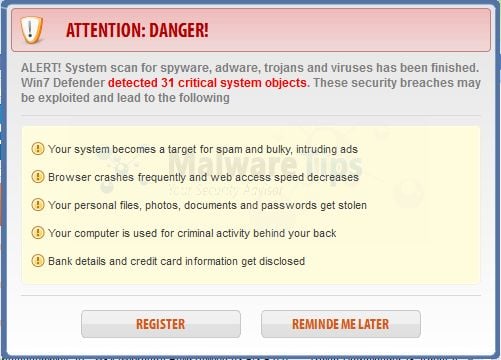
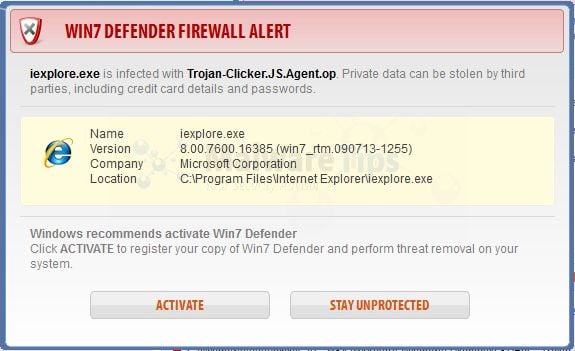
Under no circumstance should you buy this rogue security software as this could lead to identity theft,and if you have, you should contact your bank and dispute the charge stating that the program is a scam and a computer virus.
Win7 Defender – Virus Removal Guide
STEP 1: Remove Win 7 Defender malicious files with Malwarebytes Anti-Malware
Malwarebytes Chameleon technologies will allow us to install and run a Malwarebytes Anti-Malware scan without being blocked by Win 7 Defender.
This infection will not allow you to open your web browser, so you’ll need to right click on the Internet Explorer’s icon or any other browser’s icon, and select Run As (Windows XP) or Run as Administrator (Windows Vista, 7 and 8).This should allow you to open your web browser, so that you’ll be able to download Malwarebytes from the below link.
If you still can’t open your web browser, you’ll need to download this registry fix on a clean computer and then transfer the program to the infected computer. You can transfer the files via a CD/DVD, external drive, or USB flash drive.
- Download Malwarebytes Chameleon from the below link, and extract it to a folder in a convenient location.
Download Malwarebytes ChameleonOpens the download page in a new tab.
![[Image: Extract Malwarebytes Chameleon utility]](https://malwaretips.com/blogs/wp-content/uploads/mwt-media/b2/b265e12a96e5ac88c372b34158e04f937bacfee747f63c719f50a4771b7048e8/9809c2be34df15eae377a9982d27eae3d60d2cc1b556e7f1f9fa6be62f380051-374.webp "Extract Malwarebytes Chameleon utility")
- Make certain that your infected computer is connected to the internet and then open the Malwarebytes Chameleon folder, and double-click on the svchost.exe file.
![[Image: Double click on svchost.exe]](https://malwaretips.com/blogs/wp-content/uploads/mwt-media/d6/d67768b1c785b16a82c92c81bcce063bb5b8ad9c8f1e7edb48a80040f7e803a3/b05e0bf111c8d18f1c641cfb91f746b45de4454ba605ef516ccfa0ed7cdc5c99-662.webp "Double click on svchost.exe")
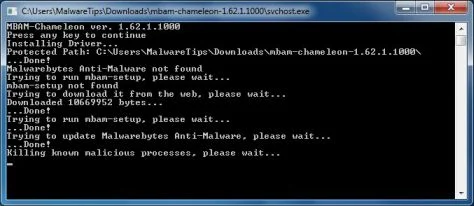
IF Malwarebytes Anti-Malware will not start, double-click on the other renamed files until you find one will work, which will be indicated by a black DOS/command prompt window. - Follow the onscreen instructions to press a key to continue and Chameleon will proceed to download and install Malwarebytes Anti-Malware for you.
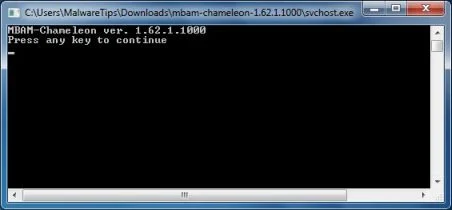
- Once it has done this, it will update Malwarebytes Anti-Malware, and you’ll need to click OK when it says that the database was updated successfully.
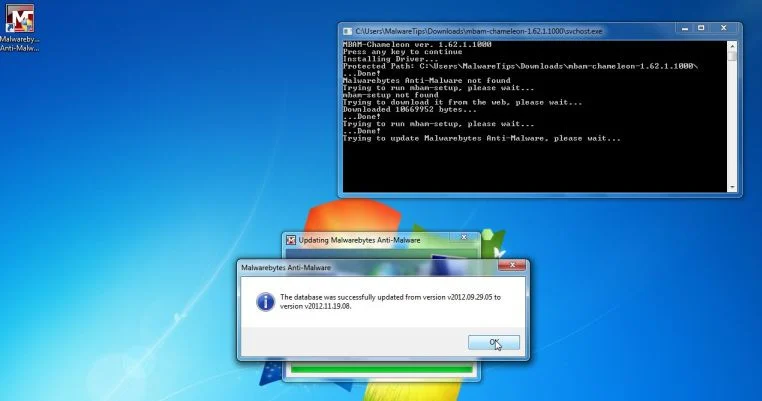
- Malwarebytes Anti-Malware will now attempt to kill all the malicious process associated with Win 7 Defender.Please keep in mind that this process can take up to 10 minutes, so please be patient.
- Next, Malwarebytes Anti-Malware will automatically open and perform a Quick scan for Win 7 Defender malicious files as shown below.
![[Image: Malwarebytes Anti-Malware scanning for Win 7 Defender]](https://malwaretips.com/blogs/wp-content/uploads/mwt-media/f6/f6ecfba43df64204df40586070483f260cb91fa07d5cc90cb4c3a588d159ff30/5b6b2687853201a40d29fe27e142cc66b0852745bbad3900a21030a10399cb4c-521.webp "Malwarebytes Anti-Malware scanning for Win 7 Defender")
- Upon completion of the scan, click on Show Result
![[Image: Malwarebytes Anti-Malware scan results]](https://malwaretips.com/blogs/wp-content/uploads/mwt-media/84/84c62dd46289424dbc686abc53672cb0810111920c8c0bbd69e973844d0a9ab0/a4c04aa700e641f47afec9965f79ff346740668e5952955ccbe5b4c3658b5897-521.webp "Malwarebytes when the system scan has completed")
- You will now be presented with a screen showing you the malware infections that Malwarebytes Anti-Malware has detected.
Make sure that everything is Checked (ticked),then click on the Remove Selected button.
![[Image:Malwarebytes removing virus]](https://malwaretips.com/blogs/wp-content/uploads/mwt-media/d8/d86b6a8bac0e4ece9fd2d259a83db71487943f6b04b567edb0e9adcc3200f492/4eb94651b0e34cc99689c56dc71cd0a49444498ed05c5803ea55fda1cfee1b1f-521.webp "Click on Remove Selected to get rid of Win 7 Defender")
- After your computer restarts, open Malwarebytes Anti-Malware and perform a Full System scan to verify that there are no remaining threats
STEP 2: Remove Win 7 Defender rootkit with HitmanPro
In some cases,Win 7 Defender will also install a rootkit on victims computer.To remove this rootkit we will use HitmanPro.
- Download HitmanPro from the below link,then double click on it to start this program.
Download HitmanProOfficial Sophos download. Free scan, free 30-day trial to remove threats.
IF you are experiencing problems while trying to start HitmanPro, you can use the Force Breach mode.To start HitmanPro in Force Breach mode, hold down the left CTRL-key when you start HitmanPro and all non-essential processes are terminated, including the malware process. (How to start HitmanPro in Force Breach mode – Video) - HitmanPro will start and you’ll need to follow the prompts (by clicking on the Next button) to start a system scan with this program.
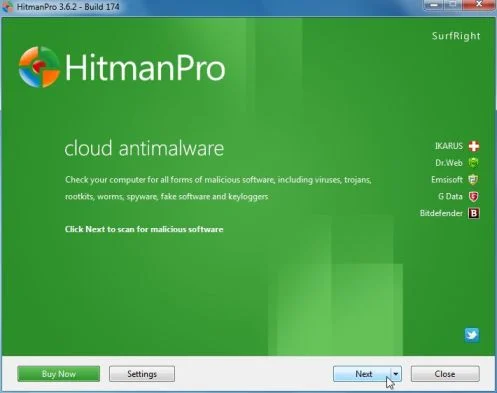
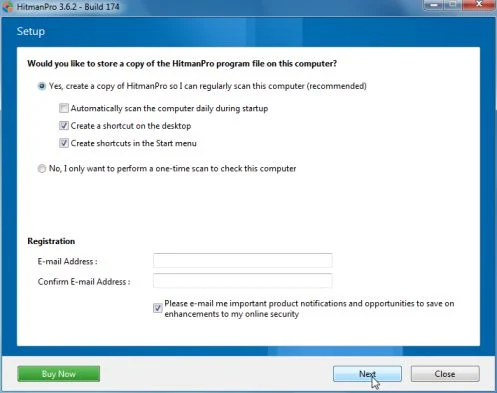
- HitmanPro will start scanning your computer for Win 7 Defender malicious files as seen in the image below.
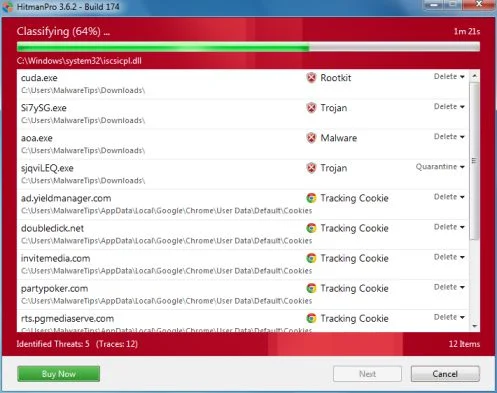
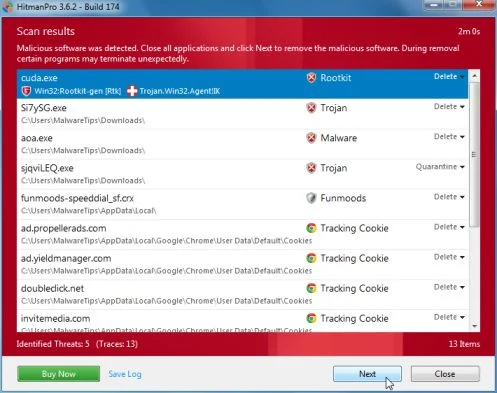
- Once the scan is complete,you’ll see a screen which will display all the infected files that this utility has detected, and you’ll need to click on Next to remove this malicious files.
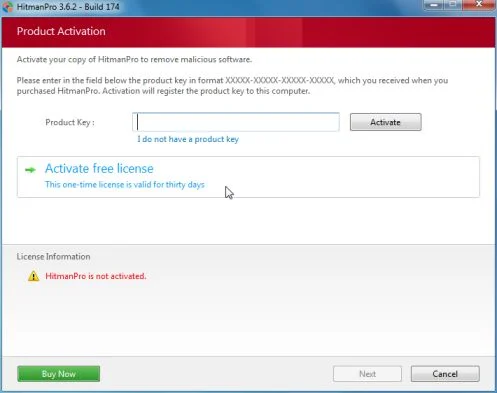
- Click Activate free license to start the free 30 days trial and remove all the malicious files from your computer.
STEP 3: Double check for any left over infections with Emsisoft Emergency Kit
- You can download Emsisoft Emergency Kit from the below link,then extract it to a folder in a convenient location.
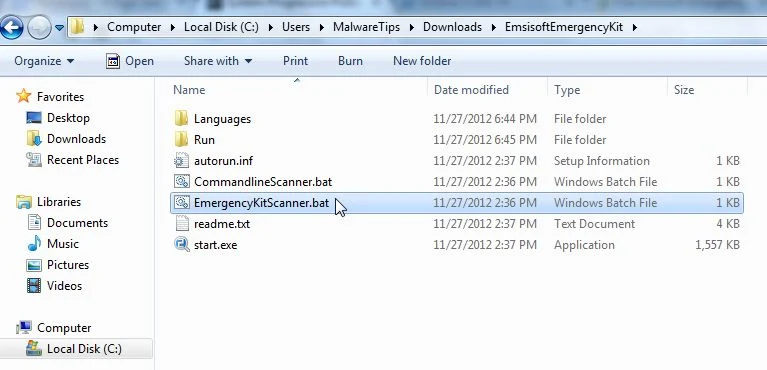
Download Emsisoft Emergency KitOpens the download page in a new tab. - Open the Emsisoft Emergency Kit folder and double click EmergencyKitScanner.bat, then allow this program to update itself.
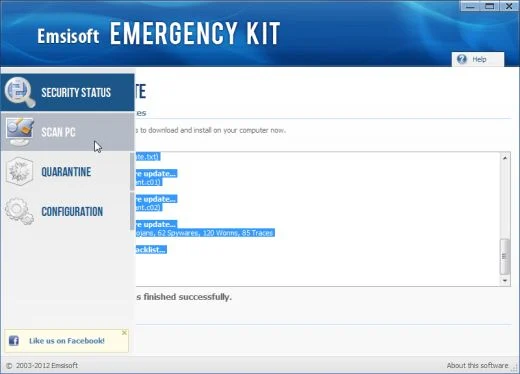
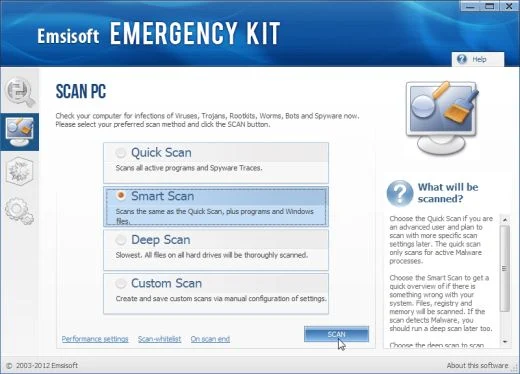
- After the Emsisoft Emergency Kit has update has completed,click on the Menu tab,then select Scan PC.
- Select Smart scan and click on the SCAN button to search for Win 7 Defender malicious files.
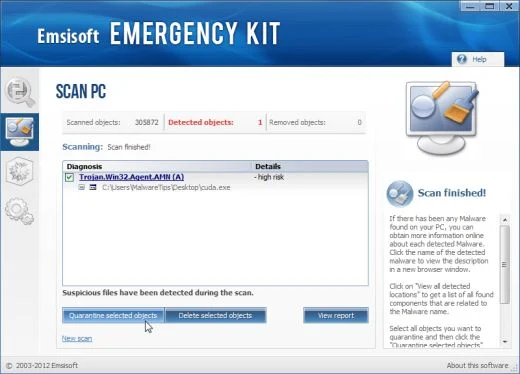
- When the scan will be completed,you will be presented with a screen reporting which malicious files has Emsisoft detected on your computer, and you’ll need to click on Quarantine selected objects to remove them.

Join the discussion
20 commentsShare your experience or ask a question about this article.
Your progress
Did these steps help?
Let us know how the guide worked for you.
Describe what you see and the step you reached. Keep passwords and other private information out.
Discussion
Hi Stelian,
Dude you saved my life !! I’m a big fan of FC Barcelona too!
Thanks a lot and God bless you
I just wanted to give you a mad prop… this walkthrough gave an amazing guidance! thank you very much for helping people and not always requiring a fee upfront to just get rid of crap like we always see!! this was amazing! Thank You so much! i cant express how meaningful this is. if there is a donation part of this website and i dont know pease let me know! you need to be recommended and have some sort of comensation for services! i mean this computer is running better than ever! there was 3 virus’s on here according to your program and it wiped them out i have done two complete scans of this computer just to be sure and the first one found 1 and second found none! i just i dont know what else to say but thank you i Like your facebook page just because of it! this was great help! Thanks Again!
Hi,
My laptop got hit with Win7 Defender Plus 2030 malware this morning and it is completely blocking any attempt to use Internet. Using another “clean” laptop, I downloaded chameleon 1.62.1.1000 on a flash drive and followed your instructions. Ran all versions of Chameleon with no luck. Then I tried HitmanPro and used the “force breach mode”. Again lo luck. Do I need a different version of the software? Thanks in advance.
In reply to Chaks
Hello Chaks,
Can you please run a scan with the below tools:
STEP 1: Run a scan with RogueKiller
RogueKiller Download Link (This link will automatically download RogueKiller on your computer)
STEP 2: Run a scan with Emsisoft Emergency Kit.
EMSISOFT EMERGENCY KIT DOWNLOAD LINK (This link will open a download page in a new window from where you can download Emsisoft Emergency Kit)
STEP 3: Run a scan with Eset Online Scanner.
ESET Online Scanner Download Link (This link will automatically download ESET Online Scanner on your computer.)
NEXT,please re-run a scan with HitmanPro and Malwarebytes.
Good luck!
Thank-you. Step-by-step instructions were very well explained. Screen shots were very helpful also. Virus gone :)
Thank you- this was really easy to follow and worked perfectly.
Helping a friend out on this one. Thought a reformat was most likely needed until this article. Spot on PERFECT!!!! Fixed and running in no time!!! Thanks greatly for the post!!
Eric
Hey many thanks for your great step by step guide. The way i did it was to open your tutorial from the infected pc in admin mode and simply clicked on your hyperlinks in order to download all the kit.
Thanks
Greg
thanks It had taken over my Malware bytes and Security Essentials
Hi Stelian,
Just wanted to say a quick thank-you for the above info – PC is back up & running minus the virus! :-)
Hi, I can’t get past the 2nd step. Having downloaded Rkill on a clean computer and transferred it over using a flash drive, I can’t load it on the infected computer because WIN7 blocks it just as it blocks everything else. When I try ‘run as administrator’ it just does nothing. Is there any way around this?
In reply to Jack
Hello Jack,
Here is what you can do
OPTION 1: Create a bootable HitmanPro KickStart USB stick and scan for malware. Follow this guide: http://malwaretips.com/blogs/police-ukash-virus-hitmanpro-kickstart/
If it doesn’t work, you’ll need to created a Kaspersky Rescue CD as seen in this article, on Method 3.
If everything fails, then you’ll need to create an account on our forums and a member of the staff will help you (with more advanced tools) to remove this nasty virus: http://malwaretips.com/Forum-Malware-Removal-Assistance
I was able to run any program that I needed while my computer was infected by right clicking and running it as administrator. I was then able to do a system restore to a previous point without this virus. That was my work around hope it can help somebody! You can also use this administrator trick to follow the instructions to this tutorial if you get stuck!
Thanks for the info! This worked perfectly…virus is no more!
Thank you so much.
I have an essay deadline to meet in the next week and half and I am working to a very tight schedule.
I thought that I would never able to get it done, but thanks to you I can just get on with writing my essay.
Kind regards,
Mary Poppins
Hi thanks for the info….i do not have a second computer…any other suggestion…..can I download it to Sim card on smart phone..then tranfers to laptop..is that possible…hope to hear back from ju…thanks
In reply to anita
Hello Anita,
Lets try anothe way…. On the infected computer, right click on the Internet Explorer’s icon, or any other browser’s icon, and select Run As or Run as Administrator. If you are using Windows XP, you will be prompted to select a user and enter its password. It is suggested that you attempt to login as the Administrator user. For Windows 7 or Windows Vista, you will be prompted to enter your Administrator account password. This should allow your browser to open where you can then download Rkill from the above link and save it to a folder that your infected account can access.
Using the steps above I am unable to get past Step 2. Each time I attempt to download Registryfix or go to the Internet the Win7 Defender program blocks “pops up” and blocks access…. any suggestions… anyone?
In reply to Larry
Hello Larry,
You’ll need to download Rkill on a clean computer and then transfer the program to the infected computer. You can transfer the files via a CD/DVD, external drive, or USB flash drive.
Run it and then you’ll be able to download Malwarebytes to perform the removal guide.
Thanks