‘Your Photos Will Be Deleted Today’ Cloud Storage Scam Explained
Worried your photos will be deleted today? Learn how the “Cloud” email scam works, the red flags to spot, and what to do if you clicked or entered your iCloud login or credit card details.
You open your inbox and the subject line hits like a punch: your photos will be deleted today.
Not next week. Not “soon”. Today.
If you have years of family pictures, travel videos, and backups tied to a cloud account, that kind of message can short-circuit your judgment in seconds. That is exactly what scammers are counting on.
The “Your Photos Will Be Deleted Today” Cloud Storage email scam is a phishing campaign built around one simple idea: make you panic, then push you into clicking a button that leads to a fake payment or login page. Victims are often asked to “update payment information” to “save” their files. The real goal is to steal credit card details, and in many cases, your iCloud or cloud login credentials too.
In this article , we will walk through what these emails look like, how the scam works step by step, the red flags that give it away, and what to do if you clicked or entered information.
Scam Overview
What the “Cloud deletion” email usually looks like
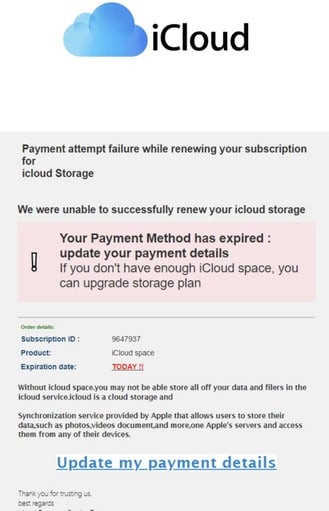
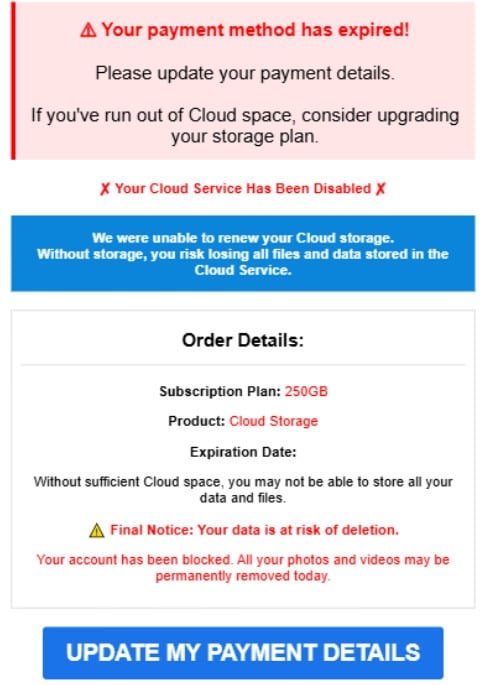
Most versions of this scam try to resemble a legitimate billing notice from a cloud storage provider. The branding is intentionally vague. Instead of clearly saying Apple iCloud, Google, Microsoft, or another well-known company, the email often uses generic labels like “Cloud” or “Cloud+”.
A common layout includes:
A simple header that says “Cloud” with minimal branding
A bold warning line such as “Your Cloud data is at immediate risk of deletion”
A short message claiming a subscription renewal failed
A fear-based list of “what you could lose” (photos, contacts, backups)
A “Final Reminder” box with a deadline date
A large button that says something like “Update Payment Information”
In the screenshots above, the message claims it attempted to renew a “Cloud+ subscription,” says your payment method “needs your attention,” and warns your personal data is at risk of being “permanently removed.” It then lists the consequences: photos and videos, contacts and calendars, notes and documents, and device backups. The call to action is a red “Update Payment Information” button.
The details are designed to feel personal, because most people really do have those items stored somewhere. Even if you do not pay for storage, you might still have photos syncing, device backups enabled, or documents saved in a cloud app. The scam uses that reality against you.
Why this scam feels so convincing
This particular phishing theme works because it targets a universal fear: losing memories.
A fake “billing” message about a streaming service is annoying. A fake “account deletion” warning about your photos is terrifying. Scammers know that when people feel threatened, they are more likely to:
Click before thinking
Skip checking the sender’s address
Ignore small inconsistencies
Enter information to “fix it quickly”
Believe a countdown or deadline without verifying it
The email also creates a false sense of authority by using system-like language. Phrases like “Account has been blocked,” “Final reminder,” and “immediate risk of deletion” mimic the tone of automated notifications, which people tend to trust.
The biggest red flags in the email
Even when these emails look polished at first glance, they usually contain multiple warning signs. Here are the most common ones, including several that appear in the example screenshots.
1) Generic greeting
Legitimate subscription and billing emails usually address you by name or at least by part of your account identity. Phishing emails often start with “Dear user,” because scammers do not know who you are, or they are sending the same template to thousands of inboxes.
2) Vague service name
“Cloud” and “Cloud+” are intentionally non-specific. Real companies have consistent product names and branding. Apple uses iCloud and iCloud+, Google uses Google One, Microsoft uses OneDrive, and so on. A generic “Cloud+ subscription” is a classic attempt to sound official without committing to a brand that could be easily checked.
3) Threats that do not match real policies
A real provider usually does not delete your entire library “today” because a payment method needs updating. Most services have grace periods, repeated notices, and clear account management steps inside the app or official account portal.
Scammers weaponize the word “permanently” because it triggers urgency. In reality, reputable companies want to keep you as a customer, not scare you into rash decisions.
4) Unrelated sender name
One of the easiest tells is the sender display name. In some samples, the email appears to come from something unrelated (for example, a retail or “member gift” style sender name) while the message claims to be about cloud storage. That mismatch is not a harmless typo. It is often a sign of:
A compromised email account being used to send spam
A spoofed display name designed to bypass quick visual checks
A mass-mailing infrastructure that rotates identities to avoid filters
In one sample, the sender display name shows as Omaha Steaks “Member Gift,” which obviously has nothing to do with cloud storage.
Always click or tap the sender name to reveal the actual email address. The display name alone is not proof of anything.
5) “Update payment” button that hides the real destination
Phishing emails love big buttons. They are easier to tap on a phone, and they hide the real link. The button might look like it goes to a familiar site, but it often leads to a random domain, a lookalike page, or a hacked website hosting a phishing form.
If you hover with a mouse or press and hold on mobile to preview the link, you will often see a web address that has nothing to do with Apple, Google, Microsoft, or any legitimate provider.
The “deadline” trick and why it is there
Many samples include a bold, time-specific line that looks official, like “Final Reminder” followed by an exact date. In some versions, the date is “today.” In others, the deadline is set a little further out to feel realistic, such as “Friday, Dec 05 2025.”
That date detail is not there to help you. It is there to create pressure.
A fixed deadline also does something else: it makes you imagine the moment the loss happens. Once your brain pictures a future event, you feel an urge to take action to prevent it, even if the event is made up.
Legitimate companies usually communicate billing issues in a calmer, more practical way. They do not rely on fear of immediate deletion as the primary motivator, and they do not need you to act from an email button in order to keep your account safe.
The “secure padlock” illusion
Another reason people get fooled is the browser padlock. Many phishing pages use HTTPS, which means the connection is encrypted. That does not mean the site is legitimate.
A scammer can buy a domain and get a free SSL certificate in minutes. So if you clicked the button and saw a padlock, do not assume it was safe. The only thing that matters is the domain itself and whether you reached it in a trusted way.
Why the sender can look random
In some examples, the display name shown in the inbox is completely unrelated to cloud storage. That often happens because scammers are using:
Compromised mailing lists or hacked accounts
Third-party marketing tools abused for phishing
Rotating sender identities to evade spam filters
The result is an email that looks like it is from a “member gift” program, a small business, or a generic name, while the content claims to be about your photos and cloud subscription. That mismatch is a strong sign you are dealing with a scam, even before you inspect any links.
A quick red-flag checklist you can scan in 10 seconds
If you want a fast gut-check, run through this list:
The message creates panic with “deleted today,” “blocked,” or “final notice”
It greets you as “Dear user” instead of using your name
The service name is vague (“Cloud” or “Cloud+”) rather than a real product name
The sender name does not match the service being referenced
The email pushes you to “update payment” using a big button
Hovering or link preview shows a domain that is not the official provider
If you see two or more of these, treat the email as phishing and verify your account through official channels.
What happens if you click
The link typically redirects to a scam site designed to steal one of two things:
Your credit card details
Your cloud login credentials (often iCloud email and password)
Sometimes it asks for both. A common pattern is a two-step trap:
First page: “Sign in to confirm your account”
Second page: “Update your billing information to avoid deletion”
That way, even if a victim hesitates about entering card details, the attacker still might get a valid username and password.
Why scammers want your card details and your cloud login
Stolen card data is obvious: criminals can attempt fraudulent purchases, sell the card details, or run small “test charges” to confirm the card works.
Cloud login credentials are just as valuable, sometimes more. If an attacker gets into your iCloud or cloud account, they may be able to:
Access personal photos and videos
Download documents, IDs, and private files
View synced contacts and messages (depending on service and settings)
Use password reset flows for other accounts tied to that email
Lock you out of your own account by changing the password
That is why you might see versions of this scam that focus heavily on “your photos” rather than “your payment”. The photos are the emotional lever, but the account takeover is the long game.
Common subject lines and variations
Scammers A/B test wording constantly. Different victims receive different versions, but the core pressure is the same. You might see subjects like:
Your Photos Will Be Deleted Today
Your Cloud Storage Has Expired
Final Notice: Account Deletion Scheduled
Payment Failed: Storage Disabled
Subscription Renewal Failed
Action Required: Update Billing Information
Your Account Has Been Blocked
Storage Full: Upgrade Required
iCloud Photos Deletion Warning
Cloud+ Renewal Failed
Even if the brand name changes, the structure is usually identical: urgency, loss, and a link.
Who gets targeted
Anyone with an email address can be targeted, but scammers tend to focus on people who are more likely to store memories in the cloud and feel less comfortable verifying account details. That often includes:
iPhone and iPad users who rely on backups and photos syncing
Families with lots of pictures and videos
People who use cloud storage for work documents
Older adults who may be less familiar with phishing patterns
That said, no one is immune. When the email threatens something emotionally important, even tech-savvy users can slip.
How The Scam Works
Step 1: The attacker sends a fear-based email blast
The first step is simple mass delivery. Scammers send thousands or millions of emails that claim a payment issue has triggered a deletion event.
The email copy is usually short, because the goal is not to explain. The goal is to push you into clicking before you think. That is why lines like these show up frequently:
“Your data is at immediate risk of deletion”
“Final reminder”
“Update payment information immediately”
“Account blocked”
A short message also reduces the number of details that could be checked or challenged.
Step 2: The email uses credible “loss” items to hook you
Notice the list of “what you could lose” in the example:
Photos and videos stored in Cloud Photos
Contacts, calendars, and reminders
Notes, documents, and app data
Device backups (iPhone, iPad, Mac)
This list is not random. It mirrors the kinds of things a real cloud service stores. Scammers want you to picture your own life inside those bullet points. That mental picture is what drives urgency.
Step 3: You click the “Update Payment Information” button
The button is the pivot point. Clicking it usually does one of these:
Takes you directly to a phishing form on a fake “Cloud” site
Redirects through multiple tracking links to hide the final domain
Sends you to a compromised legitimate site hosting a fake payment page
Opens a “secure” looking page that imitates Apple ID or iCloud login screens
On a phone, the page may even be sized and styled to feel like a real account portal. Some phishing kits copy logos, fonts, and layout from real brands. Others keep it minimal to avoid mistakes.
Step 4: The page asks for your login, your card details, or both
Once you land on the scam site, the attacker’s goal is data collection.
Scenario A: Credit card theft
The page may ask you to enter:
Card number
Expiration date
CVV security code
Billing address
Phone number
Sometimes date of birth
This is everything needed to make many types of fraudulent charges. Some scammers will also ask you to “confirm” your card by entering a one-time passcode sent by your bank. That is an especially dangerous step, because it can allow the attacker to complete a purchase that requires verification.
Scenario B: iCloud or cloud login theft
Other pages prompt for:
Your iCloud email or Apple ID
Your password
A second factor code (sometimes)
Most phishing pages cannot truly bypass two-factor authentication, but they can still do damage. Here is why:
If you do not have 2FA enabled, the attacker may log in immediately.
If you do have 2FA, the attacker can still use your password for credential stuffing on other sites.
Some scams attempt “real-time phishing,” where the attacker uses your password instantly and asks you for the code while the login window is still open. If you type the code, the attacker may complete the login.
Even when 2FA blocks them, they have still collected valuable credentials.
Scenario C: Combined trap
Many campaigns start with a login form, then push you to a billing page. This increases the chance the victim follows through, because it feels like a normal account flow: sign in first, then manage payment.
Step 5: The scam site confirms nothing, but it keeps you moving
After you submit information, the site often shows a generic success message like:
“Payment updated successfully”
“Your data is now protected”
“Verification complete”
Sometimes it even shows a fake loading spinner or “processing” screen for 10 to 30 seconds to make it feel legitimate.
Behind the scenes, your data has been sent to the attacker. The page does not update your subscription, because it never had access to your real account. The only purpose of the process is theft.
Step 6: The attacker uses the stolen data
What happens next depends on what the victim entered.
If the attacker got your credit card details
Common outcomes include:
Small test charges to see if the card is active
Larger purchases once the card is confirmed
Selling the card details in bulk to other criminals
Using the card for subscriptions that auto-renew, making fraud harder to notice
Sometimes the attacker will also use your phone number and address for more targeted scams later, including “bank fraud department” phone calls that try to extract additional verification codes.
If the attacker got your iCloud or cloud login
The attacker may attempt to:
Sign in from another device
Trigger password reset flows
Add a new trusted device if they can pass verification
Change account recovery settings
Access your photo library and personal files
Search your email for other accounts and password reset links
If they can get into your cloud account, they may also try to use it as a stepping stone. A cloud account is often connected to:
Financial apps
Shopping accounts
Social media
Two-factor backups
Password managers
Family sharing and subscriptions
That is why protecting your cloud login is so important. The photos are just one part of what is at stake.
Step 7: Follow-up pressure and repeat attempts
Many victims receive more emails after the first click, especially if the attacker has confirmed the address is active. The follow-ups may:
Escalate the threat (“deletion scheduled in 2 hours”)
Claim the payment update failed and ask you to try again
Offer a phone number to call for “support” (which leads to a scam call center)
Switch to SMS messages to catch you on your phone
This is why it is important to treat the first email as a warning sign, even if you did not click. A scammer who knows you read the message may try again with a slightly different angle.
How to quickly verify whether your storage account is actually at risk
If you receive a “photos will be deleted” email, the safest move is to ignore the button and check your account directly.
Here are safer ways to confirm what is going on:
Open your device settings and check your subscription status inside the official Apple ID, Google, or Microsoft account area.
Type the official website address yourself in the browser instead of clicking any email link.
Check your cloud storage plan and payment method from inside the official app or system settings.
Review recent receipts or subscription emails you know are legitimate.
If you truly have a payment issue, you will see it reflected in your account dashboard. A phishing email can claim anything. Your actual account status is what matters.
What To Do If You Have Fallen Victim to This Scam
If you clicked, you are not alone. These emails are designed to rush you. The best response is calm and methodical, starting with the most important question: what information did you give them?
Here is a practical checklist you can follow. Do the steps that apply to your situation.
Stop the interaction and take a quick snapshot of what happenedClose the phishing page and do not click around to “see what it does.” If you can, take a screenshot of the email and the page you landed on. This can help with bank disputes and reporting later.
Do not reply to the email
Do not call any phone number included in the message
Do not re-open the link to double-check it
If you only opened the email but did not clickYou are usually fine.
Delete the email
Mark it as spam or phishing so your provider learns from it
Search your inbox for similar subjects like “deleted today,” “cloud data,” or “payment failed” and remove those too
If you clicked the link but did not type anythingThis is still a good time to clean up and reduce follow-up targeting.
Close the tab or browser completely
Clear website data for the browser you used (cookies and site data are enough)
If you downloaded anything, delete it immediately and do not open it
Most “Cloud deletion” campaigns are pure phishing, not malware. The biggest risk at this stage is that the scammers know your email address is active, so they may try again with new angles.
If you entered your iCloud or cloud passwordTreat your password as compromised and act quickly.
Change your password immediately using official account settings (type the real site address yourself or use device settings)
Turn on two-factor authentication if it is not already enabled
Sign out of other sessions and remove unfamiliar devices
Then do a short security review:
Check your trusted devices and remove anything you do not recognize
Review account recovery phone numbers and emails and make sure they are yours
Look for unexpected changes like a new “trusted” number you did not add
Important: if you receive a login prompt or a verification code while you are doing this, do not approve it unless you started the login yourself.
If you entered credit card detailsAssume the card details were captured. Do not wait to “see if they use it.”
Call the number on the back of your card and report fraud
Ask to cancel the card and issue a replacement with a new number
Review recent transactions for small test charges and larger purchases
Dispute unauthorized charges as soon as you see them
If the phishing page asked for a one-time passcode from your bank and you entered it, tell your bank that specifically. That can indicate the attacker attempted a verified transaction, not just a data grab.
If you entered both login details and card detailsHandle this in two lanes, starting with account control.
Secure the cloud account first (password change, 2FA, trusted device review)
Secure the card second (cancel, replace, monitor)
The reason is simple: a compromised cloud or email account can be used to intercept password resets, security alerts, and receipts. You want your accounts back under control before you clean up the financial side.
Lock down your email accountYour email inbox is the key to almost everything else, because it controls password resets.
Change your email password if there is any chance you typed it into a phishing page
Enable two-factor authentication for email
Check for suspicious forwarding rules, filters, or “auto-delete” rules
Watch for a sneaky trick: scammers sometimes create a rule that forwards security emails to an external address and archives them, so you never see warnings that your accounts are being accessed.
Check for signs of account takeoverEven after you change passwords, do a quick sweep for anything that suggests someone got in.
Look for unfamiliar devices in your account security area
Review recent sign-in activity if your provider shows it
Check subscription purchase history for charges you do not recognize
Scan your sent mail folder for messages you did not send
If you see anything suspicious, change passwords again and consider contacting official support through the provider’s real website (not through any email link).
Scan and update your devicesMost victims do not get infected just from clicking a link, but staying updated closes common holes.
Update your operating system, browser, and security software
Remove any browser extensions or apps you do not recognize
If a file was downloaded, upload it to a trusted antivirus scanner on your device and then delete it
If a page asked you to install a “security profile” or “mobile configuration,” treat that as a major warning sign and remove it immediately.
Monitor your finances and identity for a while
If you gave personal details beyond the card number, stay alert for follow-on fraud.
Watch your bank statements for at least a few weeks
Be skeptical of calls claiming to be “fraud department” that ask for codes
Consider a fraud alert or credit freeze if identity theft is a concern in your region
Scammers often reuse details from one scam to craft a more believable second scam. The first email is sometimes just the opening move.
Report it so others get protected
Reporting is worth it, even if you feel embarrassed. It helps spam filters improve and can stop the same template from hitting someone else.
Use your email provider’s “Report phishing” feature
If it happened at work, forward it to your IT or security team
If money was stolen, report it through local consumer protection or cybercrime channels
If you take these steps quickly, most people can shut the scam down before it becomes something bigger.
Is Your Device Infected? Scan for Malware
If your computer or phone is slow, showing unwanted pop-ups, or acting strangely, malware could be the cause. Running a scan with Malwarebytes Anti-Malware Free is one of the most reliable ways to detect and remove harmful software. The free version can identify and clean common infections such as adware, browser hijackers, trojans, and other unwanted programs.
Malwarebytes works on Windows, Mac, and Android devices. Choose your operating system below and follow the steps to scan your device and remove any malware that might be slowing it down.
Malwarebytes for WindowsMalwarebytes for MacMalwarebytes for Android
Run a Malware Scan with Malwarebytes for Windows
Malwarebytes stands out as one of the leading and widely-used anti-malware solutions for Windows, and for good reason. It effectively eradicates various types of malware that other programs often overlook, all at no cost to you. When it comes to disinfecting an infected device, Malwarebytes has consistently been a free and indispensable tool in the battle against malware. We highly recommend it for maintaining a clean and secure system.
Download Malwarebytes
Download the latest version of Malwarebytes for Windows using the official link below. Malwarebytes will scan your computer and remove adware, browser hijackers, and other malicious software for free.
(The above link will open a new page from where you can download Malwarebytes)
Install Malwarebytes
After the download is complete, locate the MBSetup file, typically found in your Downloads folder. Double-click on the MBSetup file to begin the installation of Malwarebytes on your computer. If a User Account Control pop-up appears, click “Yes” to continue the Malwarebytes installation.
Follow the On-Screen Prompts to Install Malwarebytes
When the Malwarebytes installation begins, the setup wizard will guide you through the process.
You’ll first be prompted to choose the type of computer you’re installing the program on—select either “Personal Computer” or “Work Computer” as appropriate, then click on Next.
Malwarebytes will now begin the installation process on your device.
When the Malwarebytes installation is complete, the program will automatically open to the “Welcome to Malwarebytes” screen.
On the final screen, simply click on the Open Malwarebytes option to start the program.
Enable “Rootkit scanning”.
Malwarebytes Anti-Malware will now start, and you will see the main screen as shown below. To maximize Malwarebytes’ ability to detect malware and unwanted programs, we need to enable rootkit scanning. Click on the “Settings” gear icon located on the left of the screen to access the general settings section.
In the settings menu, enable the “Scan for rootkits” option by clicking the toggle switch until it turns blue.
Now that you have enabled rootkit scanning, click on the “Dashboard” button in the left pane to get back to the main screen.
Perform a Scan with Malwarebytes.
To start a scan, click the Scan button. Malwarebytes will automatically update its antivirus database and begin scanning your computer for malicious programs.
Wait for the Malwarebytes scan to complete.
Malwarebytes will now scan your computer for browser hijackers and other malicious programs. This process can take a few minutes, so we suggest you do something else and periodically check the status of the scan to see when it is finished.
Quarantine detected malware
Once the Malwarebytes scan is complete, it will display a list of detected malware, adware, and potentially unwanted programs. To effectively remove these threats, click the “Quarantine” button.
Malwarebytes will now delete all of the files and registry keys and add them to the program’s quarantine.
Restart your computer.
When removing files, Malwarebytes may require a reboot to fully eliminate some threats. If you see a message indicating that a reboot is needed, please allow it. Once your computer has restarted and you are logged back in, you can continue with the remaining steps.
Once the scan completes, remove all detected threats. Your Windows computer should now be clean and running smoothly again, free of trojans, adware, and other malware.
If your current antivirus allowed this malicious program on your computer, you may want to consider purchasing Malwarebytes Premium to protect against these types of threats in the future. If you are still having problems with your computer after completing these instructions, then please follow one of the steps:
Malwarebytes for Mac is an on-demand scanner that can destroy many types of malware that other software tends to miss without costing you absolutely anything. When it comes to cleaning up an infected device, Malwarebytes has always been free, and we recommend it as an essential tool in the fight against malware.
Download Malwarebytes for Mac.
You can download Malwarebytes for Mac by clicking the link below.
When Malwarebytes has finished downloading, double-click on the setup file to install Malwarebytes on your computer. In most cases, downloaded files are saved to the Downloads folder.
Follow the on-screen prompts to install Malwarebytes.
When the Malwarebytes installation begins, you will see the Malwarebytes for Mac Installer which will guide you through the installation process. Click “Continue“, then keep following the prompts to continue with the installation process.
When your Malwarebytes installation completes, the program opens to the Welcome to Malwarebytes screen. Click the “Get started” button.
Select “Personal Computer” or “Work Computer”.
The Malwarebytes Welcome screen will first ask you what type of computer are you installing this program, click either Personal Computer or Work Computer.
Click on “Scan”.
To scan your computer with Malwarebytes, click on the “Scan” button. Malwarebytes for Mac will automatically update the antivirus database and start scanning your computer for malware.
Wait for the Malwarebytes scan to complete.
Malwarebytes will scan your computer for adware, browser hijackers, and other malicious programs. This process can take a few minutes, so we suggest you do something else and periodically check on the status of the scan to see when it is finished.
Click on “Quarantine”.
When the scan has been completed, you will be presented with a screen showing the malware infections that Malwarebytes has detected. To remove the malware that Malwarebytes has found, click on the “Quarantine” button.
Restart computer.
Malwarebytes will now remove all the malicious files that it has found. To complete the malware removal process, Malwarebytes may ask you to restart your computer.
After scanning, delete any detected threats. Your Mac should now be free from adware, unwanted extensions, and other potentially harmful software.
If your current antivirus allowed a malicious program on your computer, you might want to consider purchasing the full-featured version of Malwarebytes Anti-Malware to protect against these types of threats in the future. If you are still experiencing problems while trying to remove a malicious program from your computer, please ask for help in our Mac Malware Removal Help & Support forum.
Run a Malware Scan with Malwarebytes for Android
Malwarebytes for Android automatically detects and removes dangerous threats like malware and ransomware so you don’t have to worry about your most-used device being compromised. Aggressive detection of adware and potentially unwanted programs keeps your Android phone or tablet running smooth.
Download Malwarebytes for Android.
You can download Malwarebytes for Android by clicking the link below.
In the Google Play Store, tap “Install” to install Malwarebytes for Android on your device.
When the installation process has finished, tap “Open” to begin using Malwarebytes for Android. You can also open Malwarebytes by tapping on its icon in your phone menu or home screen.
Follow the on-screen prompts to complete the setup process
When Malwarebytes will open, you will see the Malwarebytes Setup Wizard which will guide you through a series of permissions and other setup options. This is the first of two screens that explain the difference between the Premium and Free versions. Swipe this screen to continue. Tap on “Got it” to proceed to the next step. Malwarebytes for Android will now ask for a set of permissions that are required to scan your device and protect it from malware. Tap on “Give permission” to continue. Tap on “Allow” to permit Malwarebytes to access the files on your phone.
Update database and run a scan with Malwarebytes for Android
You will now be prompted to update the Malwarebytes database and run a full system scan.
Click on “Update database” to update the Malwarebytes for Android definitions to the latest version, then click on “Run full scan” to perform a system scan.
Wait for the Malwarebytes scan to complete.
Malwarebytes will now start scanning your phone for adware and other malicious apps. This process can take a few minutes, so we suggest you do something else and periodically check on the status of the scan to see when it is finished.
Click on “Remove Selected”.
When the scan has been completed, you will be presented with a screen showing the malware infections that Malwarebytes for Android has detected. To remove the malicious apps that Malwarebytes has found, tap on the “Remove Selected” button.
Restart your phone.
Malwarebytes for Android will now remove all the malicious apps that it has found. To complete the malware removal process, Malwarebytes may ask you to restart your device.
When the scan is finished, remove all detected threats. Your Android phone should now be free of malicious apps, adware, and unwanted browser redirects.
If your current antivirus allowed a malicious app on your phone, you may want to consider purchasing the full-featured version of Malwarebytes to protect against these types of threats in the future. If you are still having problems with your phone after completing these instructions, then please follow one of the steps:
Restore your phone to factory settings by going to Settings > General management > Reset > Factory data reset.
After cleaning your device, it’s important to protect it from future infections and annoying pop-ups. We recommend installing an ad blocker such as AdGuard. AdGuard blocks malicious ads, prevents phishing attempts, and stops dangerous redirects, helping you stay safe while browsing online.
The Bottom Line
The “Your Photos Will Be Deleted Today” Cloud email scam succeeds because it targets something deeply personal: your memories. It uses urgent language, vague branding like “Cloud” or “Cloud+,” and a big “Update Payment Information” button to rush you into handing over sensitive data.
If you get one of these emails, do not click the link. Check your subscription status inside your device settings or by typing the official website yourself. Real providers do not need fear tactics to keep you informed.
If you already clicked or entered information, you still have a strong chance to stop the damage. Change passwords, enable two-factor authentication, cancel compromised cards, and review your account security. Fast, calm action is the difference between a close call and a bigger problem.
FAQ
What is the “Your Photos Will Be Deleted Today” Cloud email scam?
It’s a phishing email designed to scare you into clicking a link that leads to a fake “Cloud” or “Cloud+” page.
The scam typically claims your subscription payment failed and your photos, videos, and backups will be deleted “today” unless you update billing. The real goal is to steal credit card details, cloud login credentials, or both.
Is the “Your Photos Will Be Deleted Today” email legit?
In most cases, no. This is a common cloud storage phishing template that uses urgency and fear to trigger a quick click.
A real provider will not pressure you with “deleted today” language and a generic “update payment” button inside an email, especially when the branding is vague or inconsistent.
Why does the email say “Cloud” or “Cloud+” instead of a real brand?
Scammers keep the service name generic on purpose.
“Cloud” could make you think of iCloud, Google storage, or anything else you use. That ambiguity helps the email feel relevant to more people, and it avoids easy verification.
Can scammers actually delete my photos if I ignore the email?
Not from the email itself.
A phishing email cannot delete anything in your cloud account. The only way scammers can affect your data is if you give them access, for example by entering your cloud password or approving a login request.
What happens if I click “Update Payment Information”?
You are typically redirected to a scam site that mimics a real billing or sign-in page.
From there, the page will try to collect:
Credit card number, expiration date, and CVV
Billing address and phone number
Cloud account email and password
Sometimes a bank or account one-time code
What should I do if I clicked the link but did not enter any information?
Close the page immediately and do not return to it.
Then take a few quick precautions:
Clear site data for your browser (cookies and cache for that site)
Run pending updates for your browser and device
Watch for follow-up phishing emails or texts for the next few days
Most of the risk comes from what you type into the form, not from the click itself.
What should I do if I entered my credit card details on the page?
Treat your card as compromised and act fast.
Steps that usually help:
Call the number on the back of your card and report fraud.
Ask for the card to be replaced with a new number.
Review recent transactions for small test charges and larger purchases.
Dispute unauthorized charges as soon as you see them.
Do not wait for “proof.” Many scammers move quickly once they confirm a card works.
What should I do if I entered my cloud password (iCloud or another service)?
Assume your password is stolen.
Do this right away:
Change your cloud account password using official settings, not the email link.
Enable two-factor authentication if it is not already on.
Sign out of other sessions and remove unknown devices from your account.
If you reused that password elsewhere, change it on those accounts too.
What if I entered a one-time passcode from my bank or a login code?
That’s a serious sign the attacker may have been attempting a real-time takeover or purchase.
Call your bank immediately if it was a banking code. Ask them to block fraudulent activity and note that a code was shared.
If it was a login code, change your password right away and check your account for new devices, sessions, or security setting changes.
How can I tell if my cloud account was accessed by someone else?
Check your account security and sign-in history inside the official account area.
Look for:
Unrecognized devices (phones, tablets, computers)
Sign-ins from unfamiliar locations
Password change notifications you did not initiate
New forwarding rules or recovery details you did not add
Unexpected subscription or billing changes
If anything looks off, change your password again and sign out of all sessions.
How do I safely check whether my subscription payment really failed?
Do not use the email button.
Instead, check directly through trusted paths:
Open your device settings and view your subscription or storage plan
Open the official cloud app and check billing there
Type the provider’s official website address manually in your browser
If there is a real payment issue, it will show up in your account dashboard without needing a link from an email.
What are the biggest red flags that this is a phishing email?
Common warning signs include:
Generic greeting like “Dear user”
Vague service name like “Cloud” or “Cloud+”
Claims your data will be “permanently deleted today”
Sender display name that does not match the service
A big “Update Payment Information” button that hides the real link
Spelling, formatting, or awkward phrasing that feels slightly off
One red flag might be a mistake. Multiple red flags usually mean phishing.
Why would the sender name be something unrelated to cloud storage?
Because the email may be sent from a compromised account or a rotating sender system.
Scammers often use unrelated display names to bypass filters or to exploit trust. Always check the actual sender email address, not just the name shown in your inbox.
Can a real company email me about cloud storage and payment issues?
Yes, legitimate companies do send billing notices.
The difference is how they do it:
Clear branding and consistent product naming
No panic-driven threats about immediate deletion
Account verification through official portals and in-app settings
Links that match official domains and are consistent with past receipts
If you are unsure, skip the link and verify in your account directly.
Does the padlock icon in the browser mean the payment page is safe?
No.
A padlock only means the connection is encrypted. Scammers can use HTTPS on fake sites too.
What matters is the domain name and whether you reached it through a trusted method, like typing the official address yourself.
Could this scam install malware on my device?
Most versions are designed for credential and credit card theft, not malware installation.
That said, some campaigns may try to push downloads, browser extensions, or “security tools.” If the page asked you to install anything, treat it as high risk.
If you downloaded a file:
Do not open it
Delete it
Run a reputable antivirus scan
Update your device and browser
What if the scam page asked me to install a profile or device management setting?
That is a major warning sign, especially on phones.
If you installed a profile or management setting, remove it immediately through your device settings. Then change your passwords and review your security settings, because profiles can be used to intercept traffic, push apps, or change behavior.
How do I report the “Your Photos Will Be Deleted Today” scam email?
Reporting helps your email provider block future waves.
Good reporting options:
Use your mail provider’s “Report phishing” feature
Forward it to your workplace IT team if it arrived at a work address
If money was stolen, file a report with your bank and local consumer or cybercrime channels
Keep a screenshot and the sender details for reference.
How can I protect myself from cloud storage phishing scams in the future?
A few habits shut down most of these attacks:
Never update billing from an email link
Use a password manager to avoid typing credentials into lookalike sites
Turn on two-factor authentication for your cloud account and email
Use unique passwords for important accounts
Review account security devices and sessions periodically
If you want an extra layer, enable login alerts so you are notified when a new device signs in.
Why am I getting more of these scam emails lately?
Phishing campaigns come in waves, and scammers constantly recycle templates that work.
Your address might be on a marketing list, leaked from an old breach, or simply targeted at random. The best response is consistent: delete, report, and never click.
Is this scam only about iCloud, or does it target other services too?
It targets many users because it is branded generically.
Some versions mimic iCloud specifically, while others imitate storage plans from Apple, Google, or Microsoft style dashboards. The core tactic stays the same: fear of losing photos and a link to a fake billing or login page.
What should I tell a family member who received this email?
Keep it simple and calm:
Do not click anything in the email
Check storage and billing through device settings or the official app
If they already clicked, ask what they entered and help them change passwords or contact the bank
Thomas is an expert at uncovering scams and providing in-depth reporting on cyber threats and online fraud. As an editor, he is dedicated to keeping readers informed on the latest developments in cybersecurity and tech.