

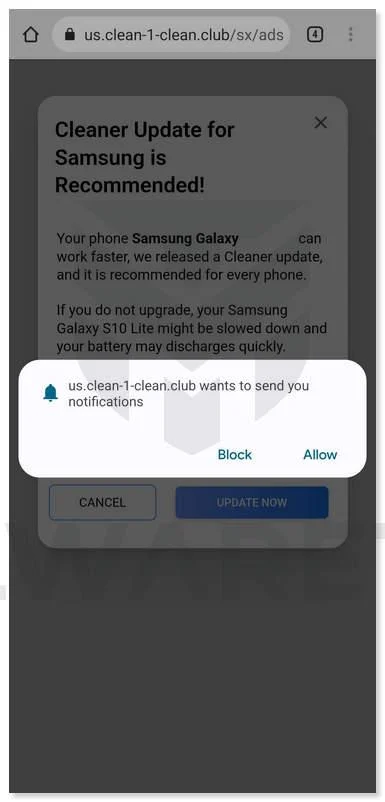
In recent years, Android users have been increasingly targeted by a pervasive scam involving fake warnings about a “Cleaner Update” for their devices. This fraudulent message claims that the user’s device is infected with malware or running slowly, urging them to download a “fix” which is actually unnecessary software or worse – malicious adware or spyware.
This scam is rampant across the web, with popups and advertisements trying to trick users into downloading pointless or dangerous apps. Left unchecked, it can lead to device slowdowns, wasted money, and serious privacy and security issues.
In this article, we’ll break down exactly how the “Cleaner Update” scam works, who is behind it, and most importantly – how Android users can avoid falling victim. Read on for a deep dive into this persistent Android nuisance and what can be done to stamp it out.
Overview of the Scam
The “Cleaner Update” scam takes on a few different forms, but the core technique is the same across most variants:
- A popup, webpage, or advertisement warns the user of issues like malware infection, battery drain, or general slowdowns on their Android device.
- The message urges urgent action, saying the user must download a “cleaner” app or perform a system update to resolve these alleged issues.
- Links lead either to 1) Legitimate but unnecessary “optimization” apps, 2) Adware/spyware masquerading as system utilities, or 3) Scam sites asking for personal information.
- Regardless of the endpoint, the operator’s goal is to make money through app affiliate fees, ad clicks, or harvested user data. The apps/fixes either do nothing or actively harm the device.
Some example messages seen in the wild include:
“WARNING! Your Cleaner Update for Android is Available! We have detected that your Chrome is (62%) DAMAGED by Tor.Jack Malware…”
“Your Android is running slow! Download the FREE optimization tool now to speed up your device…”
“ALERT! Battery Drain Detected. Tap here to install the power-saving app and extend battery life…”
As you can see, these scam ads leverage fear and urgency to pressure users into tapping and downloading apps they likely don’t need. The surprising effectiveness of these social engineering tactics is what allows this grift to remain so common.
How the Scam Works
Now, let’s break down how the “Cleaner Update” scam operates from start to finish:
1. Displaying Fraudulent Ads to Users
The first step for scammers is getting their fake warning message in front of as many Android users’ eyes as possible.
To accomplish this, they will commonly:
- Purchase cheap banner/popup ad space through networks like Google AdSense.
- Take over abandoned apps or websites and fill them with their scam ads.
- Register malicious apps to the Google Play Store with their scam ad code hidden inside.
- Hack into sites with weak security and inject their scam message.
- Send the scam ads via SMS text messaging and social media spam campaigns.
In general, they are aiming for high-traffic channels with limited security – allowing their fake warnings to reach the most potential victims.
2. Making Scam Warnings Appear Urgent and Legitimate
Once they have a user’s attention, the scam operators will utilize known social engineering techniques to maximize likelihood of a tap/download:
- They pose as legitimate companies like Google or Android, abusing brand recognition.
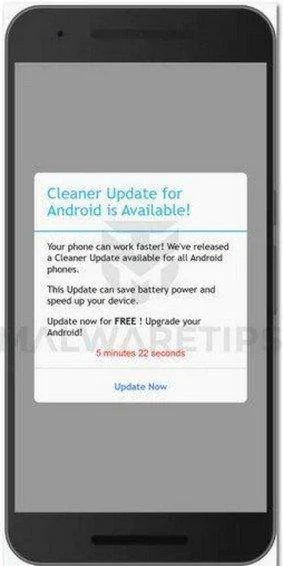
- Technical jargon like “Tor.Jack Malware” or “62% DAMAGED” give the illusion of a real problem.
- Countdown timers, progress bars, and other elements convey false urgency.
- Official branding, stolen company logos, and secure padlock icons mimic legitimacy.
Combined, these tricks pressure and confuse users into believing the scam warnings are real – frightening them into tapping without thinking.
3. Redirecting Users to Download Unwanted Apps
When a user taps on one of their scam ads, where exactly does it lead? There are a few common endpoints:
Shady “Optimization” Apps
Many of the cleaner/battery apps linked in scam ads are real programs available on the Google Play Store. However, they generally provide little utility despite claims of speed boosts, battery life extension, and other benefits.
The scammers earn affiliate commissions when they trick users into downloading these apps. Even though they are legal, they are unnecessary bloatware for most people.
Adware/Spyware Apps
In other cases, the landing page links directly to malware masquerading as system utilities. Once installed, these malicious apps bombard the user with intrusive ads, quietly collect personal data, and even enroll the device into botnets.
Phishing/Survey Scam Sites
Finally, some scam ads lead to phony websites rather than apps. These sites mimic Android/Google and claim the user must fill out a survey or provide personal information before they can receive the “cleaner” fix. In reality, they are just harvesting data like emails and names to resell or exploit.
No matter the specific endpoint, the scammers’ objective is to profit off of tricking users through manipulation and deceit.
What to Do If You Are a Victim of This Scam
If you have fallen for the “Cleaner Update” scam, here are the key steps to get your device secured:
- Run antivirus scans – Use free antivirus apps like Malwarebytes to check for any spyware or adware infections. Remove anything harmful it detects.
- Reset browser settings – Browsers like Chrome may be configured to send traffic to scam sites. Reset them to default configurations.
- Change passwords – If you entered any account credentials on phishing sites, change your passwords immediately. Enable two-factor authentication if possible.
- Contact your bank – If you shared financial information, check for any fraudulent transactions and notify your bank right away.
- Remove unwanted apps – Carefully go through your installed apps list and uninstall anything unnecessary that may have been downloaded via these scams.
- Disable lock screen ads – Some malware will spam ads on your lock screen. Go into Settings and disable lock screen ads.
Staying vigilant and taking prompt action can help limit any potential damage from these scams. Be wary of any other suspicious ads or activity on your device afterward.
Is Your Device Infected? Run a Free Malware Scan
Slow performance, constant pop-ups, or strange behavior? These are classic signs of a malware infection. The fastest way to find out is to scan your device with Malwarebytes Free — one of the most trusted malware removal tools available.
The free version detects and removes the most common threats, including:
- Adware — the cause of those annoying pop-ups
- Browser hijackers — unwanted redirects and changed homepages
- Trojans and spyware — hidden programs stealing your data
- Potentially unwanted programs (PUPs) — software you never asked for
👉 Select your device below — Windows, Mac, or Android — then follow the simple steps to download Malwarebytes, scan your system, and remove any threats it finds. The scan usually takes 5 to 20 minutes.
Run a Malware Scan with Malwarebytes for Windows
Malwarebytes is one of the most popular and trusted anti-malware tools for Windows — and it’s completely free for removing infections. It catches threats that many antivirus programs miss, including adware, browser hijackers, and trojans. Follow the steps below to scan and clean your PC in just a few minutes.
Download Malwarebytes
Click the button below to download the latest version of Malwarebytes for Windows from the official source. The free version is all you need — it will scan your computer and remove adware, browser hijackers, and other malicious software at no cost.
Download MalwarebytesOfficial installer for Windows 11 and 10. Your download starts right away.Want real-time protection? See Malwarebytes Premium Malwarebytes Free for WindowsScans and removes malware at no cost
-
Install Malwarebytes
When the download finishes, open your Downloads folder and double-click the MBSetup file. If Windows shows a User Account Control pop-up, click “Yes” to allow the installation.

Follow the On-Screen Prompts to Install Malwarebytes
The setup wizard will walk you through a few quick screens:
-
Choose where you’re installing the program — “Personal Computer” or “Work Computer” — then click Next.

-
Malwarebytes will now install on your device. This usually takes under a minute.

-
When installation is complete, the “Welcome to Malwarebytes” screen will open automatically.

-
On the final screen, click Open Malwarebytes to launch the program.

-
Enable “Scan for Rootkits”
Before scanning, turn on rootkit detection so Malwarebytes can find even the most hidden threats. Click the Settings gear icon on the left side of the screen.

In the settings menu, find “Scan for rootkits” and click the toggle so it turns blue.

Done? Click “Dashboard” in the left pane to return to the main screen.
Start the Scan
Click the blue Scan button. Malwarebytes will automatically update its virus database and start checking your computer for malware.

-
Wait for the Scan to Finish
The scan checks your entire system for browser hijackers and other malicious programs, so it can take 5 to 20 minutes depending on your computer. Feel free to do something else — just check back occasionally to see the progress.

-
Quarantine the Detected Threats
When the scan is done, you’ll see a list of everything Malwarebytes found — malware, adware, and potentially unwanted programs. Click the “Quarantine” button to remove all of them at once.

Malwarebytes will now remove the malicious files and registry entries and move them safely into quarantine.

-
Restart Your Computer
Some threats can only be fully removed after a reboot. If Malwarebytes asks you to restart, click Yes. Once you’re logged back in, Malwarebytes has finished removing the threats it found.

That’s it — your Windows PC is now clean of trojans, adware, and other malware, and should be back to running smoothly.
If you are still having problems with your computer after completing these instructions, then please follow one of the steps:
- Run a computer scan with ESET Online Scanner
- Ask for help in our Windows Malware Removal Help & Support forum.
Run a Malware Scan with Malwarebytes for Mac
Malwarebytes for Mac is a free on-demand scanner that removes the malware other security software tends to miss — adware, browser hijackers, and unwanted programs included. Cleaning an infected Mac with Malwarebytes has always been completely free, and it’s our go-to recommendation. Follow the steps below to scan and clean your Mac in just a few minutes.
-
Download Malwarebytes for Mac
Click the button below to download the latest version of Malwarebytes for Mac.
Download MalwarebytesOfficial installer for macOS. Your download starts right away.Want real-time protection? See Malwarebytes PremiumMalwarebytes Free for MacScans and removes malware at no cost -
Open the Malwarebytes setup file
When the download finishes, open your Downloads folder and double-click the setup file to begin the installation.

-
Follow the On-Screen Prompts to Install Malwarebytes
The Malwarebytes for Mac Installer will guide you through a few quick screens. Click “Continue” and keep following the prompts until the installation completes.



When the installation is complete, Malwarebytes opens to the Welcome to Malwarebytes screen. Click “Get started“.
-
Select “Personal Computer” or “Work Computer”
Malwarebytes will ask what type of computer you’re installing it on. Click either Personal Computer or Work Computer, whichever applies.

-
Start the Scan
Click the “Scan” button. Malwarebytes will automatically update its detection database and begin checking your Mac for malware.

-
Wait for the Scan to Finish
Malwarebytes will scan your Mac for adware, browser hijackers, and other malicious programs. This can take a few minutes, so feel free to do something else — just check back occasionally to see the progress.

-
Quarantine the Detected Threats
When the scan is done, you’ll see a list of everything Malwarebytes found. Click the “Quarantine” button to remove all the threats at once.

-
Restart Your Mac
Malwarebytes will now remove all the malicious files it found. Some threats can only be fully removed after a reboot — if Malwarebytes asks you to restart, allow it. Once you’re logged back in, your Mac is clean.

That’s it — your Mac is now free of adware, rogue browser extensions, and other potentially harmful software.
If you are still experiencing problems while trying to remove a malicious program from your computer, please ask for help in our Mac Malware Removal Help & Support forum.
Run a Malware Scan with Malwarebytes for Android
Malwarebytes for Android automatically detects and removes dangerous threats like malware and ransomware so you don’t have to worry about your most-used device being compromised. Aggressive detection of adware and potentially unwanted programs keeps your Android phone or tablet running smooth.
-
Download Malwarebytes for Android.
You can download Malwarebytes for Android by clicking the link below.
Get Malwarebytes for AndroidOpens Google Play in a new tab.Want real-time protection? See Malwarebytes Premium for AndroidMalwarebytes for AndroidScans your phone and removes malware at no cost -
Install Malwarebytes for Android on your phone.
In the Google Play Store, tap “Install” to install Malwarebytes for Android on your device.

When the installation process has finished, tap “Open” to begin using Malwarebytes for Android. You can also open Malwarebytes by tapping on its icon in your phone menu or home screen.

-
Follow the on-screen prompts to complete the setup process
When Malwarebytes will open, you will see the Malwarebytes Setup Wizard which will guide you through a series of permissions and other setup options.
This is the first of two screens that explain the difference between the Premium and Free versions. Swipe this screen to continue.
Tap on “Got it” to proceed to the next step.
Malwarebytes for Android will now ask for a set of permissions that are required to scan your device and protect it from malware. Tap on “Give permission” to continue.
Tap on “Allow” to permit Malwarebytes to access the files on your phone.
-
Update database and run a scan with Malwarebytes for Android
You will now be prompted to update the Malwarebytes database and run a full system scan.

Click on “Update database” to update the Malwarebytes for Android definitions to the latest version, then click on “Run full scan” to perform a system scan.

-
Wait for the Malwarebytes scan to complete.
Malwarebytes will now start scanning your phone for adware and other malicious apps. This process can take a few minutes, so we suggest you do something else and periodically check on the status of the scan to see when it is finished.

-
Click on “Remove Selected”.
When the scan has been completed, you will be presented with a screen showing the malware infections that Malwarebytes for Android has detected. To remove the malicious apps that Malwarebytes has found, tap on the “Remove Selected” button.

-
Restart your phone.
Malwarebytes for Android will now remove all the malicious apps that it has found. To complete the malware removal process, Malwarebytes may ask you to restart your device.
That’s it — your Android phone is now clean — no more malicious apps, adware, or browser redirects.
If you are still having problems with your phone after completing these instructions, then please follow one of the steps:
- Restore your phone to factory settings by going to Settings > General management > Reset > Factory data reset.
- Ask for help in our Mobile Malware Removal Help & Support forum.
Stay Protected: Block Ads and Malicious Sites
Now that your device is clean, keep it that way. Most infections start with a malicious ad or a fake download button — so blocking them at the source is your best defense.
We recommend AdGuard, which blocks malicious ads, phishing pages, and dangerous redirects before they can reach you.
👉 Download AdGuard and browse safely
Frequently Asked Questions About the “Cleaner Update for Android” Scam
1. What is the “Cleaner Update for Android” scam?
This prevalent scam involves fake popups and ads warning users that their Android device is infected with malware or at risk, urging them to download a fake “cleaner” app to fix it. The apps are either unnecessary or contain actual malware.
2. What kind of messages does the scam use?
Typical messages state that the user’s device is damaged, infected, or running slowly. They warn of issues like battery drain or hacking threats. The ads pressure urgent action to download the cleaner app.
3. What techniques do the scammers use?
They use social engineering by posing as real companies, adding technical jargon, using countdown timers, and displaying trust logos. This confuses users into believing the messages are legitimate.
4. Where do the scam ads appear?
Scammers display these ads on cheap ad networks, hacked sites, infected apps, text messages, social media spam, and anywhere with limited security that gets high traffic.
5. What happens when users click on the scam ads?
The ads redirect to unnecessary “optimization” apps, malicious adware/spyware masquerading as tools, or phishing sites asking for personal info before getting the “fix”.
6. How do scammers profit from this scam?
They earn commissions getting users to install apps, make money from forced ad clicks, or harvest and resell user data from phishing pages.
7. What should I do if I fell for this scam?
Run antivirus scans, reset app permissions, change passwords, check for fraudulent transactions, uninstall unnecessary apps, and disable lock screen ads.
8. How can I avoid this scam in the future?
Use common sense, don’t click on suspicious ads and popups, install a reputable antivirus app, and avoid entering sensitive information into random sites.
9. Are there any other similar Android scams I should watch out for?
Yes, common Android scams involve fake virus warnings, offers of free gift cards/prizes, SMS text phishing links, and apps that secretly subscribe you to services.
10. What is the best way to protect my Android device?
Only install apps from the official Google Play Store, keep your device updated, use secure passwords, enable antivirus protection, and avoid clicking questionable links.
The Bottom Line
The “Cleaner Update” scam is one of the most common Android security threats today. Fraudulent warnings about malware and performance issues trick users into downloading useless or dangerous apps.
By leveraging social engineering and legit-looking web pages, these scams are able to infect millions of devices – raking in illicit profits while leaving users’ privacy and security at risk.
Education is our best defense against these predatory frauds. Understand the techniques they utilize, exercise caution when encountering ads/popups, and avoid tapping on anything suspicious or alarmist. With increased awareness, Android users can help consign these “Cleaner Update” scams to the dustbin where they belong.

Join the discussion
0 commentsShare your experience or ask a question about this article.
Discussion
Start the conversation
Have a question or something useful to share? Add the first comment.