“I Regret To Inform You About Some Sad News For You” Email Scam
Written by: Stelian
Published on:
The “I Regret To Inform You About Some Sad News For You” email is a scam that tries to trick you into thinking that your computer or phone is infected with malware and then threatens to make your personal data public. Contrary to the claims in the email, you haven’t been hacked (or at least, that’s not what prompted this email) and this is nothing more than a scam that tries to trick you into sending Bitcoins to these scammers. This is merely a new variation on an old scam which is popularly called “sextortion”.
What is the “I Regret To Inform You About Some Sad News For You” email scam?
The “I Regret To Inform You About Some Sad News For You” scam involves an email sent to potential victims, claiming that their devices have been hacked and that compromising material has been found, such as adult content or information that may be illegal in their country. The scammers claim to have access to the victim’s emails, social media accounts, and contact lists, and threaten to release the information to friends, family, and even law enforcement.
To prevent the release of this information, the victim is instructed to pay a ransom in Bitcoin within a short timeframe, often 48 hours. The email typically includes a sense of urgency and a warning that the victim’s actions are being monitored, further pressuring them into making a hasty decision.
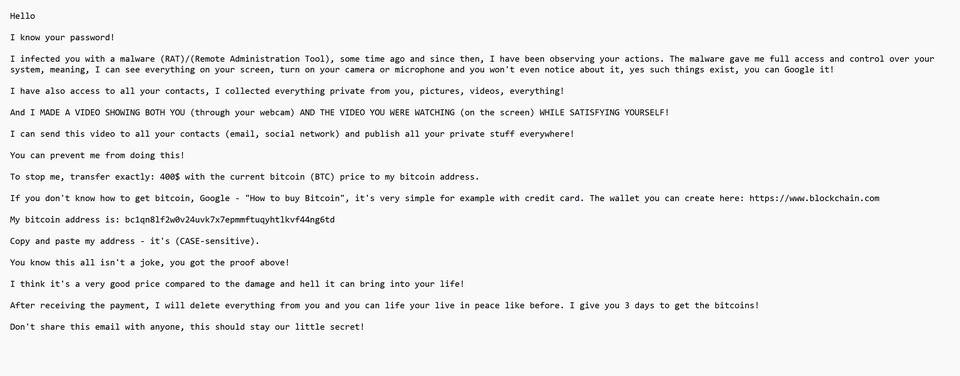
This is the text of the “I Regret To Inform You About Some Sad News For You” blackmail email, including the grammatical and spelling errors:
Hi there!
I regret to inform you about some sad news for you.
Approximately a month or two ago I have succeeded to gain a total access to all your devices utilized for browsing internet.
Moving forward, I have started observing your internet activities on continuous basis.
Go ahead and take a look at the sequence of events provided below for your reference:
Initially I bought an exclusive access from hackers to a long list of email accounts (in today’s world, that is really a common thing, which can arranged via internet).
Evidently, it wasn’t hard for me to proceed with logging in your email account (xxx).
Within the same week, I moved on with installing a Trojan virus in Operating Systems for all devices that you use to login to email.
Frankly speaking, it wasn’t a challenging task for me at all (since you were kind enough to click some of the links in your inbox emails before).
Yeah, geniuses are among us.
Because of this Trojan I am able to gain access to entire set of controllers in devices (e.g., your video camera, keyboard, microphone and others).
As result, I effortlessly downloaded all data, as well as photos, web browsing history and other types of data to my servers.
Moreover, I have access to all social networks accounts that you regularly use, including emails, including chat history, messengers, contacts list etc.
My unique virus is incessantly refreshing its signatures (due to control by a driver), and hence remains undetected by any type of antiviruses.
Hence, I guess by now you can already see the reason why I always remained undetected until this very letter…
During the process of compilation of all the materials associated with you,
I also noticed that you are a huge supporter and regular user of websites hosting nasty adult content.
Turns out to be, you really love visiting porn websites, as well as watching exciting videos and enduring unforgettable pleasures.
As a matter of fact, I was not able to withstand the temptation, but to record certain nasty solo action with you in main role,
and later produced a few videos exposing your masturbation and cumming scenes.
If until now you don’t believe me, all I need is one-two mouse clicks to make all those videos with everyone you know,
including your friends, colleagues, relatives and others.
Moreover, I am able to upload all that video content online for everyone to see.
I sincerely think, you certainly would not wish such incidents to take place, in view of the lustful things demonstrated in your commonly watched videos,
(you absolutely know what I mean by that) it will cause a huge adversity for you.
There is still a solution to this matter, and here is what you need to do:
You make a transaction of $1490 USD to my account (an equivalent in bitcoins, which recorded depending on the exchange rate at the date of funds transfer),
hence upon receiving the transfer, I will immediately get rid of all those lustful videos without delay.
After that we can make it look like there was nothing happening beforehand.
Additionally, I can confirm that all the Trojan software is going to be disabled and erased from all devices that you use. You have nothing to worry about,
because I keep my word at all times.
That is indeed a beneficial bargain that comes with a relatively reduced price,
taking into consideration that your profile and traffic were under close monitoring during a long time frame.
If you are still unclear regarding how to buy and perform transactions with bitcoins – everything is available online.
Below is my bitcoin wallet for your further reference: 1GS1SRz3QBC1NUeuhu8EWkx37qQXanUxGG
All you have is 48 hours and the countdown begins once this email is opened (in other words 2 days).
The following list includes things you should remember and avoid doing:
> There’s no point to try replying my email (since this email and return address were created inside your inbox).
> There’s no point in calling police or any other types of security services either. Furthermore, don’t you dare sharing this info with any of your friends.
If I discover that (taking into consideration my skills, it will be really simple, because I control all your systems and continuously monitor them) –
your nasty clip will be shared with public straight away.
> There’s no point in looking for me too – it won’t result in any success. Transactions with cryptocurrency are completely anonymous and untraceable.
> There’s no point in reinstalling your OS on devices or trying to throw them away. That won’t solve the issue,
since all clips with you as main character are already uploaded on remote servers.
Things that may be concerning you:
> That funds transfer won’t be delivered to me.
Breathe out, I can track down everything right away, so once funds transfer is finished,
I will know for sure, since I interminably track down all activities done by you (my Trojan virus controls all processes remotely, just as TeamViewer).
> That your videos will be distributed, even though you have completed money transfer to my wallet.
Trust me, it is worthless for me to still bother you after money transfer is successful. Moreover, if that was ever part of my plan, I would do make it happen way earlier!
We are going to approach and deal with it in a clear manner!
In conclusion, I’d like to recommend one more thing… after this you need to make certain you don’t get involved in similar kind of unpleasant events anymore!
My recommendation – ensure all your passwords are replaced with new ones on a regular basis.
The effectiveness of this scam lies in the psychological tactics employed by the scammers. By targeting the victim’s fear of legal consequences, humiliation, and social rejection, they create a sense of panic that may cause the victim to act impulsively without seeking help or verifying the scammer’s claims.
In reality, the scammers usually do not have access to the victim’s devices or the alleged compromising material. However, the fear and embarrassment generated by the email’s content can be enough to convince some individuals to pay the ransom, making the scam profitable for the scammers.
The “I Regret To Inform You About Some Sad News For You” email and anything it states is just a scam to try and scare you into paying the ransom. If you have received the “I Regret To Inform You About Some Sad News For You” email, we recommend deleting it and under no circumstances send any money to these cybercriminals.
Is the “I Regret To Inform You About Some Sad News For You” email real?
No, and don’t panic. The “I Regret To Inform You About Some Sad News For You” email is a scam that tries to trick you into thinking that your device or email has been hacked, then demands payment, or else they will send compromising information -such as images of you captured through your web camera or your pornographic browsing history – to all your friends and family. And in classic ransomware fashion, there’s typically a ticking clock. Giving users a short time limit to deliver the payment is social engineering at its finest. Threats, intimidation, and high-pressure tactics are classic signs of a scam.
The “I Regret To Inform You About Some Sad News For You” extortion email and anything it states is just a scam to try and scare you into paying the ransom.
They have my password! How did they get my password?
To make the threats more credible, scammers may include one of your passwords in this email. The scammers have your password from sites that were hacked, and in this case, likely matched up to a database of emails and stolen passwords and sent this scam out to potentially millions of people. You can check if your email or password was compromised in a data breach on Haveibeenpwned.
If the password emailed to you is one that you still use, in any context whatsoever, stop using it and change it NOW. It’s also recommended that you enable two-factor authentication for your email and online accounts whenever that is an option.
Should I pay the ransom?
You should not pay the ransom. If you pay the ransom, you’re not only losing money but you’re encouraging the scammers to continue phishing other people. Delete the “I Regret To Inform You About Some Sad News For You” email, and under no circumstances pay these cybercriminals a penny/dime/bitcoin.
What should I do now?
If you receive an email similar to the “I Regret To Inform You About Some Sad News For You” scam, it is crucial not to respond or send any payment.
We recommend that you ignore the content of the “I Regret To Inform You About Some Sad News For You” email and delete it from your Inbox.
If you have downloaded any attachments or clicked on any links from this email, or if you suspect that your computer might be infected with malware, you can follow the below steps to scan your device for malware with Malwarebytes and remove it for free.
Check if you’re device is infected with malware
The “I Regret To Inform You About Some Sad News For You” email may contain malware within the attachments or links that appear in the body of the email. By interacting with the malware — for example, opening or downloading an attachment that contains a malicious payload — the user may unknowingly infect their device or network, enabling attackers to gain access to protected applications and data.
To check your computer or phone for Trojans, browser hijackers, or other malware and remove them for free, you run a scan with Malwarebytes Free.
Malwarebytes runs on Windows, Mac, and Android. Click the tab below for the device you want to scan, then follow the steps to remove any malware it finds.
Malwarebytes For WindowsMalwarebytes For MacMalwarebytes For Android
Scan Your Computer with Malwarebytes for Windows
Malwarebytes is one of the most popular and trusted anti-malware tools for Windows — and it’s completely free for removing infections. It catches threats that many antivirus programs miss, including adware, browser hijackers, and trojans. Follow the steps below to scan and clean your PC in just a few minutes.
Download Malwarebytes
Click the button below to download the latest version of Malwarebytes for Windows from the official source. The free version is all you need — it will scan your computer and remove adware, browser hijackers, and other malicious software at no cost.
(The link opens in a new page where your download will start)
Install Malwarebytes
When the download finishes, open your Downloads folder and double-click the MBSetup file. If Windows shows a User Account Control pop-up, click “Yes” to allow the installation.
Follow the On-Screen Prompts to Install Malwarebytes
The setup wizard will walk you through a few quick screens:
Choose where you’re installing the program — “Personal Computer” or “Work Computer” — then click Next.
Malwarebytes will now install on your device. This usually takes under a minute.
When installation is complete, the “Welcome to Malwarebytes” screen will open automatically.
On the final screen, click Open Malwarebytes to launch the program.
Enable “Scan for Rootkits”
Before scanning, turn on rootkit detection so Malwarebytes can find even the most hidden threats. Click the Settings gear icon on the left side of the screen.
In the settings menu, find “Scan for rootkits” and click the toggle so it turns blue.
Done? Click “Dashboard” in the left pane to return to the main screen.
Start the Scan
Click the blue Scan button. Malwarebytes will automatically update its virus database and start checking your computer for malware.
Wait for the Scan to Finish
The scan checks your entire system for browser hijackers and other malicious programs, so it can take several minutes. Feel free to do something else — just check back occasionally to see the progress.
Quarantine the Detected Threats
When the scan is done, you’ll see a list of everything Malwarebytes found — malware, adware, and potentially unwanted programs. Click the “Quarantine” button to remove all of them at once.
Malwarebytes will now remove the malicious files and registry entries and move them safely into quarantine.
Restart Your Computer
Some threats can only be fully removed after a reboot. If Malwarebytes asks you to restart, click Yes. Once you’re logged back in, your PC is clean and you can continue with the next steps in this guide.
That’s it — your Windows computer is now free of trojans, adware, browser hijackers, and other malware.
If your current antivirus allowed this malicious program on your computer, you may want to consider purchasing Malwarebytes Premium to protect against these types of threats in the future. If you are still having problems with your computer after completing these instructions, then please follow one of the steps:
Malwarebytes for Mac is a free on-demand scanner that removes the malware other security software tends to miss — adware, browser hijackers, and unwanted programs included. Cleaning an infected Mac with Malwarebytes has always been completely free, and it’s our go-to recommendation. Follow the steps below to scan and clean your Mac in just a few minutes.
Download Malwarebytes for Mac
Click the button below to download the latest version of Malwarebytes for Mac.
When the download finishes, open your Downloads folder and double-click the setup file to begin the installation.
Follow the On-Screen Prompts to Install Malwarebytes
The Malwarebytes for Mac Installer will guide you through a few quick screens. Click “Continue” and keep following the prompts until the installation completes.
When the installation is complete, Malwarebytes opens to the Welcome to Malwarebytes screen. Click “Get started“.
Select “Personal Computer” or “Work Computer”
Malwarebytes will ask what type of computer you’re installing it on. Click either Personal Computer or Work Computer, whichever applies.
Start the Scan
Click the “Scan” button. Malwarebytes will automatically update its detection database and begin checking your Mac for malware.
Wait for the Scan to Finish
Malwarebytes will scan your Mac for adware, browser hijackers, and other malicious programs. This can take a few minutes, so feel free to do something else — just check back occasionally to see the progress.
Quarantine the Detected Threats
When the scan is done, you’ll see a list of everything Malwarebytes found. Click the “Quarantine” button to remove all the threats at once.
Restart Your Mac
Malwarebytes will now remove all the malicious files it found. Some threats can only be fully removed after a reboot — if Malwarebytes asks you to restart, allow it. Once you’re logged back in, your Mac is clean.
That’s it — your Mac is now free of adware, browser hijackers, and other malware.
If your current antivirus allowed a malicious program on your computer, you might want to consider purchasing the full-featured version of Malwarebytes Anti-Malware to protect against these types of threats in the future. If you are still experiencing problems while trying to remove a malicious program from your computer, please ask for help in our Mac Malware Removal Help & Support forum.
Scan Your Phone with Malwarebytes for Android
Malwarebytes for Android automatically detects and removes dangerous threats like malware and ransomware so you don’t have to worry about your most-used device being compromised. Aggressive detection of adware and potentially unwanted programs keeps your Android phone or tablet running smooth.
Download Malwarebytes for Android.
You can download Malwarebytes for Android by clicking the link below.
In the Google Play Store, tap “Install” to install Malwarebytes for Android on your device.
When the installation process has finished, tap “Open” to begin using Malwarebytes for Android. You can also open Malwarebytes by tapping on its icon in your phone menu or home screen.
Follow the on-screen prompts to complete the setup process
When Malwarebytes will open, you will see the Malwarebytes Setup Wizard which will guide you through a series of permissions and other setup options. This is the first of two screens that explain the difference between the Premium and Free versions. Swipe this screen to continue. Tap on “Got it” to proceed to the next step. Malwarebytes for Android will now ask for a set of permissions that are required to scan your device and protect it from malware. Tap on “Give permission” to continue. Tap on “Allow” to permit Malwarebytes to access the files on your phone.
Update database and run a scan with Malwarebytes for Android
You will now be prompted to update the Malwarebytes database and run a full system scan.
Click on “Update database” to update the Malwarebytes for Android definitions to the latest version, then click on “Run full scan” to perform a system scan.
Wait for the Malwarebytes scan to complete.
Malwarebytes will now start scanning your phone for adware and other malicious apps. This process can take a few minutes, so we suggest you do something else and periodically check on the status of the scan to see when it is finished.
Click on “Remove Selected”.
When the scan has been completed, you will be presented with a screen showing the malware infections that Malwarebytes for Android has detected. To remove the malicious apps that Malwarebytes has found, tap on the “Remove Selected” button.
Restart your phone.
Malwarebytes for Android will now remove all the malicious apps that it has found. To complete the malware removal process, Malwarebytes may ask you to restart your device.
That’s it — your Android device is now free of malicious apps, adware, and browser redirects.
If your current antivirus allowed a malicious app on your phone, you may want to consider purchasing the full-featured version of Malwarebytes to protect against these types of threats in the future. If you are still having problems with your phone after completing these instructions, then please follow one of the steps:
Restore your phone to factory settings by going to Settings > General management > Reset > Factory data reset.
Here are 10 practical safety rules to help you avoid malware, online shopping scams, crypto scams, and other online fraud. Each tip includes a quick “if you already got hit” action.
Stop and verify before you click, log in, download, or pay.
Most scams win by creating urgency. Verify using a trusted method: type the website address yourself, use the official app, or call a known number (not the one in the message).
If you already clicked: close the page, do not enter passwords, and run a malware scan.
Keep your operating system, browser, and apps updated.
Updates patch security holes used by malware and malicious ads. Turn on automatic updates where possible.
If you saw a scary “update now” pop-up: close it and update only through your device settings or the official app store.
Use layered protection: antivirus plus an ad blocker.
Antivirus helps block malware. An ad blocker reduces scam redirects, phishing pages, and malvertising.
If your browser is acting weird: remove unknown extensions, reset the browser, then run a full scan.
Install apps, software, and extensions only from official sources.
Avoid cracked software, “keygens,” and random downloads. During installs, choose Custom/Advanced and decline bundled offers you do not recognize.
If you already installed something suspicious: uninstall it, restart, and scan again.
Treat links and attachments as untrusted by default.
Phishing often impersonates delivery services, banks, and popular brands. If it is unexpected, do not open attachments or log in through the message.
If you entered credentials: change the password immediately and enable 2FA.
Shop safely: research the store, then pay with protection.
Be cautious with brand-new stores, “closing sale” stories, and prices that make no sense. Prefer credit cards or PayPal for dispute options. Avoid wire transfers, gift cards, and crypto payments.
If you already paid: contact your card issuer or PayPal quickly to dispute the transaction.
Crypto rule: never pay a “fee” to withdraw or recover money.
Common patterns include fake profits, then “tax,” “gas,” or “verification” fees. Another is a “recovery agent” who demands upfront crypto.
If you already sent crypto: stop paying, save evidence (wallet addresses, TXIDs, chats), and report the scam to the platform used.
Secure your accounts with unique passwords and 2FA (start with email).
Use a password manager and unique passwords for every account. Enable 2FA using an authenticator app when possible.
If you suspect an account takeover: change passwords, sign out of all devices, and review recent logins and recovery settings.
Back up important files and keep one backup offline.
Backups protect you from ransomware and device failure. Keep at least one backup on an external drive that is not always connected.
If you suspect infection: do not connect backup drives until the system is clean.
If you think you are a victim: stop losses, document evidence, and escalate fast.
Move quickly. Speed matters for disputes, account recovery, and limiting damage.
Stop payments and contact: do not send more money or respond to the scammer.
Call your bank or card issuer: block transactions, replace the card if needed, and start a dispute or chargeback.
Secure your email first: change the email password, enable 2FA, and remove unfamiliar recovery options.
Secure other accounts: change passwords, enable 2FA, and log out of all sessions.
Scan your device: remove suspicious apps or extensions, then run a full malware scan.
Save evidence: screenshots, emails, order pages, tracking pages, wallet addresses, TXIDs, and chat logs.
Report it: to the payment provider, marketplace, social platform, exchange, or wallet service involved.
These rules are intentionally simple. Most online losses happen when decisions are rushed. Slow down, verify independently, and use payment methods and account controls that give you recourse.
Stelian leverages over a decade of cybersecurity expertise to lead malware analysis and removal, uncover scams, and educate people. His experience provides insightful analysis and valuable perspective.