

RAV Antivirus is a legitimate and safe-to-use antivirus program from Reason Cyber Security.
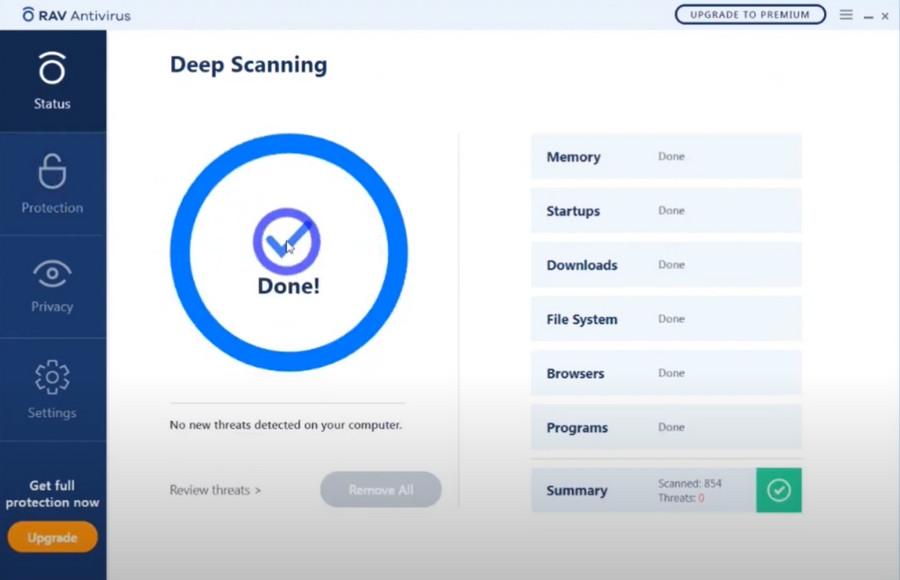
What is RAV Antivirus?
RAV Antivirus is a legitimate antivirus program that does not exhibit any malicious or unwanted behavior.
If you purposely downloaded RAV Antivirus, then there is nothing to worry about. On the other hand, if you find that RAV Antivirus has been installed on your computer and you are not sure how then it was most likely bundled with free programs you can download off of the Internet.
How was RAV Antivirus installed on my computer?
RAV Antivirus is installed by the users, whether that is knowingly or not. Often, this type of program is offered through advertisements or bundled with other software, leaving the user puzzled about where this software came from.
You should always pay attention when installing software because often, a software installer includes optional installs. Be very careful what you agree to install.
Always opt for the custom installation and deselect anything that is not familiar, especially optional software that you never wanted to download and install in the first place. It goes without saying that you should not install software that you don’t trust.
How to uninstall RAV Antivirus
We will manually uninstall RAV Antivirus from your computer. We will also check if other unwanted programs are installed on your device.
-
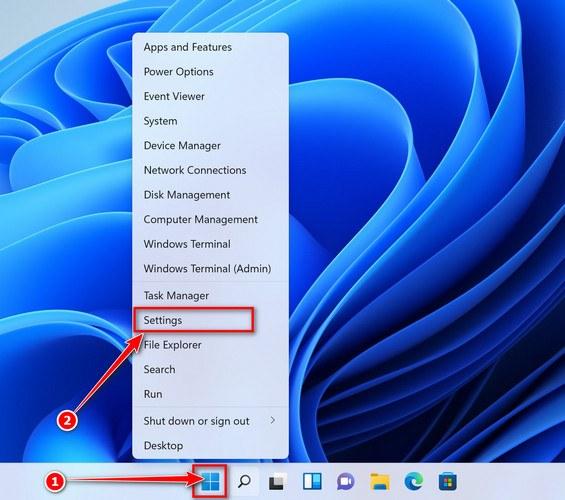
Press the Windows key + I on your keyboard to open the Settings app.
First, open Windows Settings by pressing Windows+I on your keyboard. You can also right-click your Start button and select “Settings” from the list.

-
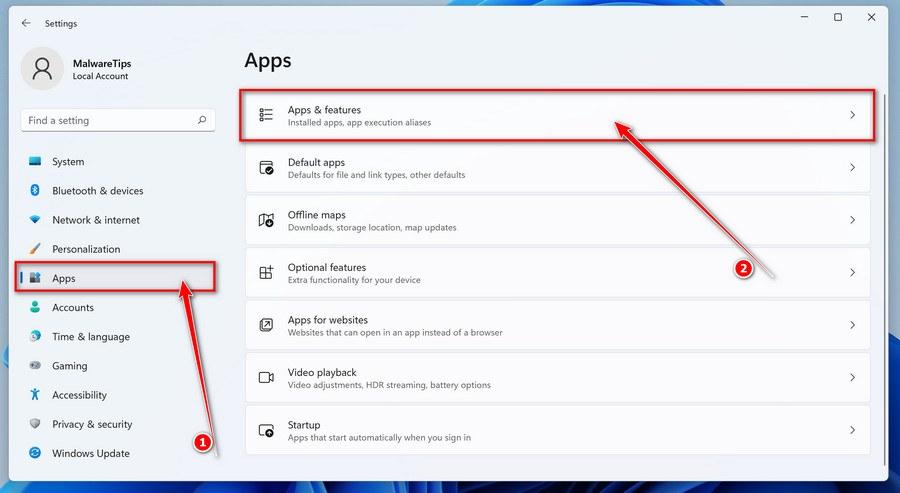
In the Settings app, click on “Apps” and then “Apps & features”.
When Settings opens, click “Apps” in the sidebar, then select “Apps & Features”.
-
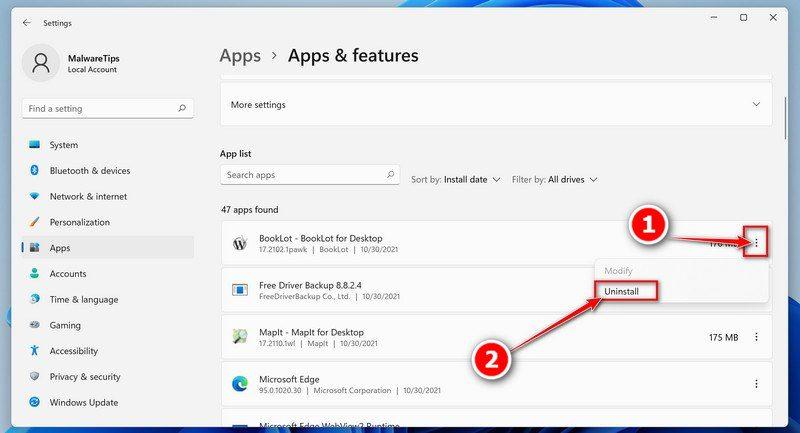
Find RAV Antivirus in the list of installed apps and uninstall it.
In Apps & Features settings, scroll down to the app list and search for the program you want to uninstall. To make things easier, you can sort all installed programs by their installation date. To do this, click “Sort by” and select “Install date”.
When you find RAV Antivirus, click the three dots button beside it and select “Uninstall” in the menu that appears.There may be other programs that you may wish to uninstall. Search for suspicious programs that you don’t remember downloading or that don’t sound like genuine programs.
-
Follow the prompts to uninstall RAV Antivirus.
In the next message box, confirm the uninstall process by clicking on Uninstall, then follow the prompts to uninstall RAV Antivirus.
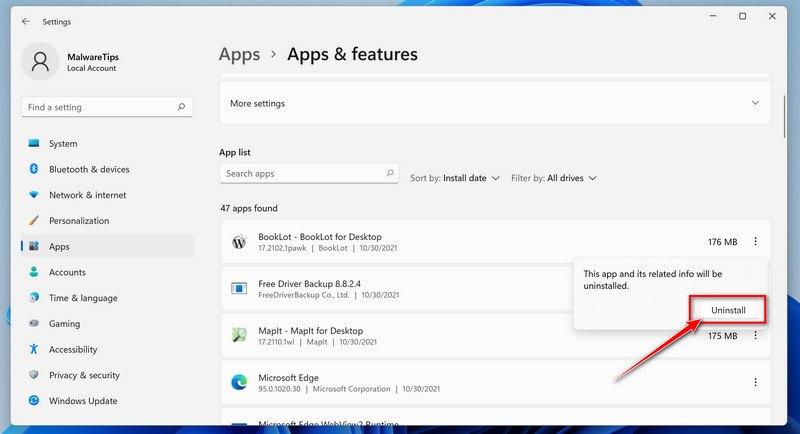
-
Press the Windows key + I on your keyboard to open the Settings app.
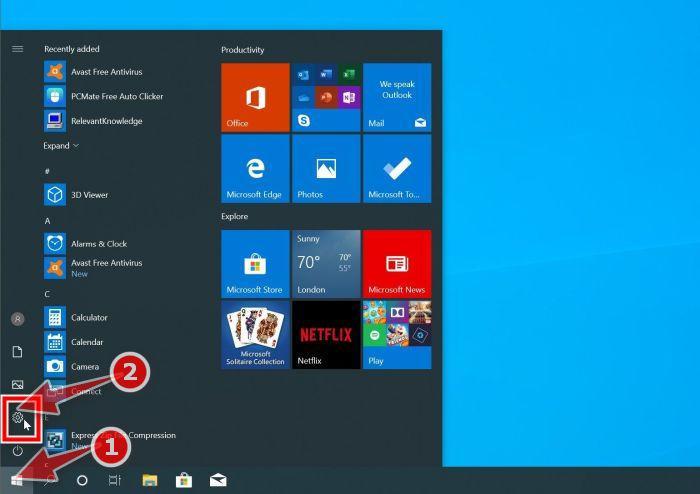
Press the Windows key + I on your keyboard to open the Settings app. You can also ope the Settings app by clicking the Start button on the taskbar, then select “Settings” (gear icon).
-
In the Settings app, click on “Apps”.
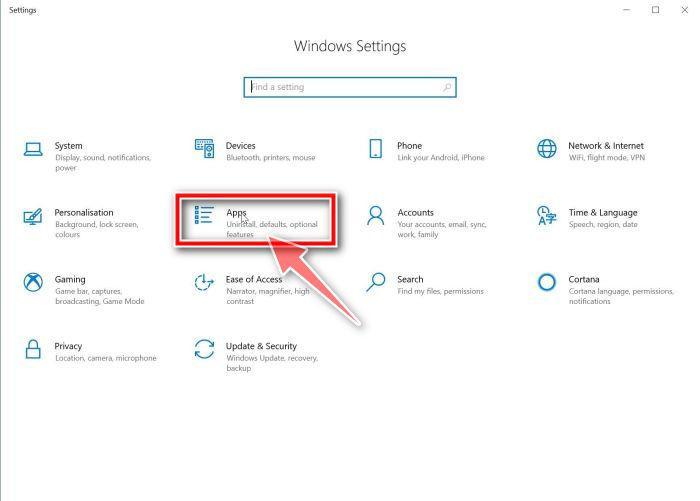
When the “Windows Settings” window opens, click on “Apps“. By default, it should open “Apps and Features” but if it doesn’t, select it from the list on the left.
-
Find the program in the list of installed apps and uninstall it.
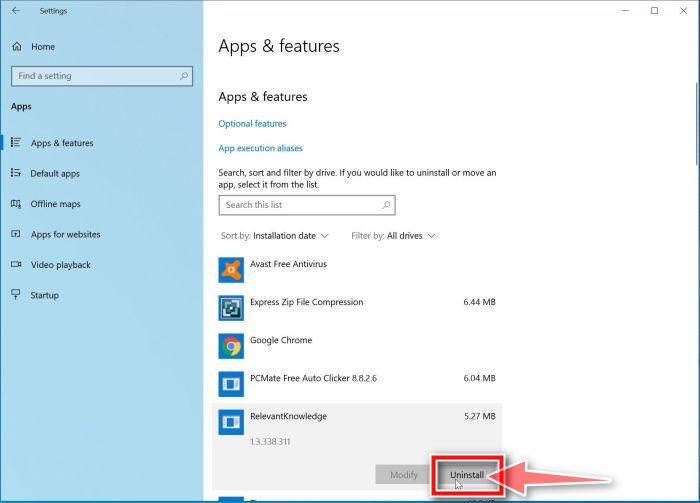
In Apps & Features settings, scroll down to the app list and search for RAV Antivirus. To make things easier, you can sort all installed programs by their installation date. To do this, click “Sort by” and select “Install date”.
When you find RAV Antivirus, click on it and select “Uninstall” in the menu that appears.There may be other programs that you may wish to uninstall. Search for suspicious programs that you don’t remember downloading or that don’t sound like genuine programs.
If you have checked your computer for programs and did not find any, you can proceed with the next step in this guide. -
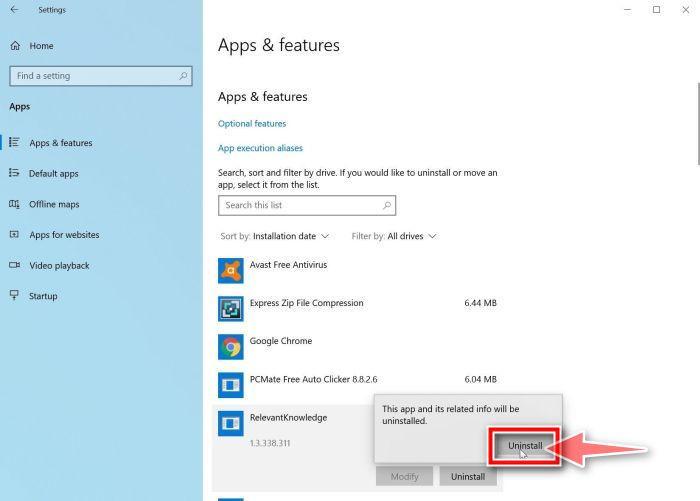
Follow the prompts to uninstall the program.
In the next message box, confirm the uninstall process by clicking on Uninstall, then follow the prompts to uninstall the program.
Make sure to read all of the prompts carefully, because some programs try to sneak things in hoping that you won’t read closely.
-
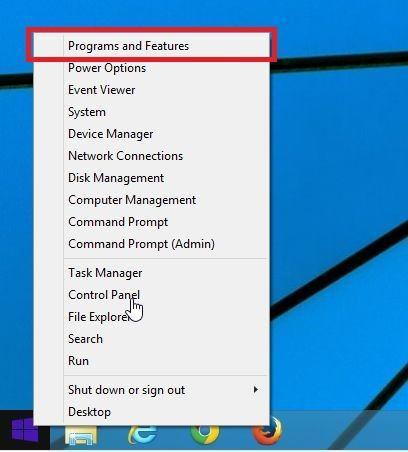
Go to “Program and Features”.
Right-click on the Start button in the taskbar, then select “Programs and Features”. This will take you directly to your list of installed programs.
-
Search for RAV Antivirus and uninstall it.
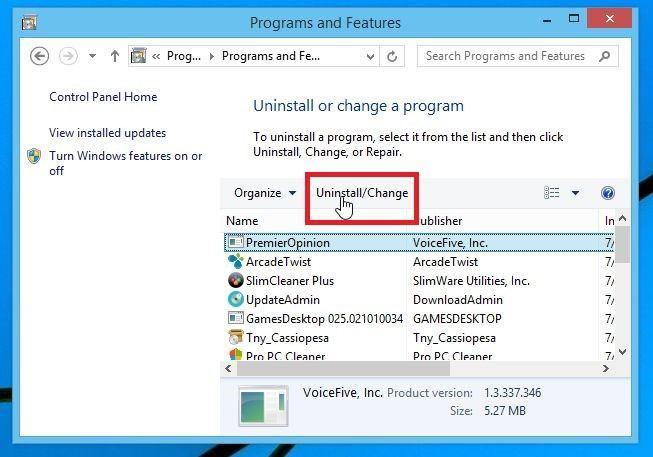
The “Programs and Features” screen will be displayed with a list of all the programs installed on your computer.
When you find RAV Antivirus, click on it and select “Uninstall” in the menu that appears.
There may be other programs that you may wish to uninstall. Search for suspicious programs that you don’t remember downloading or that don’t sound like genuine programs.
If you have checked your computer for programs and did not find any, you can proceed with the next step in this guide. -
Follow the on-screen prompts to uninstall program.
In the next message box, confirm the uninstall process by clicking on Yes, then follow the prompts to uninstall program. Make sure to read all of the prompts carefully, because some programs try to sneak things in hoping that you won’t read closely.
-
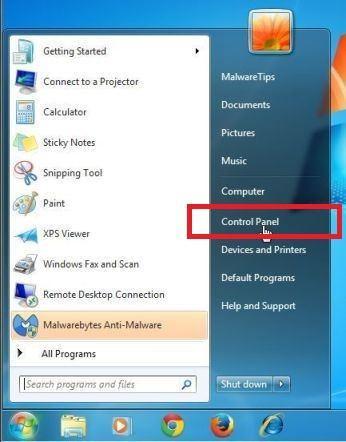
Open the “Control Panel”.
Click on the “Start” button, then click on “Control Panel“.
-
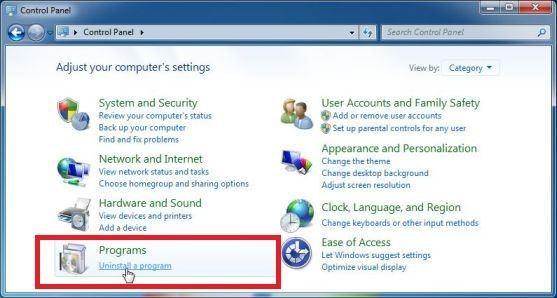
Click on “Uninstall a Program”.
When the “Control Panel” appears, click on “Uninstall a Program” from the Programs category.
-
Search for RAV Antivirus and uninstall it.
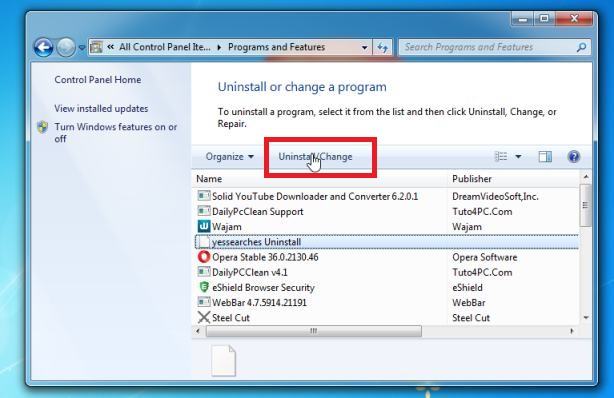
The “Programs and Features” screen will be displayed with a list of all the programs installed on your computer. Scroll through the list until you find any RAV Antivirus, then click to highlight it, then click the “Uninstall” button.
There may be other programs that you may wish to uninstall. Search for suspicious programs that you don’t remember downloading or that don’t sound like genuine programs.
-
Follow the on-screen prompts to uninstall RAV Antivirus.
In the next message box, confirm the uninstall process by clicking on Yes, then follow the prompts to uninstall program. Make sure to read all of the prompts carefully, because some programs try to sneak things in hoping that you won’t read closely.
If you are experiencing difficulty while attempting to uninstall a program, you can use Revo Uninstaller to completely remove the program from your computer.








