

Have you ever noticed a process called software_reporter_tool.exe running on your Windows computer? If you have, you may be wondering what it is and whether you should remove it. In this article, we will explore what software_reporter_tool.exe is, what it does, and whether it poses any security risks to your computer.
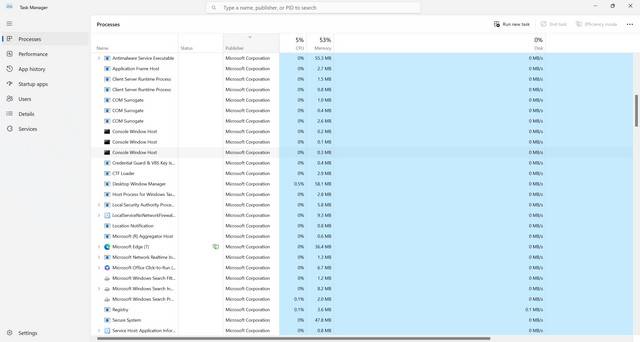
What is software_reporter_tool.exe?
Software_reporter_tool.exe is a process that is part of Google Chrome’s cleanup tool. It is designed to scan your computer for harmful software and unwanted programs that may be interfering with Chrome’s performance. The tool is intended to help users identify and remove potentially harmful software that may be causing issues with their browsing experience.
The software_reporter_tool.exe process is typically located in the following directory:
- C:\Users\%USERNAME%\AppData\Local\Google\Chrome\User DataSwReporterVERSIONsoftware_reporter_tool.exe
It is important to note that the software_reporter_tool.exe process is not a part of the Chrome browser itself. Instead, it is a separate tool that is designed to help users keep their browsing experience safe and secure.
What does software_reporter_tool.exe do?
The software_reporter_tool.exe process is designed to scan your computer for harmful software and unwanted programs that may be interfering with Chrome’s performance. The tool is intended to help users identify and remove potentially harmful software that may be causing issues with their browsing experience.
The software_reporter_tool.exe process scans your computer for the following types of software:
- Unwanted software, such as adware and browser hijackers
- Potentially harmful software, such as malware and spyware
- Software that may interfere with Chrome’s performance, such as toolbars and extensions
Once the scan is complete, the software_reporter_tool.exe process will generate a report that lists any harmful or unwanted software that was found on your computer. You can then use this report to remove the software and improve your browsing experience.
Does software_reporter_tool.exe pose any security risks?
While the software_reporter_tool.exe process is designed to help keep your computer safe and secure, it has been known to cause some issues for users. One of the main concerns with the software_reporter_tool.exe process is that it can use a significant amount of CPU and memory resources, which can slow down your computer.
Another concern is that the software_reporter_tool.exe process may report false positives, which can lead to the removal of legitimate software. This can be particularly problematic if the software is essential to your computer’s operation.
Finally, some users have raised concerns about the privacy implications of the software_reporter_tool.exe process. The tool scans your computer for potentially harmful software, which means that it is collecting data about the software that is installed on your computer. While Google has stated that the data is only used to improve the tool’s performance and is not shared with third parties, some users may still be uncomfortable with the idea of their data being collected.
Should I remove software_reporter_tool.exe?
Whether or not you should remove the software_reporter_tool.exe process depends on your individual needs and preferences. If you are experiencing performance issues with your computer and suspect that the software_reporter_tool.exe process may be the cause, you may want to consider removing it.
However, if you value the added security that the software_reporter_tool.exe process provides and are comfortable with the data collection that it entails, you may want to keep it installed.
If you do decide to remove the software_reporter_tool.exe process, you can do so by following these steps:
- Open the Chrome browser
- Click on the three dots in the top right corner of the screen
- Select “Settings” from the dropdown menu
- Scroll down and click on “Advanced”
- Scroll down to the “Reset and clean up” section
- Click on “Clean up computer”
- Click on “Find” to start the scan
- Once the scan is complete, click on “Remove” to remove any harmful or unwanted software that was found
It is also a good idea to scan your computer for viruses and malware using a reputable antivirus program, such as Malwarebytes Free. This can help ensure that your computer is free from any harmful software that may be causing issues with your browsing experience.
Conclusion
Software_reporter_tool.exe is a process that is part of Google Chrome’s cleanup tool. It is designed to scan your computer for harmful software and unwanted programs that may be interfering with Chrome’s performance. While the tool can be helpful in keeping your browsing experience safe and secure, it can also cause performance issues and may report false positives. Whether or not you should remove the software_reporter_tool.exe process depends on your individual needs and preferences. If you do decide to remove it, be sure to scan your computer for viruses and malware using a reputable antivirus program.








