

Proquota.exe is a critical system process that is responsible for managing disk quotas on Windows operating systems. It plays a crucial role in ensuring that users do not exceed their allocated disk space limits, preventing potential system slowdowns and data corruption. However, like any other system process, proquota.exe can encounter errors that may disrupt its functionality and cause various issues on your computer.
Understanding Proquota.exe
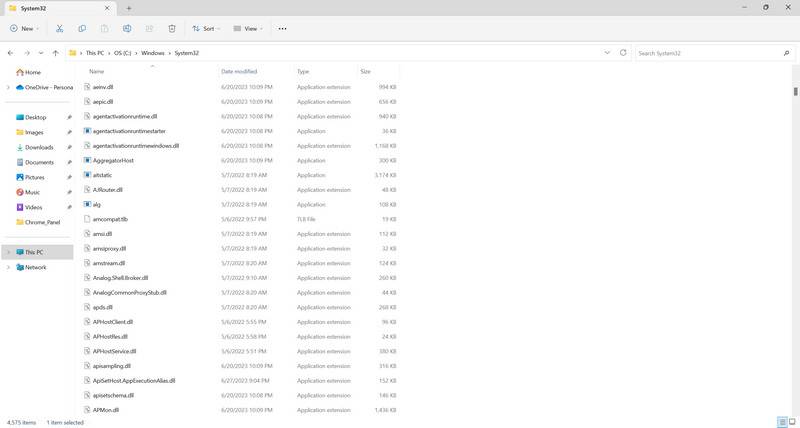
Proquota.exe is an executable file that is part of the Windows operating system. It is located in the C:WindowsSystem32 folder and is responsible for managing disk quotas for individual users or groups. Disk quotas allow system administrators to allocate a specific amount of disk space to each user or group, preventing any single user from monopolizing the available storage.
Proquota.exe monitors the disk usage of each user and enforces the allocated quotas. When a user reaches their quota limit, proquota.exe restricts their ability to write or save additional data to the disk. This helps maintain a fair distribution of resources and prevents disk space-related issues.
Common Proquota.exe Errors
While proquota.exe is an essential system process, it can encounter errors that may disrupt its functionality. Some of the common errors associated with proquota.exe include:
- Proquota.exe Application Error: This error occurs when the proquota.exe file is corrupted or missing. It can lead to system instability and may cause other applications to malfunction.
- Proquota.exe High CPU Usage: In some cases, proquota.exe may consume excessive CPU resources, leading to system slowdowns and decreased performance.
- Proquota.exe Access Denied: This error typically occurs when a user does not have the necessary permissions to modify or access their disk quota settings.
How To Fix Proquota.exe Errors
Fixing proquota.exe errors requires a systematic approach to identify and resolve the underlying issues. Here are some steps you can take to fix proquota.exe errors:
Step 1: Scan for Viruses and Malware
Before troubleshooting proquota.exe errors, it is essential to ensure that your system is free from any viruses or malware that may be causing the issues. Malware can infect system files, including proquota.exe, and disrupt its normal operation. We recommend scanning your system with Malwarebytes Free, a reliable antivirus and anti-malware software.
Step 2: Update Windows
Outdated Windows operating systems can sometimes cause compatibility issues with system processes like proquota.exe. It is crucial to keep your Windows installation up to date to ensure optimal performance and stability. To update Windows, follow these steps:
- Open the Start menu and click on “Settings”.
- Select “Update & Security”.
- Click on “Windows Update” and then click on “Check for updates”.
- If updates are available, click on “Download” and install them.
Step 3: Repair System Files
Corrupted system files can also cause proquota.exe errors. Windows provides a built-in tool called System File Checker (SFC) that can scan and repair corrupted system files. To use SFC, follow these steps:
- Open the Command Prompt as an administrator. To do this, right-click on the Start menu and select “Command Prompt (Admin)”.
- Type the command “sfc /scannow” and press Enter.
- Wait for the scan to complete. If any corrupted files are found, SFC will attempt to repair them automatically.
- Restart your computer after the process is complete.
Step 4: Check Disk Quota Settings
If you are experiencing issues with disk quotas, it is essential to verify and adjust the quota settings for individual users or groups. To check disk quota settings, follow these steps:
- Open File Explorer and right-click on the drive you want to manage quotas for.
- Select “Properties” and navigate to the “Quota” tab.
- Ensure that the “Enable quota management” option is checked.
- Review the quota settings for each user or group and make any necessary adjustments.
Summary
Proquota.exe is a critical system process responsible for managing disk quotas on Windows operating systems. However, it can encounter errors that may disrupt its functionality and cause various issues. To fix proquota.exe errors, it is important to scan for viruses and malware, update Windows, repair system files, and check disk quota settings. By following these steps, you can ensure the smooth operation of proquota.exe and maintain optimal system performance.








