

When you open the Task Manager on your Windows computer, you may notice a process called “Service Host: Windows Media Player Network Sharing Service” running in the background. This process might raise some questions and concerns, especially if you are not familiar with its purpose. In this article, we will explore why this process is running, its significance, and how it affects your system.
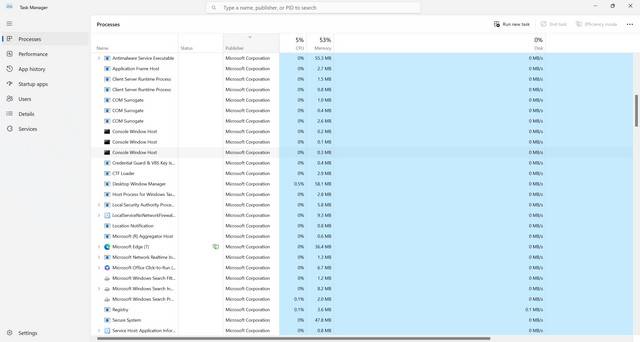
Understanding Service Host: Windows Media Player Network Sharing Service
Service Host is a generic process that hosts multiple Windows services. It allows these services to run in separate processes, enhancing system stability and security. The “Windows Media Player Network Sharing Service” is one such service that runs under the Service Host process.
The Windows Media Player Network Sharing Service enables media sharing between devices on a local network. It allows you to stream media files, such as music, videos, and photos, from your computer to compatible devices like smart TVs, gaming consoles, and other computers.
Why Is It Running?
The Windows Media Player Network Sharing Service process runs by default on Windows computers to provide media sharing functionality. However, it may not be necessary for everyone, especially if you don’t use Windows Media Player or have no need for media sharing.
If you rarely or never use media sharing features, you might consider disabling this service to free up system resources. Disabling it will not affect the core functionality of your computer, but it can help improve performance, especially on older or low-spec machines.
How to Disable the Windows Media Player Network Sharing Service
If you decide to disable the Windows Media Player Network Sharing Service, follow these steps:
- Open the Run dialog by pressing the Windows key + R.
- Type “services.msc” (without quotes) and press Enter.
- In the Services window, locate “Windows Media Player Network Sharing Service” in the list.
- Right-click on it and select “Properties.”
- In the Properties window, change the “Startup type” to “Disabled.”
- Click “Apply” and then “OK” to save the changes.
After disabling the service, it will no longer run in the background, freeing up system resources. However, keep in mind that you won’t be able to use media sharing features unless you re-enable the service.
Should You Disable It?
Whether you should disable the Windows Media Player Network Sharing Service depends on your usage and preferences. Here are a few factors to consider:
- Media Sharing Needs: If you frequently use media sharing features and enjoy streaming content to other devices, it is recommended to keep the service enabled.
- System Performance: If you have a low-spec or older computer that struggles with resource-intensive tasks, disabling the service can help improve performance.
- Security Concerns: While the Windows Media Player Network Sharing Service itself is not a security risk, any running service can potentially be exploited. If you are concerned about security, disabling unnecessary services can reduce the attack surface of your system.
Ultimately, the decision to disable the Windows Media Player Network Sharing Service should be based on your specific needs and priorities.
Scanning for Viruses and Malware
If you notice any unusual behavior or suspect that your system might be infected with malware, it is always a good idea to perform a thorough scan. Malwarebytes Free is a reliable and effective antivirus and anti-malware software that can help you detect and remove any potential threats.
Malwarebytes Free offers real-time protection, scheduled scanning, and automatic updates to keep your system secure. It is recommended to regularly scan your computer to ensure the safety of your data and privacy.
Conclusion
The Service Host: Windows Media Player Network Sharing Service process is responsible for enabling media sharing functionality on Windows computers. While it may not be necessary for everyone, it provides a convenient way to stream media files across devices on a local network.
If you don’t use media sharing features or want to optimize system performance, you can disable the service. However, consider your specific needs and priorities before making a decision. Additionally, regularly scanning your computer for viruses and malware using tools like Malwarebytes Free is crucial for maintaining a secure system.
By understanding the purpose of the Service Host: Windows Media Player Network Sharing Service process and making informed decisions, you can ensure a smooth and secure computing experience.








