

When you open the Task Manager on your Windows computer, you may notice a process called “Service Host: User Profile Service” running in the background. This process, also known as “svchost.exe,” is an essential component of the Windows operating system. In this article, we will explore why the Service Host: User Profile Service process is running in Task Manager and its significance.
Understanding Service Host: User Profile Service
The Service Host: User Profile Service process is responsible for managing user profiles on a Windows computer. A user profile contains personalized settings, preferences, and files associated with a specific user account. When you log in to your computer, the User Profile Service process loads your profile, allowing you to access your customized desktop, documents, and other personal data.
This process is crucial for maintaining a personalized computing experience for each user. It ensures that your settings and files are loaded correctly and that any changes you make are saved and applied to your profile.
Why Is It Running in Task Manager?
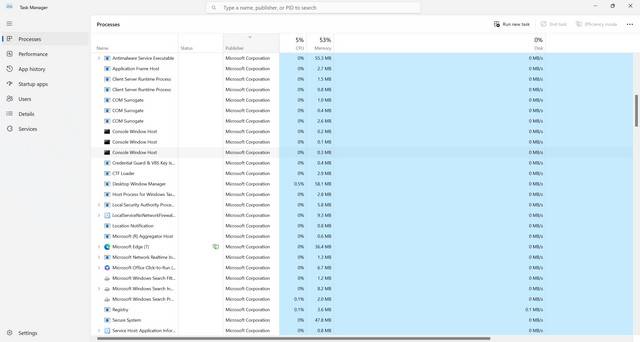
Seeing the Service Host: User Profile Service process running in Task Manager is completely normal and expected. It is a background process that runs automatically when you start your computer and remains active as long as you are logged in.
Here are a few reasons why the Service Host: User Profile Service process is running:
- Profile Loading: When you log in to your computer, the User Profile Service process loads your profile, including your desktop background, taskbar settings, and other personalized configurations.
- Profile Management: The process manages your user profile, ensuring that any changes you make to your settings or files are saved correctly. It also handles profile synchronization across multiple devices if you have enabled that feature.
- Profile Cleanup: When you log out or shut down your computer, the User Profile Service process ensures that your profile is properly closed and any temporary files or settings are cleaned up.
By running in the background, the Service Host: User Profile Service process ensures a seamless and personalized user experience on your Windows computer.
Potential Issues and Troubleshooting
In some cases, you may encounter issues related to the Service Host: User Profile Service process. Here are a few common scenarios and their possible solutions:
1. High CPU or Memory Usage
If you notice that the Service Host: User Profile Service process is consuming a significant amount of CPU or memory resources, it could indicate a problem. High resource usage can slow down your computer and affect its performance.
To troubleshoot high CPU or memory usage:
- Scan for Malware: Malware or viruses can sometimes disguise themselves as legitimate processes. It is essential to scan your computer with reliable antivirus software, such as Malwarebytes Free, to ensure your system is clean.
- Update Windows: Outdated Windows versions may have known issues that can cause high resource usage. Make sure your operating system is up to date with the latest patches and updates.
- Check for Profile Corruption: A corrupted user profile can also lead to high resource usage. You can try creating a new user account and transferring your files and settings to the new profile.
2. Profile Loading Issues
If your profile takes a long time to load or you encounter errors during the login process, it could be due to issues with the User Profile Service process.
To troubleshoot profile loading issues:
- Check Disk Space: Ensure that your computer has enough free disk space to load and save your profile.
- Run System File Checker: The System File Checker tool can scan and repair corrupted system files that may be affecting the User Profile Service process. Open Command Prompt as an administrator and run the command “sfc /scannow”.
- Reset User Profile: If all else fails, you can try resetting your user profile. This will create a new profile and transfer your files and settings to the new account.
Conclusion
The Service Host: User Profile Service process is an integral part of the Windows operating system, responsible for managing user profiles and ensuring a personalized computing experience. It runs in the background, loading and managing user profiles, and cleaning up temporary files and settings.
If you encounter any issues related to the Service Host: User Profile Service process, such as high CPU or memory usage or profile loading problems, it is essential to troubleshoot them promptly. Scanning for malware, updating Windows, and checking for profile corruption are some of the steps you can take to resolve these issues.
Remember, the Service Host: User Profile Service process is a legitimate Windows component, and its presence in Task Manager is normal. By understanding its role and troubleshooting any potential issues, you can ensure a smooth and personalized user experience on your Windows computer.








