

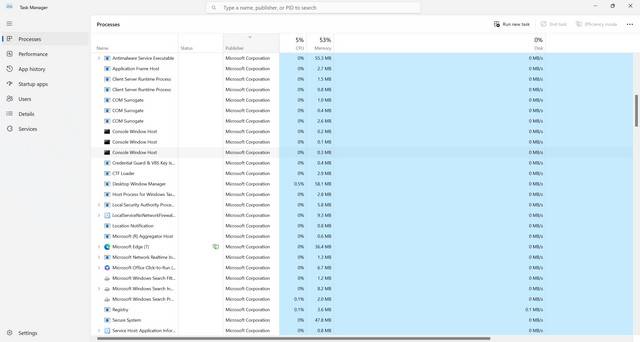
When you open the Task Manager on your Windows computer, you may notice a process called “SupportAssistAgent.exe” or “SupportAssistAgent32.exe” running in the background. This process is associated with Dell SupportAssist, a software program developed by Dell to help users diagnose and troubleshoot issues with their Dell computers.
What is Dell SupportAssist?
Dell SupportAssist is a proactive and automated support technology that comes pre-installed on most Dell computers. It is designed to detect and resolve hardware and software issues, optimize system performance, and provide proactive notifications and alerts to users.
The main purpose of Dell SupportAssist is to simplify the support process for Dell customers. It can automatically detect and diagnose hardware and software problems, provide troubleshooting steps, and even initiate contact with Dell’s support team if necessary.
Why is Dell SupportAssist Running in Task Manager?
When you see the Dell SupportAssist process running in Task Manager, it means that the software is actively monitoring your system for any potential issues. It runs in the background to ensure that it can quickly detect and respond to any problems that may arise.
Dell SupportAssist constantly scans your computer’s hardware and software components, looking for any signs of malfunction or performance degradation. It checks for driver updates, firmware updates, and system optimizations to keep your Dell computer running smoothly.
By running in the background, Dell SupportAssist can provide real-time monitoring and proactive support. It can detect issues before they become major problems and provide recommendations for resolving them.
Benefits of Dell SupportAssist
Dell SupportAssist offers several benefits to Dell computer users:
- Automatic issue detection: SupportAssist scans your system for hardware and software issues, ensuring that you are aware of any potential problems.
- Proactive support: The software provides proactive notifications and alerts, allowing you to take action before a minor issue becomes a major problem.
- Remote troubleshooting: SupportAssist can initiate contact with Dell’s support team, allowing them to remotely diagnose and resolve issues without the need for you to send your computer in for repair.
- Driver and firmware updates: The software automatically checks for and installs the latest driver and firmware updates, ensuring that your system is up to date and running optimally.
- System optimization: SupportAssist provides recommendations for optimizing your system’s performance, such as removing unnecessary files or disabling resource-intensive processes.
Is Dell SupportAssist Safe?
While Dell SupportAssist is a legitimate software program developed by Dell, it is always important to exercise caution when it comes to any software running on your computer.
There have been instances where cybercriminals have exploited vulnerabilities in support software to gain unauthorized access to systems. However, Dell takes security seriously and regularly releases updates to address any potential vulnerabilities in SupportAssist.
To ensure the safety of your system, it is recommended to keep Dell SupportAssist up to date by installing the latest updates from Dell’s official website. Additionally, it is always a good idea to have a reliable antivirus program installed on your computer to protect against any potential threats.
If you suspect any malicious activity or encounter any issues with Dell SupportAssist, it is recommended to scan your system for viruses or malware. You can use Malwarebytes Free, a reputable antivirus program, to perform a thorough scan and remove any potential threats.
Conclusion
Dell SupportAssist is a valuable tool for Dell computer users, providing proactive support, automatic issue detection, and system optimization. When you see the SupportAssist process running in Task Manager, it means that the software is actively monitoring your system for any potential issues.
While Dell SupportAssist is generally safe, it is important to keep the software up to date and have a reliable antivirus program installed to ensure the security of your system. Regularly scanning your computer for viruses or malware can help detect and remove any potential threats.
By utilizing Dell SupportAssist and taking the necessary precautions, you can ensure that your Dell computer remains in optimal condition and enjoy a seamless computing experience.








