

Have you received an email that looks like it is from FedEx, asking you to “Please Complete Delivery Adress” and instructing you to open a link to view a Tax Withholding Certificate (TWC)? At first glance, it may appear authentic. It might even come from an address like no-reply@fedex.com, use official-looking formatting, and reference legal-sounding terms. However, this is not a legitimate FedEx message. It is a carefully designed phishing scam that aims to trick unsuspecting recipients into providing personal or financial information.
In this article, we will take a deep dive into the FedEx “Please Complete Delivery Adress” email scam. You will learn exactly what it is, how it operates step by step, and what to do if you have fallen victim. With scams like this growing more sophisticated every year, staying informed is the best defense.
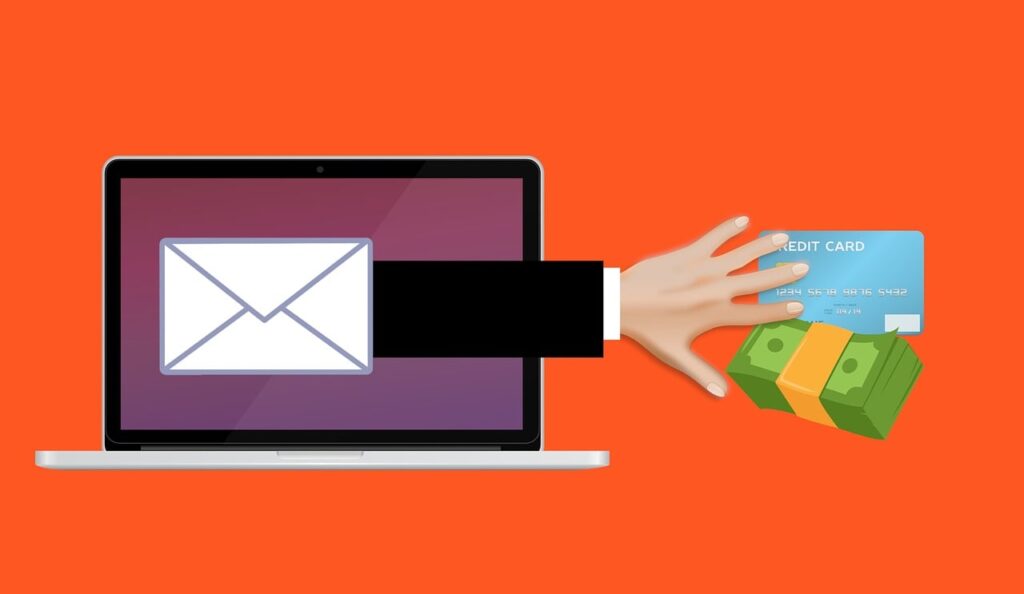
Scam Overview
The FedEx – Please Complete Delivery Adress Email Scam is one of many phishing attempts disguised as courier delivery notices. Cybercriminals know that people rely heavily on delivery services, especially FedEx, UPS, and DHL. By sending an email that looks urgent and delivery-related, scammers hope recipients will act quickly without thinking.
The fraudulent email usually has the subject line “Please Complete Delivery Adress”. It may look professional, including the FedEx logo, a sender name of “FedEx,” and a reply address such as no-reply@fedex.com. The body of the email often reads like this:
Good morning
Please see attached the Tax Withholding Certificate (TWC) for your attention.
Kind regards.
View TWC
© 2025 Tax Administration. All rights reserved.
At first glance, nothing seems too suspicious. It appears like a routine notification. However, closer inspection reveals several red flags:
- Spelling Error: The subject line says “Adress” instead of “Address.” FedEx would not send official communication with such errors.
- Strange Attachment or Link: The “View TWC” button is not something FedEx would send. Delivery companies do not ask customers to download tax-related certificates.
- Generic Greeting: Instead of addressing the recipient by name, it simply says “Good morning.” Legitimate FedEx emails typically reference your tracking number or order details.
- Unrelated Tax Reference: FedEx does not handle tax withholding documents. Mentioning a Tax Withholding Certificate (TWC) is irrelevant and suspicious.
Phishing scams like this thrive on urgency and confusion. The scammers hope the recipient will panic, assume their package is delayed, and click the link. Once clicked, the link usually redirects to a malicious website designed to steal information.
Why This Scam Works
This scam exploits several psychological triggers:
- Urgency: People do not want to miss or delay a delivery.
- Authority: The email appears to come from a trusted company.
- Fear: Mention of taxes makes the recipient anxious.
- Curiosity: The unfamiliar reference to a Tax Withholding Certificate pushes the reader to find out more.
Since many people receive packages regularly, especially from FedEx, this scam has a high success rate. Attackers know that if even a small fraction of recipients fall for the trap, the scam pays off.
Scale of the Scam
Phishing attempts like this are not isolated. Security researchers have detected waves of such emails, often sent to millions of recipients at once. Attackers rotate tactics and language, but the goal remains the same: harvest sensitive data such as:
- Login credentials (email, bank, or FedEx accounts)
- Payment card details
- Personal identity information
- Corporate access credentials (if sent to company employees)
By pretending to be FedEx, scammers leverage brand trust to bypass suspicion. FedEx has repeatedly warned customers that it never requests personal or financial information via email. Yet many people remain unaware and vulnerable.
How the Scam Works
To truly understand the FedEx “Please Complete Delivery Adress” scam, it helps to break it down into clear stages. Each stage is carefully designed to manipulate the victim into taking harmful actions.
Step 1: Mass Email Distribution
The scammers begin by sending out massive email campaigns. Using botnets, hacked servers, or phishing-as-a-service kits, they deliver millions of fake FedEx emails to inboxes worldwide. The goal is to cast a wide net. Since many people are waiting for deliveries at any given time, the odds of someone taking the bait are high.
Step 2: The Subject Line and Sender Deception
The subject line typically reads: “Please Complete Delivery Adress”. This immediately triggers curiosity and concern. Even though “Address” is misspelled, many recipients overlook it due to haste. The sender address may look official, such as no-reply@fedex.com, but in reality, it is spoofed. Scammers use techniques like domain spoofing to make the email appear legitimate.
Step 3: The Message Content
The body of the email is short and professional-looking. It references a Tax Withholding Certificate (TWC) and urges the recipient to View TWC. The short, polite tone mimics corporate communication. Importantly, it does not overwhelm the reader with details, leaving them eager to click.
Step 4: The Malicious Link
The View TWC button is the trap. Clicking it usually takes the victim to one of two places:
- A Fake FedEx Website: The website looks identical to FedEx’s real login page. Victims are prompted to enter their FedEx username and password. Once submitted, those credentials are stolen.
- A Malware Download: In some cases, the link automatically downloads a file, such as a PDF or ZIP. This file often contains malware, such as keyloggers, spyware, or ransomware.
Step 5: Data Harvesting
If the victim enters information into the fake site, scammers capture it instantly. Login details are often resold on the dark web or used for further fraud. If malware is installed, it silently collects sensitive data from the victim’s device over time.
Step 6: Further Exploitation
Once scammers have access, they may:
- Steal payment card details stored in accounts
- Intercept sensitive company emails (if corporate accounts are compromised)
- Commit identity theft
- Demand ransom payments (if ransomware is installed)
The attack may also expand. If malware captures the victim’s email contacts, scammers can send new phishing messages to those contacts, making the scam spread like a chain reaction.
Step 7: Covering Tracks
Cybercriminals often use techniques to avoid detection, such as:
- Short-lived malicious domains
- Encryption of stolen data
- Regularly changing email templates
This makes it difficult for authorities and security companies to shut down the scams quickly.
What to Do if You Have Fallen Victim
If you realize that you have clicked the View TWC button or entered your details, quick action is essential. Follow these steps immediately:
1. Disconnect from the Internet
If you suspect malware was downloaded, disconnect your device from the internet. This prevents further data transfer to the attacker.
2. Do Not Open Any More Links
Stop interacting with the email. Do not reply, download files, or click any other links.
3. Change Your Passwords
If you entered your FedEx account details, log in from a secure device and reset your password immediately. Do the same for any accounts that use the same or similar password.
4. Enable Two-Factor Authentication (2FA)
Turn on 2FA wherever possible. This adds a second layer of security, making it harder for attackers to access your accounts.
5. Scan Your Device for Malware
Run a full system scan with updated antivirus software. Remove any threats that are detected.
6. Contact Your Bank or Credit Card Company
If you entered financial details, notify your bank or card provider right away. They can monitor for suspicious transactions or issue new cards.
7. Report the Scam
Report the phishing attempt to:
- FedEx (forward the email to abuse@fedex.com)
- Your country’s cybercrime reporting center
- Your email provider (mark it as phishing)
8. Monitor Your Accounts
Check your financial statements, email activity, and credit reports regularly. Look out for unauthorized transactions or logins.
9. Educate Yourself and Others
Learn how to spot phishing attempts. Warn family members, friends, or colleagues who may also be targeted.
10. Consider Identity Theft Protection
If sensitive information was stolen, you may want to use a professional identity theft protection service. These services monitor for misuse of your personal data.
Is Your Device Infected? Run a Free Malware Scan
Slow performance, constant pop-ups, or strange behavior? These are classic signs of a malware infection. The fastest way to find out is to scan your device with Malwarebytes Free — one of the most trusted malware removal tools available.
The free version detects and removes the most common threats, including:
- Adware — the cause of those annoying pop-ups
- Browser hijackers — unwanted redirects and changed homepages
- Trojans and spyware — hidden programs stealing your data
- Potentially unwanted programs (PUPs) — software you never asked for
👉 Select your device below — Windows, Mac, or Android — then follow the simple steps to download Malwarebytes, scan your system, and remove any threats it finds. The scan usually takes 5 to 20 minutes.
Run a Malware Scan with Malwarebytes for Windows
Malwarebytes is one of the most popular and trusted anti-malware tools for Windows — and it’s completely free for removing infections. It catches threats that many antivirus programs miss, including adware, browser hijackers, and trojans. Follow the steps below to scan and clean your PC in just a few minutes.
Download Malwarebytes
Click the button below to download the latest version of Malwarebytes for Windows from the official source. The free version is all you need — it will scan your computer and remove adware, browser hijackers, and other malicious software at no cost.
Download MalwarebytesOfficial installer for Windows 11 and 10. Your download starts right away.Want real-time protection? See Malwarebytes Premium Malwarebytes Free for WindowsScans and removes malware at no cost
-
Install Malwarebytes
When the download finishes, open your Downloads folder and double-click the MBSetup file. If Windows shows a User Account Control pop-up, click “Yes” to allow the installation.

Follow the On-Screen Prompts to Install Malwarebytes
The setup wizard will walk you through a few quick screens:
-
Choose where you’re installing the program — “Personal Computer” or “Work Computer” — then click Next.

-
Malwarebytes will now install on your device. This usually takes under a minute.

-
When installation is complete, the “Welcome to Malwarebytes” screen will open automatically.

-
On the final screen, click Open Malwarebytes to launch the program.

-
Enable “Scan for Rootkits”
Before scanning, turn on rootkit detection so Malwarebytes can find even the most hidden threats. Click the Settings gear icon on the left side of the screen.

In the settings menu, find “Scan for rootkits” and click the toggle so it turns blue.

Done? Click “Dashboard” in the left pane to return to the main screen.
Start the Scan
Click the blue Scan button. Malwarebytes will automatically update its virus database and start checking your computer for malware.

-
Wait for the Scan to Finish
The scan checks your entire system for browser hijackers and other malicious programs, so it can take 5 to 20 minutes depending on your computer. Feel free to do something else — just check back occasionally to see the progress.

-
Quarantine the Detected Threats
When the scan is done, you’ll see a list of everything Malwarebytes found — malware, adware, and potentially unwanted programs. Click the “Quarantine” button to remove all of them at once.

Malwarebytes will now remove the malicious files and registry entries and move them safely into quarantine.

-
Restart Your Computer
Some threats can only be fully removed after a reboot. If Malwarebytes asks you to restart, click Yes. Once you’re logged back in, Malwarebytes has finished removing the threats it found.

That’s it — your Windows PC is now clean of trojans, adware, and other malware, and should be back to running smoothly.
If you are still having problems with your computer after completing these instructions, then please follow one of the steps:
- Run a computer scan with ESET Online Scanner
- Ask for help in our Windows Malware Removal Help & Support forum.
Run a Malware Scan with Malwarebytes for Mac
Malwarebytes for Mac is a free on-demand scanner that removes the malware other security software tends to miss — adware, browser hijackers, and unwanted programs included. Cleaning an infected Mac with Malwarebytes has always been completely free, and it’s our go-to recommendation. Follow the steps below to scan and clean your Mac in just a few minutes.
-
Download Malwarebytes for Mac
Click the button below to download the latest version of Malwarebytes for Mac.
Download MalwarebytesOfficial installer for macOS. Your download starts right away.Want real-time protection? See Malwarebytes PremiumMalwarebytes Free for MacScans and removes malware at no cost -
Open the Malwarebytes setup file
When the download finishes, open your Downloads folder and double-click the setup file to begin the installation.

-
Follow the On-Screen Prompts to Install Malwarebytes
The Malwarebytes for Mac Installer will guide you through a few quick screens. Click “Continue” and keep following the prompts until the installation completes.



When the installation is complete, Malwarebytes opens to the Welcome to Malwarebytes screen. Click “Get started“.
-
Select “Personal Computer” or “Work Computer”
Malwarebytes will ask what type of computer you’re installing it on. Click either Personal Computer or Work Computer, whichever applies.

-
Start the Scan
Click the “Scan” button. Malwarebytes will automatically update its detection database and begin checking your Mac for malware.

-
Wait for the Scan to Finish
Malwarebytes will scan your Mac for adware, browser hijackers, and other malicious programs. This can take a few minutes, so feel free to do something else — just check back occasionally to see the progress.

-
Quarantine the Detected Threats
When the scan is done, you’ll see a list of everything Malwarebytes found. Click the “Quarantine” button to remove all the threats at once.

-
Restart Your Mac
Malwarebytes will now remove all the malicious files it found. Some threats can only be fully removed after a reboot — if Malwarebytes asks you to restart, allow it. Once you’re logged back in, your Mac is clean.

That’s it — your Mac is now free of adware, rogue browser extensions, and other potentially harmful software.
If you are still experiencing problems while trying to remove a malicious program from your computer, please ask for help in our Mac Malware Removal Help & Support forum.
Run a Malware Scan with Malwarebytes for Android
Malwarebytes for Android automatically detects and removes dangerous threats like malware and ransomware so you don’t have to worry about your most-used device being compromised. Aggressive detection of adware and potentially unwanted programs keeps your Android phone or tablet running smooth.
-
Download Malwarebytes for Android.
You can download Malwarebytes for Android by clicking the link below.
Get Malwarebytes for AndroidOpens Google Play in a new tab.Want real-time protection? See Malwarebytes Premium for AndroidMalwarebytes for AndroidScans your phone and removes malware at no cost -
Install Malwarebytes for Android on your phone.
In the Google Play Store, tap “Install” to install Malwarebytes for Android on your device.

When the installation process has finished, tap “Open” to begin using Malwarebytes for Android. You can also open Malwarebytes by tapping on its icon in your phone menu or home screen.

-
Follow the on-screen prompts to complete the setup process
When Malwarebytes will open, you will see the Malwarebytes Setup Wizard which will guide you through a series of permissions and other setup options.
This is the first of two screens that explain the difference between the Premium and Free versions. Swipe this screen to continue.
Tap on “Got it” to proceed to the next step.
Malwarebytes for Android will now ask for a set of permissions that are required to scan your device and protect it from malware. Tap on “Give permission” to continue.
Tap on “Allow” to permit Malwarebytes to access the files on your phone.
-
Update database and run a scan with Malwarebytes for Android
You will now be prompted to update the Malwarebytes database and run a full system scan.

Click on “Update database” to update the Malwarebytes for Android definitions to the latest version, then click on “Run full scan” to perform a system scan.

-
Wait for the Malwarebytes scan to complete.
Malwarebytes will now start scanning your phone for adware and other malicious apps. This process can take a few minutes, so we suggest you do something else and periodically check on the status of the scan to see when it is finished.

-
Click on “Remove Selected”.
When the scan has been completed, you will be presented with a screen showing the malware infections that Malwarebytes for Android has detected. To remove the malicious apps that Malwarebytes has found, tap on the “Remove Selected” button.

-
Restart your phone.
Malwarebytes for Android will now remove all the malicious apps that it has found. To complete the malware removal process, Malwarebytes may ask you to restart your device.
That’s it — your Android phone is now clean — no more malicious apps, adware, or browser redirects.
If you are still having problems with your phone after completing these instructions, then please follow one of the steps:
- Restore your phone to factory settings by going to Settings > General management > Reset > Factory data reset.
- Ask for help in our Mobile Malware Removal Help & Support forum.
Stay Protected: Block Ads and Malicious Sites
Now that your device is clean, keep it that way. Most infections start with a malicious ad or a fake download button — so blocking them at the source is your best defense.
We recommend AdGuard, which blocks malicious ads, phishing pages, and dangerous redirects before they can reach you.
👉 Download AdGuard and browse safely
Frequently Asked Questions About the FedEx – Please Complete Delivery Adress Email Scam
What is the “FedEx – Please Complete Delivery Adress” email scam?
The “FedEx – Please Complete Delivery Adress” email scam is a phishing attempt where cybercriminals impersonate FedEx. Victims receive an email that appears to be from FedEx, often using the subject line “Please Complete Delivery Adress.” The email usually includes a message about a Tax Withholding Certificate (TWC) and a button or link labeled “View TWC.” Clicking on the link directs victims to a fraudulent website designed to steal personal and financial information.
Why is this email dangerous?
This scam is dangerous because it tricks victims into believing they must complete an urgent task related to a delivery. If the recipient clicks the malicious link, they may be asked to provide sensitive details such as their full name, home address, phone number, credit card information, or even banking credentials. Hackers then use this information for identity theft, unauthorized purchases, or selling data on the dark web.
How can I recognize a fake FedEx email?
There are several warning signs that an email is not truly from FedEx:
- Misspellings and grammar errors – “Adress” instead of “Address” is a clear red flag.
- Suspicious sender address – The email may look like it comes from no-reply@fedex.com, but when inspected closely, it could be from a slightly altered domain.
- Unfamiliar attachments or links – FedEx does not send Tax Withholding Certificates via email.
- Urgency and fear tactics – Scammers pressure you to act quickly to avoid losing a delivery.
- Generic greetings – Instead of using your name, they say “Good morning” or “Dear customer.”
Does FedEx ever ask customers to complete delivery details via email?
No. FedEx does not request sensitive tax forms, certificates, or payment confirmations through email links. If there is a legitimate delivery issue, FedEx will contact you directly through their official website or by phone.
What should I do if I receive a suspicious FedEx email?
If you suspect the email is a scam:
- Do not click any links or download attachments.
- Do not reply to the sender.
- Forward the suspicious email to abuse@fedex.com for verification.
- Delete the message from your inbox and trash folder.
What happens if I already clicked the link in the scam email?
If you clicked the link but did not enter any information, your risk is lower, but you should still:
- Run a full antivirus scan on your device.
- Clear your browser cache and history.
- Change any saved FedEx-related passwords.
If you entered personal or financial information, you must act immediately:
- Contact your bank or credit card company to report possible fraud.
- Monitor your accounts for unusual transactions.
- Place a fraud alert with a credit bureau.
- Consider reporting the scam to your local consumer protection agency.
Can scammers use my information if I only opened the email?
Simply opening the email does not usually expose your information. The real danger occurs if you click links, download attachments, or reply with personal data. However, some scam emails may include tracking pixels that confirm your email address is active, which can lead to more spam and phishing attempts.
How can I protect myself from FedEx email scams in the future?
To protect yourself:
- Always verify delivery updates directly through the official FedEx website.
- Enable two-factor authentication on your email accounts.
- Use a reliable spam filter and security software.
- Be skeptical of unsolicited requests for payment or personal data.
Is this scam happening only in the United States?
No. The “Please Complete Delivery Adress” scam is global. Scammers adjust the language, logos, and domain names to match local regions. Victims have reported similar fraudulent emails in the United States, Europe, Asia, and other parts of the world.
Where can I report a FedEx email scam?
You can report the scam to:
- FedEx: Forward suspicious emails to abuse@fedex.com.
- The Federal Trade Commission (FTC): Report at reportfraud.ftc.gov (U.S.).
- Your country’s cybercrime authority: Many governments have hotlines or reporting portals.
- Your email provider: Mark the email as phishing to help filter future scams.
The Bottom Line
The FedEx – Please Complete Delivery Adress Email Scam is a dangerous phishing scheme designed to steal personal and financial information. While it may appear professional and legitimate, several clues reveal its fraudulent nature, including spelling errors, suspicious links, and irrelevant tax references. By understanding how the scam works and acting quickly if targeted, you can protect yourself and others.
Always remember: FedEx will never ask for sensitive personal or financial details through unsolicited emails. If you receive such a message, delete it immediately and report it. Staying cautious and informed is the most effective way to stay safe from phishing scams.

Join the discussion
0 commentsShare your experience or ask a question about this article.
Community experiences
Did this happen to you?
Your experience could help someone recognize the same scam. Submit a private report for our team to review.
I experienced this tooReports are reviewed before publication. Sharing publicly is always your choice.
Discussion
Start the conversation
Have a question or something useful to share? Add the first comment.