


Fraudsters are getting smarter every day, and one of the latest scams targeting online shoppers is the Amazon Recall Text Scam. At first glance, the message looks real. It warns you about a supposed product recall, claims to be from Amazon’s Safety Team, and urges you to click a link for a refund. For anyone who regularly shops on Amazon, such a message can be alarming. But here’s the truth: these messages are not from Amazon, and clicking the link can expose you to identity theft and financial fraud.
In this comprehensive guide, we will break down exactly what this scam is, how it works, and what you should do if you’ve fallen victim. By the end, you’ll know how to recognize these fake texts, protect yourself, and stay one step ahead of scammers.
Scam Overview
The Amazon Recall Text Scam is a phishing attack that disguises itself as a product recall notification. At its core, it is designed to trick unsuspecting Amazon customers into giving away personal and financial information.
Scammers start by sending out unsolicited text messages, also known as smishing (SMS phishing). These texts typically contain alarming warnings that a product you supposedly ordered from Amazon is being recalled due to “quality and safety concerns.” The messages are carefully crafted to mimic legitimate Amazon communications, often including fake order numbers, purchase dates, and language that sounds official.
Here are the common elements you’ll notice in these fraudulent texts:
- Urgency: The message stresses that the product is unsafe and must be stopped immediately.
- Fake Authority: It claims to be from “Amazon Safety Team” or another official-sounding department.
- Order Details: Scammers include fabricated order numbers to make it appear authentic.
- Refund Promise: They promise a full refund if you click the link and follow instructions.
- Phishing Link: Usually, the link is shortened (e.g., using cutt.ly, bit.ly, or tinyurl.com) to hide the real destination.
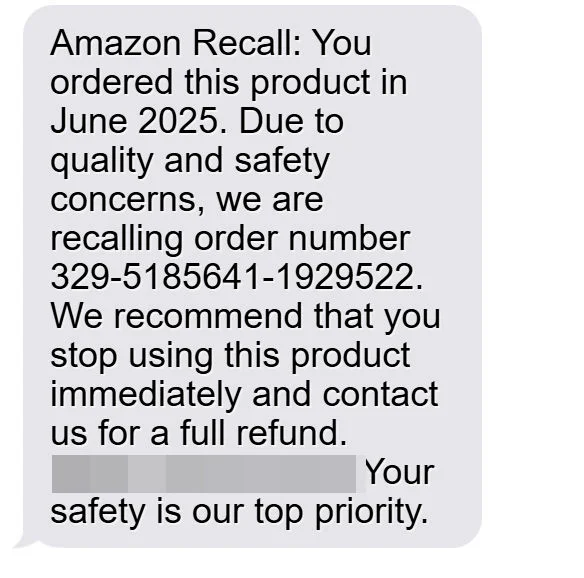
A typical scam message might read:
“Amazon Recall: You ordered this product in June 2025. Due to quality and safety concerns, we are crecalling order number 329-5185641-1929522. We recommend that you stop using this product immediately and contact us for a full refund. https://cutt.ly/xxxxx Your safety is our top priority.”
At first glance, it looks convincing. But the link leads to a phishing site made to look like Amazon. Once there, victims may be asked to:
- Log into their Amazon account (capturing login credentials).
- Enter payment details (giving scammers access to bank or credit card info).
- Provide personal details such as name, address, or phone number.
The scam is highly effective because it combines fear (safety concerns) with financial incentive (a refund). This emotional trigger increases the likelihood that a person will click before thinking.
Why the Scam Works
The success of this scam lies in psychological manipulation. Amazon is one of the most trusted brands globally, and most people have purchased something from the platform at some point. When you see an urgent safety warning tied to your shopping history, your instinct is to take it seriously.
Scammers know that urgency forces people into quick decisions. By framing the message as a recall due to safety risks, they bypass skepticism and make you feel compelled to act.
In reality, Amazon does not send recall notifications through random text messages. Genuine recalls are communicated through:
- Official Amazon emails (from verified domains).
- Notifications in your Amazon account.
- Updates from sellers directly through the platform.
If you receive an unsolicited text claiming to be an Amazon recall, it’s almost certainly a scam.
How the Scam Works
To understand this scam in detail, let’s walk through the process step by step.
Step 1: Scammers Collect Your Contact Information
The first step is obtaining your phone number. Scammers may acquire this information through:
- Data breaches from other websites.
- Data brokers who sell personal information.
- Randomized mass texting campaigns.
Since millions of people shop on Amazon, it doesn’t take much effort for scammers to hit a target who actually has an Amazon account.
Step 2: Crafting the Fake Recall Message
The scammers then send a carefully written message designed to look like it came from Amazon. They mimic the tone, structure, and style of legitimate Amazon communications. Key tactics include:
- Using words like “urgent,” “immediately,” and “safety recall.”
- Including fake order numbers to make it look tied to your account.
- Offering a refund as bait to encourage you to act.
The goal is to create a message so convincing that the recipient won’t stop to question it.
Step 3: The Phishing Link
The text always contains a link, which is the most dangerous part. Scammers often use shortened URLs to disguise the destination. Instead of going to Amazon.com, the link takes you to a phishing site.
These sites are made to look almost identical to Amazon’s official website. They may copy the logo, design, and even language from Amazon. But the address bar gives them away, as the domain will never be amazon.com.
Step 4: Capturing Your Information
Once you click the link, the site prompts you to:
- Log in with your Amazon username and password.
- This immediately hands your credentials to scammers.
- They can use your account for fraudulent purchases or sell your information on the dark web.
- Provide payment details.
- The site may ask you to “verify your payment method” to process your refund.
- This hands scammers your credit card or bank account information.
- Enter personal details.
- Some versions of the scam request your full name, phone number, or address.
- This data can be used for identity theft.
Step 5: Exploiting the Victim
Once scammers have your information, they can:
- Take over your Amazon account.
- Make unauthorized purchases.
- Withdraw money or make charges to your bank account.
- Sell your information to other criminals.
- Launch further phishing attacks using your compromised details.
Some victims report receiving follow-up scam calls or texts after falling for one of these phishing attempts, which shows that once you’re on a scammer’s radar, they may continue targeting you.
Step 6: Covering Their Tracks
Scammers often move quickly. Within minutes of obtaining your details, they may attempt to log in, change account settings, or place fraudulent orders. Because of this, acting fast is critical if you’ve clicked on one of these links.
What To Do If You Have Fallen Victim
If you’ve already clicked on a suspicious Amazon recall text, don’t panic. Acting quickly can minimize the damage. Follow these steps immediately:
- Do Not Enter Any More Information
- If you clicked the link but haven’t entered anything yet, close the site immediately.
- Delete the text message so you don’t accidentally click it again.
- Change Your Amazon Password
- Log in directly to Amazon through amazon.com or the official app.
- Change your password right away.
- If you use the same password on other sites, change those as well.
- Enable Two-Factor Authentication (2FA)
- Amazon offers two-step verification.
- With this enabled, even if scammers have your password, they cannot access your account without the second code.
- Check Your Amazon Account Activity
- Review recent orders.
- Check your payment settings to ensure no new cards or accounts have been added.
- If you see anything suspicious, report it immediately.
- Notify Your Bank or Credit Card Company
- If you entered payment information, contact your bank right away.
- Ask them to monitor for unauthorized charges and consider freezing the card.
- Run a Security Scan on Your Device
- Some phishing links attempt to install malware.
- Use antivirus or anti-malware software to scan your phone or computer.
- Report the Scam to Amazon
- Forward the scam text to stop-spoofing@amazon.com.
- Amazon investigates and works to shut down phishing sites.
- Report to the FTC (U.S. Residents)
- File a complaint with the Federal Trade Commission at reportfraud.ftc.gov.
- This helps track scam trends and prevent future attacks.
- Stay Alert for Further Phishing Attempts
- Scammers may try again once they know your number is active.
- Block suspicious numbers and be cautious with unexpected texts or emails.
Is Your Device Infected? Run a Free Malware Scan
Slow performance, constant pop-ups, or strange behavior? These are classic signs of a malware infection. A quick way to check is to scan your device with Malwarebytes Free, one of the most trusted malware removal tools available. If you only visited a scam page and didn’t download or install anything, this scan is optional.
The free version detects and removes the most common threats, including:
- Adware — the cause of those annoying pop-ups
- Browser hijackers — unwanted redirects and changed homepages
- Trojans and spyware — hidden programs stealing your data
- Potentially unwanted programs (PUPs) — software you never asked for
👉 Select your device below — Windows, Mac, or Android — then follow the simple steps to download Malwarebytes, scan your system, and remove any threats it finds. The scan usually takes 5 to 20 minutes.
Run a Malware Scan with Malwarebytes for Windows
Malwarebytes is one of the most popular and trusted anti-malware tools for Windows — and it’s completely free for removing infections. It catches threats that many antivirus programs miss, including adware, browser hijackers, and trojans. Follow the steps below to scan your PC and remove what Malwarebytes finds.
Download Malwarebytes
Click the button below to download the latest version of Malwarebytes for Windows from the official source. The free version is all you need — it will scan your computer and remove adware, browser hijackers, and other malicious software at no cost.
Download MalwarebytesOfficial installer for Windows 11 and 10. Your download starts right away.Want real-time protection? See Malwarebytes Premium Malwarebytes Free for WindowsScans and removes malware at no cost
-
Install Malwarebytes
When the download finishes, open your Downloads folder and double-click the MBSetup file. If Windows shows a User Account Control pop-up, click “Yes” to allow the installation.
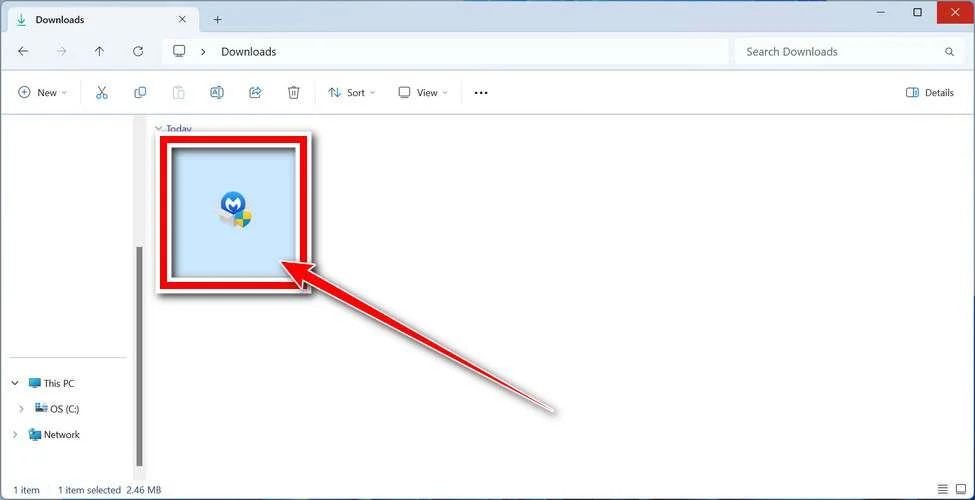
Follow the On-Screen Prompts to Install Malwarebytes
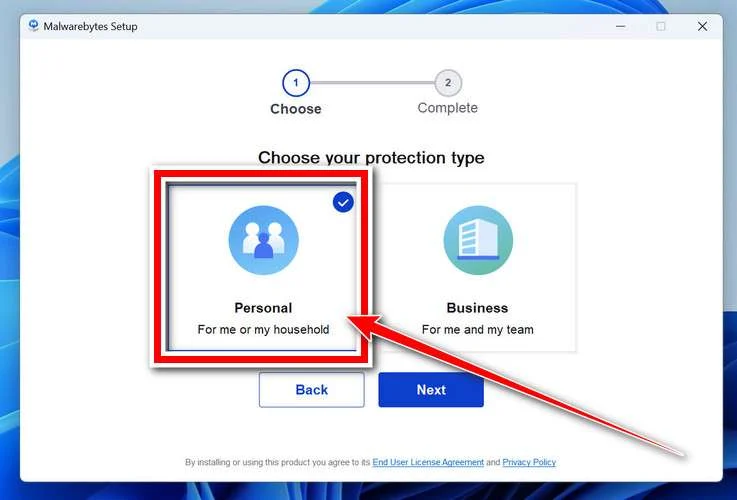
The setup wizard will walk you through a few quick screens:
-
Choose where you’re installing the program — “Personal Computer” or “Work Computer” — then click Next.
-
Malwarebytes will now install on your device. This usually takes under a minute.

-
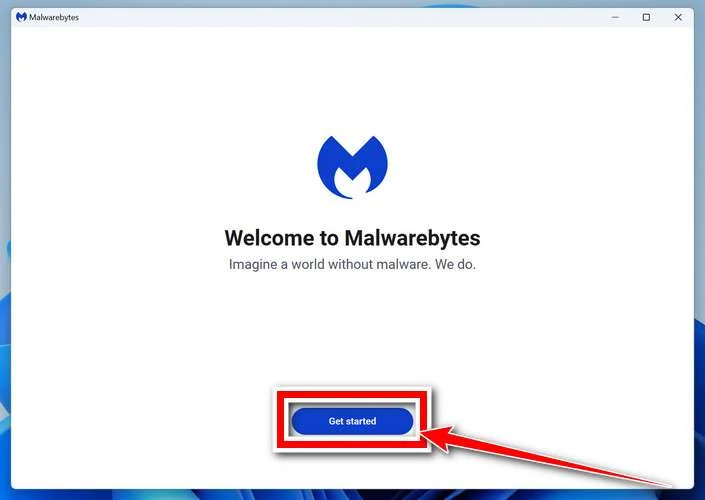
When installation is complete, the “Welcome to Malwarebytes” screen will open automatically.
-
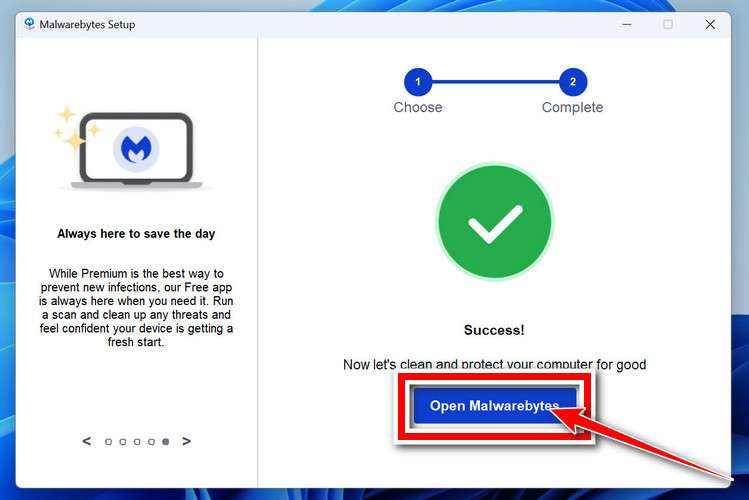
On the final screen, click Open Malwarebytes to launch the program.
-
Optional: Check for rootkits with a Custom Scan
You don’t need to change any settings for a normal scan. The standard Threat Scan in the next step is enough for most problems, so you can go straight to it.
If you also want to check for rootkits, use a Custom Scan. In current versions of Malwarebytes, rootkit scanning is only available there:
- On the Scanner tile, click the three-dot menu and select Advanced Scan.
- Choose Custom Scan. In its options, check Scan for rootkits.
- Select your system drive (usually C:\) as the location to scan, then start the scan. It takes longer than a Threat Scan.
- When it finishes, review and quarantine the results as described in the steps below.
Rootkit scanning isn’t available on Windows devices with ARM processors.
Start the Scan
Click the blue Scan button. Malwarebytes will automatically update its virus database and start checking your computer for malware.

-
Wait for the Scan to Finish
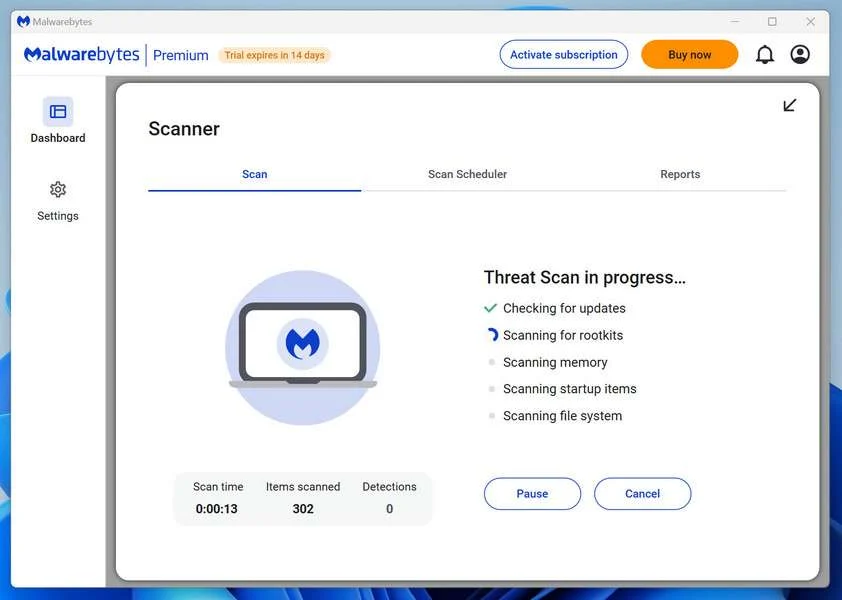
The scan checks your entire system for browser hijackers and other malicious programs, so it can take 5 to 20 minutes depending on your computer. Feel free to do something else — just check back occasionally to see the progress.
-
Quarantine the Detected Threats
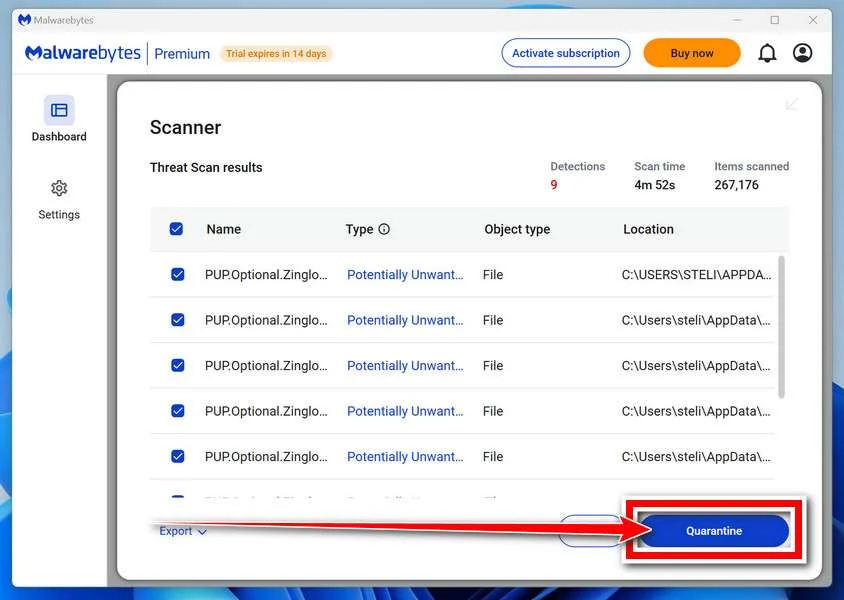
When the scan is done, you’ll see a list of everything Malwarebytes found — malware, adware, and potentially unwanted programs. Click the “Quarantine” button to remove all of them at once.
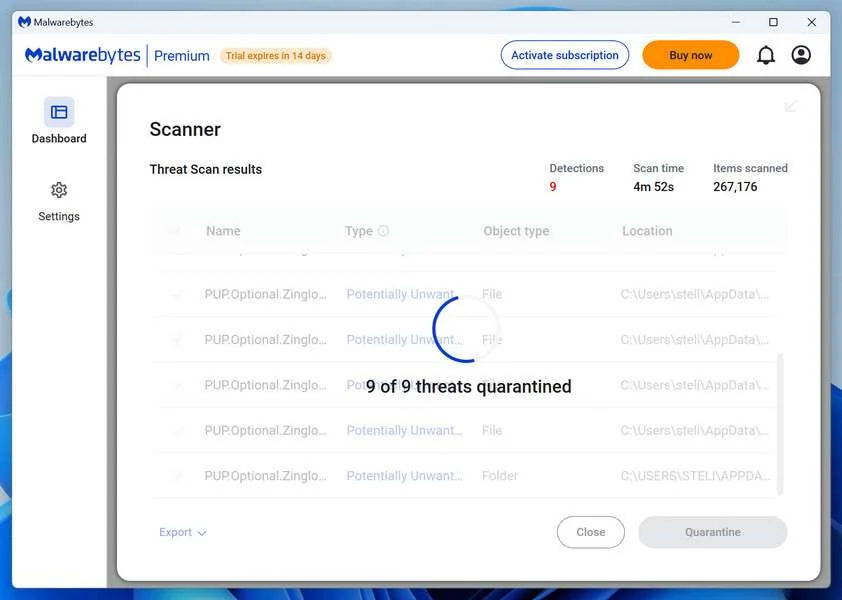
Malwarebytes will now remove the malicious files and registry entries and move them safely into quarantine.
-
Restart Your Computer
Some threats can only be fully removed after a reboot. If Malwarebytes asks you to restart, click Yes. Once you’re logged back in, Malwarebytes has finished removing the threats it found.
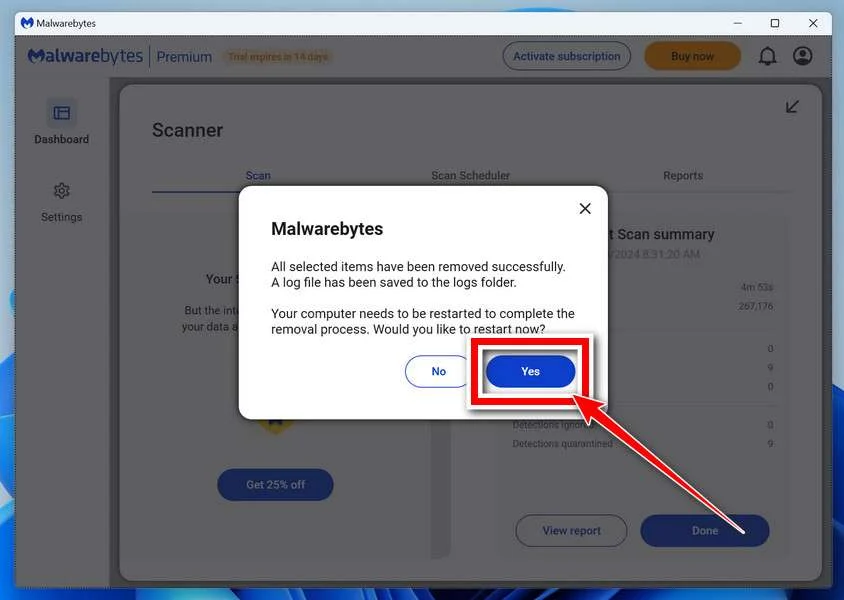
When the scan is done, check whether the problems you noticed have stopped. If they continue, see the options below.
If you are still having problems with your computer after completing these instructions, then please follow one of the steps:
- Run a computer scan with ESET Online Scanner
- Ask for help in our Windows Malware Removal Help & Support forum.
Run a Malware Scan with Malwarebytes for Mac
Malwarebytes for Mac is a free on-demand scanner that removes the malware other security software tends to miss — adware, browser hijackers, and unwanted programs included. Cleaning an infected Mac with Malwarebytes has always been completely free, and it’s our go-to recommendation. Follow the steps below to scan your Mac and remove what Malwarebytes finds.
-
Download Malwarebytes for Mac
Click the button below to download the latest version of Malwarebytes for Mac.
Download MalwarebytesOfficial installer for macOS. Your download starts right away.Want real-time protection? See Malwarebytes PremiumMalwarebytes Free for MacScans and removes malware at no cost -
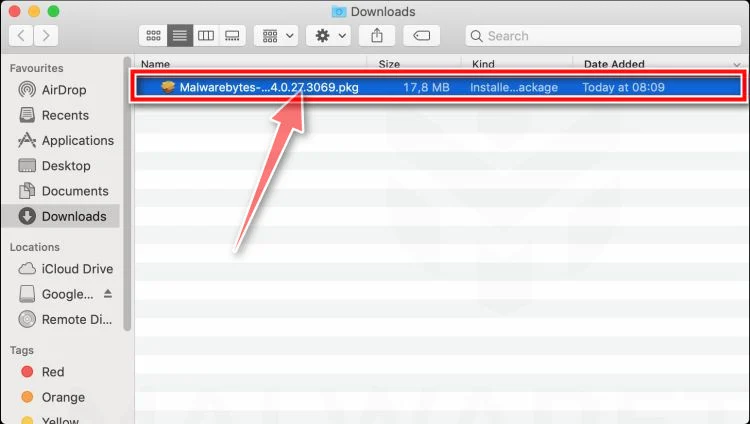
Open the Malwarebytes setup file
When the download finishes, open your Downloads folder and double-click the setup file to begin the installation.
-
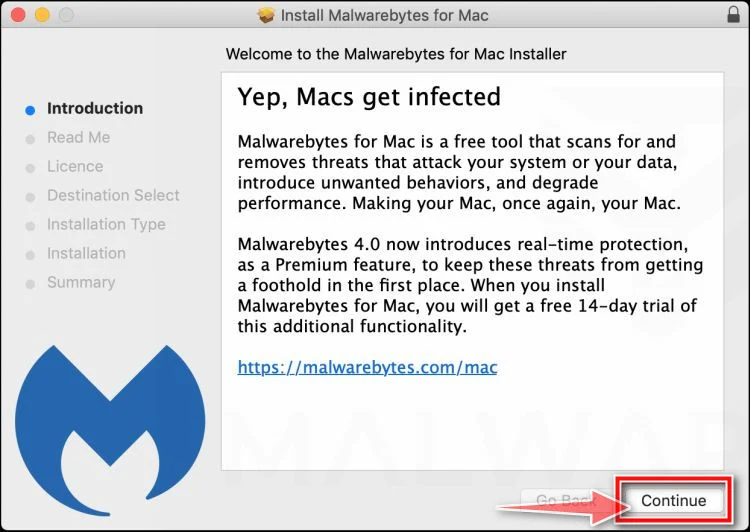
Follow the On-Screen Prompts to Install Malwarebytes
The Malwarebytes for Mac Installer will guide you through a few quick screens. Click “Continue” and keep following the prompts until the installation completes.
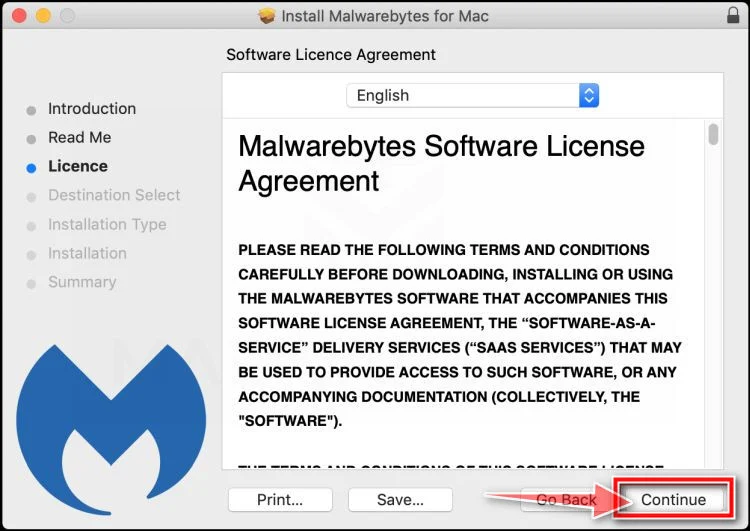
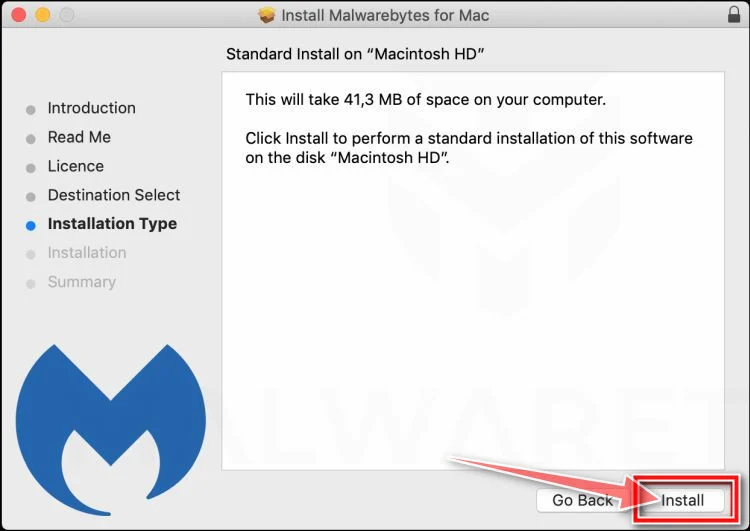
When the installation is complete, Malwarebytes opens to the Welcome to Malwarebytes screen. Click “Get started“.
Malwarebytes needs Full Disk Access to check your whole Mac. When it asks, open System Settings > Privacy & Security > Full Disk Access, turn on Malwarebytes (it may be listed as Malwarebytes Protection), and confirm with your password or Touch ID. Then return to Malwarebytes. On macOS Monterey and earlier, this setting is in System Preferences > Security & Privacy > Privacy.
-
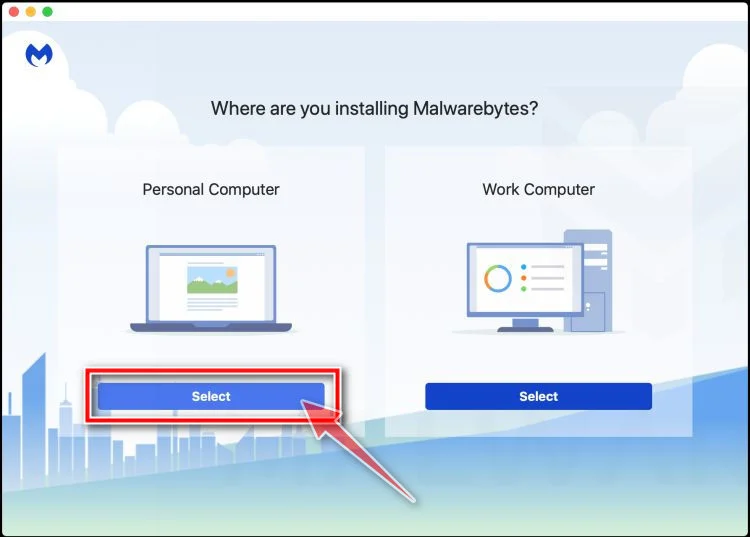
Select “Personal Computer” or “Work Computer”
Malwarebytes will ask what type of computer you’re installing it on. Click either Personal Computer or Work Computer, whichever applies.
-
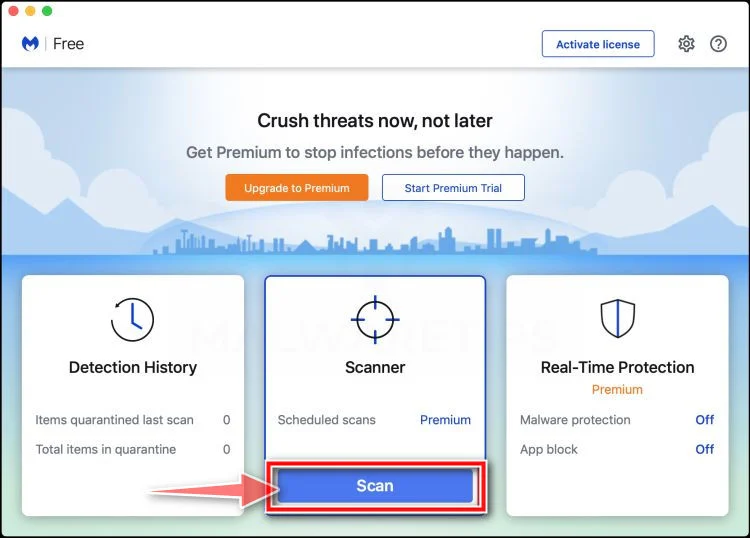
Start the Scan
Click the “Scan” button. Malwarebytes will automatically update its detection database and begin checking your Mac for malware.
-
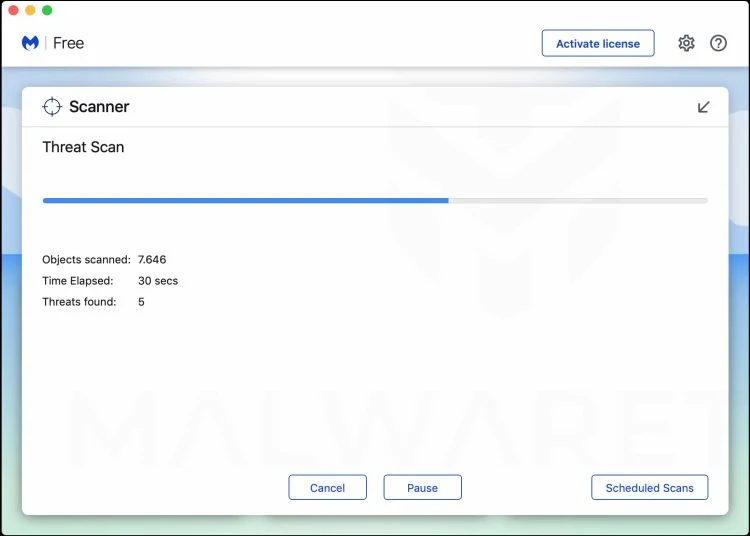
Wait for the Scan to Finish
Malwarebytes will scan your Mac for adware, browser hijackers, and other malicious programs. This can take a few minutes, so feel free to do something else — just check back occasionally to see the progress.
-
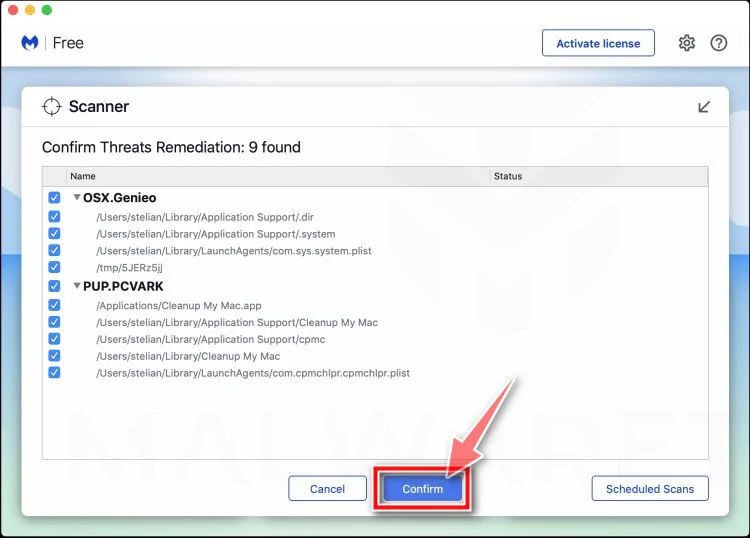
Quarantine the Detected Threats
When the scan is done, you’ll see a list of everything Malwarebytes found. Click the “Quarantine” button to remove all the threats at once.
-
Restart Your Mac
Malwarebytes will now remove all the malicious files it found. Some threats can only be fully removed after a reboot — if Malwarebytes asks you to restart, allow it. Once you’re logged back in, check whether the problems you noticed have stopped. If they come back, save the scan report and ask for help in our forum.
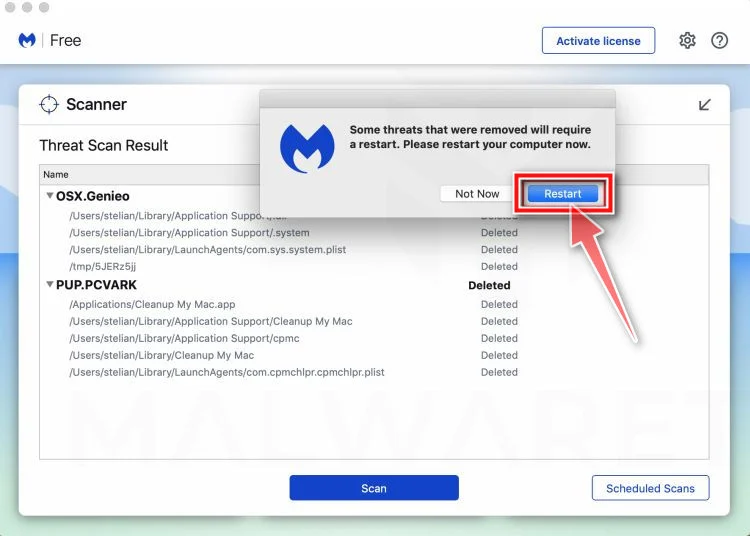
If the problems you noticed continue after the scan, see the options below.
If you are still experiencing problems while trying to remove a malicious program from your computer, please ask for help in our Mac Malware Removal Help & Support forum.
Run a Malware Scan with Malwarebytes for Android
Malwarebytes for Android scans your phone or tablet for malware, adware, and potentially unwanted apps. The free version scans only when you start a scan. Real-time protection, which checks apps automatically, is part of the paid Premium version.
-
Download Malwarebytes for Android.
You can download Malwarebytes for Android by clicking the link below.
Get Malwarebytes for AndroidOpens Google Play in a new tab.Want real-time protection? See Malwarebytes Premium for AndroidMalwarebytes for AndroidScans your phone and removes malware at no cost -
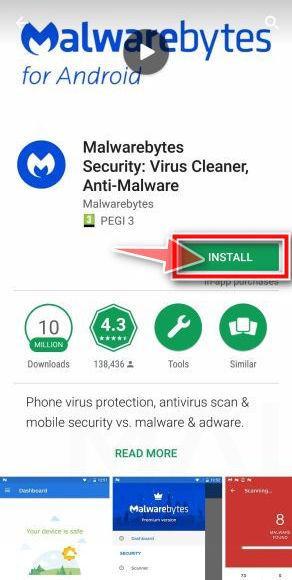
Install Malwarebytes for Android on your phone.
In the Google Play Store, tap “Install” to install Malwarebytes for Android on your device.
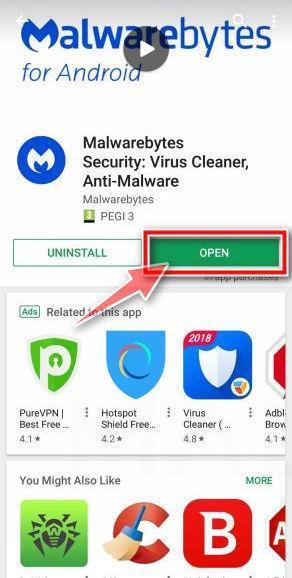
When the installation process has finished, tap “Open” to begin using Malwarebytes for Android. You can also open Malwarebytes by tapping on its icon in your phone menu or home screen.
-
Follow the on-screen prompts to complete the setup process
When Malwarebytes opens, it walks you through a short setup. Tap Get started and follow the prompts. If you see an offer for a trial or a paid plan, read it before you accept. You can skip it and keep using the free scanner.
Malwarebytes will ask for permission to access the files on your phone so it can scan them. Tap Allow, or turn on the permission in the Android screen that opens, then return to Malwarebytes.
-
Run a scan with Malwarebytes for Android
On the main screen, tap Scan now. In some versions, you open the menu, tap Scanner, and then tap Run a scan.
-
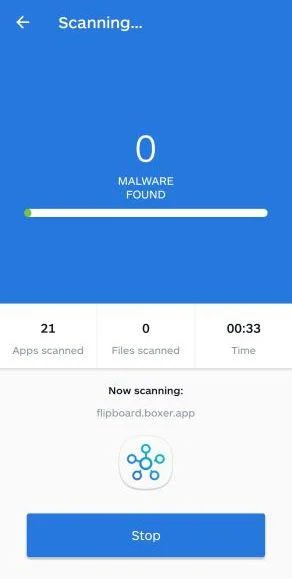
Wait for the Malwarebytes scan to complete.
Malwarebytes will now start scanning your phone for adware and other malicious apps. This process can take a few minutes, so we suggest you do something else and periodically check on the status of the scan to see when it is finished.
-
Remove the detected apps.
When the scan has been completed, you will see a list of the threats that Malwarebytes for Android has detected. Next to each detected item, tap the menu icon (three dots), then choose to uninstall the app or delete the file. Android then asks you to confirm. Tap OK or Uninstall to remove the app.
-
Restart your phone.
When the detected apps are removed, restart your phone if Malwarebytes asks you to. Then check whether the problems you noticed have stopped.
If the problems you noticed continue after the scan, see the options below.
If you are still having problems with your phone after completing these instructions, then please follow one of the steps:
- Ask for help in our Mobile Malware Removal Help & Support forum.
- Only as a last resort, reset your phone to factory settings. Read the warning below first.
- Back up your photos, videos, files, and messages, for example to your Google account or a computer.
- Make sure you know your Google account email and password. The phone asks for them after the reset. If you changed the password recently, Google recommends waiting 24 hours before you reset.
- On a Samsung phone, also make sure you know your Samsung account password.
- If you use an authenticator app for two-step verification, move your accounts to another device or save your backup codes first.
Stay Protected: Block Ads and Malicious Sites
No scan can prove a device is completely clean, so it helps to block threats before they reach you. Most infections start with a malicious ad or a fake download button — so blocking them at the source is your best defense.
We recommend AdGuard, which blocks malicious ads, phishing pages, and dangerous redirects before they can reach you.
👉 Download AdGuard and browse safely
Frequently Asked Questions About the Amazon Recall Text Scam
What is the Amazon Recall Text Scam?
The Amazon Recall Text Scam is a type of phishing attack where scammers send fraudulent text messages pretending to be from Amazon’s Safety Team. These texts claim that a product you purchased is being recalled due to safety or quality issues. They include a link to a fake Amazon website where victims are tricked into providing personal, login, or financial information.
How can I recognize a fake Amazon recall text?
Scam texts often share the same warning signs:
- They arrive as unexpected text messages instead of emails or account notifications.
- The text mentions an urgent recall and asks you to stop using a product immediately.
- It includes a fake order number or purchase date to appear authentic.
- The message contains a shortened URL link (such as cutt.ly or bit.ly).
- It asks you to log in or enter payment details on a suspicious website.
If a text checks any of these boxes, it is almost certainly a scam.
Does Amazon really send recall notices by text message?
No. Amazon does not send unsolicited recall notices by text message. Genuine recall information is usually delivered through:
- Official Amazon emails from verified domains (ending in @amazon.com).
- Notifications inside your Amazon account.
- Seller communication within the Amazon platform.
If you receive a recall text with a suspicious link, it is a scam.
What happens if I click on the link in the scam text?
Clicking the link may lead you to a phishing website designed to look like Amazon. Once there, scammers may ask for:
- Amazon login credentials.
- Credit card or bank account information.
- Personal details like your name, address, or phone number.
In some cases, the link could also attempt to install malware on your device.
What should I do if I entered my Amazon password on a fake site?
If you entered your login information, act quickly:
- Go to Amazon.com directly and change your password immediately.
- Enable two-step verification for added security.
- Check your account for unauthorized purchases.
- Contact Amazon customer support if you see anything suspicious.
What if I gave scammers my credit card information?
If you entered payment details, contact your bank or credit card company right away. Explain the situation, ask them to monitor for fraudulent activity, and request a new card if necessary.
Can scammers steal my identity from this scam?
Yes. If you provided personal details such as your full name, address, or phone number, scammers may attempt identity theft. They can use your information to commit fraud, open new accounts in your name, or sell your details on the dark web.
How can I report an Amazon scam text?
You can report suspicious Amazon recall texts in several ways:
- Forward the message to stop-spoofing@amazon.com.
- Block the number that sent the text.
- Report the scam to the Federal Trade Commission (FTC) at reportfraud.ftc.gov (for U.S. residents).
How can I protect myself from future Amazon text scams?
- Do not click links in unsolicited texts.
- Always check your Amazon account directly for recalls or refunds.
- Use strong, unique passwords for your Amazon account.
- Enable two-step verification for extra protection.
- Install security software on your phone to detect phishing or malware attempts.
Are there other common Amazon text scams?
Yes. Besides the fake recall scam, other common Amazon text scams include:
- Delivery notification scams claiming a package could not be delivered.
- Gift card scams asking you to buy gift cards as payment.
- Account suspension scams warning your account will be closed unless you verify details.
All of these rely on urgency and fake authority to trick victims into giving away sensitive information.
What is the safest way to check if a recall is real?
The safest way is to log in to your Amazon account directly at Amazon.com or through the official Amazon mobile app. If a product recall affects your order, it will appear in your account history or you will be notified by Amazon through official channels. Never trust unsolicited texts with links.
The Bottom Line
The Amazon Recall Text Scam is a dangerous phishing attack designed to steal your money and personal information. These fake messages exploit fear and urgency to trick you into clicking malicious links.
Remember:
- Amazon does not send random text messages for recalls.
- Never click on suspicious links or provide personal data through unofficial channels.
- Always verify recall information directly in your Amazon account or by contacting Amazon support.
By staying alert, you can protect yourself and avoid becoming a victim. Scammers are persistent, but a little skepticism goes a long way.

Join the discussion
0 commentsShare your experience or ask a question about this article.
Community experiences
Did this happen to you?
Your experience could help someone recognize the same scam. Submit a private report for our team to review.
I experienced this tooReports are reviewed before publication. Sharing publicly is always your choice.
Discussion
Start the conversation
Have a question or something useful to share? Add the first comment.