

Scammers have found a new way to exploit Amazon’s name and consumer trust, sending fake text messages claiming that a product you purchased has been recalled due to safety risks. These “Amazon Safety Recall Notification” scam texts look alarmingly real, reference supposed order numbers, and pressure victims to click a malicious link. In this guide, you’ll learn exactly how the scam works, how to protect yourself, and what to do if you’ve already fallen victim.
Scam Overview
The “Amazon Safety Recall Notification” scam is a sophisticated phishing campaign designed to trick consumers into clicking a malicious link disguised as an official Amazon recall notice. The text typically claims that a product you supposedly bought has been recalled for safety issues and urges you to stop using it immediately. The message then pushes you to click a shortened link (often t.co or bit.ly) to “request a refund.”
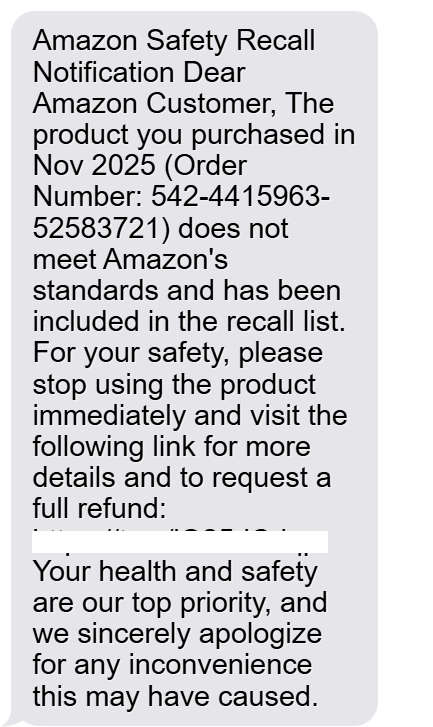
Example of the Scam Text
This is one of the messages currently circulating:
“Amazon Safety Recall Notification
Dear Amazon Customer, The product you purchased in Nov 2025 (Order Number: 542-4415963-52583721) does not meet Amazon’s standards and has been included in the recall list. For your safety, please stop using the product immediately and visit the following link for more details and to request a full refund: https://t.co/iQ25dCriqp Your health and safety are our top priority, and we sincerely apologize for any inconvenience this may have caused.”
At first glance, this message seems legitimate. It uses:
- Amazon’s name
- A realistic-looking order number
- A recall justification
- Professional wording
- A shortened URL that hides the real destination
- A tone that mimics Amazon’s customer service language
However, this message did not come from Amazon, and the link leads to a phishing site created to steal personal information, payment data, or logins.
Why This Scam Works So Well
Scammers understand consumer psychology. Amazon is the world’s largest ecommerce platform, and most people have ordered something recently. This makes it extremely easy for victims to believe a recall notice might be legitimate. The scam operates on several effective psychological triggers:
1. Fear of Danger
Scammers use the phrase “safety recall” to create a sense of urgency. No one wants to keep using a product if it may be unsafe, defective, or hazardous.
2. Authority and Brand Trust
Amazon is one of the most trusted brands globally. When a scam uses Amazon’s name and formatting, victims let their guard down because they assume Amazon would never send anything harmful.
3. Pressure to Act Quickly
Phrases like “stop using the product immediately” and “for your safety” manipulate victims into clicking quickly without thinking. Recalls are serious, so many consumers react instantly.
4. Realistic Order Numbers
Scammers insert convincing Amazon-like order IDs. This makes the message look highly authentic—even though the order number is completely fabricated.
5. The Promise of a Refund
Refund messaging is used as bait. Victims think they are reclaiming money, but they’re actually giving away sensitive information.
What the Fake Website Looks Like
When victims click the link, they are typically directed to a phishing website designed to look like an Amazon login or a refund request page. These pages often:
- Use Amazon logos
- Mimic Amazon’s color scheme
- Contain copy-pasted text from real Amazon recall pages
- Request you to “verify your identity”
- Ask for credit card details “for refund processing”
- Ask you to enter your login credentials
- Sometimes request your address or a photo of your ID
Scammers build these pages to be nearly indistinguishable from real Amazon domains.
What Scammers Want
The scam’s ultimate goal is to steal information. This may include:
- Amazon account login
- Payment card numbers
- Billing address
- Email and phone number
- Full name
- Two-factor authentication codes (via fake prompts)
Once the scammers have your Amazon credentials, they can:
- Buy items using your saved payment methods
- Change your Amazon password
- Change your email associated with the account
- Try your Amazon password on other platforms
- Sell your account on the dark web
If they steal your credit card information, the consequences escalate even further.
Why These Scams Are Becoming More Common
The “safety recall” angle is a newer tactic in phishing because regulators and consumers are becoming more educated. Scammers have shifted from old-fashioned delivery-text scams to more believable messages:
- Package delay notifications
- Payment failure alerts
- Account suspension warnings
- Security verification requests
- And now: product recall notices
The recall angle is compelling because the warning is health-related. Many people ignore payment or account messages, but a risk to personal safety feels urgent.
Amazon Confirms They Rarely Send Text Messages Like This
Amazon’s customer service guidelines explicitly state that:
- Amazon does not send recall notifications via random SMS shortcodes
- Amazon does not ask customers to click shortened URLs
- Amazon typically notifies customers via email, not text
- Official recall notifications always link to an Amazon.com domain, not third-party shortened links
Any deviation from these standards is a strong indicator of fraud.
Who Is Targeted
This scam targets:
- Recent Amazon customers
- People who order frequently
- Individuals who may have received an Amazon package recently
- People who have clicked Amazon ads on social media
- Anyone whose email/phone has leaked in past data breaches
Simply put: almost everyone.
How the Scam Works
This scam is engineered to appear harmless at first glance. However, behind the scenes, scammers follow a highly organized process designed to steal as much personal and financial data as possible. The following section breaks down each stage of the scam in detail.
Step 1: Scammers Harvest Your Phone Number
These scam operators do not magically know who purchased what. They obtain large lists of phone numbers from several sources:
- Data breaches
- Scraped online data
- Purchased marketing lists
- Previous phishing victims
- Public social media posts
- Leaked phone databases
Once scammers acquire these phone numbers, they begin mass texting.
Step 2: You Receive the Fake Amazon Safety Recall Text
The scammers send out automated SMS messages using spoofed numbers. These messages are carefully crafted to:
- Look like legitimate Amazon recall notifications
- Use formal language
- Include a fake order number
- Mention a recent month/year to increase realism
- Use “your safety” as a psychological lever
- Contain a shortened or obfuscated URL
Many victims click the link before considering whether the message is authentic.
Step 3: The Link Sends You to a Fake Amazon Webpage
Scammers use “cloaked” URLs to hide the real destination. A typical link may appear like this:
https://t.co/ something
https://bit.ly/ something
https://tinyurl.com/ something
These redirect to a phishing website designed to look identical to a legitimate Amazon page.
Common elements of these fake sites include:
- Amazon’s logo
- Amazon’s color palette
- Copywritten text designed to sound professional
- Fake SSL certificates or padlock symbols
- Real recall-related language pulled from Amazon policies
- Buttons labeled “Request Refund,” “View Recall Details,” or “Verify Order”
The aim is to keep victims comfortable and unaware that they’ve left Amazon’s ecosystem.
Step 4: The Website Asks You to Log In
The phishing site will typically display a login prompt. It may claim:
- “To process your refund, please verify your Amazon account.”
- “Your order information is locked; log in to continue.”
- “Confirm your identity to stop unauthorized use.”
When you enter your email and password, the scammers capture your login immediately.
Some phishing pages redirect you to an “error page” after logging in, pretending the password was incorrect while already capturing it.
Step 5: Scammers Attempt to Access Your Amazon Account
The moment they obtain your credentials, scammers often act quickly to avoid detection. They will:
- Log into your Amazon account
- Check stored payment methods
- Add new payment cards
- Change your account’s email
- Change your phone number
- Attempt high-value purchases
- Access your Amazon gift card balance
- Try your password on PayPal, Gmail, Facebook, and other services
If they are blocked by two-factor authentication (2FA), the phishing website may request your OTP code under the guise of “identity confirmation.”
Step 6: If You Provide Payment Information, the Damage Escalates
Some versions of this scam include refund forms that ask for:
- Your card number
- Expiration date
- CVV security code
- Billing address
- Date of birth
- Social Security Number (US victims)
- Bank account information
Scammers often justify these requests by claiming:
- “Refunds must be processed to the original payment method.”
- “We need your card details to verify ownership.”
- “We require identity information for safety compliance.”
None of this is true, but victims often comply because they believe they are dealing with Amazon.
Step 7: Victims Are Either Redirected or Shown a Fake Confirmation
After collecting personal and financial data, scammers typically display a fake confirmation screen:
“Your refund request has been submitted. Please allow 2–3 business days.”
This is designed to reassure you so you don’t immediately suspect fraud.
Step 8: Scammers Sell or Monetize the Stolen Information
The stolen data is then used in multiple ways:
- Logging into your Amazon account to make purchases
- Using your credit card for fraudulent transactions
- Selling your login credentials on the dark web
- Conducting identity theft
- Accessing your other accounts using the same password
- Targeting you with additional scams
- Stealing your stored addresses and personal info
This is why these scams are so dangerous. A single click can lead to ongoing fraud.
What to Do If You Have Fallen Victim to the Scam
If you have already clicked a link, logged in, or entered information, act quickly. The faster you respond, the fewer opportunities scammers have to exploit your data.
Below is a comprehensive step-by-step recovery plan.
1. Change Your Amazon Password Immediately
If you entered your Amazon login, assume it has been stolen.
Go to the real Amazon website:
https://www.amazon.com
or
https://www.amazon.co.uk
or
https://www.amazon.de
Depending on your country.
Navigate to:
Account → Login & Security → Change Password
Create a strong, unique password not used anywhere else.
2. Enable Two-Factor Authentication (If Not Already Active)
Activate Amazon 2FA:
Account → Login & Security → Two-Step Verification
This prevents scammers from accessing your account even if they have your password.
3. Check for Unauthorized Activity
Review:
- Recent orders
- Gift card balance
- Digital services subscriptions
- Login history
- Saved payment methods
If you see anything unusual, report it to Amazon immediately.
4. Remove Unknown Devices
On Amazon:
Account → Login & Security → Manage Devices
Sign out of any device you do not recognize.
5. Contact Your Bank or Card Provider
If you entered card information, call your bank immediately and request:
- A card block
- Card replacement
- Fraud monitoring
- Chargeback assistance (if necessary)
Banks are used to dealing with phishing victims and will help secure your account.
6. Monitor Your Accounts for Suspicious Charges
Keep an eye on:
- Bank statements
- Amazon purchase history
- PayPal transactions
- Other financial accounts
Fraud may occur days or weeks after the phishing incident.
7. Change Passwords for Any Other Account Using the Same Password
Most victims reuse passwords. This allows scammers to access:
- Gmail
- Outlook
- PayPal
- eBay
- Banking apps
- Other ecommerce accounts
Use unique passwords everywhere.
8. Run an Antivirus or Anti-Malware Scan
If you downloaded anything from the phishing site (some versions do this), scan your device with reputable security software.
9. Report the Scam to Amazon
Forward the scam text to:
Amazon investigates fraudulent websites and can help prevent others from falling victim.
10. Report the Scam to Local Authorities
Depending on your region:
- USA: report to the FTC
- UK: report to Action Fraud
- EU: report to your national cybercrime unit
Reporting helps authorities track large-scale phishing campaigns.
11. Warn Family and Friends
Scammers often target victims’ contacts next.
Let people know:
“I received a fake Amazon recall text. If you get one, do not click the link.”
Is Your Device Infected? Run a Free Malware Scan
Slow performance, constant pop-ups, or strange behavior? These are classic signs of a malware infection. The fastest way to find out is to scan your device with Malwarebytes Free — one of the most trusted malware removal tools available.
The free version detects and removes the most common threats, including:
- Adware — the cause of those annoying pop-ups
- Browser hijackers — unwanted redirects and changed homepages
- Trojans and spyware — hidden programs stealing your data
- Potentially unwanted programs (PUPs) — software you never asked for
👉 Select your device below — Windows, Mac, or Android — then follow the simple steps to download Malwarebytes, scan your system, and remove any threats it finds. The scan usually takes 5 to 20 minutes.
Run a Malware Scan with Malwarebytes for Windows
Malwarebytes is one of the most popular and trusted anti-malware tools for Windows — and it’s completely free for removing infections. It catches threats that many antivirus programs miss, including adware, browser hijackers, and trojans. Follow the steps below to scan and clean your PC in just a few minutes.
Download Malwarebytes
Click the button below to download the latest version of Malwarebytes for Windows from the official source. The free version is all you need — it will scan your computer and remove adware, browser hijackers, and other malicious software at no cost.
Download MalwarebytesOfficial installer for Windows 11 and 10. Your download starts right away.Want real-time protection? See Malwarebytes Premium Malwarebytes Free for WindowsScans and removes malware at no cost
-
Install Malwarebytes
When the download finishes, open your Downloads folder and double-click the MBSetup file. If Windows shows a User Account Control pop-up, click “Yes” to allow the installation.

Follow the On-Screen Prompts to Install Malwarebytes
The setup wizard will walk you through a few quick screens:
-
Choose where you’re installing the program — “Personal Computer” or “Work Computer” — then click Next.

-
Malwarebytes will now install on your device. This usually takes under a minute.

-
When installation is complete, the “Welcome to Malwarebytes” screen will open automatically.

-
On the final screen, click Open Malwarebytes to launch the program.

-
Enable “Scan for Rootkits”
Before scanning, turn on rootkit detection so Malwarebytes can find even the most hidden threats. Click the Settings gear icon on the left side of the screen.

In the settings menu, find “Scan for rootkits” and click the toggle so it turns blue.

Done? Click “Dashboard” in the left pane to return to the main screen.
Start the Scan
Click the blue Scan button. Malwarebytes will automatically update its virus database and start checking your computer for malware.

-
Wait for the Scan to Finish
The scan checks your entire system for browser hijackers and other malicious programs, so it can take 5 to 20 minutes depending on your computer. Feel free to do something else — just check back occasionally to see the progress.

-
Quarantine the Detected Threats
When the scan is done, you’ll see a list of everything Malwarebytes found — malware, adware, and potentially unwanted programs. Click the “Quarantine” button to remove all of them at once.

Malwarebytes will now remove the malicious files and registry entries and move them safely into quarantine.

-
Restart Your Computer
Some threats can only be fully removed after a reboot. If Malwarebytes asks you to restart, click Yes. Once you’re logged back in, Malwarebytes has finished removing the threats it found.

That’s it — your Windows PC is now clean of trojans, adware, and other malware, and should be back to running smoothly.
If you are still having problems with your computer after completing these instructions, then please follow one of the steps:
- Run a computer scan with ESET Online Scanner
- Ask for help in our Windows Malware Removal Help & Support forum.
Run a Malware Scan with Malwarebytes for Mac
Malwarebytes for Mac is a free on-demand scanner that removes the malware other security software tends to miss — adware, browser hijackers, and unwanted programs included. Cleaning an infected Mac with Malwarebytes has always been completely free, and it’s our go-to recommendation. Follow the steps below to scan and clean your Mac in just a few minutes.
-
Download Malwarebytes for Mac
Click the button below to download the latest version of Malwarebytes for Mac.
Download MalwarebytesOfficial installer for macOS. Your download starts right away.Want real-time protection? See Malwarebytes PremiumMalwarebytes Free for MacScans and removes malware at no cost -
Open the Malwarebytes setup file
When the download finishes, open your Downloads folder and double-click the setup file to begin the installation.

-
Follow the On-Screen Prompts to Install Malwarebytes
The Malwarebytes for Mac Installer will guide you through a few quick screens. Click “Continue” and keep following the prompts until the installation completes.



When the installation is complete, Malwarebytes opens to the Welcome to Malwarebytes screen. Click “Get started“.
-
Select “Personal Computer” or “Work Computer”
Malwarebytes will ask what type of computer you’re installing it on. Click either Personal Computer or Work Computer, whichever applies.

-
Start the Scan
Click the “Scan” button. Malwarebytes will automatically update its detection database and begin checking your Mac for malware.

-
Wait for the Scan to Finish
Malwarebytes will scan your Mac for adware, browser hijackers, and other malicious programs. This can take a few minutes, so feel free to do something else — just check back occasionally to see the progress.

-
Quarantine the Detected Threats
When the scan is done, you’ll see a list of everything Malwarebytes found. Click the “Quarantine” button to remove all the threats at once.

-
Restart Your Mac
Malwarebytes will now remove all the malicious files it found. Some threats can only be fully removed after a reboot — if Malwarebytes asks you to restart, allow it. Once you’re logged back in, your Mac is clean.

That’s it — your Mac is now free of adware, rogue browser extensions, and other potentially harmful software.
If you are still experiencing problems while trying to remove a malicious program from your computer, please ask for help in our Mac Malware Removal Help & Support forum.
Run a Malware Scan with Malwarebytes for Android
Malwarebytes for Android automatically detects and removes dangerous threats like malware and ransomware so you don’t have to worry about your most-used device being compromised. Aggressive detection of adware and potentially unwanted programs keeps your Android phone or tablet running smooth.
-
Download Malwarebytes for Android.
You can download Malwarebytes for Android by clicking the link below.
Get Malwarebytes for AndroidOpens Google Play in a new tab.Want real-time protection? See Malwarebytes Premium for AndroidMalwarebytes for AndroidScans your phone and removes malware at no cost -
Install Malwarebytes for Android on your phone.
In the Google Play Store, tap “Install” to install Malwarebytes for Android on your device.

When the installation process has finished, tap “Open” to begin using Malwarebytes for Android. You can also open Malwarebytes by tapping on its icon in your phone menu or home screen.

-
Follow the on-screen prompts to complete the setup process
When Malwarebytes will open, you will see the Malwarebytes Setup Wizard which will guide you through a series of permissions and other setup options.
This is the first of two screens that explain the difference between the Premium and Free versions. Swipe this screen to continue.
Tap on “Got it” to proceed to the next step.
Malwarebytes for Android will now ask for a set of permissions that are required to scan your device and protect it from malware. Tap on “Give permission” to continue.
Tap on “Allow” to permit Malwarebytes to access the files on your phone.
-
Update database and run a scan with Malwarebytes for Android
You will now be prompted to update the Malwarebytes database and run a full system scan.

Click on “Update database” to update the Malwarebytes for Android definitions to the latest version, then click on “Run full scan” to perform a system scan.

-
Wait for the Malwarebytes scan to complete.
Malwarebytes will now start scanning your phone for adware and other malicious apps. This process can take a few minutes, so we suggest you do something else and periodically check on the status of the scan to see when it is finished.

-
Click on “Remove Selected”.
When the scan has been completed, you will be presented with a screen showing the malware infections that Malwarebytes for Android has detected. To remove the malicious apps that Malwarebytes has found, tap on the “Remove Selected” button.

-
Restart your phone.
Malwarebytes for Android will now remove all the malicious apps that it has found. To complete the malware removal process, Malwarebytes may ask you to restart your device.
That’s it — your Android phone is now clean — no more malicious apps, adware, or browser redirects.
If you are still having problems with your phone after completing these instructions, then please follow one of the steps:
- Restore your phone to factory settings by going to Settings > General management > Reset > Factory data reset.
- Ask for help in our Mobile Malware Removal Help & Support forum.
Stay Protected: Block Ads and Malicious Sites
Now that your device is clean, keep it that way. Most infections start with a malicious ad or a fake download button — so blocking them at the source is your best defense.
We recommend AdGuard, which blocks malicious ads, phishing pages, and dangerous redirects before they can reach you.
👉 Download AdGuard and browse safely
The Bottom Line
Fake “Amazon Safety Recall Notification” text messages are becoming increasingly common and more sophisticated. They mimic Amazon’s communication style, reference fake order numbers, and use fear-based recall language to push victims into clicking malicious links. Once a victim interacts with the phishing page, scammers can steal Amazon logins, payment cards, personal information, and even identity data.
The key ways to protect yourself are simple:
- Do not click links in unsolicited text messages.
- Always visit Amazon directly through the app or website.
- Use strong, unique passwords and 2FA.
- Stay skeptical of shortened URLs.
By understanding how this scam works and knowing how to respond, you can protect your Amazon account, personal information, and financial safety.
If you ever receive a suspicious recall message, delete it immediately and verify orders only through the official Amazon website or app.
Frequently Asked Questions
Is the “Amazon Safety Recall Notification” text message real?
No. The “Amazon Safety Recall Notification” text message circulating in 2025 is a scam. Amazon does not send unsolicited recall alerts through random text messages containing shortened links. Legitimate recall notices are typically delivered by email through official Amazon domains or displayed directly in your Amazon account. Any message urging you to click a t.co, bit.ly, or tinyurl link is fraudulent.
Why did I receive a fake Amazon recall text if I didn’t order anything recently?
Scammers send these messages in bulk to thousands of random phone numbers. They are not targeting you specifically, nor do they know what you purchased. They rely on the high probability that most people have bought something from Amazon recently. Your number may have been obtained from data breaches, public records, social media, or leaked marketing lists.
How can I tell if an Amazon recall notification is legitimate?
Legitimate Amazon recall notifications:
- Come from official Amazon email domains, not SMS shortcodes.
- Never use URL shorteners.
- Are visible in your Amazon orders page when you log in directly.
- Do not ask for personal information, credit card numbers, or passwords.
- Never pressure you to take immediate action through text messages.
If the message uses a suspicious link or contains an unfamiliar order number, it is a scam.
What happens if I click the link in the scam text?
If you click the link, you may be directed to a phishing page designed to mimic the Amazon login screen. These pages can steal your:
- Amazon login credentials
- Credit card information
- Personal details
- Address and phone number
- Two-factor authentication codes
In some cases, the site may attempt to install malware or spyware on your device. Simply clicking the link often begins the phishing process, even if you do not enter information.
What should I do if I entered my Amazon login on the fake site?
Change your Amazon password immediately through the official Amazon website or mobile app. After updating your password, enable two-factor authentication and review your recent orders and account settings for unauthorized activity. If scammers gained access, they may attempt purchases, gift card withdrawals, or email/phone number changes. Act quickly to minimize damage.
Can scammers access my bank account from this scam?
They cannot directly access your bank account unless you provided them with your banking credentials or debit card information. However, if you entered your credit card details on the phishing page, scammers can use your card for fraudulent purchases. Contact your bank or card issuer right away and request a card replacement, fraud monitoring, and reversal of any unauthorized transactions.
Will Amazon ever issue a product recall through SMS?
Amazon rarely, if ever, issues recall alerts by SMS. Safety recalls are normally communicated through:
- Email notifications from official Amazon domains
- Notifications inside your Amazon Orders page
- Alerts in the Amazon mobile app
If you receive a recall message by text, assume it is fraudulent unless you verify it directly within your Amazon account.
What does a real Amazon recall email look like?
A legitimate Amazon recall notification:
- Comes from an address ending in @amazon.com
- Contains detailed product information
- Does not use shortened URLs
- Directs you to Amazon’s official website
- Never asks for passwords, credit card numbers, or personal documents
- Appears in your Amazon account under “Your Orders”
Scammers copy Amazon’s formatting, but small clues like strange links or generic product descriptions can help you spot fakes.
Is it safe to open the text message as long as I don’t click the link?
Yes. Opening or reading the message is safe. The danger begins when you:
- Click the link
- Enter personal information
- Download anything
- Call a phone number listed in the message
- Respond to the text
Deleting the message without interacting with it is the safest option.
Why do scammers use shortened links like t.co or bit.ly?
Shortened links hide the destination URL, making it impossible to see where the link truly leads. Scammers use these URLs to make victims believe the link might be legitimate. These domains can redirect to phishing pages hosted on hacked servers or temporary scam sites created specifically for the phishing campaign.
Can the scam text contain malware?
The text message itself does not contain malware. However, the website linked in the message may attempt to:
- Install malicious apps
- Download harmful files
- Request permissions that compromise your phone
- Inject tracking scripts or spyware
Avoid clicking any links from unsolicited recall texts.
I entered my information but no money was taken. Am I safe?
Not necessarily. Scammers may wait days or weeks before attempting fraud. If you entered:
- Amazon login credentials
- Credit card information
- Personal details
- Address and phone number
You should assume your information has been compromised. Change passwords immediately, monitor bank accounts, and contact Amazon and your financial institution for assistance.
Are scammers able to access my Amazon account even if I have two-factor authentication enabled?
If you entered your password but did not submit your two-factor code, scammers typically cannot log into your Amazon account. However, some phishing pages will request your OTP code under the pretext of “identity verification.” If you submitted that code, scammers can bypass your security and gain full access until Amazon locks the account or you change the password.
Why does the scam text mention a specific order number?
The order numbers in scam texts are randomly generated to mimic Amazon’s formatting. They are not connected to real purchases. Scammers add them to make the message appear authentic and increase the chances that you will take the message seriously.
Is it possible that scammers know my actual Amazon purchase history?
In almost all cases, no. These messages are bulk-generated and not personalized. Scammers do not have access to your Amazon account unless you already entered your information on a phishing website. The recall message does not indicate that your real purchase history has been accessed.
Should I report the fake Amazon recall text?
Yes. Reporting helps Amazon and cybersecurity organizations take down related phishing websites. Forward the scam text to Amazon at:
stop-spoofing@amazon.com
You may also report it to your mobile carrier, local cybercrime unit, or government fraud-reporting agency.
How can I prevent falling for Amazon scams in the future?
Use the following safety practices:
- Never click links in unexpected text messages.
- Access Amazon only through the official app or by typing amazon.com manually.
- Enable two-factor authentication on your Amazon account.
- Use unique passwords for every online service.
- Ignore or delete any text requesting personal or financial information.
- Bookmark the legitimate Amazon login page to avoid phishing sites.
What should I do if a family member or friend received the same scam text?
Encourage them not to click the link and explain the risks. Scammers often send identical messages to many people in the same geographic area or mobile network. Share this guide with them to help prevent further victims.
Does deleting the message stop the scam?
Deleting the message does not stop the scammers, but it does protect you from accidentally clicking the link later. The scammer will not know or care that you deleted it. They simply move on to other potential victims.
Can this scam steal my Amazon gift card balance?
Yes. If scammers gain access to your Amazon account using stolen login credentials, they can:
- Spend your gift card balance
- Redeem unauthorized gift cards
- Purchase digital goods
- Send items to alternative addresses
Gift card theft is common because it is harder to trace and dispute than credit card fraud.

Join the discussion
0 commentsShare your experience or ask a question about this article.
Discussion
Start the conversation
Have a question or something useful to share? Add the first comment.