

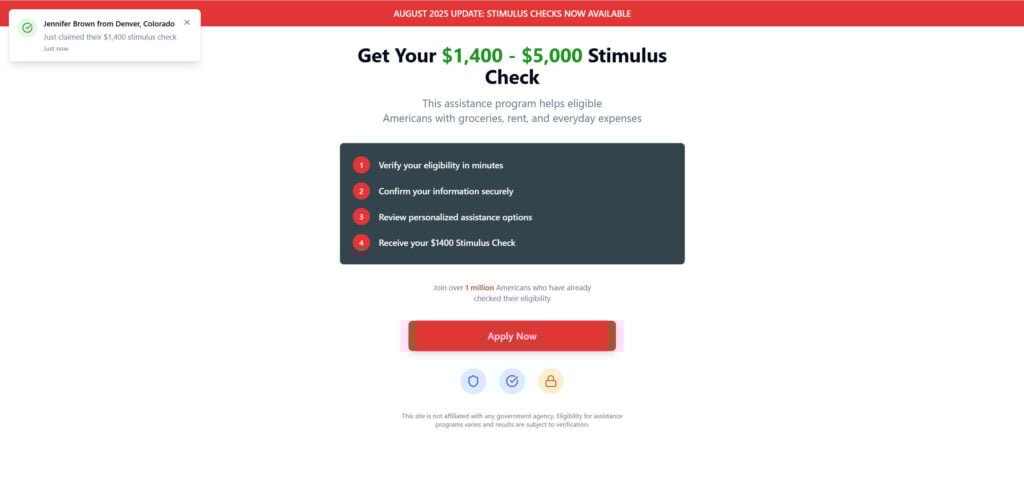
FundCheck.us claims to help Americans secure stimulus payments ranging from $1,400 to $5,000. The website presents itself as a fast, hassle-free way to check your eligibility—no paperwork required, instant results promised. But if you’re asking whether FundCheck.us is actually helping people or if it’s just another scheme to harvest data and profit off unsuspecting users, the short answer is: it’s the latter.
In this investigative breakdown, we expose how FundCheck.us operates, why it raises serious red flags, and what steps you should take if you’ve already interacted with the site. The truth behind this platform is far more disturbing than its professional layout would suggest.
Scam Overview
FundCheck.us is presented as an eligibility checker for Americans looking to claim federal stimulus checks. The promise? Find out in just a few minutes if you qualify for up to $5,000. It sounds appealing, especially to people who may have missed out on previous payments or are currently struggling financially.
The site uses urgency-driven messaging, fake pop-ups that claim people are receiving money in real-time, and step-by-step promises that suggest you’re only minutes away from receiving cash. However, upon closer inspection, FundCheck.us does not have any affiliation with the IRS, U.S. Treasury, or any legitimate government relief program.
Red Flags That Point to a Scam:
- No Government Affiliation: Despite repeatedly referencing stimulus checks, the site clearly states in small print that it is not associated with any government agency.
- Brand New Domain: WHOIS records show the domain was only registered recently. Any legitimate site offering financial relief would have a longer, verifiable track record.
- Lack of Contact Information: There’s no address, no phone number, and no company information. Legitimate financial assistance platforms always offer ways to verify who’s behind them.
- Deceptive Interface: The website shows activity notifications like “Jennifer from Denver just claimed $1,400,” but these are fabricated to create a false sense of trust and urgency.
- Redirects to Unrelated Offers: Instead of delivering actual stimulus information, users are redirected to third-party websites pushing product trials, surveys, and lead-generation scams.
- Vague Language and No Accountability: Terms like “personalized assistance options” and “verify eligibility” sound official but are designed to mask a lack of any real service.
These characteristics are typical of online scams that aim to generate revenue through clicks, sign-ups, or selling user data.
How the Scam Works: Step-by-Step
Step 1: The Hook
The website immediately draws you in with bold headlines like “You May Be Eligible for Up to $5,000 in Stimulus Relief.” It creates urgency with headers such as “AUGUST 2025 UPDATE: STIMULUS CHECKS NOW AVAILABLE,” designed to make users feel like they’re missing out if they don’t act now.
Step 2: The Bait
You’re encouraged to click “Apply Now” or “Check Eligibility.” This brings you to a form or questionnaire asking basic questions like your ZIP code, employment status, and citizenship. These questions aren’t tied to any real verification system. They are used to gather demographic data and encourage trust.
Step 3: False Eligibility Results
No matter what you enter, you’re almost always told you’re “eligible.” This creates the illusion of progress and primes you for the next step, which often involves entering more sensitive personal data like your phone number or email address.
Step 4: Redirection to Affiliate Pages
Once your “eligibility” is confirmed, you are redirected to completely unrelated websites. These may include:
- Survey platforms
- E-commerce trials
- Sweepstakes pages
- Financial product sign-ups Each of these is an affiliate marketing offer that earns revenue for FundCheck.us operators every time you click or submit your details.
Step 5: Data Harvesting
All the data you’ve submitted—including browsing patterns, email, IP address, and possibly even device information—is now stored and potentially sold. This data can be used for:
- Targeted spam
- Robocalls
- Phishing attacks
- Ad retargeting
Step 6: Repeat Exposure
Because the site uses tracking tools like pixels and cookies, your data may be shared across networks of similar scam sites. This means you may see even more offers claiming you have unclaimed benefits, creating a loop of ongoing exploitation.
FundCheck.us isn’t about helping you. It’s a machine built to monetize your desperation.
What to Do if You Have Fallen Victim to This Scam
- Stop All Interaction Immediately Close the site and do not click on any links or reply to emails from related senders.
- Change Your Passwords If you used your email or phone on the site, change passwords on associated accounts and enable two-factor authentication.
- Report the Scam File a report with:
- The Federal Trade Commission: www.reportfraud.ftc.gov
- Internet Crime Complaint Center: www.ic3.gov
- Your state’s consumer protection agency
- Use Spam and Scam Filters Install spam blockers for email and use call-filtering apps to reduce robocalls.
- Monitor Your Financial Accounts Watch for any unusual activity in your bank or credit card accounts. If needed, place a freeze on your credit with the major bureaus.
- Use a Reputable Identity Protection Service Consider enrolling in a trusted identity monitoring service to catch any future misuse of your personal information.
- Warn Others Share this information with family, friends, and social media networks to help protect others.
Is Your Device Infected? Run a Free Malware Scan
Slow performance, constant pop-ups, or strange behavior? These are classic signs of a malware infection. The fastest way to find out is to scan your device with Malwarebytes Free — one of the most trusted malware removal tools available.
The free version detects and removes the most common threats, including:
- Adware — the cause of those annoying pop-ups
- Browser hijackers — unwanted redirects and changed homepages
- Trojans and spyware — hidden programs stealing your data
- Potentially unwanted programs (PUPs) — software you never asked for
👉 Select your device below — Windows, Mac, or Android — then follow the simple steps to download Malwarebytes, scan your system, and remove any threats it finds. The scan usually takes 5 to 20 minutes.
Run a Malware Scan with Malwarebytes for Windows
Malwarebytes is one of the most popular and trusted anti-malware tools for Windows — and it’s completely free for removing infections. It catches threats that many antivirus programs miss, including adware, browser hijackers, and trojans. Follow the steps below to scan and clean your PC in just a few minutes.
Download Malwarebytes
Click the button below to download the latest version of Malwarebytes for Windows from the official source. The free version is all you need — it will scan your computer and remove adware, browser hijackers, and other malicious software at no cost.
Download MalwarebytesOfficial installer for Windows 11 and 10. Your download starts right away.Want real-time protection? See Malwarebytes Premium Malwarebytes Free for WindowsScans and removes malware at no cost
-
Install Malwarebytes
When the download finishes, open your Downloads folder and double-click the MBSetup file. If Windows shows a User Account Control pop-up, click “Yes” to allow the installation.

Follow the On-Screen Prompts to Install Malwarebytes
The setup wizard will walk you through a few quick screens:
-
Choose where you’re installing the program — “Personal Computer” or “Work Computer” — then click Next.

-
Malwarebytes will now install on your device. This usually takes under a minute.

-
When installation is complete, the “Welcome to Malwarebytes” screen will open automatically.

-
On the final screen, click Open Malwarebytes to launch the program.

-
Enable “Scan for Rootkits”
Before scanning, turn on rootkit detection so Malwarebytes can find even the most hidden threats. Click the Settings gear icon on the left side of the screen.

In the settings menu, find “Scan for rootkits” and click the toggle so it turns blue.

Done? Click “Dashboard” in the left pane to return to the main screen.
Start the Scan
Click the blue Scan button. Malwarebytes will automatically update its virus database and start checking your computer for malware.

-
Wait for the Scan to Finish
The scan checks your entire system for browser hijackers and other malicious programs, so it can take 5 to 20 minutes depending on your computer. Feel free to do something else — just check back occasionally to see the progress.

-
Quarantine the Detected Threats
When the scan is done, you’ll see a list of everything Malwarebytes found — malware, adware, and potentially unwanted programs. Click the “Quarantine” button to remove all of them at once.

Malwarebytes will now remove the malicious files and registry entries and move them safely into quarantine.

-
Restart Your Computer
Some threats can only be fully removed after a reboot. If Malwarebytes asks you to restart, click Yes. Once you’re logged back in, Malwarebytes has finished removing the threats it found.

That’s it — your Windows PC is now clean of trojans, adware, and other malware, and should be back to running smoothly.
If you are still having problems with your computer after completing these instructions, then please follow one of the steps:
- Run a computer scan with ESET Online Scanner
- Ask for help in our Windows Malware Removal Help & Support forum.
Run a Malware Scan with Malwarebytes for Mac
Malwarebytes for Mac is a free on-demand scanner that removes the malware other security software tends to miss — adware, browser hijackers, and unwanted programs included. Cleaning an infected Mac with Malwarebytes has always been completely free, and it’s our go-to recommendation. Follow the steps below to scan and clean your Mac in just a few minutes.
-
Download Malwarebytes for Mac
Click the button below to download the latest version of Malwarebytes for Mac.
Download MalwarebytesOfficial installer for macOS. Your download starts right away.Want real-time protection? See Malwarebytes PremiumMalwarebytes Free for MacScans and removes malware at no cost -
Open the Malwarebytes setup file
When the download finishes, open your Downloads folder and double-click the setup file to begin the installation.

-
Follow the On-Screen Prompts to Install Malwarebytes
The Malwarebytes for Mac Installer will guide you through a few quick screens. Click “Continue” and keep following the prompts until the installation completes.



When the installation is complete, Malwarebytes opens to the Welcome to Malwarebytes screen. Click “Get started“.
-
Select “Personal Computer” or “Work Computer”
Malwarebytes will ask what type of computer you’re installing it on. Click either Personal Computer or Work Computer, whichever applies.

-
Start the Scan
Click the “Scan” button. Malwarebytes will automatically update its detection database and begin checking your Mac for malware.

-
Wait for the Scan to Finish
Malwarebytes will scan your Mac for adware, browser hijackers, and other malicious programs. This can take a few minutes, so feel free to do something else — just check back occasionally to see the progress.

-
Quarantine the Detected Threats
When the scan is done, you’ll see a list of everything Malwarebytes found. Click the “Quarantine” button to remove all the threats at once.

-
Restart Your Mac
Malwarebytes will now remove all the malicious files it found. Some threats can only be fully removed after a reboot — if Malwarebytes asks you to restart, allow it. Once you’re logged back in, your Mac is clean.

That’s it — your Mac is now free of adware, rogue browser extensions, and other potentially harmful software.
If you are still experiencing problems while trying to remove a malicious program from your computer, please ask for help in our Mac Malware Removal Help & Support forum.
Run a Malware Scan with Malwarebytes for Android
Malwarebytes for Android automatically detects and removes dangerous threats like malware and ransomware so you don’t have to worry about your most-used device being compromised. Aggressive detection of adware and potentially unwanted programs keeps your Android phone or tablet running smooth.
-
Download Malwarebytes for Android.
You can download Malwarebytes for Android by clicking the link below.
Get Malwarebytes for AndroidOpens Google Play in a new tab.Want real-time protection? See Malwarebytes Premium for AndroidMalwarebytes for AndroidScans your phone and removes malware at no cost -
Install Malwarebytes for Android on your phone.
In the Google Play Store, tap “Install” to install Malwarebytes for Android on your device.

When the installation process has finished, tap “Open” to begin using Malwarebytes for Android. You can also open Malwarebytes by tapping on its icon in your phone menu or home screen.

-
Follow the on-screen prompts to complete the setup process
When Malwarebytes will open, you will see the Malwarebytes Setup Wizard which will guide you through a series of permissions and other setup options.
This is the first of two screens that explain the difference between the Premium and Free versions. Swipe this screen to continue.
Tap on “Got it” to proceed to the next step.
Malwarebytes for Android will now ask for a set of permissions that are required to scan your device and protect it from malware. Tap on “Give permission” to continue.
Tap on “Allow” to permit Malwarebytes to access the files on your phone.
-
Update database and run a scan with Malwarebytes for Android
You will now be prompted to update the Malwarebytes database and run a full system scan.

Click on “Update database” to update the Malwarebytes for Android definitions to the latest version, then click on “Run full scan” to perform a system scan.

-
Wait for the Malwarebytes scan to complete.
Malwarebytes will now start scanning your phone for adware and other malicious apps. This process can take a few minutes, so we suggest you do something else and periodically check on the status of the scan to see when it is finished.

-
Click on “Remove Selected”.
When the scan has been completed, you will be presented with a screen showing the malware infections that Malwarebytes for Android has detected. To remove the malicious apps that Malwarebytes has found, tap on the “Remove Selected” button.

-
Restart your phone.
Malwarebytes for Android will now remove all the malicious apps that it has found. To complete the malware removal process, Malwarebytes may ask you to restart your device.
That’s it — your Android phone is now clean — no more malicious apps, adware, or browser redirects.
If you are still having problems with your phone after completing these instructions, then please follow one of the steps:
- Restore your phone to factory settings by going to Settings > General management > Reset > Factory data reset.
- Ask for help in our Mobile Malware Removal Help & Support forum.
Stay Protected: Block Ads and Malicious Sites
Now that your device is clean, keep it that way. Most infections start with a malicious ad or a fake download button — so blocking them at the source is your best defense.
We recommend AdGuard, which blocks malicious ads, phishing pages, and dangerous redirects before they can reach you.
👉 Download AdGuard and browse safely
Frequently Asked Questions About the FundCheck.us Stimulus Scam
What is FundCheck.us and what does it claim to do?
FundCheck.us is a website that claims to help users check if they are eligible for government stimulus checks ranging from $1,400 to $5,000. It promises a quick eligibility check, personalized offers, and no paperwork. However, these claims are misleading and serve as a front for data collection and affiliate redirects.
Is FundCheck.us a legitimate government resource?
No. FundCheck.us is not affiliated with any government agency. Despite referencing official programs like the CARES Act, it operates as a third-party platform without direct access to federal or state stimulus databases. Its use of government-related language and imagery is designed to appear trustworthy, but it is deceptive.
How does the FundCheck.us scam work?
The scam uses fake urgency and a convincing layout to get users to submit personal information. After clicking “Apply Now” or “Check Your Eligibility,” users are redirected to unrelated third-party sites. These pages may offer dubious services, harvest more data, or generate ad revenue for the scammers. The promised stimulus check never arrives.
What kind of personal information does FundCheck.us collect?
The site may collect your ZIP code, browser data, device information, and potentially contact details like your phone number or email address. Even though it doesn’t ask for your Social Security number upfront, the information gathered can still be used for targeted scams, data profiling, and unsolicited marketing.
Why is the domain registration date a red flag?
FundCheck.us was registered recently (in June 2025), which raises concerns. Legitimate government or relief programs usually have long-standing domain histories. A brand new website claiming access to multi-billion-dollar federal funds should always be viewed with skepticism, especially when it lacks official contact details.
What happens when I click “Apply Now” on FundCheck.us?
Instead of verifying your eligibility through official systems, you’re redirected to unrelated promotional pages. These may involve surveys, product offers, insurance ads, or sweepstakes that aim to collect more of your data. None of these steps result in a real stimulus payment.
Are the notifications and testimonials on FundCheck.us real?
No. The notifications like “Jennifer from Denver just claimed $1,400” are fake. These are automated scripts designed to create false urgency and build credibility. There is no verification process to confirm these claims, and they are commonly used in digital scams to trick users into acting quickly.
Can I get a real stimulus check through FundCheck.us?
No. The website has no connection to the IRS, Treasury Department, or any federal relief program. To check for real stimulus or tax refund eligibility, visit the official IRS website at www.irs.gov.
What should I do if I used FundCheck.us?
If you submitted any personal information, you should:
- Monitor your email and phone for suspicious messages or scams.
- Block spam callers or email addresses tied to offers you didn’t request.
- Report the site to the Federal Trade Commission (FTC) and Internet Crime Complaint Center (IC3).
- Avoid engaging with redirected offers that followed your visit to the site.
How can I protect myself from scams like FundCheck.us in the future?
Stick to government websites that end in .gov when dealing with stimulus, tax refunds, or benefits. Be cautious of new domains making financial promises, especially if they lack contact information, transparency, or proof of legitimacy. If a site pressures you to act quickly or shows fake testimonials, it’s likely a scam.
The Bottom Line
FundCheck.us might look legitimate, but the promises it makes are empty. The platform exists not to distribute stimulus funds, but to exploit vulnerable people searching for financial help. Through deceptive messaging, fabricated testimonials, and manipulative redirects, it leads users into a loop of scams and spam.
If you’re seeking real assistance, only trust official government websites like IRS.gov or your state’s treasury department. Never give your personal information to a website that won’t disclose who runs it.
Staying informed is the best way to stay safe. Don’t let sleek designs and tempting promises trick you into handing over your privacy.

Reviews & discussion
0 commentsShare a firsthand experience, or ask a question.
Community reviews
fundcheck.us
Moderated reader experiences, not an editorial verdict.
Start the conversation
Have a question or something useful to share? Add the first comment.