

Online shoppers are always on the lookout for ways to save money, and coupon websites have become a go-to solution for many. But not every site that promises incredible discounts is trustworthy. One site that has recently gained attention is CouponAstra.com, which advertises premium deals and claims to provide verified daily discounts. At first glance, the site looks convincing, with big-name brands like Apple, Expedia, Lululemon, and H&M featured on its homepage. However, the question remains: Is CouponAstra.com legit or a scam? This article will take a deep dive into the website, exposing how it operates, why it raises serious red flags, and what you should do if you’ve fallen victim to it.
Scam Overview
CouponAstra.com presents itself as a coupon and deals platform that promises massive discounts on well-known brands. The site is designed to look polished, colorful, and user-friendly, which gives it an air of credibility. But when you start looking closer, the cracks begin to show. Let’s break down the issues in detail.
Too-Good-To-Be-True Discounts
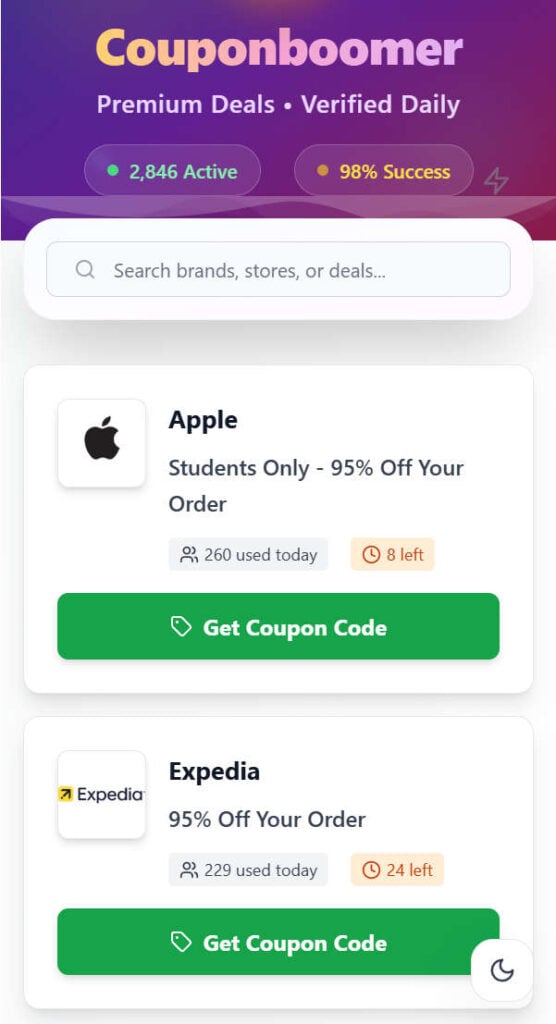
The first sign that something is wrong with CouponAstra.com is the size of the discounts offered. Some deals advertise 95% off Apple products, 80% off H&M orders, or 75% off Lululemon purchases. For anyone familiar with these brands, these discounts are wildly unrealistic. Apple, for example, is notorious for rarely offering discounts beyond a few percent, and even those are limited to specific circumstances. Major retailers like H&M and Lululemon do run sales, but they never slash prices to the point of 80% off sitewide.
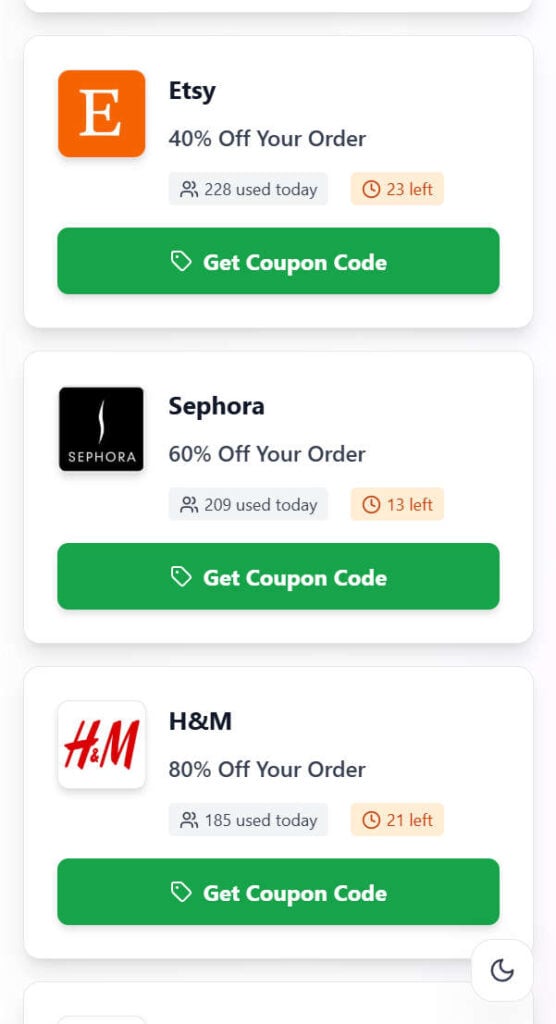
When discounts look too good to be true, they usually are. These inflated claims are a tactic used by scam websites to grab attention and lure users into interacting with their system.
Fake Scarcity and Urgency
Another common scam tactic seen on CouponAstra.com is the use of urgency triggers. Each deal includes counters that show how many people used the coupon today and how many coupons are left. For instance, a coupon for Expedia might say, “229 used today” with only “24 left.” These numbers are designed to create a sense of scarcity, making users feel like they must act fast or miss out.
However, these counters are almost always fake. They are programmed to display random numbers that update automatically to manipulate users into clicking. Legitimate coupon websites may display user engagement, but they do not employ aggressive fake scarcity tactics.
Hidden Disclaimers
At the bottom of the site, CouponAstra.com includes a Privacy & Disclaimer section that admits the website is purely for “educational demonstration purposes” and that all brands, logos, and deals are fictional. It also states that the site is not affiliated with any real businesses or brands.
This disclaimer directly contradicts the site’s main purpose. On the one hand, it tries to convince users that they can get legitimate coupon codes for big brands. On the other hand, it admits that everything on the site is fake and only for entertainment. This bait-and-switch approach is a classic scam indicator.
Verification Gateways and Surveys
When users attempt to claim a coupon code, they are prompted to complete tasks to “verify” they are not bots. These tasks usually include filling out surveys, downloading apps, or watching ads. In reality, these activities are affiliate marketing tricks designed to generate revenue for the scammers behind the site. Instead of getting a coupon, users are funneled into completing offers that profit the scammers.
Redirects to Irrelevant Sites
In many cases, after completing these so-called verification steps, users are redirected to unrelated websites. For example, some users have reported being taken to Roblox-related promotions, banking apps, or unrelated advertising campaigns. This is another major red flag, as legitimate coupon sites never force users into irrelevant pages.
Privacy Concerns
While CouponAstra.com claims not to collect personal information, the tasks it forces users to complete often require inputting email addresses or other details. This information may then be sold to marketers or used in future phishing attempts. The false sense of security provided by the “Privacy First” disclaimer is misleading.
Reputation and Lack of Trust Signals
CouponAstra.com does not provide verifiable contact details, customer service, or transparency about who operates the site. There is no “About Us” page, no registered company information, and no legitimate trust signals like Better Business Bureau listings or verified reviews. Reputable coupon platforms always provide transparency about their business.
In summary, CouponAstra.com uses:
- Unrealistic deals to attract clicks
- Fake urgency tactics to push users to act fast
- Misleading disclaimers to cover itself legally
- Forced surveys and tasks to profit from users
- Redirects to unrelated sites
All of these signs point to CouponAstra.com being a scam operation designed to mislead users and generate revenue for its creators without providing any real value.
How the Scam Works
The way CouponAstra.com operates can be broken down step by step. Understanding this process is important because it reveals how scammers manipulate users into handing over their time, data, and potentially even money.
Step 1: Attractive Deals
The journey begins with flashy deals prominently displayed on the homepage. Big brand names like Apple, Expedia, Lululemon, and Sephora are showcased with promises of discounts ranging from 50% to 95% off. These unbelievable offers hook the user immediately.
Step 2: Fake Social Proof
Each coupon includes counters showing how many people used it “today” and how many coupons are left. This fake social proof creates urgency and convinces users that others are benefiting, so they should act quickly too.
Step 3: Click to Reveal Code
When a user clicks on “Get Coupon Code,” a new window opens, showing a button labeled “Reveal Code.” This mimics the behavior of real coupon websites, where codes are hidden until the user interacts.
Step 4: Verification Gate
Instead of showing a coupon code, the site displays a message asking the user to “verify” that they are not a bot. This involves completing one or more tasks, such as:
- Installing a banking app and keeping it open for 30 seconds
- Watching a promotional video
- Filling out surveys with personal details
- Downloading unrelated apps like “Bible App for Kids”
Step 5: Monetization for Scammers
These verification tasks are part of affiliate marketing schemes. Every time a user downloads an app, watches a video, or fills out a survey, the scammers behind CouponAstra.com earn a commission. The users, however, get nothing in return.
Step 6: Redirects to Irrelevant Websites
After completing the verification, users are often redirected to unrelated websites. These may include promotional landing pages, game-related tools, or banking advertisements. At no point do users receive a legitimate coupon code.
Step 7: Data Harvesting
If a user submits personal information during the verification process, such as their name or email address, that data may be collected and used for future spam campaigns or phishing attempts. This poses a long-term risk to victims.
Step 8: Disappointment and Realization
Finally, users realize that no coupon codes exist. Instead, they have wasted time, exposed their data, and potentially downloaded unwanted apps. Meanwhile, the scammers profit off every completed task.
This step-by-step manipulation shows how CouponAstra.com exploits human psychology—specifically greed, urgency, and trust—to generate revenue without providing legitimate value.
What To Do If You Have Fallen Victim to This Scam
If you interacted with CouponAstra.com and completed its tasks, there are steps you should take immediately to protect yourself.
- Stop Interacting Immediately
Close the website and avoid clicking on any further links or completing more tasks. Do not download additional apps or submit more personal information. - Delete Unwanted Apps
If you installed any applications as part of the verification process, uninstall them immediately. Some of these apps may collect unnecessary permissions or data from your device. - Check for Malware or Adware
Run a full security scan on your device using reliable antivirus or anti-malware software. Some apps downloaded through these schemes may contain adware or tracking software. - Change Your Passwords
If you entered your email or other personal information, change your passwords immediately. Scammers could use your email to send phishing attempts or try password combinations across different sites. - Enable Two-Factor Authentication (2FA)
Strengthen your online security by enabling 2FA on important accounts, such as email, banking, and shopping platforms. - Monitor Your Email for Spam
Be prepared for an increase in spam emails or phishing attempts. Do not click on suspicious links or download attachments from unknown senders. - Report the Scam
Report the website to appropriate authorities, such as the Federal Trade Commission (FTC) in the United States or your country’s consumer protection agency. You can also report it to web hosting providers or Google Safe Browsing. - Warn Others
Share your experience with friends, family, and online communities. Raising awareness can prevent others from falling into the same trap.
Is Your Device Infected? Run a Free Malware Scan
Slow performance, constant pop-ups, or strange behavior? These are classic signs of a malware infection. The fastest way to find out is to scan your device with Malwarebytes Free — one of the most trusted malware removal tools available.
The free version detects and removes the most common threats, including:
- Adware — the cause of those annoying pop-ups
- Browser hijackers — unwanted redirects and changed homepages
- Trojans and spyware — hidden programs stealing your data
- Potentially unwanted programs (PUPs) — software you never asked for
👉 Select your device below — Windows, Mac, or Android — then follow the simple steps to download Malwarebytes, scan your system, and remove any threats it finds. The scan usually takes 5 to 20 minutes.
Run a Malware Scan with Malwarebytes for Windows
Malwarebytes is one of the most popular and trusted anti-malware tools for Windows — and it’s completely free for removing infections. It catches threats that many antivirus programs miss, including adware, browser hijackers, and trojans. Follow the steps below to scan and clean your PC in just a few minutes.
Download Malwarebytes
Click the button below to download the latest version of Malwarebytes for Windows from the official source. The free version is all you need — it will scan your computer and remove adware, browser hijackers, and other malicious software at no cost.
Download MalwarebytesOfficial installer for Windows 11 and 10. Your download starts right away.Want real-time protection? See Malwarebytes Premium Malwarebytes Free for WindowsScans and removes malware at no cost
-
Install Malwarebytes
When the download finishes, open your Downloads folder and double-click the MBSetup file. If Windows shows a User Account Control pop-up, click “Yes” to allow the installation.

Follow the On-Screen Prompts to Install Malwarebytes
The setup wizard will walk you through a few quick screens:
-
Choose where you’re installing the program — “Personal Computer” or “Work Computer” — then click Next.

-
Malwarebytes will now install on your device. This usually takes under a minute.

-
When installation is complete, the “Welcome to Malwarebytes” screen will open automatically.

-
On the final screen, click Open Malwarebytes to launch the program.

-
Enable “Scan for Rootkits”
Before scanning, turn on rootkit detection so Malwarebytes can find even the most hidden threats. Click the Settings gear icon on the left side of the screen.

In the settings menu, find “Scan for rootkits” and click the toggle so it turns blue.

Done? Click “Dashboard” in the left pane to return to the main screen.
Start the Scan
Click the blue Scan button. Malwarebytes will automatically update its virus database and start checking your computer for malware.

-
Wait for the Scan to Finish
The scan checks your entire system for browser hijackers and other malicious programs, so it can take 5 to 20 minutes depending on your computer. Feel free to do something else — just check back occasionally to see the progress.

-
Quarantine the Detected Threats
When the scan is done, you’ll see a list of everything Malwarebytes found — malware, adware, and potentially unwanted programs. Click the “Quarantine” button to remove all of them at once.

Malwarebytes will now remove the malicious files and registry entries and move them safely into quarantine.

-
Restart Your Computer
Some threats can only be fully removed after a reboot. If Malwarebytes asks you to restart, click Yes. Once you’re logged back in, Malwarebytes has finished removing the threats it found.

That’s it — your Windows PC is now clean of trojans, adware, and other malware, and should be back to running smoothly.
If you are still having problems with your computer after completing these instructions, then please follow one of the steps:
- Run a computer scan with ESET Online Scanner
- Ask for help in our Windows Malware Removal Help & Support forum.
Run a Malware Scan with Malwarebytes for Mac
Malwarebytes for Mac is a free on-demand scanner that removes the malware other security software tends to miss — adware, browser hijackers, and unwanted programs included. Cleaning an infected Mac with Malwarebytes has always been completely free, and it’s our go-to recommendation. Follow the steps below to scan and clean your Mac in just a few minutes.
-
Download Malwarebytes for Mac
Click the button below to download the latest version of Malwarebytes for Mac.
Download MalwarebytesOfficial installer for macOS. Your download starts right away.Want real-time protection? See Malwarebytes PremiumMalwarebytes Free for MacScans and removes malware at no cost -
Open the Malwarebytes setup file
When the download finishes, open your Downloads folder and double-click the setup file to begin the installation.

-
Follow the On-Screen Prompts to Install Malwarebytes
The Malwarebytes for Mac Installer will guide you through a few quick screens. Click “Continue” and keep following the prompts until the installation completes.



When the installation is complete, Malwarebytes opens to the Welcome to Malwarebytes screen. Click “Get started“.
-
Select “Personal Computer” or “Work Computer”
Malwarebytes will ask what type of computer you’re installing it on. Click either Personal Computer or Work Computer, whichever applies.

-
Start the Scan
Click the “Scan” button. Malwarebytes will automatically update its detection database and begin checking your Mac for malware.

-
Wait for the Scan to Finish
Malwarebytes will scan your Mac for adware, browser hijackers, and other malicious programs. This can take a few minutes, so feel free to do something else — just check back occasionally to see the progress.

-
Quarantine the Detected Threats
When the scan is done, you’ll see a list of everything Malwarebytes found. Click the “Quarantine” button to remove all the threats at once.

-
Restart Your Mac
Malwarebytes will now remove all the malicious files it found. Some threats can only be fully removed after a reboot — if Malwarebytes asks you to restart, allow it. Once you’re logged back in, your Mac is clean.

That’s it — your Mac is now free of adware, rogue browser extensions, and other potentially harmful software.
If you are still experiencing problems while trying to remove a malicious program from your computer, please ask for help in our Mac Malware Removal Help & Support forum.
Run a Malware Scan with Malwarebytes for Android
Malwarebytes for Android automatically detects and removes dangerous threats like malware and ransomware so you don’t have to worry about your most-used device being compromised. Aggressive detection of adware and potentially unwanted programs keeps your Android phone or tablet running smooth.
-
Download Malwarebytes for Android.
You can download Malwarebytes for Android by clicking the link below.
Get Malwarebytes for AndroidOpens Google Play in a new tab.Want real-time protection? See Malwarebytes Premium for AndroidMalwarebytes for AndroidScans your phone and removes malware at no cost -
Install Malwarebytes for Android on your phone.
In the Google Play Store, tap “Install” to install Malwarebytes for Android on your device.

When the installation process has finished, tap “Open” to begin using Malwarebytes for Android. You can also open Malwarebytes by tapping on its icon in your phone menu or home screen.

-
Follow the on-screen prompts to complete the setup process
When Malwarebytes will open, you will see the Malwarebytes Setup Wizard which will guide you through a series of permissions and other setup options.
This is the first of two screens that explain the difference between the Premium and Free versions. Swipe this screen to continue.
Tap on “Got it” to proceed to the next step.
Malwarebytes for Android will now ask for a set of permissions that are required to scan your device and protect it from malware. Tap on “Give permission” to continue.
Tap on “Allow” to permit Malwarebytes to access the files on your phone.
-
Update database and run a scan with Malwarebytes for Android
You will now be prompted to update the Malwarebytes database and run a full system scan.

Click on “Update database” to update the Malwarebytes for Android definitions to the latest version, then click on “Run full scan” to perform a system scan.

-
Wait for the Malwarebytes scan to complete.
Malwarebytes will now start scanning your phone for adware and other malicious apps. This process can take a few minutes, so we suggest you do something else and periodically check on the status of the scan to see when it is finished.

-
Click on “Remove Selected”.
When the scan has been completed, you will be presented with a screen showing the malware infections that Malwarebytes for Android has detected. To remove the malicious apps that Malwarebytes has found, tap on the “Remove Selected” button.

-
Restart your phone.
Malwarebytes for Android will now remove all the malicious apps that it has found. To complete the malware removal process, Malwarebytes may ask you to restart your device.
That’s it — your Android phone is now clean — no more malicious apps, adware, or browser redirects.
If you are still having problems with your phone after completing these instructions, then please follow one of the steps:
- Restore your phone to factory settings by going to Settings > General management > Reset > Factory data reset.
- Ask for help in our Mobile Malware Removal Help & Support forum.
Stay Protected: Block Ads and Malicious Sites
Now that your device is clean, keep it that way. Most infections start with a malicious ad or a fake download button — so blocking them at the source is your best defense.
We recommend AdGuard, which blocks malicious ads, phishing pages, and dangerous redirects before they can reach you.
👉 Download AdGuard and browse safely
The Bottom Line
CouponAstra.com is not a legitimate coupon website. Instead, it is a scam platform designed to trick users into completing tasks that generate revenue for scammers. With fake deals, misleading disclaimers, forced verifications, and irrelevant redirects, it provides no real coupons or savings. If you’ve used the site, take immediate action to protect your data and secure your accounts.
The best way to stay safe is to remember this rule: if a deal looks too good to be true, it probably is. Stick to trusted coupon sites, check for official discounts directly from retailers, and always be cautious when a website pressures you into unnecessary actions. Protecting your time, data, and personal security should always come before chasing unrealistic discounts.

Join the discussion
0 commentsShare your experience or ask a question about this article.
Discussion
Start the conversation
Have a question or something useful to share? Add the first comment.