


Online scams are constantly evolving, and one of the most deceptive and emotionally manipulative ones making rounds today is the Yamaha Baby Grand Piano Email Scam. It looks innocent enough—a message from a grieving widow offering to give away her late husband’s piano—but behind the sentimental wording lies a trap that can cost victims their money, personal data, and peace of mind.
This article explains everything you need to know about the scam, how it works, and how to protect yourself.
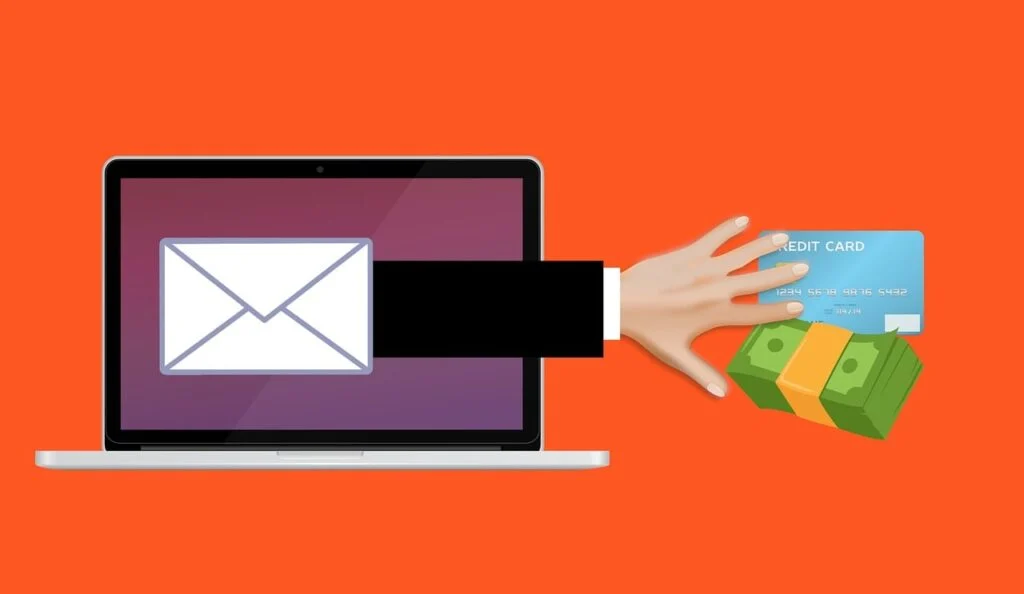
Scam Overview
The Yamaha Baby Grand Piano Email Scam has become one of the most recognizable examples of emotional phishing and advance-fee fraud circulating across the internet. While the message varies slightly, the basic idea remains the same: a person claims to be giving away a Yamaha baby grand piano that belonged to their late husband or relative. The email often appears kind, polite, and deeply personal, tugging at the recipient’s emotions while masking a calculated scam.
The First Contact
The scam usually starts with a brief, heartfelt email similar to the one shown above. It often includes lines like:
“I am looking to give away my late husband’s Yamaha baby grand piano, so let me know if you will take it or have someone who will care for it.”
The message is signed by a seemingly real person—commonly “Lindie Pretorius,” “Mary Douglas,” “Helen Parker,” or another generic but plausible name—along with a Gmail or Yahoo email address.
At first glance, the offer sounds genuine. Many people believe they’ve been chosen for a random act of kindness. But in reality, this is a carefully crafted social engineering scheme designed to extract money under the guise of a free gift.
Psychological Manipulation
The success of the Yamaha Baby Grand Piano Scam relies on human empathy. The email’s emotional tone disarms the reader, lowering skepticism. The mention of a “late husband” or “beloved family member” creates a sense of trust and sympathy, while the offer of a valuable item like a Yamaha baby grand piano triggers excitement and curiosity.
Victims may think: Why would anyone lie about this? That’s exactly what scammers count on.
Why a Yamaha Baby Grand Piano?
The choice of a Yamaha baby grand piano is deliberate. It’s an item associated with high value, sophistication, and emotional attachment. Scammers know that the words “Yamaha baby grand piano” evoke an image of a beautiful, expensive instrument worth thousands of dollars. By offering it for free, they grab attention instantly.
The scam has appeared in:
- Personal inboxes
- Craigslist and Facebook Marketplace messages
- Community and church mailing lists
- University or music school mailing lists
- Local classified ad sites
These platforms provide scammers access to people who may realistically want a piano, especially musicians, churches, or music teachers.
Common Variations of the Scam
Although the content is nearly identical across cases, scammers frequently alter small details to avoid spam filters or appear unique. Examples include:
- The sender’s name changes (e.g., Mary Jones, Lisa Thompson, Helen Adams).
- The email provider changes (Gmail, Yahoo, Outlook).
- The wording varies slightly (“late husband’s”, “deceased father’s”, “late mother’s piano”).
- The type of piano changes (Yamaha baby grand, Steinway, Kawai, Baldwin).
- Some versions mention relocation or missionary work.
Regardless of these minor changes, the structure of the scam remains consistent: a kind offer that eventually leads to a shipping or delivery fee request.
Red Flags in the Email
There are several clues that can help identify this scam immediately:
- Unsolicited Offer: You receive a random message from someone you don’t know.
- Emotional Story: The email mentions a tragic loss to lower your guard.
- Free Valuable Item: The sender claims to give away an expensive piano for free.
- Urgency or Simplicity: The message asks you to respond quickly or without complication.
- Non-Professional Email Address: Usually a personal Gmail or Yahoo account.
- Vague Location: No specific address or verifiable information about where the piano is.
- Grammatical Errors: Often subtle, but they appear in punctuation or awkward phrasing.
How the Scam Works
The Yamaha Baby Grand Piano Email Scam follows a very specific sequence. Each step is designed to move you closer to sending money or disclosing personal details.
Step 1: Initial Contact
You receive an email offering the free piano. The tone is polite, personal, and emotional. The scammer might say they’re downsizing, moving overseas, or honoring the memory of a deceased loved one.
They’ll usually write something like:
“The piano is in great condition and means a lot to me, but I no longer have space for it. I want it to go to someone who will cherish it.”
This builds emotional appeal and legitimacy.
Step 2: Response and Hook
If you reply expressing interest, the scammer quickly responds with gratitude. They’ll assure you the piano is real and often send stock images taken from legitimate piano listings online. These photos look authentic and can show the piano from multiple angles, which helps build trust.
The scammer might write:
“Thank you so much for your interest. The piano is a Yamaha C3 baby grand in excellent condition. I just want it to go to someone who will use it and take good care of it.”
At this stage, they appear sincere and generous. There is still no mention of money.
Step 3: Introduction of the Moving Company
After a few exchanges, the scammer introduces a new element: a moving or shipping company. They’ll say the piano is already packed or stored with a mover, and all you need to do is contact the mover to arrange delivery.
They might write:
“The piano is currently with a shipping company that handled my husband’s estate. I can have it delivered to you if you coordinate with them.”
They’ll then provide contact details for a fake or fraudulent moving company—often another email account they control.
Step 4: The Shipping Fee Trap
When you contact the supposed mover, you’ll be told that delivery is free, but you must pay a refundable handling, insurance, or transportation fee—usually between $200 and $800.
The scammer claims that once the piano arrives, you’ll be refunded. Sometimes they’ll even provide fake tracking numbers or documents to look official.
In truth, the piano doesn’t exist. Once you pay, the scammers disappear.
Step 5: Escalation and Pressure
If you hesitate, they might increase emotional pressure. They’ll say things like:
“I’ve had several other people interested, but you seem genuine.”
“The movers need confirmation today.”
“I really want to give it to someone who will appreciate it before I travel.”
They use urgency to force quick decisions before you have time to research or think critically.
Step 6: The Disappearance
Once you’ve sent payment—whether by bank transfer, Zelle, Cash App, or wire—the scammers vanish. The email addresses are deleted, and the “moving company” website (if it exists) often goes offline shortly after.
Victims are left with nothing but regret and sometimes embarrassment.
Step 7: Data Harvesting (Optional Step)
In some cases, scammers don’t stop at stealing money. If you’ve shared your home address, phone number, or other personal details, they may sell that information on underground markets. This can lead to further scams, phishing attempts, or identity theft.
What to Do if You Have Fallen Victim to This Scam
If you’ve interacted with or sent money to one of these scammers, it’s important to act quickly. Here’s a step-by-step guide to minimize the damage and increase your chances of recovery.
1. Stop All Communication Immediately
Do not reply to any further messages from the scammer or the so-called moving company. Block their emails and report them as spam or phishing through your email provider.
2. Report the Scam to Your Bank or Payment Provider
If you’ve made a payment:
- Contact your bank, credit card company, or payment service (PayPal, Zelle, Venmo, Cash App) right away.
- Explain that you’ve been the victim of a scam and request a chargeback or transaction reversal if possible.
- Provide copies of the emails and any receipts.
Timing matters. The sooner you act, the higher your chance of recovering your funds.
3. File an Official Report
Report the scam to:
- The Federal Trade Commission (FTC) via reportfraud.ftc.gov
- The Internet Crime Complaint Center (IC3) at ic3.gov
- Your local police department (especially if large sums are involved)
- Your email provider for phishing attempts
These reports help authorities track patterns and shut down recurring scams.
4. Change Your Passwords and Secure Accounts
If you shared personal information or used the same email elsewhere, change your passwords immediately. Use strong, unique passwords and enable two-factor authentication (2FA) wherever possible.
5. Check for Identity Theft
Monitor your credit report and financial statements for unusual activity. If you suspect identity theft, you can:
- Place a fraud alert with one of the major credit bureaus (Equifax, Experian, or TransUnion).
- Freeze your credit temporarily to prevent new accounts from being opened in your name.
- Use free tools like annualcreditreport.com to review your credit history.
6. Warn Others
Many scams thrive on silence. Sharing your experience helps protect others. You can:
- Post warnings on local community boards or social media groups.
- Inform your church, school, or neighborhood association.
- Contact moderators of any website or mailing list where the scam appeared.
7. Educate Yourself on Future Scams
The Yamaha Baby Grand Piano Scam is part of a larger trend of emotional phishing and gift-based frauds. Stay informed by:
- Learning about common advance-fee scams and online purchase scams.
- Using reputable online forums (like Reddit’s r/Scams) to check suspicious messages.
- Installing email filters or spam protection tools.
Is Your Device Infected? Run a Free Malware Scan
Slow performance, constant pop-ups, or strange behavior? These are classic signs of a malware infection. A quick way to check is to scan your device with Malwarebytes Free, one of the most trusted malware removal tools available. If you only visited a scam page and didn’t download or install anything, this scan is optional.
The free version detects and removes the most common threats, including:
- Adware — the cause of those annoying pop-ups
- Browser hijackers — unwanted redirects and changed homepages
- Trojans and spyware — hidden programs stealing your data
- Potentially unwanted programs (PUPs) — software you never asked for
👉 Select your device below — Windows, Mac, or Android — then follow the simple steps to download Malwarebytes, scan your system, and remove any threats it finds. The scan usually takes 5 to 20 minutes.
Run a Malware Scan with Malwarebytes for Windows
Malwarebytes is one of the most popular and trusted anti-malware tools for Windows — and it’s completely free for removing infections. It catches threats that many antivirus programs miss, including adware, browser hijackers, and trojans. Follow the steps below to scan your PC and remove what Malwarebytes finds.
Download Malwarebytes
Click the button below to download the latest version of Malwarebytes for Windows from the official source. The free version is all you need — it will scan your computer and remove adware, browser hijackers, and other malicious software at no cost.
Download MalwarebytesOfficial installer for Windows 11 and 10. Your download starts right away.Want real-time protection? See Malwarebytes Premium Malwarebytes Free for WindowsScans and removes malware at no cost
-
Install Malwarebytes
When the download finishes, open your Downloads folder and double-click the MBSetup file. If Windows shows a User Account Control pop-up, click “Yes” to allow the installation.

Follow the On-Screen Prompts to Install Malwarebytes
The setup wizard will walk you through a few quick screens:
-
Choose where you’re installing the program — “Personal Computer” or “Work Computer” — then click Next.

-
Malwarebytes will now install on your device. This usually takes under a minute.

-
When installation is complete, the “Welcome to Malwarebytes” screen will open automatically.

-
On the final screen, click Open Malwarebytes to launch the program.

-
Optional: Check for rootkits with a Custom Scan
You don’t need to change any settings for a normal scan. The standard Threat Scan in the next step is enough for most problems, so you can go straight to it.
If you also want to check for rootkits, use a Custom Scan. In current versions of Malwarebytes, rootkit scanning is only available there:
- On the Scanner tile, click the three-dot menu and select Advanced Scan.
- Choose Custom Scan. In its options, check Scan for rootkits.
- Select your system drive (usually C:\) as the location to scan, then start the scan. It takes longer than a Threat Scan.
- When it finishes, review and quarantine the results as described in the steps below.
Rootkit scanning isn’t available on Windows devices with ARM processors.
Start the Scan
Click the blue Scan button. Malwarebytes will automatically update its virus database and start checking your computer for malware.

-
Wait for the Scan to Finish
The scan checks your entire system for browser hijackers and other malicious programs, so it can take 5 to 20 minutes depending on your computer. Feel free to do something else — just check back occasionally to see the progress.

-
Quarantine the Detected Threats
When the scan is done, you’ll see a list of everything Malwarebytes found — malware, adware, and potentially unwanted programs. Click the “Quarantine” button to remove all of them at once.

Malwarebytes will now remove the malicious files and registry entries and move them safely into quarantine.

-
Restart Your Computer
Some threats can only be fully removed after a reboot. If Malwarebytes asks you to restart, click Yes. Once you’re logged back in, Malwarebytes has finished removing the threats it found.

When the scan is done, check whether the problems you noticed have stopped. If they continue, see the options below.
If you are still having problems with your computer after completing these instructions, then please follow one of the steps:
- Run a computer scan with ESET Online Scanner
- Ask for help in our Windows Malware Removal Help & Support forum.
Run a Malware Scan with Malwarebytes for Mac
Malwarebytes for Mac is a free on-demand scanner that removes the malware other security software tends to miss — adware, browser hijackers, and unwanted programs included. Cleaning an infected Mac with Malwarebytes has always been completely free, and it’s our go-to recommendation. Follow the steps below to scan your Mac and remove what Malwarebytes finds.
-
Download Malwarebytes for Mac
Click the button below to download the latest version of Malwarebytes for Mac.
Download MalwarebytesOfficial installer for macOS. Your download starts right away.Want real-time protection? See Malwarebytes PremiumMalwarebytes Free for MacScans and removes malware at no cost -
Open the Malwarebytes setup file
When the download finishes, open your Downloads folder and double-click the setup file to begin the installation.

-
Follow the On-Screen Prompts to Install Malwarebytes
The Malwarebytes for Mac Installer will guide you through a few quick screens. Click “Continue” and keep following the prompts until the installation completes.



When the installation is complete, Malwarebytes opens to the Welcome to Malwarebytes screen. Click “Get started“.
Malwarebytes needs Full Disk Access to check your whole Mac. When it asks, open System Settings > Privacy & Security > Full Disk Access, turn on Malwarebytes (it may be listed as Malwarebytes Protection), and confirm with your password or Touch ID. Then return to Malwarebytes. On macOS Monterey and earlier, this setting is in System Preferences > Security & Privacy > Privacy.
-
Select “Personal Computer” or “Work Computer”
Malwarebytes will ask what type of computer you’re installing it on. Click either Personal Computer or Work Computer, whichever applies.

-
Start the Scan
Click the “Scan” button. Malwarebytes will automatically update its detection database and begin checking your Mac for malware.

-
Wait for the Scan to Finish
Malwarebytes will scan your Mac for adware, browser hijackers, and other malicious programs. This can take a few minutes, so feel free to do something else — just check back occasionally to see the progress.

-
Quarantine the Detected Threats
When the scan is done, you’ll see a list of everything Malwarebytes found. Click the “Quarantine” button to remove all the threats at once.

-
Restart Your Mac
Malwarebytes will now remove all the malicious files it found. Some threats can only be fully removed after a reboot — if Malwarebytes asks you to restart, allow it. Once you’re logged back in, check whether the problems you noticed have stopped. If they come back, save the scan report and ask for help in our forum.

If the problems you noticed continue after the scan, see the options below.
If you are still experiencing problems while trying to remove a malicious program from your computer, please ask for help in our Mac Malware Removal Help & Support forum.
Run a Malware Scan with Malwarebytes for Android
Malwarebytes for Android scans your phone or tablet for malware, adware, and potentially unwanted apps. The free version scans only when you start a scan. Real-time protection, which checks apps automatically, is part of the paid Premium version.
-
Download Malwarebytes for Android.
You can download Malwarebytes for Android by clicking the link below.
Get Malwarebytes for AndroidOpens Google Play in a new tab.Want real-time protection? See Malwarebytes Premium for AndroidMalwarebytes for AndroidScans your phone and removes malware at no cost -
Install Malwarebytes for Android on your phone.
In the Google Play Store, tap “Install” to install Malwarebytes for Android on your device.

When the installation process has finished, tap “Open” to begin using Malwarebytes for Android. You can also open Malwarebytes by tapping on its icon in your phone menu or home screen.

-
Follow the on-screen prompts to complete the setup process
When Malwarebytes opens, it walks you through a short setup. Tap Get started and follow the prompts. If you see an offer for a trial or a paid plan, read it before you accept. You can skip it and keep using the free scanner.
Malwarebytes will ask for permission to access the files on your phone so it can scan them. Tap Allow, or turn on the permission in the Android screen that opens, then return to Malwarebytes.
-
Run a scan with Malwarebytes for Android
On the main screen, tap Scan now. In some versions, you open the menu, tap Scanner, and then tap Run a scan.
-
Wait for the Malwarebytes scan to complete.
Malwarebytes will now start scanning your phone for adware and other malicious apps. This process can take a few minutes, so we suggest you do something else and periodically check on the status of the scan to see when it is finished.

-
Remove the detected apps.
When the scan has been completed, you will see a list of the threats that Malwarebytes for Android has detected. Next to each detected item, tap the menu icon (three dots), then choose to uninstall the app or delete the file. Android then asks you to confirm. Tap OK or Uninstall to remove the app.
-
Restart your phone.
When the detected apps are removed, restart your phone if Malwarebytes asks you to. Then check whether the problems you noticed have stopped.
If the problems you noticed continue after the scan, see the options below.
If you are still having problems with your phone after completing these instructions, then please follow one of the steps:
- Ask for help in our Mobile Malware Removal Help & Support forum.
- Only as a last resort, reset your phone to factory settings. Read the warning below first.
- Back up your photos, videos, files, and messages, for example to your Google account or a computer.
- Make sure you know your Google account email and password. The phone asks for them after the reset. If you changed the password recently, Google recommends waiting 24 hours before you reset.
- On a Samsung phone, also make sure you know your Samsung account password.
- If you use an authenticator app for two-step verification, move your accounts to another device or save your backup codes first.
Stay Protected: Block Ads and Malicious Sites
No scan can prove a device is completely clean, so it helps to block threats before they reach you. Most infections start with a malicious ad or a fake download button — so blocking them at the source is your best defense.
We recommend AdGuard, which blocks malicious ads, phishing pages, and dangerous redirects before they can reach you.
👉 Download AdGuard and browse safely
How to Recognize Similar Scams
The piano scam is only one example of a broader pattern. Scammers use similar templates to offer other valuable items such as:
- Cars, RVs, or boats supposedly belonging to a deceased relative.
- Pets being given away due to relocation.
- Furniture or collectibles from a missionary or military deployment.
In each case, the same elements appear: emotional story, valuable free item, shipping fee, fake documents, and sudden disappearance.
Pro Tips to Stay Safe
- Be skeptical of unsolicited offers that sound too good to be true.
- Never send money to someone you haven’t met in person.
- Verify ownership—ask for proof of possession (a live video call or custom photo).
- Search the email text on Google. Many scam messages are recycled word-for-word.
- Avoid clicking links or attachments in suspicious messages.
Why the Scam Persists
Scammers continue to use the Yamaha Baby Grand Piano Email format because it works. The combination of sentimentality, generosity, and a believable object makes it an effective psychological weapon.
The scam is inexpensive for perpetrators to run. With one message, they can target thousands of email addresses scraped from public sources or old mailing lists. Even if only a handful of people respond, the financial gain is significant.
Additionally, the low cost of creating fake shipping company websites and email accounts allows them to operate anonymously and disappear easily.
The 3 Most Common Variants of the Yamaha Baby Grand Piano Email Scam
Although the Yamaha Baby Grand Piano Email Scam follows a predictable pattern, scammers continuously modify the story to bypass filters and appear genuine. The variations often include slight differences in tone, the relationship of the sender to the supposed deceased owner, and the type of piano mentioned. Below are the three most frequent and widely reported versions, complete with examples of the messages victims have received.
1. The “Late Husband’s Yamaha Baby Grand Piano” Variant
This is the most popular and widely circulated version of the scam. It typically begins with an emotional story from a woman claiming to be the widow of a man who owned a Yamaha baby grand piano. She expresses a sentimental desire to give the piano to someone who will “care for it.”
Typical example:
Subject: Give away my late husband’s Yamaha baby grand piano
Hello,
I am looking to give away my late husband’s Yamaha baby grand piano. It is in excellent condition and has been well maintained. I am not selling it, just giving it to someone who will appreciate and care for it.
Please let me know if you are interested or know someone who will accept it.
Regards,
Lindie Pretorius
lindiepretorius137@gmail.com
Key traits of this version:
- Uses emotional appeal with phrases like “late husband” or “cherish his memory.”
- Often includes a woman’s name and a Gmail or Yahoo email address.
- May send photos of a glossy black Yamaha piano stolen from real listings.
- Leads to a fake shipping fee or moving company scam.
2. The “Missionary Relocation” or “Moving Overseas” Variant
In this version, the scammer claims to be relocating abroad for missionary or humanitarian work and cannot take the piano with them. The religious or charitable tone adds credibility and appeals to recipients’ goodwill.
Typical example:
Subject: Offering my Yamaha baby grand piano before my mission trip
Hi there,
I am relocating overseas for missionary work and won’t be able to take my Yamaha baby grand piano with me. It was purchased by my husband a few years ago and is still in wonderful condition.
I want it to go to someone who will make good use of it. You just have to handle the shipping arrangements with the moving company that currently stores it.
Blessings,
Mary Douglas
marydouglasmission@gmail.com
Key traits of this version:
- Religious or humanitarian references such as “missionary work” or “relocation abroad.”
- Mentions that the piano is already with a shipping or storage company.
- The scammer provides contact details for a fake moving service after the first response.
- Emotional and polite tone intended to reduce suspicion.
3. The “Deceased Parent’s Estate” Variant
This variation claims the piano belonged to a deceased parent or grandparent. The scammer says they inherited it but have no use for it, so they want to give it away to honor their loved one’s memory. It often sounds respectful and family-oriented, which makes it highly convincing.
Typical example:
Subject: Giving away my late father’s Yamaha grand piano
Hello,
I recently lost my father, and as part of settling his estate, I am giving away his Yamaha baby grand piano. It holds sentimental value, but I do not have space for it in my new home.
Please contact me if you would like to have it. The piano is with a moving company and can be delivered to you with no charge except for a small insurance fee.
Best regards,
Helen Parker
helenparkerhome@gmail.com
Key traits of this version:
- Appeals to sympathy using phrases like “as part of my late father’s estate.”
- Usually promises free delivery with only a “small refundable insurance fee.”
- Employs a professional yet compassionate tone to gain trust.
- Targets older adults, church members, or local community groups.
Why These Variants Work
All three versions succeed because they blend emotional storytelling with realistic details. They use phrases that sound authentic and kind-hearted while disguising their true intent—to collect advance payments or personal data. The Yamaha brand name, emotional backstory, and offer of a free piano create a powerful psychological lure that lowers skepticism.
How to Identify Any Variant Instantly
- The message comes unexpectedly and offers a valuable item for free.
- The sender requests payment for shipping, handling, or insurance.
- The piano photos look professional or generic, often sourced from online listings.
- The email address is personal, not corporate.
- The sender avoids phone calls or face-to-face meetings.
Recognizing these signs will help you avoid all forms of the Yamaha Baby Grand Piano Email Scam, regardless of how it’s worded.
Frequently Asked Questions
What is the Yamaha Baby Grand Piano Email Scam?
The Yamaha Baby Grand Piano Email Scam is a phishing and advance-fee scam that begins with an email claiming to offer a free Yamaha baby grand piano. The sender, often posing as a grieving widow or relative, says they want to give away the piano that belonged to their late husband or family member. Once the recipient responds, scammers request payment for supposed shipping or insurance costs. No piano exists, and the victim loses the money.
Why is it called the Yamaha Baby Grand Piano Scam?
Scammers specifically use the term “Yamaha baby grand piano” because Yamaha is a respected and recognizable brand. By naming a high-value instrument, scammers make the offer appear authentic and appealing. The phrase “baby grand piano” adds emotional and material value, helping the scam bypass skepticism.
How do I recognize this scam email?
The email often includes emotionally charged language and phrases such as:
- “I am giving away my late husband’s Yamaha baby grand piano.”
- “Please let me know if you will take it or know someone who will care for it.”
Red flags include poor grammar, a generic sender name, a non-professional Gmail or Yahoo address, and no clear location. The message also lacks detailed information about the piano’s serial number or delivery logistics.
Is there really a free Yamaha piano being given away?
No. There is no real piano. Scammers use fake stories, photos, and email accounts to appear legitimate. The Yamaha piano giveaway does not exist. Once victims pay a “refundable” or “shipping” fee, the scammers vanish and the communication stops.
Who is behind the Yamaha Baby Grand Piano Email Scam?
These scams are typically run by organized groups or individual cybercriminals who operate internationally. They use disposable email accounts, fake names, and sometimes impersonate real people to build trust. Because they rely on online anonymity and low-cost operations, tracking them is difficult.
What happens if I reply to the scam email?
If you reply, scammers will respond quickly to continue the deception. They might:
- Send pictures of a real Yamaha piano (stolen from online listings).
- Introduce a fake moving company.
- Ask for your phone number, address, or preferred delivery time.
- Eventually demand payment for delivery or handling fees.
Once you send money, they disappear. If you shared personal information, they might sell it or use it for identity theft.
How much money do victims usually lose in this scam?
Victims typically lose between $200 and $800, depending on the supposed “shipping fee.” Some have lost more after being persuaded to pay multiple fees for customs, insurance, or transportation. While the amounts may seem small, scammers target thousands of people, making the total profit significant.
What should I do if I already sent money to the scammers?
Act immediately:
- Contact your bank or payment provider to report fraud and request a reversal.
- File a report with the Federal Trade Commission (FTC) at reportfraud.ftc.gov.
- Report to the Internet Crime Complaint Center (IC3) at ic3.gov.
- Change your passwords and enable two-factor authentication.
- Monitor your bank and credit accounts for unusual activity.
The faster you act, the better your chances of limiting the damage.
Can I get my money back from the Yamaha Piano Scam?
In many cases, recovery is difficult because scammers use untraceable payment methods like wire transfers, gift cards, or peer-to-peer apps. However, some banks or credit card companies may reverse the transaction if reported quickly. Always provide detailed documentation, including emails, receipts, and communication records.
Are there other scams similar to the Yamaha Baby Grand Piano Scam?
Yes. Scammers frequently recycle this format for other items. Common variations include:
- Free pet adoption scams (“I’m giving away my late father’s dog.”)
- Free car scams (“My husband’s old car needs a good home.”)
- Free furniture or boat scams.
Each uses a touching story, a valuable free item, and a fake shipping fee to trick victims.
Why do scammers use emotional stories in these emails?
Scammers use emotional manipulation because it disarms logical thinking. A story about a deceased husband or a family heirloom builds trust and sympathy. Victims are less likely to question the offer because they feel compassion or a sense of duty to help. This tactic is called social engineering, a common strategy in online fraud.
What should I do if I receive a Yamaha Baby Grand Piano offer?
If you receive this email:
- Do not reply or click any links.
- Mark it as spam or phishing in your email provider.
- Delete the message immediately.
If you’re uncertain, copy and paste part of the email into a search engine. You’ll find many warnings about this exact scam.
Is it safe to open the Yamaha Piano Scam email?
Simply opening the email is usually safe, but you should never click links, download attachments, or reply. Some scammers include tracking pixels or phishing links to verify active email addresses, which can increase future spam. Always delete suspicious messages without interacting with them.
How can I report the Yamaha Piano Scam?
You can report the scam to several organizations:
- FTC (Federal Trade Commission): reportfraud.ftc.gov
- Internet Crime Complaint Center (IC3): ic3.gov
- Local consumer protection agency or police department
- Email provider’s abuse center (for Gmail, Yahoo, Outlook, etc.)
Providing details helps law enforcement identify scam patterns and protect others.
Can scammers access my computer through the Yamaha Piano email?
Typically, this scam does not involve malware or hacking. It relies on social engineering rather than technical exploitation. However, if you downloaded attachments or clicked suspicious links, your computer might be at risk. In that case, run a full antivirus scan and update your security software.
Why do scammers ask for shipping fees instead of selling the piano?
By claiming the piano is free but requiring a “refundable” delivery fee, scammers create a low-risk illusion. Victims believe they are only paying for logistics, not purchasing an expensive instrument. This psychological trick reduces hesitation, making it easier for scammers to collect money quickly.
Are Yamaha or legitimate piano dealers involved in this scam?
No. Yamaha Corporation and legitimate piano retailers have no connection to these scams. Scammers use the Yamaha name without authorization because it adds credibility. Always verify piano offers through official dealers or verified sellers.
The Bottom Line
The Yamaha Baby Grand Piano Email Scam is more than a harmless spam message. It’s a sophisticated manipulation of trust and empathy designed to steal your money and personal information.
If you receive a message offering a free piano—or any expensive item—from a stranger, pause and verify before responding. Genuine generosity doesn’t come with shipping fees or emotional pressure.
Stay alert, stay informed, and always trust your instincts. The best protection against scams like this one is awareness and education.

Join the discussion
0 commentsShare your experience or ask a question about this article.
Discussion
Start the conversation
Have a question or something useful to share? Add the first comment.