

Imagine receiving an email through your school or university promising a flexible remote job with guaranteed weekly pay and minimal hours. For many students, that sounds like a dream opportunity — but in reality, it’s often a well-orchestrated scam designed to steal personal information and money. One of the most widespread schemes circulating in 2025 involves a fake entity called the “USA Hiring Agency”, which uses phony job postings, Google Forms, and fraudulent checks to exploit victims.
This guide exposes exactly how the USA Hiring Agency scam works, why it’s so dangerous, and what you should do if you’ve already fallen victim.
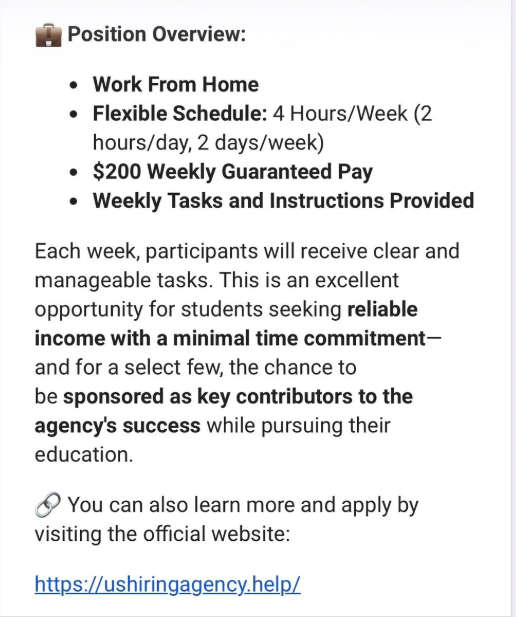
Scam Overview
The USA Hiring Agency scam is a fake work-from-home job scheme that primarily targets students and young adults through legitimate-looking emails sent to .edu addresses, campus email systems, and job boards.
The scam typically starts with a simple email or message claiming that:
- You can work from home with flexible hours (often “4 hours per week, 2 days a week”).
- You’ll receive $200 or more weekly guaranteed pay.
- You don’t need prior experience, interviews, or resumes.
- The tasks are “simple and manageable,” such as buying office supplies or completing basic administrative work.
The communication often includes:
- A Google Form sign-up page asking for personal details (full name, school, contact info).
- A suspicious website URL, often something like
ushiringagency.help(a non-standard domain for any legitimate company). - A claim that the applicant has been “selected” or “approved” quickly after filling out the form.
Common red flags in the USA Hiring Agency scam
- Too good to be true pay for little or no work.
- No real job interview or vetting process.
- Unprofessional email addresses ending with suspicious domains like
@ushiringagency.help. - Pressure to act fast — scammers emphasize urgency so victims don’t have time to think critically.
- Requests for financial activity — including depositing checks, creating PayPal or Cash App accounts, or buying gift cards.
- Fake checks that appear legitimate but will bounce after a few days, leaving the victim responsible.
The psychological trap
This scam exploits financial vulnerability and trust in educational institutions. Because these messages often appear to come through school systems, many students lower their guard. They assume it’s endorsed by the university or at least legitimate.
The scammers also use professional-sounding language and copy legitimate hiring formats. This makes their offers look real, especially to people who may be looking for flexible part-time income.
How the Scam Works
The USA Hiring Agency scam is structured in several calculated steps designed to build trust, extract sensitive data, and cause financial damage.
Step 1: Initial Contact
Victims usually receive:
- An email through a school network or public job board.
- A message claiming a work-from-home opportunity.
- A link to a Google Form or similar sign-up page.
The language is often enticing: “$200 weekly guaranteed,” “minimal hours,” “easy tasks,” and “limited spots available.”
Step 2: Personal Information Collection
The Google Form asks for:
- Full name
- School name
- Email address
- Phone number
- Sometimes address or PayPal details
This allows scammers to:
- Build trust by using personal info in follow-up messages
- Harvest data that can later be sold or used in identity theft
- Contact victims directly through SMS, email, or messaging apps
Step 3: Fake Hiring Confirmation
Within a day (sometimes minutes), victims receive a message saying they have been “hired” immediately. There is no interview, no reference check, and no formal contract.
The scammer then outlines “job tasks” like:
- Buying office supplies (laptops, printers, scanners, Wi-Fi routers).
- Receiving and forwarding checks.
- Acting as a “payment assistant.”
The victim is told that the company will send them a check in advance to cover these costs.
Step 4: Fake Check Delivery
The scammer sends a fake cashier’s check or mobile deposit instructions that look real at first glance.
Victims are instructed to:
- Deposit the check immediately.
- Wait for it to clear (even though it won’t).
- Use the funds to buy items or forward part of the money to a third party (another scammer or mule account).
Often, when the victim first tries to deposit it, the bank places a “hold notice.” The scammer reassures them that this is “normal” and that a new check will be sent.
Step 5: Pressure to Complete Transactions
Once the victim deposits the check, the scammer increases the pressure:
- Encouraging them to make purchases with their own funds, promising reimbursement.
- Asking them to create PayPal or Cash App accounts to transfer money.
- Sending new fake checks to maintain the illusion of ongoing employment.
They use psychological manipulation—phrases like:
- “We trust you to complete this task.”
- “You’ve already started the job, we’re counting on you.”
- “It’s urgent that this is done today.”
Step 6: The Check Bounces
A few days later, the victim’s bank notifies them that the check was fraudulent.
Result:
- The victim owes the full amount to the bank.
- Any purchases or transfers made are lost permanently.
- Their account may be frozen or flagged for suspicious activity.
- In some cases, they may also face legal questions if their account was used to launder money.
Step 7: Disappearing Scammers
Once they get what they want, scammers:
- Stop responding to emails and texts.
- Deactivate or redirect their fake website.
- Abandon the Google Form.
- Move on to the next batch of victims.
Because they operate anonymously through temporary email addresses and online services, they are difficult to trace.
What to Do If You Have Fallen Victim to the USA Hiring Agency Scam
If you’ve already engaged with the scammers, time is critical. Here are the essential steps to protect yourself and minimize damage:
1. Immediately Contact Your Bank
- Tell them the check you deposited is fraudulent.
- Ask them to freeze or secure your account to prevent further unauthorized transactions.
- If you wired or transferred money, request a reversal — even if it may not always work.
- Monitor your account daily for any suspicious activity.
2. Do Not Send Any Money or Items
- Stop all communication with the scammers.
- Do not forward or mail anything purchased.
- Do not use your personal funds to “cover expenses.”
3. Report the Scam to Law Enforcement and Agencies
- FTC (Federal Trade Commission): https://reportfraud.ftc.gov
- IC3 (Internet Crime Complaint Center): https://www.ic3.gov
- USPS Inspection Service (if mail was used): https://www.uspis.gov
- Local police department if large sums are involved.
Provide them with:
- All email correspondence
- The check (or check images)
- Phone numbers, names, and website addresses used
- Transaction history and bank communication
4. Alert Your School or University
Because the scam often uses student email systems, report it to:
- IT or cybersecurity department
- Student employment office
- Campus security
This can help prevent others from falling for the same scam.
5. Change Your Passwords and Enable 2FA
If you shared any personal or account credentials, secure:
- Your email
- Online banking
- PayPal or Cash App (if created)
- Any accounts linked to your school email
Enable two-factor authentication to reduce the risk of account takeover.
6. Monitor Your Credit Report
Scammers may use your personal information for identity theft.
Check your credit report at:
Consider placing a fraud alert or credit freeze if sensitive data was exposed.
7. Warn Others
Sharing your experience with friends, classmates, or online forums can protect other potential victims. Many scammers rely on silence to continue their operations.
Is Your Device Infected? Run a Free Malware Scan
Slow performance, constant pop-ups, or strange behavior? These are classic signs of a malware infection. The fastest way to find out is to scan your device with Malwarebytes Free — one of the most trusted malware removal tools available.
The free version detects and removes the most common threats, including:
- Adware — the cause of those annoying pop-ups
- Browser hijackers — unwanted redirects and changed homepages
- Trojans and spyware — hidden programs stealing your data
- Potentially unwanted programs (PUPs) — software you never asked for
👉 Select your device below — Windows, Mac, or Android — then follow the simple steps to download Malwarebytes, scan your system, and remove any threats it finds. The scan usually takes 5 to 20 minutes.
Run a Malware Scan with Malwarebytes for Windows
Malwarebytes is one of the most popular and trusted anti-malware tools for Windows — and it’s completely free for removing infections. It catches threats that many antivirus programs miss, including adware, browser hijackers, and trojans. Follow the steps below to scan and clean your PC in just a few minutes.
Download Malwarebytes
Click the button below to download the latest version of Malwarebytes for Windows from the official source. The free version is all you need — it will scan your computer and remove adware, browser hijackers, and other malicious software at no cost.
Download MalwarebytesOfficial installer for Windows 11 and 10. Your download starts right away.Want real-time protection? See Malwarebytes Premium Malwarebytes Free for WindowsScans and removes malware at no cost
-
Install Malwarebytes
When the download finishes, open your Downloads folder and double-click the MBSetup file. If Windows shows a User Account Control pop-up, click “Yes” to allow the installation.

Follow the On-Screen Prompts to Install Malwarebytes
The setup wizard will walk you through a few quick screens:
-
Choose where you’re installing the program — “Personal Computer” or “Work Computer” — then click Next.

-
Malwarebytes will now install on your device. This usually takes under a minute.

-
When installation is complete, the “Welcome to Malwarebytes” screen will open automatically.

-
On the final screen, click Open Malwarebytes to launch the program.

-
Enable “Scan for Rootkits”
Before scanning, turn on rootkit detection so Malwarebytes can find even the most hidden threats. Click the Settings gear icon on the left side of the screen.

In the settings menu, find “Scan for rootkits” and click the toggle so it turns blue.

Done? Click “Dashboard” in the left pane to return to the main screen.
Start the Scan
Click the blue Scan button. Malwarebytes will automatically update its virus database and start checking your computer for malware.

-
Wait for the Scan to Finish
The scan checks your entire system for browser hijackers and other malicious programs, so it can take 5 to 20 minutes depending on your computer. Feel free to do something else — just check back occasionally to see the progress.

-
Quarantine the Detected Threats
When the scan is done, you’ll see a list of everything Malwarebytes found — malware, adware, and potentially unwanted programs. Click the “Quarantine” button to remove all of them at once.

Malwarebytes will now remove the malicious files and registry entries and move them safely into quarantine.

-
Restart Your Computer
Some threats can only be fully removed after a reboot. If Malwarebytes asks you to restart, click Yes. Once you’re logged back in, Malwarebytes has finished removing the threats it found.

That’s it — your Windows PC is now clean of trojans, adware, and other malware, and should be back to running smoothly.
If you are still having problems with your computer after completing these instructions, then please follow one of the steps:
- Run a computer scan with ESET Online Scanner
- Ask for help in our Windows Malware Removal Help & Support forum.
Run a Malware Scan with Malwarebytes for Mac
Malwarebytes for Mac is a free on-demand scanner that removes the malware other security software tends to miss — adware, browser hijackers, and unwanted programs included. Cleaning an infected Mac with Malwarebytes has always been completely free, and it’s our go-to recommendation. Follow the steps below to scan and clean your Mac in just a few minutes.
-
Download Malwarebytes for Mac
Click the button below to download the latest version of Malwarebytes for Mac.
Download MalwarebytesOfficial installer for macOS. Your download starts right away.Want real-time protection? See Malwarebytes PremiumMalwarebytes Free for MacScans and removes malware at no cost -
Open the Malwarebytes setup file
When the download finishes, open your Downloads folder and double-click the setup file to begin the installation.

-
Follow the On-Screen Prompts to Install Malwarebytes
The Malwarebytes for Mac Installer will guide you through a few quick screens. Click “Continue” and keep following the prompts until the installation completes.



When the installation is complete, Malwarebytes opens to the Welcome to Malwarebytes screen. Click “Get started“.
-
Select “Personal Computer” or “Work Computer”
Malwarebytes will ask what type of computer you’re installing it on. Click either Personal Computer or Work Computer, whichever applies.

-
Start the Scan
Click the “Scan” button. Malwarebytes will automatically update its detection database and begin checking your Mac for malware.

-
Wait for the Scan to Finish
Malwarebytes will scan your Mac for adware, browser hijackers, and other malicious programs. This can take a few minutes, so feel free to do something else — just check back occasionally to see the progress.

-
Quarantine the Detected Threats
When the scan is done, you’ll see a list of everything Malwarebytes found. Click the “Quarantine” button to remove all the threats at once.

-
Restart Your Mac
Malwarebytes will now remove all the malicious files it found. Some threats can only be fully removed after a reboot — if Malwarebytes asks you to restart, allow it. Once you’re logged back in, your Mac is clean.

That’s it — your Mac is now free of adware, rogue browser extensions, and other potentially harmful software.
If you are still experiencing problems while trying to remove a malicious program from your computer, please ask for help in our Mac Malware Removal Help & Support forum.
Run a Malware Scan with Malwarebytes for Android
Malwarebytes for Android automatically detects and removes dangerous threats like malware and ransomware so you don’t have to worry about your most-used device being compromised. Aggressive detection of adware and potentially unwanted programs keeps your Android phone or tablet running smooth.
-
Download Malwarebytes for Android.
You can download Malwarebytes for Android by clicking the link below.
Get Malwarebytes for AndroidOpens Google Play in a new tab.Want real-time protection? See Malwarebytes Premium for AndroidMalwarebytes for AndroidScans your phone and removes malware at no cost -
Install Malwarebytes for Android on your phone.
In the Google Play Store, tap “Install” to install Malwarebytes for Android on your device.

When the installation process has finished, tap “Open” to begin using Malwarebytes for Android. You can also open Malwarebytes by tapping on its icon in your phone menu or home screen.

-
Follow the on-screen prompts to complete the setup process
When Malwarebytes will open, you will see the Malwarebytes Setup Wizard which will guide you through a series of permissions and other setup options.
This is the first of two screens that explain the difference between the Premium and Free versions. Swipe this screen to continue.
Tap on “Got it” to proceed to the next step.
Malwarebytes for Android will now ask for a set of permissions that are required to scan your device and protect it from malware. Tap on “Give permission” to continue.
Tap on “Allow” to permit Malwarebytes to access the files on your phone.
-
Update database and run a scan with Malwarebytes for Android
You will now be prompted to update the Malwarebytes database and run a full system scan.

Click on “Update database” to update the Malwarebytes for Android definitions to the latest version, then click on “Run full scan” to perform a system scan.

-
Wait for the Malwarebytes scan to complete.
Malwarebytes will now start scanning your phone for adware and other malicious apps. This process can take a few minutes, so we suggest you do something else and periodically check on the status of the scan to see when it is finished.

-
Click on “Remove Selected”.
When the scan has been completed, you will be presented with a screen showing the malware infections that Malwarebytes for Android has detected. To remove the malicious apps that Malwarebytes has found, tap on the “Remove Selected” button.

-
Restart your phone.
Malwarebytes for Android will now remove all the malicious apps that it has found. To complete the malware removal process, Malwarebytes may ask you to restart your device.
That’s it — your Android phone is now clean — no more malicious apps, adware, or browser redirects.
If you are still having problems with your phone after completing these instructions, then please follow one of the steps:
- Restore your phone to factory settings by going to Settings > General management > Reset > Factory data reset.
- Ask for help in our Mobile Malware Removal Help & Support forum.
Stay Protected: Block Ads and Malicious Sites
Now that your device is clean, keep it that way. Most infections start with a malicious ad or a fake download button — so blocking them at the source is your best defense.
We recommend AdGuard, which blocks malicious ads, phishing pages, and dangerous redirects before they can reach you.
👉 Download AdGuard and browse safely
Real-Life Red Flags to Watch Out For
- Offers that promise guaranteed pay for minimal work
- No interview or vetting process
- Urgency or pressure to act fast
- Requests to deposit checks and transfer funds
- Emails from domains like
@ushiringagency.helpor other non-corporate addresses - Poor grammar, vague job descriptions, and lack of company information
- Communication exclusively over text or chat apps
Frequently Asked Questions
What is the USA Hiring Agency scam?
The USA Hiring Agency scam is a fraudulent work-from-home job scheme that targets students, job seekers, and individuals looking for flexible remote work. Scammers pose as a legitimate hiring agency and promise guaranteed weekly pay for minimal work. Victims are asked to fill out a Google Form, provide personal information, and deposit fake checks under the pretense of buying office supplies. Once the check bounces, the victim is left financially responsible.
How does the USA Hiring Agency scam usually start?
The scam typically begins with an email sent through a school or public job board. The message promotes a flexible remote job paying around $200 a week. Victims are directed to a Google Form where they provide their name, email, phone number, and school information. Scammers then contact them through text or email, claiming they’ve been “hired” without any interview.
Why is this scam so dangerous?
This scam is dangerous because it involves check fraud, identity theft, and financial loss. Victims may unknowingly deposit fake checks that later bounce, leaving them responsible for the amount. In some cases, victims also share sensitive personal data, which scammers can use for further fraudulent activity or sell on the dark web.
What are the warning signs of the USA Hiring Agency scam?
Warning signs include job offers that sound too good to be true, guaranteed pay with no interview, vague job descriptions, pressure to act fast, instructions to deposit checks or send money, and email addresses ending in suspicious domains like @ushiringagency.help. Legitimate employers do not pay upfront for supplies or require you to handle financial transactions before signing contracts.
What happens if I deposit a fake check from this scam?
When you deposit a fake check, your bank may initially make the funds available, but once the check is identified as fraudulent, the amount is reversed. You are held responsible for any money withdrawn or spent, and your account may be frozen or flagged. Scammers rely on this delay to pressure victims into sending money or making purchases before the bank confirms the fraud.
Can the scammers access my bank account?
While the scammers cannot directly access your bank account from the check alone, they can exploit any information you provide. If you give them online banking details, logins, or approve transactions, they may gain access. It is essential not to share sensitive financial information or click on links sent by the scammers.
What should I do if I already responded to the scam?
If you’ve already responded, contact your bank immediately to report the fraud and secure your account. Stop all communication with the scammers, report the incident to the FTC and IC3, alert your school or employer, and monitor your credit report for suspicious activity. Changing passwords and enabling two-factor authentication is strongly recommended.
How can I report the USA Hiring Agency scam?
You can report the scam to several official agencies. File a complaint with the Federal Trade Commission at reportfraud.ftc.gov and the Internet Crime Complaint Center at ic3.gov. If mail or checks were involved, report it to the U.S. Postal Inspection Service at uspis.gov. Informing your school or university is also important to prevent others from falling victim.
Is it common for scammers to use school email systems?
Yes. Many scammers exploit student networks because messages sent through .edu addresses appear more credible. They use mass phishing campaigns to reach multiple students at once, making it easier to find victims who need extra income or trust official-looking emails.
How can I protect myself from similar scams in the future?
Always verify job offers before responding. Check the company website independently, not through links provided in the email. Be cautious of unsolicited offers, especially those promising easy money. Legitimate employers use official domains, conduct interviews, and never send checks to new hires before contracts are signed. If something feels rushed or too easy, it is likely a scam.
Is USA Hiring Agency a real company?
No. There is no legitimate business operating under the name USA Hiring Agency using the domain ushiringagency.help. It is a fabricated entity created solely for fraudulent activity. All job offers, checks, and communications from this “agency” should be treated as scams.
Can I get my money back after being scammed?
In some cases, banks may reverse fraudulent transfers if reported quickly, but this is not guaranteed. If the money was sent via PayPal, Cash App, or wire transfer, it may be harder to recover. Immediate reporting to your financial institution and law enforcement gives you the best chance of minimizing losses.
What legal consequences could I face if I unknowingly participate?
Victims are rarely prosecuted if they act in good faith and report the fraud immediately. However, if your account was used to launder money or you continued transactions after warnings, you could face legal scrutiny. It’s crucial to document everything and cooperate with authorities as soon as you realize the fraud.
Why do scammers use fake checks in these scams?
Fake checks give the illusion of real funds and exploit the delay in bank verification. Scammers know that banks often make deposited funds available before fully clearing the check. By the time the check bounces, the victim has already sent real money to the scammers, leaving them with the loss.
What should I do if I received an email from USA Hiring Agency but didn’t respond?
If you received the email but haven’t engaged, delete it and mark it as phishing. Do not click any links or fill out forms. It may also help to alert your school IT or cybersecurity team so they can warn others who might have received the same scam email.
The Bottom Line
The USA Hiring Agency scam is a dangerous and deceptive employment fraud that specifically targets students, job seekers, and financially vulnerable individuals. It uses legitimate channels like school email systems and Google Forms to create the illusion of a real job offer.
Victims are manipulated into depositing fake checks, transferring money, and exposing personal data—often resulting in financial loss and identity theft.
If an offer seems too good to be true, it probably is. Legitimate employers:
- Do not pay upfront for supplies
- Do not use free email domains for hiring
- Always verify your identity before offering employment
- Never ask new hires to handle financial transactions without official contracts
By staying alert, verifying job offers, and knowing the signs of check fraud, you can protect yourself and others from this scam.








