MetaMask Wallet Status Verification Email Scam Explained
Written by: Thomas Orsolya
Published on:
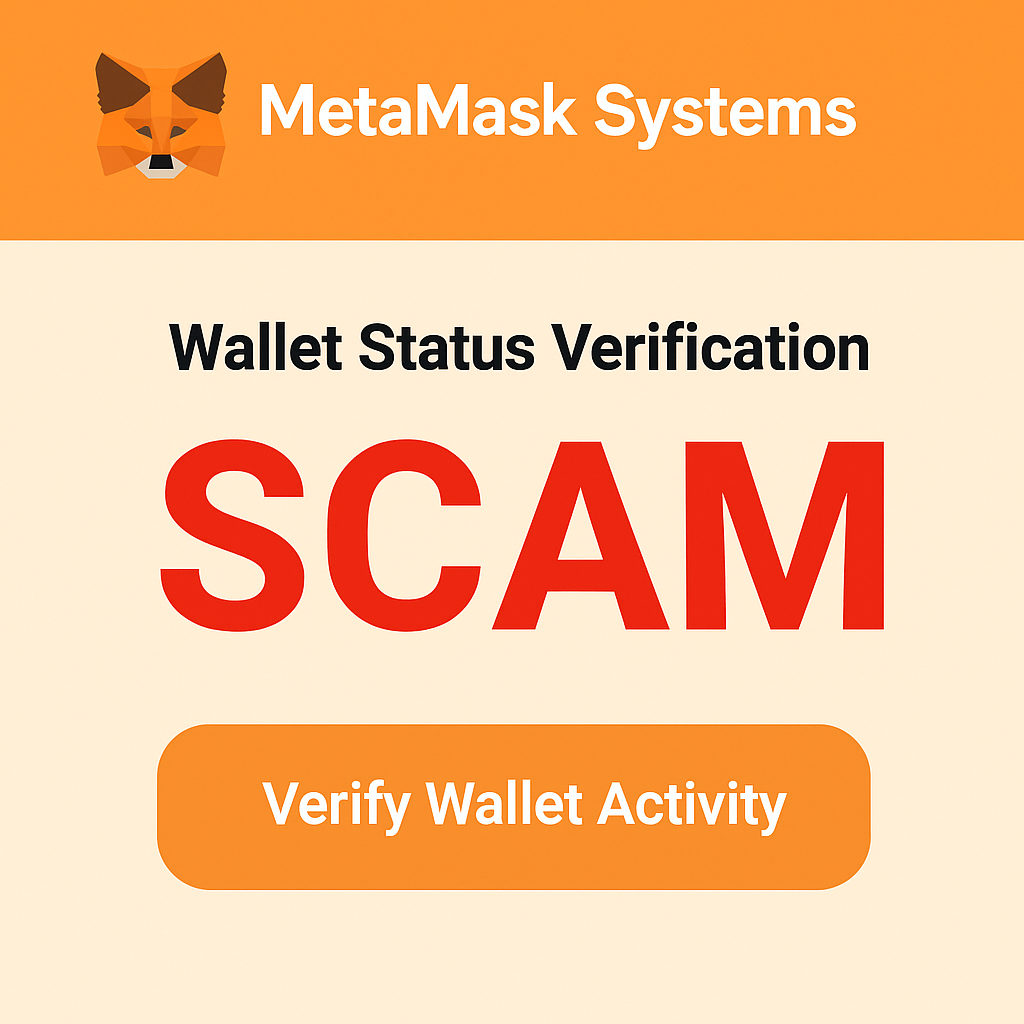
The email looks harmless at first glance. A familiar MetaMask fox, a calm orange header, and a polite subject line about “Wallet Status Verification.”
Then you see the warning about possible restrictions and a bright button urging you to “Verify Wallet Activity” before it is too late.
What follows is not routine maintenance, but one of the most effective phishing tricks targeting crypto users today. In this guide, we unpack how the MetaMask Wallet Status Verification email scam really works, how it steals funds, and what you must do to stay one step ahead of it.
Scam Overview
The MetaMask Wallet Status Verification email scam is a phishing campaign that targets MetaMask users by pretending to be a legitimate security notice from “MetaMask Systems” or “MetaMask Support.”
The goal of the scam is simple:
Convince you to click a “verification” link, send you through one or more fake websites, and trick you into entering your secret recovery phrase or passkey so the scammers can empty your wallet.
To understand why this campaign is so dangerous, it helps to break down exactly how it looks and why it feels so convincing.
What The Email Looks Like
Most versions of this scam follow the same layout.
At the top, you see a MetaMask style fox logo in an orange square, followed by a heading such as:
“MetaMask Systems”
“Wallet Status Verification”
“Account Security Notice”
Below that is a friendly greeting:
“Dear Valued User,” “Dear MetaMask User,” or occasionally it uses the email address as a name.
Then comes the scare message. The text usually explains that:
MetaMask is “performing routine account maintenance”
The systems have “detected one of your registered wallets has shown no recent activity” or “unusual activity”
To ensure “continued secure association with your account” you must confirm you are still using the wallet
The email then presents a big call-to-action button such as:
“Verify Wallet Activity”
“Confirm Wallet Status”
“Restore Wallet Access”
In some versions, a deadline is added. The email claims that if you do not verify within 24 or 48 hours, your wallet will be restricted, deactivated, or removed from the MetaMask system.
This is pure psychological pressure. It is designed to make you act quickly without stopping to think whether the message is real.
The Branding Is Carefully Imitated
Cybercriminals know that small design details build trust.
So the phishing email copies many visual elements of real MetaMask communications:
The orange color palette
The fox icon
Simple, clean typography
Short paragraphs, spaced like a real newsletter
Some versions even include a fake “MetaMask Security Team” footer with an address or legal style notice.
However, MetaMask does not send emails asking users to click a link and “verify” their wallet in order to keep it active. The official wallet is non-custodial. MetaMask does not hold or manage your funds on its own servers, so there is no “account maintenance” in the sense these scammers claim.
That contradiction is one of the biggest clues that this message is fraudulent.
The Redirection To External Scam Sites
The email button links to a site that is not the official MetaMask domain.
In many cases, the scammers hide this by:
Using a shortened URL
Embedding the link behind tracking or redirect services
Sending you through several intermediate pages before the final phishing form
This redirection is important. It allows scammers to change domains frequently as old ones are reported and taken down.
Victims often report that after clicking “Verify Wallet Activity,” they are redirected to different scam sites that look like MetaMask or a web3 login page. Some versions imitate MetaMask’s browser extension pop-up inside a webpage. Others show a generic “wallet connect” style interface.
Regardless of the design, all of these pages have the same purpose:
To get you to type in your secret recovery phrase, private key, or passkey details so the scammers can import your wallet.
Why The Scam Works So Well
This phishing email is effective for several reasons.
First, it targets a real fear. Crypto is notoriously unforgiving. If you lose access to your wallet or your funds are stolen, there is no simple “undo” button. The idea that MetaMask might restrict or disconnect your wallet triggers a strong emotional response.
Second, the language is polite and technical enough to feel authentic. Phrases like “routine account maintenance procedures” and “secure association with your account” sound like something a corporate security team would write.
Third, many people are used to seeing verification emails from banks, social networks, and online services. They are conditioned to click “Verify” or “Confirm” when told there is a security issue. Scammers are exploiting that behavior in the crypto world.
Finally, the phishing sites are polished. They do not look like the old crude scams full of spelling mistakes that you might expect. They borrow the layout and fonts from real crypto dashboards, which lowers your guard even more.
The Real Risk Behind The Scam
The real danger of the MetaMask Wallet Status Verification scam is not only that it steals your seed phrase.
The ripple effects can be much larger:
Once criminals control your wallet, they can transfer out all tokens, NFTs, and stablecoins in minutes
If your wallet is connected to DeFi platforms, they may drain liquidity pool positions or collateralized loans
They may use your wallet to interact with other malicious contracts that create additional loss
If your wallet is tied to your public identity, attackers may impersonate you or use your address for further fraud
For many victims, this is not just a single lost transaction. It can wipe out years of savings or income in a single day.
Not Limited To Email Alone
Although the core of this scam is a phishing email, it sometimes appears through:
SMS messages that link to a so-called MetaMask verification page
Direct messages on social platforms where fake support agents share the same link
Search ads that lead to replicas of the wallet verification site
So you may see the same theme repeated across different channels. The wording and graphics might change slightly, but each version plays on the idea that your MetaMask wallet needs “verification” to stay secure.
Understanding that pattern is key. Once you recognize it, you can treat all similar messages as suspicious, no matter where they show up.
How The Scam Works
To protect yourself effectively, it is useful to walk through the scam step by step.
While the details can vary a bit, most MetaMask Wallet Status Verification phishing attacks follow a predictable workflow.
Each step is designed to move you from mild concern to urgent action, and finally to giving away the one piece of information that makes your wallet vulnerable.
Step 1: Collecting Email Addresses Of Crypto Users
Before the scammer can send a phishing email, they need a list of potential victims.
Attackers build those lists in several ways:
Stealing or buying databases from hacked websites
Scraping email addresses from public forums or social media profiles where people mention MetaMask or crypto projects
Using old breach data, such as leaked lists of exchange users
Guessing addresses that combine popular email providers with common names
They do not have to know for sure that every address belongs to a MetaMask user. They simply send the same phishing email to thousands of people and rely on volume.
If even a small percentage happen to use MetaMask and take the bait, the scam is profitable.
Step 2: Crafting The “Wallet Status Verification” Email
Next, scammers design the actual message.
A typical MetaMask Wallet Status Verification email includes:
A subject line that mentions words like “Verification,” “Security Alert,” or “Account Status”
The MetaMask logo and color scheme, copied from official branding
A short body explaining that your wallet has no recent activity, or has been temporarily flagged
A warning that failure to verify might lead to restrictions or deactivation
A prominent button leading to the phishing site
Some attackers also add fake ticket numbers or reference codes to make the email look automated, for example “Case ID: MM-84217.”
What is missing, however, is any personalized detail about your actual wallet. MetaMask as a browser wallet does not know your email address or your activity. It only interacts locally with your browser and with the blockchain.
Legitimate services that track your email history, such as centralized exchanges, tend to include your name or part of your email address in their messages. The generic greeting “Dear Valued User” is a red flag.
Step 3: Social Engineering Triggers Your Fear Response
The entire wording of the phishing email is built around psychological manipulation, often called social engineering.
The scammers make sure to:
Emphasize security and account maintenance, which signals “this is serious”
Mention your “registered wallet” without specifics, which implies they know something about your setup
Suggest that inactivity or unusual behavior is a problem, which can feel plausible if you have not used the wallet recently
Create a time pressure by hinting at future restrictions if you do not act promptly
All of these elements push your brain into a state of urgency. When you feel rushed and worried, you are more likely to click a button without double checking the link or asking whether the email makes sense.
That emotional shortcut is exactly what the attackers rely on.
Step 4: Redirecting Through Multiple Malicious Sites
Once you click “Verify Wallet Activity,” you are taken through one or more redirects.
You might see:
A very quick blank page that then forwards you on
A URL that changes in the address bar before settling on a final page
Random looking domains that include words like “defi,” “support,” or “security”
The scammers do this for several reasons.
Changing domains frequently makes it harder for security filters to keep up. If one phishing domain is reported and blocked, the attackers can simply update the redirect chain to a new site.
Intermediate redirect pages also help hide the actual final address. Victims usually remember only the initial email and the last page where they entered their data, not every link in between.
Step 5: Landing On A Fake MetaMask Or Web3 Page
Eventually, you arrive on the page that does the real damage.
This site might:
Look like the official MetaMask web app, complete with fox logo and familiar fonts
Present a generic “Connect Wallet” or “Wallet Status Verification” page
Copy the style of a Web3 “wallet connect” interface that supports multiple wallets
Despite appearances, you are not interacting with the MetaMask extension or the official MetaMask website.
Instead, you are on a page controlled by the scammers, hosted on a domain that is often very similar to the real one but with small differences. Examples include altered spellings, extra words, or different top level domains like .info or .support.
The page might ask you to choose how to connect your wallet. Options could include “Browser extension,” “Mobile,” “Passphrase,” or “Hardware wallet.”
However, no matter what you click, the scammers steer you toward a form where you need to type your seed phrase or private key.
Step 6: Requesting Your Seed Phrase, Passkey, Or Private Key
This is the core of the scam.
The fake page explains that to verify your wallet status, you must:
Enter your 12 or 24 word recovery phrase
Provide your private key
Or in some versions, type a “passkey” that allegedly confirms your ownership
They might add reassuring text such as:
“Your phrase will be encrypted and never stored” “Required once for verification due to recent wallet updates” “Necessary to restore your wallet data as part of the maintenance process”
These statements are lies. MetaMask support will never ask for your secret recovery phrase or private key through email, web forms, or social messages.
The seed phrase is essentially the master password to your funds. Anyone who has it can import your wallet into their own device and fully control your coins and tokens.
Some victims report that after clicking the email link, they are redirected from one imitation site to another, each urging them again to fill in the phrase. Sometimes the first page shows an error, and the second claims you must “try again” or “enter phrase in correct order.”
This repetition is part of the manipulation. It convinces the victim that the system is real and that the phrase is necessary for “recovery,” when in fact the scammers are simply harvesting the correct set of words.
Step 7: Using Your Phrase To Steal Crypto
The moment you submit your seed phrase or private key, the attackers have everything they need.
Here is what usually happens behind the scenes:
The phrase is transmitted to the scammers’ server, often via an encrypted request.
An automated script immediately imports the wallet into a fresh MetaMask or compatible browser wallet under the attacker’s control.
The script checks the wallet balances across different networks, including Ethereum, BNB Chain, Polygon, and others.
Funds are transferred out quickly, often in a series of transactions that move tokens into intermediate addresses and then into mixers or centralized exchanges that do not strictly enforce KYC.
Because blockchain transactions are final, there is no central authority that can reverse those withdrawals once signed.
The attacker may also:
Use your wallet to interact with malicious contracts
Swap your tokens into privacy focused coins to hide the trail
Claim any unclaimed airdrops or rewards associated with your address
All of this can take place within minutes of you submitting the phrase. In some cases, victims notice funds disappearing in real time while they are still on the phishing page.
Step 8: Locking Victims In A Loop Or Displaying Success
While the theft is in progress, the phishing site usually shows a reassuring message.
You might see:
“Wallet successfully verified. Changes will take effect within 24 hours.” “Your wallet is now active and associated with your account.” “Verification complete. Thank you for keeping your account secure.”
This false confirmation closes the emotional loop. It makes you feel that you have solved the problem. Many people close the page and go back to their day, not realizing anything is wrong until they later check their wallet balance.
In some situations, the page instead shows an error, asking you to try again or to enter the words in a different format. However, by this point the scammers already have the phrase. The error is purely cosmetic.
Step 9: Covering Their Tracks And Reusing Infrastructure
Once the stolen funds have been moved and possibly laundered, the scammers reuse the same infrastructure for new victims.
They may:
Rotate domains to avoid blacklists
Slightly adjust the email copy to sidestep spam filters
Change the branding to impersonate other wallets or exchanges
That is why you might see the same general pattern of “wallet status verification” scams under different names.
From the attacker’s perspective, this is a scalable business. As long as enough people are tricked into sharing their seed phrases, the operation remains profitable.
Step 10: Why Traditional Security Tools Do Not Always Help
You might wonder why your email provider or antivirus did not block the phishing link.
The answer is that these scams are constantly evolving. Attackers register new domains, use reputable hosting providers, and often mimic legitimate SSL certificates.
Spam filters do catch some copies of the MetaMask Wallet Status Verification email, but not all. Even if one link is flagged, another variant shows up soon after.
This reality makes education one of the most powerful defenses. Knowing how the scam works allows you to ignore the fake messages altogether, regardless of whether they slip past technical filters.
Sample “MetaMask Wallet Status Verification” Emails
Scammers often use very similar wording in these fake security alerts. Below you will find an example of the phishing email, followed by realistic subject line ideas and body variations that attackers commonly use.
Use these samples to recognize the scam quickly next time it lands in your inbox.
Sample phishing email text
Subject: Action Required: MetaMask Wallet Status Verification
Dear Valued User,
As part of our regular security review, MetaMask Systems is checking the status of wallets connected to your profile. Our automated tools have detected that one of your registered wallets shows no recent activity.
To keep your wallet active and avoid restrictions, please confirm that you are still the legitimate owner and that you continue to use this wallet.
Click the button below to verify your wallet status and restore full access:
Verify Wallet Activity
If you do not complete this verification within 24 hours, your wallet may be disconnected from our security network and some services could become unavailable.
Sincerely, MetaMask Systems Security Team
Remember: any email that looks like this and asks you to click a button to “verify” your wallet is fraudulent.
Alternative subject lines scammers may use
Attackers frequently rotate subject lines to bypass spam filters and catch your attention. Here are common variants:
“MetaMask Security Alert: Wallet Status Requires Verification”
“Unusual Activity Detected On Your MetaMask Wallet”
“Update Required: MetaMask Account Maintenance”
“MetaMask Systems Review: Confirm Wallet Ownership”
“Your MetaMask Wallet Is At Risk Of Deactivation”
“Final Reminder: Verify MetaMask Wallet Activity”
“Security Check: Confirm Your MetaMask Wallet”
“Important: MetaMask Wallet Status Notification”
If you see anything similar to these, treat the message as suspicious and verify directly through the official MetaMask site instead of clicking the email link.
Alternative body text variations used in the scam
Phishing emails often reuse the same structure but tweak a few sentences. Here are some realistic variations you may encounter.
Variation 1: Inactivity warning
Dear MetaMask User,
Our monitoring system has identified long term inactivity on one of your linked wallets. For security reasons, inactive wallets are periodically reviewed.
To prevent limitation or removal of this wallet from your MetaMask profile, confirm your ownership and activity by completing the verification process below.
Confirm Wallet Status
Variation 2: Suspicious activity claim
Dear Customer,
During a recent security scan, we noticed irregular login behavior associated with your MetaMask wallet. To protect your assets, temporary restrictions may apply until you verify that you are the account holder.
Please verify your wallet activity now to restore full functionality and keep your funds secure.
Verify Now
Variation 3: Policy update excuse
Hello,
MetaMask has updated its compliance and security requirements. All existing wallets must be revalidated to remain connected to our services.
Your wallet has been marked as “pending verification.” Failure to complete the new validation process can result in limited access.
Click the link below to complete wallet validation:
Validate Wallet
Variation 4: Account maintenance language
Dear User,
As part of scheduled account maintenance, we are confirming the status of wallets associated with MetaMask Systems. One or more of your wallets requires confirmation to ensure continued secure operation.
To finish this one time check, follow the secure verification link below and confirm your wallet details.
Continue To Secure Verification
Variation 5: Fake security notice with deadline
Dear MetaMask Client,
We have identified a potential security issue on your wallet. For your protection, access to certain features will be limited in 12 hours unless you verify your wallet activity.
This process is quick and helps us confirm that you are the rightful owner of the wallet.
Secure My Wallet
All of these examples lead to the same outcome: a fake verification page that asks for your secret recovery phrase or private key.
If any email mentions “Wallet Status Verification,” “inactive wallet,” “security review,” or “maintenance” and then pushes you to click a button and confirm your wallet, treat it as a phishing attempt and delete it.
What To Do If You Have Fallen Victim to This Scam
If you already clicked the link and entered your recovery phrase, private key, or passkey on a suspicious site, do not panic, but act quickly.
Here is a calm, step-by-step plan to follow.
Disconnect From The Fake Site Immediately Close the browser tab that contains the phishing page. Do not press any additional buttons, do not sign any transactions, and do not follow any new prompts.
Create A Brand New Wallet And Seed Phrase On a clean device, create a fresh MetaMask wallet or another non-custodial wallet. Write down the new secret recovery phrase on paper and store it securely. Do not reuse the compromised phrase under any circumstances.
Transfer Remaining Funds To The New Wallet If there are still assets left in your compromised wallet, send them to the new wallet as soon as you can. You may need a small amount of native coin (such as ETH or BNB) to pay for gas fees. If the attacker is actively watching the wallet, they might try to race you for the funds, so be prepared to move quickly.
Revoke Token Approvals And Disconnect Dapps Use a blockchain explorer or a token approval tool to review which smart contracts have permission to spend your tokens. Revoke any approvals you do not recognize. Then visit the “Connected Sites” section of your MetaMask settings and disconnect any suspicious or unnecessary dapps. This step cannot undo a stolen seed phrase, but it can limit future damage if the attacker tries to exploit ongoing approvals.
Scan Your Device For Malware While most of these scams work purely through phishing websites, it is wise to rule out any additional infection. Run a full antivirus and anti-malware scan on the device you used. If you recently installed unusual browser extensions or downloaded untrusted software related to crypto, remove them.
Record Evidence Of The Scam Take screenshots of the phishing email, the fake site (if still accessible), and any suspicious transactions from your wallet. Save the email headers if you know how, or forward the full message to a trusted security contact. This documentation can be helpful for reporting and for recognizing similar scams in the future.
Report The Scam To MetaMask And Relevant Platforms MetaMask has channels where you can report phishing sites and fake support messages. Report the domain, the email content, and any additional details. Also report the scam to your email provider (using the “Report phishing” function) and, if applicable, to platforms where you found the link such as X, Discord, or Telegram. These reports make it easier for others to be warned before they are targeted.
Notify Your Exchange Or On-Ramp Provider If you used a centralized exchange or fiat on-ramp to fund the compromised wallet, let their support team know that your wallet was phished. They cannot recover stolen funds, but they might flag suspicious withdrawal addresses or monitor related accounts for future abuse.
File A Complaint With Your Local Cybercrime Authority Many countries have national reporting centers for online fraud. Provide as much detail as possible, including wallet addresses, transaction hashes, domains, and timestamps. Even if law enforcement cannot get your money back, these reports help them map out the criminal networks behind repeated scams.
Prepare For Potential Identity Misuse If your email address, name, or other personal details were visible in the communication, remain alert for additional phishing attempts. Scammers sometimes reuse contact information across different fraud campaigns. Be skeptical of future messages claiming to offer refunds, “anti scam recovery services,” or help with MetaMask issues, especially if they ask for more sensitive information.
Educate Anyone Else Who Might Be Affected If the compromised wallet is shared with a partner, family member, or business, inform them about what happened and what steps you are taking. Encourage them to review their own email and wallets for similar messages. Quick communication can prevent multiple people from falling for the same trap.
Reflect On Security Habits Without Blaming Yourself Phishing campaigns are designed to exploit natural human emotions. Falling for one does not mean you are careless or unintelligent. Once you have secured your funds as best as possible, take a moment to review your habits. Consider using hardware wallets for larger holdings, storing seed phrases offline, and double checking any email that claims there is an urgent problem with your crypto.
Is Your Device Infected? Run a Free Malware Scan
Slow performance, constant pop-ups, or strange behavior? These are classic signs of a malware infection. The fastest way to find out is to scan your device with Malwarebytes Anti-Malware Free — one of the most trusted malware removal tools available.
The free version detects and removes the most common threats, including:
Adware — the cause of those annoying pop-ups
Browser hijackers — unwanted redirects and changed homepages
Trojans and spyware — hidden programs stealing your data
Potentially unwanted programs (PUPs) — software you never asked for
👉 Select your device below — Windows, Mac, or Android — then follow the simple steps to download Malwarebytes, scan your system, and remove any threats it finds. The whole process takes about 5 minutes.
Malwarebytes for WindowsMalwarebytes for MacMalwarebytes for Android
Run a Malware Scan with Malwarebytes for Windows
Malwarebytes is one of the most popular and trusted anti-malware tools for Windows — and it’s completely free for removing infections. It catches threats that many antivirus programs miss, including adware, browser hijackers, and trojans. Follow the steps below to scan and clean your PC in just a few minutes.
Download Malwarebytes
Click the button below to download the latest version of Malwarebytes for Windows from the official source. The free version is all you need — it will scan your computer and remove adware, browser hijackers, and other malicious software at no cost.
(The link opens in a new page where your download will start)
Install Malwarebytes
When the download finishes, open your Downloads folder and double-click the MBSetup file. If Windows shows a User Account Control pop-up, click “Yes” to allow the installation.
Follow the On-Screen Prompts to Install Malwarebytes
The setup wizard will walk you through a few quick screens:
Choose where you’re installing the program — “Personal Computer” or “Work Computer” — then click Next.
Malwarebytes will now install on your device. This usually takes under a minute.
When installation is complete, the “Welcome to Malwarebytes” screen will open automatically.
On the final screen, click Open Malwarebytes to launch the program.
Enable “Scan for Rootkits”
Before scanning, turn on rootkit detection so Malwarebytes can find even the most hidden threats. Click the Settings gear icon on the left side of the screen.
In the settings menu, find “Scan for rootkits” and click the toggle so it turns blue.
Done? Click “Dashboard” in the left pane to return to the main screen.
Start the Scan
Click the blue Scan button. Malwarebytes will automatically update its virus database and start checking your computer for malware.
Wait for the Scan to Finish
The scan checks your entire system for browser hijackers and other malicious programs, so it can take several minutes. Feel free to do something else — just check back occasionally to see the progress.
Quarantine the Detected Threats
When the scan is done, you’ll see a list of everything Malwarebytes found — malware, adware, and potentially unwanted programs. Click the “Quarantine” button to remove all of them at once.
Malwarebytes will now remove the malicious files and registry entries and move them safely into quarantine.
Restart Your Computer
Some threats can only be fully removed after a reboot. If Malwarebytes asks you to restart, click Yes. Once you’re logged back in, your PC is clean and you can continue with the next steps in this guide.
When the scan finishes, click Quarantine to remove everything Malwarebytes found. That’s it — your Windows PC is now clean of trojans, adware, and other malware, and should be back to running smoothly.
If your current antivirus allowed this malicious program on your computer, you may want to consider purchasing Malwarebytes Premium to protect against these types of threats in the future. If you are still having problems with your computer after completing these instructions, then please follow one of the steps:
Malwarebytes for Mac is a free on-demand scanner that removes the malware other security software tends to miss — adware, browser hijackers, and unwanted programs included. Cleaning an infected Mac with Malwarebytes has always been completely free, and it’s our go-to recommendation. Follow the steps below to scan and clean your Mac in just a few minutes.
Download Malwarebytes for Mac
Click the button below to download the latest version of Malwarebytes for Mac.
When the download finishes, open your Downloads folder and double-click the setup file to begin the installation.
Follow the On-Screen Prompts to Install Malwarebytes
The Malwarebytes for Mac Installer will guide you through a few quick screens. Click “Continue” and keep following the prompts until the installation completes.
When the installation is complete, Malwarebytes opens to the Welcome to Malwarebytes screen. Click “Get started“.
Select “Personal Computer” or “Work Computer”
Malwarebytes will ask what type of computer you’re installing it on. Click either Personal Computer or Work Computer, whichever applies.
Start the Scan
Click the “Scan” button. Malwarebytes will automatically update its detection database and begin checking your Mac for malware.
Wait for the Scan to Finish
Malwarebytes will scan your Mac for adware, browser hijackers, and other malicious programs. This can take a few minutes, so feel free to do something else — just check back occasionally to see the progress.
Quarantine the Detected Threats
When the scan is done, you’ll see a list of everything Malwarebytes found. Click the “Quarantine” button to remove all the threats at once.
Restart Your Mac
Malwarebytes will now remove all the malicious files it found. Some threats can only be fully removed after a reboot — if Malwarebytes asks you to restart, allow it. Once you’re logged back in, your Mac is clean.
Once the scan is done, remove every threat it detected. Your Mac is now free of adware, rogue browser extensions, and other potentially harmful software.
If your current antivirus allowed a malicious program on your computer, you might want to consider purchasing the full-featured version of Malwarebytes Anti-Malware to protect against these types of threats in the future. If you are still experiencing problems while trying to remove a malicious program from your computer, please ask for help in our Mac Malware Removal Help & Support forum.
Run a Malware Scan with Malwarebytes for Android
Malwarebytes for Android automatically detects and removes dangerous threats like malware and ransomware so you don’t have to worry about your most-used device being compromised. Aggressive detection of adware and potentially unwanted programs keeps your Android phone or tablet running smooth.
Download Malwarebytes for Android.
You can download Malwarebytes for Android by clicking the link below.
In the Google Play Store, tap “Install” to install Malwarebytes for Android on your device.
When the installation process has finished, tap “Open” to begin using Malwarebytes for Android. You can also open Malwarebytes by tapping on its icon in your phone menu or home screen.
Follow the on-screen prompts to complete the setup process
When Malwarebytes will open, you will see the Malwarebytes Setup Wizard which will guide you through a series of permissions and other setup options. This is the first of two screens that explain the difference between the Premium and Free versions. Swipe this screen to continue. Tap on “Got it” to proceed to the next step. Malwarebytes for Android will now ask for a set of permissions that are required to scan your device and protect it from malware. Tap on “Give permission” to continue. Tap on “Allow” to permit Malwarebytes to access the files on your phone.
Update database and run a scan with Malwarebytes for Android
You will now be prompted to update the Malwarebytes database and run a full system scan.
Click on “Update database” to update the Malwarebytes for Android definitions to the latest version, then click on “Run full scan” to perform a system scan.
Wait for the Malwarebytes scan to complete.
Malwarebytes will now start scanning your phone for adware and other malicious apps. This process can take a few minutes, so we suggest you do something else and periodically check on the status of the scan to see when it is finished.
Click on “Remove Selected”.
When the scan has been completed, you will be presented with a screen showing the malware infections that Malwarebytes for Android has detected. To remove the malicious apps that Malwarebytes has found, tap on the “Remove Selected” button.
Restart your phone.
Malwarebytes for Android will now remove all the malicious apps that it has found. To complete the malware removal process, Malwarebytes may ask you to restart your device.
After the scan, tap Remove Selected to delete all detected threats. Your Android phone is now clean — no more malicious apps, adware, or browser redirects.
If your current antivirus allowed a malicious app on your phone, you may want to consider purchasing the full-featured version of Malwarebytes to protect against these types of threats in the future. If you are still having problems with your phone after completing these instructions, then please follow one of the steps:
Restore your phone to factory settings by going to Settings > General management > Reset > Factory data reset.
Now that your device is clean, keep it that way. Most infections start with a malicious ad or a fake download button — so blocking them at the source is your best defense.
We recommend AdGuard, which blocks malicious ads, phishing pages, and dangerous redirects before they can reach you.
The MetaMask Wallet Status Verification email scam is a sophisticated phishing campaign that uses fear, urgency, and polished visuals to trick users into handing over their secret recovery phrases.
It starts with an email that looks official, shuttles victims through a set of convincing fake sites, and ends with the complete takeover of the wallet once the seed phrase is entered. Many victims find themselves redirected across different domains, each pretending to “verify” their account, only to discover later that their crypto has quietly been drained.
The good news is that this scam becomes far less effective once you understand how it works.
If you remember one rule, let it be this: MetaMask will never ask you to enter your secret recovery phrase or private key on a website or through email to “verify” your wallet.
FAQ
What is the MetaMask Wallet Status Verification email scam?
The MetaMask Wallet Status Verification email scam is a phishing campaign that pretends to be an official security notice from MetaMask.
Scammers send an email that looks like a routine “wallet status” check and warn that your wallet may be restricted if you do not verify it. The message usually includes a big button such as “Verify Wallet Activity” that leads to fake websites.
Those websites are designed to steal your secret recovery phrase, private key, or passkey so that criminals can import your wallet and move your crypto into their own addresses.
Is the “Wallet Status Verification” email from MetaMask legitimate?
No. MetaMask does not send emails that ask you to verify your wallet, confirm inactivity, or restore access by clicking a link and entering your seed phrase.
MetaMask is a non custodial wallet. Your funds are controlled locally on your device, not on MetaMask servers. There is no reason for MetaMask to “deactivate” a wallet because it has been inactive.
Any email that:
Claims your MetaMask wallet will be restricted if you do not verify it
Invites you to click a button that opens a website
Requests your recovery phrase or private key
is almost certainly a scam and should be ignored and reported.
What does a fake MetaMask Wallet Status Verification email usually look like?
Most phishing messages follow a similar template:
MetaMask fox logo in an orange header
A title such as “MetaMask Systems” or “Wallet Status Verification”
Greeting like “Dear Valued User”
Text about “routine account maintenance” or “unusual activity”
A warning that your wallet may be deactivated or restricted
A button labeled “Verify Wallet Activity” or “Confirm Wallet Status”
The content is polished and looks professional, but the key giveaway is that it directs you to a non MetaMask website and asks for your recovery phrase or passkey.
What happens if I click the verification link in the email?
Simply clicking the link does not automatically drain your wallet. However, it takes you to one or more phishing sites that try to trick you into entering your secret recovery phrase, private key, or signing malicious transactions.
If you clicked the link but:
Closed the page immediately
Did not type any phrase or key
Did not connect your wallet and sign transactions
your risk is much lower. Even so, you should clear your browser history, delete the email, run a malware scan, and stay alert for similar phishing attempts.
How can I tell if a MetaMask email is a scam before I click anything?
Use this quick checklist:
Check the sender address Real MetaMask communication about security usually appears inside the wallet interface or on the official website. Email addresses that use odd domains such as metamask-security.com, metamask-systems.net, or random letters are suspicious.
Look for generic greetings “Dear User” or “Dear Valued Customer” is common in phishing emails. Genuine services linked to your email often use your name or account details.
Hover over links before clicking Move your mouse over the button without clicking. If the link does not point to an official metamask.io domain or a trusted support page, treat it as malicious.
Search for the same wording online Many phishing campaigns are documented on security blogs and forums. If the email text shows up in scam reports, you have your answer.
Remember the golden rule Any message that asks for your seed phrase, private key, or passkey is fake, no matter how official it looks.
Why do the scam sites ask for my “passkey” or “recovery phrase”?
Your recovery phrase is the master key to your wallet. Anyone who has it can restore your wallet on their own device and fully control your funds.
Scammers know that MetaMask users are taught to protect this phrase. To get around your defenses, they use different labels, such as:
Secret recovery phrase
Seed phrase
Passkey
Private key backup
No matter what term is used, if a website or email linked to “MetaMask verification” wants you to type 12 or 24 words or paste a private key, it is a phishing page.
I entered my recovery phrase on a site after getting this email. What should I do right now?
Act quickly, but stay calm. Here is a priority list:
Create a brand new wallet with a fresh recovery phrase on a clean device.
Move any remaining funds from the compromised wallet to the new wallet immediately.
Revoke token approvals and disconnect suspicious dapps using a trusted token approval tool.
Run antivirus and anti malware scans on the device you used.
Record evidence of the phishing email and the fake site.
Report the incident to MetaMask, your email provider, and your local cybercrime authority.
The most important step is to stop using the old seed phrase. Consider that wallet permanently compromised.
Can I recover my stolen crypto after this phishing scam?
In most cases, stolen crypto from a MetaMask phishing scam is very hard to recover.
Once your seed phrase is used to sign transactions, the funds leave your address and move to wallets controlled by the attacker. These transactions are final at the blockchain level.
You can:
Report the theft to law enforcement and provide transaction hashes
Inform centralized exchanges if you can identify where the funds were sent
Use blockchain explorers to monitor suspicious addresses
However, there is no guarantee of recovery. This is why protecting your recovery phrase and avoiding phishing email scams is so important.
How are victims redirected to different scam sites when they click the button?
The verification button in the email often contains a long link that passes through several redirects.
The flow usually looks like this:
The email link opens a tracking or short URL service.
That service redirects automatically to another domain.
You are then sent to the final phishing page that imitates MetaMask or a generic Web3 login portal.
Using multiple redirections makes it harder for security tools to track and block the final domain. It also allows scammers to switch to new domains frequently while reusing the same email template.
Does MetaMask ever ask for my secret recovery phrase online?
No. MetaMask will never:
Email you to request your recovery phrase
Ask you to enter your phrase into a website form to “verify your wallet”
Request your full phrase in a support chat or through social media
You only need your recovery phrase in two situations:
When you first create your wallet and write it down for backup
When you manually restore your wallet on a new device that you control
If anyone else asks for these words, they are trying to steal your funds.
How can I protect myself from MetaMask phishing emails in the future?
Here are practical steps that help:
Bookmark official URLs Always visit MetaMask by typing the address yourself or using your own bookmark, not by clicking links in emails or ads.
Use hardware wallets for larger balances A hardware wallet keeps your keys offline. Even if you connect it through MetaMask, signing a malicious transaction is harder because you must confirm it on the device.
Enable spam and phishing filters Keep your email security features turned on and report phishing messages when you see them. This training helps filters catch similar scams.
Educate yourself and others Learn how common crypto phishing scams work, and share that knowledge with friends and family who use MetaMask or other wallets.
Treat urgency as a red flag Any email that says “verify now or lose access” deserves extra scrutiny. Take a breath, check the domain, and when in doubt, do nothing until you verify through official channels.
Why does the MetaMask Wallet Status Verification scam keep appearing even after sites are taken down?
Phishing campaigns are easy to replicate. Once attackers design one convincing template and a fake site, they can:
Register many similar domains for a low cost
Swap in new domains when old ones are blocked
Reuse the same email wording, graphics, and scripts
They may also sell their templates to other criminal groups, which spreads the scam even further. This is why the best long term defense is user awareness, not only technical blocking.
What keywords should I watch for in emails to spot this specific scam?
While wording changes over time, many MetaMask Wallet Status Verification scam emails contain phrases such as:
“Wallet Status Verification”
“MetaMask Systems”
“Routine account maintenance procedures”
“Our systems have detected one of your registered wallets has shown no recent activity”
“Please confirm you are still actively using this wallet”
“Verify Wallet Activity”
If you see any of these combined with requests to click a button and enter a recovery phrase, treat the message as a phishing attempt.
Are other wallets affected by similar “status verification” scams?
Yes. The same strategy is used against many crypto services and wallets, including:
Phantom
Trust Wallet
Coinbase Wallet
Hardware wallets that are imitated via fake “firmware update” emails
The structure is identical. Scammers pretend there is a problem with your wallet status, security, or activity, then force you through a fake verification process that ends with you entering your seed phrase or private key.
Once you learn to recognize the pattern, you can protect yourself no matter which wallet you use.
What is the single most important rule to avoid this scam?
Remember this simple rule and share it with everyone you know who uses MetaMask:
Never enter your secret recovery phrase, private key, or passkey on any website or form that you opened from an email, SMS, social media message, or ad.
Always assume that any unexpected request to “verify” your wallet is a scam. If you stick to that rule, the MetaMask Wallet Status Verification email and similar phishing campaigns will not be able to steal your crypto.
10 Rules to Avoid Online Scams
Here are 10 practical safety rules to help you avoid malware, online shopping scams, crypto scams, and other online fraud. Each tip includes a quick “if you already got hit” action.
Stop and verify before you click, log in, download, or pay.
Most scams win by creating urgency. Verify using a trusted method: type the website address yourself, use the official app, or call a known number (not the one in the message).
If you already clicked: close the page, do not enter passwords, and run a malware scan.
Keep your operating system, browser, and apps updated.
Updates patch security holes used by malware and malicious ads. Turn on automatic updates where possible.
If you saw a scary “update now” pop-up: close it and update only through your device settings or the official app store.
Use layered protection: antivirus plus an ad blocker.
Antivirus helps block malware. An ad blocker reduces scam redirects, phishing pages, and malvertising.
If your browser is acting weird: remove unknown extensions, reset the browser, then run a full scan.
Install apps, software, and extensions only from official sources.
Avoid cracked software, “keygens,” and random downloads. During installs, choose Custom/Advanced and decline bundled offers you do not recognize.
If you already installed something suspicious: uninstall it, restart, and scan again.
Treat links and attachments as untrusted by default.
Phishing often impersonates delivery services, banks, and popular brands. If it is unexpected, do not open attachments or log in through the message.
If you entered credentials: change the password immediately and enable 2FA.
Shop safely: research the store, then pay with protection.
Be cautious with brand-new stores, “closing sale” stories, and prices that make no sense. Prefer credit cards or PayPal for dispute options. Avoid wire transfers, gift cards, and crypto payments.
If you already paid: contact your card issuer or PayPal quickly to dispute the transaction.
Crypto rule: never pay a “fee” to withdraw or recover money.
Common patterns include fake profits, then “tax,” “gas,” or “verification” fees. Another is a “recovery agent” who demands upfront crypto.
If you already sent crypto: stop paying, save evidence (wallet addresses, TXIDs, chats), and report the scam to the platform used.
Secure your accounts with unique passwords and 2FA (start with email).
Use a password manager and unique passwords for every account. Enable 2FA using an authenticator app when possible.
If you suspect an account takeover: change passwords, sign out of all devices, and review recent logins and recovery settings.
Back up important files and keep one backup offline.
Backups protect you from ransomware and device failure. Keep at least one backup on an external drive that is not always connected.
If you suspect infection: do not connect backup drives until the system is clean.
If you think you are a victim: stop losses, document evidence, and escalate fast.
Move quickly. Speed matters for disputes, account recovery, and limiting damage.
Stop payments and contact: do not send more money or respond to the scammer.
Call your bank or card issuer: block transactions, replace the card if needed, and start a dispute or chargeback.
Secure your email first: change the email password, enable 2FA, and remove unfamiliar recovery options.
Secure other accounts: change passwords, enable 2FA, and log out of all sessions.
Scan your device: remove suspicious apps or extensions, then run a full malware scan.
Save evidence: screenshots, emails, order pages, tracking pages, wallet addresses, TXIDs, and chat logs.
Report it: to the payment provider, marketplace, social platform, exchange, or wallet service involved.
These rules are intentionally simple. Most online losses happen when decisions are rushed. Slow down, verify independently, and use payment methods and account controls that give you recourse.
Thomas is an expert at uncovering scams and providing in-depth reporting on cyber threats and online fraud. As an editor, he is dedicated to keeping readers informed on the latest developments in cybersecurity and tech.