

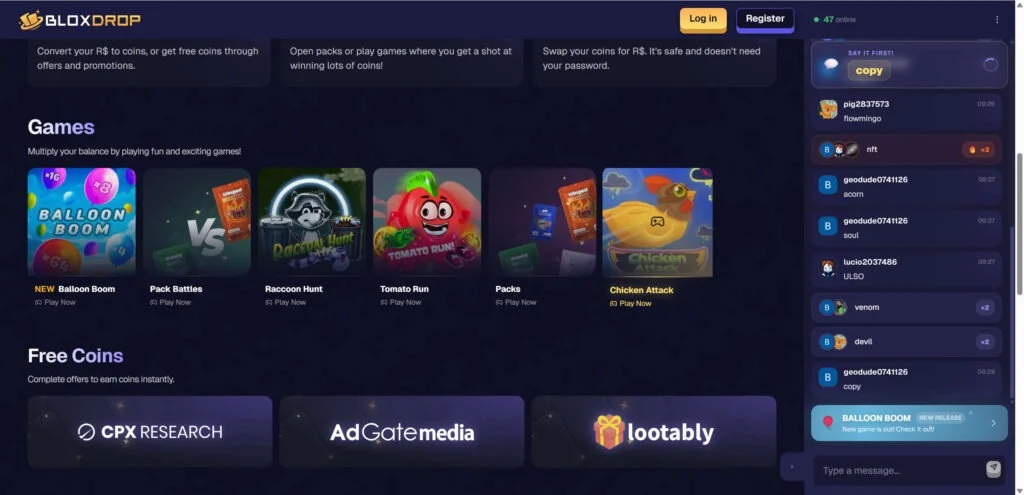
BloxDrop is showing up in Roblox servers the way scam waves usually do: fast, repetitive, and across totally unrelated games. Players report seeing the same copy-paste messages over and over, claiming someone is “winning tons of Robux” or getting “free rewards”, often pushed by accounts that don’t seem to behave like real players.
If you’re seeing BloxDrop links or lookalike domains like bloxdrop.com in chat, treat it as a high-risk scam campaign and do not interact with it.
Roblox is very clear on this topic: offers of free Robux or “Robux generators” are scams and should be reported.
Quick safety answer
- Do not click links pushed through Roblox chat spam
- Do not “verify” your account on third-party sites
- Do not enter your Roblox login anywhere outside Roblox
- Do not deposit Robux or money hoping to unlock a payout
What you’ll see in Roblox
This campaign typically looks like:
- Repeated chat lines like “BloxDrop is legit” or “I won so much Robux”
- The same wording showing up in multiple experiences
- Messages that keep coming even after you switch games
- “Weird” sender behavior, including accounts that appear to vanish quickly or don’t act like normal players
- Misspellings or alternate spellings of the name to dodge filters (this tactic is common in Roblox scam spam)
This is not normal community marketing. It’s what volume-based scams look like: flood chat, hook a few clicks, repeat.
Why this screams “scam”
Here are the biggest red flags, in plain language:
1) Bot spam is not how legit services grow
Real platforms don’t need to invade random Roblox servers with automated scripts. Scam networks do, because they rely on scale, not trust. Roblox developers have been reporting bot-style chat spam pushing Robux “gambling” or reward links as a real problem.
2) The promise is the bait
“Free Robux”, “instant rewards”, “win Robux today” are the exact claims Roblox warns users about.
3) Lookalike domains are a classic trick
When a keyword gets blocked or reported, spam campaigns often rotate names, swap letters, or use typos to keep the link working. If you see BloxDrop plus weird variants, assume it’s part of the same funnel and stay away.
4) “Not affiliated with Roblox” does not make it safe
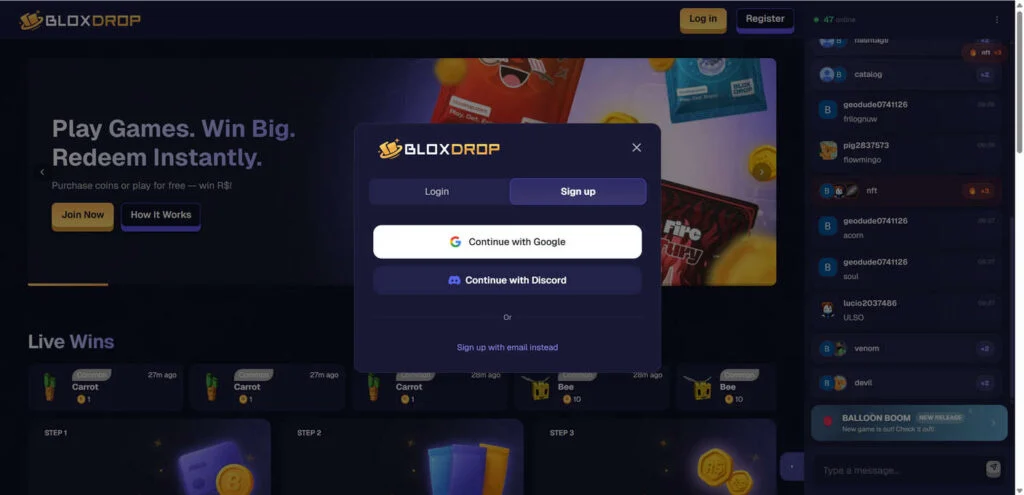
BloxDrop itself states it’s an independent platform and not affiliated with Roblox. That’s important because it confirms it is third-party and outside Roblox’s protection layer.
How BloxDrop-style Robux scams usually work
Even when the site design changes, the playbook stays the same:
Step 1: Spam Roblox chat until someone bites
Bots post “big win” claims, promo codes, and “free Robux” hooks to trigger curiosity and FOMO.
Step 2: Pull you off Roblox to an external site
Once you leave Roblox, you’re outside Roblox moderation, outside Roblox safety prompts, and closer to whatever the scammers want next.
Step 3: Dangle progress with coins, cases, spins, and “free” starter rewards
These systems are designed to feel like you’re one step away from cashing out.
Step 4: Hit you with “one more thing”
This is where victims get pressured into:
- completing offer tasks
- signing up for trials
- enabling notifications
- installing apps
- depositing Robux or money
- “verifying” their Roblox account
Step 5: Withdrawal friction so most people never get paid
Common outcomes include pending withdrawals, new minimums, repeated “verification” steps, or support that goes silent.
What’s the real risk?
Depending on what you do on the site, the risk can include:
- Roblox account compromise (if you enter login details or approve something you shouldn’t)
- Stolen Robux/items through trades, purchases, or unauthorized activity
- Payment loss if you deposit money, buy packs, or get pushed into shady subscriptions
- Data harvesting if you hand over email, usernames, or other personal details
What to do right now
If you only saw the spam
- Don’t click anything
- Report the chat message and block the sender (when possible)
- Switch servers, or use private servers when available
If you clicked the link but didn’t enter anything
- Close the tab
- Do not allow notifications
- Clear site data for that domain in your browser (cookies and permissions)
If you entered your Roblox username, email, or any details
- Change your Roblox password immediately
- Enable 2-step verification
- Check your email security (password + 2FA), because email access often leads to Roblox resets
If you entered your Roblox password anywhere outside Roblox
Treat the account as compromised:
- Change Roblox password now
- Log out of other sessions (if available in your account settings)
- Check trade history, purchase history, and friends added recently
- Tell a parent/guardian if you’re a kid, or handle it with your child if you’re a parent
If you paid money or deposited anything
- Contact your payment provider quickly and ask about disputes/chargebacks
- Screenshot the promises, your “balance”, and any blocked withdrawal messages
- Stop trying to “unlock” the payout. That’s how people lose more.
The safest way to get Robux
Roblox’s guidance is straightforward: there is no such thing as a Robux generator, and free Robux offers pushed by websites or random users should be treated as scams and reported.
If you want Robux, stick to official Roblox methods and approved in-platform systems.
Is Your Device Infected? Run a Free Malware Scan
Slow performance, constant pop-ups, or strange behavior? These are classic signs of a malware infection. The fastest way to find out is to scan your device with Malwarebytes Free — one of the most trusted malware removal tools available.
The free version detects and removes the most common threats, including:
- Adware — the cause of those annoying pop-ups
- Browser hijackers — unwanted redirects and changed homepages
- Trojans and spyware — hidden programs stealing your data
- Potentially unwanted programs (PUPs) — software you never asked for
👉 Select your device below — Windows, Mac, or Android — then follow the simple steps to download Malwarebytes, scan your system, and remove any threats it finds. The scan usually takes 5 to 20 minutes.
Run a Malware Scan with Malwarebytes for Windows
Malwarebytes is one of the most popular and trusted anti-malware tools for Windows — and it’s completely free for removing infections. It catches threats that many antivirus programs miss, including adware, browser hijackers, and trojans. Follow the steps below to scan and clean your PC in just a few minutes.
Download Malwarebytes
Click the button below to download the latest version of Malwarebytes for Windows from the official source. The free version is all you need — it will scan your computer and remove adware, browser hijackers, and other malicious software at no cost.
Download MalwarebytesOfficial installer for Windows 11 and 10. Your download starts right away.Want real-time protection? See Malwarebytes Premium Malwarebytes Free for WindowsScans and removes malware at no cost
-
Install Malwarebytes
When the download finishes, open your Downloads folder and double-click the MBSetup file. If Windows shows a User Account Control pop-up, click “Yes” to allow the installation.

Follow the On-Screen Prompts to Install Malwarebytes
The setup wizard will walk you through a few quick screens:
-
Choose where you’re installing the program — “Personal Computer” or “Work Computer” — then click Next.

-
Malwarebytes will now install on your device. This usually takes under a minute.

-
When installation is complete, the “Welcome to Malwarebytes” screen will open automatically.

-
On the final screen, click Open Malwarebytes to launch the program.

-
Enable “Scan for Rootkits”
Before scanning, turn on rootkit detection so Malwarebytes can find even the most hidden threats. Click the Settings gear icon on the left side of the screen.

In the settings menu, find “Scan for rootkits” and click the toggle so it turns blue.

Done? Click “Dashboard” in the left pane to return to the main screen.
Start the Scan
Click the blue Scan button. Malwarebytes will automatically update its virus database and start checking your computer for malware.

-
Wait for the Scan to Finish
The scan checks your entire system for browser hijackers and other malicious programs, so it can take 5 to 20 minutes depending on your computer. Feel free to do something else — just check back occasionally to see the progress.

-
Quarantine the Detected Threats
When the scan is done, you’ll see a list of everything Malwarebytes found — malware, adware, and potentially unwanted programs. Click the “Quarantine” button to remove all of them at once.

Malwarebytes will now remove the malicious files and registry entries and move them safely into quarantine.

-
Restart Your Computer
Some threats can only be fully removed after a reboot. If Malwarebytes asks you to restart, click Yes. Once you’re logged back in, Malwarebytes has finished removing the threats it found.

That’s it — your Windows PC is now clean of trojans, adware, and other malware, and should be back to running smoothly.
If you are still having problems with your computer after completing these instructions, then please follow one of the steps:
- Run a computer scan with ESET Online Scanner
- Ask for help in our Windows Malware Removal Help & Support forum.
Run a Malware Scan with Malwarebytes for Mac
Malwarebytes for Mac is a free on-demand scanner that removes the malware other security software tends to miss — adware, browser hijackers, and unwanted programs included. Cleaning an infected Mac with Malwarebytes has always been completely free, and it’s our go-to recommendation. Follow the steps below to scan and clean your Mac in just a few minutes.
-
Download Malwarebytes for Mac
Click the button below to download the latest version of Malwarebytes for Mac.
Download MalwarebytesOfficial installer for macOS. Your download starts right away.Want real-time protection? See Malwarebytes PremiumMalwarebytes Free for MacScans and removes malware at no cost -
Open the Malwarebytes setup file
When the download finishes, open your Downloads folder and double-click the setup file to begin the installation.

-
Follow the On-Screen Prompts to Install Malwarebytes
The Malwarebytes for Mac Installer will guide you through a few quick screens. Click “Continue” and keep following the prompts until the installation completes.



When the installation is complete, Malwarebytes opens to the Welcome to Malwarebytes screen. Click “Get started“.
-
Select “Personal Computer” or “Work Computer”
Malwarebytes will ask what type of computer you’re installing it on. Click either Personal Computer or Work Computer, whichever applies.

-
Start the Scan
Click the “Scan” button. Malwarebytes will automatically update its detection database and begin checking your Mac for malware.

-
Wait for the Scan to Finish
Malwarebytes will scan your Mac for adware, browser hijackers, and other malicious programs. This can take a few minutes, so feel free to do something else — just check back occasionally to see the progress.

-
Quarantine the Detected Threats
When the scan is done, you’ll see a list of everything Malwarebytes found. Click the “Quarantine” button to remove all the threats at once.

-
Restart Your Mac
Malwarebytes will now remove all the malicious files it found. Some threats can only be fully removed after a reboot — if Malwarebytes asks you to restart, allow it. Once you’re logged back in, your Mac is clean.

That’s it — your Mac is now free of adware, rogue browser extensions, and other potentially harmful software.
If you are still experiencing problems while trying to remove a malicious program from your computer, please ask for help in our Mac Malware Removal Help & Support forum.
Run a Malware Scan with Malwarebytes for Android
Malwarebytes for Android automatically detects and removes dangerous threats like malware and ransomware so you don’t have to worry about your most-used device being compromised. Aggressive detection of adware and potentially unwanted programs keeps your Android phone or tablet running smooth.
-
Download Malwarebytes for Android.
You can download Malwarebytes for Android by clicking the link below.
Get Malwarebytes for AndroidOpens Google Play in a new tab.Want real-time protection? See Malwarebytes Premium for AndroidMalwarebytes for AndroidScans your phone and removes malware at no cost -
Install Malwarebytes for Android on your phone.
In the Google Play Store, tap “Install” to install Malwarebytes for Android on your device.

When the installation process has finished, tap “Open” to begin using Malwarebytes for Android. You can also open Malwarebytes by tapping on its icon in your phone menu or home screen.

-
Follow the on-screen prompts to complete the setup process
When Malwarebytes will open, you will see the Malwarebytes Setup Wizard which will guide you through a series of permissions and other setup options.
This is the first of two screens that explain the difference between the Premium and Free versions. Swipe this screen to continue.
Tap on “Got it” to proceed to the next step.
Malwarebytes for Android will now ask for a set of permissions that are required to scan your device and protect it from malware. Tap on “Give permission” to continue.
Tap on “Allow” to permit Malwarebytes to access the files on your phone.
-
Update database and run a scan with Malwarebytes for Android
You will now be prompted to update the Malwarebytes database and run a full system scan.

Click on “Update database” to update the Malwarebytes for Android definitions to the latest version, then click on “Run full scan” to perform a system scan.

-
Wait for the Malwarebytes scan to complete.
Malwarebytes will now start scanning your phone for adware and other malicious apps. This process can take a few minutes, so we suggest you do something else and periodically check on the status of the scan to see when it is finished.

-
Click on “Remove Selected”.
When the scan has been completed, you will be presented with a screen showing the malware infections that Malwarebytes for Android has detected. To remove the malicious apps that Malwarebytes has found, tap on the “Remove Selected” button.

-
Restart your phone.
Malwarebytes for Android will now remove all the malicious apps that it has found. To complete the malware removal process, Malwarebytes may ask you to restart your device.
That’s it — your Android phone is now clean — no more malicious apps, adware, or browser redirects.
If you are still having problems with your phone after completing these instructions, then please follow one of the steps:
- Restore your phone to factory settings by going to Settings > General management > Reset > Factory data reset.
- Ask for help in our Mobile Malware Removal Help & Support forum.
Stay Protected: Block Ads and Malicious Sites
Now that your device is clean, keep it that way. Most infections start with a malicious ad or a fake download button — so blocking them at the source is your best defense.
We recommend AdGuard, which blocks malicious ads, phishing pages, and dangerous redirects before they can reach you.
👉 Download AdGuard and browse safely
Bottom line
When a “Robux rewards” site spreads through bot-like chat spam inside Roblox, that’s not a normal promotion pattern. It’s a scam signal. Add in domain misspellings like bloxdrom.com, pressure tactics, and “free Robux” claims, and the safest move is simple:
Avoid it completely. Don’t click, don’t verify, don’t log in, and don’t deposit.
FAQ
Is BloxDrop legit?
At minimum it’s a third-party platform not affiliated with Roblox.
But the way it’s being pushed through Roblox chat spam matches common scam distribution patterns, and Roblox warns that free Robux offers are scams.
Why am I seeing BloxDrop everywhere in Roblox chat?
Because spam campaigns aim for volume. They hit many servers quickly, knowing only a small percent needs to click for the campaign to profit.
What is bloxdrom.com?
Scam waves often use misspellings and lookalike domains to dodge filters and reports. If the link is coming from Roblox chat spam, treat it as unsafe and ignore it.
Can clicking a link alone hack me?
Just clicking is usually lower risk, but it can still lead to dangerous steps (notifications, installs, fake logins, “verification”). Close the page and don’t interact further.
What should parents tell kids in one sentence?
“Never click free Robux links in chat, never type your Roblox password on any website, and always ask an adult first.”
If you want, I can also rewrite this into a shorter “homepage warning” version (tight, scannable, with a bold checklist) plus a longer deep-dive version for SEO.

Join the discussion
0 commentsShare your experience or ask a question about this article.
Discussion
Start the conversation
Have a question or something useful to share? Add the first comment.