If you seeing an “Is this the new tab page you were expecting?” in the top-right of your Google Chrome browser, then an extension that controls the new tab page was added. If you have purposely installed a new extension that changes the Chrome feels and look, then you don’t need to take any other actions. However in most cases, a potentially unwanted extension was added and is nothing more than a browser hijacker.
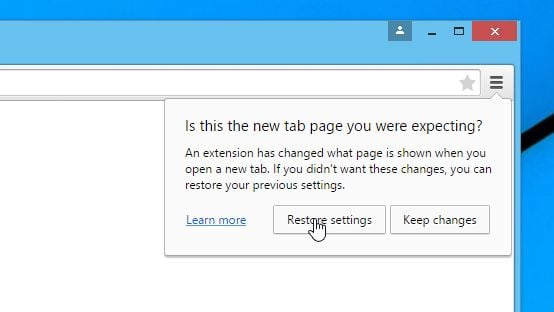
To prevent these malicious extensions from taking over your browser, Google has introduced the “Is this the new tab page you were expecting” pop-up. When the “Is this the new tab page you were expecting” window will pop-up, you will have two option, either to “Keep changes” or to “Restore settings” (which will reset browser settings to the default). The reset feature fixes many issues by restoring Chrome to its factory default state while saving your essential information like bookmarks and open tabs.
What to do when you see “Is this the new tab page you were expecting” pop-up
If you did not intentionally add an extension that changes the way Chrome works, then it’s recommended that you reset your browser settings and check your computer for malware.
Google Chrome has an option that will reset itself to its default settings. Resetting your browser settings will reset the unwanted changes caused by installing other programmes. However, your saved bookmarks and passwords will not be cleared or changed.
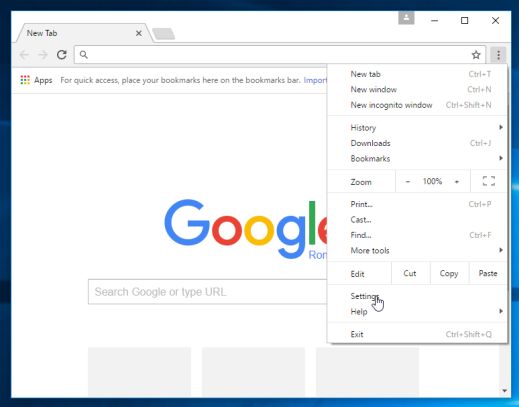
- Click on Chrome’s main menu button, represented by three horizontal lines. When the drop-down menu appears, select the option labeled Settings.

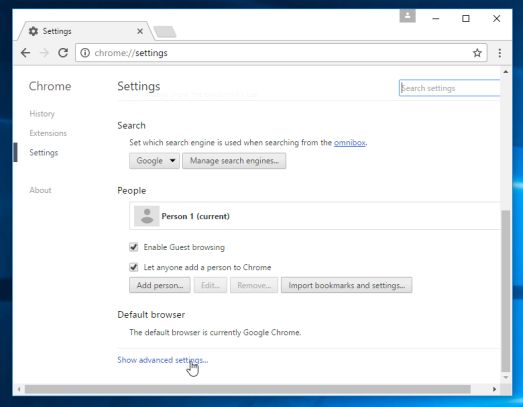
- Chrome’s Settings should now be displayed in a new tab or window, depending on your configuration. Next, scroll to the bottom of the page and click on the Show advanced settings link (as seen in the below example).
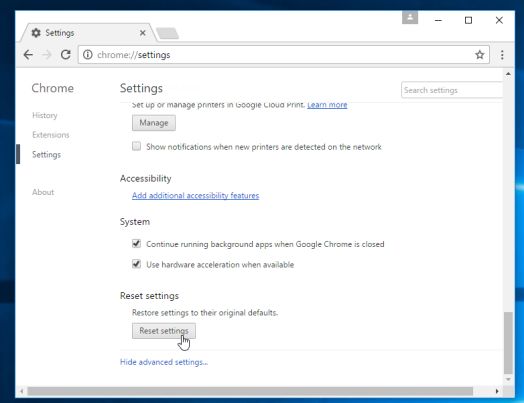
- Chrome’s advanced Settings should now be displayed. Scroll down until the Reset browser settings section is visible, as shown in the example below. Next, click on the Reset browser settings button.
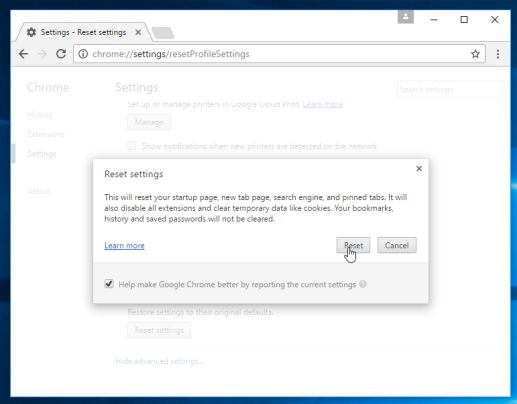
- A confirmation dialog should now be displayed, detailing the components that will be restored to their default state should you continue on with the reset process. To complete the restoration process, click on the Reset button.
How to remove malware from Windows. Clean-up your computer from malware
While resetting Chrome may remove the malware from the browser, your Windows may still be infected with adware, potentially unwanted programs or other forms of malware.
The below steps are optional, and are meant to be used if you still having issues with adware, browser hijackers or any other form of malware after resetting Google Chrome.
Please perform all the steps in the correct order. If you have any questions or doubt at any point, STOP and ask for our assistance.
- STEP 1: Use Malwarebytes Free to remove browser hijackers
- STEP 2: Double-check for malicious programs with HitmanPro
- (OPTIONAL) STEP 3: Scan and clean your computer with Zemana AntiMalware Free
STEP 1: Use Malwarebytes Free to remove browser hijackers
Malwarebytes is a powerful on-demand scanner which should remove the browser hijackers or adware programs the are responsible for this “Is this the new tab page you were expecting” pop-up. It is important to note that Malwarebytes will run alongside antivirus software without conflicts.
- You can download download Malwarebytes from the below link.
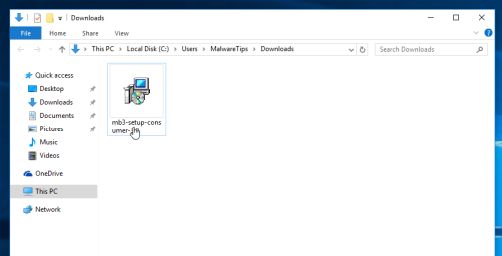
MALWAREBYTES DOWNLOAD LINK (This link open a new page from where you can download “Malwarebytes”) - When Malwarebytes has finished downloading, double-click on the “mb3-setup-consumer” file to install Malwarebytes on your computer.
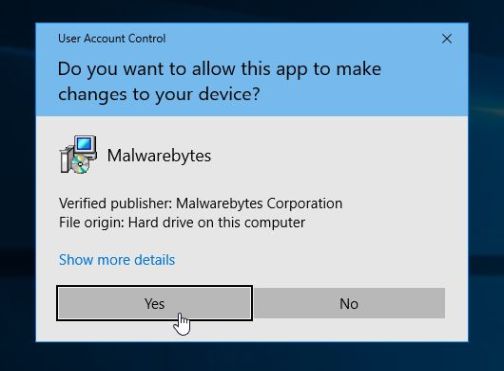
You may be presented with an User Account Control pop-up asking if you want to allow Malwarebytes to make changes to your device. If this happens, you should click “Yes” to continue with the installation.
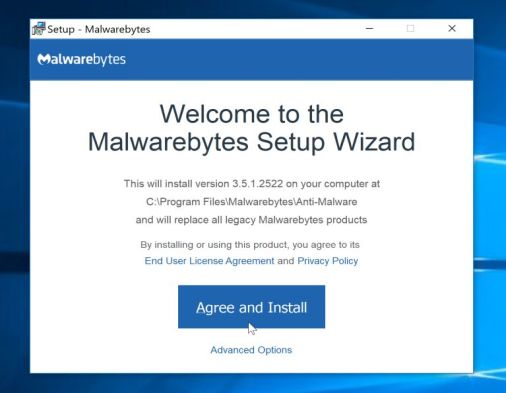
- When the Malwarebytes installation begins, you will see the Malwarebytes Setup Wizard which will guide you through the installation process.
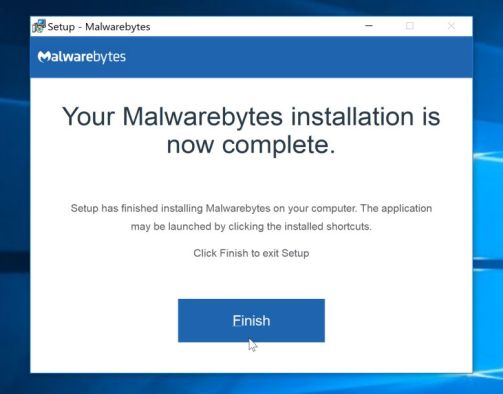
To install Malwarebytes on your machine, keep following the prompts by clicking the “Next” button.
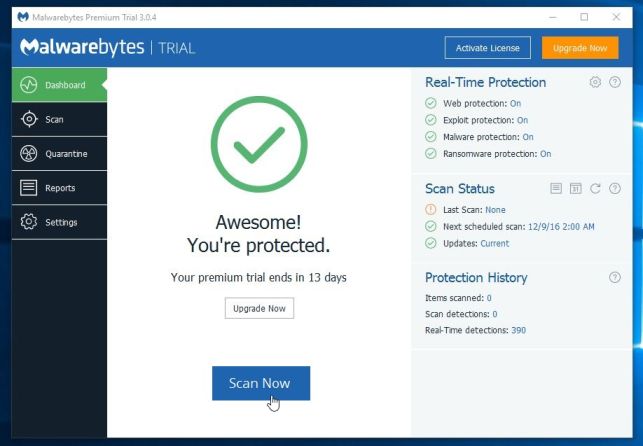
- Once installed, Malwarebytes will automatically start and update the antivirus database. To start a system scan you can click on the “Scan Now” button.
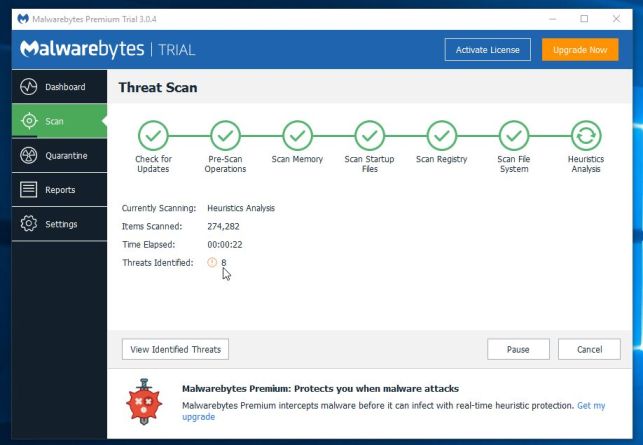
- Malwarebytes will now start scanning your computer for malicious programs.
This process can take a few minutes, so we suggest you do something else and periodically check on the status of the scan to see when it is finished.
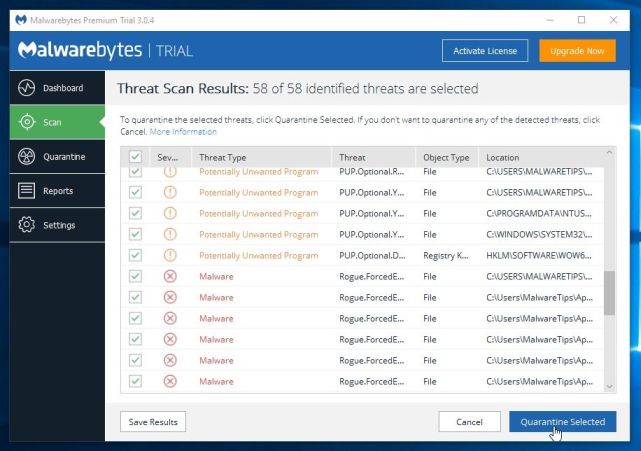
- When the scan has completed, you will be presented with a screen showing the malware infections that Malwarebytes has detected.
To remove the malicious programs that Malwarebytes has found, click on the “Quarantine Selected” button.
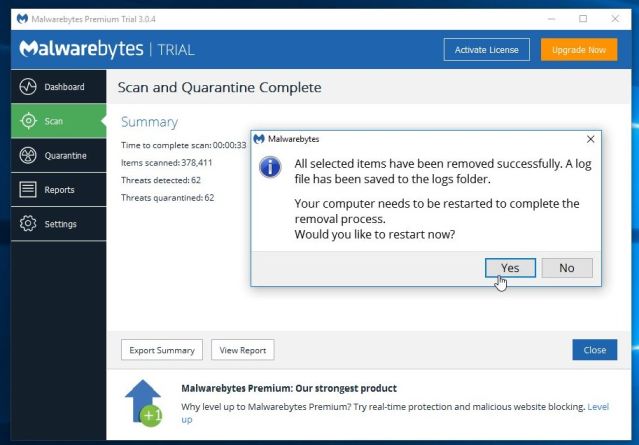
- Malwarebytes will now quarantine all the malicious files and registry keys that it has found.
To complete the malware removal process, Malwarebytes may ask you to restart your computer.
When the malware removal process is complete, you can close Malwarebytes and continue with the rest of the instructions.
STEP 2: Double-check for malicious programs with HitmanPro
HitmanPro can find and remove malware, adware, bots, and other threats that even the best antivirus suite can oftentimes miss. HitmanPro is designed to run alongside your antivirus suite, firewall, and other security tools.
- You can download HitmanPro from the below link:
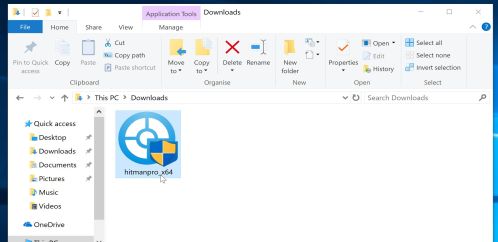
HITMANPRO DOWNLOAD LINK (This link will open a new web page from where you can download “HitmanPro”) - When HitmanPro has finished downloading, double-click on the “hitmanpro” file to install this program on your computer.
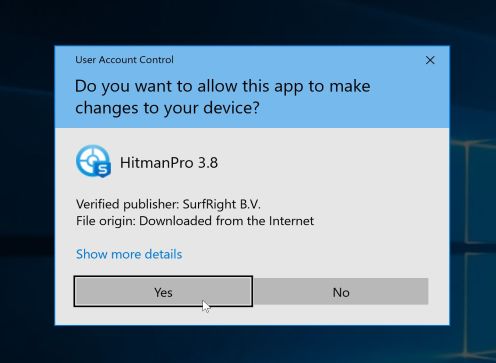
You may be presented with an User Account Control pop-up asking if you want to allow HitmanPro to make changes to your device. If this happens, you should click “Yes” to continue with the installation.
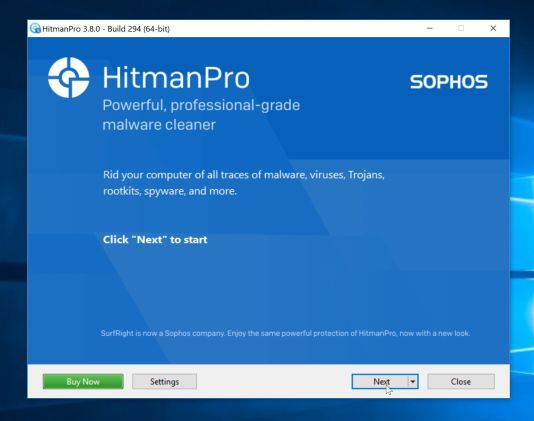
- When the program starts you will be presented with the start screen as shown below. Now click on the Next button to continue with the scan process.
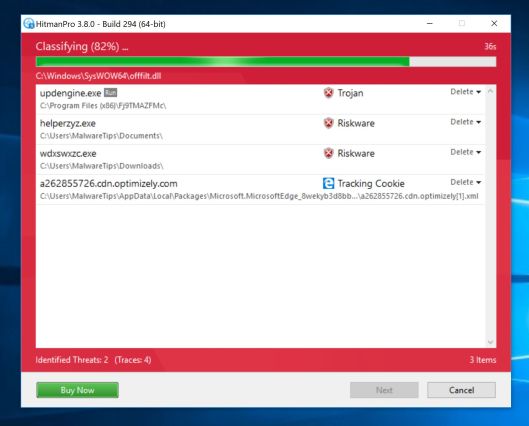
- HitmanPro will now begin to scan your computer for malware.
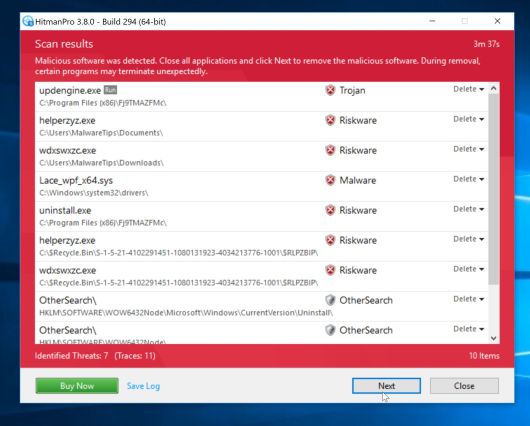
- When it has finished it will display a list of all the malware that the program found as shown in the image below. Click on the “Next” button, to remove malware.
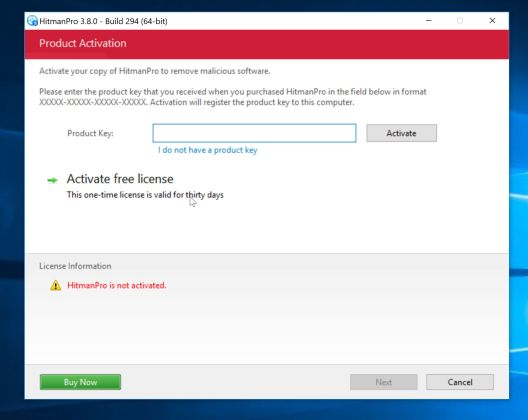
- Click on the “Activate free license” button to begin the free 30 days trial, and remove all the malicious files from your computer.
When the process is complete, you can close HitmanPro and continue with the rest of the instructions.
(OPTIONAL) STEP 3: Scan and clean your computer with Zemana AntiMalware Free
This step should be performed only if your issues have not been solved by the previous steps.
- You can download Zemana AntiMalware from the below link:
ZEMANA ANTIMALWARE DOWNLOAD LINK (This link open a new webpage from where you
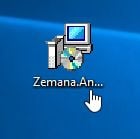
can download “Zemana AntiMalware”) - Double-click on the file named “Zemana.AntiMalware.Setup.exe” to start the installation of Zemana AntiMalware.
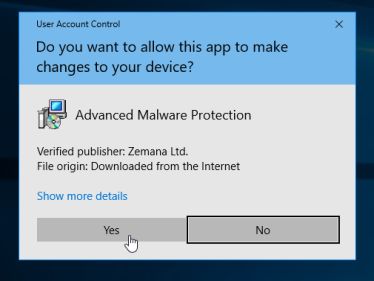
You may be presented with a User Account Control dialog asking you if you want to run this file. If this happens, you should click “Yes” to continue with the installation.
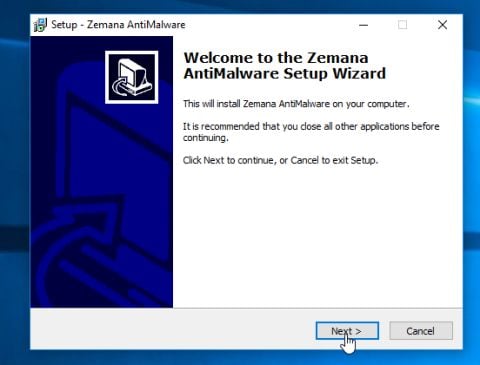
- Click on the “Next” button, to install Zemana AntiMalware on your computer.
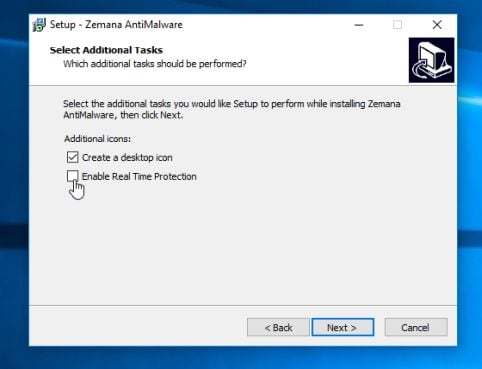
When you reach the “Select Additional Tasks” screen, you can opt-out the “Enable Real Time Protection” option, then click on the “Next” button.
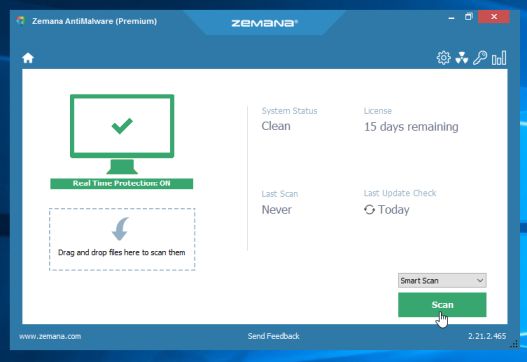
- When Zemana AntiMalware will start, click on the “Scan” button.
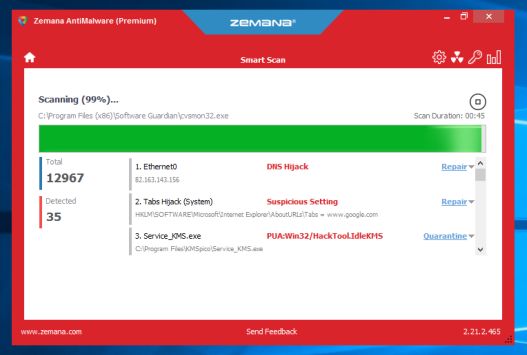
- Zemana AntiMalware will now scan computer for malicious files. This process can take up to 10 minutes.
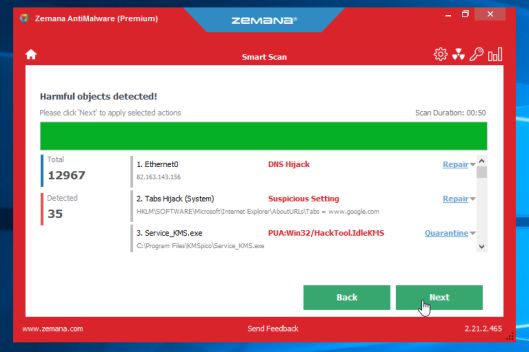
- When Zemana AntiMalware has finished it will display a list of all the malware that the program found. Click on the “Next” button, to remove the malicious files from your computer.
Zemana AntiMalware will now start to remove all the malicious programs from your computer. When the process is complete, you may need to restart your computer.