Walmart PlayStation 5 Scam Call Exposed: Fake $919.45 Tech Support Refund
Written by: Lapain Epuran
Published on:
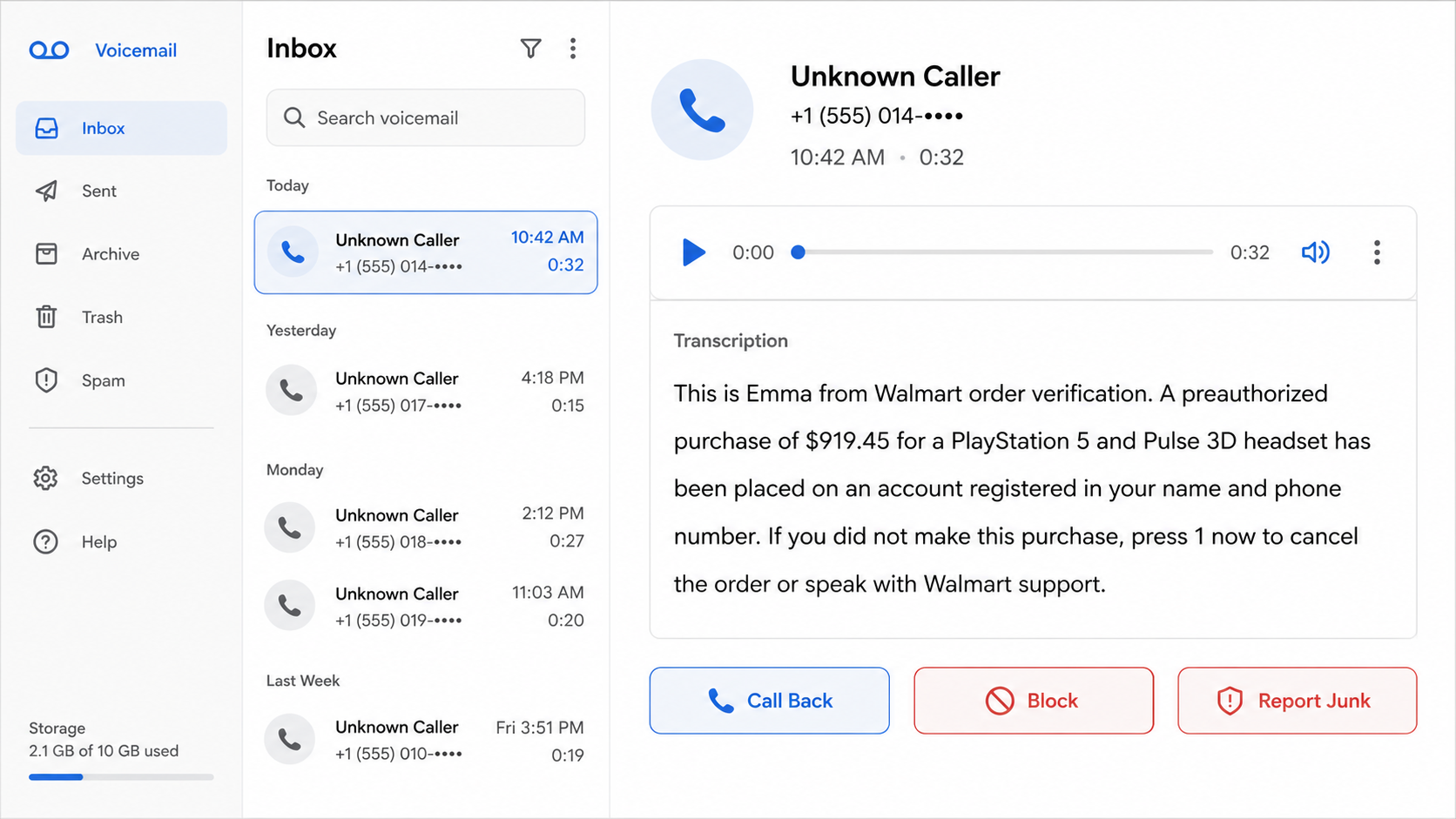
A recorded voice says a PlayStation 5 and headset were ordered through Walmart for exactly $919.45. One key supposedly stops the purchase before it ships.
The Walmart PlayStation 5 scam call sounds unusually specific, and that precision can make an ordinary voicemail feel like a genuine billing emergency.
Overview
The call describes a purchase that does not exist
The recording claims a preauthorized Walmart purchase was placed using the recipient’s name and telephone number.
The supposed order usually includes a PlayStation 5 and a Pulse 3D headset, with a total of $919.45.
Different versions introduce the artificial voice with ordinary names such as Emma, Carl, Mary, Kimberly, Olivia, or Amelia.
The name changes, but the central script remains remarkably stable. The listener must press 1 or call back to cancel the transaction.
No cancellation is waiting behind that button. The recording exists to move an alarmed person into a conversation with a live operator.
That operator can impersonate Walmart support, a fraud investigator, a bank representative, or even a government official.
Some recipients never owned a Walmart account. The campaign is broad enough that many calls reach people chosen only because their telephone numbers work.
A real unauthorized charge should appear independently in an account or card history. The voicemail itself is not evidence that any purchase occurred.
Federal investigators documented the exact robocall campaign
This script is not merely an internet rumor. The Federal Communications Commission publicly described Walmart-impersonation robocalls using the same product and $919.45 amount.
In December 2025, the FCC demanded action from SK Teleco, a voice provider apparently transmitting the suspected illegal calls.
The agency said recipients who pressed 1 or returned the call reached live operators seeking personally identifiable information, including Social Security numbers.
The FCC-sanctioned Industry Traceback Group traced 29 apparently illegal robocalls placed between January 21 and April 11, 2025.
YouMail estimated that nearly 8 million calls related to the campaign reached recipients, according to the FCC’s public announcement.
In April 2026, the FCC issued an initial determination concerning the provider’s response to traceback requirements.
That enforcement record confirms the robocall pattern. It does not mean every telephone number, agent, or follow-up demand belongs to one single operator.
The fake cancellation can become a tech-support refund scam
The first goal is engagement. Once someone presses 1, the live caller learns that fear of the purchase has overcome initial skepticism.
The operator may request identity details under the pretense of locating the order. Other versions can shift into banking or remote-support instructions.
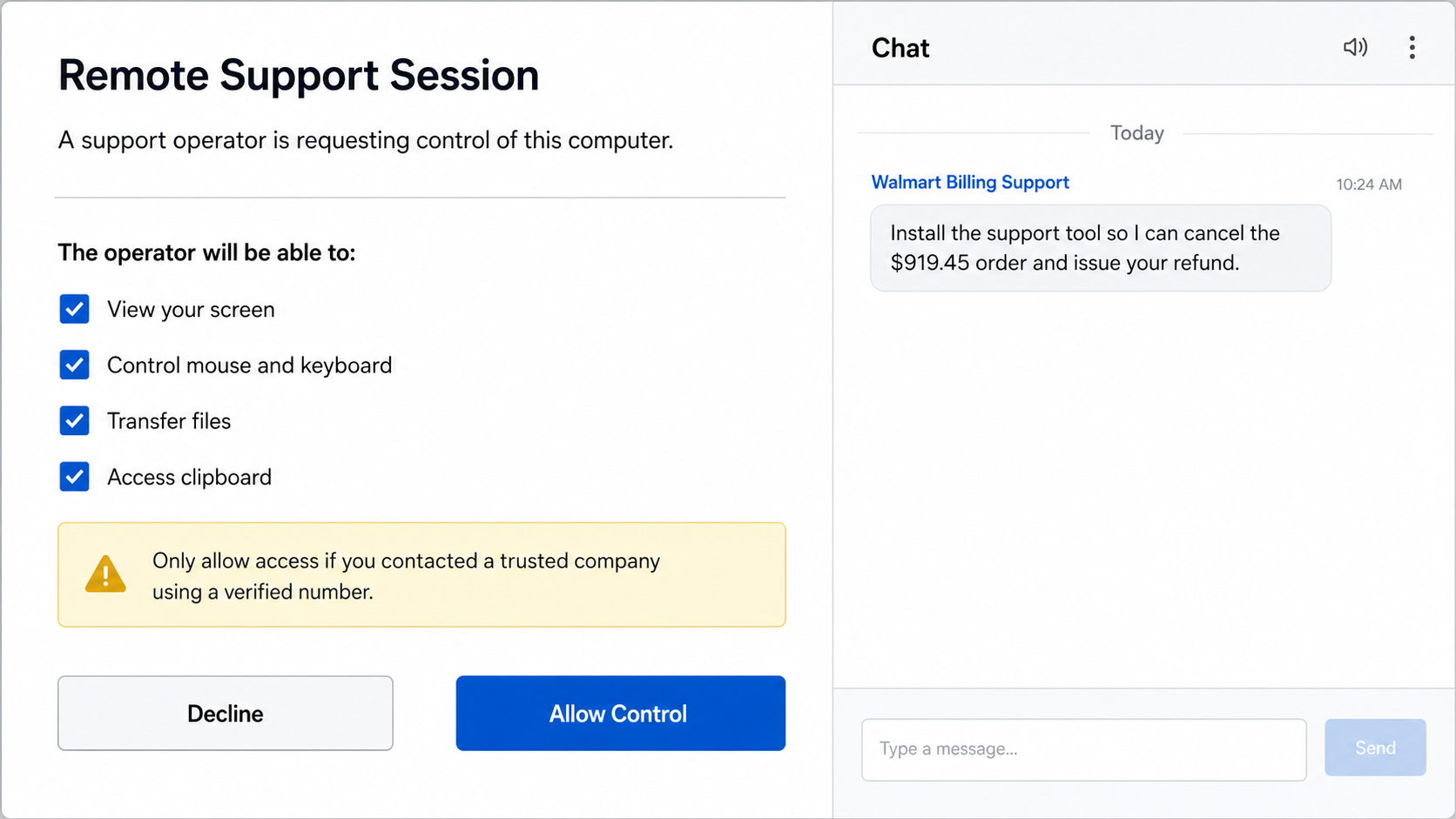
Remote access gives a stranger visibility and control. They can watch logins, move the cursor, transfer files, hide the screen, or alter what appears.
A familiar refund script claims that Walmart must reverse the $919.45 charge through the victim’s online bank account.
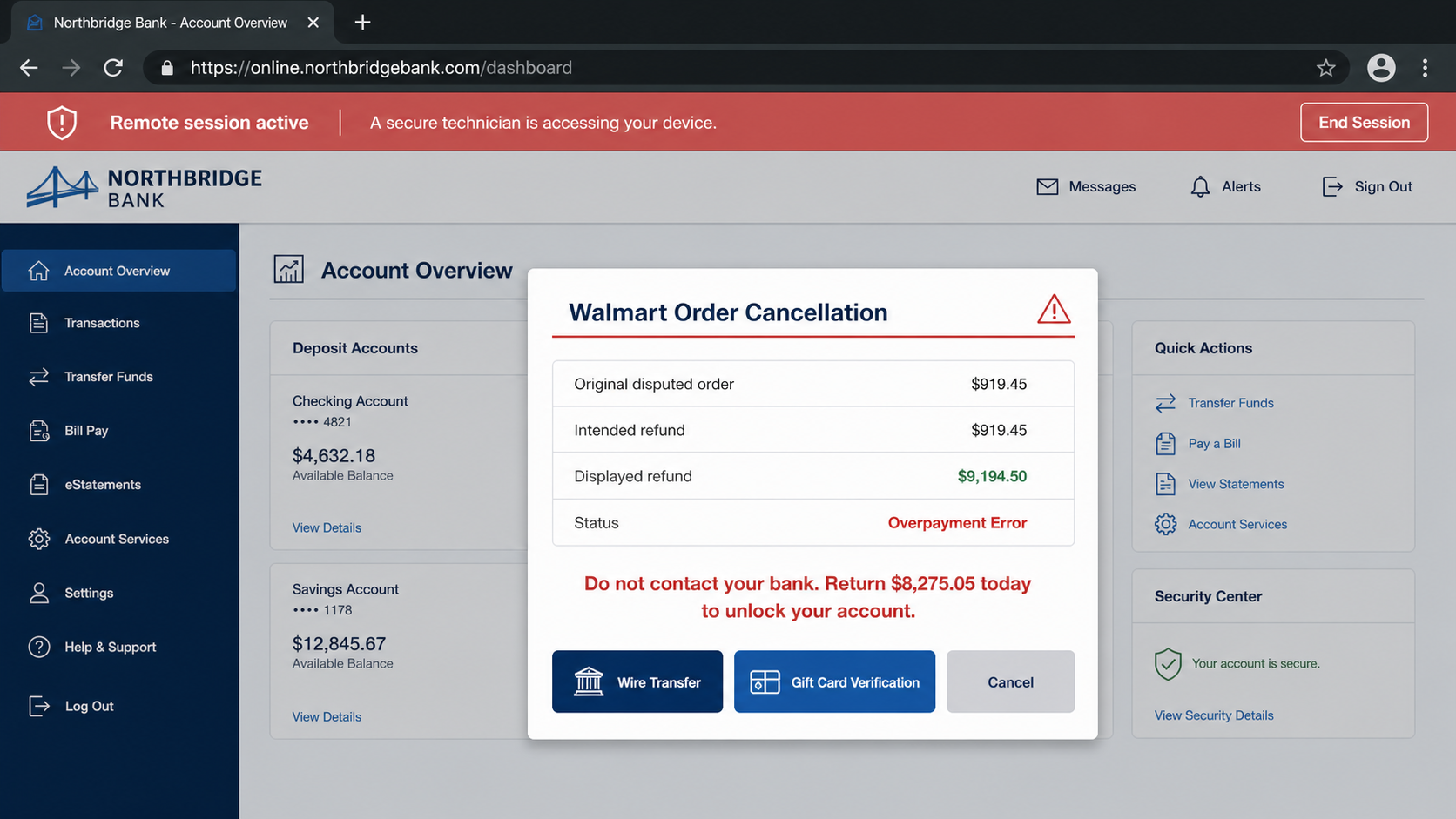
The caller may then display a false overpayment and demand immediate repayment through a wire, gift cards, cryptocurrency, cash, or a payment application.
Watch for these warning signs:
An unsolicited recording announcing a $919.45 gaming-console order.
Instructions to press 1 instead of checking the account independently.
A caller requesting a complete Social Security number or banking password.
Pressure to install remote-control software for a retail refund.
Directions to log into online banking while the caller watches.
A claim that an excessive refund must be returned immediately.
Demands for gift cards, cash, wire transfers, or cryptocurrency.
Warnings not to speak with family, Walmart, or the bank.
Walmart is being impersonated. Its name makes the opening story familiar, but the later instructions reveal a conventional theft operation.
How The Scam Works
Step 1: An artificial voice delivers the $919.45 order warning
The call begins with a prerecorded or synthetic voice claiming to work for Walmart order verification.
A specific price sounds like a calculated checkout total. It feels more authentic than a vague warning about suspicious activity.
The products also fit the story. A PlayStation 5 and gaming headset are expensive, recognizable, and commonly purchased online.
The recording may say the order is connected with the listener’s name and telephone number rather than a specific verified account.
That wording lets the same script reach millions of people without knowing who actually shops at Walmart.
Caller ID may show a local number, toll-free line, or familiar business label. Displayed caller information can be manipulated.
The safest response is to let the call end. Do not press any key, and do not return the displayed number.
Step 2: Pressing 1 connects the listener with a live impostor
The recording presents pressing 1 as the fastest way to cancel. In practice, it connects the recipient with someone running the next stage.
Answering can also confirm that the number is active and that its owner responds to retail fraud stories.
The live agent sounds calm because panic has already been created. Helpful language makes the operator seem like relief from the automated warning.
They may ask for a name, address, date of birth, email, card details, Walmart credentials, or Social Security number.
Each question is framed as identity verification. The caller never explains why an order tied to the telephone number requires additional sensitive data.
FCC complaints showed that some operators impersonated a federal agency after contact. A retail order can therefore become a broader identity scare.
Never verify yourself to an unsolicited caller. Hang up and start a separate contact through Walmart’s official application or website.
Step 3: The story expands from one order to a compromised account
If the recipient remains engaged, the caller may claim several accounts are under attack or that the telephone number is linked with criminal activity.
The PlayStation order becomes supposed proof that hackers gained access to Walmart, a payment card, email, or online banking.
This escalation explains why a simple retail cancellation allegedly requires technical investigation.
The agent may transfer the call to a “senior technician,” “billing manager,” “security department,” or fake bank specialist.
Each transfer introduces a new voice and more authority. In reality, the participants can be working from the same fraudulent call center.
The listener is discouraged from hanging up because the imaginary order is described as pending, urgent, or close to shipment.
Checking the real Walmart account would break the story. The operator therefore keeps control of the pace and the information source.
Step 4: Fake support requests remote control of the device
The supposed specialist says a support application is needed to cancel the purchase, secure the device, or process a refund.
They may direct the victim to a legitimate remote-access product. Legitimate software becomes dangerous when access is granted to an unknown caller.
A connection code or approval prompt gives the operator control over the computer. Some applications also permit file transfer and clipboard access.
The scammer may open system utilities and describe harmless entries as hackers, foreign connections, expired security, or evidence of identity theft.
These demonstrations are theater. Technical terms and rapidly changing windows prevent the victim from judging what the screen actually shows.
Next, the caller asks the victim to open online banking so the supposed refund can be deposited.
No retailer needs remote control of a customer’s computer or a visible bank login to reverse a card purchase.
Step 5: A false refund appears inside the bank account
With remote access active, the operator can manipulate the browser, hide portions of the screen, or move money between the victim’s own accounts.
One method edits the visible webpage so a deposit appears without changing the real bank balance.
Another transfers money from savings into checking, then describes the victim’s existing funds as a Walmart refund.
The caller may ask the victim to enter $919.45 into a form, then pretend an extra zero or technical error created $9,194.50.
Nothing was overpaid. The screen, account view, or internal transfer was arranged to make the victim believe money arrived.
The operator acts distressed and says they will lose their job unless the difference is returned immediately.
This emotional reversal changes the victim from someone seeking help into someone who feels responsible for fixing another person’s mistake.
Step 6: The victim is ordered to repay the imaginary difference
The caller calculates a supposed excess, perhaps $8,275.05, and insists that ordinary refund methods are unavailable.
Gift cards are popular because the codes can be redeemed quickly. Wire transfers, cryptocurrency, payment applications, and cash couriers also reduce recovery options.
The scammer may keep the remote session open while the victim visits a bank or store.
They can coach explanations for employees who question the transaction. Common excuses include gifts, home repairs, investments, or family emergencies.
Secrecy is presented as account protection. The victim may be warned that discussing the case could alert hackers or cancel the refund.
A real retailer will not require repayment with gift cards. Walmart explicitly warns people never to provide gift-card information to strangers.
If a bank employee or cashier raises concern, stop and explain the entire call. That interruption can prevent an irreversible payment.
Step 7: Access and stolen information support further fraud
After payment, the operator may seek more money by inventing another error, tax, security hold, or compromised account.
Remote software can remain installed or configured for unattended access. The criminal may return when the victim is not expecting another session.
Passwords observed during screen sharing can expose email, shopping, financial, and social accounts.
Files visible on the computer may contain tax records, identity documents, statements, photographs, or contact information useful for later targeting.
The original telephone number can be sold or reused because its owner demonstrated willingness to engage.
Recovery scammers may call later claiming they can retrieve the loss for a fee. Their accurate knowledge can come from the first operation.
Ending the call is only the beginning when remote control, credentials, personal data, or money were shared.
Why the $919.45 Amount Makes the Story Feel Real
A precise amount suggests taxes, shipping, and product pricing were calculated by a genuine checkout system.
In reality, every recipient can hear the same total. Repetition across unrelated reports is evidence of a script, not individualized account access.
The price is also large enough to cause alarm without sounding impossible for premium electronics.
People who do not play games may assume a child, relative, or identity thief placed the order.
The emotional question becomes “Who bought this?” instead of “Where is the charge?” That shift gives the recording its opening.
Always reverse the order of investigation. First inspect real accounts independently, then contact the bank if an actual transaction appears.
What Pressing 1 Really Tells the Scammer
Pressing 1 does not authorize a Walmart cancellation. It tells the calling system that a person heard the message and followed instructions.
The response can route the call to an available operator and attach campaign information to the telephone number.
It may also mark the number as responsive for later retail, government, banking, or recovery approaches.
Someone who pressed 1 but disclosed nothing should hang up, block the number, and expect possible follow-up attempts.
Do not panic merely because a key was pressed. The greatest risks begin when personal data, passwords, remote access, or payment are provided.
Write down what occurred while details remain fresh. That record helps distinguish simple engagement from actual identity or financial exposure.
Caller ID, Order, Support, and Device Checks
Caller ID can be spoofed in seconds
A screen showing “Walmart,” a local area code, or a toll-free number does not authenticate the person speaking.
Fraudsters can alter caller information or rotate through numbers. Calling back only returns the listener to infrastructure selected by the campaign.
Open Walmart’s official application or type walmart.com yourself. Use support options found there, not anything provided by the recording.
The $919.45 charge should exist independently
Check Walmart order history and the relevant card or bank account without following instructions from the caller.
If no matching transaction appears, there is nothing for the caller to cancel, refund, or secure.
If a real unauthorized charge exists, contact the card issuer through the number printed on the card or shown in its verified application.
Real support does not need remote banking access
A retailer can reverse a legitimate purchase through its own payment systems. It does not need control of the customer’s computer.
Never install remote software, reveal a connection code, or open online banking for an unsolicited support agent.
End any existing session immediately. Disconnect the device from the internet if the operator prevents you from closing the application.
The refund story collapses under basic accounting
A genuine refund creates a traceable transaction with a date, sender, description, and reference. A changed screen balance is not sufficient proof.
Call the bank independently and ask whether a new external credit settled. Do not let the remote operator participate in that conversation.
Never return an alleged overpayment through a different method. A legitimate sender can address an error through the original payment channel.
What to Do if You Have Fallen Victim to This Scam
End the call and remote session. Disconnect the computer from Wi-Fi or Ethernet if the operator still controls the pointer or blocks the screen.
Contact your bank from a different device. Explain the remote access, disputed transactions, transfers, exposed credentials, and any cash or gift-card payments.
Remove the remote-control application. Disable unattended access, revoke trusted devices, and ask a qualified technician to inspect unknown services or startup entries.
Change passwords from a clean device. Prioritize banking, email, Walmart, and password-manager accounts, then enable strong multifactor authentication.
Scan every affected device. Malwarebytes can detect malicious downloads or unwanted remote tools that may remain after the session ends.
Protect exposed identity information. If a Social Security number was shared, visit IdentityTheft.gov and consider fraud alerts or credit freezes.
Try to stop each payment. Contact the wire service, gift-card issuer, payment application, exchange, or cash-delivery provider immediately and retain receipts.
Report the campaign. File reports with the FTC and FCC, record the caller ID, and include the $919.45 PlayStation story.
Block malicious follow-up pages. AdGuard can reduce exposure to known scam websites, but it cannot remove remote access or reverse a payment.
Reject recovery callers. Anyone promising guaranteed reimbursement for an advance fee may be exploiting information from the original loss.
Is Your Device Infected? Run a Free Malware Scan
Slow performance, constant pop-ups, or strange behavior? These are classic signs of a malware infection. The fastest way to find out is to scan your device with Malwarebytes Anti-Malware Free — one of the most trusted malware removal tools available.
The free version detects and removes the most common threats, including:
Adware — the cause of those annoying pop-ups
Browser hijackers — unwanted redirects and changed homepages
Trojans and spyware — hidden programs stealing your data
Potentially unwanted programs (PUPs) — software you never asked for
👉 Select your device below — Windows, Mac, or Android — then follow the simple steps to download Malwarebytes, scan your system, and remove any threats it finds. The whole process takes about 5 minutes.
Malwarebytes for WindowsMalwarebytes for MacMalwarebytes for Android
Run a Malware Scan with Malwarebytes for Windows
Malwarebytes is one of the most popular and trusted anti-malware tools for Windows — and it’s completely free for removing infections. It catches threats that many antivirus programs miss, including adware, browser hijackers, and trojans. Follow the steps below to scan and clean your PC in just a few minutes.
Download Malwarebytes
Click the button below to download the latest version of Malwarebytes for Windows from the official source. The free version is all you need — it will scan your computer and remove adware, browser hijackers, and other malicious software at no cost.
(The link opens in a new page where your download will start)
Install Malwarebytes
When the download finishes, open your Downloads folder and double-click the MBSetup file. If Windows shows a User Account Control pop-up, click “Yes” to allow the installation.
Follow the On-Screen Prompts to Install Malwarebytes
The setup wizard will walk you through a few quick screens:
Choose where you’re installing the program — “Personal Computer” or “Work Computer” — then click Next.
Malwarebytes will now install on your device. This usually takes under a minute.
When installation is complete, the “Welcome to Malwarebytes” screen will open automatically.
On the final screen, click Open Malwarebytes to launch the program.
Enable “Scan for Rootkits”
Before scanning, turn on rootkit detection so Malwarebytes can find even the most hidden threats. Click the Settings gear icon on the left side of the screen.
In the settings menu, find “Scan for rootkits” and click the toggle so it turns blue.
Done? Click “Dashboard” in the left pane to return to the main screen.
Start the Scan
Click the blue Scan button. Malwarebytes will automatically update its virus database and start checking your computer for malware.
Wait for the Scan to Finish
The scan checks your entire system for browser hijackers and other malicious programs, so it can take several minutes. Feel free to do something else — just check back occasionally to see the progress.
Quarantine the Detected Threats
When the scan is done, you’ll see a list of everything Malwarebytes found — malware, adware, and potentially unwanted programs. Click the “Quarantine” button to remove all of them at once.
Malwarebytes will now remove the malicious files and registry entries and move them safely into quarantine.
Restart Your Computer
Some threats can only be fully removed after a reboot. If Malwarebytes asks you to restart, click Yes. Once you’re logged back in, your PC is clean and you can continue with the next steps in this guide.
When the scan finishes, click Quarantine to remove everything Malwarebytes found. That’s it — your Windows PC is now clean of trojans, adware, and other malware, and should be back to running smoothly.
If your current antivirus allowed this malicious program on your computer, you may want to consider purchasing Malwarebytes Premium to protect against these types of threats in the future. If you are still having problems with your computer after completing these instructions, then please follow one of the steps:
Malwarebytes for Mac is a free on-demand scanner that removes the malware other security software tends to miss — adware, browser hijackers, and unwanted programs included. Cleaning an infected Mac with Malwarebytes has always been completely free, and it’s our go-to recommendation. Follow the steps below to scan and clean your Mac in just a few minutes.
Download Malwarebytes for Mac
Click the button below to download the latest version of Malwarebytes for Mac.
When the download finishes, open your Downloads folder and double-click the setup file to begin the installation.
Follow the On-Screen Prompts to Install Malwarebytes
The Malwarebytes for Mac Installer will guide you through a few quick screens. Click “Continue” and keep following the prompts until the installation completes.
When the installation is complete, Malwarebytes opens to the Welcome to Malwarebytes screen. Click “Get started“.
Select “Personal Computer” or “Work Computer”
Malwarebytes will ask what type of computer you’re installing it on. Click either Personal Computer or Work Computer, whichever applies.
Start the Scan
Click the “Scan” button. Malwarebytes will automatically update its detection database and begin checking your Mac for malware.
Wait for the Scan to Finish
Malwarebytes will scan your Mac for adware, browser hijackers, and other malicious programs. This can take a few minutes, so feel free to do something else — just check back occasionally to see the progress.
Quarantine the Detected Threats
When the scan is done, you’ll see a list of everything Malwarebytes found. Click the “Quarantine” button to remove all the threats at once.
Restart Your Mac
Malwarebytes will now remove all the malicious files it found. Some threats can only be fully removed after a reboot — if Malwarebytes asks you to restart, allow it. Once you’re logged back in, your Mac is clean.
Once the scan is done, remove every threat it detected. Your Mac is now free of adware, rogue browser extensions, and other potentially harmful software.
If your current antivirus allowed a malicious program on your computer, you might want to consider purchasing the full-featured version of Malwarebytes Anti-Malware to protect against these types of threats in the future. If you are still experiencing problems while trying to remove a malicious program from your computer, please ask for help in our Mac Malware Removal Help & Support forum.
Run a Malware Scan with Malwarebytes for Android
Malwarebytes for Android automatically detects and removes dangerous threats like malware and ransomware so you don’t have to worry about your most-used device being compromised. Aggressive detection of adware and potentially unwanted programs keeps your Android phone or tablet running smooth.
Download Malwarebytes for Android.
You can download Malwarebytes for Android by clicking the link below.
In the Google Play Store, tap “Install” to install Malwarebytes for Android on your device.
When the installation process has finished, tap “Open” to begin using Malwarebytes for Android. You can also open Malwarebytes by tapping on its icon in your phone menu or home screen.
Follow the on-screen prompts to complete the setup process
When Malwarebytes will open, you will see the Malwarebytes Setup Wizard which will guide you through a series of permissions and other setup options. This is the first of two screens that explain the difference between the Premium and Free versions. Swipe this screen to continue. Tap on “Got it” to proceed to the next step. Malwarebytes for Android will now ask for a set of permissions that are required to scan your device and protect it from malware. Tap on “Give permission” to continue. Tap on “Allow” to permit Malwarebytes to access the files on your phone.
Update database and run a scan with Malwarebytes for Android
You will now be prompted to update the Malwarebytes database and run a full system scan.
Click on “Update database” to update the Malwarebytes for Android definitions to the latest version, then click on “Run full scan” to perform a system scan.
Wait for the Malwarebytes scan to complete.
Malwarebytes will now start scanning your phone for adware and other malicious apps. This process can take a few minutes, so we suggest you do something else and periodically check on the status of the scan to see when it is finished.
Click on “Remove Selected”.
When the scan has been completed, you will be presented with a screen showing the malware infections that Malwarebytes for Android has detected. To remove the malicious apps that Malwarebytes has found, tap on the “Remove Selected” button.
Restart your phone.
Malwarebytes for Android will now remove all the malicious apps that it has found. To complete the malware removal process, Malwarebytes may ask you to restart your device.
After the scan, tap Remove Selected to delete all detected threats. Your Android phone is now clean — no more malicious apps, adware, or browser redirects.
If your current antivirus allowed a malicious app on your phone, you may want to consider purchasing the full-featured version of Malwarebytes to protect against these types of threats in the future. If you are still having problems with your phone after completing these instructions, then please follow one of the steps:
Restore your phone to factory settings by going to Settings > General management > Reset > Factory data reset.
Now that your device is clean, keep it that way. Most infections start with a malicious ad or a fake download button — so blocking them at the source is your best defense.
We recommend AdGuard, which blocks malicious ads, phishing pages, and dangerous redirects before they can reach you.
The robocall’s claim is fabricated. Verify separately in Walmart order history and your financial accounts, because the recording proves nothing about a transaction.
Why does every voicemail mention the same amount?
The repeated $919.45 total belongs to a mass-distributed script. Its precision is intended to imitate a calculated retail checkout.
What happens if I press 1?
You may reach a live impostor and confirm that your telephone number responds. Hang up before sharing information, installing software, or making payment.
Can Walmart remotely access my computer to issue a refund?
A retail refund does not require remote control of your device or access to online banking. Refuse the request and contact Walmart independently.
How can a scammer create a fake overpayment?
Remote operators can edit displayed webpages or move the victim’s own money between accounts, then misrepresent the changed balance as an excessive refund.
Where should the Walmart robocall be reported?
Report unwanted impersonation calls to the FTC and FCC. Include the displayed number, time, transcript, requested information, and any payment instructions.
The Bottom Line
The Walmart PlayStation 5 scam call uses a memorable product and exact $919.45 amount to pull recipients into fake support.
The danger grows when the conversation moves toward identity questions, remote control, online banking, or an imaginary refund error.
Hang up, verify accounts independently, and never let an unsolicited retail caller control the device used for banking.
10 Rules to Avoid Online Scams
Here are 10 practical safety rules to help you avoid malware, online shopping scams, crypto scams, and other online fraud. Each tip includes a quick “if you already got hit” action.
Stop and verify before you click, log in, download, or pay.
Most scams win by creating urgency. Verify using a trusted method: type the website address yourself, use the official app, or call a known number (not the one in the message).
If you already clicked: close the page, do not enter passwords, and run a malware scan.
Keep your operating system, browser, and apps updated.
Updates patch security holes used by malware and malicious ads. Turn on automatic updates where possible.
If you saw a scary “update now” pop-up: close it and update only through your device settings or the official app store.
Use layered protection: antivirus plus an ad blocker.
Antivirus helps block malware. An ad blocker reduces scam redirects, phishing pages, and malvertising.
If your browser is acting weird: remove unknown extensions, reset the browser, then run a full scan.
Install apps, software, and extensions only from official sources.
Avoid cracked software, “keygens,” and random downloads. During installs, choose Custom/Advanced and decline bundled offers you do not recognize.
If you already installed something suspicious: uninstall it, restart, and scan again.
Treat links and attachments as untrusted by default.
Phishing often impersonates delivery services, banks, and popular brands. If it is unexpected, do not open attachments or log in through the message.
If you entered credentials: change the password immediately and enable 2FA.
Shop safely: research the store, then pay with protection.
Be cautious with brand-new stores, “closing sale” stories, and prices that make no sense. Prefer credit cards or PayPal for dispute options. Avoid wire transfers, gift cards, and crypto payments.
If you already paid: contact your card issuer or PayPal quickly to dispute the transaction.
Crypto rule: never pay a “fee” to withdraw or recover money.
Common patterns include fake profits, then “tax,” “gas,” or “verification” fees. Another is a “recovery agent” who demands upfront crypto.
If you already sent crypto: stop paying, save evidence (wallet addresses, TXIDs, chats), and report the scam to the platform used.
Secure your accounts with unique passwords and 2FA (start with email).
Use a password manager and unique passwords for every account. Enable 2FA using an authenticator app when possible.
If you suspect an account takeover: change passwords, sign out of all devices, and review recent logins and recovery settings.
Back up important files and keep one backup offline.
Backups protect you from ransomware and device failure. Keep at least one backup on an external drive that is not always connected.
If you suspect infection: do not connect backup drives until the system is clean.
If you think you are a victim: stop losses, document evidence, and escalate fast.
Move quickly. Speed matters for disputes, account recovery, and limiting damage.
Stop payments and contact: do not send more money or respond to the scammer.
Call your bank or card issuer: block transactions, replace the card if needed, and start a dispute or chargeback.
Secure your email first: change the email password, enable 2FA, and remove unfamiliar recovery options.
Secure other accounts: change passwords, enable 2FA, and log out of all sessions.
Scan your device: remove suspicious apps or extensions, then run a full malware scan.
Save evidence: screenshots, emails, order pages, tracking pages, wallet addresses, TXIDs, and chat logs.
Report it: to the payment provider, marketplace, social platform, exchange, or wallet service involved.
These rules are intentionally simple. Most online losses happen when decisions are rushed. Slow down, verify independently, and use payment methods and account controls that give you recourse.
Hello! I'm Lapain Epuran, your go-to source for detailed and honest product reviews. From tech gadgets to miracle cures, I provide insights to help you make informed choices. Join me as we discover what's truly worth your time and money.