

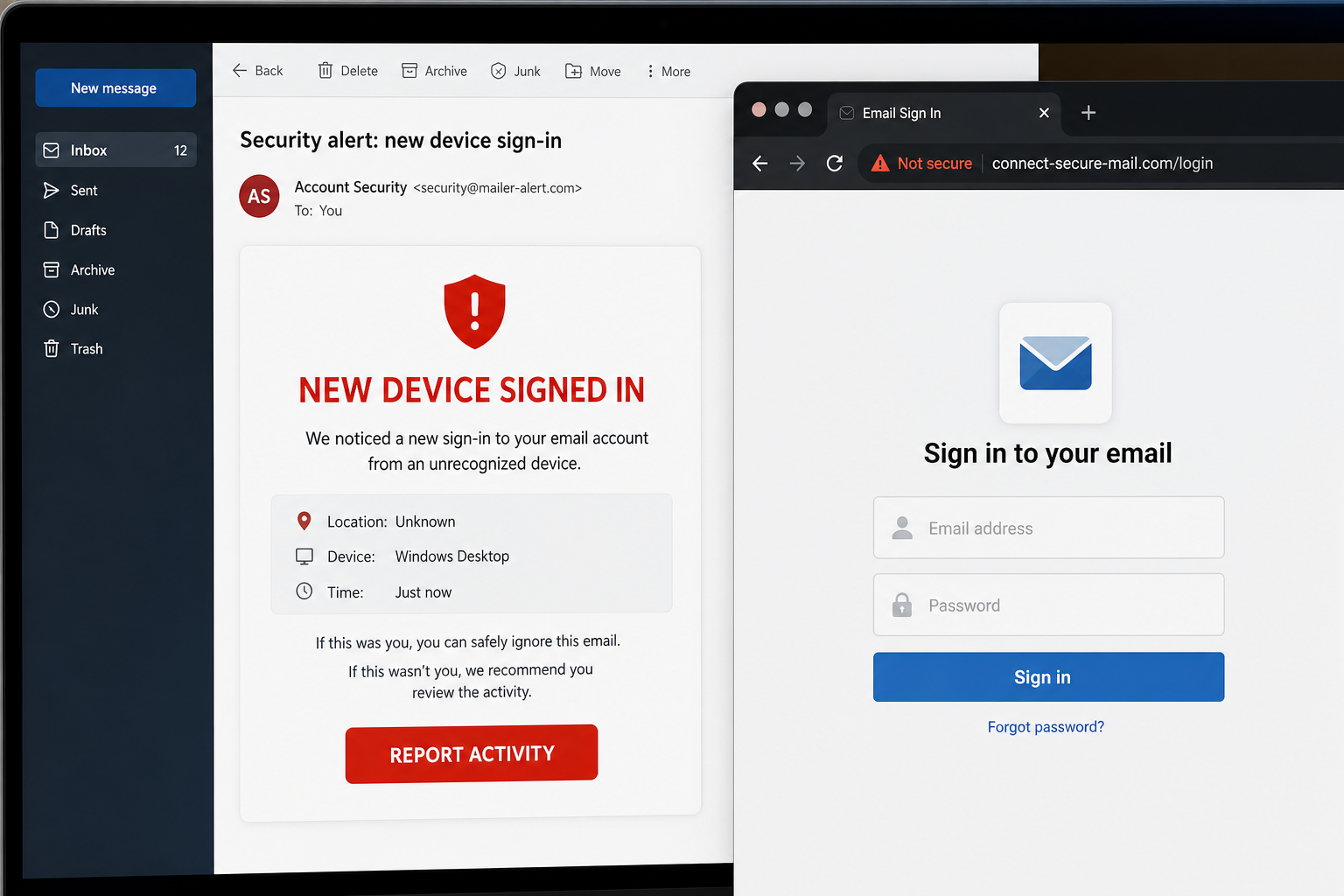
An email warns that a new device just signed in to your account. The red REPORT ACTIVITIES button feels like the fastest way to stop an intruder, but it opens a fake login built to steal your password.
This is a confirmed phishing campaign, not a genuine security alert. Check account activity through the provider’s official app or website, never through the email button.
Overview
The New Device Signed In To Your Account email scam impersonates an email provider’s security system. One version arrives with the subject “Sign in from a new device” and claims that an unfamiliar computer has accessed the recipient’s mailbox.
The message says no action is needed if the sign-in was recognized. If it was not, the recipient is told to click REPORT ACTIVITIES. That wording mimics a legitimate security workflow while pushing the victim toward the attacker’s link.
The button leads to a phishing page hosted at usc1.contabostorage[.]com, an unrelated cloud-storage address. The page places a counterfeit login form over an imitation email homepage and requests an email address and password.
The form was labeled “gmail Portal,” indicating that Gmail users were among the targets. Similar kits can adapt their appearance after reading the submitted email address, showing different branding for different providers.
Credentials entered on the page are collected by the scammers. A compromised mailbox can expose private conversations, password-reset links, cloud files, invoices and contacts. It can also become the launch point for phishing messages that appear to come from a trusted person.
Reading the alert does not compromise the account. Opening the linked page also does not automatically hand over a password. The damage begins when credentials or one-time codes are submitted, a login approval is accepted or an unexpected download is run.
How the Fake New-Device Alert Works
Step 1: The email creates an account emergency
The recipient is told that a device has signed in for the first time. Because genuine providers send similar warnings, the claim can feel immediately believable.
Step 2: The message offers one urgent response
A large REPORT ACTIVITIES button appears to be the only way to protect the account. Fear reduces the chance that the recipient will inspect the sender or link.
Step 3: The button leaves the real provider
Instead of opening the provider’s security page, the link goes to third-party cloud storage. Hosting infrastructure can be legitimate while the user-created content on it is malicious.
Step 4: A fake sign-in form copies the provider
The phishing kit imitates an email portal and requests credentials. The page design can change to match the address entered, but the browser domain remains unrelated.
Step 5: The attackers test the stolen credentials
Scammers may sign in immediately, trigger multi-factor prompts or ask the victim for a one-time code. Reused passwords can also be tested against other services.
Step 6: The mailbox is turned into a fraud tool
Attackers can create forwarding rules, reset accounts and message contacts. Business inboxes are especially valuable because they contain invoices and trusted supplier conversations.
Warning Signs in the Email
- An unexpected security alert with no matching notification in the official account.
- A vague sender identity that does not use the provider’s real domain.
- A panic-driven button labeled REPORT ACTIVITIES instead of a clear account-security link.
- A cloud-storage destination unrelated to the email provider.
- A generic login form requesting credentials outside the provider’s normal site.
- Awkward labels such as “gmail Portal” or inconsistent capitalization.
- A request for a one-time code after the supposed security report begins.
How to Check Whether a Sign-In Is Real
- Open the email provider’s official app directly.
- Type the provider’s website address into a new browser tab.
- Review recent devices and security activity inside account settings.
- Sign out unfamiliar sessions from the official security page.
- Change the password only after reaching the account independently.
- Do not reply to the warning or use links and phone numbers inside it.
What to Do After Receiving the Fake Alert
If you only read the email
Report it as phishing and delete it. Reading the message does not expose your password.
If you opened the page but entered nothing
Close the tab and check the browser’s download list. Delete unexpected downloads without opening them. Your password usually does not need changing solely because the page loaded.
If you entered your password
Secure the mailbox from a clean device immediately. Attackers can create hidden access even if no suspicious sent messages are visible.
- Change the password. Use a unique password never used on another site.
- Revoke active sessions. Sign out all devices and remove unfamiliar entries.
- Enable strong multi-factor authentication. Prefer an authenticator app or security key.
- Check recovery information. Remove unknown phone numbers and secondary emails.
- Delete unauthorized forwarding rules and filters. Inspect every rule, not only the inbox.
- Revoke app passwords and connected applications. Remove services you do not recognize.
- Review sent, deleted and archived messages. Warn contacts if the account sent phishing.
- Reset reused passwords. Start with banking, shopping, cloud and social accounts.
If you approved a sign-in or shared a one-time code
Revoke the new session immediately and reset both the password and multi-factor settings. A valid code or approval can let the attacker establish a trusted session even after the visible password is changed.
If the mailbox belongs to a business
Notify IT or the email administrator. They should review sign-in logs, OAuth grants, mailbox delegates, transport rules and messages sent from the account. Finance teams should inspect recent payment conversations for tampering.
Frequently Asked Questions
Was a new device actually signed in?
The email itself does not prove that. Check the provider’s official security dashboard directly. The campaign described here invents the alert to steal credentials.
Is contabostorage.com my email provider?
No. It is cloud-storage infrastructure, not the genuine login domain for Gmail or another major mailbox provider. Scammers can abuse third-party hosting to publish phishing pages.
Can the page steal my password without me typing it?
The observed phishing form needs credentials to be submitted. The page may still track visits or attempt downloads, so close it and do not interact.
Why do I receive genuine-looking security alerts?
Phishing kits copy the visual language and wording of real providers. The sender domain, destination address and independent account activity are more reliable than the page design.
The Bottom Line
The New Device Signed In email is a fake security alert designed to cause a real account takeover. Ignore its REPORT ACTIVITIES button, open the provider independently and secure the mailbox immediately if you entered a password or approved a login.
