

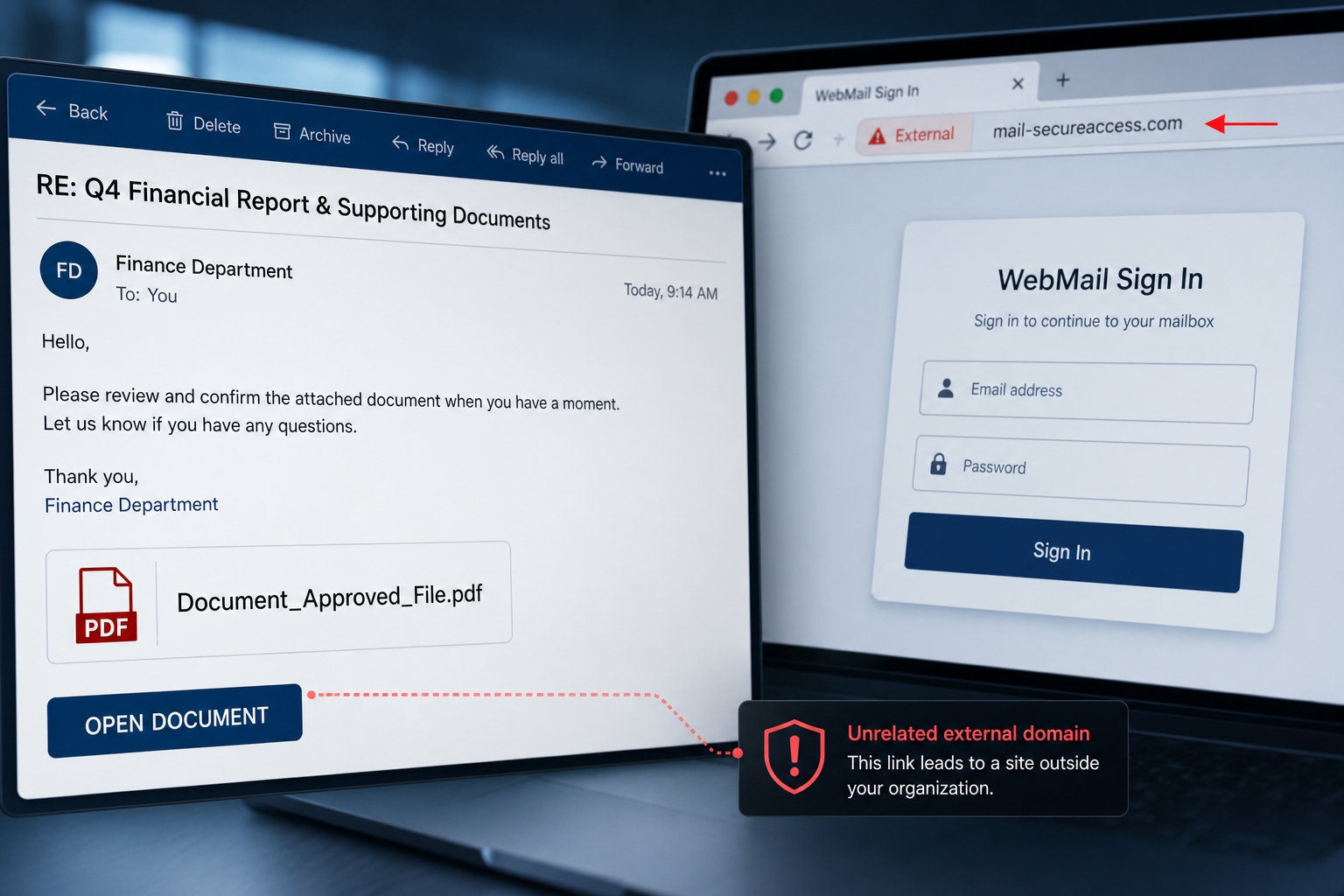
A file marked as approved by the General Manager can feel too important to ignore. This email exploits that workplace reflex with a fake Finance Department notification and a document button that leads outside the organization.
The supposed PDF is not the real objective. The linked page imitates a webmail sign-in screen and steals the credentials employees enter before they can view the document.
Overview
The Finance Department (General Manager) Secure File email scam is a business-themed phishing attack. It claims that a senior manager or finance team has shared a protected PDF with the recipient, creating both authority and curiosity.
The message may use the subject File has been shared with you – Finance from GM. Its body says that a secured file was shared by the Finance Department and presents Document_Approved_File.pdf as a 94.40 KB document.
The visible Open Document button is not a safe PDF attachment. It leads to an external phishing page hosted on a domain unrelated to the recipient’s employer or email provider. The campaign has used overall-brown-uwcc7fcx.edgeone[.]dev.
That page asks the victim to sign in to webmail. It can display familiar styling associated with popular email services, often chosen according to the recipient’s address. The branding is camouflage; the form sends the password to criminals.
The scam may even advise the recipient to contact a system administrator if there is a problem. That line is there to sound security-conscious. A genuine safety message inside the same email does not validate the external link.
- Impersonates an internal Finance Department and General Manager
- Uses a fake PDF named Document_Approved_File.pdf
- Displays a precise file size to imitate a real sharing service
- Routes the recipient to an unrelated external domain
- Collects email credentials through a counterfeit sign-in form
Is the Finance Department Secure File Email Legitimate?
No. This message is a confirmed credential-phishing scam. It is not a legitimate file notification from the recipient’s finance team, General Manager or email provider.
If your organization really shares sensitive finance documents, open the approved company portal directly or ask the sender through a known internal channel. Do not verify the request by replying to the suspicious message.
How the Finance Department Secure File Scam Works
Step 1: The attacker impersonates an authority figure
The mention of a General Manager makes the request feel important and discourages delay. Employees may fear appearing unresponsive to senior management.
Step 2: The message presents a protected finance document
The filename and small file-size label make the notification resemble a familiar cloud-sharing service. The recipient expects a PDF, not an account-security decision.
Step 3: Open Document sends the victim elsewhere
The button hides the real destination. Instead of opening an internal file portal, it directs the browser to an unrelated domain controlled or abused by the phishing campaign.
Step 4: The fake portal requests webmail credentials
The page may already know the recipient’s email address and may adapt its appearance. This personalization can be persuasive, but it does not prove that the page belongs to the employer or email provider.
Step 5: The password is transmitted to the attacker
After the victim clicks Sign In, the credentials are captured. The site may claim the password was incorrect, ask for it twice or redirect to a harmless page to reduce suspicion.
Step 6: The compromised mailbox is abused
Attackers can search for invoices, payroll files, customer data and reset emails. They may monitor conversations, create hidden forwarding rules or send new phishing messages that appear to come from a trusted coworker.
Red Flags in the Fake File Notification
- You were not expecting a finance document from the General Manager
- The sender address does not use the organization’s exact mail domain
- The wording is generic and does not explain what the document concerns
- The Open Document link points to an external domain such as edgeone.dev
- The page asks for your mailbox password rather than using the company’s normal single sign-on flow
- The message uses authority and secrecy to discourage normal verification
Why the Fake PDF Name Is Effective
PDFs are common in finance, and employees rarely consider a filename dangerous when no attachment is visibly downloaded. The scam uses the document name as a label for a link, allowing the phishing page to sit one click away.
The word Approved is also deliberate. It suggests that someone senior has already reviewed the content, so the recipient may feel there is less need to question it.
What to Do If You Received the Email
- Do not click Open Document
- Check the destination by hovering over the button without opening it
- Ask the General Manager or Finance Department through Teams, phone or a known internal address
- Open your organization’s file portal from a saved bookmark instead of the email
- Report the message to your security team and then delete it
What to Do If You Clicked the Link
If you only viewed the page
Close it and report the email. Do not download any file offered by the site. Clear the site’s cookies and run a security scan if the page triggered a download, extension prompt or unusual browser behavior.
If you entered your password
- Change the email password immediately from a clean device
- Revoke active sessions and unfamiliar app passwords or OAuth connections
- Enable multi-factor authentication, preferably with an authenticator or security key
- Review recovery addresses, phone numbers and inbox forwarding rules
- Check sent, deleted and archived folders for messages you did not create
- Notify IT so the domain, sender and sessions can be investigated
- Warn coworkers if messages were sent from your account
If you downloaded a file
Do not open it. Delete it after your security team has collected anything needed for analysis, and run a full malware scan. If you already opened an unexpected executable or enabled active content, disconnect the device and seek immediate technical help.
How Organizations Can Reduce This Risk
- Use a clearly branded, consistent platform for internal file sharing
- Add external-sender banners to messages arriving from outside the organization
- Block newly registered and low-reputation domains at the email gateway
- Require phishing-resistant multi-factor authentication
- Teach employees to verify unusual requests from executives through a second channel
- Alert on newly created mailbox forwarding rules and impossible-travel sign-ins
Frequently Asked Questions
Is Document_Approved_File.pdf itself attached?
The campaign presents it as a shared document, but the button leads to a phishing page. The filename is part of the disguise.
Is edgeone.dev an internal company portal?
No. A domain like overall-brown-uwcc7fcx.edgeone[.]dev does not match a normal corporate or email-provider login. Never enter work credentials there.
Can multi-factor authentication still help after a password is stolen?
Yes, but act quickly. Change the password, revoke sessions and confirm that no new authentication method, app password or forwarding rule was added.
The Bottom Line
The Finance Department secure-file email is a confirmed phishing attack. Its fake PDF and General Manager language are designed to make an external login request feel like routine internal work.
Do not sign in through the message. Verify the request with the supposed sender, open company systems directly and treat any password entered on the linked page as compromised.








