

The port numbers in this email look technical—and they are real. That is what makes the message deceptive: criminals mix genuine mail settings with a false account warning to make a phishing link feel official.
The account has not failed because you ignored the notice. The Refresh webmail button leads to a counterfeit login page built to capture your email address and password.
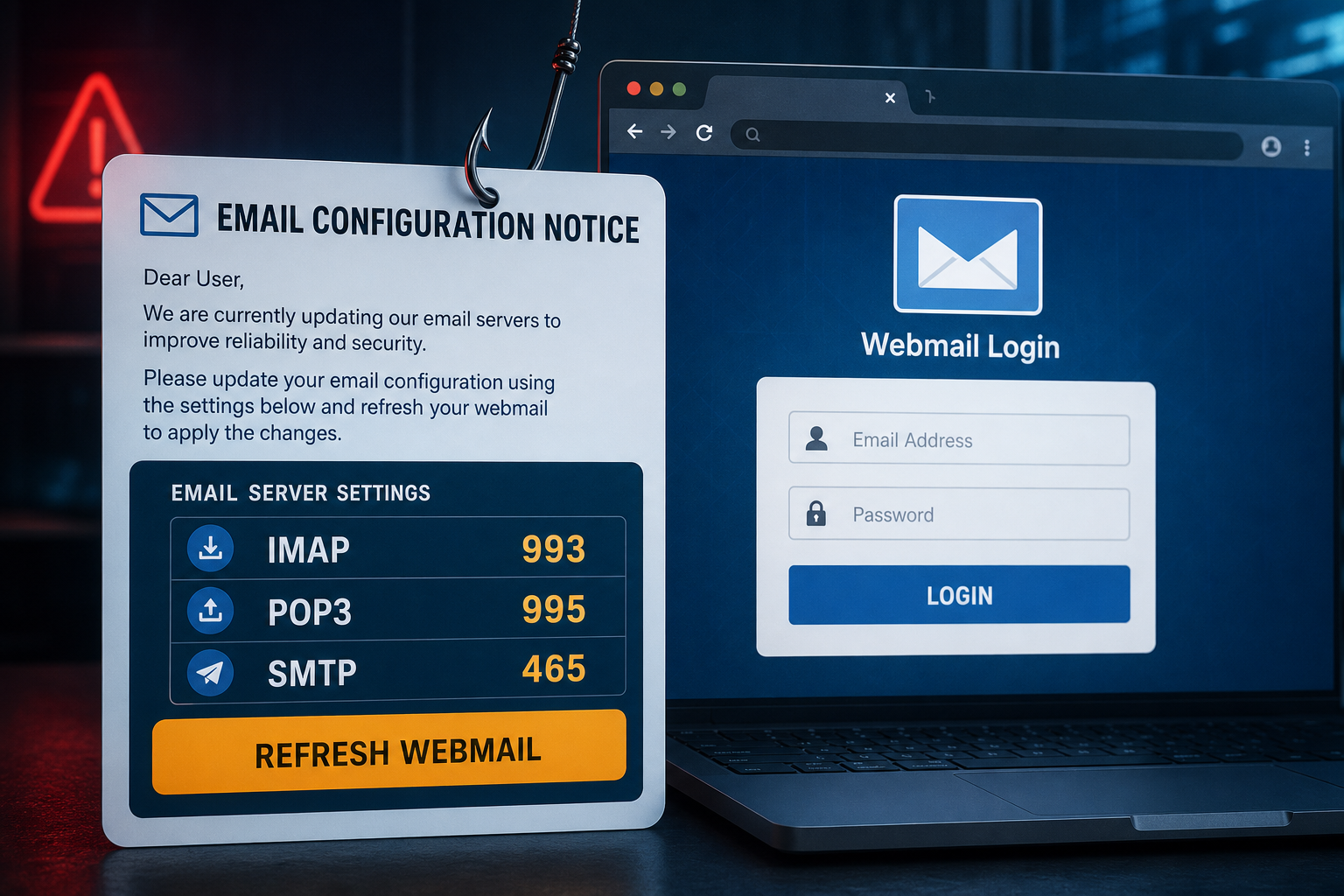
Overview
The Email Configuration Notice scam is a credential-phishing campaign disguised as an automated message from an IT Systems team. It claims that the recipient’s mailbox failed authentication because SSL or TLS settings are missing or incorrect.
To support that story, the email lists IMAP port 993, POP3 port 995 and SMTP port 465. Those are legitimate secure-mail port numbers, but their presence does not make the message genuine. The attacker is using accurate technical details as stage dressing.
The notice has appeared with the subject Email Configuration Update. and a date of July 29, 2026. It warns that the account may stop working and directs the recipient to Refresh webmail.
That link leads to a fake webmail sign-in page. Credentials entered there are sent to criminals, who can then access messages, reset other accounts, search for financial information or impersonate the victim.
A real email administrator may announce a migration or settings change, but they will normally provide instructions through a known help desk, company portal or device-management process. They do not need users to re-enter mailbox passwords on an unfamiliar public website.
- Pretends to be an automated IT Systems alert
- Claims authentication or SSL/TLS configuration has failed
- Lists real mail ports to appear knowledgeable
- Uses account-disruption warnings to create urgency
- Directs the victim to a counterfeit webmail login
Is the Email Configuration Notice Real?
No. The message described here is a confirmed phishing scam. The IMAP, POP3 and SMTP values are real standards, but the claim that you must refresh webmail through the email’s link is false.
If you are concerned about your mailbox, open your provider’s website from a saved bookmark or contact the help desk using the number in your company directory. Do not use the notice’s link or reply address.
How the Email Configuration Notice Scam Works
Step 1: The email invents a configuration failure
The message says the account failed authentication or lacks secure server settings. This gives a technical explanation for a problem the recipient cannot easily verify.
Step 2: Real protocol values create credibility
Seeing IMAP 993, POP3 995 and SMTP 465 can reassure someone who recognizes those numbers. The facts are genuine, but they are unrelated to whether the supplied link is trustworthy.
Step 3: The account is placed under time pressure
The notice suggests that email access may be limited or interrupted. Because people depend on email for work and account recovery, many will act before asking IT.
Step 4: Refresh webmail opens a fake login
The button hides an external destination. The landing page copies a generic or provider-themed sign-in form and asks for the victim’s full email address and password.
Step 5: The attacker collects the credentials
Submitting the form sends the data to the phishing operator. A fake error or redirect may follow, causing the victim to assume the refresh simply failed.
Step 6: The mailbox is used for further fraud
The attacker can read private mail, intercept password resets and impersonate the owner. In a workplace account, they may also search for invoices and begin a business email compromise scheme.
What the Port Numbers Actually Mean
IMAP 993
IMAP synchronizes messages between a mail server and devices. Port 993 is commonly used for IMAP protected by encryption.
POP3 995
POP3 downloads messages from a server. Port 995 is a standard encrypted POP3 port.
SMTP 465
SMTP is used to send email. Port 465 is commonly associated with SMTP over implicit TLS.
These values are configuration facts, not proof of identity. Anyone can copy them into a phishing email.
Red Flags in the Fake Configuration Alert
- The message arrives unexpectedly and claims a problem you have not experienced
- The sender’s domain does not exactly match your provider or organization
- The warning is generic and does not name a help-desk ticket or administrator
- The link destination differs from the official webmail domain
- The page asks you to re-enter your password to apply server settings
- The message relies on urgency instead of giving verifiable internal support details
What to Do If You Received the Email
- Do not click Refresh webmail
- Open your webmail normally from a bookmark or typed address
- Check your provider’s service-status page if mail is not working
- Forward the message to your IT or security team as an attachment
- Report it as phishing and delete it
What to Do If You Clicked the Link
If you did not enter credentials
Close the page and report the email. Clear the phishing site’s cookies and browsing data. If anything downloaded automatically, do not open it and run a security scan.
If you entered your password
- Change the mailbox password immediately from the provider’s real website
- Sign out of all active sessions and remove unfamiliar connected applications
- Turn on multi-factor authentication
- Review recent logins, recovery methods and account-security alerts
- Inspect inbox rules and forwarding addresses for unauthorized entries
- Check sent and deleted folders for phishing messages sent from your account
- Inform your IT team and contacts if the account was used to send messages
- Replace the password anywhere else it was reused
How to Verify a Genuine Mail-Settings Change
- Use the official help center or company service desk
- Compare the notice with an announcement in your internal portal
- Open account settings directly rather than following email links
- Confirm the sender through a known phone number or chat account
- Let managed devices receive settings through approved IT tools
Frequently Asked Questions
Are IMAP 993, POP3 995 and SMTP 465 fake?
No. They are real secure-mail port numbers. The scam uses them out of context to lend credibility to a fake password request.
Will my email stop working if I ignore the notice?
This phishing message cannot disable your mailbox. If you have a genuine service problem, verify it independently with your provider or IT department.
Does clicking the link automatically expose my password?
The main theft occurs when credentials are submitted. Close the page if you only viewed it, and scan any file that downloaded. If you entered a password, treat the account as compromised.
The Bottom Line
The Email Configuration Notice is a confirmed phishing lure. It borrows real technical language, but its Refresh webmail link exists to steal credentials—not to repair SSL, TLS or mail-server settings.
Ignore the pressure, open your account through its official address and contact IT through a trusted channel. If you submitted a password, change it immediately and check the mailbox for hidden access or forwarding rules.








