

Protectsignalarc.co.in does not prove you are human. Its fake CAPTCHA is a permission trap: clicking Allow lets the site send notifications directly to your desktop or phone.
Those notifications can look like antivirus warnings, expired-license messages or security alerts. They are advertising lures that redirect to deceptive pages—not reliable reports about the health of your device.
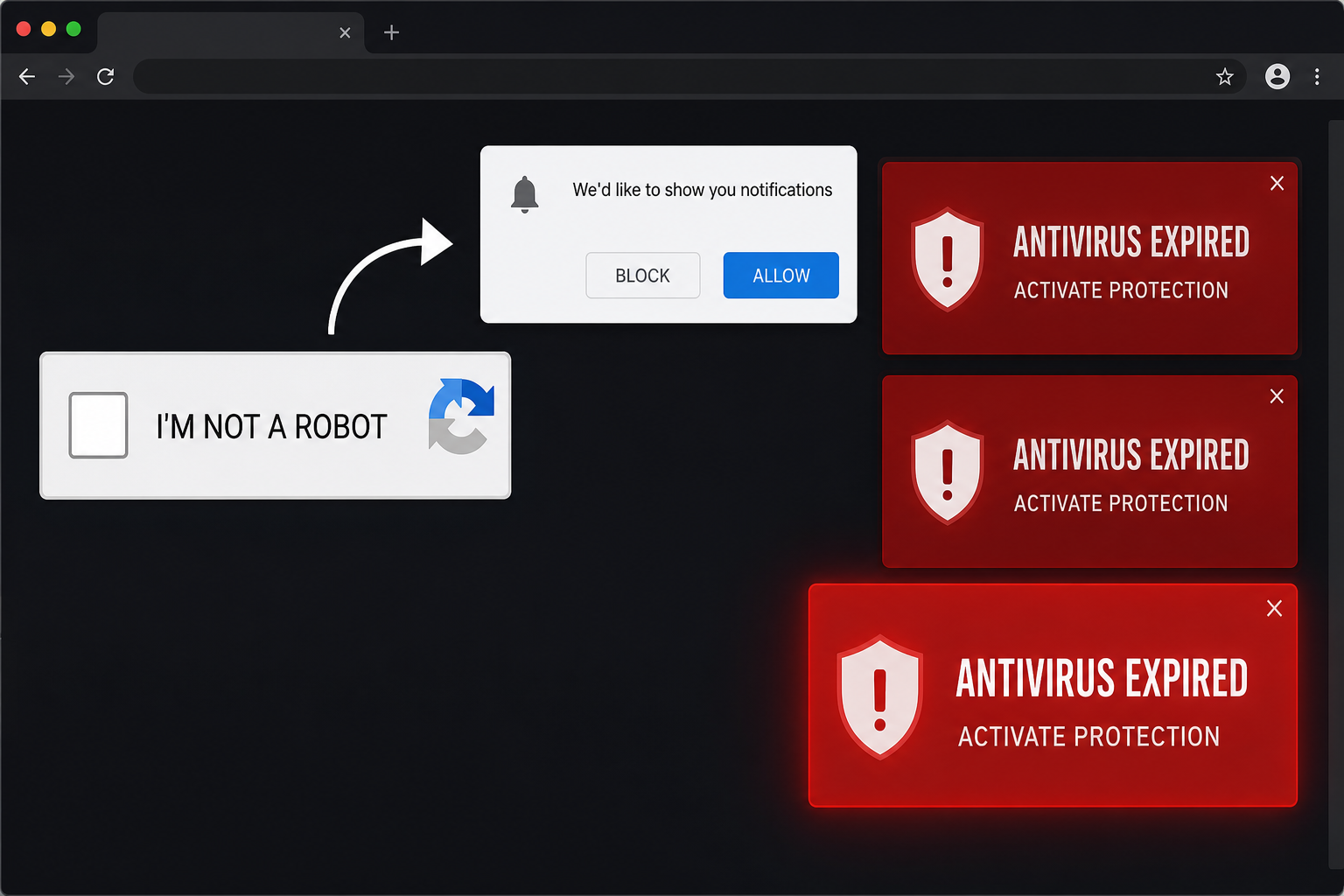
Overview
Protectsignalarc.co.in is a rogue notification-spam website. It is not a conventional computer virus by itself, and simply landing on the page does not mean malware has been installed. The site’s purpose is to trick visitors into granting browser-notification permission.
The page commonly shows a dark background and a fake I’m not a robot check. After the visitor interacts with it, the page instructs them to click the browser’s Allow button to complete verification. That instruction is false.
The browser prompt is real, but its meaning is being misrepresented. Allow does not solve a CAPTCHA, start a download or confirm an age check. It authorizes Protectsignalarc.co.in to push messages through the browser even after the original tab is closed.
The resulting notifications may impersonate well-known antivirus companies and claim that a license expired or threats were detected. Buttons such as Activate Protection and Show Details can lead to fake subscription pages, tech-support scams, phishing forms, survey traps or installers for unwanted software.
Some destinations may be affiliate offers promoted through misleading advertising, while others can be outright fraud. The notification itself is not a trustworthy diagnosis. A website that has never scanned your computer cannot know that your antivirus expired or that a specific infection was found.
Protectsignalarc.co.in may use changing subdomains and URL paths, so the exact address can differ from one visit to another. The permission remains associated with the site entry stored in the browser until it is removed or blocked.
- Uses a fake CAPTCHA or verification instruction
- Tells visitors to press the browser’s Allow button
- Sends notifications after the original page is closed
- Impersonates security brands in alarming pop-ups
- Redirects clicks to risky, deceptive or heavily promoted pages
Is Protectsignalarc.co.in a Virus?
Protectsignalarc.co.in is best described as a notification scam, not a self-installing virus. Its main trick relies on a permission the visitor grants in the browser.
However, the ads it sends can expose users to phishing, fake technical support, unwanted subscriptions and potentially harmful downloads. If redirects continue after permission is removed, an unwanted browser extension or adware program may also be present.
How the Protectsignalarc.co.in Scam Works
Step 1: A redirect opens the rogue page
Visitors are often sent there by aggressive advertising on torrent, adult, illegal-streaming or low-quality download sites. A misleading ad, compromised page, spam notification or adware redirect can also open it.
Step 2: A fake CAPTCHA creates a reason to click
The page shows a checkbox, loading animation or message claiming verification is required. It borrows the appearance of a security check without performing one.
Step 3: The site requests notification permission
The browser displays its genuine notification prompt with Allow and Block controls. Protectsignalarc tells the visitor that Allow is part of the CAPTCHA, hiding the real purpose of the button.
Step 4: Permission is stored in the browser
Once approved, the site is added to the browser’s notification allow list. Closing the tab does not revoke that permission.
Step 5: Fake security alerts appear
Notifications may claim an antivirus license expired, a virus was detected or protection must be activated. They can appear near the system clock and look more authoritative than ordinary webpage ads.
Step 6: Clicking an alert opens another risky page
The destination may sell a legitimate product through deceptive claims, demand payment for nonexistent support, collect personal information or offer unwanted software. The exact page can change from click to click.
Why the Ads Keep Appearing After You Close the Site
Browser notifications are designed for legitimate uses such as calendar reminders, news updates and chat alerts. A permitted website can send them without remaining open in a visible tab.
That is why closing Protectsignalarc.co.in or restarting the computer may not help. The fix is to remove its notification permission from browser settings. You do not need to click the fake alert to unsubscribe.
How to Remove Protectsignalarc.co.in Notifications
Google Chrome on Windows or macOS
- Open Chrome and select Settings
- Go to Privacy and security → Site settings → Notifications
- Find Protectsignalarc.co.in or any unfamiliar related subdomain under sites allowed to send notifications
- Open its menu and choose Block or Remove
Microsoft Edge
- Open Settings → Cookies and site permissions
- Select Notifications
- Locate Protectsignalarc.co.in in the Allow list
- Choose Block or Remove
Mozilla Firefox
- Open Settings → Privacy & Security
- Scroll to Permissions and select Settings beside Notifications
- Find the unwanted domain and change its status to Block or remove it
- Save the changes
Google Chrome on Android
- Open Chrome → Settings → Site settings
- Select Notifications
- Open the Protectsignalarc.co.in entry
- Turn notifications off or choose Clear & reset
Safari on macOS
- Open Safari → Settings → Websites
- Select Notifications
- Find the unwanted site and choose Deny or remove it from the list
What to Do If You Clicked One of the Ads
If you only opened the destination
Close the page without entering information, calling a phone number or downloading anything. Do not grant more permissions. Clear the site’s cookies if it keeps reopening or remembers personal details.
If you entered a password
Change that password from the service’s official website, sign out of other sessions and enable multi-factor authentication. Replace the password on every other account where it was reused.
If you entered card details or paid
Contact the card issuer immediately, explain that the payment followed a deceptive alert and ask about blocking the card or disputing the charge. Watch statements for recurring or unfamiliar payments.
If you downloaded or installed software
Remove unfamiliar programs and browser extensions, then run a full security scan. Do not call a support number shown by the notification or give a stranger remote access to the device.
Check for Adware or an Unwanted Extension
If Protectsignalarc redirects return after its permission is removed, inspect the browser’s extension list and uninstall anything you do not recognize. Also check recently installed applications and reset the browser’s startup page and search engine if they changed.
A security scan is worthwhile when redirects happen across many unrelated sites, new extensions reappear or advertising continues without any browser notification permission. Those symptoms can point to adware rather than a single rogue website.
How to Avoid Fake CAPTCHA Notification Traps
- Choose Block when an unfamiliar page asks to send notifications
- Remember that browser Allow buttons never complete CAPTCHAs or start video playback
- Avoid aggressive download, torrent and illegal-streaming sites that use redirect networks
- Keep the browser and security software updated
- Review the notification allow list periodically and remove sites you no longer use
- Never trust a security diagnosis delivered through an unsolicited browser notification
Frequently Asked Questions
Why do Protectsignalarc ads appear when the browser looks closed?
The browser can continue running background notification services. The site already has permission, so alerts can appear without an open tab.
Does clicking Block damage anything?
No. Block simply refuses the site’s request to send notifications. It is the correct choice for fake CAPTCHA pages.
Are the antivirus warnings real?
No reliable antivirus result is being shown. The notification is an advertising or scam lure. Check protection status by opening your installed security application directly.
Will clearing browsing history remove the permission?
Not always. Remove or block the domain in the browser’s notification settings to be certain.
The Bottom Line
Protectsignalarc.co.in is a browser-notification scam that turns a fake CAPTCHA into lasting permission to send deceptive ads. The alerts are not trustworthy antivirus warnings, and clicking them can lead to phishing, unwanted subscriptions or risky downloads.
Remove the domain from the notification allow list, avoid interacting with its pop-ups and scan the device if redirects or unwanted software continue. The fastest prevention is simple: never press Allow because a webpage claims it is part of a CAPTCHA.








