

CrashStealer is a serious macOS information stealer disguised as Apple’s crash-reporting software. It uses a convincing password prompt to unlock the victim’s Keychain and quietly searches the Mac for credentials, browser sessions, wallets and files.
If you installed Werkbit Setup, saw an unexpected Crash Reporter password request or found CrashReporter.dmg, disconnect the Mac immediately. Change passwords only from another trusted device because the compromised Mac may still be collecting them.
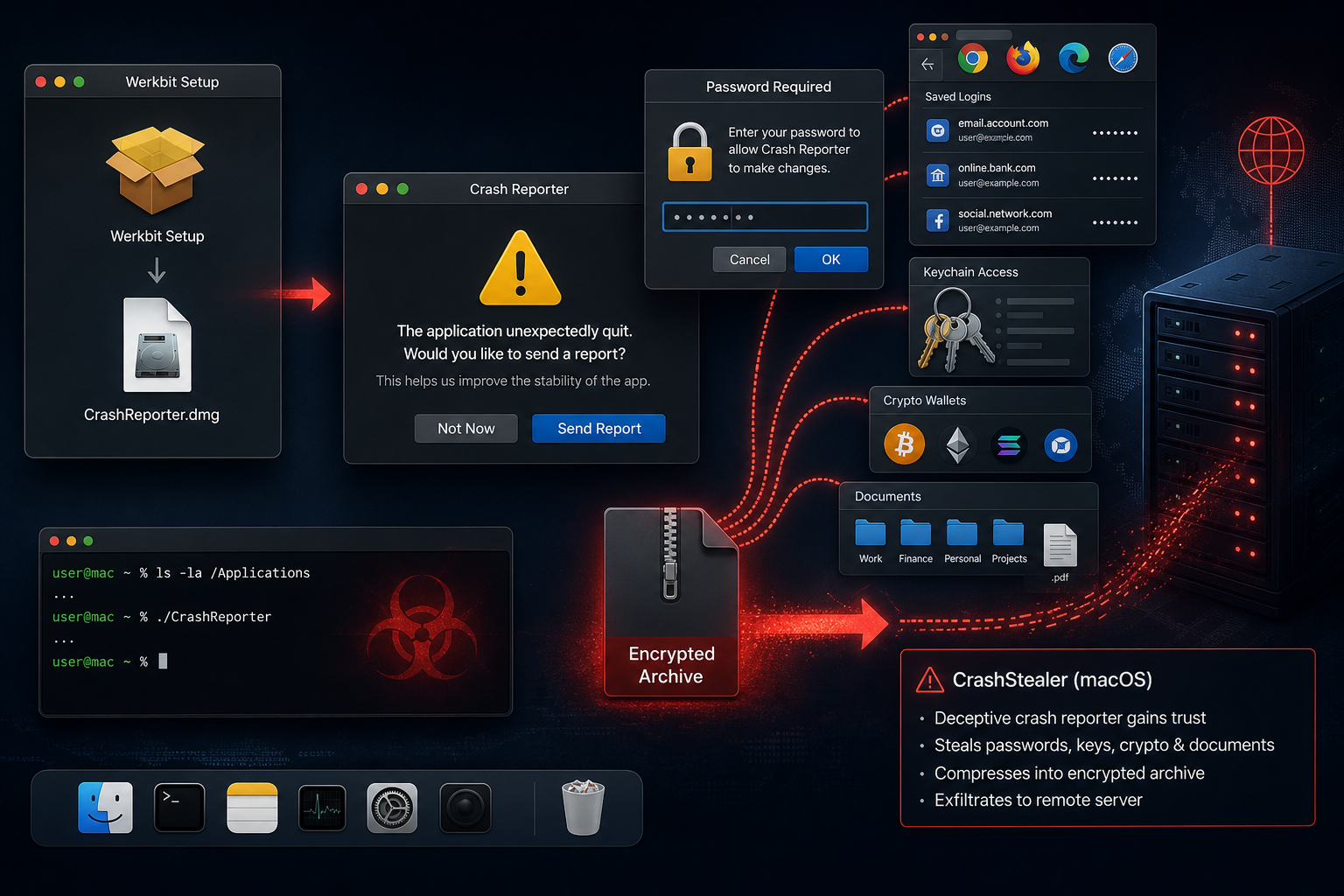
CrashStealer Malware Overview
CrashStealer is a C++ information stealer built for macOS. Its observed delivery chain began with a disk image called Werkbit Setup, distributed through a fake software website. The installer was signed and notarized with a valid Apple developer certificate, allowing it to pass Gatekeeper checks that users often treat as proof that an application is safe. A valid signature confirms who signed a file; it does not guarantee that the software is harmless.
After the first installer runs, it contacts a remote server, retrieves a shell script and downloads CrashReporter.dmg. The payload is hidden, re-signed and launched under an Apple-like identity. Its bundle identifier com.apple.crashreporter and familiar crash-reporting imagery help it blend in with normal macOS activity.
The stealer then displays a fake macOS password dialog. When the victim enters the account password, CrashStealer validates it locally and uses it to unlock Keychain data. This can expose saved Safari logins, Wi-Fi passwords, certificates and cryptographic keys. The malware also searches Chromium and Firefox-based browsers, around 80 cryptocurrency wallet extensions, 14 password managers and files stored in Desktop, Documents and Downloads.
Data CrashStealer is designed to collect
- macOS account credentials entered into the fake password prompt.
- Keychain entries, Safari passwords, Wi-Fi credentials and cryptographic material.
- Saved browser passwords, cookies, browsing data and active session information.
- Cryptocurrency wallet extensions and related wallet data.
- Password-manager application data from widely used products.
- Documents and other files found in Desktop, Documents and Downloads.
CrashStealer maintains persistence through a LaunchAgent named com.apple.crashreporter.helper, allowing it to return when the user signs in or the Mac restarts. It encrypts important strings, checks for debuggers and packages stolen information into hidden archives before exfiltration. The result can be email takeover, financial fraud, cryptocurrency theft, identity theft and compromise of additional accounts long after the original installer disappears.
How the CrashStealer Mac Infection Works
Step 1: The victim receives the Werkbit Setup installer
The observed campaign used a fake software site and a meeting PIN to restrict access to the download. That extra friction can make a targeted file appear exclusive or business-related. The disk image carried a legitimate-looking signature and notarization, reducing the warnings a user would normally expect.
Step 2: The signed installer passes the first trust check
macOS Gatekeeper recognizes the developer certificate and permits the installer to run. This is the point the campaign exploits: many people assume that an allowed application has been reviewed for every malicious behavior, when a stolen or abused certificate can sign harmful code.
Step 3: A script downloads CrashReporter.dmg
Werkbit Setup silently reaches a remote server and retrieves a shell script. That script downloads the actual stealer payload. Splitting the attack into two stages lets the first file look simpler and gives the operator control over what the victim receives next.
Step 4: The payload adopts an Apple-like identity
The malware is copied into a hidden directory and launched as a fake crash-reporting component. Its name, icon and bundle identifier are selected to resemble a legitimate macOS process. Re-signing the binary also changes its file hash, complicating simple hash-based blocking.
Step 5: A fake password prompt unlocks sensitive data
CrashStealer asks for the Mac account password using a system-style dialog. Once supplied, the password can unlock Keychain entries and allow the malware to gather credentials that would otherwise remain protected.
Step 6: Credentials and files are archived and stolen
The stealer searches browsers, password managers, wallet extensions and personal folders. Collected data is compressed into concealed archives and uploaded to attacker-controlled infrastructure. A LaunchAgent helps the malware repeat this collection after a restart.
Warning Signs of a Possible CrashStealer Infection
- Werkbit Setup or CrashReporter.dmg appears in Downloads, mounted volumes or recent items.
- A Crash Reporter window asks for the macOS account password without a clear reason.
- An unfamiliar application uses the com.apple.crashreporter identity or Apple-like iconography.
- A LaunchAgent named com.apple.crashreporter.helper appears in the user Library.
- Browsers, password managers or cryptocurrency accounts show unfamiliar sessions or changes.
- The Mac repeatedly contacts an unknown server while apparently idle.
- Hidden ZIP archives or suspicious staging folders appear near user data.
- Passwords stop working or account recovery details change unexpectedly.
CrashStealer is designed to remain quiet, so the absence of pop-ups does not clear the Mac. The strongest indicators are the installer names, unexpected password request, LaunchAgent and subsequent account activity.
What to Do If CrashStealer May Be on Your Mac
Disconnect the Mac from the internet
Turn off Wi-Fi and unplug any network adapter. Do not sign in to email, banking or cryptocurrency services from the suspected Mac. Isolation interrupts exfiltration and prevents the attacker from receiving newly collected data.
Secure important accounts from another device
Use a clean phone or computer. Change the primary email password first, then Apple Account, banking, cloud storage, work accounts, password managers and cryptocurrency services. End active sessions, revoke connected apps and enable multi-factor authentication.
Protect cryptocurrency immediately
If wallet data or recovery phrases were stored on the Mac, move assets to a new wallet created on a clean device. Merely changing an exchange password cannot protect a wallet whose seed phrase or private key was stolen.
Check for persistence and related components
Review Login Items, LaunchAgents, recently installed applications, mounted disk images and downloads. The name com.apple.crashreporter.helper is a strong lead, but do not assume it is the only component. An experienced responder should preserve copies and logs before removal on a business Mac.
Run a complete macOS security scan
Use a reputable Mac security product with current definitions. Scan the entire system, including user Library folders. If the account password was entered into the fake prompt or sensitive business data was accessible, a clean macOS reinstall is safer than relying on removal of one visible file.
Review every account for follow-on abuse
Inspect sign-in history, email forwarding rules, recovery methods, trusted devices and financial transactions. Remove unfamiliar browser extensions and profiles. Contact banks, employers or wallet providers quickly when money or company data may be at risk.
Also review files that were available in Desktop, Documents and Downloads. If they contained identity documents, tax records, client data or recovery codes, assume copies may have left the Mac. Notify the relevant organization and monitor for targeted fraud rather than waiting for the stolen material to appear publicly.
How to Avoid Similar macOS Stealers
- Download applications from the Mac App Store or the developer’s verified official site.
- Treat a valid signature or notarization as one security signal, not a complete safety verdict.
- Do not enter the Mac password into a prompt triggered by an application you did not intentionally install.
- Keep macOS, browsers and security software updated.
- Avoid pirated applications, cracks, key generators and private download links from strangers.
- Store cryptocurrency recovery phrases offline rather than in documents or browser notes.
- Use separate passwords and multi-factor authentication for important accounts.
- Maintain a current backup that is not permanently writable from the Mac.
The Bottom Line
CrashStealer is a sophisticated macOS credential thief that hides behind a fake crash reporter and abuses a convincing password prompt. Its targets include Keychain data, browser sessions, password managers, cryptocurrency wallets and personal files.
Do not dismiss the incident after deleting Werkbit Setup or CrashReporter.dmg. Isolate the Mac, scan or rebuild it, rotate credentials from a clean device and review financial and cryptocurrency activity. The stolen data can remain valuable to attackers even after the malware itself is removed.








