

The Two-Step Verification Was Enabled email is a phishing scam. It claims that someone changed your account security and uses that scare to push you toward a fake login page.
Do not click Review account security. If you entered a password, open the real email provider from a clean browser, change it immediately, end other sessions and check whether the attacker changed any security settings.
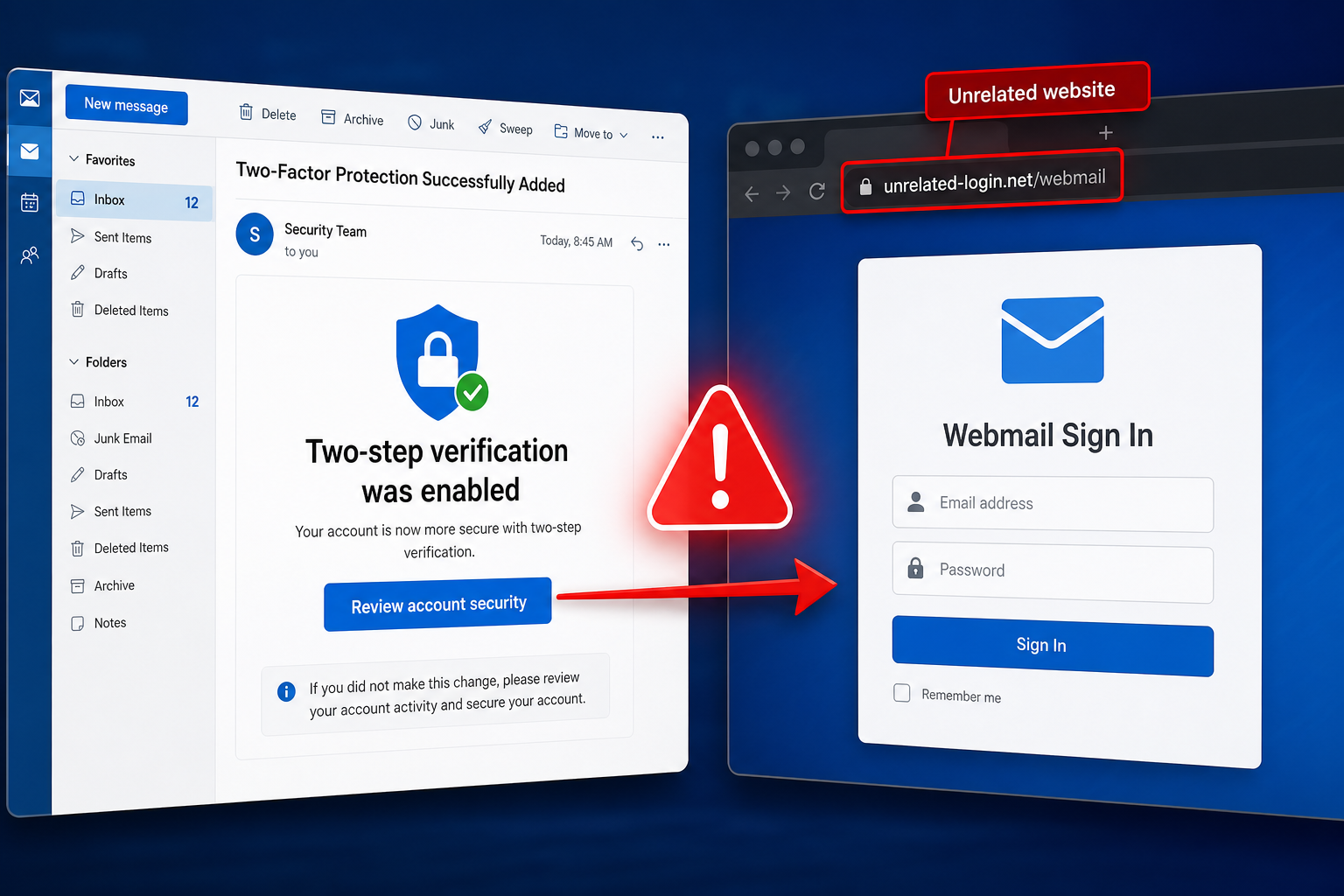
Two-Step Verification Was Enabled Email Scam Overview
This phishing campaign arrives as an automated account-security notification, often with a subject such as Two-Factor Protection Successfully Added. The message claims that two-step verification was just enabled and warns that the recipient must review the change or risk being logged out. The security theme is deliberate: a person who did not make the change may click quickly because they believe an attacker is already inside the account.
The message includes a Review account security button. Instead of opening the genuine provider, the link leads to a fraudulent website that displays a counterfeit webmail login form over an interface designed to resemble a familiar inbox. The phishing page may be hosted on legitimate cloud infrastructure abused by the scammers. A valid HTTPS padlock or recognizable hosting service only encrypts the connection; it does not make the page an authorized login portal.
Any email address and password entered into the form is sent to the criminals. With mailbox access, they can read private conversations, reset other accounts, steal documents and impersonate the victim. A business inbox also gives them trusted relationships with coworkers, customers and suppliers. They may wait for a real invoice discussion, then insert new bank details into the conversation.
Details commonly seen in this phishing message
- A subject resembling Two-Factor Protection Successfully Added.
- A claim that two-step verification was enabled without your request.
- A warning that the account may be logged out unless you act.
- A timestamp or partly hidden account identifier to look official.
- A Review account security button that conceals the destination.
- A fake webmail sign-in form hosted outside the real provider’s domain.
The campaign is not connected to Gmail, Google, Microsoft or any legitimate email provider. Names, logos, colors and security language can all be copied. The address bar and the way the request was delivered are more reliable than the page’s appearance.
How the Two-Step Verification Phishing Scam Works
Step 1: A fake security alert creates alarm
The recipient is told that an important protection method was added. Because an unexpected multi-factor change can indicate account takeover, the message creates a believable reason to react immediately.
Step 2: A logout warning adds urgency
The email suggests that failing to review the change will interrupt access. This artificial consequence discourages the recipient from checking the provider independently or asking an administrator for help.
Step 3: The button hides the real destination
Review account security sounds like a normal safety action, but the button points away from the claimed service. On a computer, hovering over it can reveal the unrelated address before anything is opened.
Step 4: A counterfeit inbox makes the page familiar
The destination imitates a webmail interface and overlays a login form. Familiar folders, colors and icons are there to reduce suspicion. They are ordinary page elements that scammers can reproduce.
Step 5: The login form captures the credentials
The page records the submitted email address and password. Some phishing forms show an error and ask again, allowing the criminals to collect a second password variation or confirm that the victim typed carefully.
Step 6: The stolen mailbox is used for wider fraud
The attackers can search the inbox for financial data, create forwarding rules, reset linked accounts and send phishing from a trusted address. One stolen password can therefore lead to identity theft, payment fraud and compromise of other people.
How to Recognize the Fake Security Alert
The change cannot be confirmed inside the real account
Open the provider through a saved bookmark or official app. If two-step verification really changed, the security dashboard will show it. Never use the message’s button to investigate the message itself.
The sender address does not belong to the provider
Display names such as Security Team are not proof. Expand the sender details and compare the full domain with previous legitimate notifications. Also check whether the Reply-To address is different.
The button leads to a third-party or cloud-hosted page
Cloud platforms host many legitimate applications, but an email provider does not move its account login to a random tenant address. A padlock beside that unrelated domain does not change who owns the page.
The login page asks for credentials outside the provider’s domain
A logo can be copied; a genuine domain cannot. Close the page if the address does not exactly match the service you intended to use. Watch for added words, misspellings and deceptive subdomains.
The message threatens immediate loss of access
Urgent account warnings can be real, but a forced decision is a standard phishing tactic. A legitimate provider lets you review security events from its official app or account center without following an unsolicited link.
What to Do If You Received This Email
- Do not click the button, reply to the sender or download any attachment.
- Open the real account security page independently and review recent events.
- Report the message through the provider or your company’s phishing-report tool.
- Warn coworkers if the same campaign reached several business inboxes.
- Block the sender and destination domain when you administer the mail system.
- Delete the email after any required evidence has been preserved.
If you only opened the page and did not submit information, close it and clear any downloaded files. Clicking alone does not prove that the password was stolen. Run a security scan if the page downloaded anything, requested a browser extension or asked you to open a file.
What to Do If You Entered Your Password
Change the password on the real service
Use a clean device and navigate directly to the provider. Choose a unique password. If that password or a close variation protects another account, change those accounts as well.
End sessions and remove unauthorized access
Use the security dashboard to sign out other devices, revoke app passwords and remove unfamiliar connected applications. A password reset does not always invalidate every previously issued session token.
Restore multi-factor authentication safely
Review registered phone numbers, authenticator apps, passkeys, backup codes and security keys. Remove anything you did not add. Prefer a passkey, hardware key or authenticator app over SMS when the provider supports it.
Inspect the mailbox for hidden changes
Check forwarding addresses, inbox rules, delegates, aliases, recovery methods and automatic replies. Criminals often create a rule that hides replies or sends copies of incoming mail to another address.
Review sent mail and linked accounts
Look for messages, password resets and purchases you do not recognize. Tell contacts to ignore suspicious requests from your address. Businesses should examine invoice threads, payroll requests and changes to supplier payment details.
Escalate financial or work exposure quickly
Notify the employer, bank or affected service when sensitive data was present. A finance team should verify pending payment instructions by phone using a known number. Early action improves the chance of stopping fraudulent transfers.
How to Prevent Similar Credential-Phishing Attacks
- Use a password manager, which is less likely to fill credentials on the wrong domain.
- Enable phishing-resistant multi-factor authentication where available.
- Open security alerts through the provider’s official app rather than email buttons.
- Train employees to inspect full sender and destination domains.
- Alert on new mailbox forwarding rules and unusual sign-in locations.
- Require independent confirmation for payment and account-recovery changes.
The Bottom Line
The Two-Step Verification Was Enabled email is a confirmed credential-phishing scam. It turns a believable security concern into a reason to visit an unrelated website and surrender an email password.
Ignore the email button and check the account directly. If credentials were submitted, change them immediately, revoke sessions, repair multi-factor settings and inspect the mailbox for hidden rules or fraudulent messages. A compromised inbox can unlock far more than email.
