

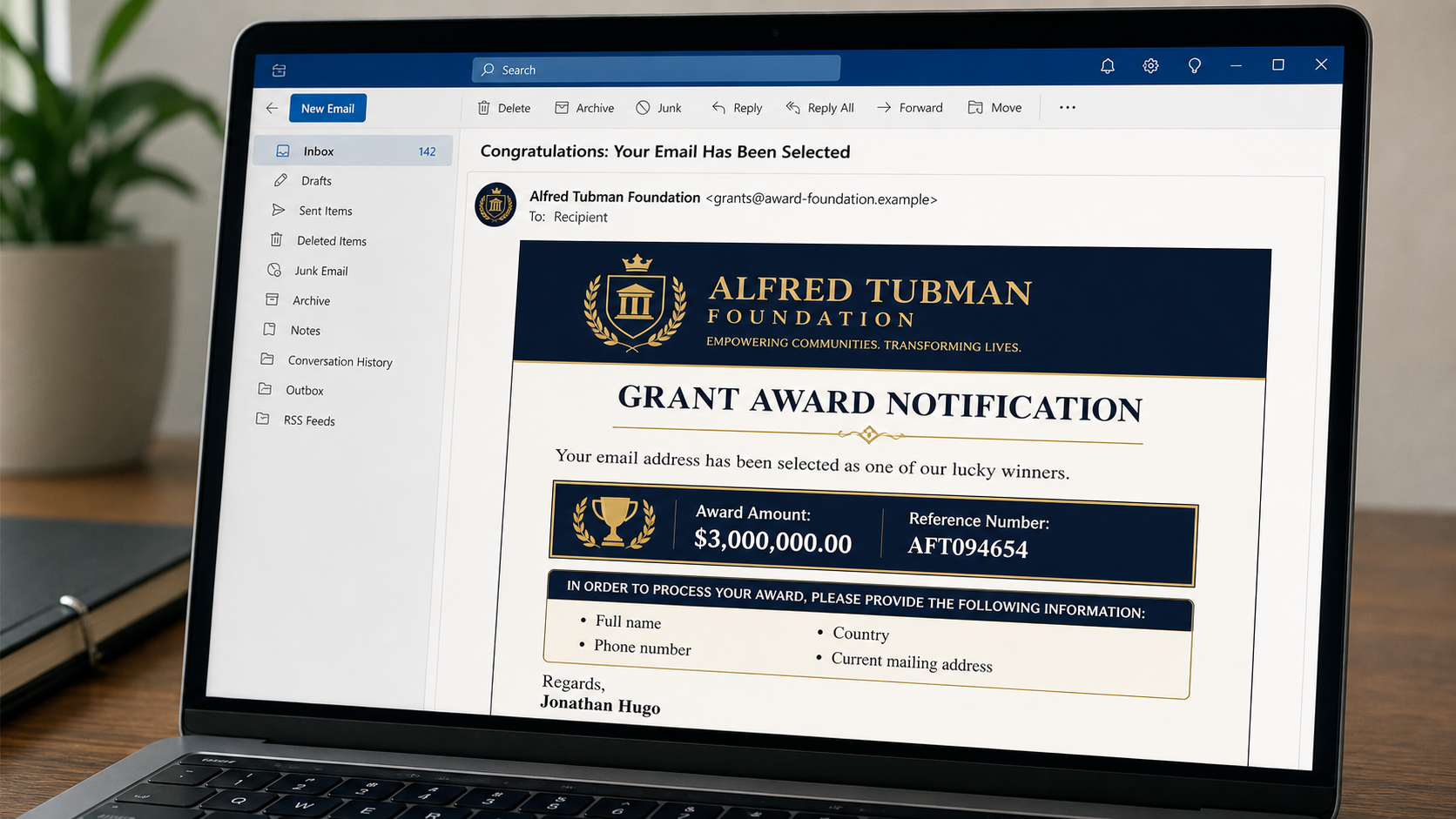
An email saying your address was randomly selected for a $3,000,000 Alfred Tubman Foundation grant is not a genuine award. The message asks for your full name, telephone number, country, and mailing address so the “grant” can be processed.
No legitimate foundation awards millions of dollars to an unknown person because an email address was selected automatically. This is an advance-fee and identity-harvesting scam that builds trust before introducing taxes, courier costs, and clearance fees.
Overview
The Alfred Tubman Foundation message follows a classic lottery and grant formula. It begins with congratulations, states that the recipient was selected without applying, assigns a large award amount, and provides an official-looking reference number.
A circulating version lists $3,000,000.00 and reference AFT094654. It is signed by someone calling themselves Jonathan Hugo and asks the recipient to reply with identifying and contact information.
The name itself is a warning. There is a legitimate private foundation associated with A. Alfred Taubman, spelled Taubman, not Tubman. Scammers regularly alter a real person’s or organization’s name by one word or letter so a quick glance still feels familiar.
The legitimate foundation does not operate an email lottery for individuals. Its grantmaking history and institutional work do not validate an unsolicited personal award sent from an unrelated mailbox.
The scam’s first message may not ask for money. That restraint is deliberate. The operator starts with easy information, creates a conversation, and introduces payment only after the recipient has emotionally accepted the award.
Text of the fake grant email
Subject: Congratulations!
We are pleased to inform you that your email address has been selected automatically for the Alfred Tubman Foundation grant program. Your email was selected and approved as one of our lucky winners.
Grant Program: Alfred Tubman Foundation
Award Amount: $3,000,000.00
Reference Number: AFT094654To process your award, provide your full name, phone number, country, and current mailing address.
Regards,
Jonathan Hugo
Grammar, punctuation, and formatting vary. Some copies show the amount as “$3,000.000.00,” an impossible mixture of separators. Others use polished templates or attach a formal certificate to reduce suspicion.
Common variations of the email
- “Your Email Was Selected for the Alfred Tubman Foundation Grant”
- “A. Alfred Taubman Foundation Donation Award”
- “Congratulations, You Have Been Chosen for $3,000,000”
- “Humanitarian Relief Grant for Selected Individuals”
- “Foundation Anniversary Giveaway”
- “COVID-19 or Cost-of-Living Support Grant”
- “Charitable Donation From a Philanthropist”
- “Unclaimed Grant Award Requires Immediate Response”
- “International Monetary Fund Clearance for Your Grant”
- “Courier Delivery Scheduled for Your Award Package”
- “Tax Certificate Required Before Fund Release”
Names, amounts, countries, and job titles are interchangeable. The supposed grant officer may later introduce a bank manager, lawyer, diplomat, courier, tax officer, or United Nations representative. These characters are normally controlled by the same group.
Why the message can feel believable
The email borrows the language of philanthropy and includes administrative details. A reference number, award certificate, seal, or beneficiary form makes the message look as though a formal process already exists.
The enormous amount also affects judgment. A recipient may overlook inconsistencies because even a small chance of receiving $3,000,000 feels worth answering.
Scammers sometimes tell the recipient to keep the award confidential for security reasons. In reality, secrecy prevents friends, relatives, banks, and authorities from challenging the story.
Immediate warning signs
- You never applied. Grants are awarded through defined programs, eligibility rules, and review, not random email selection.
- The name is misspelled. “Tubman” and “Taubman” are not interchangeable.
- The sender uses an unrelated address. A free mailbox or generic award domain has no verified foundation connection.
- The award is implausibly large. A multimillion-dollar personal grant would involve documented legal and financial procedures, not a short reply.
- The message asks for personal data before explaining a program. The operator wants a usable identity profile.
- Payment is required to receive money. Processing fees, taxes, courier charges, and anti-terror certificates are hallmarks of advance-fee fraud.
- Confidentiality is demanded. Legitimate grant administrators do not need to isolate a beneficiary from trusted advice.
How The Operation Works
1. A congratulatory email is sent in bulk
The operator sends the same award to thousands of people using addresses obtained from public pages, marketing lists, prior scams, and data breaches. The recipient’s address was not selected by a charitable committee.
Generic greetings allow the same template to be reused. A name can be added from breached data to make a later version appear targeted.
2. A real philanthropic name is altered
The message exploits recognition of foundations and wealthy donors. The altered spelling creates enough distance for a new domain or mailbox while still benefiting from the real name’s credibility.
A web search may reveal genuine philanthropic activity. That information describes the real organization, not the unknown sender.
3. The first reply collects low-friction information
Full name, phone number, country, and address may seem harmless compared with bank credentials. These details let the scammer personalize documents, choose a believable local fee, and move the conversation to phone or messaging apps.
Replying also confirms that the mailbox is active and that the recipient is willing to engage with a financial promise.
4. Fake paperwork makes the award feel committed
The recipient may receive a certificate, claim form, bank letter, identification card, or courier receipt. Logos and signatures are copied, and official-looking stamps are added to ordinary documents.
The forms can request date of birth, occupation, passport details, next of kin, and banking information. Each item increases identity-theft risk.
5. A second character confirms the story
A supposed lawyer or bank officer contacts the recipient and refers to the same reference number. Independent confirmation appears reassuring, but the new contact was introduced by the original scammer.
Multiple email addresses and voices can create a small fictional organization around the victim. The information remains circular because no contact was obtained independently.
6. The first advance fee is introduced
The operator says the award itself is free, but a transfer certificate, tax stamp, insurance premium, courier charge, or account activation must be paid first. The amount may be modest compared with $3,000,000.
This comparison is intentional. A $250 fee feels small when framed as the final step before millions of dollars.
7. Every payment creates another obstacle
After payment, the transfer is supposedly blocked by compliance, customs, currency conversion, money-laundering checks, or an expired certificate. A new fee is required to solve each invented problem.
There is no final fee because no grant exists. The sequence continues while the victim can pay or until suspicion ends contact.
8. Payment methods make recovery difficult
Scammers prefer wire transfers, cryptocurrency, gift cards, cash, or transfers to individual money mules. They may claim these methods are faster or required by international rules.
A genuine foundation does not distribute a grant by asking the beneficiary to buy gift cards or send cryptocurrency to an officer.
9. Stolen identity information has a separate value
Even a recipient who stops before paying may have submitted documents and banking information. The data can be sold, used in account recovery attempts, or included in more convincing inheritance and grant scams.
A follow-up “recovery agency” may know the original award amount and fee. That knowledge can come from the first operator rather than an investigation.
Why grant scams use several stages
Requesting $500 in the first email would cause many recipients to leave. Asking for a name and address feels easier. Each completed step increases psychological commitment and makes the next request seem like part of a process already underway.
After the victim fills out a beneficiary form, the operator congratulates them again and may show a certificate. The time spent completing paperwork can make abandonment feel like losing an award rather than escaping a scam.
The first fee is often described as external to the grant, such as a courier or government charge. This lets the fake foundation maintain the fiction that it never charges beneficiaries.
Common fee stories used after the reply
- International transfer or correspondent-bank fee
- Tax clearance or anti-money-laundering certificate
- Courier insurance for a cheque or bank card
- Notarisation, legalisation, or beneficiary registration
- Foreign exchange and account conversion cost
- Customs or diplomatic delivery charge
- Temporary account opening or activation deposit
- Penalty for missing an invented payment deadline
Every fee is presented as the last barrier. If paid, a different official supposedly discovers another requirement. The changing explanation is evidence that the payment, not the grant, is the product.
How to verify a foundation claim
Search for the organization independently and compare spelling, domain, address, staff, programs, and eligibility rules. Use contact information from the verified website, not from the award email or attachment.
Ask a simple question: what application did the organization review? A legitimate grant has a documented applicant, purpose, budget, selection process, and agreement. An email address chosen “automatically” supplies none of those elements.
Do not send identity documents for verification. First verify the grant itself through an independently reached organization, legal adviser, or relevant charity regulator.
Why the mistaken spelling matters
Scammers count on readers recognizing the shape of a famous name rather than every letter. The altered “Tubman” spelling also lets the operator register unrelated domains and explain why messages do not come from the genuine foundation.
A spelling difference is not a harmless typo when the sender is offering $3,000,000. It breaks the claimed identity and should end the conversation.
What To Do If You Replied or Paid
- Stop all contact. Do not pay a final fee or negotiate for the release of documents. Block the email addresses and numbers after saving evidence.
- Contact the payment provider immediately. Explain that the transfer was induced by an advance-fee scam. Ask about recall, dispute, account freezes, and recipient-account reporting.
- Report gift cards to the issuer. Provide card numbers and receipts quickly. Do not send the scammer additional photographs.
- Change exposed passwords. If a password was sent or reused in a form, secure email and financial accounts first and enable multifactor authentication.
- Protect identity documents. Contact the issuing authority if passport, licence, or national identification details were shared. Follow local identity-theft procedures.
- Notify the bank about disclosed information. A bank account number may support unauthorized debits or convincing impersonation even if no transfer was made.
- Watch for follow-up scams. Ignore recovery agents, police officers, or foundation representatives who require another payment to retrieve the loss.
- Preserve the full conversation. Save headers, attachments, receipts, wallet addresses, account details, telephone numbers, and messaging profiles.
- Report the fraud. File reports with local law enforcement, the relevant consumer-protection service, and the platform used for the communication or payment.
- Tell a trusted person. Shame and secrecy benefit the operator. A second person can help review accounts and recognize renewed pressure.
If you replied but sent only a name and address, the immediate financial risk is lower than if you sent a passport or payment. Still expect targeted follow-up. The operator can use those details in a courier story, bank call, inheritance claim, or fake police recovery message.
Do not pay someone who offers to remove your details from a scam list. There is no reliable criminal mailing-list deletion service. Strengthen account security, filter messages, preserve evidence, and let official institutions handle reports.
If the scam involved a money mule account, include the beneficiary name, bank, transfer reference, wallet, or remittance location in the report. Those transaction details are more useful to investigators and payment providers than the fictional foundation reference number.
Continue screening unexpected grant, inheritance, courier, and recovery messages because the confirmed address may be circulated among other operators.
Is Your Device Infected? Run a Free Malware Scan
Slow performance, constant pop-ups, or strange behavior? These are classic signs of a malware infection. The fastest way to find out is to scan your device with Malwarebytes Free — one of the most trusted malware removal tools available.
The free version detects and removes the most common threats, including:
- Adware — the cause of those annoying pop-ups
- Browser hijackers — unwanted redirects and changed homepages
- Trojans and spyware — hidden programs stealing your data
- Potentially unwanted programs (PUPs) — software you never asked for
👉 Select your device below — Windows, Mac, or Android — then follow the simple steps to download Malwarebytes, scan your system, and remove any threats it finds. The scan usually takes 5 to 20 minutes.
Run a Malware Scan with Malwarebytes for Windows
Malwarebytes is one of the most popular and trusted anti-malware tools for Windows — and it’s completely free for removing infections. It catches threats that many antivirus programs miss, including adware, browser hijackers, and trojans. Follow the steps below to scan and clean your PC in just a few minutes.
Download Malwarebytes
Click the button below to download the latest version of Malwarebytes for Windows from the official source. The free version is all you need — it will scan your computer and remove adware, browser hijackers, and other malicious software at no cost.
Download MalwarebytesOfficial installer for Windows 11 and 10. Your download starts right away.Want real-time protection? See Malwarebytes Premium Malwarebytes Free for WindowsScans and removes malware at no cost
-
Install Malwarebytes
When the download finishes, open your Downloads folder and double-click the MBSetup file. If Windows shows a User Account Control pop-up, click “Yes” to allow the installation.

Follow the On-Screen Prompts to Install Malwarebytes
The setup wizard will walk you through a few quick screens:
-
Choose where you’re installing the program — “Personal Computer” or “Work Computer” — then click Next.

-
Malwarebytes will now install on your device. This usually takes under a minute.

-
When installation is complete, the “Welcome to Malwarebytes” screen will open automatically.

-
On the final screen, click Open Malwarebytes to launch the program.

-
Enable “Scan for Rootkits”
Before scanning, turn on rootkit detection so Malwarebytes can find even the most hidden threats. Click the Settings gear icon on the left side of the screen.

In the settings menu, find “Scan for rootkits” and click the toggle so it turns blue.

Done? Click “Dashboard” in the left pane to return to the main screen.
Start the Scan
Click the blue Scan button. Malwarebytes will automatically update its virus database and start checking your computer for malware.

-
Wait for the Scan to Finish
The scan checks your entire system for browser hijackers and other malicious programs, so it can take 5 to 20 minutes depending on your computer. Feel free to do something else — just check back occasionally to see the progress.

-
Quarantine the Detected Threats
When the scan is done, you’ll see a list of everything Malwarebytes found — malware, adware, and potentially unwanted programs. Click the “Quarantine” button to remove all of them at once.

Malwarebytes will now remove the malicious files and registry entries and move them safely into quarantine.

-
Restart Your Computer
Some threats can only be fully removed after a reboot. If Malwarebytes asks you to restart, click Yes. Once you’re logged back in, Malwarebytes has finished removing the threats it found.

That’s it — your Windows PC is now clean of trojans, adware, and other malware, and should be back to running smoothly.
If you are still having problems with your computer after completing these instructions, then please follow one of the steps:
- Run a computer scan with ESET Online Scanner
- Ask for help in our Windows Malware Removal Help & Support forum.
Run a Malware Scan with Malwarebytes for Mac
Malwarebytes for Mac is a free on-demand scanner that removes the malware other security software tends to miss — adware, browser hijackers, and unwanted programs included. Cleaning an infected Mac with Malwarebytes has always been completely free, and it’s our go-to recommendation. Follow the steps below to scan and clean your Mac in just a few minutes.
-
Download Malwarebytes for Mac
Click the button below to download the latest version of Malwarebytes for Mac.
Download MalwarebytesOfficial installer for macOS. Your download starts right away.Want real-time protection? See Malwarebytes PremiumMalwarebytes Free for MacScans and removes malware at no cost -
Open the Malwarebytes setup file
When the download finishes, open your Downloads folder and double-click the setup file to begin the installation.

-
Follow the On-Screen Prompts to Install Malwarebytes
The Malwarebytes for Mac Installer will guide you through a few quick screens. Click “Continue” and keep following the prompts until the installation completes.



When the installation is complete, Malwarebytes opens to the Welcome to Malwarebytes screen. Click “Get started“.
-
Select “Personal Computer” or “Work Computer”
Malwarebytes will ask what type of computer you’re installing it on. Click either Personal Computer or Work Computer, whichever applies.

-
Start the Scan
Click the “Scan” button. Malwarebytes will automatically update its detection database and begin checking your Mac for malware.

-
Wait for the Scan to Finish
Malwarebytes will scan your Mac for adware, browser hijackers, and other malicious programs. This can take a few minutes, so feel free to do something else — just check back occasionally to see the progress.

-
Quarantine the Detected Threats
When the scan is done, you’ll see a list of everything Malwarebytes found. Click the “Quarantine” button to remove all the threats at once.

-
Restart Your Mac
Malwarebytes will now remove all the malicious files it found. Some threats can only be fully removed after a reboot — if Malwarebytes asks you to restart, allow it. Once you’re logged back in, your Mac is clean.

That’s it — your Mac is now free of adware, rogue browser extensions, and other potentially harmful software.
If you are still experiencing problems while trying to remove a malicious program from your computer, please ask for help in our Mac Malware Removal Help & Support forum.
Run a Malware Scan with Malwarebytes for Android
Malwarebytes for Android automatically detects and removes dangerous threats like malware and ransomware so you don’t have to worry about your most-used device being compromised. Aggressive detection of adware and potentially unwanted programs keeps your Android phone or tablet running smooth.
-
Download Malwarebytes for Android.
You can download Malwarebytes for Android by clicking the link below.
Get Malwarebytes for AndroidOpens Google Play in a new tab.Want real-time protection? See Malwarebytes Premium for AndroidMalwarebytes for AndroidScans your phone and removes malware at no cost -
Install Malwarebytes for Android on your phone.
In the Google Play Store, tap “Install” to install Malwarebytes for Android on your device.

When the installation process has finished, tap “Open” to begin using Malwarebytes for Android. You can also open Malwarebytes by tapping on its icon in your phone menu or home screen.

-
Follow the on-screen prompts to complete the setup process
When Malwarebytes will open, you will see the Malwarebytes Setup Wizard which will guide you through a series of permissions and other setup options.
This is the first of two screens that explain the difference between the Premium and Free versions. Swipe this screen to continue.
Tap on “Got it” to proceed to the next step.
Malwarebytes for Android will now ask for a set of permissions that are required to scan your device and protect it from malware. Tap on “Give permission” to continue.
Tap on “Allow” to permit Malwarebytes to access the files on your phone.
-
Update database and run a scan with Malwarebytes for Android
You will now be prompted to update the Malwarebytes database and run a full system scan.

Click on “Update database” to update the Malwarebytes for Android definitions to the latest version, then click on “Run full scan” to perform a system scan.

-
Wait for the Malwarebytes scan to complete.
Malwarebytes will now start scanning your phone for adware and other malicious apps. This process can take a few minutes, so we suggest you do something else and periodically check on the status of the scan to see when it is finished.

-
Click on “Remove Selected”.
When the scan has been completed, you will be presented with a screen showing the malware infections that Malwarebytes for Android has detected. To remove the malicious apps that Malwarebytes has found, tap on the “Remove Selected” button.

-
Restart your phone.
Malwarebytes for Android will now remove all the malicious apps that it has found. To complete the malware removal process, Malwarebytes may ask you to restart your device.
That’s it — your Android phone is now clean — no more malicious apps, adware, or browser redirects.
If you are still having problems with your phone after completing these instructions, then please follow one of the steps:
- Restore your phone to factory settings by going to Settings > General management > Reset > Factory data reset.
- Ask for help in our Mobile Malware Removal Help & Support forum.
Stay Protected: Block Ads and Malicious Sites
Now that your device is clean, keep it that way. Most infections start with a malicious ad or a fake download button — so blocking them at the source is your best defense.
We recommend AdGuard, which blocks malicious ads, phishing pages, and dangerous redirects before they can reach you.
👉 Download AdGuard and browse safely
The Bottom Line
The Alfred Tubman Foundation email is not a surprise $3,000,000 grant. It is an advance-fee operation that begins with personal questions and ends with repeated charges for releasing money that never existed.
Do not reply, send documents, or pay. The misspelled name, random selection, enormous award, unrelated sender, and eventual fee demand are enough to identify the scheme without testing it.








