

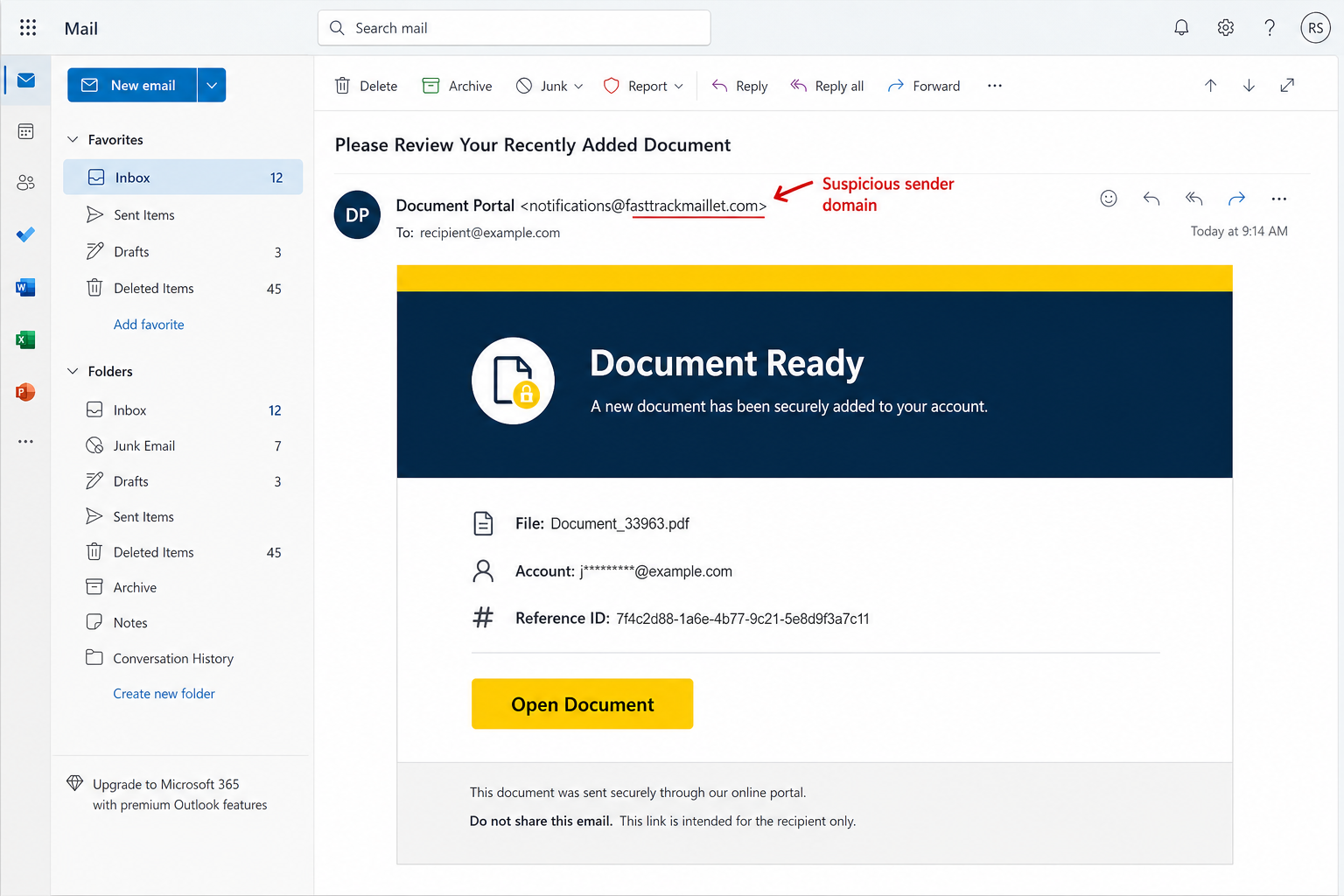
An email says a new PDF has been securely added to your account and is ready to review. There is a familiar document-style layout, a reference number, and one simple button: “Open Document.”
The message looks like an ordinary electronic-signature notification, but the document does not exist. The “DocuSign – Document Added To Your Account” email is a phishing scam that leads to a fake mail login and steals the password you enter. Here is what the campaign does and how to respond safely.
Overview
The DocuSign Document Added To Your Account email scam impersonates a secure document portal. It claims a file named Document_33963.pdf was recently added to the recipient’s account and can be opened through a button in the message.
The email may use a subject similar to “Please Review Your Recently Added Document.” It includes a masked account, a long reference ID, and language suggesting the file was delivered through a protected service.
There is no genuine document waiting behind the button. In the campaign examined by security researchers, clicking “Open Document” led to a phishing site that displayed a fake Zoho Mail sign-in form.
Any email address and password entered into that page could be collected by the scammers. DocuSign is not involved in the campaign; its name and the familiar idea of a secure document notification are being misused as bait.
What the fake notification looks like
The design is intentionally simple. A header announces that the document is ready, while the body says a new file was securely added to the account.
The message then displays three pieces of information that make the request look trackable:
- A plausible PDF filename such as
Document_33963.pdf - A partly masked email account
- A long reference identifier made from letters and numbers
These details are not proof of a real transaction. A filename can be generated automatically, a recipient address may come from a marketing list or previous data breach, and a reference ID can be a random string.
Where the button was observed to lead
The “Open Document” button in the analyzed message led to online.transformation[.]vu, an unrelated domain that does not belong to DocuSign, Zoho, or the recipient’s email provider.
The site displayed a fake Zoho Mail login. It also received the recipient’s email address through the link, allowing the page to show a more personalized sign-in experience.
That personalization is an important part of the trick. A page that already knows your email address can feel like the natural next step in an authenticated document workflow, even though the address was simply embedded in the URL.
Phishing infrastructure changes quickly. The exact domain may disappear, redirect somewhere else, or be replaced in later waves. The campaign should be recognized by its behavior, not by one hostname alone.
Why DocuSign-themed phishing is effective
Electronic signature requests are a normal part of work and personal life. Contracts, invoices, tax forms, insurance documents, property paperwork, and HR forms may all arrive through signing platforms.
Recipients are therefore used to clicking a button before they know exactly what a document contains. The surprise itself can seem normal because senders often add people to an envelope without warning them first.
Scammers exploit that routine. They do not need to invent a dramatic emergency. A vague document and a professional-looking button can create enough curiosity to produce a click.
Red flags in the “Document Added To Your Account” email
Before opening any unexpected signing request, slow down and check the message beneath its visual design.
- You were not expecting a document. No colleague, customer, agency, or service told you that a file would arrive.
- The sender domain is unrelated. The display name may mention DocuSign, but the actual address does not end in a legitimate Docusign domain.
- The message does not identify a real sender. It relies on a generic “Document Portal” identity instead of naming the person or organization requesting action.
- The filename is generic. A numbered file such as
Document_33963.pdfprovides no useful business context. - The button hides a third-party domain. Hovering over “Open Document” reveals a site unrelated to the claimed service.
- The destination asks for email credentials. The form may copy Zoho, Microsoft 365, Google, or another provider even though the supposed document came from elsewhere.
- The page uses reassuring security language instead of verifiable identity. Words such as “secure,” “protected,” and “encrypted” can be written by anyone.
Docusign says official notification domains include docusign.com and docusign.net. It also recommends verifying an unexpected request independently rather than trusting the email simply because the branding looks familiar.
How The Scam Works
Step 1: The attacker obtains a list of email addresses
The campaign begins with addresses collected from data breaches, public business pages, marketing databases, compromised accounts, or automated website scraping.
Business addresses are especially attractive because a stolen mailbox can expose invoices, customer data, internal files, and payment conversations. However, the same lure also works against personal accounts.
The attacker does not need to know whether the recipient uses DocuSign. Electronic documents are common enough that many people will consider the possibility that the request is genuine.
Step 2: A vague document notification creates curiosity
The email avoids a detailed story that could be disproved. It simply says a document was added and is available for review.
A generic PDF name creates an information gap. The recipient may click because they want to discover whether the file is an invoice, contract, legal notice, or workplace document.
The long reference ID serves as visual decoration. It suggests that the message belongs to a larger tracking system, but it does not give the recipient any independent way to confirm the request.
Step 3: Brand familiarity lowers suspicion
The message borrows visual cues associated with electronic signatures and secure portals. Scammers may copy colors, button shapes, footer language, and document icons from legitimate notifications.
A display name can also contain “DocuSign” even when the underlying sender address belongs to a free mailbox or an unrelated domain. Many email clients emphasize the friendly name and make the full address less visible.
For this reason, checking the actual sender is more useful than recognizing a logo. Even then, a legitimate-looking sender alone is not enough because compromised accounts and abused services can send convincing messages.
Step 4: The Open Document button carries recipient data
The phishing link can include the victim’s email address as a parameter. When the page loads, its script reads that address and uses it to customize the fake login.
Some phishing kits inspect the part after the @ symbol. A Microsoft-related address may receive a Microsoft-style page, a Google address may receive a Google-style page, and a Zoho user may see Zoho branding.
This is not evidence that the website recognized your account securely. It is a presentation trick built from information that was already inside the link.
Step 5: The victim reaches a provider-matched sign-in form
The fraudulent page claims that authentication is required before the protected PDF can be viewed. It may show the recipient’s address in advance and ask only for the password.
The page can closely imitate a real sign-in screen, but the browser’s address bar exposes the deception. A Zoho-looking form hosted on an unrelated domain is still a fake form.
Padlock icons and HTTPS do not establish that the site belongs to the company it imitates. HTTPS only means the connection to that particular domain is encrypted.
Step 6: Submitted credentials are sent to the scammers
When the victim enters a password, the fake form sends it to attacker-controlled infrastructure. The page may claim the password is incorrect and request another attempt.
Asking twice can help the attacker verify the entry. A victim who assumes the first attempt contained a typo may provide the correct password on the second submission.
The site may then show an error, a harmless document, or the real email provider’s homepage. These outcomes are meant to end the interaction without clearly revealing that credentials were stolen.
Step 7: The attackers test the mailbox immediately
Fresh credentials are valuable because the real user has not changed them yet. Criminals may test the login within seconds and attempt to complete any multi-factor challenge.
Simple kits ask the victim to type a one-time code into another fake screen. More advanced adversary-in-the-middle systems can relay credentials to the real provider and attempt to capture an authenticated session.
A push notification may also be triggered. If you receive an unexpected approval request after opening a document link, deny it. Approving the prompt may give the attacker the access the password alone could not provide.
Step 8: The mailbox becomes a route into other services
Email accounts sit at the center of password recovery. Once inside, attackers can search for services connected to the address and request password-reset links.
They may target cloud storage, payroll systems, online stores, social media, financial accounts, domain registrars, and workplace applications. A compromised work mailbox may also provide access through single sign-on.
Messages and attachments can reveal names, signatures, contracts, identity documents, payment details, and confidential business information. This material supports both identity theft and highly tailored follow-up fraud.
Step 9: Business email compromise can follow
For a business account, the criminals may quietly monitor conversations involving invoices and transfers. When the timing is right, they can join a real thread and send altered payment instructions.
Because the message comes from the victim’s actual mailbox, customers and coworkers are more likely to trust it. The attackers may replace bank details, request an urgent wire, or attach a modified invoice.
They can also send the same document scam to the victim’s contacts. A phishing request from someone you know is far more convincing than one from a random address.
Step 10: Persistence is added and alerts are hidden
Attackers may create inbox rules that move security alerts and replies into hidden folders. They can add forwarding addresses, register devices, create application passwords, or change recovery information.
Some criminals keep the original password unchanged so the victim notices nothing. They remain in the account long enough to study routines and identify a profitable opportunity.
This persistence explains why a complete account review is necessary. Changing the password is essential, but it should be followed by session revocation and an inspection of mailbox settings.
How to Check an Unexpected Docusign Request Safely
Do not press the email’s “Open Document” button. Contact the supposed sender through a phone number or email address you already know, not contact details supplied in the notification.
You can also visit Docusign.com by typing the address yourself. Docusign provides an “Access Documents” option that can use the security code found in a legitimate notification.
Compare the actual sender address and link domain with the company’s guidance. Official Docusign notifications should use recognized Docusign domains, while an unrelated web address should be treated as unsafe even when the page has polished branding.
Docusign asks users to forward suspicious messages as attachments to verify@docusign.com for review. Business users should also report the message to their security or IT team.
If you regularly receive electronic-signature requests, build a simple habit: verify the person and the document separately. A short call or a new email to a known address can prevent a much larger account compromise.
What to Do If You Have Fallen Victim to This Scam
Act quickly if you entered a password, approved a sign-in, or downloaded a file. Treat the email account as compromised until you have reviewed and secured it.
- Close the phishing page and stop responding. Do not retry the login, call numbers shown on the page, or follow additional instructions. Keep the original email available as evidence.
- Change the exposed email password. Use a trusted device and navigate directly to the real provider. Choose a strong, unique password that has never been used on another account.
- Revoke all active sessions. Sign out other browsers, phones, mail clients, and connected applications. This can remove an attacker who is already logged in with a stolen session.
- Inspect multi-factor authentication. Remove unfamiliar authentication methods, backup codes, passkeys, trusted devices, or phone numbers. Enable MFA if it was not active, preferably with an authenticator app, passkey, or security key.
- Review recovery information. Confirm that the recovery email and phone number belong to you. Remove any address, number, or security question you did not add.
- Check forwarding and inbox rules. Look for automatic forwarding, delegates, filters, and rules that move security or payment messages. Review Archive, Deleted, Junk, RSS, and custom folders for hidden alerts.
- Inspect recent sign-ins. Record unfamiliar devices, locations, IP addresses, and access times before removing them. Provide this information to your provider or workplace security team if an investigation is needed.
- Secure accounts connected to the mailbox. Prioritize cloud storage, banking, payments, payroll, shopping, social media, hosting, and domain accounts. Replace reused passwords and revoke suspicious sessions.
- Notify your employer immediately if it was a work account. IT administrators may need to revoke tokens, review audit logs, reset single sign-on sessions, inspect mail rules, and warn other employees.
- Check for payment manipulation. Review sent mail and ongoing invoice conversations. Confirm recent or pending payment instructions by calling known contacts, especially if bank details changed.
- Warn contacts who received messages from your account. Tell them not to open recent document or signature links from you. A clear warning can stop the campaign from spreading.
- Scan the device if anything downloaded. This observed campaign focused on credential theft, but email lures can change. Run an updated security scan if a file, browser extension, or application was installed.
- Report the phishing email. Use your mail provider’s “Report phishing” feature, forward the message as an attachment to verify@docusign.com, and report fraud to ReportFraud.ftc.gov when appropriate.
Frequently Asked Questions
Is the email safe if it includes my real address?
No. Your email address may have been collected from a breach, public page, mailing list, or compromised contact. Phishing links often include the address so the fake login can look personalized.
Does a padlock prove the document portal is genuine?
No. A padlock means the connection to the displayed domain uses HTTPS. It does not prove that the domain belongs to Docusign, Zoho, Microsoft, Google, or the organization named in the email.
Can opening the email alone steal my password?
Simply reading a normal email usually does not reveal your password. The main risk begins when you follow the link and submit credentials, approve a login, or open downloaded content. Keep your mail application and operating system updated as an additional precaution.
What if I clicked but entered nothing?
Close the page and avoid further interaction. Check the browser’s downloads for unexpected files and scan the device if anything was downloaded or opened. You generally do not need to change a password that was never entered, but monitor the account for unusual activity.
Could a real Docusign email still be abused?
Yes. Criminals have also misused legitimate electronic-signature services to distribute fraudulent documents and callback scams. Verify the sender and business purpose even when a notification genuinely originated from a known platform.
Why did the page show Zoho Mail instead of Docusign?
The fake document notification is only the lure. The attacker’s real target is the email account, so the destination imitates the provider it believes the recipient uses. The document story supplies a reason to visit the login page.
The Bottom Line
The DocuSign Document Added To Your Account email scam disguises a credential-theft page as a routine document notification. A generic PDF, masked account, and reference ID make the message look organized, while the Open Document button quietly leads away from the real service.
Do not sign in through an unexpected document email. Verify the sender independently, visit Docusign directly, and check the browser’s address bar before entering any password. If you already submitted credentials, change the password, revoke sessions, inspect mailbox rules, and protect every account connected to that inbox.








