

For a small business, a “transaction problem” is hard to ignore. It could mean a customer payment failed, a payout is delayed, or an account needs attention before the next sale.
The SumUp Transaction Problem email scam relies on that uncertainty. It provides almost no transaction details, yet asks the recipient to click immediately. The button leads to a fraudulent site built to collect account and financial information.
Overview
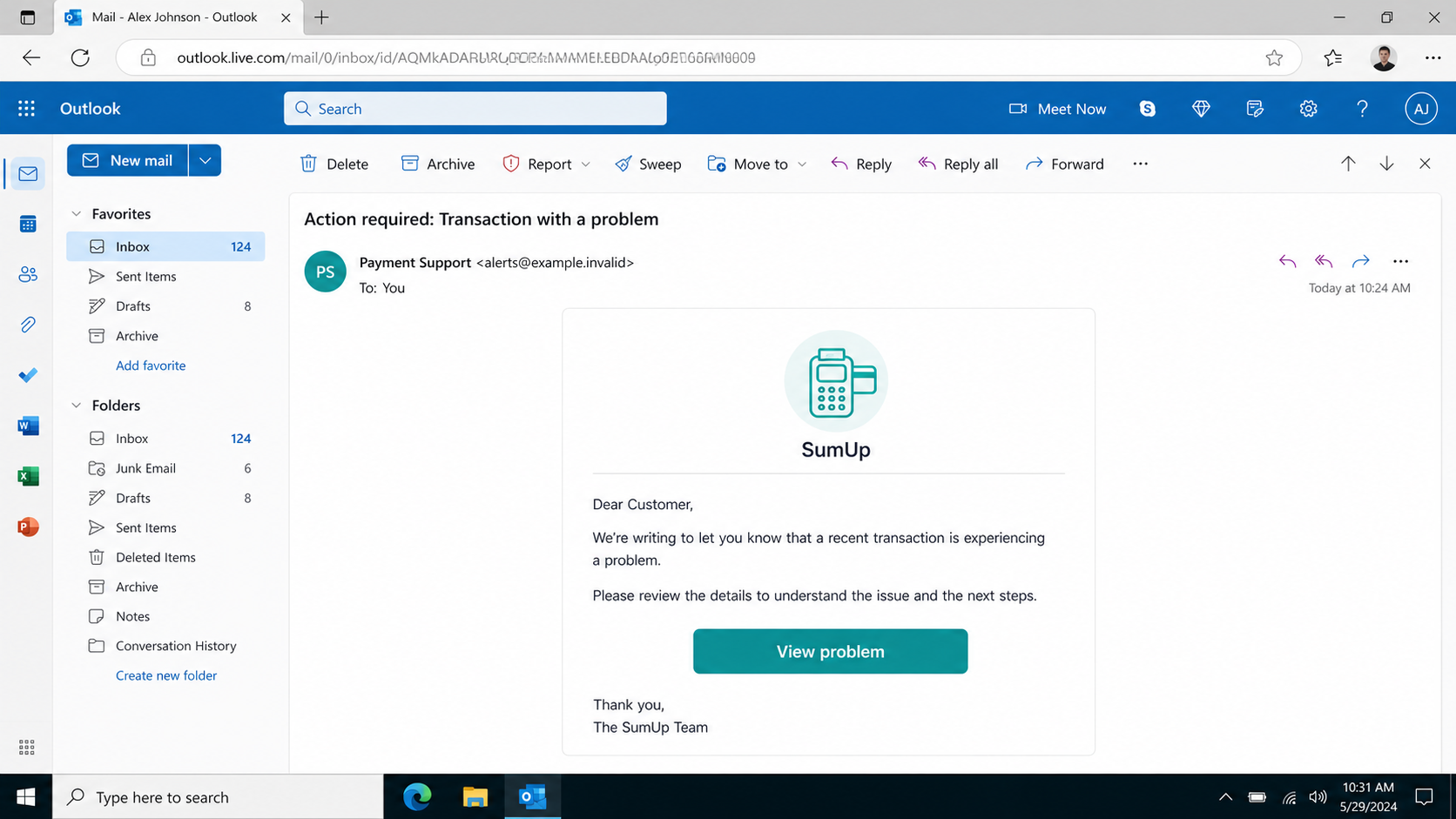
The SumUp Transaction Problem email is a phishing message that impersonates SumUp, a legitimate payment-services provider used by merchants. It claims a transaction is experiencing an unspecified problem and asks the recipient to view the issue through a button.
The observed subject is “Action required: Transaction with a problem.” The body addresses “Dear Customer,” offers no transaction amount, date, reference, card ending, or merchant details, and presents a “View problem” button as the only way to learn more.
That button opens a fake site rather than the genuine SumUp dashboard. Depending on the version, the page may request SumUp credentials, email credentials, card information, bank details, personal data, or a verification code.
SumUp Transaction Problem scam at a glance
- Fake claim: A transaction linked to your account has a problem that requires action.
- Observed subject: “Action required: Transaction with a problem.”
- Call to action: “View problem.”
- Missing context: No useful transaction ID, amount, date, customer, or reason.
- Destination: A fraudulent page impersonating a payment or login service.
- Information targeted: Passwords, bank or card details, identity information, and authentication codes.
- Main risks: Account takeover, unauthorized payments, payout diversion, identity fraud, and business disruption.
SumUp is not involved in the campaign. The service name and visual identity are copied because a payment alert naturally receives attention from merchants.
Why a Vague Transaction Alert Can Be Persuasive
At first, the lack of details looks like poor communication. In reality, it helps the scam reach more people. The same message can be sent to merchants, consumers, and addresses that may not even have a SumUp account.
The button promises to resolve the uncertainty. Instead of evaluating the empty claim, a busy recipient may click simply to find out which transaction the sender means.
Payment interruptions create immediate business pressure
A merchant depends on reliable card acceptance and payouts. A warning that suggests money is stuck can feel more urgent than a general security notice.
Scammers know that employees may click first and verify later, especially during trading hours or while reconciling sales.
The generic greeting supports mass distribution
“Dear Customer” contains no information known only to SumUp. A legitimate account notice may still use generic wording, but a vague greeting combined with a missing transaction reference and an external sign-in is a strong warning.
How the SumUp Transaction Problem Email Scam Works
Step 1: The attacker sends a branded payment warning
The email uses the SumUp name, a payment-terminal image, or familiar colors to resemble a service notification. The actual sender address may belong to an unrelated domain, a disposable mailbox, or a compromised website.
Some recipients are chosen because their businesses publicly accept card payments. Others receive the email as part of a broad spam campaign.
Step 2: The message claims a transaction has a problem
No explanation is provided. The email does not say whether the issue involves a sale, refund, chargeback, payout, or account verification.
This deliberate gap creates curiosity and urgency while preventing recipients from comparing the claim with a real transaction before clicking.
Step 3: The recipient is directed to “View problem”
A prominent button makes the next action feel simple. The visible label says nothing about the true website behind it, and the mobile email interface may hide the destination completely.
Preview the link without opening it. A domain that merely contains “sumup” as a subdomain, path, or misspelling is not necessarily controlled by SumUp.
Step 4: A counterfeit SumUp page opens
The landing page may copy a merchant dashboard, display a fake transaction-status panel, or immediately request a login. It can use HTTPS, polished graphics, and responsive mobile design.
Those features are available to criminals as easily as to legitimate businesses. The domain and the way you reached it matter more than the page’s appearance.
Step 5: The site asks for sensitive information
The form can request the merchant’s email and password, card details, bank account, personal identity information, or a one-time verification code. It may claim these details are needed to unblock the transaction.
SumUp’s official anti-scam guidance says its employees will not ask for your password or verification code, tell you to transfer money, or request sensitive login and financial information through unsolicited contact.
Step 6: The attacker validates the stolen credentials
After submission, the scam page can display an error while the criminal tests the information against the real service. A real-time attacker may trigger a multi-factor prompt and ask the victim to approve it.
Never approve an unexpected login notification. If the page says a code is needed to fix a transaction, close it and access the account independently.
Step 7: The merchant account or email is taken over
Access may let criminals view transaction history, business details, linked bank information, or customer records. They may attempt to change payout destinations, submit fraudulent requests, or lock out the real owner.
If the stolen password belongs to email, the attacker can reset access to SumUp and other services. This is one reason password reuse dramatically increases the damage.
Step 8: Follow-up impersonation increases the loss
Criminals can call the merchant while pretending to be SumUp support or the bank. Because they already know the victim clicked, they can refer to the supposed “problem” and request a code or transfer.
A second message may claim the first verification failed. Repeated contact is not proof of legitimacy; it often means the criminals are trying to complete the takeover.
Red Flags in the Fake SumUp Email
No transaction can be identified
A real issue should correspond to something visible in the merchant dashboard: a reference, amount, time, payout, or dispute. The scam withholds all of these facts.
The sender address is unrelated
Do not stop at the display name. Expand the full sender and reply-to addresses and compare them with domains published by SumUp.
The link asks for secrets
Passwords, complete card details, banking PINs, and verification codes should never be submitted because an email button requested them. Open the legitimate app or dashboard separately.
The page pressures you to move money
A demand to transfer funds to “protect,” “verify,” or “release” a payment is a scam warning. SumUp states that its representatives will not instruct users to move money as part of support.
How to Verify a SumUp Transaction Safely
- Do not reply or use the button. Treat the message as unverified.
- Open the SumUp app or dashboard independently. Use the installed app, a bookmark, or an address typed manually.
- Check transactions, payouts, disputes, and notifications. Look for a matching problem inside the authenticated account.
- Contact SumUp through official support. Start from the official website or app, not a number supplied by the email.
- Ask another authorized user to confirm. For a business account, a second administrator may help verify whether any real alert exists.
- Report the phishing attempt. SumUp publishes phishing@sumup.com and security@sumup.com for suspicious or compromised-account reports.
What to Do if You Have Fallen Victim to This Scam
- Change the affected password immediately. Sign in from the genuine SumUp app or official website. If email credentials were entered, secure the email account first because it can be used for password resets.
- Contact SumUp support through an official channel. Explain what information was submitted and ask support to review logins, account changes, transactions, and payout settings.
- Sign out unknown sessions and remove unfamiliar access. Revoke devices, linked applications, API access, and recovery methods you do not recognize.
- Enable or reset multi-factor authentication. Prefer a passkey or authenticator app where available. Generate fresh backup codes and never share a verification code with a caller.
- Check payout and bank details. Verify that the destination account has not changed. Review pending payouts and stop or flag anything suspicious.
- Contact your bank or card issuer. If you entered financial details or see an unauthorized transaction, use the official fraud number to block the instrument and dispute activity.
- Review recent transactions and refunds. Look for small tests, unfamiliar refunds, chargebacks, or account adjustments. Save records before making changes.
- Change passwords anywhere they were reused. Use a password manager to create a unique credential for every payment, banking, email, and business service.
- Warn employees with account access. Tell them not to approve prompts, calls, or messages related to the fake transaction. Confirm that shared credentials are not being used.
- Preserve the original email and report the scam. Keep headers, the fake website address, screenshots, support case numbers, and financial records. Report the fraud to the appropriate national authority.
- Scan any device that downloaded a file or app. The observed email leads to data theft, but lookalike campaigns may use fake support tools or malicious downloads.
Is Your Device Infected? Run a Free Malware Scan
Slow performance, constant pop-ups, or strange behavior? These are classic signs of a malware infection. The fastest way to find out is to scan your device with Malwarebytes Free — one of the most trusted malware removal tools available.
The free version detects and removes the most common threats, including:
- Adware — the cause of those annoying pop-ups
- Browser hijackers — unwanted redirects and changed homepages
- Trojans and spyware — hidden programs stealing your data
- Potentially unwanted programs (PUPs) — software you never asked for
👉 Select your device below — Windows, Mac, or Android — then follow the simple steps to download Malwarebytes, scan your system, and remove any threats it finds. The scan usually takes 5 to 20 minutes.
Run a Malware Scan with Malwarebytes for Windows
Malwarebytes is one of the most popular and trusted anti-malware tools for Windows — and it’s completely free for removing infections. It catches threats that many antivirus programs miss, including adware, browser hijackers, and trojans. Follow the steps below to scan and clean your PC in just a few minutes.
Download Malwarebytes
Click the button below to download the latest version of Malwarebytes for Windows from the official source. The free version is all you need — it will scan your computer and remove adware, browser hijackers, and other malicious software at no cost.
Download MalwarebytesOfficial installer for Windows 11 and 10. Your download starts right away.Want real-time protection? See Malwarebytes Premium Malwarebytes Free for WindowsScans and removes malware at no cost
-
Install Malwarebytes
When the download finishes, open your Downloads folder and double-click the MBSetup file. If Windows shows a User Account Control pop-up, click “Yes” to allow the installation.

Follow the On-Screen Prompts to Install Malwarebytes
The setup wizard will walk you through a few quick screens:
-
Choose where you’re installing the program — “Personal Computer” or “Work Computer” — then click Next.

-
Malwarebytes will now install on your device. This usually takes under a minute.

-
When installation is complete, the “Welcome to Malwarebytes” screen will open automatically.

-
On the final screen, click Open Malwarebytes to launch the program.

-
Enable “Scan for Rootkits”
Before scanning, turn on rootkit detection so Malwarebytes can find even the most hidden threats. Click the Settings gear icon on the left side of the screen.

In the settings menu, find “Scan for rootkits” and click the toggle so it turns blue.

Done? Click “Dashboard” in the left pane to return to the main screen.
Start the Scan
Click the blue Scan button. Malwarebytes will automatically update its virus database and start checking your computer for malware.

-
Wait for the Scan to Finish
The scan checks your entire system for browser hijackers and other malicious programs, so it can take 5 to 20 minutes depending on your computer. Feel free to do something else — just check back occasionally to see the progress.

-
Quarantine the Detected Threats
When the scan is done, you’ll see a list of everything Malwarebytes found — malware, adware, and potentially unwanted programs. Click the “Quarantine” button to remove all of them at once.

Malwarebytes will now remove the malicious files and registry entries and move them safely into quarantine.

-
Restart Your Computer
Some threats can only be fully removed after a reboot. If Malwarebytes asks you to restart, click Yes. Once you’re logged back in, Malwarebytes has finished removing the threats it found.

That’s it — your Windows PC is now clean of trojans, adware, and other malware, and should be back to running smoothly.
If you are still having problems with your computer after completing these instructions, then please follow one of the steps:
- Run a computer scan with ESET Online Scanner
- Ask for help in our Windows Malware Removal Help & Support forum.
Run a Malware Scan with Malwarebytes for Mac
Malwarebytes for Mac is a free on-demand scanner that removes the malware other security software tends to miss — adware, browser hijackers, and unwanted programs included. Cleaning an infected Mac with Malwarebytes has always been completely free, and it’s our go-to recommendation. Follow the steps below to scan and clean your Mac in just a few minutes.
-
Download Malwarebytes for Mac
Click the button below to download the latest version of Malwarebytes for Mac.
Download MalwarebytesOfficial installer for macOS. Your download starts right away.Want real-time protection? See Malwarebytes PremiumMalwarebytes Free for MacScans and removes malware at no cost -
Open the Malwarebytes setup file
When the download finishes, open your Downloads folder and double-click the setup file to begin the installation.

-
Follow the On-Screen Prompts to Install Malwarebytes
The Malwarebytes for Mac Installer will guide you through a few quick screens. Click “Continue” and keep following the prompts until the installation completes.



When the installation is complete, Malwarebytes opens to the Welcome to Malwarebytes screen. Click “Get started“.
-
Select “Personal Computer” or “Work Computer”
Malwarebytes will ask what type of computer you’re installing it on. Click either Personal Computer or Work Computer, whichever applies.

-
Start the Scan
Click the “Scan” button. Malwarebytes will automatically update its detection database and begin checking your Mac for malware.

-
Wait for the Scan to Finish
Malwarebytes will scan your Mac for adware, browser hijackers, and other malicious programs. This can take a few minutes, so feel free to do something else — just check back occasionally to see the progress.

-
Quarantine the Detected Threats
When the scan is done, you’ll see a list of everything Malwarebytes found. Click the “Quarantine” button to remove all the threats at once.

-
Restart Your Mac
Malwarebytes will now remove all the malicious files it found. Some threats can only be fully removed after a reboot — if Malwarebytes asks you to restart, allow it. Once you’re logged back in, your Mac is clean.

That’s it — your Mac is now free of adware, rogue browser extensions, and other potentially harmful software.
If you are still experiencing problems while trying to remove a malicious program from your computer, please ask for help in our Mac Malware Removal Help & Support forum.
Run a Malware Scan with Malwarebytes for Android
Malwarebytes for Android automatically detects and removes dangerous threats like malware and ransomware so you don’t have to worry about your most-used device being compromised. Aggressive detection of adware and potentially unwanted programs keeps your Android phone or tablet running smooth.
-
Download Malwarebytes for Android.
You can download Malwarebytes for Android by clicking the link below.
Get Malwarebytes for AndroidOpens Google Play in a new tab.Want real-time protection? See Malwarebytes Premium for AndroidMalwarebytes for AndroidScans your phone and removes malware at no cost -
Install Malwarebytes for Android on your phone.
In the Google Play Store, tap “Install” to install Malwarebytes for Android on your device.

When the installation process has finished, tap “Open” to begin using Malwarebytes for Android. You can also open Malwarebytes by tapping on its icon in your phone menu or home screen.

-
Follow the on-screen prompts to complete the setup process
When Malwarebytes will open, you will see the Malwarebytes Setup Wizard which will guide you through a series of permissions and other setup options.
This is the first of two screens that explain the difference between the Premium and Free versions. Swipe this screen to continue.
Tap on “Got it” to proceed to the next step.
Malwarebytes for Android will now ask for a set of permissions that are required to scan your device and protect it from malware. Tap on “Give permission” to continue.
Tap on “Allow” to permit Malwarebytes to access the files on your phone.
-
Update database and run a scan with Malwarebytes for Android
You will now be prompted to update the Malwarebytes database and run a full system scan.

Click on “Update database” to update the Malwarebytes for Android definitions to the latest version, then click on “Run full scan” to perform a system scan.

-
Wait for the Malwarebytes scan to complete.
Malwarebytes will now start scanning your phone for adware and other malicious apps. This process can take a few minutes, so we suggest you do something else and periodically check on the status of the scan to see when it is finished.

-
Click on “Remove Selected”.
When the scan has been completed, you will be presented with a screen showing the malware infections that Malwarebytes for Android has detected. To remove the malicious apps that Malwarebytes has found, tap on the “Remove Selected” button.

-
Restart your phone.
Malwarebytes for Android will now remove all the malicious apps that it has found. To complete the malware removal process, Malwarebytes may ask you to restart your device.
That’s it — your Android phone is now clean — no more malicious apps, adware, or browser redirects.
If you are still having problems with your phone after completing these instructions, then please follow one of the steps:
- Restore your phone to factory settings by going to Settings > General management > Reset > Factory data reset.
- Ask for help in our Mobile Malware Removal Help & Support forum.
Stay Protected: Block Ads and Malicious Sites
Now that your device is clean, keep it that way. Most infections start with a malicious ad or a fake download button — so blocking them at the source is your best defense.
We recommend AdGuard, which blocks malicious ads, phishing pages, and dangerous redirects before they can reach you.
👉 Download AdGuard and browse safely
How Merchants Can Prevent Payment-Service Phishing
Use the dashboard as the source of truth
Train employees to confirm transaction warnings inside the official app or merchant dashboard. An email can alert them to look, but it should not become the place where sensitive action begins.
Limit who can change payout settings
Give administrative access only to employees who need it. Review permissions regularly and require a second person to approve bank-account changes or high-risk actions where the platform supports it.
Use unique credentials and strong authentication
A password manager prevents reuse and helps employees notice when a fake domain fails to offer the saved credential. Passkeys or hardware security keys offer stronger resistance to real-time phishing than codes typed into a web form.
Build a clear support-verification habit
Keep the official support route in internal documentation. If someone calls about a transaction problem, end the call and contact support from the app or published website.
No legitimate support interaction should depend on secrecy, rushed money movement, remote computer access from an unexpected caller, or sharing an authentication code.
Common Questions About the SumUp Transaction Email
Can SumUp send real transaction alerts?
Yes, payment services send legitimate account and transaction notifications. A genuine alert should correspond to information visible in the official app or dashboard. The email does not need to become your login route.
What if I do not have a SumUp account?
That strongly indicates mass-distributed phishing. Do not click to “unsubscribe” or investigate the alleged transaction. Mark the message as phishing and delete it after reporting.
What if I clicked but the page was blank?
The site may have been removed, may filter visitors, or may have recorded the click before failing. Check for downloads, update the browser, and report the address. If you entered no information and ran no file, the risk of account takeover is lower.
Could a fake support caller know my business details?
Yes. Company names, owners, phone numbers, accepted payment methods, and opening hours are often public. A caller may also use information stolen in the phishing form. Knowledge of those details does not prove the caller works for SumUp.
Should I let support remotely control my computer?
Do not install remote-access software because an unexpected email or caller tells you to do so. End the interaction and contact SumUp using the official app or website. Remote control could expose customer data, online banking, and saved credentials.
How should a business document the incident?
Create a timeline beginning with the email’s arrival, the click, every field entered, and any later call or authentication prompt. Record which employee and device were involved, but do not circulate exposed passwords or complete card numbers in the incident report.
Save the original email as a message file if your provider supports it, because a screenshot does not preserve the technical headers. Keep the phishing address in a defanged form, transaction references, support case numbers, bank responses, and copies of account-change alerts.
This record helps support teams distinguish between a stolen SumUp login, a stolen email login, card exposure, and malware. It also helps the business notify affected customers accurately and demonstrate which transactions were unauthorized.
Store the evidence securely and restrict it to the employees, providers, and investigators who need it.
Once the immediate risk is contained, compare the incident with written account-management procedures. Confirm who may contact support, who may alter payout settings, and which second person reviews high-risk changes. Turning the event into a clearer, rehearsed process reduces the chance that a similar vague alert succeeds during the next busy trading period.
Official Sources and Further Reading
- SumUp: How to protect yourself from scammers
- SumUp Support: Avoid phishing attacks
- FTC: How to recognize and avoid phishing scams
The Bottom Line
The SumUp Transaction Problem email supplies no verifiable transaction details because its real purpose is to make you click. The polished button leads to a fake site where passwords, payment details, and verification codes can be stolen.
Use the official SumUp app or dashboard to check every alert. If information was submitted, secure email and SumUp access, review payout settings and transactions, contact the bank when necessary, and reject any follow-up caller who asks for a code or money transfer.

Join the discussion
0 commentsShare your experience or ask a question about this article.
Discussion
Start the conversation
Have a question or something useful to share? Add the first comment.