


An unexpected shipping notice can still seem plausible when a company receives freight every week. The message may reach someone who has no tracking number but assumes a colleague arranged the shipment.
The COSCO Shipping Package Notification email scam exploits that uncertainty. It claims an incoming shipment is registered to your email, then sends you to a fake webmail login page that captures your password.
Overview
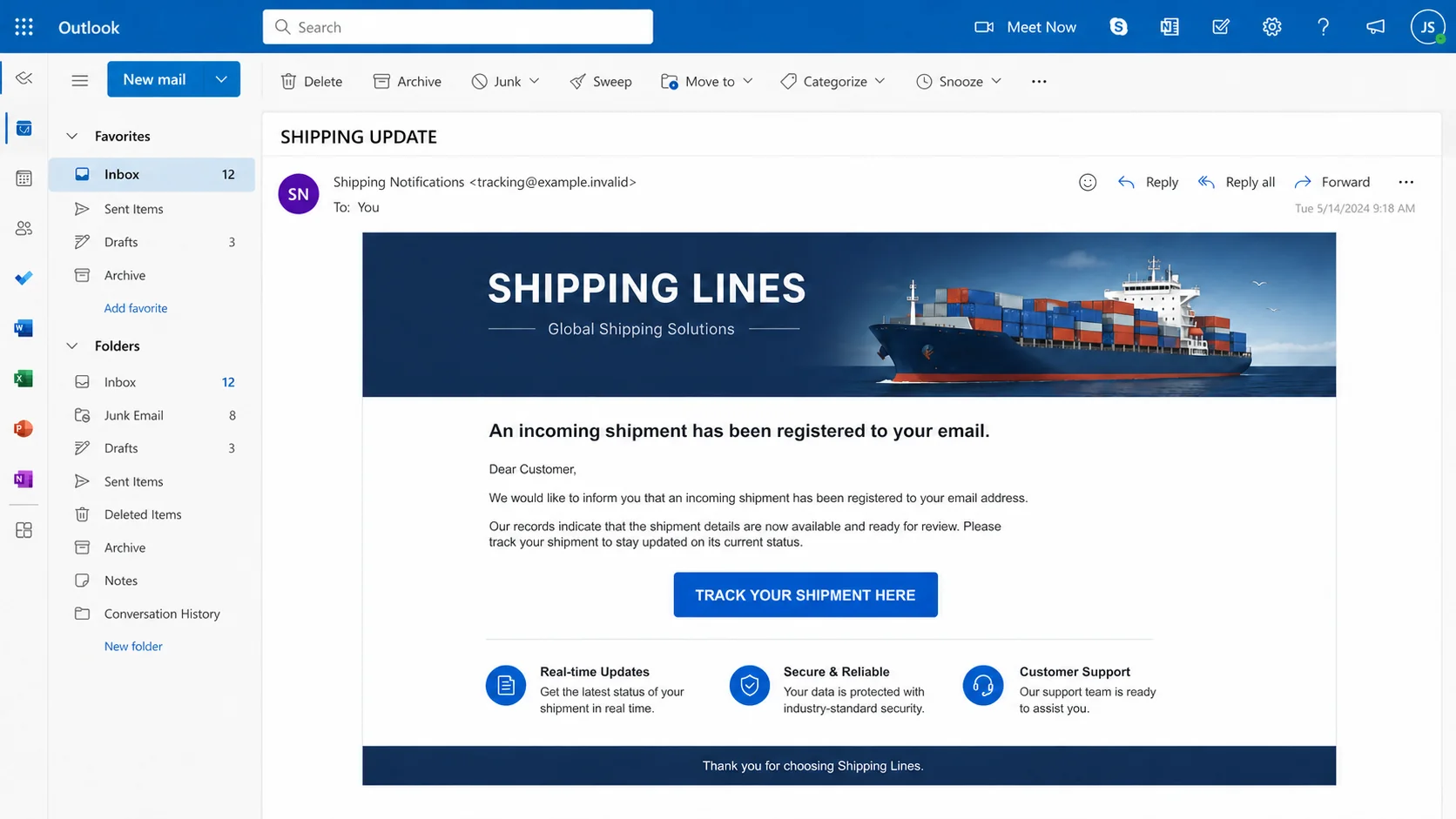
The COSCO Shipping Package Notification email scam impersonates COSCO Shipping Lines, a real global container carrier. The fraudulent message says the recipient has an incoming shipment and should use a tracking link to see its status.
In the observed campaign, the subject reads “COSCO SHIPPING LINES NOTIFICATIONS” and the button says “TRACK YOUR SHIPMENT HERE.” The email provides no meaningful container, booking, or bill-of-lading details that would connect the notice to a real shipment.
The link opens a fake cPanel-style webmail login page. The recipient’s email address may be prefilled from the link, but the form is not a COSCO tracking service or a genuine webmail portal. Its purpose is to steal the password entered by the victim.
COSCO Shipping notification scam at a glance
- Fake claim: An incoming shipment is registered to your email address.
- Observed subject: “COSCO SHIPPING LINES NOTIFICATIONS.”
- Call to action: “TRACK YOUR SHIPMENT HERE.”
- What opens: A counterfeit webmail login page, sometimes styled like cPanel Webmail.
- Information targeted: Email address and password.
- Main risks: Mailbox takeover, theft of shipping documents, invoice fraud, and further phishing sent to business contacts.
COSCO Shipping Lines is not responsible for the campaign. Its brand and maritime identity are being copied to make an unrelated phishing page appear trustworthy.
Why a Shipping Notice Makes a Strong Business Lure
Freight involves multiple parties: shipper, consignee, carrier, customs broker, warehouse, and purchasing team. A recipient may not personally recognize every shipment but may still believe it belongs to the wider organization.
That fragmented workflow gives the attacker cover. The email does not need to convince the victim that they ordered a parcel at home; it only needs to suggest that someone at work expects cargo.
The carrier name supplies instant context
A known shipping brand makes a vague notice feel connected to global logistics. Logos, vessel graphics, legal footers, and corporate colors can all be copied without access to a carrier system.
Branding is not authentication. A legitimate tracking result must connect to a real reference and open through the carrier’s official service.
A prefilled email address feels personalized
The phishing page may display the recipient’s address before they type anything. That detail is often taken directly from the URL sent in the email.
It proves only that the attacker knew the target address. It does not prove that the page belongs to the target’s webmail provider or the shipping company.
How the COSCO Shipping Package Notification Scam Works
Step 1: The criminal distributes a fake carrier email
The attacker sends a shipping notification to business and personal addresses. Logistics firms, importers, retailers, manufacturers, and employees with public purchasing roles are attractive targets.
The visible sender name may mention COSCO or “Shipping Notifications,” while the actual address belongs to an unrelated domain. Some campaigns use compromised accounts to pass basic email filters.
Step 2: The message announces an incoming shipment
The email says cargo has been registered to the recipient’s address and asks them to follow a link. It may use a generic greeting such as “Dear Valued Customer” because the scammers do not know the recipient’s identity or actual shipping relationship.
Important fields are absent. There may be no bill of lading, container number, booking reference, origin, destination, shipper, or estimated arrival.
Step 3: The tracking button hides an unrelated domain
The large button looks like a carrier tracking control. Underneath, it leads to attacker-controlled web hosting rather than the official COSCO Shipping Lines eBusiness service.
On mobile, long-press the button to preview the destination without opening it. On desktop, hover over it. Do not rely on words such as “secure,” “tracking,” or “cosco” inside a long subdomain.
Step 4: The fake site displays a webmail sign-in
Instead of shipment information, the visitor sees a cPanel-style or provider-themed login box. The page may claim that authentication is required to view confidential cargo details.
This change in context is the strongest warning. A carrier tracking page normally asks for a shipment reference, not the private password to your email inbox.
Step 5: The recipient’s address appears automatically
The attacker can append the target address to the phishing URL. A script reads it and inserts it into the fake form, creating the appearance that the carrier and webmail system recognize the visitor.
Always check the address bar. A visual copy of cPanel, Microsoft, Google, or another mail service can run on any domain.
Step 6: The victim submits the password
The fake form records the password and sends it to the attacker. It may then claim the login failed, ask for another attempt, or redirect to an unrelated page.
If the same password is used elsewhere, automated tools may test it across cloud storage, accounting platforms, customer portals, and social networks.
Step 7: The compromised inbox reveals real logistics
A business mailbox can contain genuine shipping notices, bills of lading, customs documents, invoices, and supplier conversations. Once inside, the attacker no longer needs to invent a shipment.
They can monitor a real delivery, impersonate a forwarder, replace payment instructions, or request fees using exact information from ongoing transactions.
Step 8: The attacker targets the victim’s contacts
Messages sent from a real business account are much more convincing. Criminals may send fake document links to customers, request urgent payments from colleagues, or enter existing threads with suppliers.
Forwarding rules and filters can hide responses, allowing the attacker to operate while the legitimate user sees little unusual activity.
Red Flags in the COSCO Shipping Scam Email
No usable shipping reference
A genuine cargo notice should let the recipient identify the shipment. A message that supplies only an email address and a button gives you no independent fact to verify.
The sender does not use a carrier domain
Expand the full address and reply-to field. A recognized display name can hide a free mailbox, unrelated business domain, or slight misspelling.
The link opens webmail instead of tracking
Official cargo tracking asks for a bill-of-lading, booking, or container reference. A request for your email password is unrelated to that task and should end the interaction.
The message uses unusual urgency or punctuation
All-capital subjects, multiple exclamation marks, generic greetings, and a lack of shipment facts often reveal a mass-produced lure. Polished copies can avoid these mistakes, so their absence does not make an email safe.
How to Verify a COSCO Shipment Safely
- Do not use the email button. Copy no reference from a page opened by that link.
- Ask the shipper or purchasing team for the booking details. Use a known internal channel.
- Open the official COSCO Shipping Lines site independently. Navigate to its cargo-tracking service from the main website.
- Enter a known bill-of-lading, booking, or container number. A recipient email alone is not a meaningful cargo reference.
- Contact official customer service if the record cannot be found. Use details published on the carrier’s site, not in the suspicious message.
- Report the email to your security team. Other employees may have received the same link.
What to Do if You Have Fallen Victim to This Scam
- Change the email password through the genuine provider. Use a trusted bookmark or company identity portal. Make the new password unique and long.
- Notify IT or the email administrator immediately. Business accounts require server-side containment. Give the team the exact click time and whether a password or one-time code was submitted.
- Force sign-out and revoke sessions. Remove active sessions, app passwords, unfamiliar devices, third-party OAuth access, and newly enrolled authentication methods.
- Enable stronger multi-factor authentication. Prefer a passkey or hardware security key. Do not approve any unexpected sign-in prompt after the incident.
- Inspect forwarding, inbox rules, and delegates. Delete unauthorized rules that hide, redirect, or delete messages involving invoices, payments, security, or specific suppliers.
- Review logistics and payment conversations. Look for altered bank details, fake freight charges, new attachments, or messages sent while the mailbox was exposed.
- Warn suppliers, forwarders, and customers if necessary. Use a verified channel and tell them to disregard suspicious instructions from the compromised address.
- Contact financial institutions if money was redirected. Request an urgent recall or freeze and give the fraud team all payment references.
- Reset every account that reused the password. Prioritize logistics portals, cloud drives, procurement systems, banking, and social media.
- Scan the device if anything was downloaded. The observed page targets credentials, but shipping lures are also used to deliver malicious archives and documents.
- Preserve and report evidence. Keep the original message, headers, fake-site address, sign-in alerts, and affected transactions. Report fraud through the appropriate national service.
Is Your Device Infected? Run a Free Malware Scan
Slow performance, constant pop-ups, or strange behavior? These are classic signs of a malware infection. A quick way to check is to scan your device with Malwarebytes Free, one of the most trusted malware removal tools available. If you only visited a scam page and didn’t download or install anything, this scan is optional.
The free version detects and removes the most common threats, including:
- Adware — the cause of those annoying pop-ups
- Browser hijackers — unwanted redirects and changed homepages
- Trojans and spyware — hidden programs stealing your data
- Potentially unwanted programs (PUPs) — software you never asked for
👉 Select your device below — Windows, Mac, or Android — then follow the simple steps to download Malwarebytes, scan your system, and remove any threats it finds. The scan usually takes 5 to 20 minutes.
Run a Malware Scan with Malwarebytes for Windows
Malwarebytes is one of the most popular and trusted anti-malware tools for Windows — and it’s completely free for removing infections. It catches threats that many antivirus programs miss, including adware, browser hijackers, and trojans. Follow the steps below to scan your PC and remove what Malwarebytes finds.
Download Malwarebytes
Click the button below to download the latest version of Malwarebytes for Windows from the official source. The free version is all you need — it will scan your computer and remove adware, browser hijackers, and other malicious software at no cost.
Download MalwarebytesOfficial installer for Windows 11 and 10. Your download starts right away.Want real-time protection? See Malwarebytes Premium Malwarebytes Free for WindowsScans and removes malware at no cost
-
Install Malwarebytes
When the download finishes, open your Downloads folder and double-click the MBSetup file. If Windows shows a User Account Control pop-up, click “Yes” to allow the installation.

Follow the On-Screen Prompts to Install Malwarebytes
The setup wizard will walk you through a few quick screens:
-
Choose where you’re installing the program — “Personal Computer” or “Work Computer” — then click Next.

-
Malwarebytes will now install on your device. This usually takes under a minute.

-
When installation is complete, the “Welcome to Malwarebytes” screen will open automatically.

-
On the final screen, click Open Malwarebytes to launch the program.

-
Optional: Check for rootkits with a Custom Scan
You don’t need to change any settings for a normal scan. The standard Threat Scan in the next step is enough for most problems, so you can go straight to it.
If you also want to check for rootkits, use a Custom Scan. In current versions of Malwarebytes, rootkit scanning is only available there:
- On the Scanner tile, click the three-dot menu and select Advanced Scan.
- Choose Custom Scan. In its options, check Scan for rootkits.
- Select your system drive (usually C:\) as the location to scan, then start the scan. It takes longer than a Threat Scan.
- When it finishes, review and quarantine the results as described in the steps below.
Rootkit scanning isn’t available on Windows devices with ARM processors.
Start the Scan
Click the blue Scan button. Malwarebytes will automatically update its virus database and start checking your computer for malware.

-
Wait for the Scan to Finish
The scan checks your entire system for browser hijackers and other malicious programs, so it can take 5 to 20 minutes depending on your computer. Feel free to do something else — just check back occasionally to see the progress.

-
Quarantine the Detected Threats
When the scan is done, you’ll see a list of everything Malwarebytes found — malware, adware, and potentially unwanted programs. Click the “Quarantine” button to remove all of them at once.

Malwarebytes will now remove the malicious files and registry entries and move them safely into quarantine.

-
Restart Your Computer
Some threats can only be fully removed after a reboot. If Malwarebytes asks you to restart, click Yes. Once you’re logged back in, Malwarebytes has finished removing the threats it found.

When the scan is done, check whether the problems you noticed have stopped. If they continue, see the options below.
If you are still having problems with your computer after completing these instructions, then please follow one of the steps:
- Run a computer scan with ESET Online Scanner
- Ask for help in our Windows Malware Removal Help & Support forum.
Run a Malware Scan with Malwarebytes for Mac
Malwarebytes for Mac is a free on-demand scanner that removes the malware other security software tends to miss — adware, browser hijackers, and unwanted programs included. Cleaning an infected Mac with Malwarebytes has always been completely free, and it’s our go-to recommendation. Follow the steps below to scan your Mac and remove what Malwarebytes finds.
-
Download Malwarebytes for Mac
Click the button below to download the latest version of Malwarebytes for Mac.
Download MalwarebytesOfficial installer for macOS. Your download starts right away.Want real-time protection? See Malwarebytes PremiumMalwarebytes Free for MacScans and removes malware at no cost -
Open the Malwarebytes setup file
When the download finishes, open your Downloads folder and double-click the setup file to begin the installation.

-
Follow the On-Screen Prompts to Install Malwarebytes
The Malwarebytes for Mac Installer will guide you through a few quick screens. Click “Continue” and keep following the prompts until the installation completes.



When the installation is complete, Malwarebytes opens to the Welcome to Malwarebytes screen. Click “Get started“.
Malwarebytes needs Full Disk Access to check your whole Mac. When it asks, open System Settings > Privacy & Security > Full Disk Access, turn on Malwarebytes (it may be listed as Malwarebytes Protection), and confirm with your password or Touch ID. Then return to Malwarebytes. On macOS Monterey and earlier, this setting is in System Preferences > Security & Privacy > Privacy.
-
Select “Personal Computer” or “Work Computer”
Malwarebytes will ask what type of computer you’re installing it on. Click either Personal Computer or Work Computer, whichever applies.

-
Start the Scan
Click the “Scan” button. Malwarebytes will automatically update its detection database and begin checking your Mac for malware.

-
Wait for the Scan to Finish
Malwarebytes will scan your Mac for adware, browser hijackers, and other malicious programs. This can take a few minutes, so feel free to do something else — just check back occasionally to see the progress.

-
Quarantine the Detected Threats
When the scan is done, you’ll see a list of everything Malwarebytes found. Click the “Quarantine” button to remove all the threats at once.

-
Restart Your Mac
Malwarebytes will now remove all the malicious files it found. Some threats can only be fully removed after a reboot — if Malwarebytes asks you to restart, allow it. Once you’re logged back in, check whether the problems you noticed have stopped. If they come back, save the scan report and ask for help in our forum.

If the problems you noticed continue after the scan, see the options below.
If you are still experiencing problems while trying to remove a malicious program from your computer, please ask for help in our Mac Malware Removal Help & Support forum.
Run a Malware Scan with Malwarebytes for Android
Malwarebytes for Android scans your phone or tablet for malware, adware, and potentially unwanted apps. The free version scans only when you start a scan. Real-time protection, which checks apps automatically, is part of the paid Premium version.
-
Download Malwarebytes for Android.
You can download Malwarebytes for Android by clicking the link below.
Get Malwarebytes for AndroidOpens Google Play in a new tab.Want real-time protection? See Malwarebytes Premium for AndroidMalwarebytes for AndroidScans your phone and removes malware at no cost -
Install Malwarebytes for Android on your phone.
In the Google Play Store, tap “Install” to install Malwarebytes for Android on your device.

When the installation process has finished, tap “Open” to begin using Malwarebytes for Android. You can also open Malwarebytes by tapping on its icon in your phone menu or home screen.

-
Follow the on-screen prompts to complete the setup process
When Malwarebytes opens, it walks you through a short setup. Tap Get started and follow the prompts. If you see an offer for a trial or a paid plan, read it before you accept. You can skip it and keep using the free scanner.
Malwarebytes will ask for permission to access the files on your phone so it can scan them. Tap Allow, or turn on the permission in the Android screen that opens, then return to Malwarebytes.
-
Run a scan with Malwarebytes for Android
On the main screen, tap Scan now. In some versions, you open the menu, tap Scanner, and then tap Run a scan.
-
Wait for the Malwarebytes scan to complete.
Malwarebytes will now start scanning your phone for adware and other malicious apps. This process can take a few minutes, so we suggest you do something else and periodically check on the status of the scan to see when it is finished.

-
Remove the detected apps.
When the scan has been completed, you will see a list of the threats that Malwarebytes for Android has detected. Next to each detected item, tap the menu icon (three dots), then choose to uninstall the app or delete the file. Android then asks you to confirm. Tap OK or Uninstall to remove the app.
-
Restart your phone.
When the detected apps are removed, restart your phone if Malwarebytes asks you to. Then check whether the problems you noticed have stopped.
If the problems you noticed continue after the scan, see the options below.
If you are still having problems with your phone after completing these instructions, then please follow one of the steps:
- Ask for help in our Mobile Malware Removal Help & Support forum.
- Only as a last resort, reset your phone to factory settings. Read the warning below first.
- Back up your photos, videos, files, and messages, for example to your Google account or a computer.
- Make sure you know your Google account email and password. The phone asks for them after the reset. If you changed the password recently, Google recommends waiting 24 hours before you reset.
- On a Samsung phone, also make sure you know your Samsung account password.
- If you use an authenticator app for two-step verification, move your accounts to another device or save your backup codes first.
Stay Protected: Block Ads and Malicious Sites
No scan can prove a device is completely clean, so it helps to block threats before they reach you. Most infections start with a malicious ad or a fake download button — so blocking them at the source is your best defense.
We recommend AdGuard, which blocks malicious ads, phishing pages, and dangerous redirects before they can reach you.
👉 Download AdGuard and browse safely
How Companies Can Reduce Shipping-Email Risk
Centralize shipment records
Maintain a shared system for bookings, tracking references, carriers, and expected arrivals. Employees can then compare an incoming notice with records instead of relying on the email’s appearance.
Limit access to shipping and customs documents according to job role, and avoid sending sensitive records through open email threads when a secured portal is available.
Use callbacks for payment changes
Freight and customs scams often evolve into urgent fee requests. Verify every new bank account or unexpected charge with an established contact using a number already on file.
Monitor mailboxes used for logistics
Enable alerts for unusual sign-ins, new forwarding rules, and mass downloads. Shared mailboxes should use named access, least privilege, and regular permission reviews rather than broadly shared passwords.
Teach the tracking-versus-login distinction
A shipment-tracking task requires a cargo reference. It does not require the private password to an email account. That simple mismatch is easy for employees to remember and useful across many carrier impersonation scams.
Common Questions About the Fake COSCO Notice
Can a carrier ask for an email address to show shipment details?
A legitimate portal may use an account or send notifications to a registered address. That is different from asking you to type the private password to your mailbox into a page reached from an unknown email.
Use a known cargo reference on the official tracking service. If account access is genuinely required, start from the carrier’s main site and follow its normal login route.
What if my company really is expecting a COSCO shipment?
That coincidence makes the lure more dangerous, not more trustworthy. Obtain the booking, container, or bill-of-lading number from your purchasing or logistics records and check it independently.
Could the sender know about a real shipment?
Yes. Public trade information, exposed documents, compromised mailboxes, or a breached partner can supply genuine context. If the message contains accurate nonpublic details, notify security and inspect the relevant email accounts and supplier relationships.
Is a cPanel Webmail page always fake?
cPanel Webmail itself is legitimate and many organizations use it. The mismatch is what matters: a shipping link should not unexpectedly send you to a webmail password form hosted on an unrelated domain. Access your real webmail from its known address if you need to check it.
What should a genuine cargo notice let me verify?
A useful notice normally connects to a real shipment record. Depending on the stage and carrier, that can include a booking number, bill-of-lading number, container number, vessel or voyage, port pair, shipper, consignee, or estimated arrival.
Not every message contains every field, but it should give the recipient enough context to check the shipment through records already held by the business.
Be cautious when an email replaces all of that context with a button. A generic line saying cargo is “registered to your email” is not a substitute for a transport reference. Ask the purchasing, warehouse, or freight-forwarding contact for the number and enter it into the official carrier site yourself.
If a real shipment exists but the email still points to a fake login, notify the partners involved. Accurate cargo information in a phishing message can indicate that a mailbox, shared drive, or supplier account has been exposed. Review who received the documents and whether payment or customs instructions were changed.
Continue monitoring related conversations until every participant confirms the correct contacts and payment details.
Organizations should also verify whether the compromised address was used to register accounts at carrier or freight-forwarder portals. Reset those credentials separately, review their authorized users, and remove unfamiliar notification destinations. Restoring the email account alone will not secure a logistics portal if the attacker already changed its password or added another user.
Official Sources and Further Reading
- COSCO Shipping Lines: Official cargo-tracking service
- FTC: How to recognize and avoid phishing scams
- CISA: Recognize and report phishing
- FTC: Report fraud and scams
The Bottom Line
The COSCO Shipping Package Notification email is a credential-phishing lure, not evidence of an incoming shipment. It hides an unrelated website behind a tracking button and then asks for an email password on a counterfeit webmail page.
Track cargo only with a known reference through the official carrier service. If you entered credentials, secure the mailbox, remove hidden access, review genuine shipping and payment threads, and notify every business contact who may have received fraudulent instructions.

Join the discussion
0 commentsShare your experience or ask a question about this article.
Discussion
Start the conversation
Have a question or something useful to share? Add the first comment.