


A tax refund of R95,000 is large enough to feel life-changing and specific enough to sound official. A message that calls itself a “final notice” adds one more push: claim the money now, or risk losing it.
The SARS Tax Refund email scam uses that combination to lead South African taxpayers to a fake eFiling page. There is no refund waiting, and the small “processing fee” is only a pretext for stealing card details.
Overview
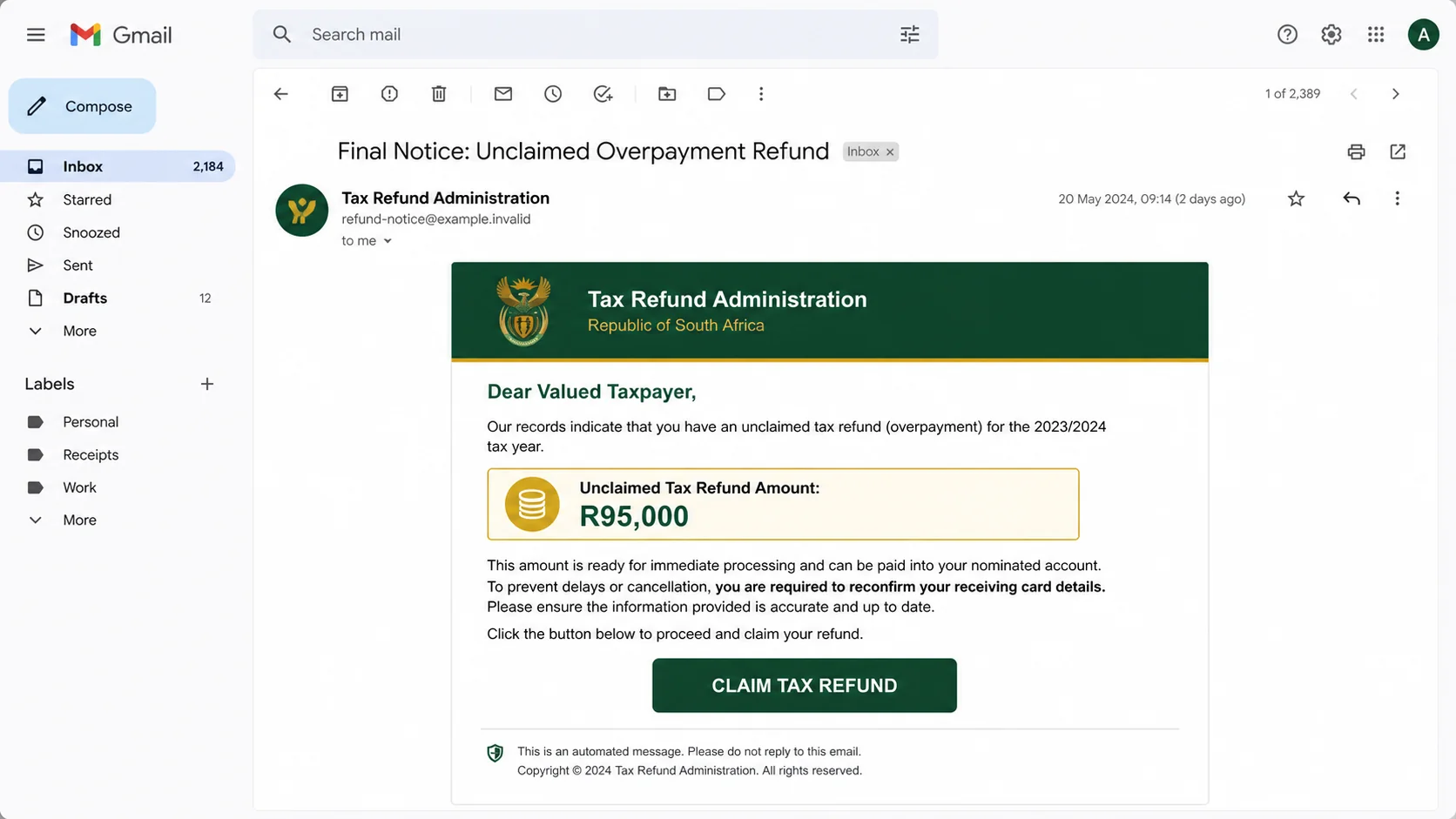
The SARS Tax Refund email scam impersonates the South African Revenue Service. The observed message claims that SARS processed an unclaimed overpayment refund of R95,000 and asks the recipient to reconfirm the card that will receive the money.
The link opens a fraudulent website styled to resemble SARS eFiling. The victim is guided through several screens before seeing a supposed charge of R18.22, including a base fee, surcharge, and 15% VAT. A payment form then requests the card number, cardholder name, expiry date, CVV, card issuer, and mobile number.
SARS has no connection to the campaign. Its official scam guidance says the agency does not request credit card details or ask taxpayers for passwords, PINs, one-time codes, or eFiling credentials through unsolicited messages.
SARS Tax Refund scam at a glance
- Fake claim: You have an unclaimed SARS tax overpayment refund of R95,000.
- Observed subject: “Final Notice: Unclaimed Overpayment Refund.”
- Requested action: Click a link and reconfirm the card that should receive the refund.
- Fake website: A copied SARS eFiling experience hosted outside official SARS infrastructure.
- Fee pretext: A small R18.22 charge presented with a professional-looking breakdown.
- Data targeted: Full payment-card details, mobile number, and potentially identity or eFiling information.
- Main risks: Unauthorized card transactions, identity fraud, follow-up scams, and account takeover.
Why the Fake Refund Story Is So Effective
Real tax systems are complicated, and many taxpayers are unsure exactly when a refund is due. Criminals exploit that uncertainty by presenting a precise amount and a simple explanation: too much tax was paid, and the difference is ready to be returned.
The message also frames the recipient as someone who has already been approved. Instead of asking whether the refund is real, the victim is encouraged to focus on how quickly it can be claimed.
The amount creates excitement and urgency
R95,000 is not a token prize. It can override caution, particularly when the email suggests the money is about to expire or is being held only because the recipient has not confirmed a card.
A specific amount is not evidence that the sender has access to your tax account. It is easy to place the same number in thousands of identical emails.
The small fee feels harmless next to the refund
After showing a large payout, the fake portal asks for only R18.22. This contrast makes the charge seem insignificant and plausible, even though a genuine refund should not require a card-payment form reached through an unsolicited email.
The criminals are not primarily interested in the small fee. They want the complete card record and mobile number entered into the form.
How the SARS Tax Refund Email Scam Works
Step 1: The scam email announces an unclaimed refund
The message addresses the recipient as a “valued taxpayer” and claims SARS has processed money for a tax return. The generic greeting allows the same template to be distributed widely.
The “final notice” wording suggests earlier messages were ignored, even if the recipient never received one. This manufactured history creates pressure to act immediately.
Step 2: The recipient is told to reconfirm card details
The email says a receiving card must be verified before the refund can be released. This is the first major contradiction: tax refunds are managed through official taxpayer and banking records, not by asking for card details from a link in an unexpected message.
SARS explicitly warns that it does not ask taxpayers for credit card information through email, SMS, social media, or phone calls.
Step 3: The link opens a counterfeit eFiling site
The fraudulent page copies official colors, headings, forms, and process indicators. It may use HTTPS and display a padlock, but that only encrypts the connection to the criminal’s page.
In the observed campaign, the site was hosted on a cloud-storage domain rather than an official SARS domain. Legitimate cloud services can be abused to host malicious content; the provider’s reputation does not transfer to an unknown page stored there.
Step 4: A multi-page process builds commitment
Instead of asking for the card immediately, the site may begin with eligibility, confirmation, or status screens. Each click makes the visitor more invested and helps the process resemble a real government workflow.
This technique also delays the suspicious request. By the time the victim reaches the payment page, they have already accepted the idea that a refund exists.
Step 5: The portal invents a small processing charge
The observed site displayed a fee breakdown with labels such as “Base Charge,” “Surcharge,” and “VAT 15%,” ending at R18.22. Formal line items make the amount look calculated rather than invented.
The fee is a psychological device. It rationalizes why a tax-refund portal suddenly needs card information and makes the victim feel that a very small cost unlocks a much larger sum.
Step 6: The victim enters full card information
The fake form requests the card number, cardholder name, expiry date, CVV, issuer, and mobile number. Together, these details can be used for unauthorized purchases or sold to other criminals.
The phone number can also support follow-up attacks. A scammer may call while pretending to be the bank or SARS and ask for a one-time code to “complete” or “cancel” the transaction.
Step 7: The page records the information
After submission, the visitor may see a success message, a failed-payment notice, or a redirect to a real SARS page. Any of these outcomes can be used to delay recognition of the theft.
Do not assume the card is safe because no fee appeared immediately. Treat all submitted data as compromised.
Step 8: The criminals attempt transactions or a second-stage scam
Attackers may test the card with small transactions before making larger purchases. If authentication is required, they can contact the victim and impersonate a fraud department to obtain the verification code.
Information from the first form may also be reused in tax-season scams, identity fraud, fake loan applications, or targeted messages that quote the victim’s name and phone number.
How to Tell a Real SARS Message From a Scam
Check eFiling independently
Do not use a refund link from email or SMS. Open the SARS eFiling website by typing its known address, use the official mobile application, or contact SARS through details published on its website.
If a real refund or account notice exists, it should be visible through the authenticated official service.
Never submit card details to receive a tax refund
A request for a card number, CVV, PIN, password, or one-time code is a decisive warning. SARS states that it does not ask for these secrets through unsolicited communications.
Read the domain carefully
Copied logos and page layouts are easy to reproduce. The address bar is more useful: an unrelated storage, website-builder, or misspelled domain is not SARS, regardless of what the page says.
Be skeptical of arbitrary deadlines and fees
“Final notice,” “claim today,” and “refund expires” are pressure tactics. A tiny processing fee that appears only after several screens is another sign that the process was designed to extract payment information.
How to Verify a SARS Refund Safely
- Close the email or text without using its link.
- Open eFiling independently through the official SARS website or approved app.
- Check your statement of account and refund status. Compare the amount and tax period with your own records.
- Contact SARS through official details. Do not call a number shown in the suspicious message.
- Send the suspected scam for review. SARS lists phishing@sars.gov.za for suspicious communications.
- Delete the message after reporting it. Do not forward the live link to friends or coworkers.
What to Do if You Have Fallen Victim to This Scam
- Call your card issuer immediately. Use the number on the back of the card or the official banking app. Explain that the card number, expiry date, and CVV were entered on a phishing site.
- Block and replace the card. Freezing it temporarily may not be enough because the details remain exposed. Ask whether tokenized wallets and recurring-payment credentials also need to be reset.
- Review transactions and set alerts. Check pending and completed payments, including very small test charges. Dispute anything you did not authorize and monitor the account for the period recommended by the bank.
- Do not share one-time codes. Expect follow-up calls or messages claiming to reverse the fraud or release the refund. A legitimate bank employee does not need you to read out a code that authorizes a transaction.
- Secure your eFiling account. Access it through the official site, change the password if it was entered or reused, review contact and banking details, and enable every available security control.
- Change reused passwords. If the fake site received a password used elsewhere, replace it on every affected service with a unique one.
- Report the phishing message to SARS. Forward it according to the instructions on the official SARS scams page and include the suspicious address without revisiting it.
- Report financial or identity fraud. Notify the South African Police Service and the relevant bank or fraud-reporting service when money or identity records are misused.
- Preserve evidence. Save screenshots, the original message, sender address, site address, timestamps, bank alerts, and reference numbers. These details can support disputes and investigations.
- Scan the device if you downloaded anything. The observed campaign focuses on card theft, but related phishing pages can push malicious files or apps.
Is Your Device Infected? Run a Free Malware Scan
Slow performance, constant pop-ups, or strange behavior? These are classic signs of a malware infection. A quick way to check is to scan your device with Malwarebytes Free, one of the most trusted malware removal tools available. If you only visited a scam page and didn’t download or install anything, this scan is optional.
The free version detects and removes the most common threats, including:
- Adware — the cause of those annoying pop-ups
- Browser hijackers — unwanted redirects and changed homepages
- Trojans and spyware — hidden programs stealing your data
- Potentially unwanted programs (PUPs) — software you never asked for
👉 Select your device below — Windows, Mac, or Android — then follow the simple steps to download Malwarebytes, scan your system, and remove any threats it finds. The scan usually takes 5 to 20 minutes.
Run a Malware Scan with Malwarebytes for Windows
Malwarebytes is one of the most popular and trusted anti-malware tools for Windows — and it’s completely free for removing infections. It catches threats that many antivirus programs miss, including adware, browser hijackers, and trojans. Follow the steps below to scan your PC and remove what Malwarebytes finds.
Download Malwarebytes
Click the button below to download the latest version of Malwarebytes for Windows from the official source. The free version is all you need — it will scan your computer and remove adware, browser hijackers, and other malicious software at no cost.
Download MalwarebytesOfficial installer for Windows 11 and 10. Your download starts right away.Want real-time protection? See Malwarebytes Premium Malwarebytes Free for WindowsScans and removes malware at no cost
-
Install Malwarebytes
When the download finishes, open your Downloads folder and double-click the MBSetup file. If Windows shows a User Account Control pop-up, click “Yes” to allow the installation.

Follow the On-Screen Prompts to Install Malwarebytes
The setup wizard will walk you through a few quick screens:
-
Choose where you’re installing the program — “Personal Computer” or “Work Computer” — then click Next.

-
Malwarebytes will now install on your device. This usually takes under a minute.

-
When installation is complete, the “Welcome to Malwarebytes” screen will open automatically.

-
On the final screen, click Open Malwarebytes to launch the program.

-
Optional: Check for rootkits with a Custom Scan
You don’t need to change any settings for a normal scan. The standard Threat Scan in the next step is enough for most problems, so you can go straight to it.
If you also want to check for rootkits, use a Custom Scan. In current versions of Malwarebytes, rootkit scanning is only available there:
- On the Scanner tile, click the three-dot menu and select Advanced Scan.
- Choose Custom Scan. In its options, check Scan for rootkits.
- Select your system drive (usually C:\) as the location to scan, then start the scan. It takes longer than a Threat Scan.
- When it finishes, review and quarantine the results as described in the steps below.
Rootkit scanning isn’t available on Windows devices with ARM processors.
Start the Scan
Click the blue Scan button. Malwarebytes will automatically update its virus database and start checking your computer for malware.

-
Wait for the Scan to Finish
The scan checks your entire system for browser hijackers and other malicious programs, so it can take 5 to 20 minutes depending on your computer. Feel free to do something else — just check back occasionally to see the progress.

-
Quarantine the Detected Threats
When the scan is done, you’ll see a list of everything Malwarebytes found — malware, adware, and potentially unwanted programs. Click the “Quarantine” button to remove all of them at once.

Malwarebytes will now remove the malicious files and registry entries and move them safely into quarantine.

-
Restart Your Computer
Some threats can only be fully removed after a reboot. If Malwarebytes asks you to restart, click Yes. Once you’re logged back in, Malwarebytes has finished removing the threats it found.

When the scan is done, check whether the problems you noticed have stopped. If they continue, see the options below.
If you are still having problems with your computer after completing these instructions, then please follow one of the steps:
- Run a computer scan with ESET Online Scanner
- Ask for help in our Windows Malware Removal Help & Support forum.
Run a Malware Scan with Malwarebytes for Mac
Malwarebytes for Mac is a free on-demand scanner that removes the malware other security software tends to miss — adware, browser hijackers, and unwanted programs included. Cleaning an infected Mac with Malwarebytes has always been completely free, and it’s our go-to recommendation. Follow the steps below to scan your Mac and remove what Malwarebytes finds.
-
Download Malwarebytes for Mac
Click the button below to download the latest version of Malwarebytes for Mac.
Download MalwarebytesOfficial installer for macOS. Your download starts right away.Want real-time protection? See Malwarebytes PremiumMalwarebytes Free for MacScans and removes malware at no cost -
Open the Malwarebytes setup file
When the download finishes, open your Downloads folder and double-click the setup file to begin the installation.

-
Follow the On-Screen Prompts to Install Malwarebytes
The Malwarebytes for Mac Installer will guide you through a few quick screens. Click “Continue” and keep following the prompts until the installation completes.



When the installation is complete, Malwarebytes opens to the Welcome to Malwarebytes screen. Click “Get started“.
Malwarebytes needs Full Disk Access to check your whole Mac. When it asks, open System Settings > Privacy & Security > Full Disk Access, turn on Malwarebytes (it may be listed as Malwarebytes Protection), and confirm with your password or Touch ID. Then return to Malwarebytes. On macOS Monterey and earlier, this setting is in System Preferences > Security & Privacy > Privacy.
-
Select “Personal Computer” or “Work Computer”
Malwarebytes will ask what type of computer you’re installing it on. Click either Personal Computer or Work Computer, whichever applies.

-
Start the Scan
Click the “Scan” button. Malwarebytes will automatically update its detection database and begin checking your Mac for malware.

-
Wait for the Scan to Finish
Malwarebytes will scan your Mac for adware, browser hijackers, and other malicious programs. This can take a few minutes, so feel free to do something else — just check back occasionally to see the progress.

-
Quarantine the Detected Threats
When the scan is done, you’ll see a list of everything Malwarebytes found. Click the “Quarantine” button to remove all the threats at once.

-
Restart Your Mac
Malwarebytes will now remove all the malicious files it found. Some threats can only be fully removed after a reboot — if Malwarebytes asks you to restart, allow it. Once you’re logged back in, check whether the problems you noticed have stopped. If they come back, save the scan report and ask for help in our forum.

If the problems you noticed continue after the scan, see the options below.
If you are still experiencing problems while trying to remove a malicious program from your computer, please ask for help in our Mac Malware Removal Help & Support forum.
Run a Malware Scan with Malwarebytes for Android
Malwarebytes for Android scans your phone or tablet for malware, adware, and potentially unwanted apps. The free version scans only when you start a scan. Real-time protection, which checks apps automatically, is part of the paid Premium version.
-
Download Malwarebytes for Android.
You can download Malwarebytes for Android by clicking the link below.
Get Malwarebytes for AndroidOpens Google Play in a new tab.Want real-time protection? See Malwarebytes Premium for AndroidMalwarebytes for AndroidScans your phone and removes malware at no cost -
Install Malwarebytes for Android on your phone.
In the Google Play Store, tap “Install” to install Malwarebytes for Android on your device.

When the installation process has finished, tap “Open” to begin using Malwarebytes for Android. You can also open Malwarebytes by tapping on its icon in your phone menu or home screen.

-
Follow the on-screen prompts to complete the setup process
When Malwarebytes opens, it walks you through a short setup. Tap Get started and follow the prompts. If you see an offer for a trial or a paid plan, read it before you accept. You can skip it and keep using the free scanner.
Malwarebytes will ask for permission to access the files on your phone so it can scan them. Tap Allow, or turn on the permission in the Android screen that opens, then return to Malwarebytes.
-
Run a scan with Malwarebytes for Android
On the main screen, tap Scan now. In some versions, you open the menu, tap Scanner, and then tap Run a scan.
-
Wait for the Malwarebytes scan to complete.
Malwarebytes will now start scanning your phone for adware and other malicious apps. This process can take a few minutes, so we suggest you do something else and periodically check on the status of the scan to see when it is finished.

-
Remove the detected apps.
When the scan has been completed, you will see a list of the threats that Malwarebytes for Android has detected. Next to each detected item, tap the menu icon (three dots), then choose to uninstall the app or delete the file. Android then asks you to confirm. Tap OK or Uninstall to remove the app.
-
Restart your phone.
When the detected apps are removed, restart your phone if Malwarebytes asks you to. Then check whether the problems you noticed have stopped.
If the problems you noticed continue after the scan, see the options below.
If you are still having problems with your phone after completing these instructions, then please follow one of the steps:
- Ask for help in our Mobile Malware Removal Help & Support forum.
- Only as a last resort, reset your phone to factory settings. Read the warning below first.
- Back up your photos, videos, files, and messages, for example to your Google account or a computer.
- Make sure you know your Google account email and password. The phone asks for them after the reset. If you changed the password recently, Google recommends waiting 24 hours before you reset.
- On a Samsung phone, also make sure you know your Samsung account password.
- If you use an authenticator app for two-step verification, move your accounts to another device or save your backup codes first.
Stay Protected: Block Ads and Malicious Sites
No scan can prove a device is completely clean, so it helps to block threats before they reach you. Most infections start with a malicious ad or a fake download button — so blocking them at the source is your best defense.
We recommend AdGuard, which blocks malicious ads, phishing pages, and dangerous redirects before they can reach you.
👉 Download AdGuard and browse safely
How to Avoid Tax Refund Phishing
Create a trusted route to your tax account
Bookmark the official eFiling page and use that route whenever a tax message arrives. The habit removes the attacker’s link from the decision entirely.
Keep your registered phone number, email, and banking records current through official channels so unexpected requests are easier to identify.
Pause when a refund creates strong emotion
Large rewards and sudden deadlines narrow attention. Before acting, ask whether the message names your tax period, appears in eFiling, and follows the process SARS publicly describes.
Share refund warnings with relatives who may be less familiar with web domains or card-verification scams. A short conversation can prevent a costly mistake.
Protect the phone number linked to your bank
Use a SIM PIN, strong device lock, and account alerts. Contact the mobile carrier if service stops unexpectedly, since criminals sometimes attempt SIM-swap fraud after collecting personal and phone details.
Common Questions About the SARS Refund Scam
Can SARS send genuine emails or text messages?
Yes, SARS uses electronic communication for legitimate matters. A real message can alert you to an action, but you should confirm it inside eFiling or through an official SARS contact route rather than providing secrets through the message.
The warning signs here are the combination of an unsolicited refund, a link outside official infrastructure, and a request for card information or security credentials.
Why does the fake site charge VAT on a refund fee?
The line-item calculation is there to make an invented charge look administrative and precise. Fraudulent pages often add tax labels, reference numbers, and progress steps because structured details feel more credible than a plain request for card data.
What if the bank declined the R18.22 payment?
The card details are still compromised. A declined charge does not erase the number, expiry date, CVV, name, or phone information submitted to the criminals. Contact the issuer and replace the card.
Could the scammers access my tax account with card details alone?
Card data does not automatically provide eFiling access, but the information can support targeted follow-up phishing. If you also entered an eFiling password, ID number, one-time code, or banking credentials, tell SARS and the relevant provider exactly what was exposed.
What should I tell family members about this campaign?
Explain the simplest safe habit: a refund message can be checked without using its link. Open eFiling independently and contact SARS through details on its official site. Emphasize that a government refund does not require a card number, CVV, banking PIN, or one-time code supplied through an unsolicited message.
Also warn them about the follow-up call. Criminals may already know the phone number and claim to be stopping a suspicious payment. The correct response is to end the call and contact the bank directly.
After replacing the card, update legitimate recurring payments only through the merchant’s official account or app. Do not trust a new message offering to “reactivate” the refund. Criminals frequently revisit responsive victims with a different role, such as a bank investigator, recovery agent, or government employee who claims an additional payment is required.
Official Sources and Further Reading
- SARS: Scams and phishing warnings
- SARS: Warning about fraudulent tax refund links
- FTC: How to recognize and avoid phishing scams
The Bottom Line
The SARS Tax Refund email scam promises R95,000, then uses a counterfeit eFiling process and a tiny R18.22 fee to collect full card details. The official-looking layout and exact amounts are part of the manipulation.
Check every refund inside the real eFiling service and never provide card secrets through an unsolicited link. If you submitted information, block the card, alert the bank, secure eFiling, reject follow-up requests for one-time codes, and report the message to SARS.

Join the discussion
0 commentsShare your experience or ask a question about this article.
Discussion
Start the conversation
Have a question or something useful to share? Add the first comment.