

A package notice appears while you are sorting through your inbox. It asks for a quick address check, the kind of small task easily done without thinking.
Before using its tracking button, take a closer look. A routine-looking delivery update still needs a real shipment behind it.
Overview
The notice claims a sample package is waiting locally
The FedEx Incoming Package Notification email scam uses a delivery-address check to draw recipients into an unverified link. It is not an authentic FedEx notification.
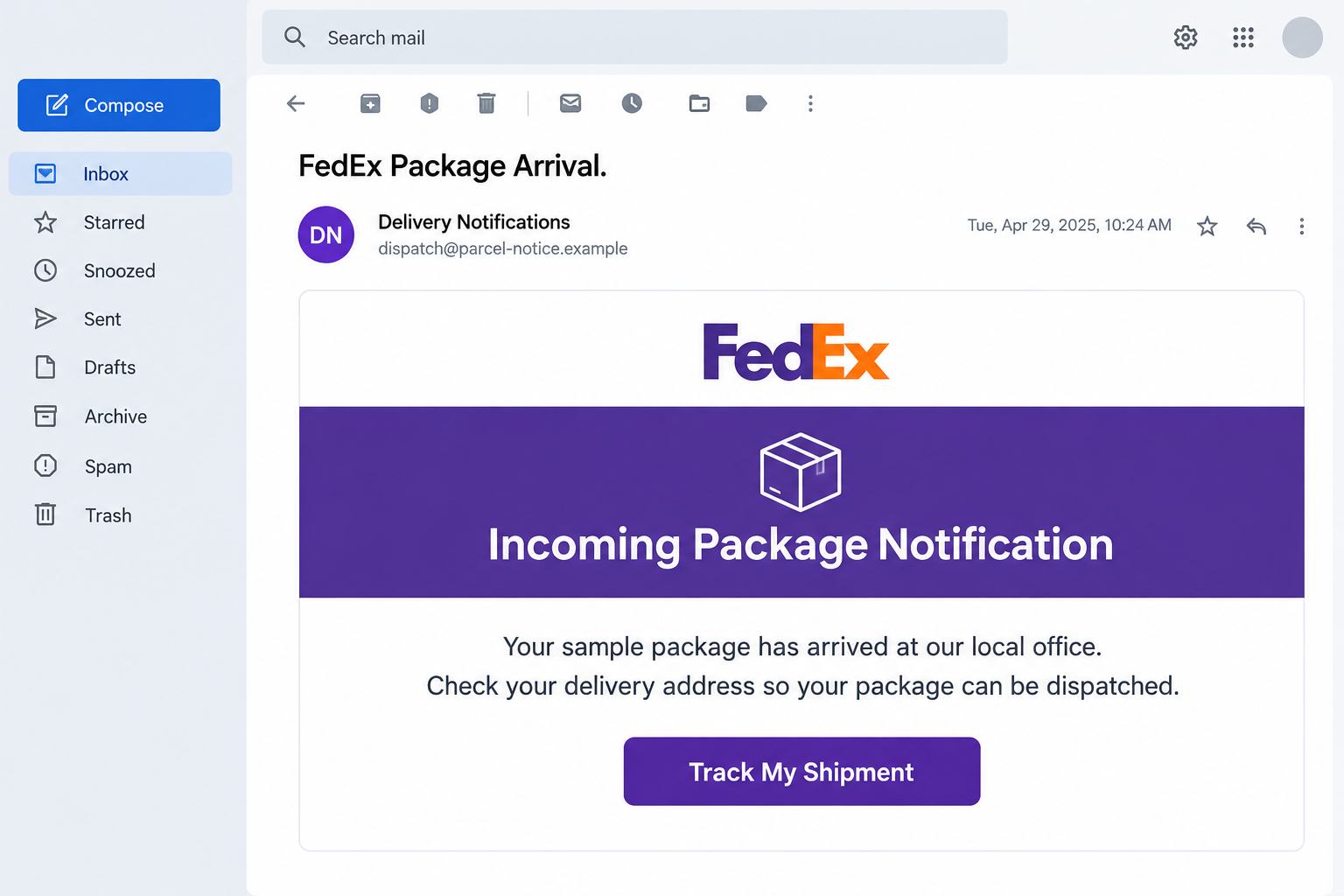
The documented message uses “FedEx Package Arrival.” as its subject and says a sample package has reached a local office, awaiting address confirmation before dispatch.
Its “Track My Shipment” button makes the request look like an ordinary delivery task. No genuine order or shipment is established merely by the notice.
The final page was unavailable, so its fields are unknown
The linked destination was down when the original case was examined. That limits what can responsibly be said about the next screen.
We cannot confirm a particular login form, card request, shipping charge, subscription, or malware download for that destination. Those should not be invented to complete the story.
- The recorded pretext is a sample parcel and an address check.
- The button provides the sender’s chosen route for the supposed task.
- The unavailable destination leaves the exact collection method unverified.
- Safe verification begins with your genuine order record, not that button.
FedEx branding is being abused, not implicated
FedEx is the impersonated company. Its real delivery services and legitimate notifications should not be confused with a stranger’s use of its name.
Our original email illustration uses an invented sender and a sample interface date. No competitor screenshot was copied, and the image does not authenticate a shipment.
This is a warning about a documented message pattern, not a claim that every similar email has one operator or that its historical link still works.
Why “Sample Package” Is an Effective Distraction
You may start explaining the parcel to yourself
A sample is vague enough to fit many situations. Perhaps you ordered a trial, requested a business sample, entered a promotion, or forgot a small purchase.
Those possibilities can make the email feel relevant without the sender providing any evidence. The reader supplies a plausible history that the message never established.
Check your actual order records before filling in those gaps. A merchant account or original purchase confirmation is more useful than a parcel description inside an unsolicited notice.
If someone else in your household ordered something, ask them independently. Do not forward the suspicious tracking link and ask them to try it for you.
An address check sounds less risky than a payment
Confirming an address feels like logistics rather than a security decision. That framing can lower resistance to opening the page and following whatever comes next.
But a harmless-sounding task does not tell you who receives the information. A form branded as delivery support can still be controlled by an unrelated party.
The next request should also make sense for the task. A delivery check is not a reason to surrender an email password, bank code, or document scan.
Those are warning signs for any follow-up you personally encounter, not confirmed fields from the unavailable destination in this case.
The local-office story makes the package feel close
A parcel supposedly waiting nearby feels more concrete than an item still somewhere overseas. The remaining address check appears to be the only barrier to receiving it.
That is a reason to verify the shipment, not a reason to trust the link. A location claim in email text does not establish custody of a parcel.
Use a genuine tracking number from the merchant’s order record. If no order can be identified, leave the email’s proposed process alone.
How the FedEx Incoming Package Notification Scam Works
Step 1: A familiar delivery name wins attention in the inbox
The subject and sender presentation encourage the reader to treat the message as shipping correspondence. People expecting deliveries have an immediate reason to look.
Recognizing the FedEx name is not the same as recognizing a particular shipment. Start with the parcel: which seller, order, and tracking number should this involve?
A correct recipient email address does not answer those questions. The sender needed that address to deliver the notice in the first place.
Keep the message unopened further if your mail service flags it. Do not override a warning simply because a recognizable courier appears in the subject.
Step 2: The sample-parcel claim supplies a reason to cooperate
The email says a sample package has arrived locally and requires address confirmation before dispatch. That creates an apparent practical problem with an apparently simple solution.
The story asks you to accept that a parcel exists before showing independently verifiable evidence. The address task then seems more urgent than checking that premise.
A real sample order should normally have some history outside this email, even if it was free. Look for the business or merchant you actually dealt with.
Do not use the sender’s own description as proof. An unknown package does not become yours merely because a message says it is waiting.
Step 3: “Track My Shipment” becomes the route to the unknown destination
The button label describes what the reader wants to accomplish. It does not identify the party that controls the destination or establish that the site is a FedEx service.
On a computer, a link preview may reveal the actual address without following it. That can expose an obvious mismatch, but a plausible-looking address still needs checking.
When uncertain, skip the button entirely. Open the authentic FedEx website or app independently and enter the tracking reference from your established order record.
A working tracking result is not permission to submit unrelated credentials. Keep comparing the requested action with the shipment and the genuine service you intended to use.
Step 4: The unavailable page leaves the intended collection method unresolved
In the documented case, the final page could not be examined because it was down. There is no verified sequence of fields to reproduce.
Delivery impersonation pages commonly seek information or payments, but that general pattern does not prove what this particular destination displayed.
If you reached a working version, your own exposure matters: which information did you enter, what did you authorize, and did you download or run anything?
An error screen does not prove an earlier form failed to collect information. Conversely, a failed visit alone does not establish credential theft or infection.
Step 5: Any later contact needs a fresh authenticity check
If you supplied contact details, a follow-up message could reference them to sound convincing. That is a potential consequence, not a confirmed continuation of every sample.
A caller repeating your address may simply have received the address you typed. It does not prove the caller works for the courier or holds a package.
End the contact and return to the real merchant or courier through an independent route. Do not verify a suspicious caller by calling a number they provide.
If another person helps with delivery, tell them the specific warning. A shared household or reception desk can otherwise continue a process you already abandoned.
How to Check a Real Delivery Without Using This Email
Start with the seller’s order, then the courier’s tracking
Open the retailer or supplier account directly. Find the order you recognize and obtain the tracking reference there, rather than copying one from suspicious correspondence.
Then enter that reference through the courier’s genuine website or app. Compare the delivery details and any requested action with the order you actually placed.
If the merchant says the order has not shipped, ask the merchant through its established support. Do not pay an unknown intermediary to locate an unidentified parcel.
For a business sample, check with the colleague or vendor who arranged it. A receiving team should have a consistent process for unexpected packages and supplier messages.
Do not rely on the rule that every delivery payment is fake
Some legitimate international shipments involve duties or taxes. That does not make an unsolicited release-fee demand genuine, but it means blanket rules can mislead.
FedEx’s fraud guidance acknowledges legitimate import-payment communications while directing customers to verify them through genuine FedEx channels.
The right question is whether this shipment and this request can be confirmed independently. A familiar logo or a small amount cannot answer that.
If a fee does appear, verify the reason and destination before paying. Do not submit card details simply to find out whether an unexpected parcel exists.
Separate account exposure from device exposure
A password typed into a false form can be stolen without installing malware. A clean device scan cannot make that password private again.
Likewise, a file downloaded but never executed is different from a program installed with administrative access. Tell a security team which action actually happened.
This distinction prevents two common mistakes: ignoring an exposed account because the scan is clean, or assuming a device is infected solely because an email arrived.
Keep the response tied to evidence. If a workplace account or device was involved, report promptly so the responsible team can inspect the relevant records.
What to Do if You Fell Victim to This Scam
Receiving the notice is not the same as losing information. Use the steps below according to what you actually submitted, paid, downloaded, or authorized.
Stop the delivery-verification journey.
Close the page, reject further prompts, and do not call a number supplied by the notice. Save the message and the destination address for reporting.
If a real parcel may be involved, check it separately through the merchant’s order record. You do not need to finish the suspicious process to receive legitimate help.
Change a password if you entered one.
Visit the genuine account provider independently, replace the exposed credential, and change it anywhere else it was reused. Begin with an exposed email account.
Review sessions, recovery details, forwarding rules, and connected applications where available. Enable appropriate multifactor authentication and contact genuine support if account access changed.
Contact the card issuer about card data or payments.
Use the number on the card or your established banking app. Explain whether you entered full card details, authorized a payment, or supplied a verification code.
Ask which protection and dispute options apply. Do not wait for an unauthorized charge if sensitive card information has already been disclosed.
Handle personal-document exposure proportionately.
Record exactly what was shared. An address, a government ID image, and a Social Security number create different risks and should not be described interchangeably.
Contact the issuer of any exposed identity document. For U.S. identity misuse, IdentityTheft.gov provides an official recovery process.
Check files or software if the page introduced them.
Do not open a downloaded tracking application or viewer. If you already ran it, stop further sensitive activity and seek a device assessment.
Malwarebytes can help check for malicious software. A scan does not secure an exposed email account, cancel a payment, or establish that an unidentified package exists.
Notify your workplace if business systems were involved.
Tell the appropriate IT or security contact what you opened, entered, or installed. Preserve the original email instead of forwarding an active link broadly to colleagues.
Fast reporting gives the team a chance to inspect sign-ins, mail rules, endpoint activity, and any supplier conversation connected with the message.
Report the impersonation and close the entry route.
FedEx asks users to forward suspicious messages to abuse@fedex.com. Reach its reporting guidance independently, and use your mail provider’s phishing-report function too.
AdGuard may reduce some malicious ads, not authenticate delivery notices. Warn household members or colleagues if you shared the tracking request with them.
Is Your Device Infected? Run a Free Malware Scan
Slow performance, constant pop-ups, or strange behavior? These are classic signs of a malware infection. The fastest way to find out is to scan your device with Malwarebytes Free — one of the most trusted malware removal tools available.
The free version detects and removes the most common threats, including:
- Adware — the cause of those annoying pop-ups
- Browser hijackers — unwanted redirects and changed homepages
- Trojans and spyware — hidden programs stealing your data
- Potentially unwanted programs (PUPs) — software you never asked for
👉 Select your device below — Windows, Mac, or Android — then follow the simple steps to download Malwarebytes, scan your system, and remove any threats it finds. The scan usually takes 5 to 20 minutes.
Run a Malware Scan with Malwarebytes for Windows
Malwarebytes is one of the most popular and trusted anti-malware tools for Windows — and it’s completely free for removing infections. It catches threats that many antivirus programs miss, including adware, browser hijackers, and trojans. Follow the steps below to scan and clean your PC in just a few minutes.
Download Malwarebytes
Click the button below to download the latest version of Malwarebytes for Windows from the official source. The free version is all you need — it will scan your computer and remove adware, browser hijackers, and other malicious software at no cost.
Download MalwarebytesOfficial installer for Windows 11 and 10. Your download starts right away.Want real-time protection? See Malwarebytes Premium Malwarebytes Free for WindowsScans and removes malware at no cost
-
Install Malwarebytes
When the download finishes, open your Downloads folder and double-click the MBSetup file. If Windows shows a User Account Control pop-up, click “Yes” to allow the installation.

Follow the On-Screen Prompts to Install Malwarebytes
The setup wizard will walk you through a few quick screens:
-
Choose where you’re installing the program — “Personal Computer” or “Work Computer” — then click Next.

-
Malwarebytes will now install on your device. This usually takes under a minute.

-
When installation is complete, the “Welcome to Malwarebytes” screen will open automatically.

-
On the final screen, click Open Malwarebytes to launch the program.

-
Enable “Scan for Rootkits”
Before scanning, turn on rootkit detection so Malwarebytes can find even the most hidden threats. Click the Settings gear icon on the left side of the screen.

In the settings menu, find “Scan for rootkits” and click the toggle so it turns blue.

Done? Click “Dashboard” in the left pane to return to the main screen.
Start the Scan
Click the blue Scan button. Malwarebytes will automatically update its virus database and start checking your computer for malware.

-
Wait for the Scan to Finish
The scan checks your entire system for browser hijackers and other malicious programs, so it can take 5 to 20 minutes depending on your computer. Feel free to do something else — just check back occasionally to see the progress.

-
Quarantine the Detected Threats
When the scan is done, you’ll see a list of everything Malwarebytes found — malware, adware, and potentially unwanted programs. Click the “Quarantine” button to remove all of them at once.

Malwarebytes will now remove the malicious files and registry entries and move them safely into quarantine.

-
Restart Your Computer
Some threats can only be fully removed after a reboot. If Malwarebytes asks you to restart, click Yes. Once you’re logged back in, Malwarebytes has finished removing the threats it found.

That’s it — your Windows PC is now clean of trojans, adware, and other malware, and should be back to running smoothly.
If you are still having problems with your computer after completing these instructions, then please follow one of the steps:
- Run a computer scan with ESET Online Scanner
- Ask for help in our Windows Malware Removal Help & Support forum.
Run a Malware Scan with Malwarebytes for Mac
Malwarebytes for Mac is a free on-demand scanner that removes the malware other security software tends to miss — adware, browser hijackers, and unwanted programs included. Cleaning an infected Mac with Malwarebytes has always been completely free, and it’s our go-to recommendation. Follow the steps below to scan and clean your Mac in just a few minutes.
-
Download Malwarebytes for Mac
Click the button below to download the latest version of Malwarebytes for Mac.
Download MalwarebytesOfficial installer for macOS. Your download starts right away.Want real-time protection? See Malwarebytes PremiumMalwarebytes Free for MacScans and removes malware at no cost -
Open the Malwarebytes setup file
When the download finishes, open your Downloads folder and double-click the setup file to begin the installation.

-
Follow the On-Screen Prompts to Install Malwarebytes
The Malwarebytes for Mac Installer will guide you through a few quick screens. Click “Continue” and keep following the prompts until the installation completes.



When the installation is complete, Malwarebytes opens to the Welcome to Malwarebytes screen. Click “Get started“.
-
Select “Personal Computer” or “Work Computer”
Malwarebytes will ask what type of computer you’re installing it on. Click either Personal Computer or Work Computer, whichever applies.

-
Start the Scan
Click the “Scan” button. Malwarebytes will automatically update its detection database and begin checking your Mac for malware.

-
Wait for the Scan to Finish
Malwarebytes will scan your Mac for adware, browser hijackers, and other malicious programs. This can take a few minutes, so feel free to do something else — just check back occasionally to see the progress.

-
Quarantine the Detected Threats
When the scan is done, you’ll see a list of everything Malwarebytes found. Click the “Quarantine” button to remove all the threats at once.

-
Restart Your Mac
Malwarebytes will now remove all the malicious files it found. Some threats can only be fully removed after a reboot — if Malwarebytes asks you to restart, allow it. Once you’re logged back in, your Mac is clean.

That’s it — your Mac is now free of adware, rogue browser extensions, and other potentially harmful software.
If you are still experiencing problems while trying to remove a malicious program from your computer, please ask for help in our Mac Malware Removal Help & Support forum.
Run a Malware Scan with Malwarebytes for Android
Malwarebytes for Android automatically detects and removes dangerous threats like malware and ransomware so you don’t have to worry about your most-used device being compromised. Aggressive detection of adware and potentially unwanted programs keeps your Android phone or tablet running smooth.
-
Download Malwarebytes for Android.
You can download Malwarebytes for Android by clicking the link below.
Get Malwarebytes for AndroidOpens Google Play in a new tab.Want real-time protection? See Malwarebytes Premium for AndroidMalwarebytes for AndroidScans your phone and removes malware at no cost -
Install Malwarebytes for Android on your phone.
In the Google Play Store, tap “Install” to install Malwarebytes for Android on your device.

When the installation process has finished, tap “Open” to begin using Malwarebytes for Android. You can also open Malwarebytes by tapping on its icon in your phone menu or home screen.

-
Follow the on-screen prompts to complete the setup process
When Malwarebytes will open, you will see the Malwarebytes Setup Wizard which will guide you through a series of permissions and other setup options.
This is the first of two screens that explain the difference between the Premium and Free versions. Swipe this screen to continue.
Tap on “Got it” to proceed to the next step.
Malwarebytes for Android will now ask for a set of permissions that are required to scan your device and protect it from malware. Tap on “Give permission” to continue.
Tap on “Allow” to permit Malwarebytes to access the files on your phone.
-
Update database and run a scan with Malwarebytes for Android
You will now be prompted to update the Malwarebytes database and run a full system scan.

Click on “Update database” to update the Malwarebytes for Android definitions to the latest version, then click on “Run full scan” to perform a system scan.

-
Wait for the Malwarebytes scan to complete.
Malwarebytes will now start scanning your phone for adware and other malicious apps. This process can take a few minutes, so we suggest you do something else and periodically check on the status of the scan to see when it is finished.

-
Click on “Remove Selected”.
When the scan has been completed, you will be presented with a screen showing the malware infections that Malwarebytes for Android has detected. To remove the malicious apps that Malwarebytes has found, tap on the “Remove Selected” button.

-
Restart your phone.
Malwarebytes for Android will now remove all the malicious apps that it has found. To complete the malware removal process, Malwarebytes may ask you to restart your device.
That’s it — your Android phone is now clean — no more malicious apps, adware, or browser redirects.
If you are still having problems with your phone after completing these instructions, then please follow one of the steps:
- Restore your phone to factory settings by going to Settings > General management > Reset > Factory data reset.
- Ask for help in our Mobile Malware Removal Help & Support forum.
Stay Protected: Block Ads and Malicious Sites
Now that your device is clean, keep it that way. Most infections start with a malicious ad or a fake download button — so blocking them at the source is your best defense.
We recommend AdGuard, which blocks malicious ads, phishing pages, and dangerous redirects before they can reach you.
👉 Download AdGuard and browse safely
Frequently Asked Questions
Is the FedEx Incoming Package Notification email genuine?
The documented sample-parcel message covered here is an impersonation. Do not use its tracking button to confirm an address or submit information.
FedEx also sends legitimate notifications. Verify the actual shipment through your merchant’s order record and the genuine courier service rather than judging by the subject alone.
What does the “sample package” wording mean?
It is the story used to explain the unexpected parcel. It does not establish that you ordered a sample or that a local office holds one.
Look for an independent order or supplier record. Do not invent a possible purchase to explain a message that provides no verifiable connection.
Does Track My Shipment lead to a confirmed fake login?
The original destination was unavailable, so its exact form is not verified here. We do not claim it displayed a particular provider login or card request.
If you submitted information on a working page, respond to what you actually entered. An unavailable page later does not retract earlier disclosures.
Does FedEx ever request duties or taxes?
Legitimate international shipments can involve import charges. Verify any request through authentic FedEx channels and the real shipment, not the email’s branding alone.
That exception does not validate this sample-package lure. No particular fee is established in the documented message covered here.
Am I infected because I clicked the button?
A click alone is not proof of infection. Check whether a file ran, software was installed, permissions were granted, or credentials were entered.
Device assessment is appropriate for software exposure. Password recovery and payment protection remain separate tasks even if a scan finds nothing.
Should I report it if I did not lose anything?
Yes. A phishing report can help the courier and mail provider identify the impersonation. Preserve useful message details without exposing your personal information publicly.
You can then delete the notice. There is no need to keep contacting the sender to prove that the package story is false.
The Bottom Line
Do not follow the FedEx Incoming Package Notification’s address-check process. Confirm any genuine order through the merchant and track it through FedEx independently.
If you responded, protect the particular account, payment method, document, or device involved. The unknown final page is a reason for precision, not for inventing what happened.

Join the discussion
0 commentsShare your experience or ask a question about this article.
Discussion
Start the conversation
Have a question or something useful to share? Add the first comment.