

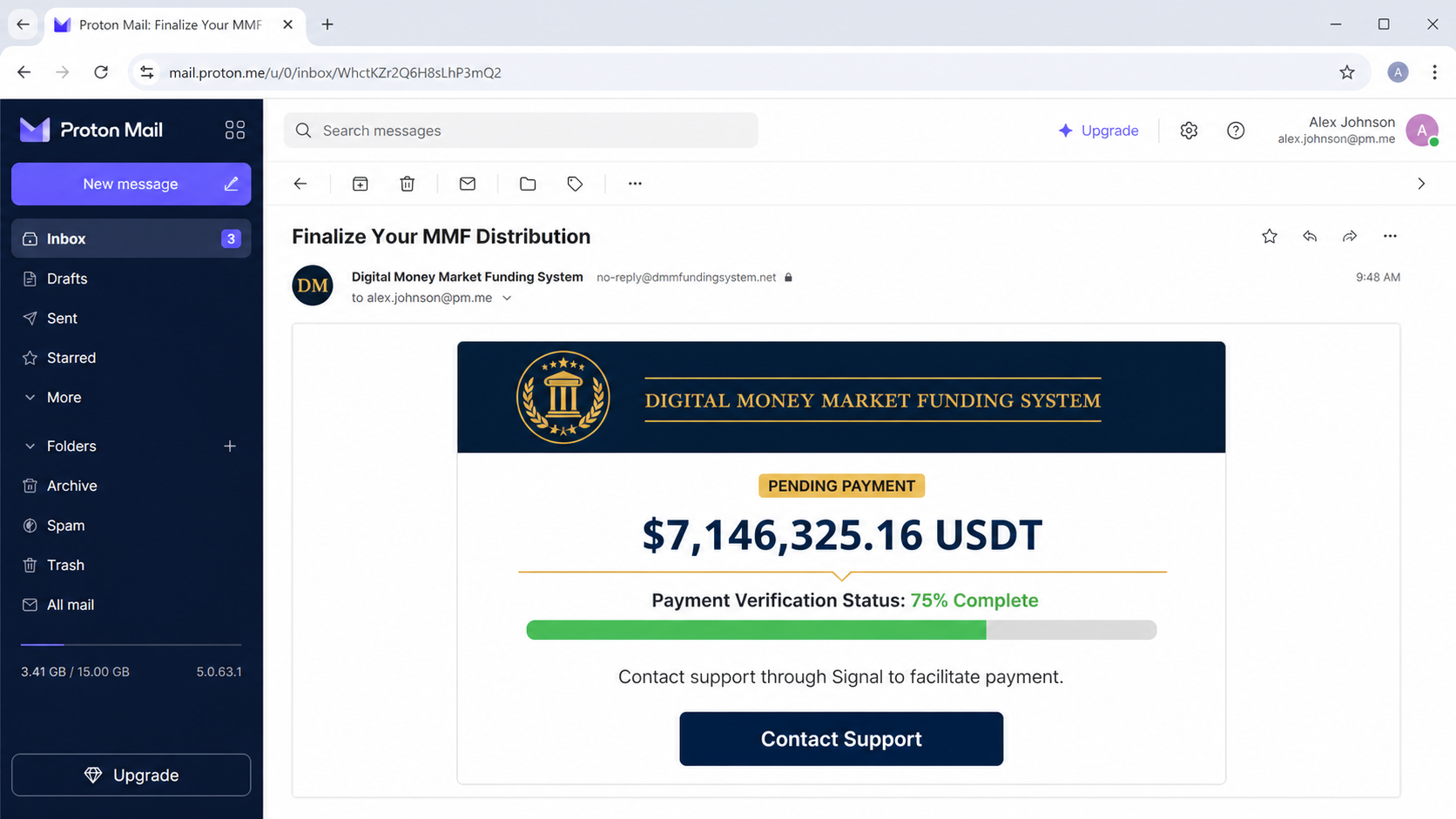
An unexpected email says a cryptocurrency payment worth $7,146,325.16 USDT is almost ready. Verification is already 75% complete, and the only remaining step appears to be contacting support through Signal.
The Crypto Cashback Reward email scam is an advance-fee scheme. The enormous balance, managed fund, progress indicator, and support team are invented to start a private conversation where criminals can demand money and personal information.
Overview
The message claims to come from a “Digital Money Market Funding System” and says the recipient earned a 1% share of a managed fund totaling $714,632,516.87. It translates that fictional allocation into a pending reward of $7,146,325.16 USDT.
There is no verified investment account, fund statement, contract, transaction hash, regulated institution, or withdrawal record behind the claim. The recipient is told to contact a support number through Signal, moving the conversation away from email and into a private chat controlled by the scammers.
The reward is fabricated from start to finish
The email does not identify any real investment the recipient made or explain why an unknown system would allocate a fortune to them. The “cashback” label is used without a purchase, contribution, or program agreement that could generate a reward.
Large totals and precise decimals are not evidence. Exact-looking figures can be invented as easily as round numbers and may be chosen to resemble data copied from a financial platform.
The 75% progress bar creates false momentum
A nearly complete status makes the payout feel like an existing process rather than a new proposition. The recipient is encouraged to think that most verification happened in the background and only a small final action remains.
The progress indicator is a graphic inside the email. It is not connected to a blockchain, bank, compliance system, or account review.
The private chat begins the payment trap
- Support may request a tax, release, gas, compliance, or administration fee.
- A fake dashboard or document may be supplied to justify the charge.
- Identity documents and bank details may be requested for “verification.”
- Every payment can be followed by another invented obstacle.
- Recovery scammers may contact victims after the original fraud.
Signal is a legitimate private messaging service and is not responsible for the scheme. Criminals choose messaging apps because direct conversations are easier to personalize and harder for an email provider or workplace security team to monitor.
Why the $7,146,325.16 USDT Story Does Not Add Up
No investment relationship is identified
A real fund can identify its legal entity, regulator, administrator, custodian, investor agreement, account number, and transaction history. This email supplies a grand title and large balance but no relationship the recipient can verify.
Someone cannot quietly become entitled to 1% of a managed fund without an investment, contract, inheritance, court order, or documented promotion.
“Crypto cashback” is used as a vague financial label
Cashback normally relates to a purchase, card program, exchange promotion, or documented rewards account. The message does not connect the claimed payout to any qualifying activity.
Adding USDT terminology gives the story a modern technical surface. It does not create the missing source of funds or the legal right to receive them.
A real distribution would not begin with a random Signal number
Regulated financial businesses use established account portals, documented support channels, identity procedures, and formal disclosures. They do not reveal a multimillion payment through unsolicited email and ask the beneficiary to begin on a private chat number.
The chat is useful to the scammer because it allows pressure, scripted replies, disappearing accounts, and one-on-one instructions for sending money.
How the Crypto Cashback Reward Email Scam Works
Step 1: A mass email announces an extraordinary payout
Recipients are told they hold a share in a large managed fund and are owed millions in USDT. The attacker may insert the email address or name to make the message appear individually generated.
The campaign does not need to know whether the recipient owns cryptocurrency. Curiosity, financial need, or fear of missing a legitimate asset can be enough to produce a reply.
Step 2: Invented institutions supply authority
Names such as “Digital Money Market Funding System” and “Tokenized Money Market Fund Providers” sound financial without identifying an accountable company.
Generic terms are difficult to verify because search results may contain unrelated legitimate discussions of money market funds and tokenization. The scam borrows that vocabulary while providing no real registration.
Step 3: Precise totals create a mathematical story
The email presents a managed fund of $714,632,516.87, a 1% share, and a $7,146,325.16 USDT settlement. The arithmetic is intended to make the reward appear calculated by a system.
Correct arithmetic cannot validate false inputs. The underlying fund and allocation remain unsupported.
Step 4: A 75% status suggests the payout already exists
The progress bar makes the recipient feel close to completion. Walking away can then feel like abandoning an asset rather than rejecting an unsolicited claim.
This is a form of commitment pressure. The victim has done nothing, but the interface implies that a process is already underway on their behalf.
Step 5: The recipient is moved to Signal
The email instructs the person to install or open Signal and contact a supplied number. The attacker can now respond as a support agent, compliance officer, or fund administrator.
Leaving email also separates the conversation from the original spam report and lets the criminal use a more persuasive interactive script.
Step 6: Verification information is collected
The supposed agent may request a passport, driver’s license, selfie, address, bank information, wallet address, or screenshots. Each request is framed as necessary to prove ownership or satisfy regulations.
These documents can support identity theft, account takeover, money-mule recruitment, and later impersonation. A fabricated payout does not require legitimate compliance.
Step 7: An advance fee blocks the imaginary withdrawal
The victim may be told to pay tax, insurance, gas, anti-money-laundering clearance, wallet activation, or a release charge. Payment may be requested in cryptocurrency, by wire, or through another hard-to-reverse method.
The FTC warns that promises of free cryptocurrency and demands for advance crypto payments are scam indicators. Legitimate funds do not need a stranger to send money to unlock a surprise reward.
Step 8: New fees continue until the victim stops
After one payment, the agent can invent a failed verification, conversion difference, network charge, or account limit. A fake dashboard may show the balance growing while withdrawals remain blocked.
No final payment releases the reward because the reward never existed. When the victim refuses, the account may disappear or a second group may offer fraudulent recovery for another fee.
Warning Signs in the Crypto Cashback Reward Email
- You receive a multimillion USDT allocation without making an investment.
- The organization uses an impressive generic name but no verifiable legal identity.
- A 1% fund share appears without an agreement or account statement.
- The 75% verification status is shown only as an email graphic.
- The message asks you to install or contact support through Signal.
- No official portal, transaction hash, custodian, regulator, or audited record is provided.
- Support asks for identity documents before proving the fund exists.
- Any tax, release, gas, insurance, or compliance fee is required in advance.
The size of the promise is itself a warning. Genuine financial institutions do not discover anonymous beneficiaries through mass email and release fortunes through a chat conversation.
What USDT Terminology Is Doing in the Scam
USDT is a real crypto asset designed to track the value of USD, but its appearance in an email does not prove that tokens were created, transferred, or reserved for the recipient.
A genuine transfer can be associated with a blockchain network, sending address, receiving address, amount, and transaction identifier. The email provides none of that verifiable history.
Scammers often combine real technologies with invented accounts. The real existence of USDT makes the fictional “Digital Money Market Funding System” sound more plausible by association.
Never send a small test payment to validate the agent. Cryptocurrency transfers can be difficult to reverse, and a successful payment only tells the scammer that the victim is willing to continue.
How to Verify an Unexpected Crypto Claim
Start with your own records
Review exchanges, wallets, tax records, contracts, and investment statements you already control. An asset worth millions should connect to documented activity, not appear first in a spam message.
Identify the legal entity
Ask for the exact registered company, jurisdiction, regulator, registration number, fund prospectus, administrator, and custodian. Verify each item independently through official registries.
Do not accept screenshots, certificates, or links supplied by the person making the claim as the only evidence.
Check the blockchain evidence independently
A transaction identifier can be reviewed using a reputable explorer for the correct network. However, seeing tokens at an address does not prove that the sender owns them or will transfer them to you.
Do not connect a wallet, sign a message, reveal a seed phrase, or approve a token allowance to “verify” eligibility.
Refuse every advance payment
Do not pay fees to receive unexpected money. A request for cryptocurrency, gift cards, a wire, or other difficult-to-recover payment confirms the risk rather than solving it.
Why Signal Is Used in the Scheme
Private messaging lets the scammer adjust the story to each victim. If someone questions the fund, the agent can produce a new explanation, document, or supervisor in real time.
The conversation can also become more personal. Repeated reassurance, compliments, deadlines, and warnings about losing the payout are easier to deliver in chat than through one static email.
A Signal profile name and picture do not verify employment. Phone numbers can be obtained temporarily, and the person responding may be anywhere.
Report and block the account inside the app, but preserve screenshots and payment details first if money or identification was sent.
Unexpected crypto rewards should always be verified through the service's official app, never through a payment link supplied in a message.
What to Do if You Have Fallen Victim to This Scam
- Stop the conversation. Do not argue, pay another fee, or follow instructions to move assets between wallets.
- Preserve the evidence. Save the original email, full headers, Signal profile, chat, phone number, wallet addresses, transaction IDs, receipts, and documents.
- Contact the payment service immediately. Tell the exchange, bank, card issuer, or transfer provider that the transaction was induced by fraud and ask what recovery action is available.
- Secure financial and crypto accounts. Change passwords, revoke sessions and API keys, review withdrawal addresses, and enable strong multifactor authentication.
- Move remaining crypto only with trusted help. If a seed phrase or private key was exposed, use a new wallet created safely and never accept migration instructions from an unsolicited “expert.”
- Protect your identity. If identification was shared, follow the recovery steps for your country, monitor credit, and alert the issuing authority where appropriate.
- Watch for follow-up impersonation. Scammers may pose as police, regulators, lawyers, exchanges, or recovery agents who claim they can retrieve funds for a fee.
- Report the Signal account. Block it after preserving evidence so the attacker cannot continue applying pressure.
- Report the fraud. In the U.S., submit reports to the FTC, FBI IC3, and relevant crypto platform. Other countries have equivalent cybercrime and financial regulators.
- Tell trusted people what happened. A family member, colleague, or financial professional can help evaluate new messages and prevent further rushed payments.
- Scan devices if files or apps were installed. Malwarebytes can check for information stealers, remote-access tools, and other threats introduced during the conversation.
- Reduce access to known scam infrastructure. AdGuard can filter many recognized malicious domains, while caution remains necessary for new sites and private messages.
Is Your Device Infected? Run a Free Malware Scan
Slow performance, constant pop-ups, or strange behavior? These are classic signs of a malware infection. The fastest way to find out is to scan your device with Malwarebytes Free — one of the most trusted malware removal tools available.
The free version detects and removes the most common threats, including:
- Adware — the cause of those annoying pop-ups
- Browser hijackers — unwanted redirects and changed homepages
- Trojans and spyware — hidden programs stealing your data
- Potentially unwanted programs (PUPs) — software you never asked for
👉 Select your device below — Windows, Mac, or Android — then follow the simple steps to download Malwarebytes, scan your system, and remove any threats it finds. The scan usually takes 5 to 20 minutes.
Run a Malware Scan with Malwarebytes for Windows
Malwarebytes is one of the most popular and trusted anti-malware tools for Windows — and it’s completely free for removing infections. It catches threats that many antivirus programs miss, including adware, browser hijackers, and trojans. Follow the steps below to scan and clean your PC in just a few minutes.
Download Malwarebytes
Click the button below to download the latest version of Malwarebytes for Windows from the official source. The free version is all you need — it will scan your computer and remove adware, browser hijackers, and other malicious software at no cost.
Download MalwarebytesOfficial installer for Windows 11 and 10. Your download starts right away.Want real-time protection? See Malwarebytes Premium Malwarebytes Free for WindowsScans and removes malware at no cost
-
Install Malwarebytes
When the download finishes, open your Downloads folder and double-click the MBSetup file. If Windows shows a User Account Control pop-up, click “Yes” to allow the installation.

Follow the On-Screen Prompts to Install Malwarebytes
The setup wizard will walk you through a few quick screens:
-
Choose where you’re installing the program — “Personal Computer” or “Work Computer” — then click Next.

-
Malwarebytes will now install on your device. This usually takes under a minute.

-
When installation is complete, the “Welcome to Malwarebytes” screen will open automatically.

-
On the final screen, click Open Malwarebytes to launch the program.

-
Enable “Scan for Rootkits”
Before scanning, turn on rootkit detection so Malwarebytes can find even the most hidden threats. Click the Settings gear icon on the left side of the screen.

In the settings menu, find “Scan for rootkits” and click the toggle so it turns blue.

Done? Click “Dashboard” in the left pane to return to the main screen.
Start the Scan
Click the blue Scan button. Malwarebytes will automatically update its virus database and start checking your computer for malware.

-
Wait for the Scan to Finish
The scan checks your entire system for browser hijackers and other malicious programs, so it can take 5 to 20 minutes depending on your computer. Feel free to do something else — just check back occasionally to see the progress.

-
Quarantine the Detected Threats
When the scan is done, you’ll see a list of everything Malwarebytes found — malware, adware, and potentially unwanted programs. Click the “Quarantine” button to remove all of them at once.

Malwarebytes will now remove the malicious files and registry entries and move them safely into quarantine.

-
Restart Your Computer
Some threats can only be fully removed after a reboot. If Malwarebytes asks you to restart, click Yes. Once you’re logged back in, Malwarebytes has finished removing the threats it found.

That’s it — your Windows PC is now clean of trojans, adware, and other malware, and should be back to running smoothly.
If you are still having problems with your computer after completing these instructions, then please follow one of the steps:
- Run a computer scan with ESET Online Scanner
- Ask for help in our Windows Malware Removal Help & Support forum.
Run a Malware Scan with Malwarebytes for Mac
Malwarebytes for Mac is a free on-demand scanner that removes the malware other security software tends to miss — adware, browser hijackers, and unwanted programs included. Cleaning an infected Mac with Malwarebytes has always been completely free, and it’s our go-to recommendation. Follow the steps below to scan and clean your Mac in just a few minutes.
-
Download Malwarebytes for Mac
Click the button below to download the latest version of Malwarebytes for Mac.
Download MalwarebytesOfficial installer for macOS. Your download starts right away.Want real-time protection? See Malwarebytes PremiumMalwarebytes Free for MacScans and removes malware at no cost -
Open the Malwarebytes setup file
When the download finishes, open your Downloads folder and double-click the setup file to begin the installation.

-
Follow the On-Screen Prompts to Install Malwarebytes
The Malwarebytes for Mac Installer will guide you through a few quick screens. Click “Continue” and keep following the prompts until the installation completes.



When the installation is complete, Malwarebytes opens to the Welcome to Malwarebytes screen. Click “Get started“.
-
Select “Personal Computer” or “Work Computer”
Malwarebytes will ask what type of computer you’re installing it on. Click either Personal Computer or Work Computer, whichever applies.

-
Start the Scan
Click the “Scan” button. Malwarebytes will automatically update its detection database and begin checking your Mac for malware.

-
Wait for the Scan to Finish
Malwarebytes will scan your Mac for adware, browser hijackers, and other malicious programs. This can take a few minutes, so feel free to do something else — just check back occasionally to see the progress.

-
Quarantine the Detected Threats
When the scan is done, you’ll see a list of everything Malwarebytes found. Click the “Quarantine” button to remove all the threats at once.

-
Restart Your Mac
Malwarebytes will now remove all the malicious files it found. Some threats can only be fully removed after a reboot — if Malwarebytes asks you to restart, allow it. Once you’re logged back in, your Mac is clean.

That’s it — your Mac is now free of adware, rogue browser extensions, and other potentially harmful software.
If you are still experiencing problems while trying to remove a malicious program from your computer, please ask for help in our Mac Malware Removal Help & Support forum.
Run a Malware Scan with Malwarebytes for Android
Malwarebytes for Android automatically detects and removes dangerous threats like malware and ransomware so you don’t have to worry about your most-used device being compromised. Aggressive detection of adware and potentially unwanted programs keeps your Android phone or tablet running smooth.
-
Download Malwarebytes for Android.
You can download Malwarebytes for Android by clicking the link below.
Get Malwarebytes for AndroidOpens Google Play in a new tab.Want real-time protection? See Malwarebytes Premium for AndroidMalwarebytes for AndroidScans your phone and removes malware at no cost -
Install Malwarebytes for Android on your phone.
In the Google Play Store, tap “Install” to install Malwarebytes for Android on your device.

When the installation process has finished, tap “Open” to begin using Malwarebytes for Android. You can also open Malwarebytes by tapping on its icon in your phone menu or home screen.

-
Follow the on-screen prompts to complete the setup process
When Malwarebytes will open, you will see the Malwarebytes Setup Wizard which will guide you through a series of permissions and other setup options.
This is the first of two screens that explain the difference between the Premium and Free versions. Swipe this screen to continue.
Tap on “Got it” to proceed to the next step.
Malwarebytes for Android will now ask for a set of permissions that are required to scan your device and protect it from malware. Tap on “Give permission” to continue.
Tap on “Allow” to permit Malwarebytes to access the files on your phone.
-
Update database and run a scan with Malwarebytes for Android
You will now be prompted to update the Malwarebytes database and run a full system scan.

Click on “Update database” to update the Malwarebytes for Android definitions to the latest version, then click on “Run full scan” to perform a system scan.

-
Wait for the Malwarebytes scan to complete.
Malwarebytes will now start scanning your phone for adware and other malicious apps. This process can take a few minutes, so we suggest you do something else and periodically check on the status of the scan to see when it is finished.

-
Click on “Remove Selected”.
When the scan has been completed, you will be presented with a screen showing the malware infections that Malwarebytes for Android has detected. To remove the malicious apps that Malwarebytes has found, tap on the “Remove Selected” button.

-
Restart your phone.
Malwarebytes for Android will now remove all the malicious apps that it has found. To complete the malware removal process, Malwarebytes may ask you to restart your device.
That’s it — your Android phone is now clean — no more malicious apps, adware, or browser redirects.
If you are still having problems with your phone after completing these instructions, then please follow one of the steps:
- Restore your phone to factory settings by going to Settings > General management > Reset > Factory data reset.
- Ask for help in our Mobile Malware Removal Help & Support forum.
Stay Protected: Block Ads and Malicious Sites
Now that your device is clean, keep it that way. Most infections start with a malicious ad or a fake download button — so blocking them at the source is your best defense.
We recommend AdGuard, which blocks malicious ads, phishing pages, and dangerous redirects before they can reach you.
👉 Download AdGuard and browse safely
Frequently Asked Questions
Is the $7,146,325.16 USDT payment real?
No reliable evidence supports it. The fund, allocation, and progress status are fabricated parts of an unsolicited advance-fee story.
Can someone earn a 1% fund share without investing?
Not through the unexplained process in this email. A real ownership interest requires documents, an identifiable entity, and verifiable account history.
Does the 75% verification bar track a real payment?
No. It is a visual element intended to create momentum. It is not connected to a bank, blockchain, or compliance review.
Is Signal unsafe to use?
Signal is a legitimate messaging service. The risk comes from the stranger and false financial claim, not from the app itself.
Will paying a tax or gas fee release the USDT?
No. The balance does not exist. Paying one charge usually leads to another invented requirement.
Can a crypto recovery company get my payment back?
Be extremely cautious. Unsolicited recovery offers that require fees are often another scam. Work directly with the exchange, financial institution, and law enforcement.
The Bottom Line
The Crypto Cashback Reward email scam uses an impossible $7,146,325.16 USDT payout, fake 75% progress, and financial jargon to move victims into a private Signal conversation.
No reward is waiting. Do not send fees or identification, and do not connect a wallet. If you already paid, preserve every record, contact the payment platform immediately, secure your accounts, and avoid anyone promising guaranteed recovery.

Join the discussion
0 commentsShare your experience or ask a question about this article.
Discussion
Start the conversation
Have a question or something useful to share? Add the first comment.