

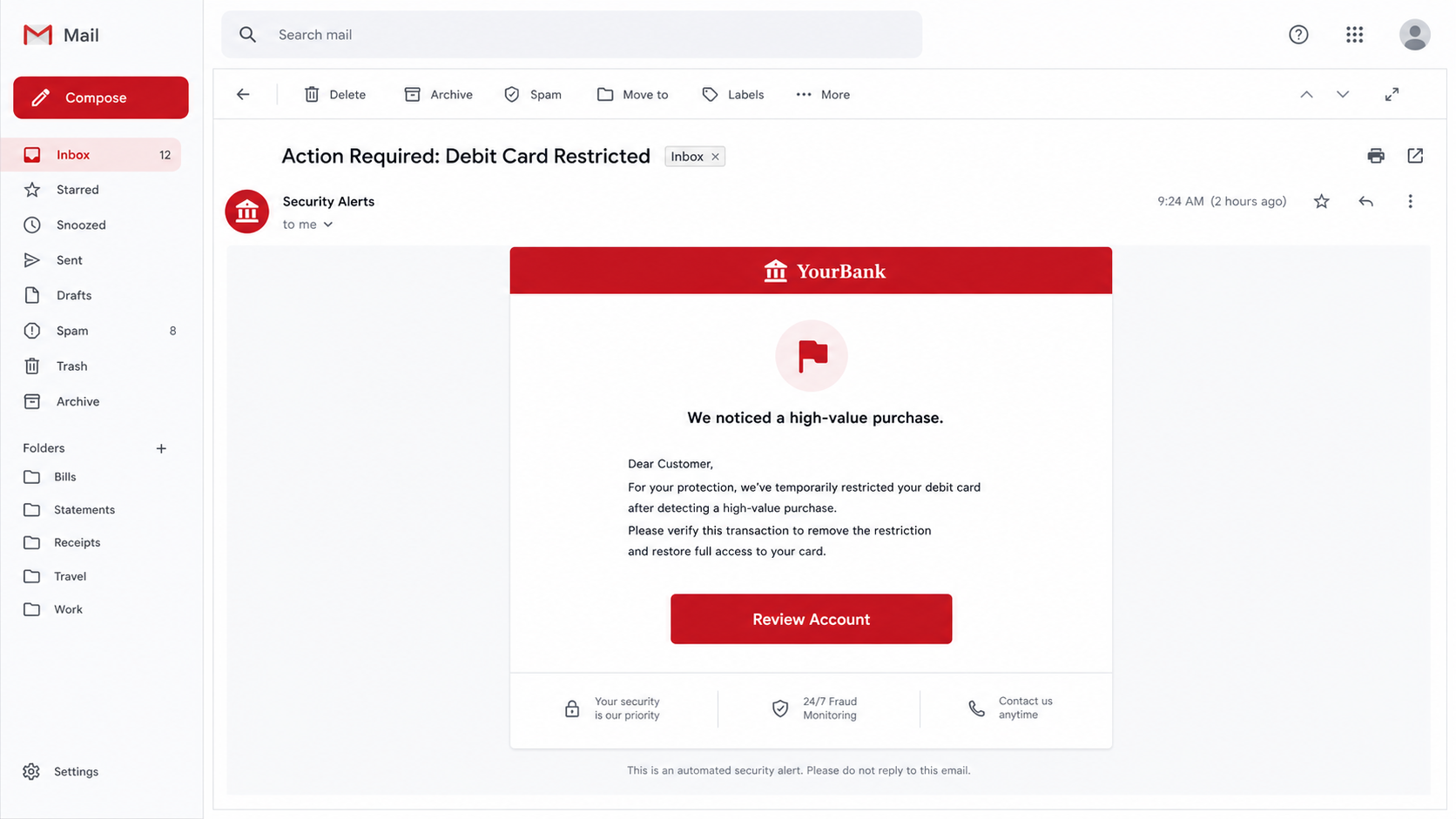
An email that appears to come from Bank of America says a high-value purchase has forced the fraud department to lock your debit card. The message offers one quick way to restore access: click “Review Account.”
That warning is designed to trigger the same reflex a genuine bank alert would. You stop thinking about the sender and start worrying about the money that may be leaving your account.
The Bank of America Card Locked email scam turns that moment of fear into a credential theft attempt. The button does not safely unlock a card. It leads toward a fraudulent verification page controlled by criminals.
Overview
The message invents a suspicious high-value purchase
The email claims Bank of America detected an expensive debit card transaction and temporarily restricted the card. It says the restriction will remain until the customer verifies whether the purchase is legitimate.
This is an effective story because banks really do monitor unusual activity and may contact customers about suspicious transactions. The scam borrows that familiar security process, then replaces the bank’s protected verification channel with a phishing link.
The warning may use a red header, a lock or shield icon, a generic greeting, and reassuring phrases about protecting the account. Visual polish does not authenticate the sender. Logos and layouts are easy to copy.
The “Review Account” button opens a fraudulent site
The destination may imitate a Bank of America sign-in or card-verification page. It can request an Online Banking ID, password, card number, expiration date, security code, Social Security number, or one-time authorization code.
Those details are not being sent to the bank. A phishing form records the information for the people operating the scam. Some versions then display an error or redirect to the real bank website, making the victim think the verification simply failed.
The page may ask for several kinds of information in sequence:
- Online Banking username and password
- Debit or credit card details
- Billing address and telephone number
- One-time security or authorization codes
- Answers to account-recovery questions
The stolen information can enable account takeover
A working banking password can give criminals direct access to balances, statements, payment settings, and personal information. Card data may be used for unauthorized purchases or sold to other fraudsters.
A one-time code is especially sensitive. Criminals may attempt a real login while the victim is completing the fake form, then ask for the code sent by the bank. Entering it can approve the attacker’s session.
Bank of America is a legitimate financial institution and is not responsible for this campaign. Its name is being impersonated because customers recognize it and treat fraud alerts seriously.
Why This Fake Card Alert Looks Convincing
It uses a problem that cannot be safely ignored
A marketing email can wait. A message about a locked card and an unauthorized purchase feels different. The recipient may be at work, traveling, or about to pay for something, which makes immediate access seem essential.
The scam gives no time for calm verification. It frames the embedded button as the shortest route back to normal, encouraging the reader to act before checking the sender address or destination domain.
It imitates the language of fraud prevention
Phrases such as “for your protection,” “temporarily restricted,” and “verify the transaction” sound responsible. They also explain why the message is asking for an unusual action, which lowers the reader’s suspicion.
However, a genuine security alert can be checked independently. Open the official mobile app, type the bank’s address yourself, or call the number printed on the back of the card. Never use contact information supplied by the suspicious message.
The sender name is easier to fake than the sender address
An inbox may display “Bank of America,” “Security Alerts,” or “Fraud Department” while hiding the actual address. Expanding the sender details can reveal an unrelated domain, free mail account, misspelling, or random string.
Even a believable address is not conclusive because display names and email headers can be spoofed. The safest test is whether the same alert appears inside the official account after you sign in independently.
How the Bank of America Card Locked Email Scam Works
Step 1: Criminals send a branded fraud warning
The campaign distributes messages to broad address lists or to people selected from leaked customer data. A recipient does not need to bank with Bank of America for the email to arrive.
The subject often mentions a restricted debit card, suspicious purchase, security review, or urgent verification. These phrases are chosen to stand out among ordinary inbox traffic.
Step 2: The email creates fear and a deadline
The body says a recent high-value purchase caused the restriction. It may imply that the card cannot be used until the customer confirms the transaction through the provided button.
No useful transaction details may be shown. The absence of a recognizable merchant, date, masked card number, or secure-message reference is hidden behind the urgency of the warning.
Step 3: The button conceals the real destination
“Review Account” looks like a normal control, but its link can point to a compromised website, recently registered domain, URL shortener, or redirect service. The visible words do not reveal where the browser will go.
On a computer, hovering over the button may expose the address. On a phone, pressing and holding may preview it. Do not open the link merely to investigate.
Step 4: A copied banking page requests credentials
The fraudulent page may reproduce colors, navigation elements, and legal text from a real banking site. The browser address bar remains the important clue because the page is not hosted on an official bank domain.
The form first requests the Online Banking ID and password. This feels consistent with the claim that the customer must sign in before reviewing a transaction.
Step 5: Additional prompts harvest financial data
After the initial login, the page can ask for card information, an ATM PIN, personal identity details, or the answers used for account recovery. Each screen is framed as another security check.
A legitimate bank will not need every sensitive detail to confirm one card transaction. A request for a full PIN or password through an emailed link is a strong warning sign.
Step 6: The attacker may request a live security code
While the victim is on the fake site, the criminal may use the captured password on the real bank site. That attempt can trigger a genuine one-time code on the customer’s phone.
The phishing page then asks for that code, calling it identity verification. Supplying it can complete the unauthorized login or approve a sensitive action.
Step 7: The victim is shown a reassuring finish
The final screen may claim the card was unlocked, the transaction was declined, or the verification was submitted. It may redirect to a genuine public page so the browser address suddenly looks normal.
This delay is useful to the criminals. A victim who believes the issue is resolved may not call the bank until unauthorized activity appears.
Step 8: Stolen access is used or resold
Attackers can attempt transfers, card purchases, account changes, or new-payee enrollment. They may also search statements and profile data for information that supports identity theft.
Credentials are frequently reused against email, shopping, and payment accounts. A password exposed here should be treated as compromised anywhere else it was used.
Warning Signs That the Card-Lock Message Is Fake
No single visual mistake catches every campaign. Look at the entire request and verify the underlying claim through a trusted channel.
- The greeting is generic. “Dear Customer” avoids proving that the sender knows who owns the account.
- The sender domain is unrelated. A display name can say Bank of America while the address belongs to another service.
- The message demands immediate clicking. Pressure is used to prevent independent verification.
- The transaction lacks useful detail. The email may mention a high-value purchase without a merchant or masked card reference.
- The destination is not an official bank domain. Extra words, hyphens, or lookalike spelling do not make it legitimate.
- The form asks for excessive information. Passwords, PINs, full card data, and one-time codes should not be supplied through an emailed link.
- The alert is absent from the official app. A real restriction should be visible after an independent sign-in.
How a Genuine Bank Review Differs
A real fraud investigation begins inside channels the customer already controls. The alert should be visible in the official app or Online Banking account, and the customer can reach a representative through the number printed on the card.
Bank staff may ask questions to identify the customer, but an unsolicited email should never become the place where a full password, PIN, card security code, and one-time authorization code are collected together.
If the app shows no matching warning, do not assume the email reached you before the bank’s systems updated. Call through a verified number and let the fraud team search the account directly.
That independent confirmation takes only a few minutes and prevents the email from controlling both the warning and the supposed solution.
What to Do if You Have Fallen Victim to This Scam
- Call the bank immediately. Use the number printed on the back of your card or shown in the official app. Explain exactly what you entered and ask the fraud team to secure online banking, review recent activity, and replace exposed cards.
- Change your Online Banking password from a clean device. Create a new, unique password. If the attacker changed the username, telephone number, email address, or recovery settings, ask the bank to restore them.
- Block or replace the affected card. Locking the card in the official app can reduce immediate risk, but a full replacement may be needed if the number, expiration date, security code, or PIN was disclosed.
- Review transactions and pending activity. Check card charges, transfers, bill payments, new recipients, contact changes, and digital-wallet enrollment. Report anything unfamiliar and ask how to preserve your dispute rights.
- Secure your email account. Change its password if it was reused or disclosed, end unknown sessions, review forwarding rules, and enable multi-factor authentication. Banking recovery messages often pass through email.
- Scan the device if you downloaded anything. The link is primarily a phishing route, but some campaigns also deliver harmful files. Run a complete scan with Malwarebytes to look for malware, browser hijackers, or credential-stealing software.
- Reduce exposure to repeat lures. AdGuard can block many known malicious advertising and phishing destinations before they load. It is an additional layer, not a replacement for checking the bank through its official app.
- Document and report the incident. Save the email, sender address, screenshots, URL, and bank case number. Forward Bank of America impersonation messages to the address listed in its Security Center, and report fraud to the FTC or IC3 when appropriate.
- Watch for recovery scams. Anyone who promises to retrieve stolen money for an upfront fee, cryptocurrency payment, gift card, or remote access may be targeting you again. Continue working only with the bank and recognized authorities.
Is Your Device Infected? Run a Free Malware Scan
Slow performance, constant pop-ups, or strange behavior? These are classic signs of a malware infection. The fastest way to find out is to scan your device with Malwarebytes Free — one of the most trusted malware removal tools available.
The free version detects and removes the most common threats, including:
- Adware — the cause of those annoying pop-ups
- Browser hijackers — unwanted redirects and changed homepages
- Trojans and spyware — hidden programs stealing your data
- Potentially unwanted programs (PUPs) — software you never asked for
👉 Select your device below — Windows, Mac, or Android — then follow the simple steps to download Malwarebytes, scan your system, and remove any threats it finds. The scan usually takes 5 to 20 minutes.
Run a Malware Scan with Malwarebytes for Windows
Malwarebytes is one of the most popular and trusted anti-malware tools for Windows — and it’s completely free for removing infections. It catches threats that many antivirus programs miss, including adware, browser hijackers, and trojans. Follow the steps below to scan and clean your PC in just a few minutes.
Download Malwarebytes
Click the button below to download the latest version of Malwarebytes for Windows from the official source. The free version is all you need — it will scan your computer and remove adware, browser hijackers, and other malicious software at no cost.
Download MalwarebytesOfficial installer for Windows 11 and 10. Your download starts right away.Want real-time protection? See Malwarebytes Premium Malwarebytes Free for WindowsScans and removes malware at no cost
-
Install Malwarebytes
When the download finishes, open your Downloads folder and double-click the MBSetup file. If Windows shows a User Account Control pop-up, click “Yes” to allow the installation.

Follow the On-Screen Prompts to Install Malwarebytes
The setup wizard will walk you through a few quick screens:
-
Choose where you’re installing the program — “Personal Computer” or “Work Computer” — then click Next.

-
Malwarebytes will now install on your device. This usually takes under a minute.

-
When installation is complete, the “Welcome to Malwarebytes” screen will open automatically.

-
On the final screen, click Open Malwarebytes to launch the program.

-
Enable “Scan for Rootkits”
Before scanning, turn on rootkit detection so Malwarebytes can find even the most hidden threats. Click the Settings gear icon on the left side of the screen.

In the settings menu, find “Scan for rootkits” and click the toggle so it turns blue.

Done? Click “Dashboard” in the left pane to return to the main screen.
Start the Scan
Click the blue Scan button. Malwarebytes will automatically update its virus database and start checking your computer for malware.

-
Wait for the Scan to Finish
The scan checks your entire system for browser hijackers and other malicious programs, so it can take 5 to 20 minutes depending on your computer. Feel free to do something else — just check back occasionally to see the progress.

-
Quarantine the Detected Threats
When the scan is done, you’ll see a list of everything Malwarebytes found — malware, adware, and potentially unwanted programs. Click the “Quarantine” button to remove all of them at once.

Malwarebytes will now remove the malicious files and registry entries and move them safely into quarantine.

-
Restart Your Computer
Some threats can only be fully removed after a reboot. If Malwarebytes asks you to restart, click Yes. Once you’re logged back in, Malwarebytes has finished removing the threats it found.

That’s it — your Windows PC is now clean of trojans, adware, and other malware, and should be back to running smoothly.
If you are still having problems with your computer after completing these instructions, then please follow one of the steps:
- Run a computer scan with ESET Online Scanner
- Ask for help in our Windows Malware Removal Help & Support forum.
Run a Malware Scan with Malwarebytes for Mac
Malwarebytes for Mac is a free on-demand scanner that removes the malware other security software tends to miss — adware, browser hijackers, and unwanted programs included. Cleaning an infected Mac with Malwarebytes has always been completely free, and it’s our go-to recommendation. Follow the steps below to scan and clean your Mac in just a few minutes.
-
Download Malwarebytes for Mac
Click the button below to download the latest version of Malwarebytes for Mac.
Download MalwarebytesOfficial installer for macOS. Your download starts right away.Want real-time protection? See Malwarebytes PremiumMalwarebytes Free for MacScans and removes malware at no cost -
Open the Malwarebytes setup file
When the download finishes, open your Downloads folder and double-click the setup file to begin the installation.

-
Follow the On-Screen Prompts to Install Malwarebytes
The Malwarebytes for Mac Installer will guide you through a few quick screens. Click “Continue” and keep following the prompts until the installation completes.



When the installation is complete, Malwarebytes opens to the Welcome to Malwarebytes screen. Click “Get started“.
-
Select “Personal Computer” or “Work Computer”
Malwarebytes will ask what type of computer you’re installing it on. Click either Personal Computer or Work Computer, whichever applies.

-
Start the Scan
Click the “Scan” button. Malwarebytes will automatically update its detection database and begin checking your Mac for malware.

-
Wait for the Scan to Finish
Malwarebytes will scan your Mac for adware, browser hijackers, and other malicious programs. This can take a few minutes, so feel free to do something else — just check back occasionally to see the progress.

-
Quarantine the Detected Threats
When the scan is done, you’ll see a list of everything Malwarebytes found. Click the “Quarantine” button to remove all the threats at once.

-
Restart Your Mac
Malwarebytes will now remove all the malicious files it found. Some threats can only be fully removed after a reboot — if Malwarebytes asks you to restart, allow it. Once you’re logged back in, your Mac is clean.

That’s it — your Mac is now free of adware, rogue browser extensions, and other potentially harmful software.
If you are still experiencing problems while trying to remove a malicious program from your computer, please ask for help in our Mac Malware Removal Help & Support forum.
Run a Malware Scan with Malwarebytes for Android
Malwarebytes for Android automatically detects and removes dangerous threats like malware and ransomware so you don’t have to worry about your most-used device being compromised. Aggressive detection of adware and potentially unwanted programs keeps your Android phone or tablet running smooth.
-
Download Malwarebytes for Android.
You can download Malwarebytes for Android by clicking the link below.
Get Malwarebytes for AndroidOpens Google Play in a new tab.Want real-time protection? See Malwarebytes Premium for AndroidMalwarebytes for AndroidScans your phone and removes malware at no cost -
Install Malwarebytes for Android on your phone.
In the Google Play Store, tap “Install” to install Malwarebytes for Android on your device.

When the installation process has finished, tap “Open” to begin using Malwarebytes for Android. You can also open Malwarebytes by tapping on its icon in your phone menu or home screen.

-
Follow the on-screen prompts to complete the setup process
When Malwarebytes will open, you will see the Malwarebytes Setup Wizard which will guide you through a series of permissions and other setup options.
This is the first of two screens that explain the difference between the Premium and Free versions. Swipe this screen to continue.
Tap on “Got it” to proceed to the next step.
Malwarebytes for Android will now ask for a set of permissions that are required to scan your device and protect it from malware. Tap on “Give permission” to continue.
Tap on “Allow” to permit Malwarebytes to access the files on your phone.
-
Update database and run a scan with Malwarebytes for Android
You will now be prompted to update the Malwarebytes database and run a full system scan.

Click on “Update database” to update the Malwarebytes for Android definitions to the latest version, then click on “Run full scan” to perform a system scan.

-
Wait for the Malwarebytes scan to complete.
Malwarebytes will now start scanning your phone for adware and other malicious apps. This process can take a few minutes, so we suggest you do something else and periodically check on the status of the scan to see when it is finished.

-
Click on “Remove Selected”.
When the scan has been completed, you will be presented with a screen showing the malware infections that Malwarebytes for Android has detected. To remove the malicious apps that Malwarebytes has found, tap on the “Remove Selected” button.

-
Restart your phone.
Malwarebytes for Android will now remove all the malicious apps that it has found. To complete the malware removal process, Malwarebytes may ask you to restart your device.
That’s it — your Android phone is now clean — no more malicious apps, adware, or browser redirects.
If you are still having problems with your phone after completing these instructions, then please follow one of the steps:
- Restore your phone to factory settings by going to Settings > General management > Reset > Factory data reset.
- Ask for help in our Mobile Malware Removal Help & Support forum.
Stay Protected: Block Ads and Malicious Sites
Now that your device is clean, keep it that way. Most infections start with a malicious ad or a fake download button — so blocking them at the source is your best defense.
We recommend AdGuard, which blocks malicious ads, phishing pages, and dangerous redirects before they can reach you.
👉 Download AdGuard and browse safely
Frequently Asked Questions
Does Bank of America really send fraud alerts?
Banks can send legitimate security alerts, including notices about unusual card activity. Do not judge this message by the topic alone. Open the official app or type the bank address yourself to check whether the same alert exists.
Is my card actually locked because I received this email?
No. Receiving the message does not prove that any restriction exists. The claim is bait. Check card status independently in the official account or call the verified number on the card.
What if I clicked but entered no information?
Close the page and do not return. Clear any downloads, update the browser, and run a security scan if a file opened or downloaded. Monitor the account, but credential theft normally requires information to be submitted.
What if I gave the page a one-time code?
Treat the account as actively compromised. Call the bank at once, even if no transaction is visible. A one-time code may have approved a login, device, password reset, or payment action.
Can the sender address prove the email is genuine?
No. An obviously unrelated address confirms a fake, but a plausible-looking address is not enough to establish authenticity. Spoofing and compromised accounts can make sender information misleading.
Where should a suspicious Bank of America email be reported?
Follow the current reporting instructions in Bank of America’s official Security Center. The bank lists a dedicated address for suspicious messages. You can also report phishing to the FTC and financial crime to IC3.
The Bottom Line
The Bank of America Card Locked email scam uses a believable fraud alert to move customers away from trusted banking channels and onto a credential-stealing page. The urgent button is the trap, not the solution.
Do not verify a locked-card claim through the email. Open the official app or call the number on the card. If information was submitted, contact the bank immediately, replace exposed credentials, and monitor every linked account.

Join the discussion
0 commentsShare your experience or ask a question about this article.
Discussion
Start the conversation
Have a question or something useful to share? Add the first comment.