


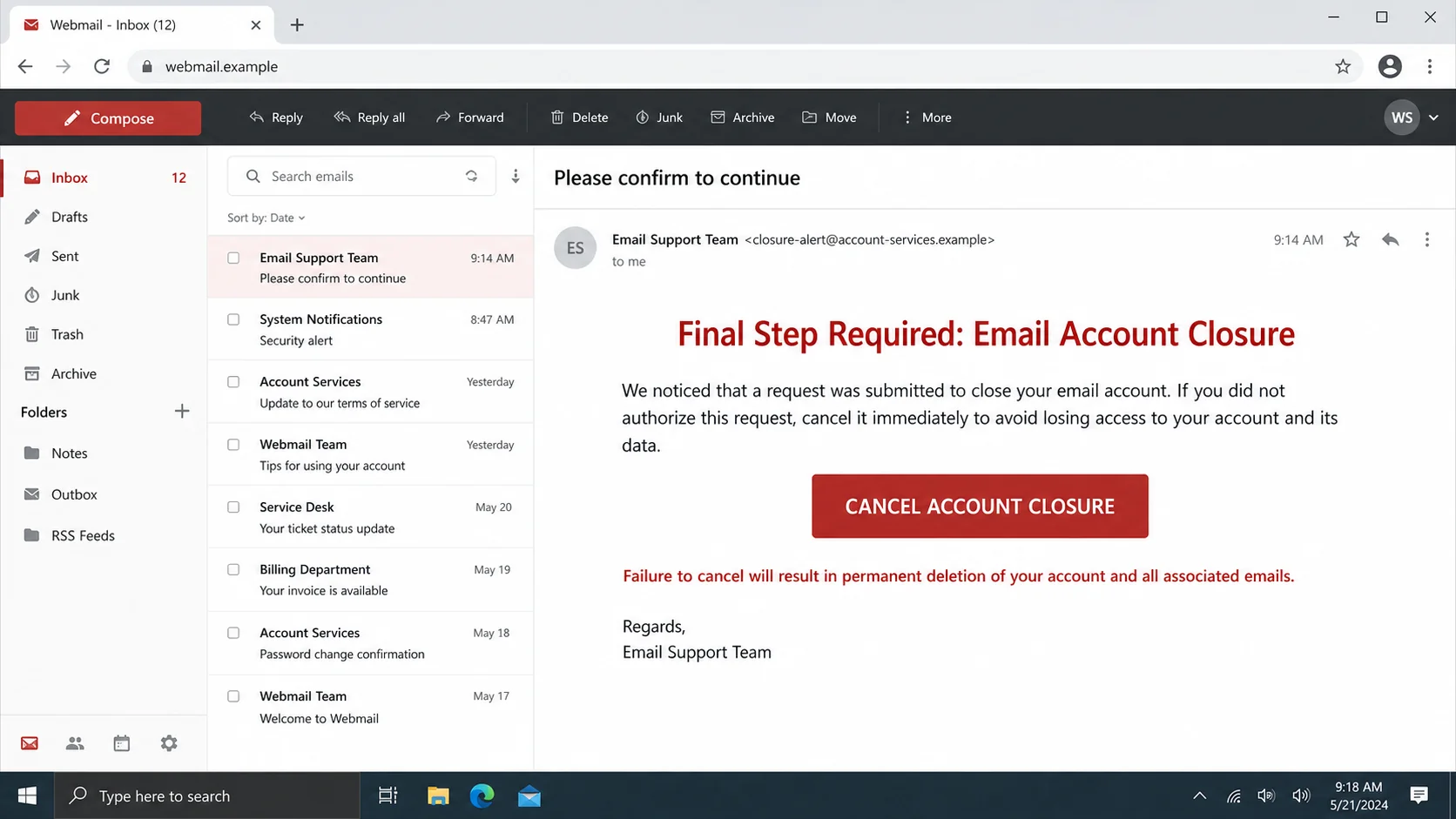
A message titled “Please confirm to continue” says someone asked to close your email account. If the request was not yours, a large button promises to cancel it before every message is permanently deleted.
The email appears to offer protection, but the alleged closure is invented. The cancel button is the trap.
The Webmail Email Account Closure scam uses fear of sudden data loss to steer recipients toward a counterfeit sign-in page where criminals collect mailbox credentials.
Overview
The email turns an unauthorized request into an emergency
The message claims a request was recently submitted to close the recipient’s email account. It says people who made the request can ignore the notice, while everyone else must cancel it immediately.
This framing is effective because the recipient cannot safely do nothing. Ignoring the warning supposedly confirms deletion, while clicking appears to preserve the account. The criminal has manufactured both the threat and the rescue.
The email often threatens permanent loss of the account and all associated messages. Yet it does not identify when the request was made, from which device, through which account page, or under which provider policy.
The cancel button leads to credential theft
The “Cancel Account Closure” button does not reverse a real request. It opens a phishing site that can imitate the recipient’s mail provider and ask for an email address and password.
A convincing page may prefill the address, show a familiar logo, and claim that reauthentication is required before a sensitive action can be stopped. Those details can be generated from information already embedded in the phishing link.
The attackers may seek:
- The mailbox address and current password
- A one-time code or approval from an MFA prompt
- Recovery phone numbers and alternate addresses
- Access to stored documents, contacts, and calendars
- A trusted account from which to approach other victims
The real account remains open while the attacker tries to enter
There is normally no pending closure. After credentials are submitted, the phishing site may show a success message or redirect to the legitimate provider, allowing the victim to believe the problem was resolved.
Meanwhile, criminals can attempt to sign in, change recovery settings, establish forwarding rules, and search the inbox for useful information. If the mailbox belongs to a business, they may look for invoices and payment conversations.
The genuine email provider is not responsible for the campaign. The scam relies on generic words such as “Webmail” and “Email Support Team” so the same template can be sent to customers of many services.
Why This Account Closure Notice Is Suspicious
A destructive action should have verifiable history
Legitimate account management systems record major requests. A customer should be able to open the official account page and see the closure status, recent activity, or a support case without relying on an email link.
The scam provides no independent record. Its warning exists only inside the message, and its link is presented as the only way to respond.
The message lacks provider-specific information
A genuine notice would normally name the service, identify the account, explain the deletion timetable, and link to documented procedures. It may also list a partially obscured device, time, or location connected with the request.
This lure uses broad language that can fit almost any mailbox. Generic wording is useful to attackers because one template can target personal, school, and company addresses.
The link demands the very secret it claims to protect
Confirming identity can be a legitimate security step, but it should occur on the provider’s known domain or inside its established app. A password entered on an unrelated site is not confirmation. It is disclosure.
The domain matters more than the logo. Anyone can copy images and page styling, while only the legitimate organization controls its actual domain.
How the Webmail Email Account Closure Scam Works
Step 1: A generic closure notice reaches the inbox
Attackers send the lure to many addresses, sometimes inserting the recipient’s address into the subject or body. That limited personalization can make an automated campaign feel like a targeted administrative notice.
The address may have come from a public profile, data leak, customer list, newsletter, or previous phishing campaign. Its appearance in the email does not prove the account was accessed.
Step 2: The email claims someone initiated deletion
The message tells the recipient that a closure request is already being processed. This implies an unknown person may control the account and that time is running out.
By presenting the danger as an action already underway, the scam discourages the slower and safer option of checking the real account first.
Step 3: The victim is given a false either-or choice
If the recipient requested closure, the email says no action is necessary. If not, the message insists that cancellation must happen through its button.
The missing option is the correct one: ignore the embedded link and verify through the official website, app, administrator, or known support number.
Step 4: The cancel button conceals an unrelated destination
The visible label sounds defensive, but it can point to a compromised site, newly registered domain, cloud-hosted page, or redirect chain controlled by criminals.
On desktop, hovering over the button may expose the target. On mobile, link previews are less obvious, which makes typing the official address independently even more important.
Step 5: A copied sign-in page asks for the password
The fraudulent page may resemble the provider associated with the targeted address. It might say the password is needed to authorize cancellation or confirm ownership.
A prefilled email address is not proof that the site recognizes a real account. The address can be passed directly in the URL or stored by the phishing campaign.
Step 6: The site captures credentials and may request MFA
Submitted information is sent to the attackers. Some kits ask twice for the password, both to catch typing errors and to collect multiple credentials a victim might try.
If multi-factor authentication blocks the sign-in, criminals may display another page requesting the one-time code or trigger an approval notification. The victim should deny any login they did not initiate.
Step 7: A fake confirmation hides the theft
The page may announce that closure was canceled successfully. It can also redirect to the real provider, where the victim sees a normal inbox and assumes the link worked.
Because the account was never scheduled for deletion, nothing visibly changes. This makes the deception particularly quiet.
Step 8: The stolen account is used for persistence and fraud
An attacker may add a recovery method, create an app password, grant access to a malicious application, or configure forwarding. These changes can preserve access after the main password is changed.
The inbox can then support identity theft, password resets, supplier impersonation, gift-card requests, or phishing sent to contacts. Criminals may delete alerts and sent messages to delay discovery.
What a Real Account Closure Process Usually Looks Like
Legitimate providers normally require users to sign in through the official account center before requesting deletion. They explain which data will disappear, whether there is a grace period, and how subscriptions or organization-owned data are handled.
A closure request may generate a notification, but the recipient should be able to verify it from the normal dashboard. The provider’s documentation should explain how to cancel without relying on a button inside an unexpected message.
Company and school mailboxes are often controlled by an administrator. Users may not even have authority to delete the account themselves. In that setting, an external “Email Support Team” notice is especially questionable.
Warning Signs to Look For
- A generic sender such as Webmail, Account Services, or Email Support Team
- No exact time, device, location, case number, or reason for the closure request
- A threat of permanent deletion designed to force an immediate click
- A button whose destination does not match the provider’s official domain
- A sign-in page that opens outside the familiar app or saved account address
- A request for a password, one-time code, or approval after contact was initiated by the email
- Awkward grammar or an account name inserted in inconsistent places
- No corresponding warning inside the real account dashboard
How to Verify the Warning Safely
Do not select the cancellation button. Open a new browser window and type the provider’s known address, use its official app, or follow a saved bookmark. Review recent security activity and any deletion or closure section.
For a work, school, or hosted-domain mailbox, contact the administrator through the normal internal help desk. Forward the original message as an attachment if the security team requests it, because headers can reveal delivery information.
If the provider’s dashboard shows no request and the administrator confirms none exists, report the email as phishing and delete it. Do not reply, since a response may confirm that the address is actively monitored.
Why Account Deletion Is Such an Effective Lure
An inbox can contain years of personal history, receipts, photos, work, travel records, and conversations. The possibility of permanent deletion feels more urgent than an ordinary password reminder because the threatened loss appears irreversible.
The scam also places the recipient in the role of defender. Clicking “Cancel Account Closure” feels like refusing an unauthorized action, not complying with a suspicious request. That emotional reversal lowers skepticism.
Real security controls should allow the user to confirm a destructive request inside the normal account. A warning that can be resolved only through its own embedded link removes the independent evidence a careful user needs.
Check Accounts That Depend on the Mailbox
After an email password is exposed, review services that use the address for recovery. Start with banking, cloud storage, social media, shopping, domain registration, payroll, and any account holding identity documents.
Look for password-reset notices, new-device alerts, changed phone numbers, or messages moved into trash. Criminals may reset another service and delete the evidence from the mailbox.
If this is a company address, ask the administrator whether authentication tokens or single-sign-on sessions also need revocation. A password change may not invalidate every connected application automatically.
What to Do if You Have Fallen Victim to This Scam
- Go directly to the real provider. Close the phishing page and open the official account site from a trusted bookmark or manually typed address.
- Replace the exposed password. Create a unique password that is not used on any other account. Change reused credentials everywhere, beginning with financial and recovery services.
- Revoke active sessions and applications. Sign out unfamiliar devices, remove unknown app access, revoke app passwords, and check whether recovery details were changed.
- Review forwarding and deletion rules. Look for filters that hide security messages, forward mail externally, or move replies into trash. Check delegates, aliases, automatic replies, and sent mail.
- Strengthen multi-factor authentication. Enable a passkey, security key, or authenticator app when available. Replace backup codes and never approve a prompt for a login you did not begin.
- Tell the account administrator. Workplace and school administrators can revoke server-side tokens, review logs, restore settings, and warn others targeted by the same campaign.
- Notify contacts if the account sent messages. Use another trusted channel if necessary. Tell recipients not to open links, approve payments, or send sensitive information.
- Scan downloads and the device. If the page delivered a file or asked you to install anything, disconnect from sensitive work and run Malwarebytes to look for malicious software.
- Block known malicious destinations. AdGuard can help stop many deceptive pages and malicious ad redirects. Keep it as an added safety layer, not a substitute for checking domains.
- Preserve and report evidence. Save the email, headers, screenshots, timestamps, and any suspicious login alerts. Report the campaign to the provider, FTC, and IC3 when loss or identity misuse occurred.
Is Your Device Infected? Run a Free Malware Scan
Slow performance, constant pop-ups, or strange behavior? These are classic signs of a malware infection. A quick way to check is to scan your device with Malwarebytes Free, one of the most trusted malware removal tools available. If you only visited a scam page and didn’t download or install anything, this scan is optional.
The free version detects and removes the most common threats, including:
- Adware — the cause of those annoying pop-ups
- Browser hijackers — unwanted redirects and changed homepages
- Trojans and spyware — hidden programs stealing your data
- Potentially unwanted programs (PUPs) — software you never asked for
👉 Select your device below — Windows, Mac, or Android — then follow the simple steps to download Malwarebytes, scan your system, and remove any threats it finds. The scan usually takes 5 to 20 minutes.
Run a Malware Scan with Malwarebytes for Windows
Malwarebytes is one of the most popular and trusted anti-malware tools for Windows — and it’s completely free for removing infections. It catches threats that many antivirus programs miss, including adware, browser hijackers, and trojans. Follow the steps below to scan your PC and remove what Malwarebytes finds.
Download Malwarebytes
Click the button below to download the latest version of Malwarebytes for Windows from the official source. The free version is all you need — it will scan your computer and remove adware, browser hijackers, and other malicious software at no cost.
Download MalwarebytesOfficial installer for Windows 11 and 10. Your download starts right away.Want real-time protection? See Malwarebytes Premium Malwarebytes Free for WindowsScans and removes malware at no cost
-
Install Malwarebytes
When the download finishes, open your Downloads folder and double-click the MBSetup file. If Windows shows a User Account Control pop-up, click “Yes” to allow the installation.

Follow the On-Screen Prompts to Install Malwarebytes
The setup wizard will walk you through a few quick screens:
-
Choose where you’re installing the program — “Personal Computer” or “Work Computer” — then click Next.

-
Malwarebytes will now install on your device. This usually takes under a minute.

-
When installation is complete, the “Welcome to Malwarebytes” screen will open automatically.

-
On the final screen, click Open Malwarebytes to launch the program.

-
Optional: Check for rootkits with a Custom Scan
You don’t need to change any settings for a normal scan. The standard Threat Scan in the next step is enough for most problems, so you can go straight to it.
If you also want to check for rootkits, use a Custom Scan. In current versions of Malwarebytes, rootkit scanning is only available there:
- On the Scanner tile, click the three-dot menu and select Advanced Scan.
- Choose Custom Scan. In its options, check Scan for rootkits.
- Select your system drive (usually C:\) as the location to scan, then start the scan. It takes longer than a Threat Scan.
- When it finishes, review and quarantine the results as described in the steps below.
Rootkit scanning isn’t available on Windows devices with ARM processors.
Start the Scan
Click the blue Scan button. Malwarebytes will automatically update its virus database and start checking your computer for malware.

-
Wait for the Scan to Finish
The scan checks your entire system for browser hijackers and other malicious programs, so it can take 5 to 20 minutes depending on your computer. Feel free to do something else — just check back occasionally to see the progress.

-
Quarantine the Detected Threats
When the scan is done, you’ll see a list of everything Malwarebytes found — malware, adware, and potentially unwanted programs. Click the “Quarantine” button to remove all of them at once.

Malwarebytes will now remove the malicious files and registry entries and move them safely into quarantine.

-
Restart Your Computer
Some threats can only be fully removed after a reboot. If Malwarebytes asks you to restart, click Yes. Once you’re logged back in, Malwarebytes has finished removing the threats it found.

When the scan is done, check whether the problems you noticed have stopped. If they continue, see the options below.
If you are still having problems with your computer after completing these instructions, then please follow one of the steps:
- Run a computer scan with ESET Online Scanner
- Ask for help in our Windows Malware Removal Help & Support forum.
Run a Malware Scan with Malwarebytes for Mac
Malwarebytes for Mac is a free on-demand scanner that removes the malware other security software tends to miss — adware, browser hijackers, and unwanted programs included. Cleaning an infected Mac with Malwarebytes has always been completely free, and it’s our go-to recommendation. Follow the steps below to scan your Mac and remove what Malwarebytes finds.
-
Download Malwarebytes for Mac
Click the button below to download the latest version of Malwarebytes for Mac.
Download MalwarebytesOfficial installer for macOS. Your download starts right away.Want real-time protection? See Malwarebytes PremiumMalwarebytes Free for MacScans and removes malware at no cost -
Open the Malwarebytes setup file
When the download finishes, open your Downloads folder and double-click the setup file to begin the installation.

-
Follow the On-Screen Prompts to Install Malwarebytes
The Malwarebytes for Mac Installer will guide you through a few quick screens. Click “Continue” and keep following the prompts until the installation completes.



When the installation is complete, Malwarebytes opens to the Welcome to Malwarebytes screen. Click “Get started“.
Malwarebytes needs Full Disk Access to check your whole Mac. When it asks, open System Settings > Privacy & Security > Full Disk Access, turn on Malwarebytes (it may be listed as Malwarebytes Protection), and confirm with your password or Touch ID. Then return to Malwarebytes. On macOS Monterey and earlier, this setting is in System Preferences > Security & Privacy > Privacy.
-
Select “Personal Computer” or “Work Computer”
Malwarebytes will ask what type of computer you’re installing it on. Click either Personal Computer or Work Computer, whichever applies.

-
Start the Scan
Click the “Scan” button. Malwarebytes will automatically update its detection database and begin checking your Mac for malware.

-
Wait for the Scan to Finish
Malwarebytes will scan your Mac for adware, browser hijackers, and other malicious programs. This can take a few minutes, so feel free to do something else — just check back occasionally to see the progress.

-
Quarantine the Detected Threats
When the scan is done, you’ll see a list of everything Malwarebytes found. Click the “Quarantine” button to remove all the threats at once.

-
Restart Your Mac
Malwarebytes will now remove all the malicious files it found. Some threats can only be fully removed after a reboot — if Malwarebytes asks you to restart, allow it. Once you’re logged back in, check whether the problems you noticed have stopped. If they come back, save the scan report and ask for help in our forum.

If the problems you noticed continue after the scan, see the options below.
If you are still experiencing problems while trying to remove a malicious program from your computer, please ask for help in our Mac Malware Removal Help & Support forum.
Run a Malware Scan with Malwarebytes for Android
Malwarebytes for Android scans your phone or tablet for malware, adware, and potentially unwanted apps. The free version scans only when you start a scan. Real-time protection, which checks apps automatically, is part of the paid Premium version.
-
Download Malwarebytes for Android.
You can download Malwarebytes for Android by clicking the link below.
Get Malwarebytes for AndroidOpens Google Play in a new tab.Want real-time protection? See Malwarebytes Premium for AndroidMalwarebytes for AndroidScans your phone and removes malware at no cost -
Install Malwarebytes for Android on your phone.
In the Google Play Store, tap “Install” to install Malwarebytes for Android on your device.

When the installation process has finished, tap “Open” to begin using Malwarebytes for Android. You can also open Malwarebytes by tapping on its icon in your phone menu or home screen.

-
Follow the on-screen prompts to complete the setup process
When Malwarebytes opens, it walks you through a short setup. Tap Get started and follow the prompts. If you see an offer for a trial or a paid plan, read it before you accept. You can skip it and keep using the free scanner.
Malwarebytes will ask for permission to access the files on your phone so it can scan them. Tap Allow, or turn on the permission in the Android screen that opens, then return to Malwarebytes.
-
Run a scan with Malwarebytes for Android
On the main screen, tap Scan now. In some versions, you open the menu, tap Scanner, and then tap Run a scan.
-
Wait for the Malwarebytes scan to complete.
Malwarebytes will now start scanning your phone for adware and other malicious apps. This process can take a few minutes, so we suggest you do something else and periodically check on the status of the scan to see when it is finished.

-
Remove the detected apps.
When the scan has been completed, you will see a list of the threats that Malwarebytes for Android has detected. Next to each detected item, tap the menu icon (three dots), then choose to uninstall the app or delete the file. Android then asks you to confirm. Tap OK or Uninstall to remove the app.
-
Restart your phone.
When the detected apps are removed, restart your phone if Malwarebytes asks you to. Then check whether the problems you noticed have stopped.
If the problems you noticed continue after the scan, see the options below.
If you are still having problems with your phone after completing these instructions, then please follow one of the steps:
- Ask for help in our Mobile Malware Removal Help & Support forum.
- Only as a last resort, reset your phone to factory settings. Read the warning below first.
- Back up your photos, videos, files, and messages, for example to your Google account or a computer.
- Make sure you know your Google account email and password. The phone asks for them after the reset. If you changed the password recently, Google recommends waiting 24 hours before you reset.
- On a Samsung phone, also make sure you know your Samsung account password.
- If you use an authenticator app for two-step verification, move your accounts to another device or save your backup codes first.
Stay Protected: Block Ads and Malicious Sites
No scan can prove a device is completely clean, so it helps to block threats before they reach you. Most infections start with a malicious ad or a fake download button — so blocking them at the source is your best defense.
We recommend AdGuard, which blocks malicious ads, phishing pages, and dangerous redirects before they can reach you.
👉 Download AdGuard and browse safely
Frequently Asked Questions
Did someone really request to close my email account?
The email alone does not prove that. Check the provider’s official dashboard and recent activity independently. In this campaign, the closure warning is a pretext for phishing.
What if the message displays my exact email address?
Email addresses are frequently available through public pages and data breaches. Basic personalization does not show that the sender controls the account or represents the provider.
Can I safely reply and ask whether the notice is genuine?
Do not reply. Contact the provider or administrator through a known channel. Responding can confirm that the mailbox is active and invite more targeted scams.
I clicked the button but closed the page. Am I safe?
If you entered nothing and downloaded nothing, the risk is lower. Check for downloads, new browser permissions, and auto-filled credentials. Change the password if it may have been submitted.
Why does the fake page redirect to my real inbox?
Redirecting to the genuine service helps hide the theft. Since no real closure existed, the normal inbox can make the victim believe cancellation succeeded.
Can a password change alone secure the mailbox?
Not always. Revoke sessions, app passwords, third-party access, forwarding rules, and altered recovery methods. Those checks remove common persistence routes.
The Bottom Line
The Webmail Email Account Closure scam creates a deletion request that never happened, then offers a fraudulent cancellation link. Its purpose is to steal the credentials needed to compromise the real account.
Never manage a sensitive account through an unsolicited message. Open the provider independently, verify the claim there, and act quickly if a password or code was disclosed.

Join the discussion
0 commentsShare your experience or ask a question about this article.
Discussion
Start the conversation
Have a question or something useful to share? Add the first comment.