

An unexpected email says an international committee has selected you for an $850,000,000 compensation deposit. It sounds absurd, yet the message is written to make curiosity overcome that first instinct.
The CitiBank Compensation Fund email scam is not a bank notice or a forgotten payment. It is the opening of an identity-theft and advance-fee scheme in which every reply gives the sender something useful.
Overview
The message invents an enormous international settlement
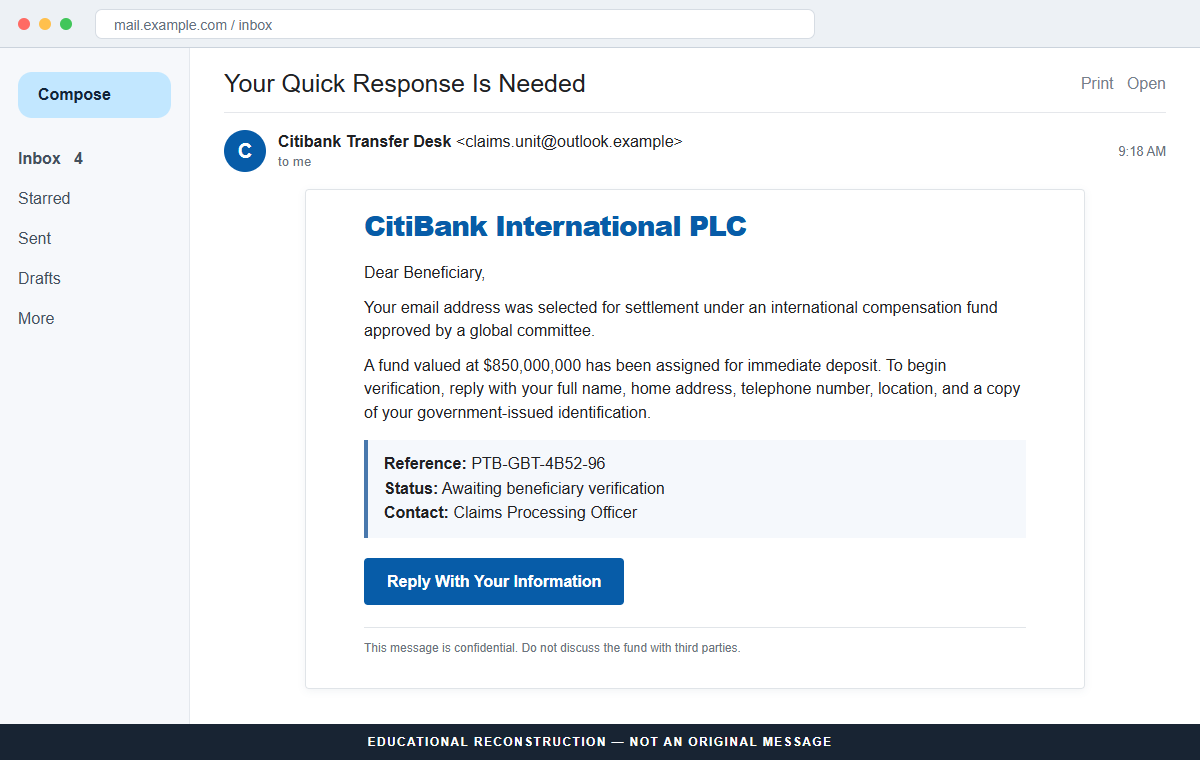
The email impersonates Citibank International PLC and claims that a World Bank and European Union committee approved a compensation fund. The recipient supposedly qualifies because of unpaid contracts, past fraud, or foreign debts.
A reference number and an official-sounding claims officer make the story look assigned to a real case. None of those details proves that a bank account, committee, court order, or compensation program exists.
The first request is for identity, not a transfer
The recipient is asked to reply with a full name, home address, telephone number, location, and a copy of government-issued identification. That information can support impersonation, account recovery attempts, forged applications, or more convincing follow-up scams.
The sender may avoid asking for money in the first email. Delaying the fee request makes the exchange resemble a formal verification process and lets the scammer learn which story the recipient is most likely to believe.
The promised deposit creates leverage for advance fees
After a reply, the supposed bank can introduce a transfer agent, attorney, tax office, courier, or insurance department. Each new character may demand a payment before the imaginary fund can be released.
Analysis of the campaign found no connection to Citibank and noted that the message came through a free webmail service. The $850,000,000 promise is bait; personal information and repeated payments are the intended return.
- The email arrives without any prior claim, contract, or legal process.
- It borrows the names of Citi, the World Bank, and the European Union.
- The sender uses a free or unrelated email domain instead of an official bank address.
- The recipient is promised $850,000,000 for reasons that cannot be independently verified.
- A reply must include contact details and a copy of government identification.
- Follow-up messages can demand release, tax, insurance, legal, or courier fees.
- Secrecy and urgency are used to keep the recipient away from trusted advice.
Why an Impossible $850,000,000 Claim Can Still Get Replies
The scam does not need everyone to believe it. A campaign can send thousands of messages cheaply and continue only with the small number of recipients who answer. An unusual promise also filters for people willing to engage with an extraordinary story.
The language mixes familiar institutions with vague bureaucracy. Citibank is real, as are the World Bank and European Union, but a long committee name can be invented in seconds. The borrowed names create authority without creating a legitimate relationship.
Compensation is a particularly effective theme because it suggests the money is deserved rather than won. A recipient may imagine an old investment, inheritance, business dispute, or previous scam finally being corrected.
The amount is intentionally life-changing. Once someone pictures paying debts or helping family, a later $950 or $2,950 fee can feel small beside $850,000,000. That comparison is manufactured; there is no verified fund behind it.
A legitimate settlement has a traceable case, administrator, eligibility notice, public terms, and independent contact route. It does not begin with an unsolicited free-mail message asking a stranger to email a passport or driver's license.
What the Sender Details and Official Guidance Show
The analyzed email used the subject line “Your Quick Response Is Needed” and presented itself as Citibank International PLC. It referenced a supposed foreign-debt compensation committee and gave the recipient an invented beneficiary reference.
The sender address did not belong to Citi. Display names are ordinary text, so an attacker can place a bank name beside an Outlook, Gmail, or lookalike address. The domain after the @ symbol is more useful than the name before it.
Citi's Security Center tells customers how to report suspicious email and lists spoof@citi.com for phishing reports. The official site does not validate unsolicited compensation notices or instruct people to send identity documents to outside claims officers.
The FTC warns that fake prize and recovery schemes often demand money or personal information before a supposed payout. Taxes, customs, processing, and transfer charges are common explanations for payments that never unlock anything.
No email screenshot alone can identify every person behind a campaign. What can be established is that the message is unauthorized, the institutions do not confirm the fund, and its requested actions expose the recipient without providing a verifiable legal claim.
How the CitiBank Compensation Fund Email Scam Works
Step 1: A mass email announces a private compensation award
The campaign opens with a subject that asks for a quick response without explaining the issue. Inside, the sender says the recipient was selected for a large foreign-debt or fraud-compensation settlement.
The message may include a New York address, department name, telephone number, officer, and reference code. Those details are cheap to copy or invent and should be verified through independently located official contacts.
Step 2: Famous institutions make the story feel supervised
Citi, the World Bank, the European Union, and an international committee are placed in the same narrative. The combination implies that several respected organizations reviewed and approved the payment.
Real institutions do not become participants because their names appear in an email. Search each organization separately and ask whether it publicly recognizes the specific committee, reference, and claims process.
Step 3: The recipient is asked to establish a beneficiary file
The first reply may require a full legal name, address, phone number, occupation, country, and identity-document scan. A scammer calls this know-your-customer verification to make a dangerous disclosure sound routine.
A passport or license contains more than a photograph. Document numbers, birth dates, signatures, and addresses can support fraud attempts and can be reused in scams aimed at other victims.
Step 4: A personal handler builds trust over several messages
Someone posing as a bank officer may answer politely, provide forms, and refer to the recipient as a beneficiary. The handler can move the conversation to WhatsApp or another channel where warnings and corporate email controls are absent.
Long correspondence is not evidence of legitimacy. It is an investment by the scammer, who may expect several fees or valuable identity data from one responsive target.
Step 5: The fund is suddenly blocked by an invented requirement
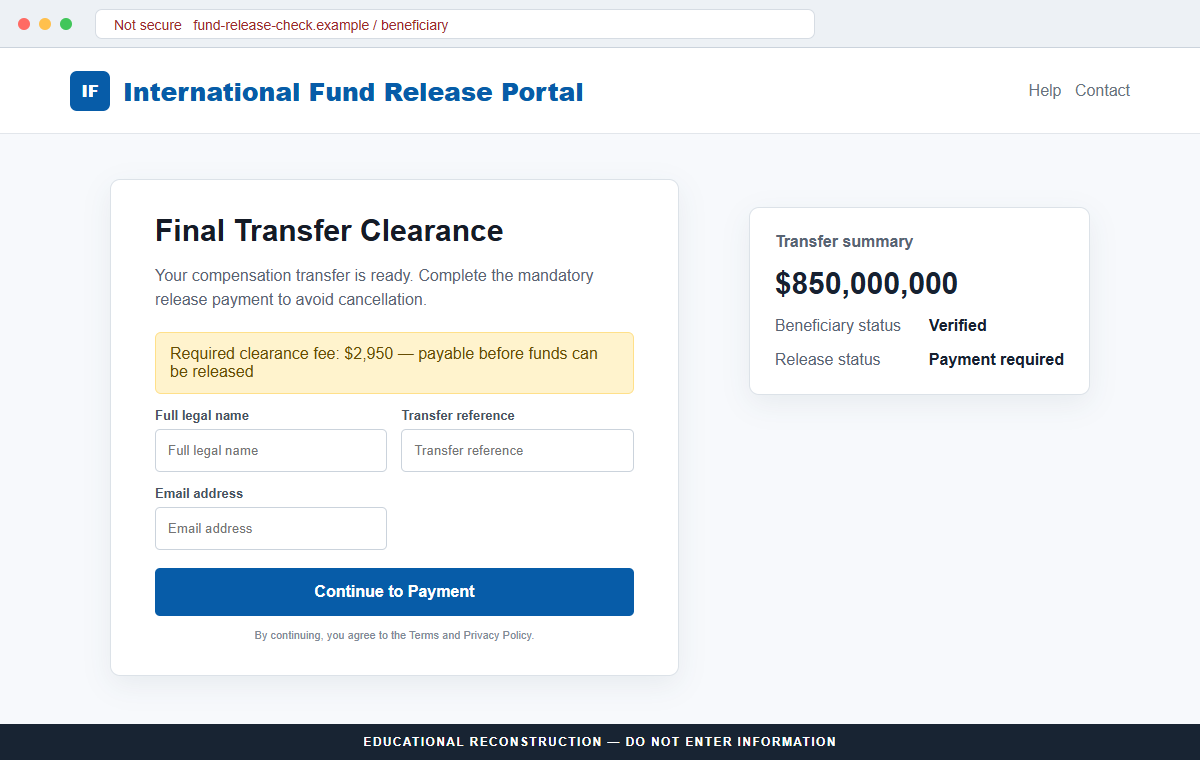
After verification, the sender claims the transfer is approved but cannot proceed until a clearance certificate, anti-money-laundering document, tax stamp, insurance bond, or courier package is paid.
The obstacle is designed to sound temporary and procedural. A countdown, signed letter, or promise of reimbursement encourages payment before the recipient checks with a bank, attorney, or regulator.
Step 6: Each payment creates the reason for another payment
Sending one fee does not release the fund. The handler may claim the payment arrived late, was coded incorrectly, or exposed another charge. A second person can appear to confirm the new demand.
This is the sunk-cost stage. Victims are told that abandoning the process would waste earlier payments, while one final amount will supposedly complete a transfer that never existed.
Step 7: Recovery scammers may target the victim again
When the recipient stops paying, a different contact may claim to be an investigator, lawyer, refund office, or blockchain recovery specialist. The new story may use details collected during the first scam.
An unsolicited recovery agent who guarantees repayment for an upfront fee is extending the loss. Reports should go through the bank, police, FTC, or another official channel found independently.
Company and Checkout Checks
Check the complete sender address, not the display name
A message can display “Citibank Transfer Desk” while being sent from a free mailbox. Expand the From and Reply-To fields and compare their domains with addresses published on Citi's own website.
Even a familiar-looking address can be spoofed. Message headers, authentication results, and an independent call to the bank are stronger checks than a logo or sender name.
Verify the committee and case through public records
Search the exact committee name, reference format, settlement administrator, and court or agency that supposedly authorized the fund. A genuine $850,000,000 program would leave more evidence than one private email.
Do not use a phone number or link supplied by the sender. Start from the official institution's website and ask its fraud or legal department about the notice.
Treat the listed office address as a claim to verify
Scammers copy the real address of a bank headquarters because it appears persuasive in a signature. The fact that Citi has offices at a location does not mean the person using that address works there.
Mailing addresses, officer names, seals, and reference codes must all connect to the same verified process. One accurate detail cannot authenticate an otherwise untraceable claim.
No checkout or fee request should appear in a compensation claim
A payment page for transfer clearance is not made safe by bank colors, encryption, or a professional invoice. Advance fees are the transaction, not a step toward the promised fund.
Never pay by wire, cryptocurrency, gift card, or money-transfer service to unlock unsolicited compensation. These methods are favored because recovery is difficult after the recipient acts.
Warning Signs to Check Before You Act
- You never filed a claim connected with the supposed compensation program.
- The award is an extraordinary $850,000,000 and arrives by ordinary email.
- The subject urges a quick response before identifying a verifiable case.
- A free webmail or unrelated domain is used for official bank business.
- Several famous institutions are named, but no public case record is linked.
- The sender requests a passport, driver's license, address, and telephone number.
- The message asks for secrecy or discourages consultation with other people.
- A release, tax, certificate, legal, insurance, or courier fee appears later.
- Payment is requested through a wire, cryptocurrency, gift card, or transfer service.
- The handler says every new fee is the final obstacle.
The core contradiction is simple: a legitimate institution capable of paying $850,000,000 would not establish the beneficiary through an unsolicited free-mail exchange. Close the conversation and verify the claim through Citi or the named institution using contact information you locate yourself.
What to Do if You Have Fallen Victim to This Scam
- Stop replying and do not send another payment. Save the conversation, then end contact. Do not argue with the handler or reveal that you are preparing a report. Block the addresses, numbers, and messaging accounts after preserving evidence.
- Call the financial institution that sent your payment. If you used a bank, card, wire, money-transfer service, or cryptocurrency exchange, contact its fraud team immediately. Ask whether the transaction can be recalled, frozen, disputed, or traced. Speed matters.
- Protect every identity document you shared. Report the exposed passport or license to the issuing authority and ask whether replacement or a fraud notation is appropriate. Keep the scam correspondence because it explains how the document left your control.
- Place fraud alerts or freezes on your credit files. In the US, contact the three major credit bureaus. A freeze can make it harder to open new accounts in your name, while an alert tells creditors to take additional verification steps.
- Change passwords connected with the exposed email. Use a clean device and create a unique password for the mailbox. Turn on multi-factor authentication, review forwarding rules and recovery details, and sign out unfamiliar sessions. Change any reused password elsewhere.
- Scan devices if you opened files or installed software. Run a full scan with Malwarebytes or another trusted security product. Remove unknown remote-access tools, browser extensions, and downloads. If a stranger controlled the screen, also review saved passwords and financial sessions.
- Block malicious domains and future follow-ups. AdGuard or another reputable DNS and content-blocking service can help prevent known phishing destinations from loading. Blocking is an extra layer, not a substitute for verifying senders and account activity.
- Report the impersonation to Citi. Forward the suspicious email as directed by Citi's Security Center, using the official reporting address found on Citi.com. Include full headers when possible and do not forward identity documents to additional recipients.
- File official fraud and identity-theft reports. Use ReportFraud.ftc.gov and IdentityTheft.gov in the US, or the equivalent police and cybercrime services in your country. Provide payment receipts, wallet addresses, phone numbers, email headers, and the timeline.
- Ignore anyone promising guaranteed recovery. Recovery scammers search for people who have already paid. Do not give an unsolicited investigator, lawyer, hacker, or refund agent more money or remote access. Verify assistance through official channels.
Is Your Device Infected? Run a Free Malware Scan
Slow performance, constant pop-ups, or strange behavior? These are classic signs of a malware infection. The fastest way to find out is to scan your device with Malwarebytes Free — one of the most trusted malware removal tools available.
The free version detects and removes the most common threats, including:
- Adware — the cause of those annoying pop-ups
- Browser hijackers — unwanted redirects and changed homepages
- Trojans and spyware — hidden programs stealing your data
- Potentially unwanted programs (PUPs) — software you never asked for
👉 Select your device below — Windows, Mac, or Android — then follow the simple steps to download Malwarebytes, scan your system, and remove any threats it finds. The scan usually takes 5 to 20 minutes.
Run a Malware Scan with Malwarebytes for Windows
Malwarebytes is one of the most popular and trusted anti-malware tools for Windows — and it’s completely free for removing infections. It catches threats that many antivirus programs miss, including adware, browser hijackers, and trojans. Follow the steps below to scan and clean your PC in just a few minutes.
Download Malwarebytes
Click the button below to download the latest version of Malwarebytes for Windows from the official source. The free version is all you need — it will scan your computer and remove adware, browser hijackers, and other malicious software at no cost.
Download MalwarebytesOfficial installer for Windows 11 and 10. Your download starts right away.Want real-time protection? See Malwarebytes Premium Malwarebytes Free for WindowsScans and removes malware at no cost
-
Install Malwarebytes
When the download finishes, open your Downloads folder and double-click the MBSetup file. If Windows shows a User Account Control pop-up, click “Yes” to allow the installation.

Follow the On-Screen Prompts to Install Malwarebytes
The setup wizard will walk you through a few quick screens:
-
Choose where you’re installing the program — “Personal Computer” or “Work Computer” — then click Next.

-
Malwarebytes will now install on your device. This usually takes under a minute.

-
When installation is complete, the “Welcome to Malwarebytes” screen will open automatically.

-
On the final screen, click Open Malwarebytes to launch the program.

-
Enable “Scan for Rootkits”
Before scanning, turn on rootkit detection so Malwarebytes can find even the most hidden threats. Click the Settings gear icon on the left side of the screen.

In the settings menu, find “Scan for rootkits” and click the toggle so it turns blue.

Done? Click “Dashboard” in the left pane to return to the main screen.
Start the Scan
Click the blue Scan button. Malwarebytes will automatically update its virus database and start checking your computer for malware.

-
Wait for the Scan to Finish
The scan checks your entire system for browser hijackers and other malicious programs, so it can take 5 to 20 minutes depending on your computer. Feel free to do something else — just check back occasionally to see the progress.

-
Quarantine the Detected Threats
When the scan is done, you’ll see a list of everything Malwarebytes found — malware, adware, and potentially unwanted programs. Click the “Quarantine” button to remove all of them at once.

Malwarebytes will now remove the malicious files and registry entries and move them safely into quarantine.

-
Restart Your Computer
Some threats can only be fully removed after a reboot. If Malwarebytes asks you to restart, click Yes. Once you’re logged back in, Malwarebytes has finished removing the threats it found.

That’s it — your Windows PC is now clean of trojans, adware, and other malware, and should be back to running smoothly.
If you are still having problems with your computer after completing these instructions, then please follow one of the steps:
- Run a computer scan with ESET Online Scanner
- Ask for help in our Windows Malware Removal Help & Support forum.
Run a Malware Scan with Malwarebytes for Mac
Malwarebytes for Mac is a free on-demand scanner that removes the malware other security software tends to miss — adware, browser hijackers, and unwanted programs included. Cleaning an infected Mac with Malwarebytes has always been completely free, and it’s our go-to recommendation. Follow the steps below to scan and clean your Mac in just a few minutes.
-
Download Malwarebytes for Mac
Click the button below to download the latest version of Malwarebytes for Mac.
Download MalwarebytesOfficial installer for macOS. Your download starts right away.Want real-time protection? See Malwarebytes PremiumMalwarebytes Free for MacScans and removes malware at no cost -
Open the Malwarebytes setup file
When the download finishes, open your Downloads folder and double-click the setup file to begin the installation.

-
Follow the On-Screen Prompts to Install Malwarebytes
The Malwarebytes for Mac Installer will guide you through a few quick screens. Click “Continue” and keep following the prompts until the installation completes.



When the installation is complete, Malwarebytes opens to the Welcome to Malwarebytes screen. Click “Get started“.
-
Select “Personal Computer” or “Work Computer”
Malwarebytes will ask what type of computer you’re installing it on. Click either Personal Computer or Work Computer, whichever applies.

-
Start the Scan
Click the “Scan” button. Malwarebytes will automatically update its detection database and begin checking your Mac for malware.

-
Wait for the Scan to Finish
Malwarebytes will scan your Mac for adware, browser hijackers, and other malicious programs. This can take a few minutes, so feel free to do something else — just check back occasionally to see the progress.

-
Quarantine the Detected Threats
When the scan is done, you’ll see a list of everything Malwarebytes found. Click the “Quarantine” button to remove all the threats at once.

-
Restart Your Mac
Malwarebytes will now remove all the malicious files it found. Some threats can only be fully removed after a reboot — if Malwarebytes asks you to restart, allow it. Once you’re logged back in, your Mac is clean.

That’s it — your Mac is now free of adware, rogue browser extensions, and other potentially harmful software.
If you are still experiencing problems while trying to remove a malicious program from your computer, please ask for help in our Mac Malware Removal Help & Support forum.
Run a Malware Scan with Malwarebytes for Android
Malwarebytes for Android automatically detects and removes dangerous threats like malware and ransomware so you don’t have to worry about your most-used device being compromised. Aggressive detection of adware and potentially unwanted programs keeps your Android phone or tablet running smooth.
-
Download Malwarebytes for Android.
You can download Malwarebytes for Android by clicking the link below.
Get Malwarebytes for AndroidOpens Google Play in a new tab.Want real-time protection? See Malwarebytes Premium for AndroidMalwarebytes for AndroidScans your phone and removes malware at no cost -
Install Malwarebytes for Android on your phone.
In the Google Play Store, tap “Install” to install Malwarebytes for Android on your device.

When the installation process has finished, tap “Open” to begin using Malwarebytes for Android. You can also open Malwarebytes by tapping on its icon in your phone menu or home screen.

-
Follow the on-screen prompts to complete the setup process
When Malwarebytes will open, you will see the Malwarebytes Setup Wizard which will guide you through a series of permissions and other setup options.
This is the first of two screens that explain the difference between the Premium and Free versions. Swipe this screen to continue.
Tap on “Got it” to proceed to the next step.
Malwarebytes for Android will now ask for a set of permissions that are required to scan your device and protect it from malware. Tap on “Give permission” to continue.
Tap on “Allow” to permit Malwarebytes to access the files on your phone.
-
Update database and run a scan with Malwarebytes for Android
You will now be prompted to update the Malwarebytes database and run a full system scan.

Click on “Update database” to update the Malwarebytes for Android definitions to the latest version, then click on “Run full scan” to perform a system scan.

-
Wait for the Malwarebytes scan to complete.
Malwarebytes will now start scanning your phone for adware and other malicious apps. This process can take a few minutes, so we suggest you do something else and periodically check on the status of the scan to see when it is finished.

-
Click on “Remove Selected”.
When the scan has been completed, you will be presented with a screen showing the malware infections that Malwarebytes for Android has detected. To remove the malicious apps that Malwarebytes has found, tap on the “Remove Selected” button.

-
Restart your phone.
Malwarebytes for Android will now remove all the malicious apps that it has found. To complete the malware removal process, Malwarebytes may ask you to restart your device.
That’s it — your Android phone is now clean — no more malicious apps, adware, or browser redirects.
If you are still having problems with your phone after completing these instructions, then please follow one of the steps:
- Restore your phone to factory settings by going to Settings > General management > Reset > Factory data reset.
- Ask for help in our Mobile Malware Removal Help & Support forum.
Stay Protected: Block Ads and Malicious Sites
Now that your device is clean, keep it that way. Most infections start with a malicious ad or a fake download button — so blocking them at the source is your best defense.
We recommend AdGuard, which blocks malicious ads, phishing pages, and dangerous redirects before they can reach you.
👉 Download AdGuard and browse safely
Frequently Asked Questions
Is the $850,000,000 CitiBank compensation fund real?
No evidence supports the fund described in this campaign. The analyzed message was not connected with Citi, and its requests match identity-theft and advance-fee fraud.
Why did the sender know my email address?
Addresses are collected from breaches, public pages, marketing lists, and automated guessing. Receiving a personalized message does not show that the sender knows you or holds a real beneficiary file.
Can Citi or the World Bank contact beneficiaries by email?
Legitimate organizations use email, but a genuine claim must be independently traceable. Verify it through the institution's official website, known account portal, legal record, or published telephone number before responding.
Why does the scam ask for identification before money?
Identity documents make the process look formal and give the criminal reusable data. They also help create personalized forms and follow-up messages that make later fee demands more convincing.
Will paying the clearance fee release the fund?
No. There is no verified compensation deposit to release. Paying usually leads to additional charges for taxes, insurance, legal documents, currency conversion, or transfer problems.
What if I replied but did not send documents?
Stop contact and watch for targeted follow-ups. Secure your email, keep the messages, and be skeptical of new bank, legal, refund, or recovery contacts that mention the same story.
The Bottom Line
The CitiBank Compensation Fund email scam uses an impossible $850,000,000 promise to obtain very real identity documents and payments. Bank names, office addresses, reference numbers, and signed letters are props unless an official channel confirms the case.
Do not send identification to the reply address, and never pay a fee to unlock an unsolicited settlement. Contact Citi, the named institution, and your financial provider through independently located details.
If you already responded, act on the information you exposed rather than waiting for the handler's next explanation. Protect your accounts, document the loss, report the impersonation, and reject paid recovery offers.

Join the discussion
0 commentsShare your experience or ask a question about this article.
Discussion
Start the conversation
Have a question or something useful to share? Add the first comment.