

A final notice says Bank of America still cannot confirm your account information. Update it before August 17, 2026, the email warns, or access may be restricted.
The Bank of America Account Update email scam is more dangerous than an ordinary fake login. It checks the visitor's operating system, then sends Windows users toward rogue remote-access software while showing macOS users a counterfeit banking sign-in.
Overview
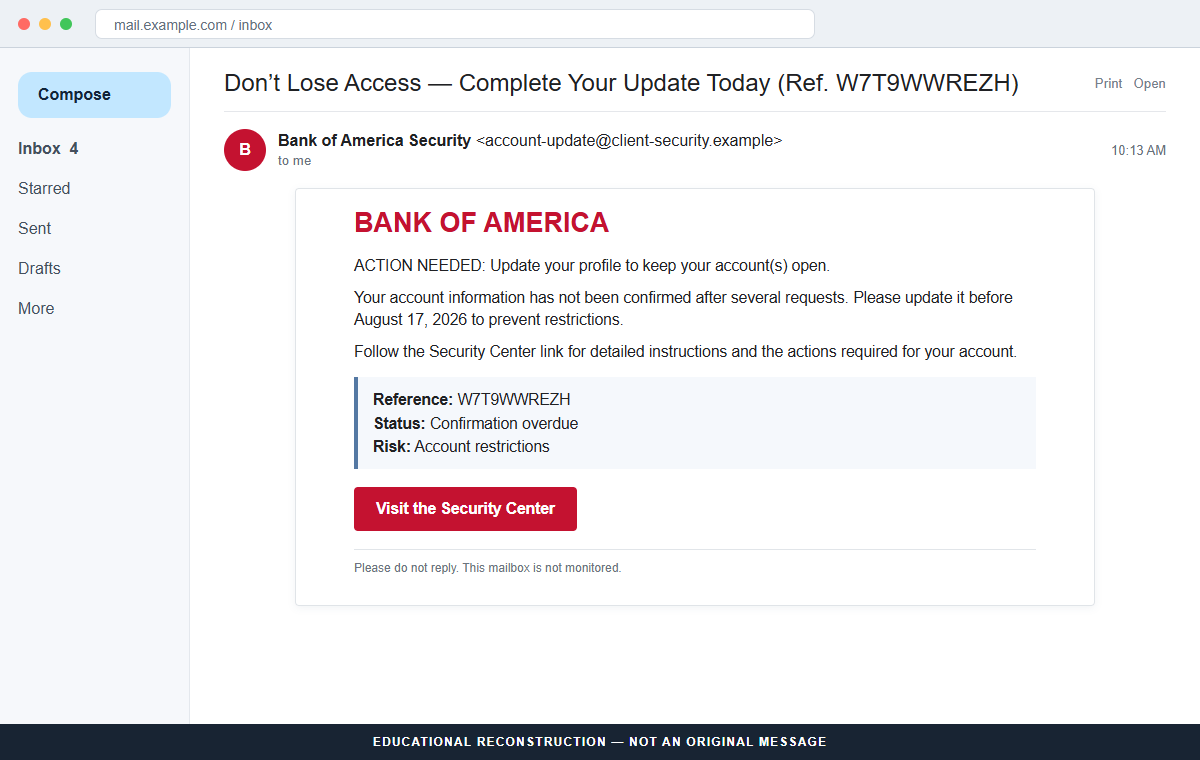
The email imitates an overdue bank-security request
The message claims earlier notices were ignored and says the account profile must be confirmed to keep services open. A reference such as W7T9WWREZH and an action deadline make the warning look tied to a real customer record.
A Visit the Security Center link appears to offer a safe route. It does not lead to Bank of America, and the bank has no connection with the campaign or the software promoted behind the link.
The website chooses an attack based on the device
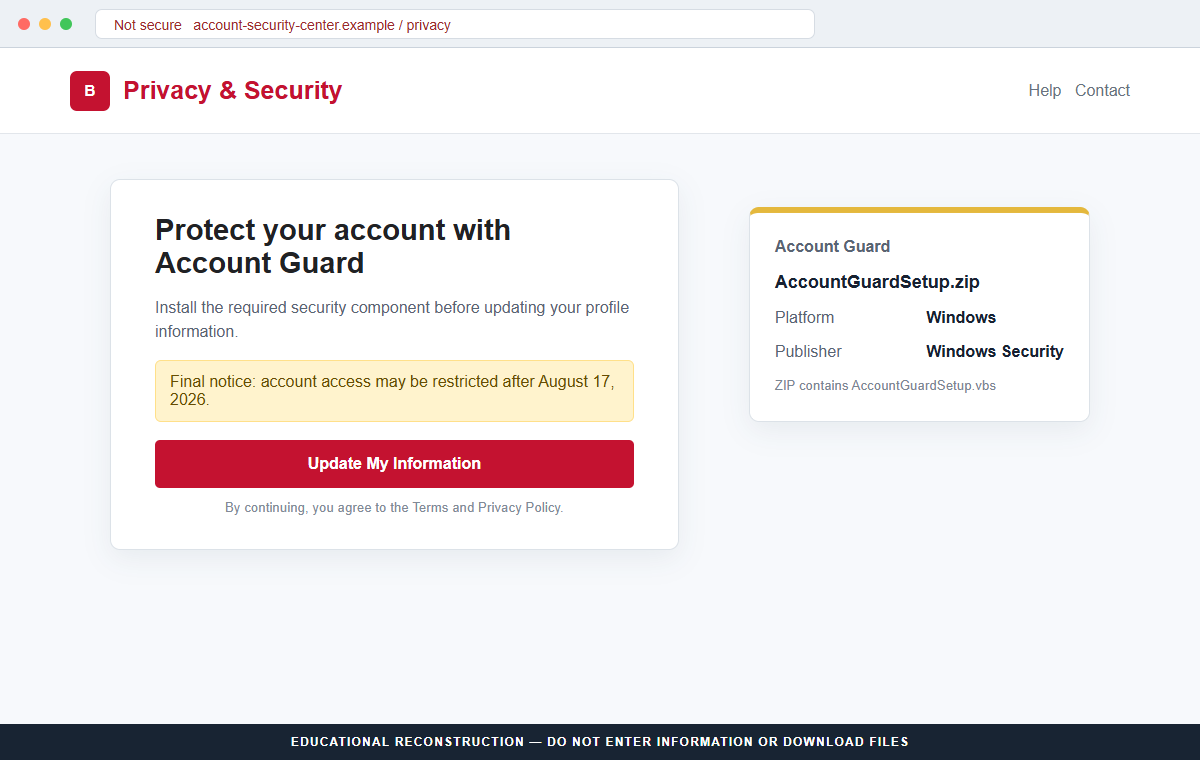
Windows visitors see a copied Privacy & Security page that tells them to install “Account Guard.” The Update My Information button downloads AccountGuardSetup.zip, which contains AccountGuardSetup.vbs.
macOS visitors are sent to a different counterfeit page that requests a Bank of America User ID and password. This branching lets one campaign pursue remote computer access or online-banking credentials.
A legitimate remote-management tool becomes the payload
Analysis indicates that the Visual Basic script installs ScreenConnect, a legitimate remote monitoring and management product, without the victim's informed authorization. The rogue client is registered under the reassuring name “Windows Security.”
Once connected to an attacker-controlled ScreenConnect service, the computer may be operated remotely. Criminals can inspect files, capture credentials, access banking sessions, or install additional tools, depending on what they do after access is established.
- The email claims several previous account-confirmation requests were ignored.
- A deadline of August 17, 2026 threatens account restrictions.
- The Security Center link does not open Bank of America.
- The landing site detects whether the visitor uses Windows or macOS.
- Windows users receive AccountGuardSetup.zip containing a VBS script.
- The script installs an unauthorized ScreenConnect remote-access client.
- macOS users see a counterfeit online-banking login instead.
- The real bank does not distribute Account Guard through this email.
Why a Fake Security Program Can Bypass Normal Suspicion
Banks constantly remind customers to protect accounts, update contact details, and use security features. The scam reverses that useful advice, presenting the dangerous download as the responsible way to avoid a restriction.
“Account Guard” sounds like a protective product rather than an installer. A file named Setup, a Privacy & Security page, and a publisher label such as Windows Security can make unfamiliar software appear connected with the operating system.
Remote monitoring tools create another difficulty. ScreenConnect has legitimate uses in technical support and business administration. Security products may recognize the signed application itself even when a criminal controls the session it creates.
This is known as abuse of a legitimate remote-management tool. The danger comes from unauthorized installation, attacker-controlled configuration, persistence, and the commands performed after connection.
The macOS branch shows that the campaign is designed for conversion, not one technical exploit. When the Windows installation route does not apply, the site falls back to stealing bank credentials directly.
What the Files, Remote Tool, and Bank Guidance Show
Analysis of AccountGuardSetup.zip identified a layered Visual Basic script that downloads ScreenConnect in the background. Its report says the installation uses a privilege bypass and registers itself as Windows Security.
The exact post-access activity can vary. The presence of unauthorized remote access supports concern about full computer control, but it does not prove that every victim experienced the same theft, transfer, or additional malware.
Huntress has separately documented widespread criminal abuse of remote-management tools, including ScreenConnect, because they provide persistent access while blending with legitimate administration software.
Bank of America's reporting page tells customers who responded to a suspicious email to call the number on the card or statement. Its security resources also provide official routes for reporting suspicious messages.
Microsoft's Windows Security guidance explains full and offline scan options. An offline scan runs after a restart outside normal Windows, making it harder for persistent threats to hide or defend themselves.
How the Bank of America Account Update Email Scam Works
Step 1: A final notice claims account confirmation failed
The email says Bank of America sent several previous requests and still lacks confirmed account information. The wording encourages the recipient to blame themselves for overlooking an ordinary compliance task.
The reference code and deadline are printed by the attacker. They should be compared with notices inside the official bank account, not treated as proof.
Step 2: Restriction pressure drives the Security Center click
The message warns that services may be interrupted unless the update is completed quickly. A Security Center label borrows language associated with safe bank education and account protection.
The link destination is outside Bank of America. A security-themed button is not a secure route when the underlying domain belongs to someone else.
Step 3: The landing page fingerprints the operating system
The site examines the browser environment and decides which attack to present. This avoids showing a Windows script to a Mac user and lets one campaign target multiple devices.
Device detection is common web functionality. Its presence does not make the page sophisticated enough to be legitimate; it simply improves the scam's relevance.
Step 4: Windows users are offered Account Guard
The copied Privacy & Security page says the recipient must install a protective component before profile information can be updated. The button downloads AccountGuardSetup.zip.
Inside the archive is AccountGuardSetup.vbs, a script rather than a normal bank document. Running it gives the attack chain permission to begin.
Step 5: The script silently deploys ScreenConnect
The VBS code uses several layers to download and install a ScreenConnect client. Analysis indicates that the process gains administrator access without the visible prompts the user would expect.
The installation name Windows Security helps it blend into program lists and processes. The software then connects to remote infrastructure controlled by the attacker.
Step 6: macOS users see a fake bank login
Instead of the ZIP archive, Mac visitors receive a counterfeit Bank of America sign-in. User IDs and passwords entered there are sent to the criminals.
The site may redirect to the real bank after submission. That handoff cannot undo the credential disclosure that already occurred.
Step 7: Remote or account access enables follow-up fraud
With ScreenConnect, an attacker can observe the desktop, move files, run commands, and install more software. With bank credentials, the attacker may attempt logins, password resets, or social-engineering calls.
Bank security may block some actions or require additional verification. Victims should still respond as though the device or credentials are compromised, rather than waiting for a visible transaction.
Company and Checkout Checks
The display name is not the bank
Expand the sender, Reply-To, and link. A Bank of America logo, copyright line, Member FDIC text, or reference number can be copied into any email.
Open the bank from a saved bookmark or official mobile application. The warning should be visible there or confirmable through the number printed on the card.
The Security Center destination must belong to Bank of America
Attackers use phrases such as security center and privacy to make an outside domain feel like a bank subpage. Read the registrable domain before downloading or signing in.
Do not investigate the suspicious site from a banking device. Record the defanged address and report it through the bank's published channel.
The ZIP and VBS files are not profile-update documents
A bank profile can be updated within an authenticated account. It does not require running a Visual Basic script from a ZIP archive delivered after an unsolicited email.
Windows file extensions may be hidden. Enable extension visibility and do not assume a Setup name indicates a signed, authorized bank application.
ScreenConnect can be legitimate while this installation is not
The product's legitimate support uses do not authorize a stranger to place a preconfigured client on the computer. The controlling server, session, installer source, and consent determine whether access is expected.
If an employer legitimately uses ScreenConnect, the security team must distinguish its approved instance from the rogue client instead of removing software blindly.
Warning Signs to Check Before You Act
- A final notice claims several earlier updates were ignored.
- The message uses a deadline and reference code that are absent from the real account.
- The Security Center link leads outside Bank of America.
- The page requires software installation before a profile update.
- A bank-branded button downloads AccountGuardSetup.zip.
- The archive contains AccountGuardSetup.vbs.
- The installer presents itself as Windows Security.
- ScreenConnect appears even though no trusted technician was invited.
- Mac visitors receive a password form on an unrelated domain.
- The bank cannot confirm the notice through the number on the card.
A genuine bank can update customer information inside an authenticated account. It does not need a VBS script, a ZIP archive, or an unsolicited remote-control client. Stop as soon as the Security Center leaves the bank's domain.
What to Do if You Have Fallen Victim to This Scam
- Disconnect a Windows computer that ran the script. Turn off Wi-Fi or unplug Ethernet to interrupt remote control. Do not use the potentially compromised device for banking, password changes, email, or sensitive work until it has been assessed.
- Contact your bank from a different trusted device. Call the number on the card or statement and explain exactly what happened. Ask the fraud team to review sessions, transactions, transfers, profile changes, payees, and security settings.
- Notify workplace security before altering evidence. If the computer is managed by an employer, contact IT or incident response immediately. The team may need logs and memory evidence and can identify whether any ScreenConnect installation is authorized.
- Run updated full and offline security scans. Use Malwarebytes or another trusted anti-malware product for a full scan. On Windows, consider Microsoft Defender Offline or professional incident response because a remote operator may have installed additional persistence.
- Remove unauthorized remote access carefully. Look for unfamiliar ScreenConnect clients and an entry named Windows Security, but do not assume a display name proves identity. An administrator should verify services, startup items, scheduled tasks, users, and remote tools.
- Change passwords from a clean device. Start with Bank of America, the primary email account, password manager, and any credentials used while the computer could be observed. Use unique passwords and enable strong multi-factor authentication.
- Review the Mac phishing path separately. If banking credentials were entered on macOS, contact the bank and reset them immediately even if no file was downloaded. Revoke sessions and reject unexpected authentication prompts or one-time-code requests.
- Block known malicious sites as an added defense. AdGuard or another reputable DNS and content blocker may prevent known phishing and download domains from loading. It cannot remove remote-access software or secure stolen banking credentials.
- Preserve and report campaign evidence. Keep the email, headers, URLs, ZIP name, script name, screenshots, and security alerts. Forward the suspicious message to Bank of America using the reporting information on its official security site.
- Consider rebuilding a seriously compromised device. If unauthorized remote control is confirmed, a clean operating-system reinstall from trusted media may provide more confidence than removal alone. Coordinate backups and restoration with a qualified professional so malicious files are not restored.
Is Your Device Infected? Run a Free Malware Scan
Slow performance, constant pop-ups, or strange behavior? These are classic signs of a malware infection. The fastest way to find out is to scan your device with Malwarebytes Free — one of the most trusted malware removal tools available.
The free version detects and removes the most common threats, including:
- Adware — the cause of those annoying pop-ups
- Browser hijackers — unwanted redirects and changed homepages
- Trojans and spyware — hidden programs stealing your data
- Potentially unwanted programs (PUPs) — software you never asked for
👉 Select your device below — Windows, Mac, or Android — then follow the simple steps to download Malwarebytes, scan your system, and remove any threats it finds. The scan usually takes 5 to 20 minutes.
Run a Malware Scan with Malwarebytes for Windows
Malwarebytes is one of the most popular and trusted anti-malware tools for Windows — and it’s completely free for removing infections. It catches threats that many antivirus programs miss, including adware, browser hijackers, and trojans. Follow the steps below to scan and clean your PC in just a few minutes.
Download Malwarebytes
Click the button below to download the latest version of Malwarebytes for Windows from the official source. The free version is all you need — it will scan your computer and remove adware, browser hijackers, and other malicious software at no cost.
Download MalwarebytesOfficial installer for Windows 11 and 10. Your download starts right away.Want real-time protection? See Malwarebytes Premium Malwarebytes Free for WindowsScans and removes malware at no cost
-
Install Malwarebytes
When the download finishes, open your Downloads folder and double-click the MBSetup file. If Windows shows a User Account Control pop-up, click “Yes” to allow the installation.

Follow the On-Screen Prompts to Install Malwarebytes
The setup wizard will walk you through a few quick screens:
-
Choose where you’re installing the program — “Personal Computer” or “Work Computer” — then click Next.

-
Malwarebytes will now install on your device. This usually takes under a minute.

-
When installation is complete, the “Welcome to Malwarebytes” screen will open automatically.

-
On the final screen, click Open Malwarebytes to launch the program.

-
Enable “Scan for Rootkits”
Before scanning, turn on rootkit detection so Malwarebytes can find even the most hidden threats. Click the Settings gear icon on the left side of the screen.

In the settings menu, find “Scan for rootkits” and click the toggle so it turns blue.

Done? Click “Dashboard” in the left pane to return to the main screen.
Start the Scan
Click the blue Scan button. Malwarebytes will automatically update its virus database and start checking your computer for malware.

-
Wait for the Scan to Finish
The scan checks your entire system for browser hijackers and other malicious programs, so it can take 5 to 20 minutes depending on your computer. Feel free to do something else — just check back occasionally to see the progress.

-
Quarantine the Detected Threats
When the scan is done, you’ll see a list of everything Malwarebytes found — malware, adware, and potentially unwanted programs. Click the “Quarantine” button to remove all of them at once.

Malwarebytes will now remove the malicious files and registry entries and move them safely into quarantine.

-
Restart Your Computer
Some threats can only be fully removed after a reboot. If Malwarebytes asks you to restart, click Yes. Once you’re logged back in, Malwarebytes has finished removing the threats it found.

That’s it — your Windows PC is now clean of trojans, adware, and other malware, and should be back to running smoothly.
If you are still having problems with your computer after completing these instructions, then please follow one of the steps:
- Run a computer scan with ESET Online Scanner
- Ask for help in our Windows Malware Removal Help & Support forum.
Run a Malware Scan with Malwarebytes for Mac
Malwarebytes for Mac is a free on-demand scanner that removes the malware other security software tends to miss — adware, browser hijackers, and unwanted programs included. Cleaning an infected Mac with Malwarebytes has always been completely free, and it’s our go-to recommendation. Follow the steps below to scan and clean your Mac in just a few minutes.
-
Download Malwarebytes for Mac
Click the button below to download the latest version of Malwarebytes for Mac.
Download MalwarebytesOfficial installer for macOS. Your download starts right away.Want real-time protection? See Malwarebytes PremiumMalwarebytes Free for MacScans and removes malware at no cost -
Open the Malwarebytes setup file
When the download finishes, open your Downloads folder and double-click the setup file to begin the installation.

-
Follow the On-Screen Prompts to Install Malwarebytes
The Malwarebytes for Mac Installer will guide you through a few quick screens. Click “Continue” and keep following the prompts until the installation completes.



When the installation is complete, Malwarebytes opens to the Welcome to Malwarebytes screen. Click “Get started“.
-
Select “Personal Computer” or “Work Computer”
Malwarebytes will ask what type of computer you’re installing it on. Click either Personal Computer or Work Computer, whichever applies.

-
Start the Scan
Click the “Scan” button. Malwarebytes will automatically update its detection database and begin checking your Mac for malware.

-
Wait for the Scan to Finish
Malwarebytes will scan your Mac for adware, browser hijackers, and other malicious programs. This can take a few minutes, so feel free to do something else — just check back occasionally to see the progress.

-
Quarantine the Detected Threats
When the scan is done, you’ll see a list of everything Malwarebytes found. Click the “Quarantine” button to remove all the threats at once.

-
Restart Your Mac
Malwarebytes will now remove all the malicious files it found. Some threats can only be fully removed after a reboot — if Malwarebytes asks you to restart, allow it. Once you’re logged back in, your Mac is clean.

That’s it — your Mac is now free of adware, rogue browser extensions, and other potentially harmful software.
If you are still experiencing problems while trying to remove a malicious program from your computer, please ask for help in our Mac Malware Removal Help & Support forum.
Run a Malware Scan with Malwarebytes for Android
Malwarebytes for Android automatically detects and removes dangerous threats like malware and ransomware so you don’t have to worry about your most-used device being compromised. Aggressive detection of adware and potentially unwanted programs keeps your Android phone or tablet running smooth.
-
Download Malwarebytes for Android.
You can download Malwarebytes for Android by clicking the link below.
Get Malwarebytes for AndroidOpens Google Play in a new tab.Want real-time protection? See Malwarebytes Premium for AndroidMalwarebytes for AndroidScans your phone and removes malware at no cost -
Install Malwarebytes for Android on your phone.
In the Google Play Store, tap “Install” to install Malwarebytes for Android on your device.

When the installation process has finished, tap “Open” to begin using Malwarebytes for Android. You can also open Malwarebytes by tapping on its icon in your phone menu or home screen.

-
Follow the on-screen prompts to complete the setup process
When Malwarebytes will open, you will see the Malwarebytes Setup Wizard which will guide you through a series of permissions and other setup options.
This is the first of two screens that explain the difference between the Premium and Free versions. Swipe this screen to continue.
Tap on “Got it” to proceed to the next step.
Malwarebytes for Android will now ask for a set of permissions that are required to scan your device and protect it from malware. Tap on “Give permission” to continue.
Tap on “Allow” to permit Malwarebytes to access the files on your phone.
-
Update database and run a scan with Malwarebytes for Android
You will now be prompted to update the Malwarebytes database and run a full system scan.

Click on “Update database” to update the Malwarebytes for Android definitions to the latest version, then click on “Run full scan” to perform a system scan.

-
Wait for the Malwarebytes scan to complete.
Malwarebytes will now start scanning your phone for adware and other malicious apps. This process can take a few minutes, so we suggest you do something else and periodically check on the status of the scan to see when it is finished.

-
Click on “Remove Selected”.
When the scan has been completed, you will be presented with a screen showing the malware infections that Malwarebytes for Android has detected. To remove the malicious apps that Malwarebytes has found, tap on the “Remove Selected” button.

-
Restart your phone.
Malwarebytes for Android will now remove all the malicious apps that it has found. To complete the malware removal process, Malwarebytes may ask you to restart your device.
That’s it — your Android phone is now clean — no more malicious apps, adware, or browser redirects.
If you are still having problems with your phone after completing these instructions, then please follow one of the steps:
- Restore your phone to factory settings by going to Settings > General management > Reset > Factory data reset.
- Ask for help in our Mobile Malware Removal Help & Support forum.
Stay Protected: Block Ads and Malicious Sites
Now that your device is clean, keep it that way. Most infections start with a malicious ad or a fake download button — so blocking them at the source is your best defense.
We recommend AdGuard, which blocks malicious ads, phishing pages, and dangerous redirects before they can reach you.
👉 Download AdGuard and browse safely
Frequently Asked Questions
Is Bank of America Account Guard legitimate?
The Account Guard download in this campaign is not. Bank of America has no connection with the ZIP, VBS script, or rogue ScreenConnect installation.
What does AccountGuardSetup.vbs do?
Analysis indicates that it runs a layered script that downloads and installs an attacker-configured ScreenConnect remote-access client in the background.
Is ScreenConnect itself malware?
No. ScreenConnect is legitimate remote-management software. It becomes dangerous here because criminals install and control it without informed authorization.
Why do Windows and macOS visitors see different pages?
The site detects the operating system. Windows users are targeted with the remote-access download, while Mac users are shown a fake banking login.
What if I downloaded the ZIP but did not run the VBS file?
Delete it without opening the script and run a security scan. The infection risk is much higher after execution, but verify that nothing else launched automatically.
Can uninstalling ScreenConnect make the computer safe?
Not necessarily. A remote attacker may add accounts, tools, tasks, or other persistence. A full incident assessment, offline scan, and possibly a clean rebuild may be needed.
The Bottom Line
The Bank of America Account Update email scam adapts to the victim. Windows users are pushed toward a rogue ScreenConnect installation, while macOS users face a counterfeit bank login.
The decisive warning is the software request. Bank profile maintenance belongs inside the real account and never requires AccountGuardSetup.zip or a Visual Basic script delivered through an email link.
Anyone who ran the file should disconnect the device, call the bank from a clean system, involve security professionals, and treat credentials used during remote access as exposed. Do not wait for visible fraud before acting.

Join the discussion
0 commentsShare your experience or ask a question about this article.
Discussion
Start the conversation
Have a question or something useful to share? Add the first comment.