


A billing email says your ChatGPT subscription has an unpaid $23.80 balance and may be interrupted. The amount is ordinary enough to feel believable, especially if you use the service for work.
The ChatGPT Payment Reminder email scam turns that moment of doubt into a fake checkout. Its goal is not to repair a subscription, but to collect card details and other information on a site outside OpenAI.
Overview
The email imitates a routine subscription reminder
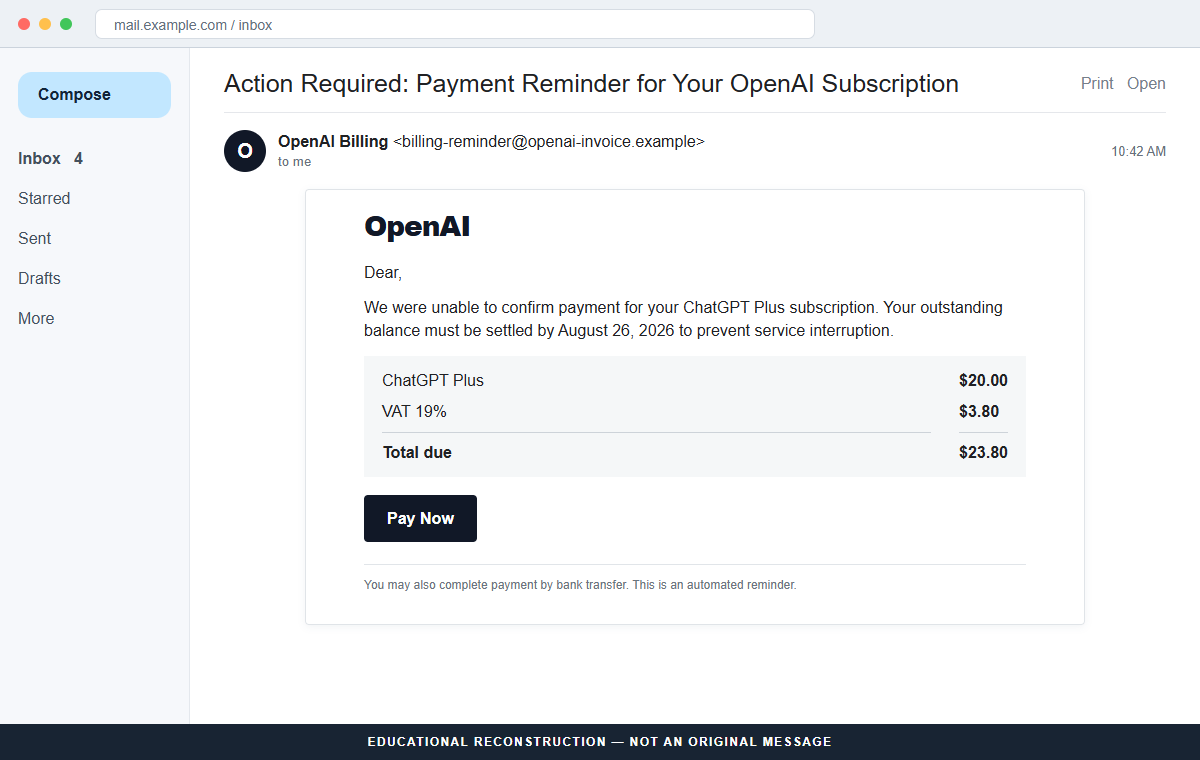
The message uses an OpenAI or ChatGPT billing theme and claims a payment was missed. One documented version lists a $20.00 subscription charge, adds 19% VAT of $3.80, and presents $23.80 as the total due.
A deadline such as August 26, 2026 creates a reason to act now. The greeting may be only “Dear,” which is inconsistent with the idea that the sender is reading a specific account and invoice.
The Pay Now button opens an unrelated domain
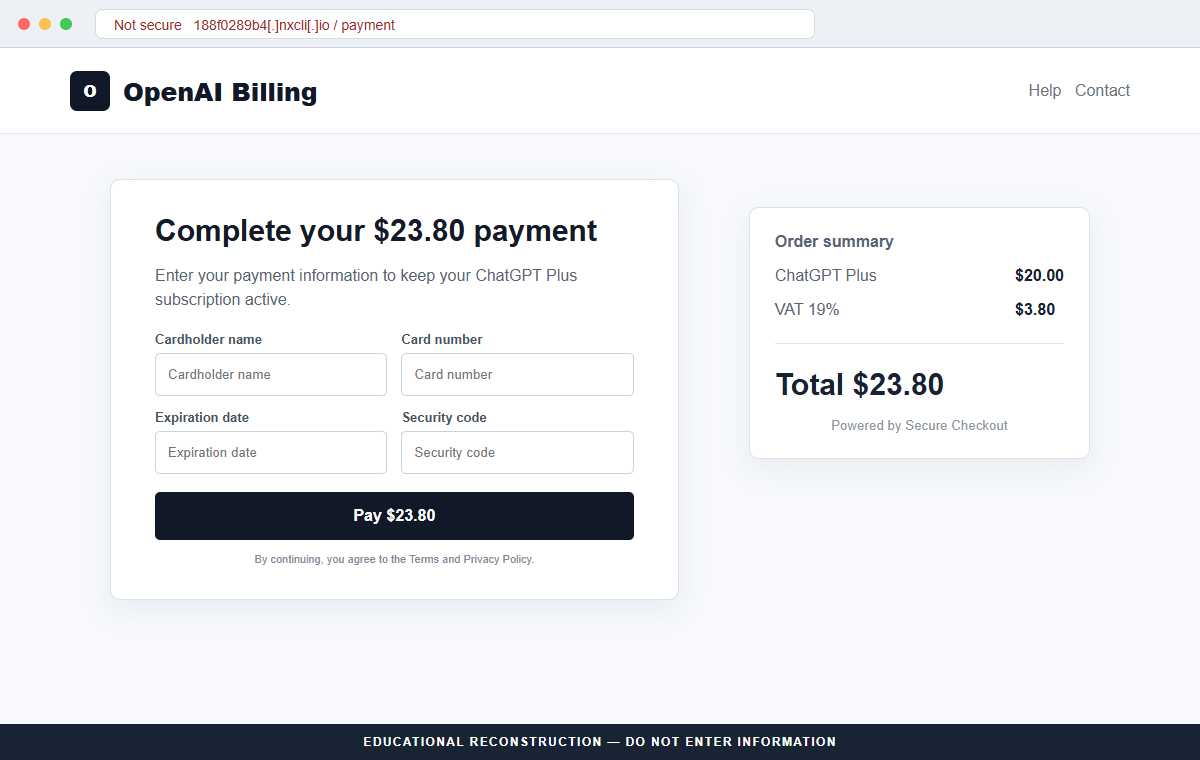
The button does not lead to ChatGPT or an official OpenAI billing portal. In the analyzed campaign it opened a phishing page on 188f0289b4[.]nxcli[.]io, a destination with no OpenAI connection.
The page repeats the $23.80 amount and asks for a cardholder name, card number, expiration date, and security code. Those fields give criminals the data needed to attempt unauthorized purchases.
The real billing status is available without the email
OpenAI's official help guidance explains that ChatGPT web subscribers can manage their subscription and payment details through ChatGPT Settings and Billing. An email button is not required to inspect the account.
If there is no matching balance or failed payment inside the account reached independently, the reminder should be treated as fraudulent. Do not test the page with a real card or password.
- The subject says action is required for an OpenAI subscription.
- A $23.80 total is broken into $20.00 plus 19% VAT of $3.80.
- The greeting is generic and does not identify the account holder.
- A deadline threatens interruption if payment is not completed.
- The Pay Now button leaves OpenAI and opens an unrelated domain.
- The fake checkout requests complete card details.
- Some versions may also offer a fraudulent bank-transfer option.
Why a Small ChatGPT Balance Feels More Convincing Than a Jackpot
Subscription scams work because people already expect automated billing. A $23.80 problem can blend into real software expenses and may be handled quickly between meetings without the scrutiny given to an enormous prize.
The message also benefits from uncertainty about tax, plan prices, renewal dates, and app-store billing. Scammers use a plausible-looking calculation so the total feels generated by an accounting system rather than invented for one email.
Fear of losing work adds pressure. Someone who keeps conversations, projects, or research in ChatGPT may worry that a missed payment will remove access. The email encourages that fear before the recipient checks the actual account.
Brand recognition is not sender authentication. Anyone can place the words OpenAI, ChatGPT, invoice, or billing notice in a message and copy a black-and-white checkout design.
The reliable shortcut is to ignore the embedded route. Open a fresh tab, enter the official ChatGPT address, sign in, and examine Settings and Billing. That breaks the scammer's control over the destination.
What the Fake Invoice and Official OpenAI Guidance Reveal
Analysis of the campaign determined that it was a phishing scam with no connection to OpenAI. The email was designed to send recipients to a fraudulent card-entry page rather than an official subscription portal.
The documented payment page used a non-OpenAI host and displayed a checkout interface around the same $23.80 balance. A padlock would only describe encryption to that host; it would not establish who operates it.
OpenAI's billing article directs ChatGPT web users to manage subscription information inside ChatGPT. Billing for the API platform is separate, which is another reason a vague email should be checked against the correct official account.
OpenAI's guidance for unrecognized charges advises users to contact their bank promptly and use the Help Center support channel. That response starts from the real account and financial institution, not from the contact details in a suspicious message.
The amount and due date can change in later versions. The durable indicators are an unexpected billing problem, pressure to follow the email, an unrelated domain, and a request for payment details outside the verified account.
How the ChatGPT Payment Reminder Email Scam Works
Step 1: A billing subject creates immediate relevance
The subject may say “Action Required: Payment Reminder for Your OpenAI Subscription.” It is specific enough to attract ChatGPT users but broad enough to reach people who have never paid for a plan.
Because the recipient might use a personal, work, mobile, or API account, uncertainty alone can produce a click. The scam does not need accurate subscription records.
Step 2: An itemized total makes the invoice look calculated
The body lists $20.00 for ChatGPT Plus and $3.80 for 19% VAT, producing a $23.80 balance. Tables and tax labels imitate the visual language of a real invoice.
A neat calculation is not proof that a charge belongs to the recipient. The message may lack an invoice number, account name, transaction record, billing country, or verifiable history.
Step 3: A service deadline turns doubt into urgency
The email warns that access could be interrupted if the amount is not paid by a stated date. Some versions may claim the subscription is suspended already or that stored data is at risk.
The recipient is pushed to solve the issue from the email instead of checking the service independently. That is the exact decision the attacker needs.
Step 4: The button routes the visitor away from OpenAI
A Pay Now button can hide its destination behind clean text. Hovering on a desktop, long-pressing on mobile, or copying the link safely may reveal a domain unrelated to openai.com or chatgpt.com.
Redirectors can make the first address different from the final page. Never rely on the appearance of the button; use the browser address bar and official navigation.
Step 5: A copied checkout collects card information
The destination asks for the cardholder name, account number, expiration date, and security code. It may use Stripe-like language or security icons to borrow trust from a known payment processor.
A logo saying “Powered by” is only an image or text until the checkout is verified. Criminals can store the fields directly, show an error, and invite another card.
Step 6: The stolen data is tested or resold
Card details can be used for small test transactions, online purchases, recurring charges, or resale. If the page also asks for an email password or OpenAI login, account takeover becomes another risk.
A failed payment message on the phishing page does not mean the information was rejected. It can be a tactic to collect multiple cards from the same victim.
Step 7: Follow-up notices extend the campaign
After submitting information, the victim may receive another invoice, a one-time-code request, or a call from fake fraud support. The attacker already knows which brand and amount received a response.
Later messages can impersonate the bank or OpenAI support and ask the victim to confirm codes. Never share a security code with an inbound caller or email sender.
Company and Checkout Checks
Compare the sender domain with official OpenAI domains
Expand the sender and Reply-To addresses. A display name such as “OpenAI Billing” can sit beside an unrelated mailbox, while replies can be routed somewhere different from the visible sender.
Do not approve the message because it passed a basic spam filter. Authentication reduces some spoofing, but compromised accounts and lookalike domains can still deliver convincing mail.
Inspect the final payment-domain ownership
The documented host, 188f0289b4[.]nxcli[.]io, is not an OpenAI billing domain. Random subdomains and unfamiliar infrastructure are especially suspicious when a page requests complete payment credentials.
Do not visit a suspected domain merely to investigate it. Record the defanged address, close the tab, and verify through ChatGPT and OpenAI's Help Center.
Check the account, plan, and invoice independently
Open ChatGPT from a saved bookmark or manually typed address. In Settings and Billing, compare the plan, renewal, payment method, and available invoice history with the email claim.
If the subscription was purchased through Apple or Google, check that store's official subscription settings as well. A separate billing route makes an outside email less credible, not more.
A professional checkout does not identify the merchant
Modern phishing kits reproduce responsive forms, card icons, tax totals, and security badges. Visual quality tells you how carefully the page was built, not who receives the submitted data.
The safe checkout is the one reached through the verified account. No discount, deadline, or support message should override the domain and account-history checks.
Warning Signs to Check Before You Act
- You receive a payment reminder for a plan you do not recognize.
- The email begins with “Dear,” or another generic greeting.
- The sender and Reply-To domains are not official OpenAI domains.
- The $23.80 balance cannot be found inside ChatGPT billing settings.
- The message threatens interruption by a short fixed deadline.
- The Pay Now link opens an unrelated or randomly named host.
- A supposed OpenAI page asks for an email-account password.
- The checkout uses copied processor branding without a verifiable merchant.
- The page reports an error and asks for another card.
- A follow-up caller requests a one-time security code.
The decisive check is not whether $23.80 sounds plausible. It is whether the same balance exists inside the correct account reached independently. If the email and account disagree, trust the official account and report the message.
What to Do if You Have Fallen Victim to This Scam
- Close the phishing page and preserve the evidence. Take screenshots of the email, sender, full link, and page without entering anything else. Keep the message and note the time of submission so banks and support teams can match later activity.
- Lock or replace the exposed card immediately. Use the bank's official app or telephone number from the card. Explain that full card details were entered on a phishing page and ask for a replacement, transaction monitoring, and appropriate disputes.
- Review pending and posted transactions. Look for small test charges, unfamiliar subscriptions, digital-wallet additions, and purchases that use vague descriptors. Continue checking future statements because criminals may wait before using the card.
- Change any password entered on the page. If you supplied an OpenAI or email password, change it from the genuine service on a clean device. Use a unique password, enable multi-factor authentication, review sessions, and remove unknown recovery details.
- Secure the email account tied to ChatGPT. Attackers can use a mailbox to reset other accounts. Check forwarding rules, filters, sent mail, deleted mail, connected applications, and recent logins. Sign out devices you do not recognize.
- Scan the device if anything was downloaded. Run a complete scan with Malwarebytes or another trusted security tool if the page delivered a file, extension, or remote-support program. Remove unknown software and update the browser and operating system.
- Add blocking as a secondary protection. AdGuard or another reputable DNS and content blocker may stop known phishing hosts and malicious advertising. Keep it enabled, but continue checking domains because new scam pages can appear before blocklists update.
- Contact OpenAI through the official Help Center. Use help.openai.com or the support option reached from the genuine account. Report the impersonation and verify subscription status. Do not continue with any support link or telephone number supplied by the email.
- Report unauthorized charges and the phishing email. Submit transaction disputes through the bank and report the scam to the FTC or your national cybercrime service. Include the defanged domain, message headers, amount, and sender information.
- Reject follow-up calls asking for security codes. A criminal may pose as the bank after testing the card. End the call and contact the bank through its official number. Never read a one-time code or approve a login you did not initiate.
Is Your Device Infected? Run a Free Malware Scan
Slow performance, constant pop-ups, or strange behavior? These are classic signs of a malware infection. A quick way to check is to scan your device with Malwarebytes Free, one of the most trusted malware removal tools available. If you only visited a scam page and didn’t download or install anything, this scan is optional.
The free version detects and removes the most common threats, including:
- Adware — the cause of those annoying pop-ups
- Browser hijackers — unwanted redirects and changed homepages
- Trojans and spyware — hidden programs stealing your data
- Potentially unwanted programs (PUPs) — software you never asked for
👉 Select your device below — Windows, Mac, or Android — then follow the simple steps to download Malwarebytes, scan your system, and remove any threats it finds. The scan usually takes 5 to 20 minutes.
Run a Malware Scan with Malwarebytes for Windows
Malwarebytes is one of the most popular and trusted anti-malware tools for Windows — and it’s completely free for removing infections. It catches threats that many antivirus programs miss, including adware, browser hijackers, and trojans. Follow the steps below to scan your PC and remove what Malwarebytes finds.
Download Malwarebytes
Click the button below to download the latest version of Malwarebytes for Windows from the official source. The free version is all you need — it will scan your computer and remove adware, browser hijackers, and other malicious software at no cost.
Download MalwarebytesOfficial installer for Windows 11 and 10. Your download starts right away.Want real-time protection? See Malwarebytes Premium Malwarebytes Free for WindowsScans and removes malware at no cost
-
Install Malwarebytes
When the download finishes, open your Downloads folder and double-click the MBSetup file. If Windows shows a User Account Control pop-up, click “Yes” to allow the installation.

Follow the On-Screen Prompts to Install Malwarebytes
The setup wizard will walk you through a few quick screens:
-
Choose where you’re installing the program — “Personal Computer” or “Work Computer” — then click Next.

-
Malwarebytes will now install on your device. This usually takes under a minute.

-
When installation is complete, the “Welcome to Malwarebytes” screen will open automatically.

-
On the final screen, click Open Malwarebytes to launch the program.

-
Optional: Check for rootkits with a Custom Scan
You don’t need to change any settings for a normal scan. The standard Threat Scan in the next step is enough for most problems, so you can go straight to it.
If you also want to check for rootkits, use a Custom Scan. In current versions of Malwarebytes, rootkit scanning is only available there:
- On the Scanner tile, click the three-dot menu and select Advanced Scan.
- Choose Custom Scan. In its options, check Scan for rootkits.
- Select your system drive (usually C:\) as the location to scan, then start the scan. It takes longer than a Threat Scan.
- When it finishes, review and quarantine the results as described in the steps below.
Rootkit scanning isn’t available on Windows devices with ARM processors.
Start the Scan
Click the blue Scan button. Malwarebytes will automatically update its virus database and start checking your computer for malware.

-
Wait for the Scan to Finish
The scan checks your entire system for browser hijackers and other malicious programs, so it can take 5 to 20 minutes depending on your computer. Feel free to do something else — just check back occasionally to see the progress.

-
Quarantine the Detected Threats
When the scan is done, you’ll see a list of everything Malwarebytes found — malware, adware, and potentially unwanted programs. Click the “Quarantine” button to remove all of them at once.

Malwarebytes will now remove the malicious files and registry entries and move them safely into quarantine.

-
Restart Your Computer
Some threats can only be fully removed after a reboot. If Malwarebytes asks you to restart, click Yes. Once you’re logged back in, Malwarebytes has finished removing the threats it found.

When the scan is done, check whether the problems you noticed have stopped. If they continue, see the options below.
If you are still having problems with your computer after completing these instructions, then please follow one of the steps:
- Run a computer scan with ESET Online Scanner
- Ask for help in our Windows Malware Removal Help & Support forum.
Run a Malware Scan with Malwarebytes for Mac
Malwarebytes for Mac is a free on-demand scanner that removes the malware other security software tends to miss — adware, browser hijackers, and unwanted programs included. Cleaning an infected Mac with Malwarebytes has always been completely free, and it’s our go-to recommendation. Follow the steps below to scan your Mac and remove what Malwarebytes finds.
-
Download Malwarebytes for Mac
Click the button below to download the latest version of Malwarebytes for Mac.
Download MalwarebytesOfficial installer for macOS. Your download starts right away.Want real-time protection? See Malwarebytes PremiumMalwarebytes Free for MacScans and removes malware at no cost -
Open the Malwarebytes setup file
When the download finishes, open your Downloads folder and double-click the setup file to begin the installation.

-
Follow the On-Screen Prompts to Install Malwarebytes
The Malwarebytes for Mac Installer will guide you through a few quick screens. Click “Continue” and keep following the prompts until the installation completes.



When the installation is complete, Malwarebytes opens to the Welcome to Malwarebytes screen. Click “Get started“.
Malwarebytes needs Full Disk Access to check your whole Mac. When it asks, open System Settings > Privacy & Security > Full Disk Access, turn on Malwarebytes (it may be listed as Malwarebytes Protection), and confirm with your password or Touch ID. Then return to Malwarebytes. On macOS Monterey and earlier, this setting is in System Preferences > Security & Privacy > Privacy.
-
Select “Personal Computer” or “Work Computer”
Malwarebytes will ask what type of computer you’re installing it on. Click either Personal Computer or Work Computer, whichever applies.

-
Start the Scan
Click the “Scan” button. Malwarebytes will automatically update its detection database and begin checking your Mac for malware.

-
Wait for the Scan to Finish
Malwarebytes will scan your Mac for adware, browser hijackers, and other malicious programs. This can take a few minutes, so feel free to do something else — just check back occasionally to see the progress.

-
Quarantine the Detected Threats
When the scan is done, you’ll see a list of everything Malwarebytes found. Click the “Quarantine” button to remove all the threats at once.

-
Restart Your Mac
Malwarebytes will now remove all the malicious files it found. Some threats can only be fully removed after a reboot — if Malwarebytes asks you to restart, allow it. Once you’re logged back in, check whether the problems you noticed have stopped. If they come back, save the scan report and ask for help in our forum.

If the problems you noticed continue after the scan, see the options below.
If you are still experiencing problems while trying to remove a malicious program from your computer, please ask for help in our Mac Malware Removal Help & Support forum.
Run a Malware Scan with Malwarebytes for Android
Malwarebytes for Android scans your phone or tablet for malware, adware, and potentially unwanted apps. The free version scans only when you start a scan. Real-time protection, which checks apps automatically, is part of the paid Premium version.
-
Download Malwarebytes for Android.
You can download Malwarebytes for Android by clicking the link below.
Get Malwarebytes for AndroidOpens Google Play in a new tab.Want real-time protection? See Malwarebytes Premium for AndroidMalwarebytes for AndroidScans your phone and removes malware at no cost -
Install Malwarebytes for Android on your phone.
In the Google Play Store, tap “Install” to install Malwarebytes for Android on your device.

When the installation process has finished, tap “Open” to begin using Malwarebytes for Android. You can also open Malwarebytes by tapping on its icon in your phone menu or home screen.

-
Follow the on-screen prompts to complete the setup process
When Malwarebytes opens, it walks you through a short setup. Tap Get started and follow the prompts. If you see an offer for a trial or a paid plan, read it before you accept. You can skip it and keep using the free scanner.
Malwarebytes will ask for permission to access the files on your phone so it can scan them. Tap Allow, or turn on the permission in the Android screen that opens, then return to Malwarebytes.
-
Run a scan with Malwarebytes for Android
On the main screen, tap Scan now. In some versions, you open the menu, tap Scanner, and then tap Run a scan.
-
Wait for the Malwarebytes scan to complete.
Malwarebytes will now start scanning your phone for adware and other malicious apps. This process can take a few minutes, so we suggest you do something else and periodically check on the status of the scan to see when it is finished.

-
Remove the detected apps.
When the scan has been completed, you will see a list of the threats that Malwarebytes for Android has detected. Next to each detected item, tap the menu icon (three dots), then choose to uninstall the app or delete the file. Android then asks you to confirm. Tap OK or Uninstall to remove the app.
-
Restart your phone.
When the detected apps are removed, restart your phone if Malwarebytes asks you to. Then check whether the problems you noticed have stopped.
If the problems you noticed continue after the scan, see the options below.
If you are still having problems with your phone after completing these instructions, then please follow one of the steps:
- Ask for help in our Mobile Malware Removal Help & Support forum.
- Only as a last resort, reset your phone to factory settings. Read the warning below first.
- Back up your photos, videos, files, and messages, for example to your Google account or a computer.
- Make sure you know your Google account email and password. The phone asks for them after the reset. If you changed the password recently, Google recommends waiting 24 hours before you reset.
- On a Samsung phone, also make sure you know your Samsung account password.
- If you use an authenticator app for two-step verification, move your accounts to another device or save your backup codes first.
Stay Protected: Block Ads and Malicious Sites
No scan can prove a device is completely clean, so it helps to block threats before they reach you. Most infections start with a malicious ad or a fake download button — so blocking them at the source is your best defense.
We recommend AdGuard, which blocks malicious ads, phishing pages, and dangerous redirects before they can reach you.
👉 Download AdGuard and browse safely
Frequently Asked Questions
Is the $23.80 OpenAI payment reminder genuine?
No. The documented campaign was a phishing email with no OpenAI connection. Verify every billing claim inside ChatGPT rather than through its button.
Does OpenAI charge exactly $20.00 plus 19% VAT?
Taxes and billing arrangements can vary by location and purchase route. The arithmetic in the email does not authenticate it. Your official billing settings and invoice history are the relevant records.
Where should I check a ChatGPT subscription?
Open ChatGPT directly and review Settings and Billing. If the subscription was purchased through a mobile app store, check the official Apple or Google subscription page used for that purchase.
Can a phishing checkout have a padlock?
Yes. HTTPS encrypts the connection to the site; it does not prove the site belongs to OpenAI. Criminals can obtain certificates for unrelated or lookalike domains.
What if the phishing page said my card was declined?
Assume the data was captured anyway. Contact the issuer, replace or lock the card, and monitor transactions. Do not submit a second card to test the message.
Could the email steal my ChatGPT account too?
Yes. Some variants may request an OpenAI login, email password, or one-time code before payment. Any credential entered on an unverified page should be changed immediately.
The Bottom Line
The ChatGPT Payment Reminder email scam makes a fake $23.80 invoice feel like routine subscription maintenance. Its professional table and copied checkout are designed to hide the one fact that matters: the payment page is outside OpenAI.
Never repair a ChatGPT billing issue from an unexpected email. Open the service directly, check Settings and Billing, and use the official Help Center if the account and message do not match.
If card or login information was submitted, contact the issuer, replace exposed credentials, secure the email account, and monitor transactions. A small claimed balance can produce a much larger loss when the page receives complete payment data.

Join the discussion
0 commentsShare your experience or ask a question about this article.
Discussion
Start the conversation
Have a question or something useful to share? Add the first comment.