

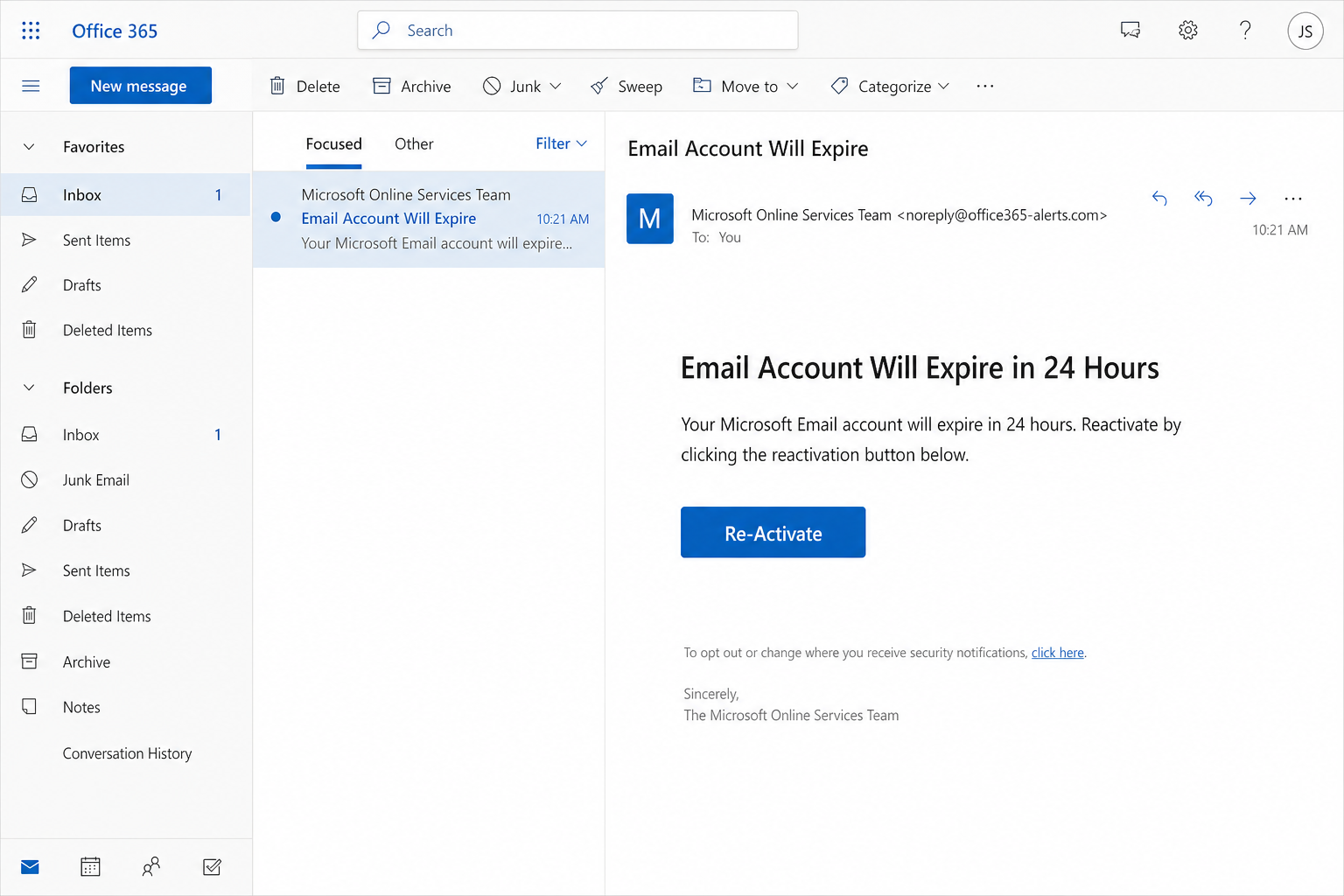
The subject is short enough to read in a glance. Email Account Will Expire. The display name says Microsoft Online Services Team. The body does not ask you to think. It says your Microsoft email account dies in 24 hours unless you hit a blue button labeled Re-Activate.
That is the trap. Microsoft is a real company. Office 365 and Microsoft 365 are real products. The costume borrows that trust so you will treat a countdown as a work emergency. The button is not a rescue. It is the door.
Do not click Re-Activate. Do not type your mailbox password into a page that opens from that mail. Open a new browser tab and type account.microsoft.com yourself. If this is a work or school mailbox, use the sign-in path your IT team already gave you. Then look at the account from the inside. A mailbox that is truly yours will still be there. A fake clock will not.
Overview
This pitch is a phishing email. It dresses up as Microsoft. It claims the mailbox will expire in 24 hours. It offers one action, Re-Activate, and that action opens a fake page titled Welcome to Webmail. The form already knows the address. The password field is empty on purpose. They want the Microsoft password, or the password for that mailbox. Once they have it, they can read mail, reset other logins, and send the same scare to everyone you know.
Microsoft is not the scam. People pay for Microsoft 365 every month. Schools and companies run real mail on it. Families keep photos and documents in real Microsoft accounts. This article is not a warning that Microsoft itself is fake, or that a real inbox is about to vanish because you missed a button. It is a warning about people who steal the look of Office 365 so you will hand them the key.
There are other Microsoft costumes in circulation. Some talk about cashback. Some talk about a refund, a support desk, or a generic security alert with a long story. This one is narrower. It is the 24-hour expire clock plus the Re-Activate button. The subject is often Email Account Will Expire. The body is often two sentences. The pressure is the clock, not a prize.
Microsoft’s own account-security guidance is blunt about passwords in email. On the official page that explains how to keep a Microsoft account secure, Microsoft says it will never ask for your password in email. It tells people never to reply to a message that asks for personal information, even when the message claims to be from Outlook.com or Microsoft. A Re-Activate button that needs the password is already outside that rule.
The same company also published a fact that undercuts the 24-hour mailbox panic. In the Microsoft 365 password expiration policy docs, Microsoft says that by default, passwords never expire for an organization. The same page says the Microsoft 365 admin center and Microsoft 365 productivity apps no longer support password expiration notifications. If a real workplace still forces password changes, that notice comes from the organization’s own setup, not from a stranger’s Re-Activate button in a two-line scare.
A mailbox is not a carton of milk. It does not spoil overnight because you failed to press a colored rectangle. A real Microsoft account can have a password policy. A real tenant can have admin rules. None of that looks like “click Re-Activate in 24 hours or the inbox dies.” When Microsoft needs you to look at a personal account, the safe move is the one the company keeps repeating. Type the official site yourself. Do not use the link in the scare.
The Protect yourself from phishing page on Microsoft Support describes the method in plain language. Phishing tries to steal money or identity by getting you to reveal a password on a site that pretends to be legitimate. The page tells you to treat urgent threats as a reason to slow down, not speed up. It tells you to open a new browser tab and go to the organization’s site from a saved favorite or a search you start yourself. That is the opposite of the Re-Activate habit.
The Federal Trade Commission writes the same rule for any company costume. In How To Recognize and Avoid Phishing Scams, the FTC says scammers use email to steal passwords and account numbers. A common story is that there is a problem with your account. There isn’t. Another common story is that you must confirm personal information. You don’t. The Commission’s advice is to contact the company with a phone number or website you already know is real, not the information in the email.
That is why this article keeps sending you to a typed address. For a personal Microsoft account, type account.microsoft.com. From there you can open the security area and look at recent activity. For a work or school mailbox, use the portal your employer already uses. A fake Webmail page does not become real because the address was prefilled and the logo looked familiar.
The clock is the product
Twenty-four hours is not a technical deadline. It is a mood. The sender wants you to feel that the inbox, the calendar, the files, and the thread with your boss will all vanish if you pause to check. People click faster when they think they are about to lose work. The costume knows that. It does not need a long policy paragraph. It needs a short fuse.
A real Microsoft security notice, when it is real, does not depend on you trusting a button inside a stranger’s message. Microsoft’s page on email from the Microsoft account team says personal-account notices use the domain accountprotection.microsoft.com. Even then, the company still wants you to confirm the account is yours and that you asked for a code. A display name that says Microsoft Online Services Team is not that domain. A lookalike address built around office365 is not that domain either.
Work mail is a little different, and the costume uses that confusion. A company can brand Outlook. A school can brand Outlook. The inbox chrome can look official because it is official. The message inside it can still be a fake. The left-hand folders do not vouch for the sender. The blue Office 365 bar does not vouch for the sender. Only the actual address, the actual link, and a check you start yourself can do that.
What they are after
They want the password. Not a survey. Not a $1.verify charge. Not a gift card. The Welcome to Webmail page is a collection tray. The username is often already filled in, which makes the form feel like a continuation of your own mailbox. You supply the one field they could not steal from the To line.
A Microsoft password is a master key for more than mail. It can open Outlook, OneDrive, Teams, Xbox, Skype, and the store tied to that account. A work password can open SharePoint, payroll mail, customer threads, and password-reset messages for banks and software you use at the office. That is why this variant does not bother with a long refund story. The inbox is the prize. Everything else is downstream.
If the password is reused, the damage leaves Microsoft. A reused mailbox password is a way into shopping accounts, payroll portals, and cloud drives that share the same phrase. The FTC’s phishing page says stolen information can be used to get into email, bank, or other accounts, or sold to other scammers. The first hour after a typed password is when that spread is easiest to stop.
How The Scam Works
The campaign is simple on purpose. A short subject. A borrowed Microsoft name. A 24-hour threat. One button. A fake login. If you understand those five pieces, you do not need a secret decoder or a case number. You need a habit: never give the password to a page you did not type.
The subject that does the first job
Email Account Will Expire is built to survive a busy morning. It looks like operations, not marketing. It does not promise money. It promises loss. That is harder to ignore when you live in the inbox. People who would laugh at a fake lottery will still open a message that sounds like the mail team.
The display name in this costume is often Microsoft Online Services Team. That phrase sounds like a department. It is not proof. Anyone can set a display name. The address behind it is the part that matters, and in this build it is not a Microsoft mailbox. A lookalike that uses office365 in the local part or the domain is still a costume. Hover the sender. Expand the full address. If it is not a domain Microsoft actually uses for that kind of notice, stop.
Microsoft Support’s phishing page tells you to watch for mismatched email domains. A message that claims to be from Microsoft, then arrives from some other domain, is a warning sign. The page also flags urgent threats, generic greetings, and links that do not match the text on the page. This variant usually hits the urgency mark first. The grammar can be clean. The logo can be clean. Clean layout is not a clearance stamp.
The 24-hour line
The body is often two sentences. Your Microsoft Email account will expire in 24 hours. Reactivate by clicking the reactivation button below. That is the whole argument. There is no ticket number you can verify in a portal you already use. There is no file you recognize. There is no admin name you can call back on a published number. The only offered path is the button.
A real workplace password change, when a workplace still uses one, does not arrive as a mystery Re-Activate control in a two-line note. Microsoft’s admin documentation says the Microsoft 365 admin center and the productivity apps no longer support password expiration notifications. If your company still expires passwords, your IT team should have its own process, on its own domain, through channels you already know. If you have never heard of a 24-hour mailbox death timer, that is because it is not how the product works.
Personal Microsoft accounts are not sitting on a 24-hour kill switch either. Microsoft can lock a sign-in that looks unusual. Microsoft can ask for a security code. Microsoft can email you about activity. Those messages, when they are real, still do not need you to type the password into a page that opened from the mail. Type account.microsoft.com. Open Security. Read the activity list. If nothing is wrong, the scare was the point of the mail.
The Re-Activate button
The button is the payload. It is large, centered, and blue, because that is how a lot of official Microsoft actions look. The label is Re-Activate, sometimes written with the hyphen, sometimes written as Reactivate in the sentence above it. The job of the button is to move you off the inbox and onto a page the sender controls.
Do not click it to “see where it goes.” Hover if you are on a computer. Long-press if you are on a phone. Microsoft’s phishing page tells you to rest the mouse on the link and read the real address that appears. If that address is not a Microsoft domain you already trust, you have your answer. If you cannot hover, you still have your answer: you do not need the button to check a real account.
A footer link that says you can opt out of security notifications is part of the same costume. It is there to make the page feel like a settings note. It is not a reason to click anything in the message. If you want to change how Microsoft reaches you, you do that after you type the official account site yourself.
Welcome to Webmail, already filled in
The next screen is often titled Welcome to Webmail. It is a generic login, not the real Microsoft sign-in you know from work. There is a username field and a password field. The username is frequently prefilled with the address the mail was sent to. That prefill is a trick, not a courtesy. It makes the page feel like it already belongs to you. It also saves the sender from typos.
Real Microsoft sign-in for a personal account starts at a site you type. Real Microsoft 365 sign-in for work starts at the path your organization already uses. A page that says Webmail in a friendly banner, then asks for the same password you use for Outlook, is doing theater. The word Webmail is old on purpose. It sounds like infrastructure. It does not sound like a prize. People lower their guard for infrastructure.
Some of these Welcome to Webmail pages sit on Google Firebase Storage. Firebase is a real Google hosting product. Companies use it for real apps. Criminals use the same kind of storage because a googleapis or firebaseapp style host can slip past a first glance and past some filters. The host being a known cloud brand does not make the login real. It makes the costume cheaper to rent. This article will not invent a Firebase address for you to visit. You should not visit one from the mail either.
If you already opened that page, stop. Do not “just check” whether the password works. Closing the tab is the right move. Then do the checks in the next section. A password typed into Welcome to Webmail should be treated as stolen, even if the page looked quiet and even if nothing obvious happened after.
What happens after they have the password
The first use is the inbox. They sign in as you. They read reset messages. They look for bank alerts, invoice threads, and anything that says “code.” They may create a forwarding rule so a copy of every new message leaves the building. They may create a rule that hides replies from Microsoft or from your bank. That is why a quiet inbox after a scare is not comfort. It can be the filter working.
The second use is impersonation. Your name, your real mailbox, your real colleagues. They can send the same expire mail, or a different ask, from an address people already trust. A coworker who would never click a stranger will click you. That is how a single typed password becomes a floor-wide problem.
The third use is the rest of your life. Password-reset mail for shopping, payroll, cloud storage, and social accounts often lands in that same inbox. If they can open the reset, they can take those accounts too. If you reused the Microsoft password anywhere, they can skip the reset and walk in. None of that requires malware on your PC. It requires the password you typed into Webmail.
Some phishing pages also try to drop junk on the device. The FTC says a link or attachment can install harmful software. If you only typed a password, treat the password as the emergency. If you also downloaded a file or ran a prompt, treat the device as a second problem and use security software you already trust, then change the passwords from a machine they did not just meet.
How a real check looks
A real check is boring. You open a new tab. You type account.microsoft.com. You sign in the way you always sign in. You open the security area. You look at recent activity. You do not use the Re-Activate button to get there. You do not use a page titled Welcome to Webmail to get there.
If you cannot remember the address, you can start from microsoft.com, then walk to the account pages from links on that site. You can also use the official app you already installed. What you should not do is paste an address from the scare mail, or from a text that arrived two minutes later claiming to be the same desk.
For work or school, the same idea holds with a different front door. Use the bookmark you already have. Use the company VPN portal if that is how you sign in. Use the help desk number on the intranet, not a number in the mail. Tell IT you received an expire-in-24-hours message with a Re-Activate button. Give them the sender address. Do not forward the message by clicking its links. If you need to share it, attach the original as a file, which is what Microsoft asks for when you report phishing from a client that is not Outlook.
Microsoft Support’s phishing page says that if you use Outlook or Outlook.com, you should select the message and choose Report, then Report phishing. That reports the mail, helps the filters, and gets it out of the inbox. If you use another mail program, Microsoft says to attach the original message in a new email to phish@office365.microsoft.com. Do not forward it in a way that strips the headers. The headers are the part that shows where it really came from.
What To Do If You Already Clicked Re-Activate
If you clicked and stopped before the password, you are in a better place than it feels. Close the tab. Do not go back to “just look.” Then still do a real check, because a click can be a first step for other junk. If you typed the password, treat the account as open to someone else until you close it yourself.
1. Leave the fake Webmail page
Close the tab. Close the window. If you saved the password in the browser on that page, remove that saved entry later from a page you typed yourself. Do not refresh Welcome to Webmail to see whether it “took.” Every extra visit is another chance to type the same secret.
If you are on a shared or public computer, sign out of the browser profile when you are done with the real recovery steps. Microsoft’s own account-security page tells people not to stay signed in on a machine that is not theirs. That advice is for ordinary life. It is also for the hour after a phishing page.
2. Change the Microsoft password from a page you type
Open a new tab. Type account.microsoft.com. Sign in the way you always do. Change the password from the official security area. Make it new. Make it unused anywhere else. If the old password was also the password for banking, payroll, shopping, or another mailbox, change those too, from their own typed sites.
If you cannot sign in, use Microsoft’s official account-recovery path, the one you reach by typing the Microsoft account site and choosing the help that starts with “Can’t sign in.” Do not use a recovery link from the expire mail. Do not use a phone number that arrived in a follow-up message. Support agents at Microsoft are not allowed to send password-reset links or change account details for you in the way a fake desk will offer.
For a work or school mailbox, do this with IT on the line if you can. Some tenants lock self-service resets. Some will need an admin to end sessions. The rule is the same. Use the official portal, not the Re-Activate page.
3. Turn on a second factor and end old sessions
A password alone is what the Welcome to Webmail page was built to steal. Multi-factor authentication, the extra approval on a phone or a security key, is the next lock. Microsoft and the FTC both tell people to turn it on. The FTC describes it as a second credential: something you know, something you have, or something you are. An authenticator app or a hardware key is stronger than a text message, because a text message can be stolen in a later call.
After the password change, sign out everywhere if the official security page offers that control. On a personal Microsoft account, the security area is where you review devices and sign-in methods. Remove a method you do not recognize. Remove a device you do not own. If this is work mail, ask IT to revoke sessions. A password change that leaves an old session alive is only a partial fix.
4. Read the inbox the way an attacker would
Look at inbox rules, forwarding, and sweep rules. Look for a forward to an address you do not know. Look for a rule that deletes mail from Microsoft, from a bank, or from IT. Look at Sent Items for messages you did not write. Look at Deleted Items. Look at the junk folder for bounce-backs that mean your name went out to other people.
On a personal account, open the official security page after you type account.microsoft.com and read recent activity. Microsoft’s unusual-sign-in help says you can mark activity that was not you and secure the account from that page. If you see a sign-in you do not recognize, treat it as real even if you already changed the password. Then tell anyone who got a strange message from you that the message was not yours.
If the mailbox is shared with a family plan, a small business, or a student group, say it out loud to the other people on that tenant. They should not click a Re-Activate button that appears to come from you. They should type their own account page and look.
5. Report the mail, then report the harm if there is any
In Outlook or Outlook.com, select the message and use Report, then Report phishing. That is the path Microsoft publishes on the official phishing page. If you are not in Outlook, attach the original message to a new mail and send it to phish@office365.microsoft.com. Delete the original after you have reported it, including from Deleted Items, so you do not click it again later on a tired evening.
If you still have the Welcome to Webmail address, you can report that site through Microsoft’s official unsafe-site form, the one on Microsoft Security Intelligence, without opening the page again. You can also report the attempt to the FTC at ReportFraud.ftc.gov. The FTC’s phishing page says those reports help the fight even when you did not lose money. If a password also opened a bank or a card, call the bank on a number you already have. If you lost money or you are dealing with identity theft, use IdentityTheft.gov and, if it fits, local law enforcement.
Work and school accounts have one extra call. Tell IT the same day. They can look for forwarding, for other mailboxes that received the same lure, and for sign-ins that used your name. They would rather hear “I clicked Re-Activate” than discover a quiet forward in a week.
6. If you did not type the password
You can breathe, then still do the small version of the same list. Close the fake page. Type account.microsoft.com, or your work portal, and look at security activity. Report the mail as phishing. Delete it. You do not need to change every password on earth because you hovered a button. You do need the habit in place before the next costume arrives.
If a follow-up call or a follow-up mail arrives and says they are Microsoft, and they need you to finish the Re-Activate, hang up. Microsoft’s phishing page says a real check uses a number or a site you already trust. A second scare that uses the first scare as proof is still the trap.
The Bottom Line
The expire-in-24-hours mail is a costume. Microsoft is real. The mailbox is not about to die because you ignored a Re-Activate button. The button opens a fake Welcome to Webmail login, often on rented cloud storage, with your address already filled in. The only thing they need from you is the password.
Do not click it. Type account.microsoft.com yourself, or use the work sign-in you already know. If you already typed the password, change it on the real site, turn on a second factor, kill old sessions, and read your rules and sent mail. Report the message in Outlook as phishing, or attach it to phish@office365.microsoft.com. Tell the FTC at ReportFraud.ftc.gov if you want that report on file.
The next time a blue button says the inbox has one day left, you already know the ending. The clock is the bait. The login is the hook. Your real Microsoft account is still on the other side of an address you type with your own hands.

Join the discussion
0 commentsShare your experience or ask a question about this article.
Discussion
Start the conversation
Have a question or something useful to share? Add the first comment.