

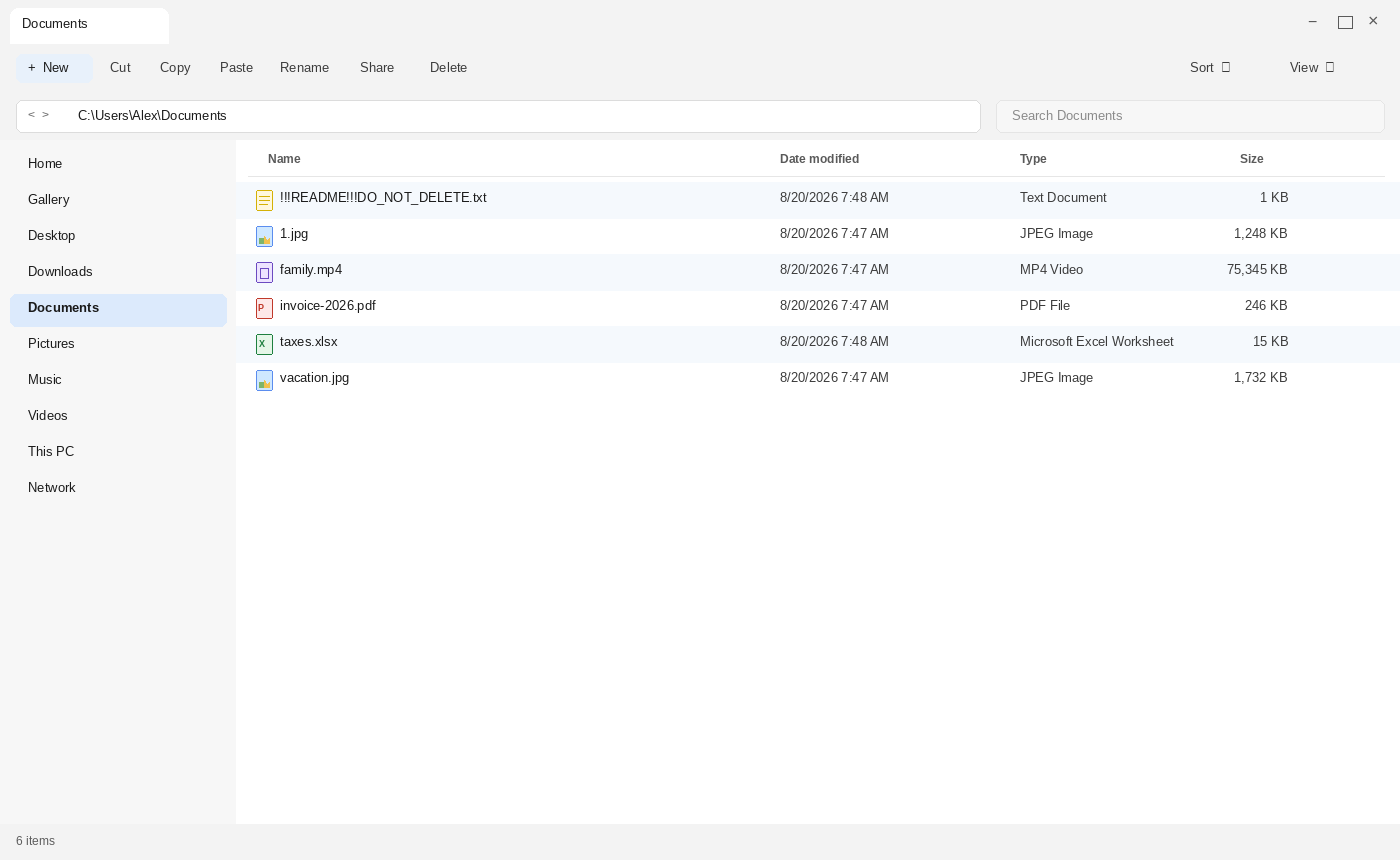
You open Documents the way you did yesterday. The first photo should still be 1.jpg. The vacation shot should still be vacation.jpg. The invoice should still be invoice-2026.pdf. The tax sheet should still be taxes.xlsx. The names look right. The icons look right. You double-click 1.jpg anyway, because something in the folder feels off, and the photo will not open. vacation.jpg will not open. invoice-2026.pdf will not open. taxes.xlsx will not open.
Then you notice a text file you did not create. It sits at the top of the listing because the name starts with exclamation marks. It is called !!!README!!!DO_NOT_DELETE.txt. README sounds like help. DO_NOT_DELETE sounds like a warning from your own machine.
That is the trap, not a glitch.
This page is for the hour those familiar names refuse to open. It is not a miracle key. It is a map of the trap, so the note does not become your incident plan.
Overview
Aur0ra ransomware, spelled with a zero in the name, locks the files first. Then it leaves the old name and the old type sitting in the listing. 1.jpg stays 1.jpg. vacation.jpg stays vacation.jpg. Then it drops !!!README!!!DO_NOT_DELETE.txt and talks like a leak desk and a recovery desk at the same time. The note is a storefront. It claims the operators already downloaded confidential information files. It says your files are encrypted. It tells you to contact them via tor browser at a Tor website link. It prints Your access key: and then leaves the line blank. This page will not invent an onion address, a wallet, a Session ID, or a $ figure to finish those blanks.
If you are staring at a folder of ordinary names that will not open, plus that text note, you are in a ransom incident, not a broken disk and not a Windows pop-up. The folder is the evidence. The note is a checkout. Stay with the folder, not with the script.
This is Aur0ra from the 2020s, the strain also seen as Filecoder.Aur0ra. It is not the older Aurora ransomware covered in the published guide How to remove Aurora Ransomware. That older post is a different family. A search result that says Aurora is not a match just because four letters look the same. If someone later quotes that older guide as if it already solved your folder, they mixed the names. Keep the zero. The zero is how you tell them apart.
The first tell is not a new ending. There is no new extension. In the sample used for this page, 1.jpg is still 1.jpg. vacation.jpg is still vacation.jpg. invoice-2026.pdf is still invoice-2026.pdf. taxes.xlsx is still taxes.xlsx. family.mp4 is still family.mp4. You can still read every name. You cannot open the files. Windows may still call the type a JPEG Image or a PDF File, because the label never changed. An app cannot talk locked bytes back into a JPEG.
The second tell is the note. After the files are locked, the malware drops !!!README!!!DO_NOT_DELETE.txt into the same folders. The exclamation marks shove it to the top of a Name sort. README wants the first click after the panic. DO_NOT_DELETE wants you to treat the flyer as sacred. Put them together and the first English you can still read after the photos break is a sales page that also claims a leak. The flyer is meant to be opened. It is not meant to be trusted.
The body of that sample is short on purpose. We have downloaded confidential information files. Your files are encrypted. Contact us via tor browser at a Tor website link. Your access key: then a blank. That is the whole costume. There is no printed ransom amount. There is no printed deadline. There is no test decrypt. There is no wallet. There is no Session ID. There is no filled access key. The note does not need extra theater. A locked folder that still looks normal, plus a leak claim, plus a Tor door, is already a shop.
Public copies leave the Tor website link blank. This page will not invent an onion URL to finish the sentence. A missing link in the copy you are reading is not a puzzle. It is a redaction. If your own file on disk still shows a string on that line, treat it as evidence for a report, not as a site you should open. Do not paste it into a Tor browser just to see the page.
The access key line is the same kind of blank. The sample prints Your access key: and then a hyphen or an empty mark. This page will not invent a key to fill it. A blank key is not a missing ticket you should complete. It is part of how this sample actually looks.
That is the whole pitch. A locked folder of names that never changed. A !!!README!!!DO_NOT_DELETE.txt file that claims stolen confidential files and encrypted files in the same breath. A Tor contact line with no address reprinted here. An access key line that stays blank. There is no public free decryptor known for this strain. There is no reason to open that Tor link today because a text file told you to. There is no reason to pay a $ amount someone later invents.
The names look unchanged, so the note is the first warning
Most lockers pick an extension so you notice the change in seconds. Aur0ra does not. There is no extra ending to scan for. 1.jpg does not become 1.jpg.something. The extra cruelty is how ordinary the listing stays. You can still see the vacation photo name. You can still see the invoice year. You can still see the word taxes. The familiar words are still in the folder. The files are not familiar anymore.
That is why people lose the first hour. They reboot. They try another viewer. They drag vacation.jpg onto a second machine. They rename nothing, because nothing looks renamed, and they tell themselves Windows is just being Windows. A locker that keeps the old name is counting on that delay. The delay is the product. While you argue with Photos, the note sits at the top of the same folder and waits for the click.
Do not treat a readable name as a fix. Do not assume a JPEG that still says .jpg is a JPEG you can repair with a viewer switch. Do not run a bulk repair tool you found in an ad because the names look healthy. The name is a label. The lock is in the content. Editing the label, or copying the broken file onto a clean disk to test it, can make a later trusted tool have a harder time matching the file to what it was. Leave the locked copies as they are until you have a clean machine and a plan that does not start in a Tor window.
The unchanged name also does advertising. Anyone who later sees 1.jpg next to !!!README!!!DO_NOT_DELETE.txt can pretend they already have your case. A later fake helper will quote the note name back to you as if that were expertise. The note name is public. It is sitting in the folder. Quoting it proves nothing except that they can read a listing.
!!!README!!!DO_NOT_DELETE.txt is a sales floor, not a help file
The ransom note is a plain text file with a name that sounds like documentation and a warning at the same time. !!!README!!!DO_NOT_DELETE.txt wants the first click after the panic. Plenty of real software drops a README. Plenty of installers say do not delete. This one uses both habits against you. It is meant to be the first English you can still read when the photos will not open.
Double-clicking it opens Notepad. That is why a panicked first click feels like opening the help page. It is not help. It is the demand, written so it looks official enough to follow. The filename is built to look like paperwork. README. DO NOT DELETE. A .txt ending Windows already trusts. The exclamation marks are not decoration. They are a sort trick. Paperwork that shouts is easier to obey than a threat that looks like a threat.
Keep the file on disk. Then close it. Do not treat it as a set of steps you should follow. Do not tidy the filename. Do not shorten it to the readme when you write the incident down. Copy !!!README!!!DO_NOT_DELETE.txt the way you would copy a serial off a stolen laptop. That string is how a responder matches this locker. It is not a coupon you redeem by opening a Tor site.
The body is four beats. We have downloaded confidential information files. Your files are encrypted. Contact us via tor browser at a Tor website link. Your access key: then nothing. Each beat closes a door. The leak claim closes maybe they only locked a few photos. The encryption line closes maybe Windows just glitched. The Tor line closes maybe there is a local tool. The blank access key closes maybe I can wait overnight by making you feel you are already missing a ticket.
Stolen files plus encryption is the two-part threat
Aur0ra does not only say the files are locked. The first sentence of the sample is a theft claim. We have downloaded confidential information files. That is double extortion in one line. The operators want you to feel two losses at once. The photos will not open. The private files, they say, are already in someone else’s hands. You are supposed to pay to unlock the disk and to stop a leak. The note never has to print a $ amount to make that pressure land.
Treat the leak claim as a threat, not as a confirmed inventory. The flyer wants you to believe they already copied payroll, tax sheets, family scans, or client records. Maybe they did. Maybe they copied junk. Maybe the sentence is a template they drop on every machine. You cannot audit their stash from Documents. You also cannot disprove it by mailing them. Opening their Tor page does not give you a receipt of what they took. It gives them a visitor.
If this is a home PC, tell the people whose files lived on it. If this is a company machine, tell counsel and your incident lead before anyone starts a private chat with a Tor site. A leak claim is a legal event as well as a technical one. The people who wrote !!!README!!!DO_NOT_DELETE.txt do not get to run that meeting. Do not send them a sample of confidential files to prove what they already claim they stole. That is how you hand them a second copy.
The encryption half is the same shop, not a separate problem. Your files are encrypted is the second sentence, not a second incident. Do not split the work into pay for the leak and pay for the key. There is no printed price for either. There is no public free decryptor known for this strain. There is no reason to start two negotiations because the note used two sentences.
The access key line is blank
The sample ends with Your access key: and then a blank. In the copy used for this page the mark is a hyphen, or an empty place where a string would go. That blank is part of the sample. It is not a hole you are supposed to fill. This page will not invent an access key, a victim ID, or a Session ID to make the flyer look complete.
Blanks are useful to criminals and to copycats. A later message will say your key is waiting on the Tor page. A later helper will generate a long string and call it the Aur0ra access key. A later form will ask you to paste a key you never had so they can look up your case. None of that is a reason to finish their sentence. If your own !!!README!!!DO_NOT_DELETE.txt on disk is blank there, it is blank. If your copy shows a string, keep the file. Do not tidy it. Do not type the string into a website, a chat, or a decryptor you just downloaded.
A filled key, when you actually have one on disk, is an identifier for a responder. It is not a password you redeem by opening Tor. It is not proof that a stranger already called the crew. Copy it into the incident record. Then leave it alone. A blank key is also an identifier. It tells a responder this sample matches the published flyer, not a different locker that prints a long ticket on every machine.
This is Aur0ra, not the old Aurora guide
The name is the other trap, and it lives in search. Aur0ra is spelled with a zero. Filecoder.Aur0ra is the 2020s locker this page is about. Years earlier, a different family used the word Aurora with a letter o. That older strain already has a published guide titled How to remove Aurora Ransomware. That older post is not this incident. Mixing them is how you follow the wrong steps and miss the note sitting in your folder.
If a search ad, a forum reply, or a paid helper says they already covered Aurora and then quotes a different note name, a different extension, or a decryptor that never mentions !!!README!!!DO_NOT_DELETE.txt, they are not talking about this folder. Ask for the zero. Ask for the note name. Ask whether the files kept their original names. If they cannot say those three things, they are reading the old guide, or they are guessing.
Do not let the older title become a comfort. How to remove Aurora Ransomware is a real published page about a different strain. It is not a free key for Filecoder.Aur0ra. It is not a reason to ignore the leak claim in this note. Keep the spelling when you write the incident down. Aur0ra, zero in the name. That is the label a responder can match. Aurora with an o is the other story.
The Tor line is a door, not a help desk
The recovery step in the sample is a browser. Contact us via tor browser at a Tor website link. That is the whole door. It looks like privacy because Tor is a privacy tool. Criminal shops use Tor too, because a hidden site is where a blank access key becomes a login and a leak claim becomes a countdown they never printed in the text file.
Do not open that link. Do not install Tor for this. Do not paste a string from the note into a search bar just to see if it is real. They already chose the note name. They already chose to leave the files looking normal. Visiting their site does not make you a verified customer. It makes you a person still following the flyer.
This page will not reprint an onion address. Public copies leave that line blank on purpose. If your copy on disk still shows a URL, treat it as evidence. Do not tidy a screenshot so the link looks easier to type. Do not send the link to a friend so they can check it for you. Checking is how a second machine joins the same shop.
How The Attack Works
The shop is simple once you stop reading it as a rescue. Lock the files. Leave the old names in place so the listing still looks like yesterday. Drop a README that shouts DO NOT DELETE. Claim stolen confidential files. Claim encryption. Point the scared person at a Tor browser. Leave the website link blank in public copies. Leave the access key blank. Skip the price. Skip the countdown. Skip the test file. Then wait for someone else to sell the missing string.
1. The lock keeps the old name so you might miss it
Aur0ra encrypts the files it wants as leverage, then does not rebrand them. That is why 1.jpg is still readable as 1.jpg. The operators want you to inventory the damage late, not early. They want the first minutes to feel like a glitch. A coded filename can shock you into stopping. An ordinary filename lets you keep clicking.
If only one folder looks wrong, do not assume the rest of the disk is safe. Ransomware walks trees. It hits Documents, Desktop, Pictures, Downloads, and any drive letter it can reach, including a USB stick you forgot was plugged in. Unplug extra disks. Do not plug in a copy just to check. Checking is how the extra copy gets the same silent lock, still wearing the same names.
Double-clicking an unchanged file does not bring the photo back. The thumbnail may already look broken, or it may still show a cached picture that is no longer the real bytes. Excel may ask for a workbook that is still sitting in the same folder, only the bytes inside are no longer a workbook. That broken open is the first proof. The second proof is !!!README!!!DO_NOT_DELETE.txt in the same listing. Together they are enough. You do not need a Tor site to confirm what you are looking at.
Leave 1.jpg named as it is. Leave vacation.jpg named as it is. Leave invoice-2026.pdf named as it is. Leave taxes.xlsx named as it is. Leave family.mp4 named as it is. There is no extra ending to strip, and that is the point. People who are used to other lockers will hunt for a suffix and then decide this is not ransomware because they cannot find one. The missing suffix is the design. The note name is the suffix they chose instead.
2. !!!README!!!DO_NOT_DELETE.txt turns a break-in into a ticket
Once the files are locked, the malware needs a voice. !!!README!!!DO_NOT_DELETE.txt is that voice. It sits in the same folders as the locked files so the first sort puts help next to harm. On many machines a text file with leading punctuation sorts above 1.jpg. You open it because it looks like the only thing that still speaks English, and because the name told you not to delete it.
The body is short enough to finish before a relative walks into the room. Stolen files. Encrypted files. Tor browser. Access key. Each beat is a closed door. Notice what the note does not give you. It does not give you a company, a refund policy, or a way to prove the other side will ever send a key. It does not give you a $ amount. It does not give you a deadline. It does not give you a test decrypt. It does not give you a filled unique ID. It gives you a tone that says this is already decided. That tone is the product. Read the file as a sales flyer. Then close it. Keep it on disk.
Do not print the note and leave it on the kitchen table as if it were a bill. Do not photograph it and send it into a group chat with the files still attached. Do not rename it to Aur0ra-help.txt so it looks tidier in a report. The ugly name is the identifier. Keep the exclamation marks. Keep DO_NOT_DELETE. A responder who sees that exact string can match Filecoder.Aur0ra without guessing from the word Aurora.
3. We have downloaded confidential information files is the opening punch
The first line of the sample is a theft headline, not a technician. We have downloaded confidential information files names a leak before it names a lock. You are supposed to feel exposed before you have even reached the encryption sentence. Capital attention does that work. The word confidential does that work. Together they make a Tor visit feel like the only adult move left.
The shout also travels. Search ads will recycle it. Commenters will paste it. A later Aur0ra helper will recite we have downloaded confidential information files so they sound close to your Documents folder. Reciting a headline is not a decryptor. It is proof they can read. Keep the line as an identifier when you describe the incident. Do not treat it as a confirmed leak report you have to obey by paying.
If you later find copies of files on a cloud account, a mail draft, or a USB stick that was not mounted, those copies are not proof the criminals failed. They are copies you still control. Do not upload those copies to a stranger who offered to check whether they match the leak. Do not mail them to a Tor site as a test. The first sentence of the note already wants that conversation. Do not start it.
4. Your files are encrypted is the second punch
After the leak claim, the note rests on Your files are encrypted as if a short sentence were a receipt. That pair is meant to end the conversation you have not even started. Theft plus lock sounds like a problem you cannot beat at the kitchen table. It is still a sales paragraph. It is not a lab report. It is not a reason to skip copies that were never mounted. It is not a reason to skip a trusted decryptor project later if one appears.
You do not need to argue cryptography with a text file. The sample does not even name a cipher. It does not print AES, RSA, or a key length. It just says encrypted. That is enough for the pitch. Leave 1.jpg named as it is. Leave !!!README!!!DO_NOT_DELETE.txt where it is. The word encrypted in that note is part of the pitch. It is not a recovery procedure.
Windows may still offer to pick an app, because the type never changed. Decline the random app. There is no player that turns locked bytes into last summer. There is no spreadsheet tool that rebuilds taxes.xlsx from a locked copy because the name still says xlsx. An unchanged type is not a healthy file. It is a costume.
5. Contact us via tor browser is the door they want you to walk through
The recovery step in the sample is Tor. Contact us via tor browser at a Tor website link. That is the whole door. It looks like support because support uses a website. Criminal shops use hidden sites too, because a page is where a blank access key becomes a login and a leak claim becomes a chat they control.
Do not open that site. Do not create a throwaway Tor identity just to see. Do not send a screenshot of Explorer to prove the lock. They already chose the note name. They already chose to leave 1.jpg looking like 1.jpg. A photo of !!!README!!!DO_NOT_DELETE.txt sitting next to ordinary names does not make you a verified customer. It makes you a person still following the flyer.
If someone later says they will talk to Aur0ra for you through that same Tor page, that is a broker pitch. Brokers need you in the same funnel. You do not owe them a seat. Report the incident through official desks. Let counsel decide if contact is ever required for a specific legal reason. That decision is not yours to make from the Documents folder at midnight.
6. The Tor website link is blank in public copies
The note says contact us via tor browser at a Tor website link. Public copies leave that link blank. This page will not invent an onion URL to put in that blank. If your copy of !!!README!!!DO_NOT_DELETE.txt is redacted there, it is redacted. If your copy on disk still shows a string, keep the file. Do not tidy it. Do not fill a public screenshot so it looks more complete.
That gap is where copycats work. Someone will publish a long .onion string and call it the Aur0ra site. Someone will sell a connector that is just more malware. Someone will ask you to run a command so they can reach the operator on your behalf. None of that is a reason to finish their sentence. The sample used for this page does not reprint the address. Do not invent one.
A Tor URL, when you actually have one on disk, is an identifier for a responder. It is not a help desk you should visit. It is not a password you redeem by installing a new browser. Copy it into the incident record. Then leave it alone. Do not click it from a phone. Do not click it from a work laptop. Do not ask a nephew to click it because he already uses Tor for other things.
7. Your access key: stays blank on the sample
Plenty of lockers print a long victim ID so you feel tagged. This sample prints Your access key: and then leaves it empty. That is not a kindness. A blank field is a hook. You are supposed to feel incomplete. You are supposed to visit the Tor page to collect the missing ticket. The missing ticket is the product.
Do not invent a key because other ransomware families use one. Do not type your name, your email, or a made-up code on that line and save the file. Do not let a later helper fill it for you. The published flyer left it blank. Leave the blank uninvented. If a later message says it can recover your access key for a small $ fee, that is a second shop standing in the same doorway.
If your disk copy actually shows a string after Your access key:, keep it as evidence and do not use it as a login. Do not paste it into a form. Do not read it out on a call with someone who found you through a search ad. A key that unlocks a criminal portal is still a criminal portal.
8. No price, no deadline, and no test file keep you guessing
The sample has no printed $ amount. It has no 0.5 BTC line. It has no 48-hour clock. It has no 7-day key threat. It has no unlock three files demo. Those missing lines are not a kindness. They are a shorter path to Tor. Other families use timers and proof so you feel managed. Aur0ra skips the theater and names the leak. You are supposed to feel that waiting is already a mistake, even though no fuse was printed.
Do not add those missing pieces yourself. Do not send a small file because a later message offered a test decrypt the original note never printed. Do not start a personal countdown because a forum post said they only wait two days. Do not invent a $ figure in your head and decide it might be worth it. The published flyer did not print a price. Leave the price uninvented.
Silence is not rude here. Silence is how you stay out of their queue. A relative, an insurer, or an incident lead can still talk on a phone. The people who locked the files do not get a seat in that call. The people who claim they already downloaded confidential information files do not get a second copy through a test file you attached.
9. Third parties will sell an Aur0ra conversation
After a ransomware incident, search results fill up with companies that say they can decrypt Aur0ra or all files with no new extension. Some of those shops are ordinary overpriced consultants. Plenty are a second scam. They will quote !!!README!!!DO_NOT_DELETE.txt so they sound close to the case. They will mention the leak line. They will mention the blank access key. They will mention Tor as if they already visited the original crew. They will ask for a sample file, a remote-access session, or a deposit.
A demo that unlocks one file is not proof they can unlock the vacation photo. Anyone can open one junk file they control. Anyone can send you a Tor link that makes a shop window appear. A shop window is not Photos opening vacation.jpg again. If a later message skips the original note and asks for coin over ordinary mail, that is still the same market, or a copycat standing in the same doorway. Do not answer. Do not help them set a wallet the public copy never printed. Do not help them fill the access key the sample left blank.
A real public decryptor, when one exists, shows up on an official project page that already existed before your incident. It does not need a Tor visit. It does not need a $ send. It does not need you to complete Your access key. If the pitch is we can decrypt, pay us first, you are still in the market the ransomware created. There is no public free decryptor known for this strain. Until a trusted project publishes one, treat any site that says we already have the Aur0ra key as a second sales pitch.
Watch the name mix in those pitches. Helpers who only say Aurora, with a letter o, are often recycling the old published guide. Helpers who cannot spell Aur0ra with a zero are not close to this folder. Helpers who talk about a new extension this strain never used are reading a different locker. Quote the note name back to them and stop. If they change the subject, they were never matching your disk.
10. Payment and opening that Tor link close nothing
Paying a stranger for a private key is not a guarantee. The people who send the note can take the money and disappear. They can send a string that only makes a decryptor show an error. They can come back later and lock the same machine again, still leaving the names looking normal. A Tor thread makes that outcome easier, not harder. You cannot leave a review on a hidden site.
Opening their Tor page is the free version of the same dead end. There is no public free decryptor known for this strain. Starting a chat does not rebuild a JPEG. It only keeps you in their story while the rest of the disk still needs a real plan. Paying a $ amount they never printed in the original note is still a payment to the people who locked family.mp4. It still funds the next copy of the same locker. It still does not produce a warranty.
If this is a company machine, tell counsel and your incident lead. If this is a home PC, tell the people whose files lived on it. Change passwords from a clean device. Watch bank and email alerts, especially if the note claimed confidential files were already taken. Opening that Tor link again is not useful work. It is the checkout, even when the website line in the public copy is blank and the access key line is empty.
What To Do
Do not pay. Do not open the Tor link in !!!README!!!DO_NOT_DELETE.txt. Do not invent an onion address to finish that line. Do not invent an access key to finish Your access key:. Do not type a URL from the page into Tor, a wallet checker, or a form a stranger sends back. Do not send proof of payment. Do not send a test file. If you already opened the note before you found this page, stop there. Do not pay a deposit to hold a key for anyone who quotes the note. Do not treat the older How to remove Aurora Ransomware guide as a fix for this folder.
- STEP 1: Use Rkill to terminate suspicious programs.
- STEP 2: Use Malwarebytes to remove Ransomware and Unwanted Programs
- STEP 3: Use HitmanPro to remove Trojans and other Malware
- STEP 4: Use AdwCleaner to remove Malicious Browser Extensions and Adware
- STEP 5: Perform a final check with ESET Online Scanner
- STEP 6: Restore the files encrypted by ransomware
STEP 1: Use Rkill to terminate suspicious programs.
In this first step, we will download and run Rkill to terminate suspicious programs that may be running on your computer.
RKill is a program that was developed at BleepingComputer.com that attempts to terminate known malware processes so that your normal security software can then run and clean your computer of infections. When RKill runs it will kill malware processes and then removes incorrect executable associations and fixes policies that stop us from using certain tools.
-
Download Rkill.
You can download RKill to your computer from the below link. When at the download page, click on the Download Now button labeled iExplore.exe. We are downloading a renamed version of Rkill (iExplore.exe) because some malware will not allow processes to run unless they have a certain filename.
Download RKillOpens the BleepingComputer download page in a new tab. RKillStops malware processes so other tools can run
 -
Run RKill.
After downloading, double-click the iExplore.exe icon to kill malicious processes. In most cases, downloaded files are saved to the Downloads folder.
The program may take some time to search for and end various malware programs.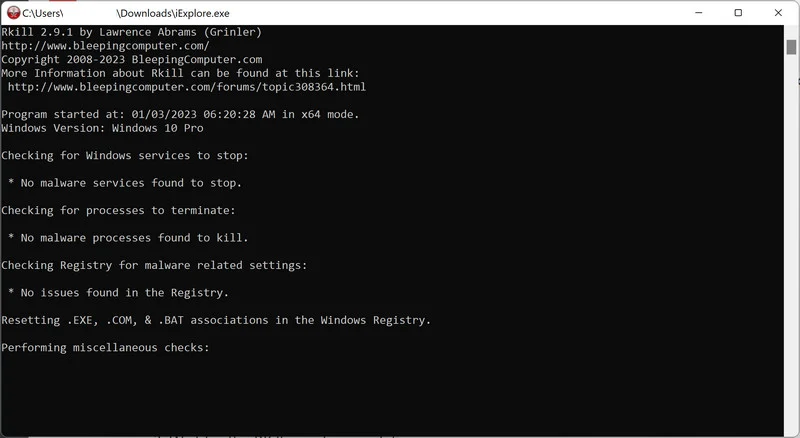
When it is finished, the black window will close automatically and a log file will open. Do not restart your computer. Proceed to the next step in this guide.
STEP 2: Use Malwarebytes to remove Ransomware and Unwanted Programs
In this second step, we will install Malwarebytes to scan and remove any infections, adware, or potentially unwanted programs that may be present on your computer.
Malwarebytes is one of the most popular and trusted anti-malware tools for Windows — and it’s completely free for removing infections. It catches threats that many antivirus programs miss, including adware, browser hijackers, and trojans. Follow the steps below to scan and clean your PC in just a few minutes.
Download Malwarebytes
Click the button below to download the latest version of Malwarebytes for Windows from the official source. The free version is all you need — it will scan your computer and remove adware, browser hijackers, and other malicious software at no cost.
Download MalwarebytesOfficial installer for Windows 11 and 10. Your download starts right away.Want real-time protection? See Malwarebytes Premium Malwarebytes Free for WindowsScans and removes malware at no cost
-
Install Malwarebytes
When the download finishes, open your Downloads folder and double-click the MBSetup file. If Windows shows a User Account Control pop-up, click “Yes” to allow the installation.

Follow the On-Screen Prompts to Install Malwarebytes
The setup wizard will walk you through a few quick screens:
-
Choose where you’re installing the program — “Personal Computer” or “Work Computer” — then click Next.

-
Malwarebytes will now install on your device. This usually takes under a minute.

-
When installation is complete, the “Welcome to Malwarebytes” screen will open automatically.

-
On the final screen, click Open Malwarebytes to launch the program.

-
Enable “Scan for Rootkits”
Before scanning, turn on rootkit detection so Malwarebytes can find even the most hidden threats. Click the Settings gear icon on the left side of the screen.

In the settings menu, find “Scan for rootkits” and click the toggle so it turns blue.

Done? Click “Dashboard” in the left pane to return to the main screen.
Start the Scan
Click the blue Scan button. Malwarebytes will automatically update its virus database and start checking your computer for malware.

-
Wait for the Scan to Finish
The scan checks your entire system for browser hijackers and other malicious programs, so it can take 5 to 20 minutes depending on your computer. Feel free to do something else — just check back occasionally to see the progress.

-
Quarantine the Detected Threats
When the scan is done, you’ll see a list of everything Malwarebytes found — malware, adware, and potentially unwanted programs. Click the “Quarantine” button to remove all of them at once.

Malwarebytes will now remove the malicious files and registry entries and move them safely into quarantine.

-
Restart Your Computer
Some threats can only be fully removed after a reboot. If Malwarebytes asks you to restart, click Yes. Once you’re logged back in, Malwarebytes has finished removing the threats it found.

STEP 3: Use HitmanPro to remove Rootkits and other Malware
In this third step, while the computer is in normal back, we will download and run a scan with HitmanPro to remove Trojans, rootkits, and other malicious programs.
HitmanPro is a second-opinion scanner — it’s designed to catch what your main antivirus might have missed. Instead of relying on a single detection engine, it checks the behavior of files in the locations where malware usually hides. Anything suspicious gets sent to the cloud, where it’s analyzed by two of the best antivirus engines available: Bitdefender and Kaspersky.
Good news: scanning is completely free, with no limits. You only need a license when it’s time to remove what was found — and even then, you can activate a free one-time 30-day trial to clean your PC at no cost. (A full license is $24.95 per year for 1 PC.)
-
Download HitmanPro
Click the button below to download HitmanPro. Remember — the scan is free, so you have nothing to lose by checking your PC.
Download HitmanProFree scan. Removing threats needs the free 30-day trial. Opens the official HitmanPro page in a new tab. HitmanProSecond-opinion malware scanner from Sophos
 -
Install HitmanPro
When the download finishes, open your Downloads folder and double-click the file: “hitmanpro.exe” on 32-bit Windows, or “hitmanpro_x64.exe” on 64-bit Windows.
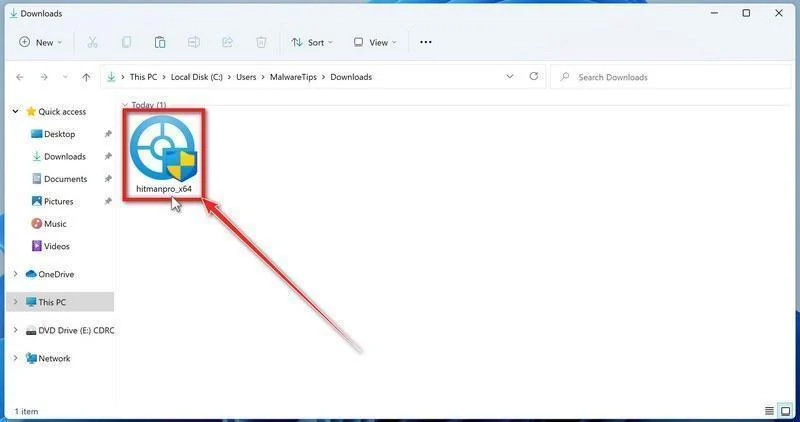
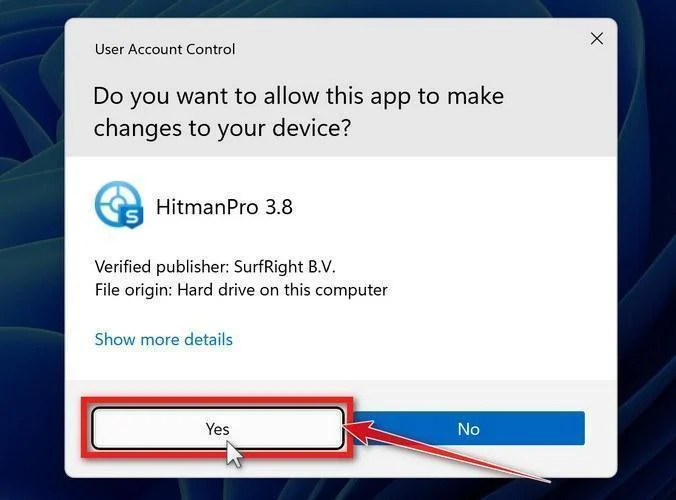
If a User Account Control pop-up asks whether HitmanPro can make changes to your device, click “Yes” to continue.
-
Follow the On-Screen Prompts
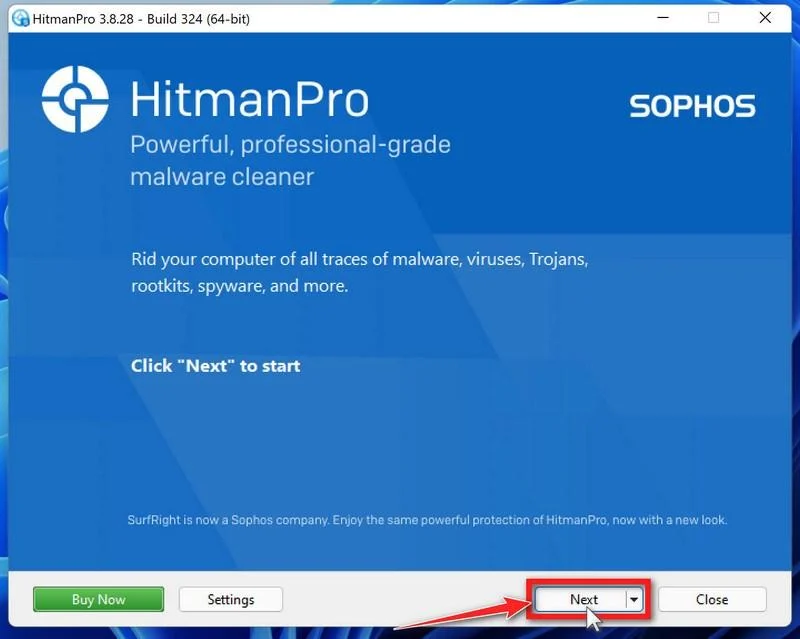
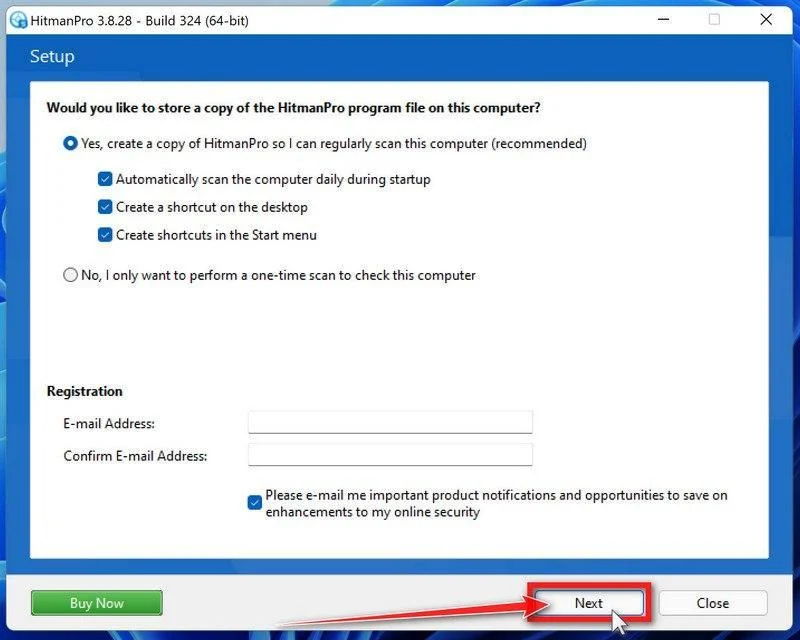
On the HitmanPro start screen, click “Next” to begin the system scan. No lengthy setup required — it goes straight to work.
-
Wait for the Scan to Finish
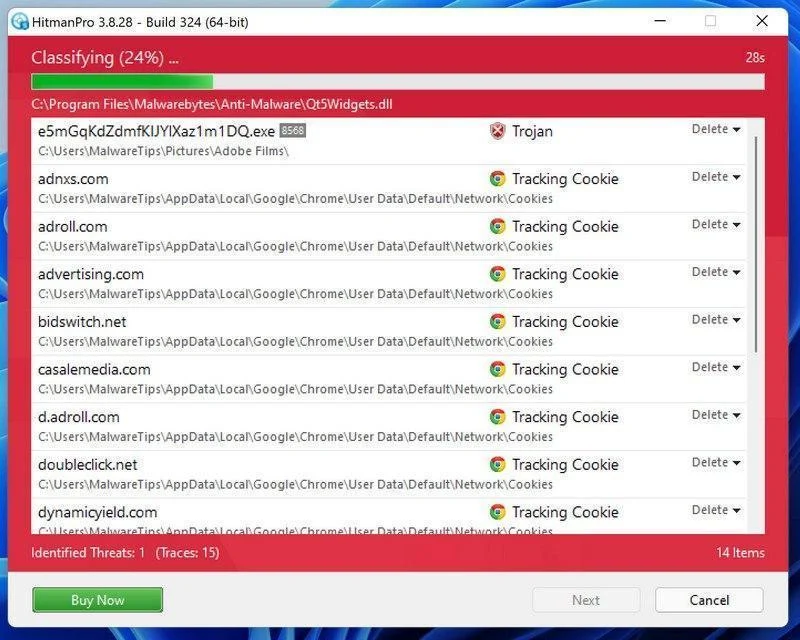
HitmanPro will now check your computer for malicious programs. This usually takes just a few minutes thanks to its cloud-based scanning.
-
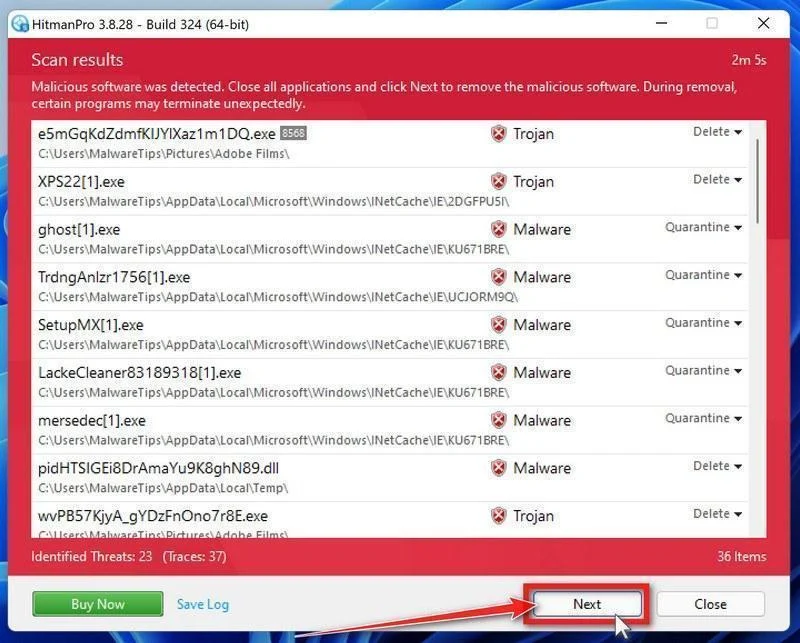
Review the Results and Click “Next”
When the scan is done, HitmanPro will show you everything it found. Click “Next” to remove the detected threats.
-
Click “Activate Free License”
To remove the malicious files, click the “Activate free license” button. This starts your free 30-day trial — no payment details needed — and unlocks the full cleanup.
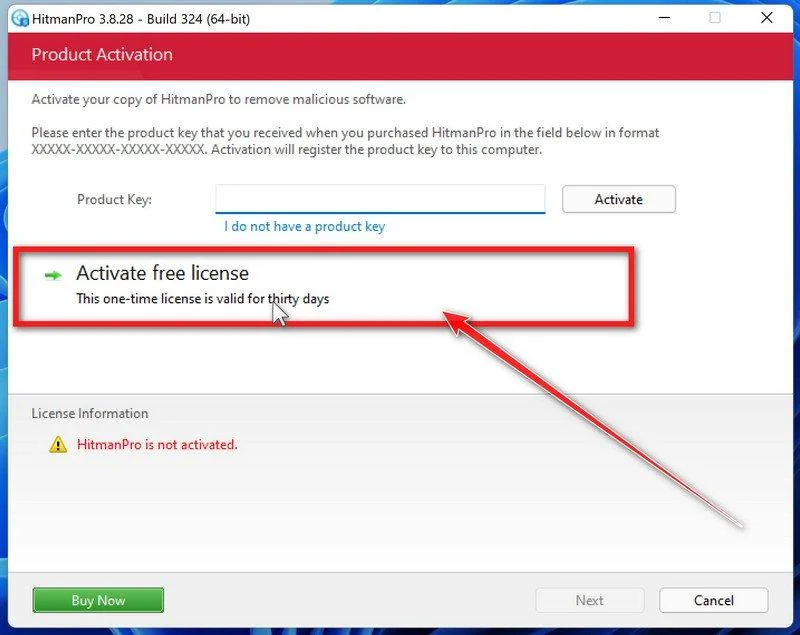
When the removal is complete, HitmanPro will show a summary of everything it cleaned. Click Next, then click Reboot if prompted. If there’s no reboot prompt, just click Close — your PC is clean.
STEP 4: Use AdwCleaner to remove Malicious Browser Extensions and Adware
In this next step, we will use AdwCleaner to remove malicious browser policies and unwanted browser extensions from your computer.
AdwCleaner is a free on-demand scanner that specializes in adware, browser hijackers, and unwanted toolbars — the exact threats that mainstream antivirus programs often miss. It also includes tools that repair the damage malware leaves behind, like hijacked browser settings and malicious policies. It’s a quick scan that’s well worth running.
-
Download AdwCleaner
Click the button below to download AdwCleaner — it’s free, portable, and requires no installation.
Download AdwCleanerOpens the official download page in a new tab. Malwarebytes AdwCleanerRemoves adware and unwanted programs at no cost
 -
Run AdwCleaner
Open your Downloads folder and double-click the file named “adwcleaner.exe“. There’s no installation — the program starts right away.
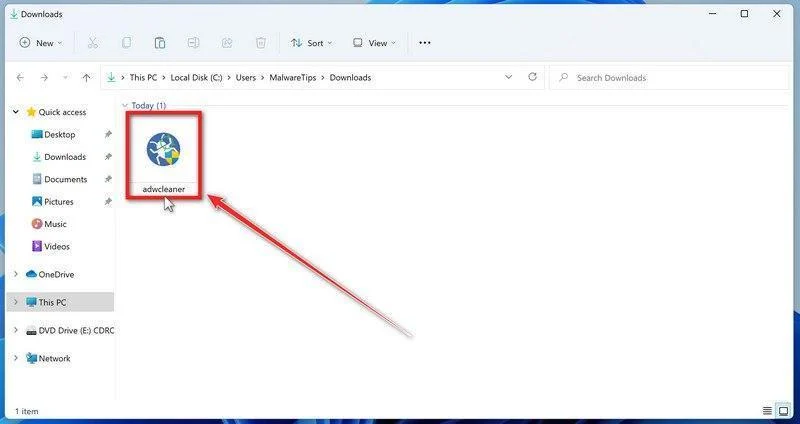
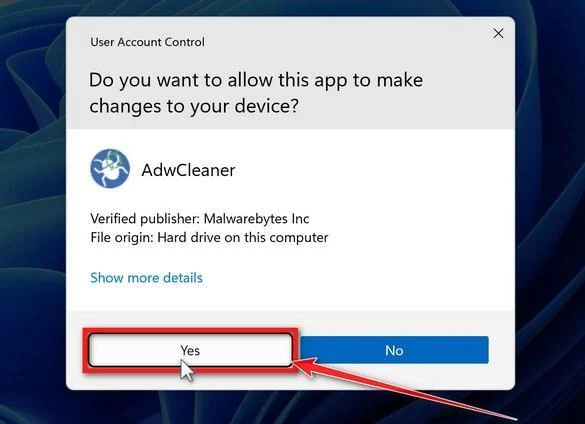
If Windows asks whether you want to allow AdwCleaner to run, click “Yes“. When the license agreement appears, click I agree to continue.
-
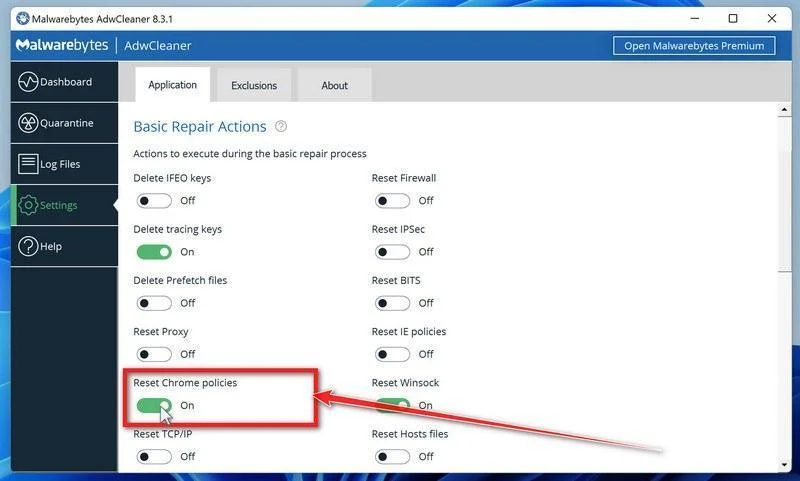
Enable “Reset Chrome policies”
This setting removes malicious browser policies — a trick malware uses to lock your browser settings so you can’t change them back. Click “Settings” on the left side of the window, then turn on “Reset Chrome policies“.
-
Start the Scan
Click “Dashboard” on the left side of the window, then click the “Scan” button.
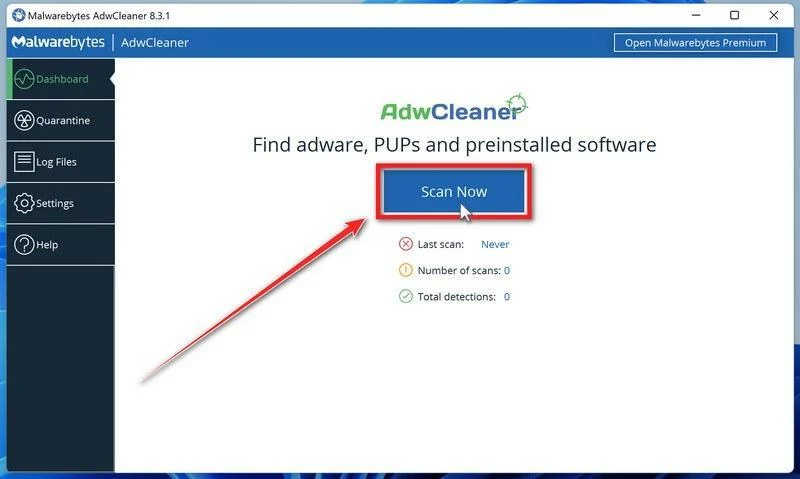
-
Wait for the Scan to Finish
AdwCleaner will now check your computer for adware and other malware. This usually takes only a few minutes — it’s one of the fastest scanners around.
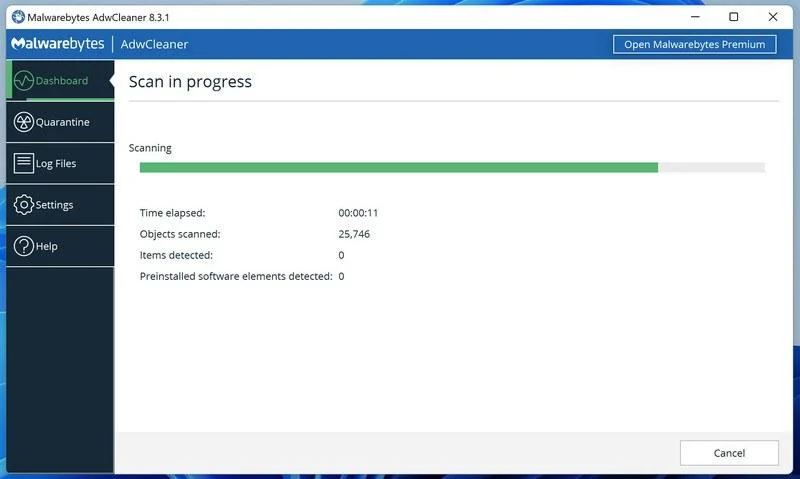
-
Quarantine the Detected Threats
When the scan finishes, AdwCleaner will list everything it found. Click the “Quarantine” button to remove all the malicious items at once.
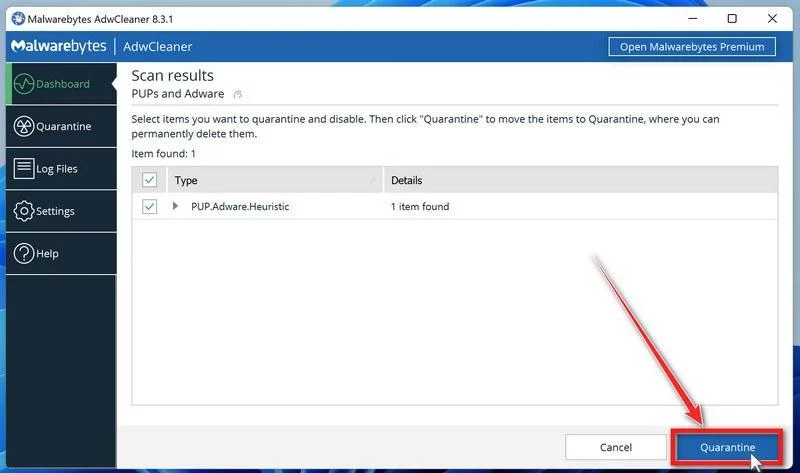
-
Click “Continue” to Finish the Cleanup
Save any open work first — AdwCleaner needs to close your open programs before it can clean. When you’re ready, click the “Continue” button.
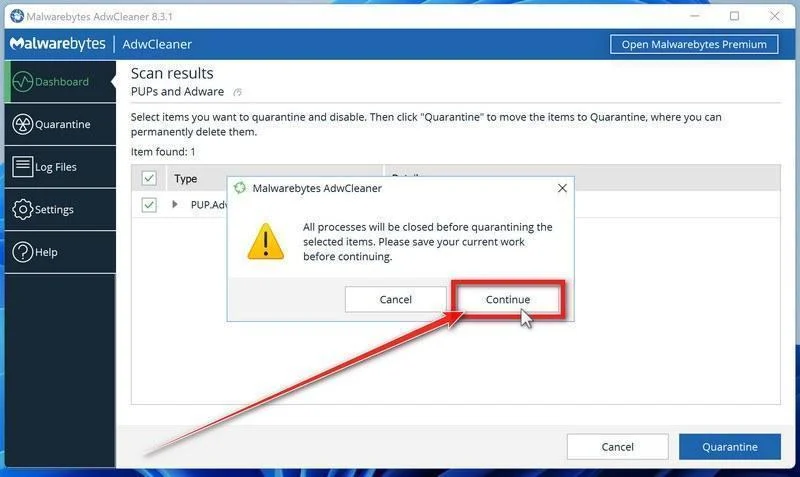
AdwCleaner will now delete all detected malware from your computer. If it asks you to restart your PC, allow it — your computer will be clean when you log back in.
STEP 5: Perform a final check with ESET Online Scanner
This final step involves installing and running a scan with ESET Online Scanner to check for any additional malicious programs that may be installed on the computer..
ESET Online Scanner is a free second-opinion scanner that performs a deep, full-system check for viruses, trojans, rootkits, and other malware. We use it as the final step because it’s thorough — if anything slipped past the previous scans, ESET will find it. A clean result here means your computer is malware-free.
-
Download ESET Online Scanner
Click the button below to download ESET Online Scanner.
Download ESET Online ScannerOpens the official download page in a new tab. ESET Online ScannerFree one-time malware scan from ESET
 -
Run the Installer
When the download finishes, open your Downloads folder and double-click “esetonlinescanner.exe“.
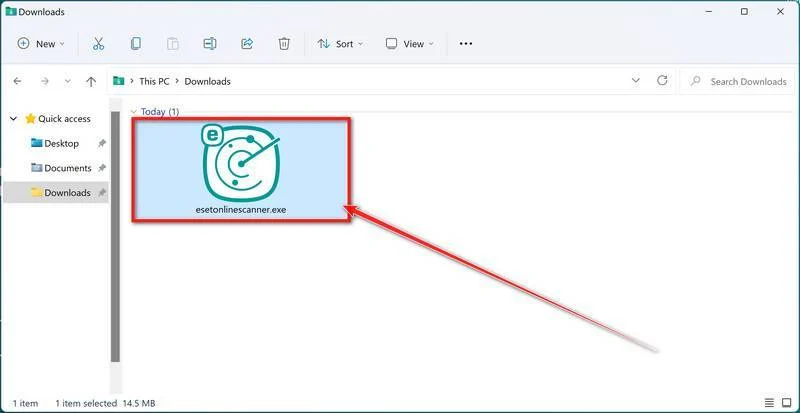
-
Install ESET Online Scanner
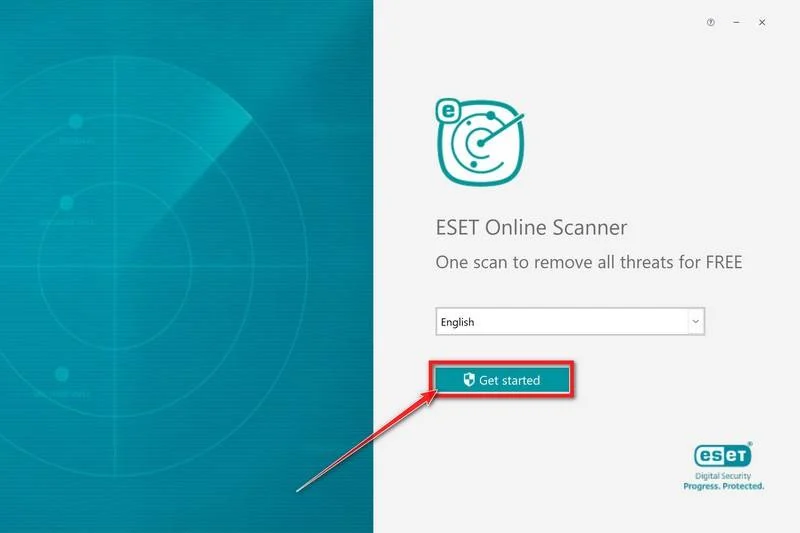
On the start screen, select your language from the drop-down menu and click Get started.
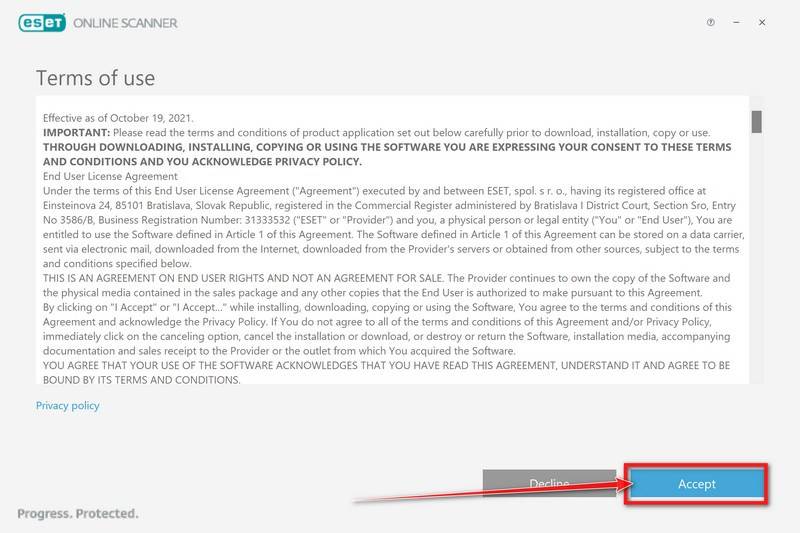
On the Terms of use screen, click Accept.
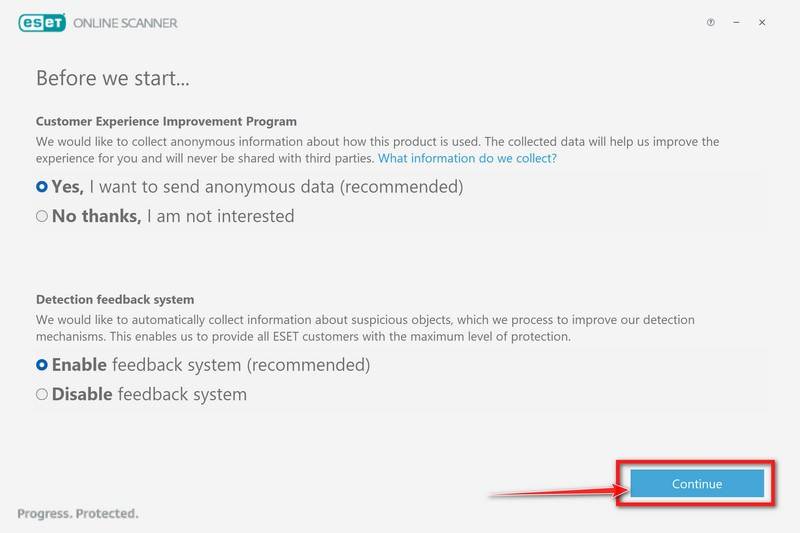
Choose your preferences for the Customer Experience Improvement Program and the Detection feedback system (either choice is fine), then click Continue.
-
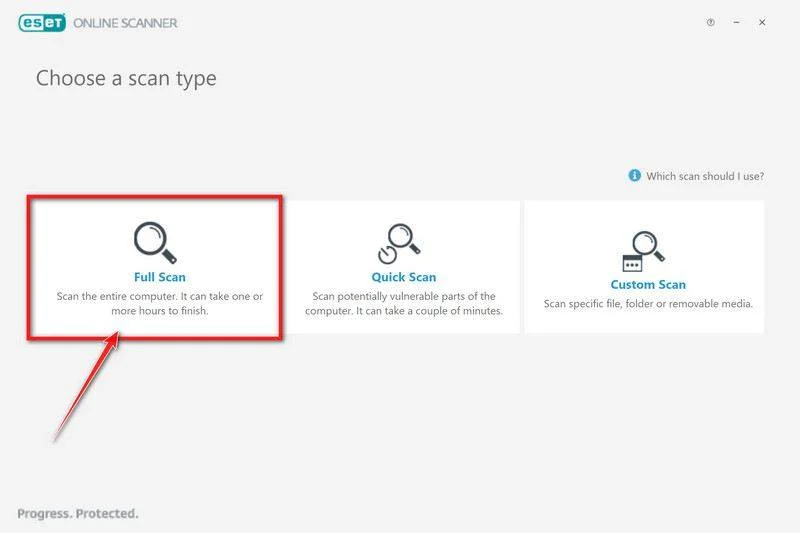
Start a Full Scan
Click Full Scan — this checks your entire computer, not just the common hiding spots.
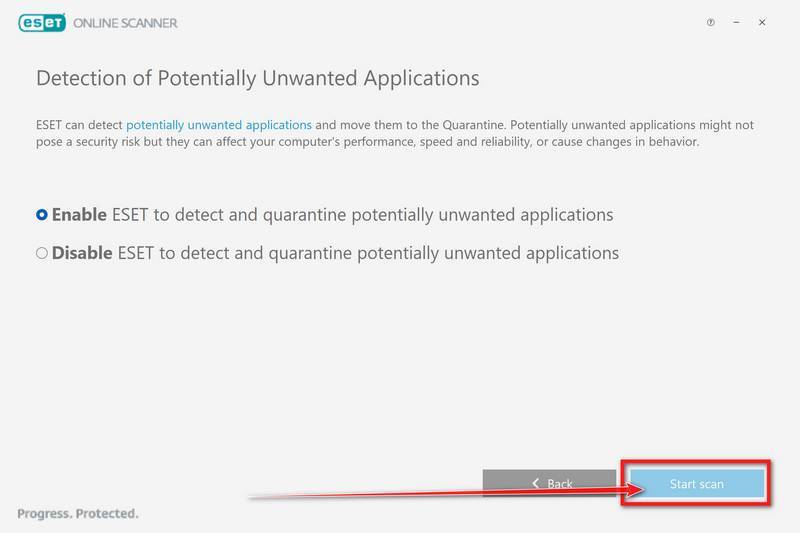
Select Enable for Detection of Potentially Unwanted Applications — this lets ESET catch adware and bundled junk programs, not just viruses. Then click Start scan.
-
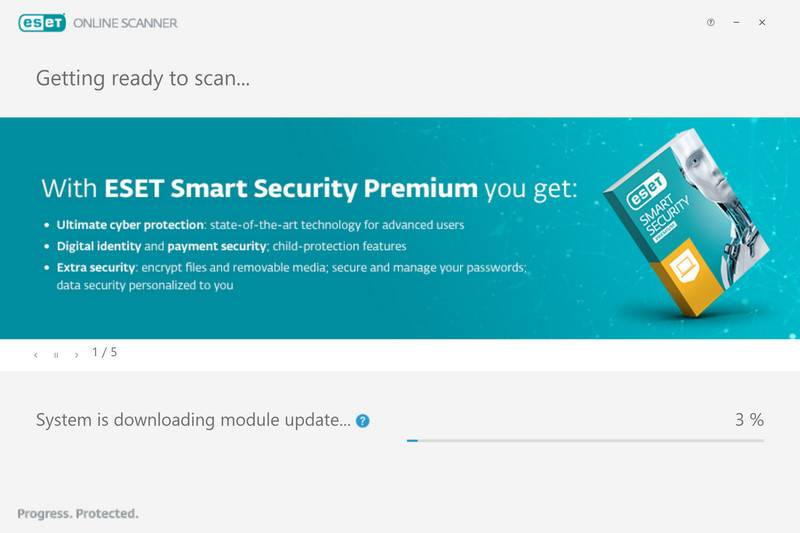
Wait for the Scan to Finish
ESET will now check every file on your computer. Because it’s a full scan, this can take a while — often an hour or more, depending on how much data you have. Leave it running in the background and check on it from time to time.
-
Review the Results
When the scan completes, the Found and resolved detections screen appears. Any threats found were automatically cleaned and quarantined — there’s nothing extra you need to do. Click View detailed results if you want to see exactly what was removed.
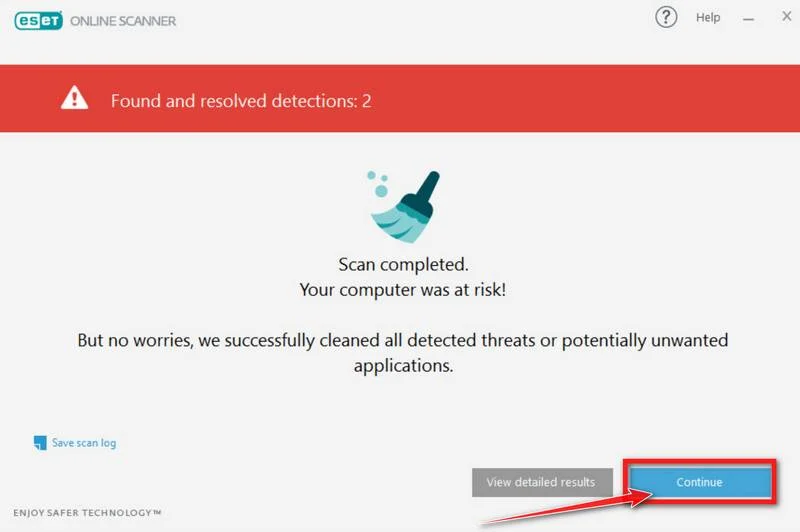
If ESET found nothing — congratulations, your computer has passed the final check and is malware-free.
STEP 6: Restore the files encrypted by ransomware
Unfortunately, in most cases, it’s not possible to recover the files encrypted by this ransomware virus because the private key which is needed to unlock the encrypted files is only available through the attackers. However, below we’ve listed three options you can use to try and recover your files.
Option 1: Search a decryption tool for this ransomware
The cybersecurity community is constantly working to create ransomware decryption tools, so you can try to search these sites for updates:
- https://id-ransomware.malwarehunterteam.com/
- https://decrypter.emsisoft.com/
- https://noransom.kaspersky.com/
- https://www.avast.com/ransomware-decryption-tools
Option 2: Use EaseUS Data Recovery Wizard Free to recover the encrypted files
EaseUS Data Recovery Wizard Free can restore files and repair corrupted files with simple clicks. Its powerful scanning algorithms can identify and retrieve huge file type library, including all of the popular video files, audio files, photos, and document formats.
While the free version only allows you to recover 2 GB of data, this can be helpful to see if the recovery is possible and restore back the most important files from your computer.
-
Download EaseUS Data Recovery Wizard Free.
You can download EaseUS Data Recovery Wizard Free by clicking the link below.
Download EaseUS Data Recovery WizardOpens the download page in a new tab. EaseUS Data Recovery WizardFile recovery tool with a free version
 -
Double-click on the EaseUS Data Recovery Wizard Free setup file.
When EaseUS Data Recovery Wizard Free has finished downloading, double-click on the setup file to install EaseUS Data Recovery Wizard on your computer. In most cases, downloaded files are saved to the Downloads folder.
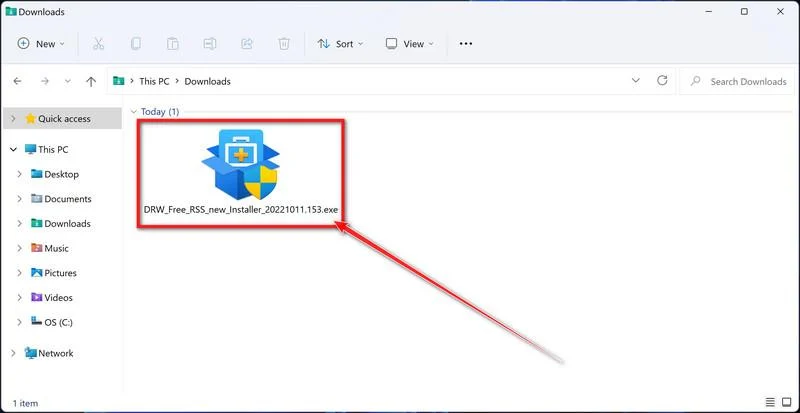
You may be presented with a User Account Control pop-up asking if you want to allow EaseUS to make changes to your device. If this happens, you should click “Yes” to continue with the EaseUS Data Recovery Wizard Free installation.
-
Follow the on-screen prompts to install EaseUS Data Recovery Wizard.
When the EaseUS Data Recovery Wizard installation begins, click on the “Install Now” as seen in the image below.
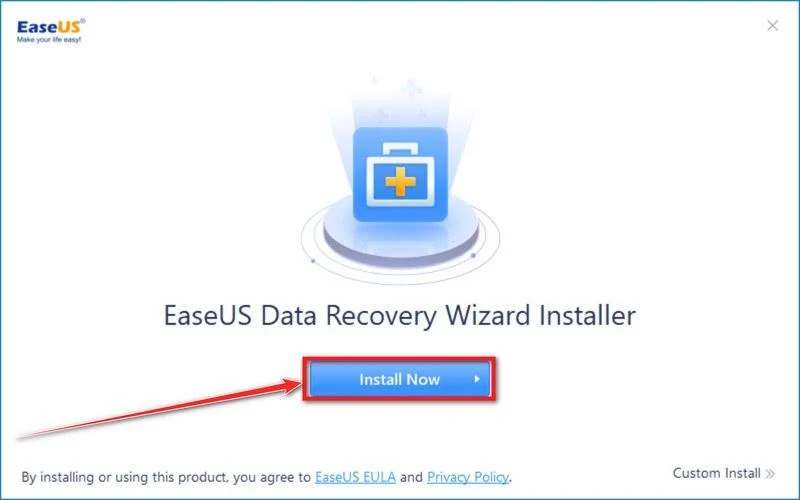
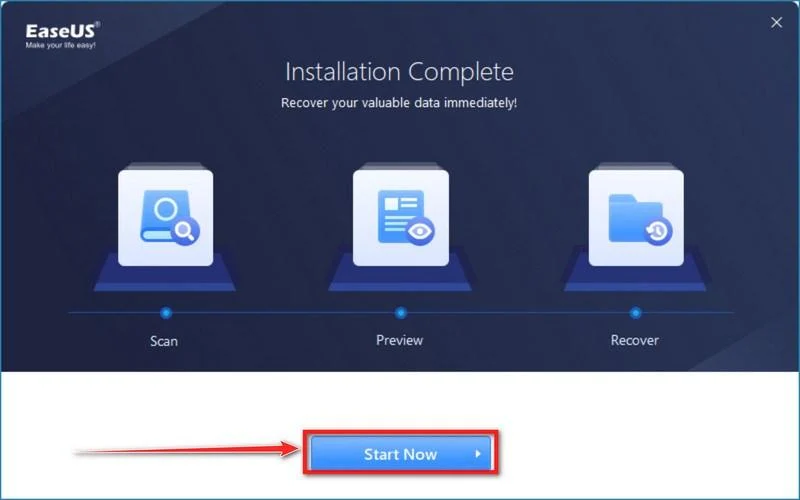
When your EaseUS Data Recovery Wizard installation completes, click the “Start Now” button to start the program.
-
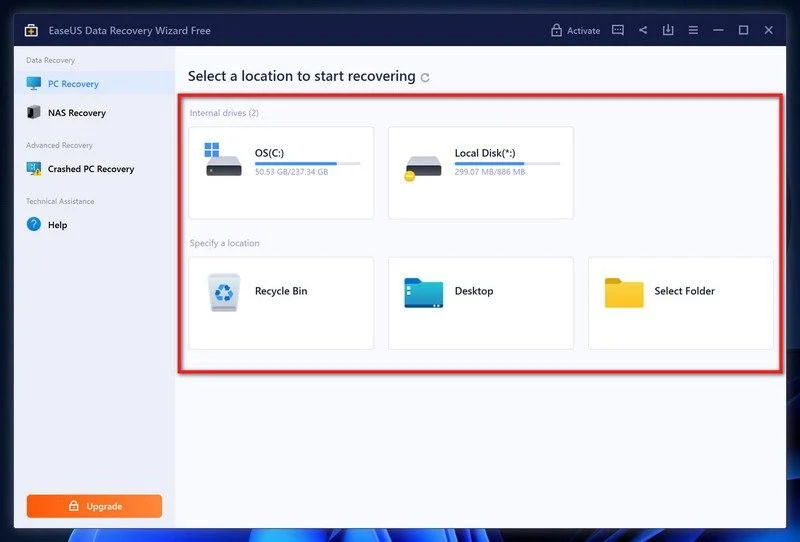
Select a location to start recovering the encrypted files.
Choose the drive or folder where you are the encrypted files that you want to recover and click “Scan“.
-
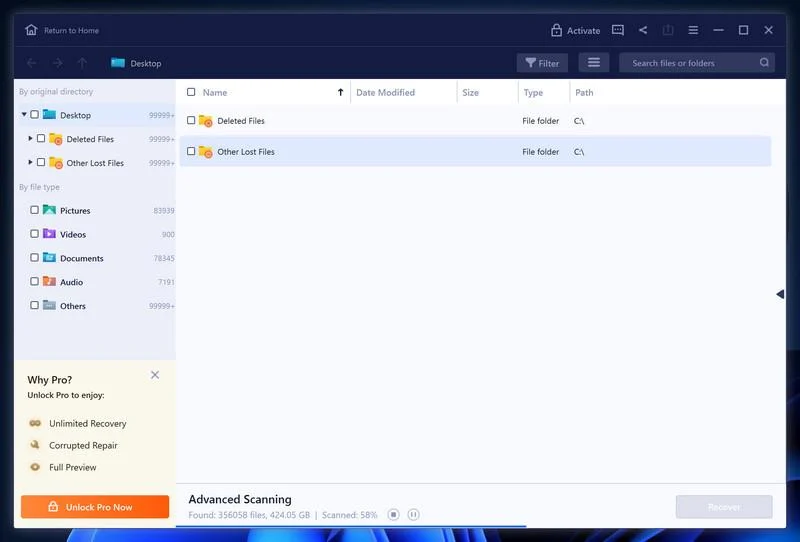
Wait for the EaseUS Data Recovery Wizard scan to complete.
EaseUS Data Recovery Wizard will now scan your computer files that can be restored. This process can take a few minutes, so we suggest you do something else and periodically check on the status of the scan to see when it is finished.
-
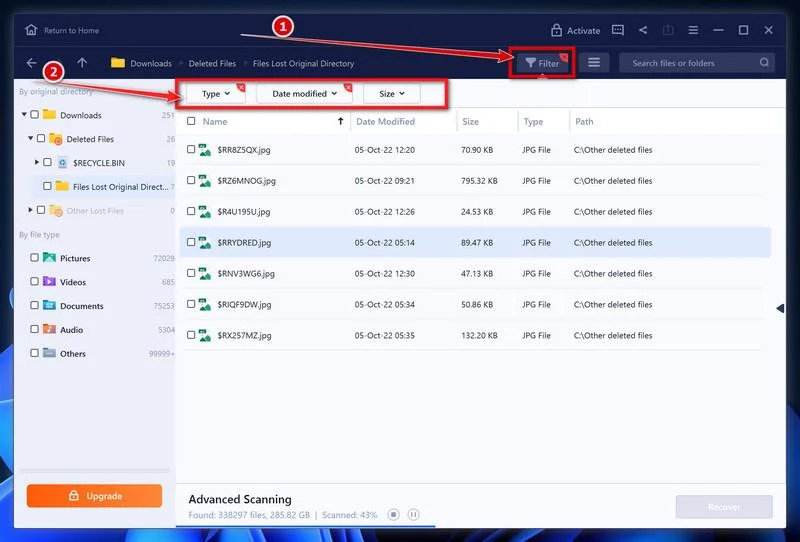
Find the files you want to recover.
When the EaseUS Data Recovery Wizard scan is finished scanning it will show a screen that displays the files that can be recovered. This tool can recover a lot of data, use the “Filter” button to quickly filter specific file types and find the files that you want to recover.
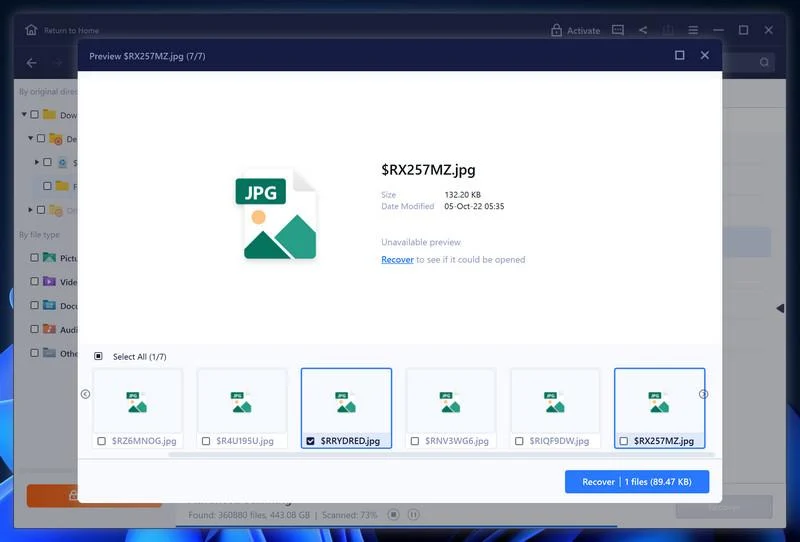
Click the “Preview” button or double-click on a file for a full preview.
-
Select your files and click “Recover”.
Finally, select the the files you want to recover and click “Recover“.
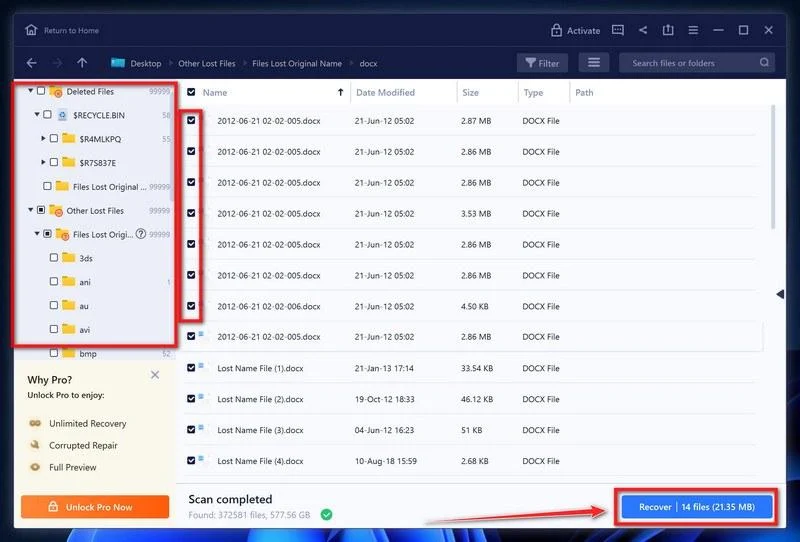
Choose a safe location to save all the files.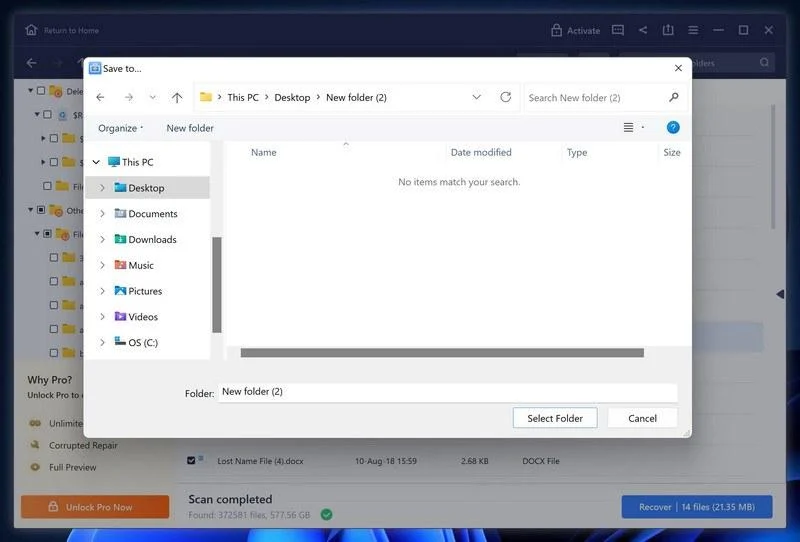
The free version only allow you to recover 2 GB of data, however, this will allow you to recover the most important files and see if EaseUS Data Recovery Wizard can correctly recover them.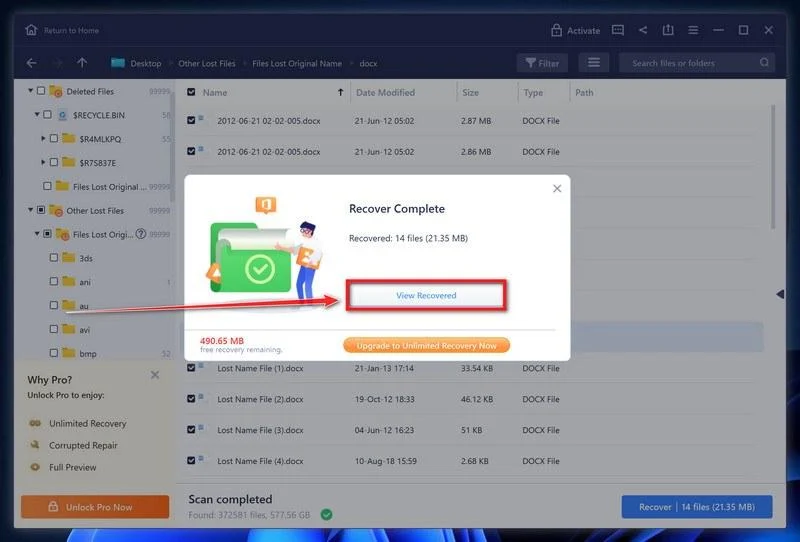
Option 3: Try to restore your files with ShadowExplorer
This ransomware will attempt to delete all shadow copies when you first start any executable on your computer after becoming infected. Thankfully, the infection is not always able to remove the shadow copies, so you should continue to try restoring your files using this method.
-
Download ShadowExplorer.
You can download ShadowExplorer from the below link.
Download ShadowExplorerOpens the official download page in a new tab.ShadowExplorerRestores files from Windows Shadow Volume Copies -
Install ShadowExplorer.
Double-click on the ShadowExplorer-x.x-setup file to start the installation process, then follow the on-screen promts to install this program.
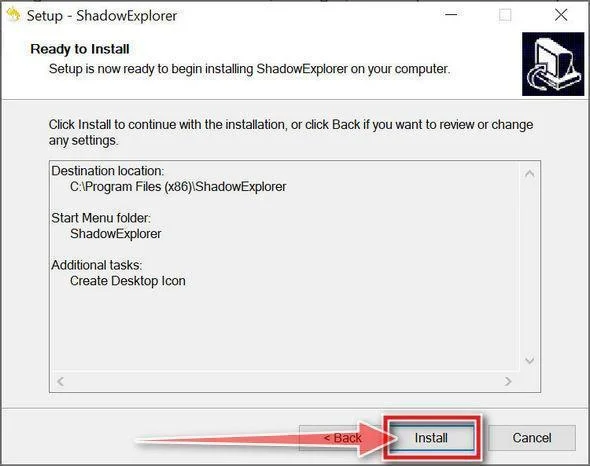
-
Select snapshot date.
Open ShadowExplorer and then from the top bar select the drive where the files that you want to save are located, then select from the snapshot available one previous to this infection.
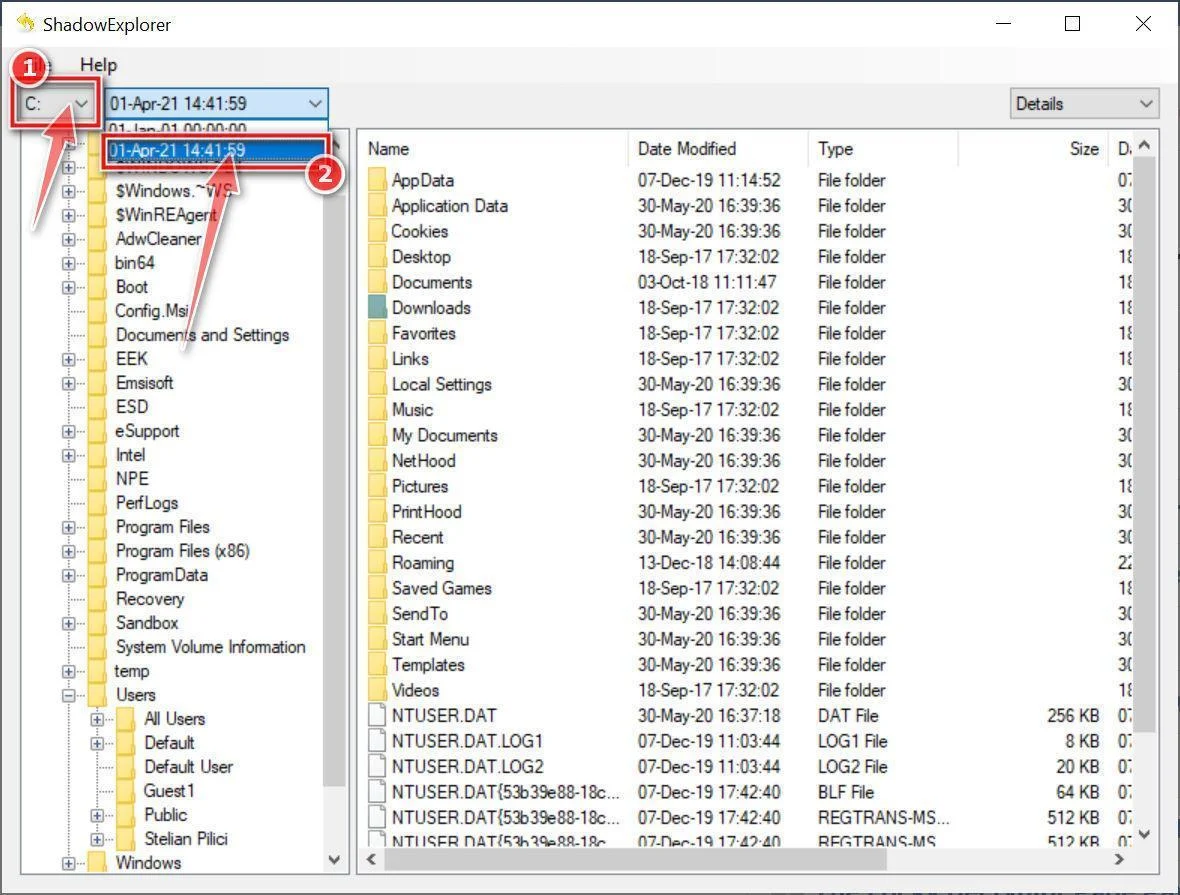
-
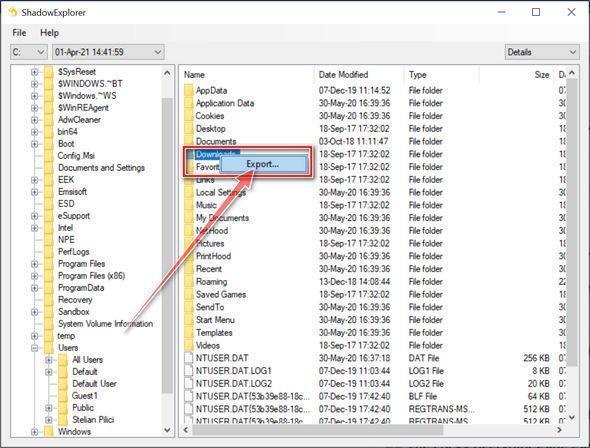
Export the files that you want to recover.
Once you have found a copy of the original file or folder, right-click on it and the select “Export”. A window will prompt you where you want to save the file or folder.
Keep every locked file named exactly as it is. 1.jpg should stay 1.jpg. vacation.jpg should stay vacation.jpg. invoice-2026.pdf should stay invoice-2026.pdf. taxes.xlsx should stay taxes.xlsx. family.mp4 should stay family.mp4. There is no extra ending to strip. The original names are already what you see. That is why this strain is easy to miss. Look for !!!README!!!DO_NOT_DELETE.txt, not for a new extension. If the names look unchanged and that note is in the folder, you are still in this incident.
Keep !!!README!!!DO_NOT_DELETE.txt with the locked files. Do not clean up every copy of the note. Do not fill in a Tor link so the flyer looks complete. Do not fill in an access key so the flyer looks complete. The redaction, or the string on your disk, is part of how you prove this was this strain and not a different locker that only sounds similar. Keep the contact marks as identifiers: the leak sentence, the encryption sentence, the Tor browser line, and the blank access key. Those artifacts are evidence. They are not instructions you should carry out.
Do not open the Tor link in the note. Do not install a browser for this. Do not ask a friend to visit the site just to see. A blank website line is still a ransom door. A calm README is still the people who locked the files. If a later message quotes !!!README!!!DO_NOT_DELETE.txt and offers the real onion, that is still the same shop. If a later message skips the original note and asks for a $ amount over ordinary mail, that is still the same shop, or a copycat standing in the same doorway.
The access key line is blank on the sample. Do not complete it. Do not pay anyone who says they already recovered your key. Do not paste a string from a later email into a form labeled access key. If your disk copy is blank, leave it blank. If your disk copy has a value, copy it for the incident record and do not use it as a login.
This is not the old Aurora post. How to remove Aurora Ransomware is a different family and a different spelling. Filecoder.Aur0ra, zero in the name, is this locker. If a helper only knows the older title, they are not matching your folder. Do not follow the older page as if it already solved !!!README!!!DO_NOT_DELETE.txt.
Do not pay. Do not invent a price. Do not invent a wallet. Do not invent a Session ID. If someone claims they can already decrypt Aur0ra files for a fee because they can recite the leak line and the blank access key, they are selling a report, not a key. If they mention the Tor website link as proof they already called the crew, they read the same note you did. Do not answer. Do not complete their checkout. Do not help them fix the flyer.
If Windows still offers to pick an app for 1.jpg or invoice-2026.pdf, decline it when the file will not open. An unchanged type is not a healthy file. There is no player for locked bytes that still wear yesterday’s name.
The Bottom Line
Aur0ra ransomware is a locker with no new extension, a README that shouts DO NOT DELETE, and a checkout that leaves the access key blank. It keeps the old name. 1.jpg stays 1.jpg. The note is !!!README!!!DO_NOT_DELETE.txt. It claims stolen confidential files, says your files are encrypted, points you at a Tor browser, and prints Your access key: with nothing after it. Public copies leave the Tor website link blank, and this page will not invent one. There is no printed ransom amount. There is no printed deadline. There is no test decrypt. There is no public free decryptor known for this strain. This is Filecoder.Aur0ra from the 2020s, not the older Aurora ransomware in How to remove Aurora Ransomware.
Do not pay. Do not open that Tor link. Do not invent an onion URL. Do not invent an access key. Do not hunt for a new extension that this strain never added. If you take one sentence with you, take this. A folder of names that look unchanged, plus !!!README!!!DO_NOT_DELETE.txt with a leak claim, an encryption claim, a Tor door, and a blank access key, is ransomware on the first sighting. Treat it that way before anyone offers to fill the redacted line, and before anyone hands you the old Aurora guide as if the zero in the name did not matter.

Join the discussion
0 commentsShare your experience or ask a question about this article.
Discussion
Start the conversation
Have a question or something useful to share? Add the first comment.