

A purchasing email asks for a quote and includes a drawing package. For a supplier, that can look like the start of an ordinary business opportunity.
The trouble begins when the promised drawings are used to steer the conversation toward a login page that has nothing to do with the buyer.
Overview
A familiar sales opportunity
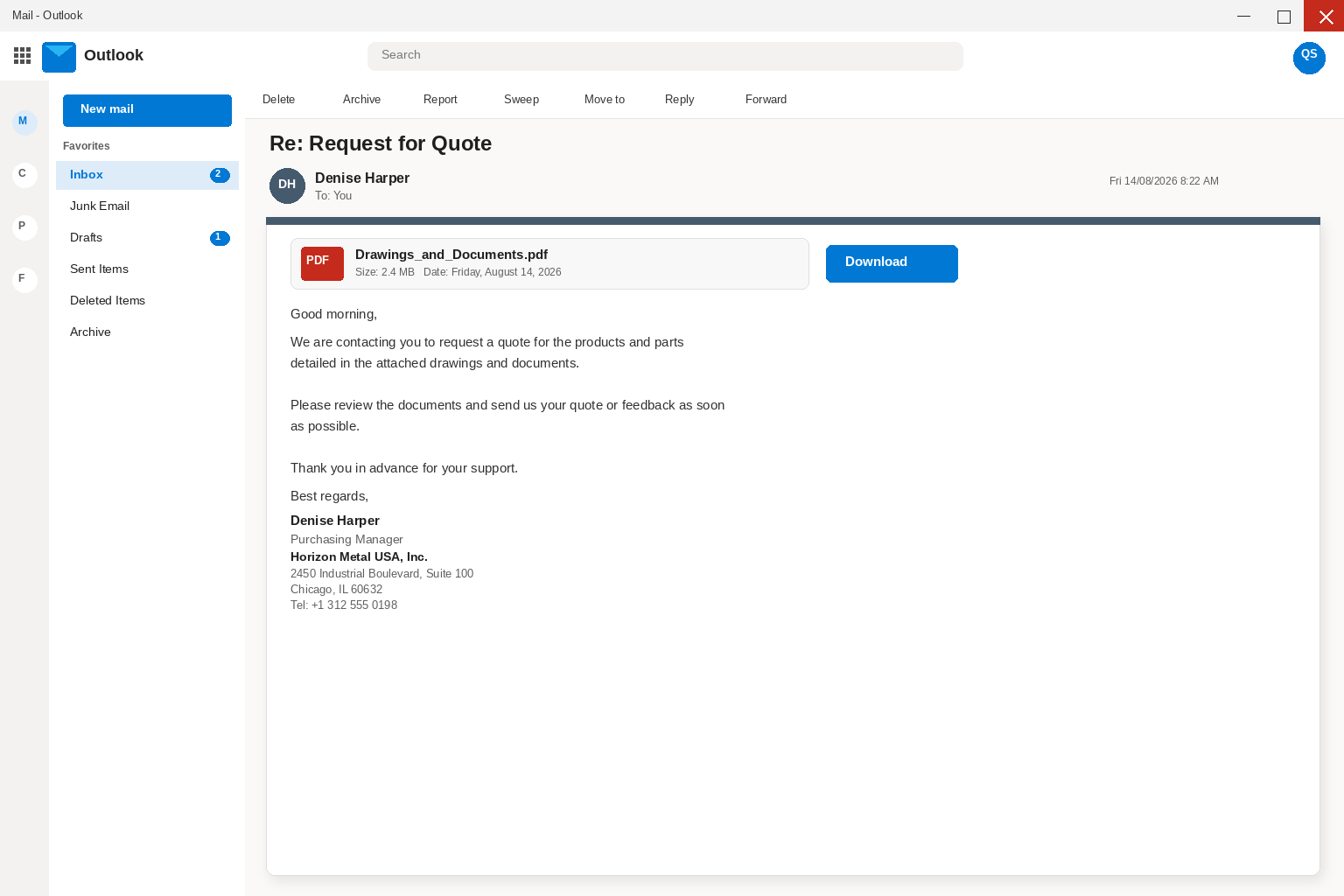
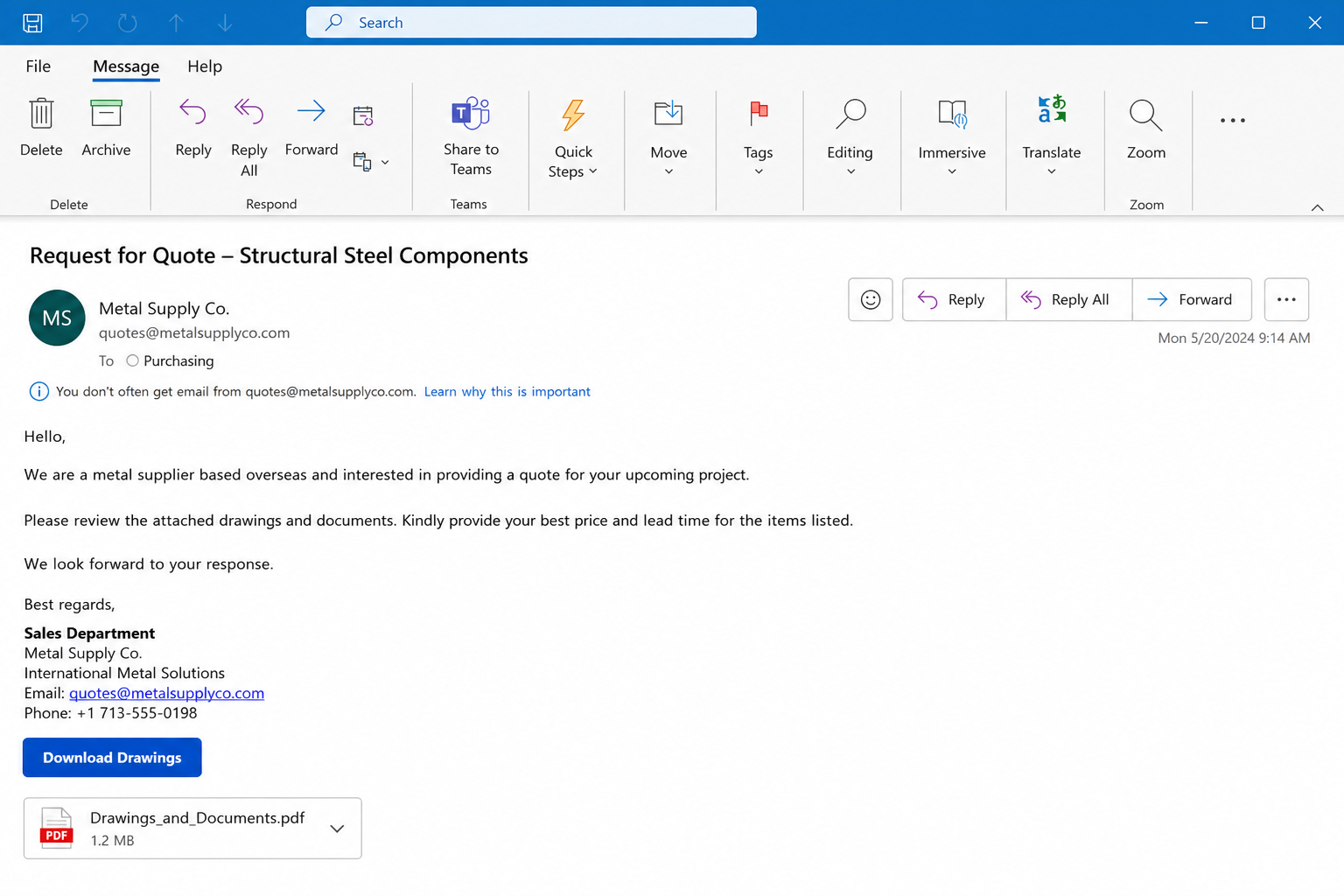
The email is built around a request for quote, a normal part of manufacturing, construction, and supply work. It may name a purchasing manager and an apparently real company.
The reviewed version used a PDF-style drawing filename and a businesslike deadline. That is enough to make a busy recipient worry about losing a legitimate order.
A genuine buyer can be verified through a separate company channel before any attachment or portal is opened.
A drawing file becomes a credential request
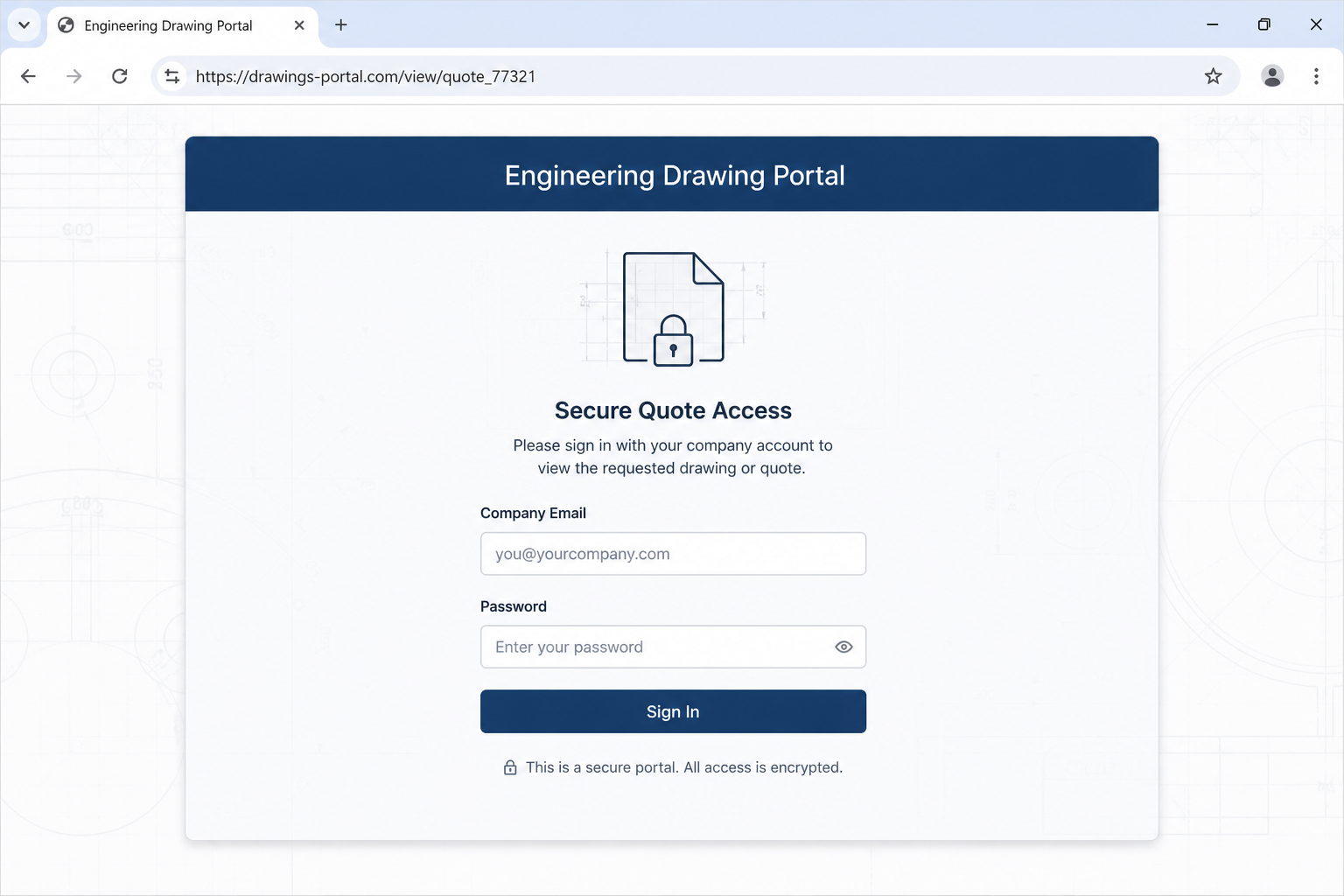
Instead of showing plans, the link can open a page that asks for a company email and password. That change is the central warning sign.
A quote package normally needs a file viewer or a procurement portal already known to the supplier. It should not need the recipient’s email password.
The offline page reviewed in this campaign was set up to harvest details, not to help a vendor price a job.
Business data has value beyond one quote
A mailbox login can reveal customer lists, invoices, bank-change conversations, and prior bids. It can also be used to impersonate the company in later exchanges.
Even a phone number and company profile can help an attacker write a much more credible follow-up.
The request is therefore not just a nuisance. It can be the opening move in business email compromise.
- A request-for-quote story aimed at sales or purchasing staff
- A named purchasing contact used to create familiarity
- A PDF-style drawing label that does not deliver drawings
- A company email and password request behind the link
- A possible launch point for invoice or bank-detail fraud
- A problem that can be tested by calling a verified company number
The RFQ drawing lure works because good vendors are trained to respond quickly. A delayed response can mean a missed job.
That normal commercial instinct should not require a password. Pricing a part and proving mailbox ownership are unrelated activities.
Separating those two ideas makes the fake portal much easier to recognize.
How The Scam Works
Step 1: A buyer inquiry arrives at a busy inbox
At this point, a supplier receives an RFQ during a normal workday.
The counterfeit RFQ depends on the idea that the commercial language resembles ordinary vendor correspondence.
For a rushed recipient, the email competes with real requests that need quick answers.
Sales teams are accustomed to sorting inquiries quickly because slow replies can lose legitimate work.
That ordinary urgency is the pressure point for a fake RFQ.
The message arrives when routine efficiency can become a weakness.
In the RFQ version, a supplier receives an RFQ during a normal workday. A vendor’s wish to respond promptly becomes the attacker’s opening.
The procurement details may seem useful, but a supplier receives an RFQ during a normal workday. Real drawings can be confirmed through the buyer’s known channels.
The business risk grows because a supplier receives an RFQ during a normal workday. That is why a suspicious quote deserves an internal alert.
Step 2: A named purchaser creates borrowed credibility
At this point, a purchasing-manager name and company reference appear in the signature.
The counterfeit RFQ depends on the idea that those details can be copied from public business pages or directories.
For a rushed recipient, a convincing signature does not prove the message came from that business.
Purchasing titles and company names are easy to copy from public websites.
A signature can look detailed while having no connection to the mailbox that sent it.
Independent confirmation protects the real company as well as the recipient.
In the RFQ version, a purchasing-manager name and company reference appear in the signature. A vendor’s wish to respond promptly becomes the attacker’s opening.
The procurement details may seem useful, but a purchasing-manager name and company reference appear in the signature. Real drawings can be confirmed through the buyer’s known channels.
The business risk grows because a purchasing-manager name and company reference appear in the signature. That is why a suspicious quote deserves an internal alert.
Step 3: The drawing filename invites a familiar click
At this point, a Drawings_and_Documents PDF label suggests technical files.
The counterfeit RFQ depends on the idea that the familiar extension discourages recipients from questioning the next click.
For a rushed recipient, the alleged file can actually be a link or a portal detour.
Technical drawings are naturally interesting to a supplier preparing a quote.
The PDF label gives the attacker a plausible reason for a click without revealing any real project.
A familiar filename is not proof of a genuine attachment.
In the RFQ version, a Drawings_and_Documents PDF label suggests technical files. A vendor’s wish to respond promptly becomes the attacker’s opening.
The procurement details may seem useful, but a Drawings_and_Documents PDF label suggests technical files. Real drawings can be confirmed through the buyer’s known channels.
The business risk grows because a Drawings_and_Documents PDF label suggests technical files. That is why a suspicious quote deserves an internal alert.
Step 4: The link swaps plans for a sign-in screen
At this point, the destination asks for corporate mailbox credentials.
The counterfeit RFQ depends on the idea that a quote drawing has no reasonable need for full mailbox access.
For a rushed recipient, this mismatch exposes the page as a data-collection step.
A quote can require product details, not the keys to a corporate inbox.
The moment a drawing portal asks for a mailbox password, its purpose has changed.
That mismatch is more important than the quality of the page design.
In the RFQ version, the destination asks for corporate mailbox credentials. A vendor’s wish to respond promptly becomes the attacker’s opening.
The procurement details may seem useful, but the destination asks for corporate mailbox credentials. Real drawings can be confirmed through the buyer’s known channels.
The business risk grows because the destination asks for corporate mailbox credentials. That is why a suspicious quote deserves an internal alert.
Step 5: Credentials can unlock the wider mailbox
At this point, a working mailbox can contain proposals, contacts, and payment discussions.
The counterfeit RFQ depends on the idea that the attacker may search threads for invoicing language or vendor relationships.
For a rushed recipient, the effect can reach far beyond the original RFQ.
Business mailboxes often connect sales, finance, operations, and customers.
One stolen password can provide a map of relationships that took years to build.
The attacker may value those relationships more than the requested quote.
In the RFQ version, a working mailbox can contain proposals, contacts, and payment discussions. A vendor’s wish to respond promptly becomes the attacker’s opening.
The procurement details may seem useful, but a working mailbox can contain proposals, contacts, and payment discussions. Real drawings can be confirmed through the buyer’s known channels.
The business risk grows because a working mailbox can contain proposals, contacts, and payment discussions. That is why a suspicious quote deserves an internal alert.
Step 6: A compromised mailbox enables a second fraud
At this point, a stolen account can be used to send an altered payment instruction.
The counterfeit RFQ depends on the idea that customers may trust a request when it comes from a familiar address.
For a rushed recipient, the later loss can be much larger than the value of a single quote.
Invoice fraud commonly relies on trust established in an existing conversation.
A mailbox compromise lets an attacker insert themselves into threads already in progress.
Phone verification makes that second-stage deception harder.
In the RFQ version, a stolen account can be used to send an altered payment instruction. A vendor’s wish to respond promptly becomes the attacker’s opening.
The procurement details may seem useful, but a stolen account can be used to send an altered payment instruction. Real drawings can be confirmed through the buyer’s known channels.
The business risk grows because a stolen account can be used to send an altered payment instruction. That is why a suspicious quote deserves an internal alert.
Step 7: Silence keeps the fake buyer believable
At this point, the fake buyer may never reply after credentials are collected.
The counterfeit RFQ depends on the idea that that absence can look like an ordinary lost opportunity.
For a rushed recipient, a quick internal alert can reveal whether the account was accessed elsewhere.
A missing buyer reply can seem normal in competitive sales work.
That silence should not end the internal review if credentials were submitted.
Account logs may reveal access attempts before the next fraud message arrives.
In the RFQ version, the fake buyer may never reply after credentials are collected. A vendor’s wish to respond promptly becomes the attacker’s opening.
The procurement details may seem useful, but the fake buyer may never reply after credentials are collected. Real drawings can be confirmed through the buyer’s known channels.
The business risk grows because the fake buyer may never reply after credentials are collected. That is why a suspicious quote deserves an internal alert.
Company, Address, and Fulfillment Checks
A buyer name needs independent confirmation
A real company may exist even when the email is fraudulent. Impersonation uses that fact to make the approach sound ordinary.
Find the business through a trusted directory, then call a published number and ask for the purchasing contact.
Do not use the number or reply address printed in the suspicious inquiry.
A drawing portal should match the relationship
Established customers often use named procurement systems or shared project spaces. An unknown portal deserves a separate verification call.
A password prompt for a drawing file is not the same as a client-specific document room.
Compare the domain with the buyer’s real corporate domain before signing in.
Support must know the actual project
A legitimate purchaser should be able to discuss part numbers, quantities, and the origin of the request.
A vague agent, automated reply, or pressure to reset an email password is a serious warning sign.
Use a verified switchboard or direct contact already present in your customer records.
Commercial data needs a traceable recipient
Quotes can include pricing, margins, drawings, and customer information. Treat them as sensitive even when no payment is involved.
The reviewed page sought credentials rather than providing traceable procurement access.
If the recipient cannot be verified, send no quote and open no file.
Why This Message Can Cause Real Harm
Procurement scams exploit a workplace habit that is usually positive. Companies want staff to respond to qualified opportunities, so an RFQ does not automatically feel suspicious.
A modest verification delay is cheaper than a mailbox compromise. Calling a published company number can resolve the question in minutes.
Never use an email password as a universal key for a document portal. A legitimate system can offer a separate account or a password-reset path you initiated.
Check whether the sender’s domain differs by a letter, hyphen, or unusual suffix. Lookalike domains often depend on a rushed glance.
Shared mailboxes deserve an escalation procedure. If one employee entered credentials, others need to know that account threads may be exposed.
Payment changes should be verified by phone using a known number, even after this particular RFQ has been dismissed. Compromise often creates delayed follow-up fraud.
A seller’s best defense is a simple rule: drawings may require access, but access should never require surrendering a corporate mailbox password.
What to Do if You Have Fallen Victim to This Scam
- Stop using the drawing portal and save the original inquiry, including headers, link address, and the filename shown to the recipient.
- Notify your IT or security contact immediately if a company email password was typed into the page. Fast reporting matters more than avoiding embarrassment.
- Change the affected password from a clean device and revoke active sessions if the email provider offers that option.
- Review mailbox forwarding rules, delegates, connected apps, and recent sent messages. Those settings can reveal whether someone tried to retain access.
- Warn finance and sales teams about possible invoice or banking-change impersonation. Ask them to verify payment changes by known telephone numbers.
- Run Malwarebytes on any computer that downloaded a file or opened an unexpected attachment from the RFQ message.
- Use AdGuard to reduce exposure to malicious advertising and known phishing pages while browser access, saved passwords, and extensions are reviewed.
- Report the impersonation to the real company through a verified channel and forward evidence to the appropriate fraud-reporting service.
Is Your Device Infected? Run a Free Malware Scan
Slow performance, constant pop-ups, or strange behavior? These are classic signs of a malware infection. The fastest way to find out is to scan your device with Malwarebytes Free — one of the most trusted malware removal tools available.
The free version detects and removes the most common threats, including:
- Adware — the cause of those annoying pop-ups
- Browser hijackers — unwanted redirects and changed homepages
- Trojans and spyware — hidden programs stealing your data
- Potentially unwanted programs (PUPs) — software you never asked for
👉 Select your device below — Windows, Mac, or Android — then follow the simple steps to download Malwarebytes, scan your system, and remove any threats it finds. The scan usually takes 5 to 20 minutes.
Run a Malware Scan with Malwarebytes for Windows
Malwarebytes is one of the most popular and trusted anti-malware tools for Windows — and it’s completely free for removing infections. It catches threats that many antivirus programs miss, including adware, browser hijackers, and trojans. Follow the steps below to scan and clean your PC in just a few minutes.
Download Malwarebytes
Click the button below to download the latest version of Malwarebytes for Windows from the official source. The free version is all you need — it will scan your computer and remove adware, browser hijackers, and other malicious software at no cost.
Download MalwarebytesOfficial installer for Windows 11 and 10. Your download starts right away.Want real-time protection? See Malwarebytes Premium Malwarebytes Free for WindowsScans and removes malware at no cost
-
Install Malwarebytes
When the download finishes, open your Downloads folder and double-click the MBSetup file. If Windows shows a User Account Control pop-up, click “Yes” to allow the installation.

Follow the On-Screen Prompts to Install Malwarebytes
The setup wizard will walk you through a few quick screens:
-
Choose where you’re installing the program — “Personal Computer” or “Work Computer” — then click Next.

-
Malwarebytes will now install on your device. This usually takes under a minute.

-
When installation is complete, the “Welcome to Malwarebytes” screen will open automatically.

-
On the final screen, click Open Malwarebytes to launch the program.

-
Enable “Scan for Rootkits”
Before scanning, turn on rootkit detection so Malwarebytes can find even the most hidden threats. Click the Settings gear icon on the left side of the screen.

In the settings menu, find “Scan for rootkits” and click the toggle so it turns blue.

Done? Click “Dashboard” in the left pane to return to the main screen.
Start the Scan
Click the blue Scan button. Malwarebytes will automatically update its virus database and start checking your computer for malware.

-
Wait for the Scan to Finish
The scan checks your entire system for browser hijackers and other malicious programs, so it can take 5 to 20 minutes depending on your computer. Feel free to do something else — just check back occasionally to see the progress.

-
Quarantine the Detected Threats
When the scan is done, you’ll see a list of everything Malwarebytes found — malware, adware, and potentially unwanted programs. Click the “Quarantine” button to remove all of them at once.

Malwarebytes will now remove the malicious files and registry entries and move them safely into quarantine.

-
Restart Your Computer
Some threats can only be fully removed after a reboot. If Malwarebytes asks you to restart, click Yes. Once you’re logged back in, Malwarebytes has finished removing the threats it found.

That’s it — your Windows PC is now clean of trojans, adware, and other malware, and should be back to running smoothly.
If you are still having problems with your computer after completing these instructions, then please follow one of the steps:
- Run a computer scan with ESET Online Scanner
- Ask for help in our Windows Malware Removal Help & Support forum.
Run a Malware Scan with Malwarebytes for Mac
Malwarebytes for Mac is a free on-demand scanner that removes the malware other security software tends to miss — adware, browser hijackers, and unwanted programs included. Cleaning an infected Mac with Malwarebytes has always been completely free, and it’s our go-to recommendation. Follow the steps below to scan and clean your Mac in just a few minutes.
-
Download Malwarebytes for Mac
Click the button below to download the latest version of Malwarebytes for Mac.
Download MalwarebytesOfficial installer for macOS. Your download starts right away.Want real-time protection? See Malwarebytes PremiumMalwarebytes Free for MacScans and removes malware at no cost -
Open the Malwarebytes setup file
When the download finishes, open your Downloads folder and double-click the setup file to begin the installation.

-
Follow the On-Screen Prompts to Install Malwarebytes
The Malwarebytes for Mac Installer will guide you through a few quick screens. Click “Continue” and keep following the prompts until the installation completes.



When the installation is complete, Malwarebytes opens to the Welcome to Malwarebytes screen. Click “Get started“.
-
Select “Personal Computer” or “Work Computer”
Malwarebytes will ask what type of computer you’re installing it on. Click either Personal Computer or Work Computer, whichever applies.

-
Start the Scan
Click the “Scan” button. Malwarebytes will automatically update its detection database and begin checking your Mac for malware.

-
Wait for the Scan to Finish
Malwarebytes will scan your Mac for adware, browser hijackers, and other malicious programs. This can take a few minutes, so feel free to do something else — just check back occasionally to see the progress.

-
Quarantine the Detected Threats
When the scan is done, you’ll see a list of everything Malwarebytes found. Click the “Quarantine” button to remove all the threats at once.

-
Restart Your Mac
Malwarebytes will now remove all the malicious files it found. Some threats can only be fully removed after a reboot — if Malwarebytes asks you to restart, allow it. Once you’re logged back in, your Mac is clean.

That’s it — your Mac is now free of adware, rogue browser extensions, and other potentially harmful software.
If you are still experiencing problems while trying to remove a malicious program from your computer, please ask for help in our Mac Malware Removal Help & Support forum.
Run a Malware Scan with Malwarebytes for Android
Malwarebytes for Android automatically detects and removes dangerous threats like malware and ransomware so you don’t have to worry about your most-used device being compromised. Aggressive detection of adware and potentially unwanted programs keeps your Android phone or tablet running smooth.
-
Download Malwarebytes for Android.
You can download Malwarebytes for Android by clicking the link below.
Get Malwarebytes for AndroidOpens Google Play in a new tab.Want real-time protection? See Malwarebytes Premium for AndroidMalwarebytes for AndroidScans your phone and removes malware at no cost -
Install Malwarebytes for Android on your phone.
In the Google Play Store, tap “Install” to install Malwarebytes for Android on your device.

When the installation process has finished, tap “Open” to begin using Malwarebytes for Android. You can also open Malwarebytes by tapping on its icon in your phone menu or home screen.

-
Follow the on-screen prompts to complete the setup process
When Malwarebytes will open, you will see the Malwarebytes Setup Wizard which will guide you through a series of permissions and other setup options.
This is the first of two screens that explain the difference between the Premium and Free versions. Swipe this screen to continue.
Tap on “Got it” to proceed to the next step.
Malwarebytes for Android will now ask for a set of permissions that are required to scan your device and protect it from malware. Tap on “Give permission” to continue.
Tap on “Allow” to permit Malwarebytes to access the files on your phone.
-
Update database and run a scan with Malwarebytes for Android
You will now be prompted to update the Malwarebytes database and run a full system scan.

Click on “Update database” to update the Malwarebytes for Android definitions to the latest version, then click on “Run full scan” to perform a system scan.

-
Wait for the Malwarebytes scan to complete.
Malwarebytes will now start scanning your phone for adware and other malicious apps. This process can take a few minutes, so we suggest you do something else and periodically check on the status of the scan to see when it is finished.

-
Click on “Remove Selected”.
When the scan has been completed, you will be presented with a screen showing the malware infections that Malwarebytes for Android has detected. To remove the malicious apps that Malwarebytes has found, tap on the “Remove Selected” button.

-
Restart your phone.
Malwarebytes for Android will now remove all the malicious apps that it has found. To complete the malware removal process, Malwarebytes may ask you to restart your device.
That’s it — your Android phone is now clean — no more malicious apps, adware, or browser redirects.
If you are still having problems with your phone after completing these instructions, then please follow one of the steps:
- Restore your phone to factory settings by going to Settings > General management > Reset > Factory data reset.
- Ask for help in our Mobile Malware Removal Help & Support forum.
Stay Protected: Block Ads and Malicious Sites
Now that your device is clean, keep it that way. Most infections start with a malicious ad or a fake download button — so blocking them at the source is your best defense.
We recommend AdGuard, which blocks malicious ads, phishing pages, and dangerous redirects before they can reach you.
👉 Download AdGuard and browse safely
Frequently Asked Questions
Why would a scammer send a request for quote?
An RFQ gives the attacker a credible reason to contact a business and a reason for the recipient to open drawings quickly.
Can a real company name appear in a fraudulent email?
Yes. Criminals often impersonate real businesses because public names and employee details are easy to find.
Should a PDF drawing require my email password?
No. A drawing portal may need a project account, but it should not ask for the password to your main mailbox.
What can happen after a mailbox password is stolen?
The account can expose customers, invoices, quotes, and payment conversations that support later impersonation attempts.
How can I verify the buyer safely?
Use a published website, customer record, or independent directory to find a contact. Do not rely on the email signature.
What if I only entered my company email address?
Watch for targeted follow-up messages. Change passwords only if a password was entered or the same page requested a sign-in.
The Bottom Line
The Drawings and Documents email scam disguises credential theft as an ordinary sales opportunity.
Verify a buyer away from the message before opening a portal. A legitimate quote request does not need the password to your business mailbox.
That single distinction can protect customer relationships, invoices, and future payments.

Join the discussion
0 commentsShare your experience or ask a question about this article.
Discussion
Start the conversation
Have a question or something useful to share? Add the first comment.