

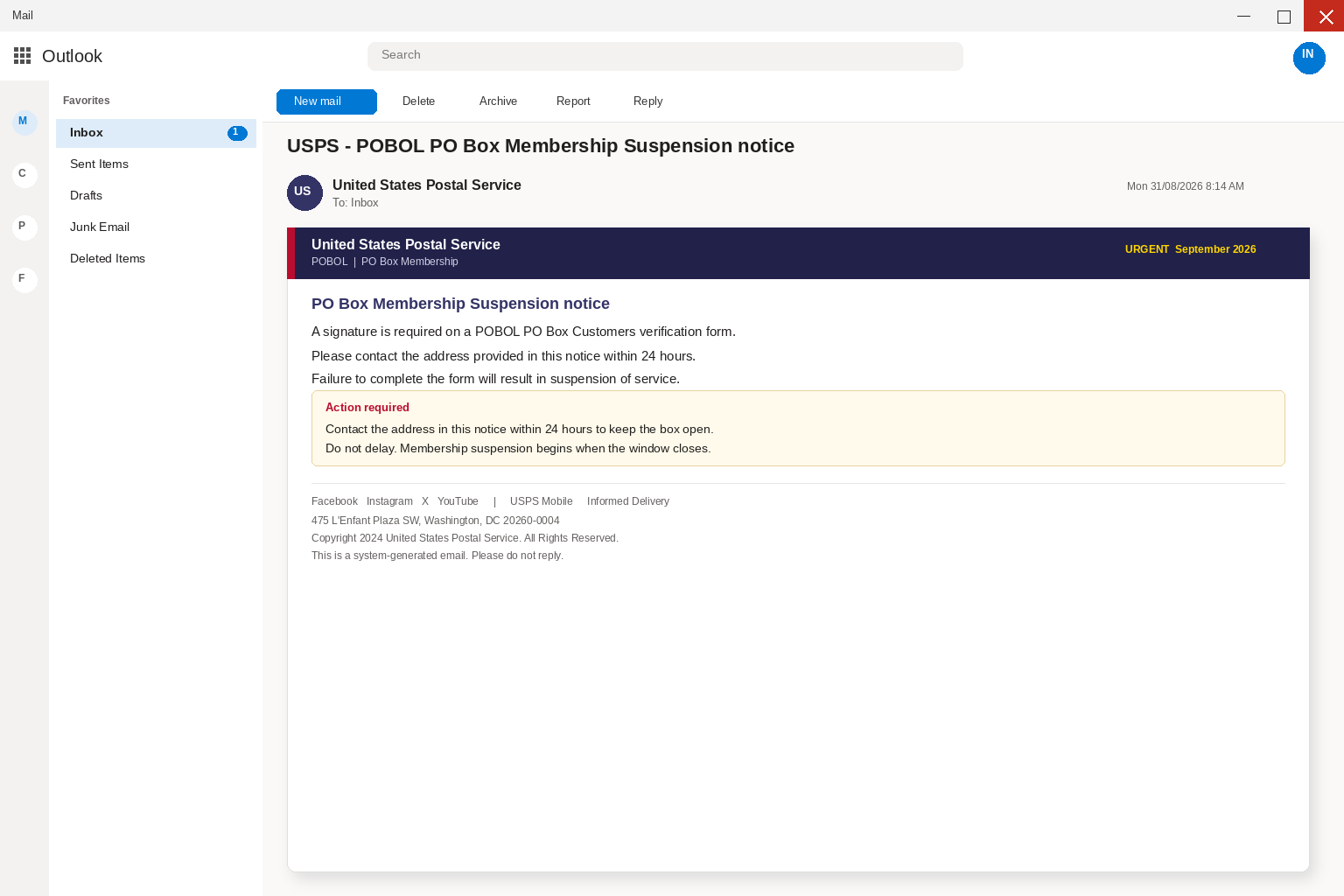
A notice says a PO Box will be suspended unless a signature is completed within 24 hours. The wording sounds administrative, which is exactly why the message can feel believable.
Before opening a verification form, pause. This version borrows postal language, then turns an ordinary account concern into a risky request for personal details.
Overview
A misleading use of POBOL
The email calls itself a POBOL membership suspension. POBOL is associated with online PO Box management, not a mysterious membership that must be rescued by email.
The phrase is useful camouflage because people who rent a box may recognize it without remembering what it actually means.
A familiar abbreviation does not validate a sender, a link, or a deadline.
The deadline creates the pressure
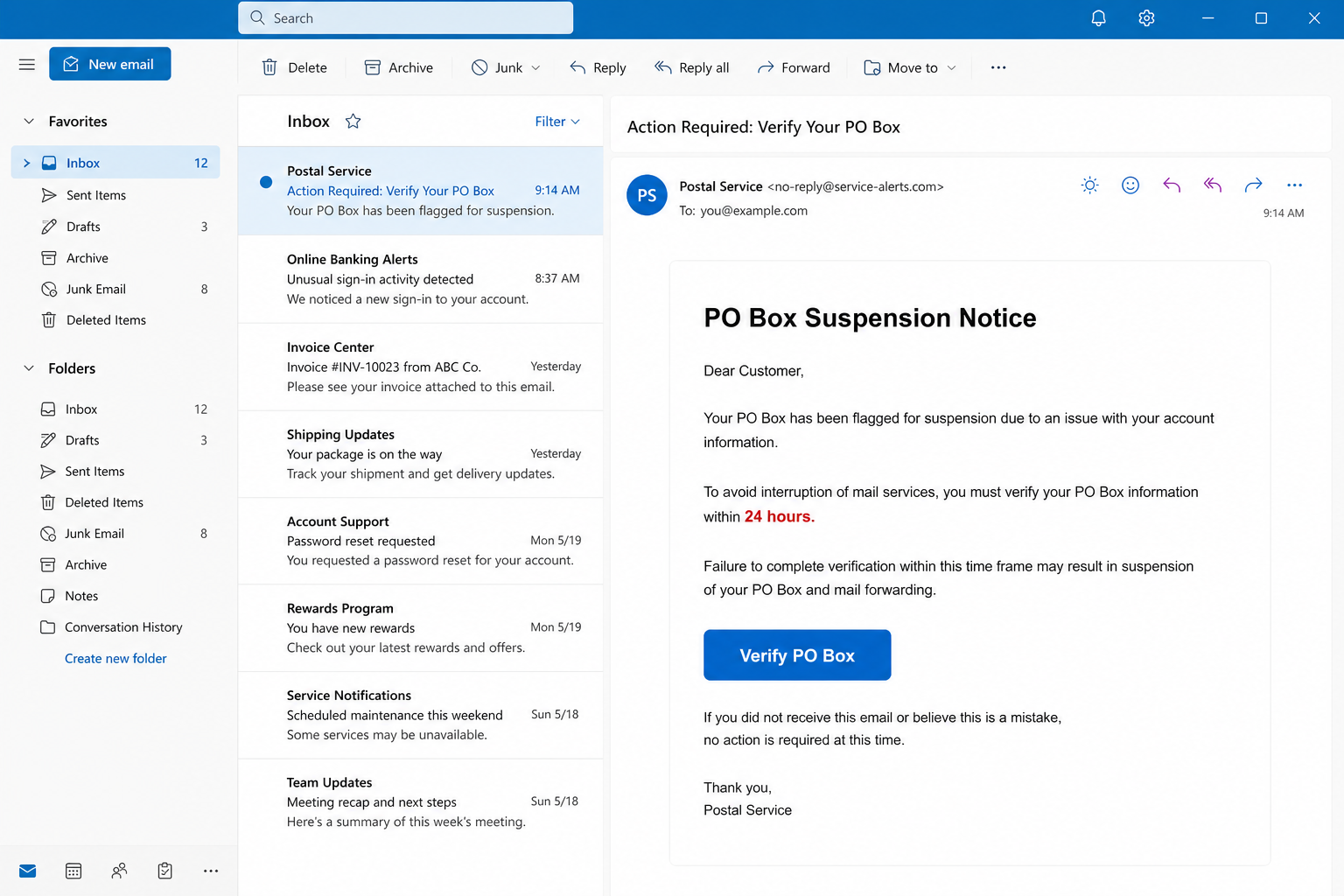
The reviewed message says action is required within 24 hours. That short clock encourages a rushed decision before the reader examines the address behind the button.
Mail interruption is an uncomfortable prospect for anyone expecting checks, legal papers, prescriptions, or business correspondence.
A real account question can be checked by visiting the postal website independently, not by trusting a link inside the warning.
The form is the real destination
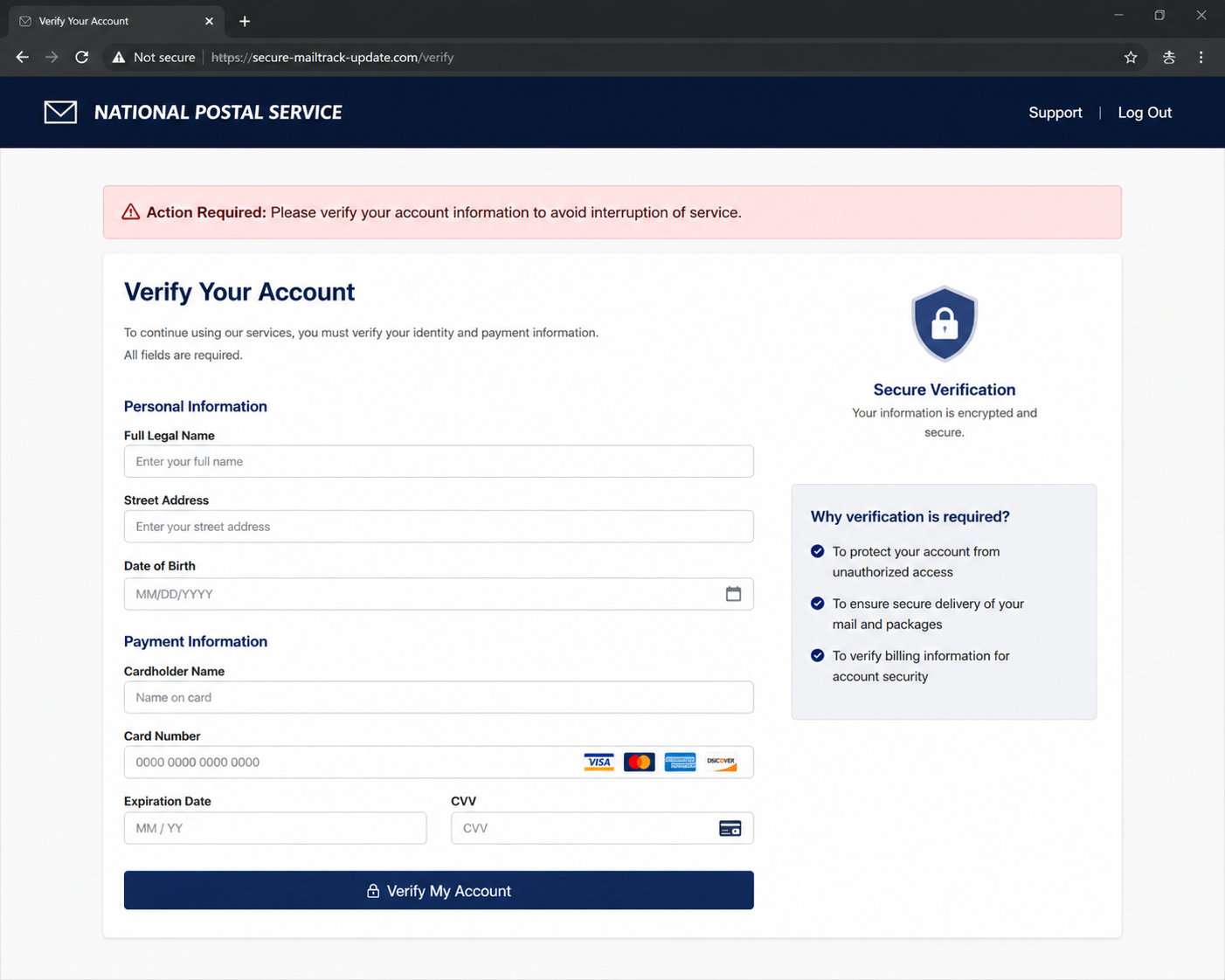
The link can lead to a page that asks for a name, address, birth date, and payment information. Those details create a far larger risk than a routine box renewal.
The form may use a dark-blue header, lock icon, and security language. None of those visual details establish that the page belongs to USPS.
Once card information is entered, the recipient may face both payment misuse and later identity-theft problems.
- A POBOL label used as if it were an emergency membership
- A suspension threat tied to a short 24-hour window
- A button leading away from a verified postal account
- A form seeking personal, birth-date, or card information
- Design elements that imitate routine government administration
- A problem that can be checked safely through a separate browser tab
The POBOL notice is not persuasive because it explains a specific account problem. It is persuasive because it leaves the recipient to imagine the worst.
That gap matters. A message can look orderly while withholding the one fact that would let a customer verify it independently.
The safest response is to leave the message untouched and inspect the PO Box account through a known USPS route.
How The Scam Works
Step 1: A mailbox concern becomes an urgent warning
At this point, the sender frames a PO Box interruption as immediate.
The POBOL warning leans on the claim that mail forwarding and deliveries are mentioned to heighten anxiety.
For a rushed recipient, the recipient is pushed toward a decision before checking the account.
Box holders often depend on predictable delivery for personal records, prescriptions, and business mail.
That practical reliance is why a suspension phrase can create instant worry.
The email exploits that worry before a customer has checked any account setting.
The PO Box version begins with the sender frames a PO Box interruption as immediate. That concern feels practical to anyone who depends on reliable mail.
POBOL wording has no special authority on its own. Here, the sender frames a PO Box interruption as immediate, which is why independent navigation matters.
The postal pretext loses its force when the sender frames a PO Box interruption as immediate. A box holder can check status without using that route.
Step 2: Postal language lowers the reader’s guard
At this point, pOBOL and PO Box terminology appear beside official-sounding wording.
The POBOL warning leans on the claim that the message relies on recognition rather than a verifiable service record.
For a rushed recipient, the real postal account is never opened in the reader’s usual session.
The POBOL abbreviation is useful bait because it sounds like internal postal terminology.
Readers may recognize the letters while remaining unsure what the service actually covers.
Uncertainty makes the message seem more official than it is.
The PO Box version begins with pOBOL and PO Box terminology appear beside official-sounding wording. That concern feels practical to anyone who depends on reliable mail.
POBOL wording has no special authority on its own. Here, pOBOL and PO Box terminology appear beside official-sounding wording, which is why independent navigation matters.
The postal pretext loses its force when pOBOL and PO Box terminology appear beside official-sounding wording. A box holder can check status without using that route.
Step 3: The button moves the conversation off-site
At this point, a bright verification button promises a simple fix.
The POBOL warning leans on the claim that the address bar after clicking may belong to a lookalike domain.
For a rushed recipient, the recipient is no longer dealing with the mailbox provider they intended.
A real account page begins from a trusted address or saved bookmark.
The attacker needs the recipient to start from the email because that route controls the destination.
Opening a fresh tab breaks the attacker’s sequence.
The PO Box version begins with a bright verification button promises a simple fix. That concern feels practical to anyone who depends on reliable mail.
POBOL wording has no special authority on its own. Here, a bright verification button promises a simple fix, which is why independent navigation matters.
The postal pretext loses its force when a bright verification button promises a simple fix. A box holder can check status without using that route.
Step 4: The form broadens from account data to identity data
At this point, the web form asks for more than a box number or renewal date.
The POBOL warning leans on the claim that name, street address, and date-of-birth fields can be presented as routine checks.
For a rushed recipient, each extra field raises the value of the data collected.
A normal renewal question should center on a box and its account status.
Birth-date fields and home-address requests expand the interaction into identity collection.
That expansion is a reason to stop, not a reason to provide more context.
The PO Box version begins with the web form asks for more than a box number or renewal date. That concern feels practical to anyone who depends on reliable mail.
POBOL wording has no special authority on its own. Here, the web form asks for more than a box number or renewal date, which is why independent navigation matters.
The postal pretext loses its force when the web form asks for more than a box number or renewal date. A box holder can check status without using that route.
Step 5: Card fields turn a verification story into a payment risk
At this point, card number and security-code fields may appear under a security explanation.
The POBOL warning leans on the claim that a small temporary charge story can make payment collection seem normal.
For a rushed recipient, real account management should be reached through the service itself.
Payment prompts are especially revealing in a supposed signature request.
A signature validates consent, while card details create an opportunity to charge or profile someone.
Those two purposes should not be confused.
The PO Box version begins with card number and security-code fields may appear under a security explanation. That concern feels practical to anyone who depends on reliable mail.
POBOL wording has no special authority on its own. Here, card number and security-code fields may appear under a security explanation, which is why independent navigation matters.
The postal pretext loses its force when card number and security-code fields may appear under a security explanation. A box holder can check status without using that route.
Step 6: Submitted details can be reused beyond the first page
At this point, a complete profile can be useful for fraudulent purchases or follow-up impersonation.
The POBOL warning leans on the claim that the postal theme may later be replaced by a bank, delivery, or tax theme.
For a rushed recipient, the original form can be only one stop in a longer fraud attempt.
Postal fear can become a starting point for later bank or delivery impersonations.
The more complete the form, the more convincingly later messages can be tailored.
Early reporting reduces the chance that a second approach succeeds.
The PO Box version begins with a complete profile can be useful for fraudulent purchases or follow-up impersonation. That concern feels practical to anyone who depends on reliable mail.
POBOL wording has no special authority on its own. Here, a complete profile can be useful for fraudulent purchases or follow-up impersonation, which is why independent navigation matters.
The postal pretext loses its force when a complete profile can be useful for fraudulent purchases or follow-up impersonation. A box holder can check status without using that route.
Step 7: The scammer benefits from silence after the click
At this point, many victims receive no useful confirmation after submitting the form.
The POBOL warning leans on the claim that the lack of a normal account receipt is easy to miss once relief replaces panic.
For a rushed recipient, the person behind the warning has already collected what they wanted.
After submitting a form, people may feel relief and close the email thread.
That emotional release makes it easier to overlook the absence of a normal account confirmation.
A genuine status change should be visible in the real PO Box account.
The PO Box version begins with many victims receive no useful confirmation after submitting the form. That concern feels practical to anyone who depends on reliable mail.
POBOL wording has no special authority on its own. Here, many victims receive no useful confirmation after submitting the form, which is why independent navigation matters.
The postal pretext loses its force when many victims receive no useful confirmation after submitting the form. A box holder can check status without using that route.
Company, Address, and Fulfillment Checks
The sender label is not an organization
A display name such as Postal Service can be typed by anyone. The important evidence is the full sending address and the destination domain.
A mismatched domain should outweigh a familiar label in the inbox.
Do not reply to the message to test it, because a reply can confirm that the address is active.
A web address is not a postal office
Lookalike pages can use generic mail imagery, an address field, and a lock icon. They are not made legitimate by a polished layout.
Check the domain independently, then use a bookmarked official site if the account needs attention.
A real postal office or online account does not need an unknown page to collect a full identity profile.
Support that cannot explain the box is a warning sign
A legitimate representative should be able to identify the account through normal channels. A generic form cannot provide that assurance.
Avoid support numbers embedded in the suspicious email. Find contact information through a trusted postal page or a local office.
Write down the time and number used if a caller pressures you to share payment data.
Personal data deserves a traceable destination
A sensitive form should identify who collects data, why it is needed, and how the information is protected. Missing legal details are not a small omission.
The reviewed POBOL-style lure makes personal details the price of reassurance.
If a page cannot be tied to a verified operator, do not provide another field.
Why This Message Can Cause Real Harm
A real PO Box account can have ordinary renewal or access issues. That possibility is why a fabricated suspension message can borrow enough truth to feel urgent.
The important distinction is the route. Start from a known USPS sign-in page or official contact method, not an email button.
An unexpected request for a birth date or card security code deserves special caution. Those fields are not proof that a message is protective.
Forwarding a suspicious email to a workplace security team can prevent others from using the same link. Businesses with shared boxes should alert anyone handling mail.
Do not rely on an icon, a grammar check, or a familiar shade of blue. Phishing pages are designed to pass those quick visual tests.
If you already entered only a name and address, there is still value in acting early. It gives you time to watch for targeted follow-up messages.
The scam loses force when the recipient chooses the starting point. Independent navigation removes the attacker’s carefully prepared detour.
What to Do if You Have Fallen Victim to This Scam
- Stop using the verification page and keep the message. Capture the sender address, the destination link, and any page that asked for information.
- Open a new browser window and visit USPS through a bookmark or a manually typed address. Check the PO Box account without returning to the email.
- If card details were entered, call the card issuer using the number printed on the card. Ask about a replacement number and monitoring for unauthorized charges.
- Change any password entered on the lookalike page. Use a new password that is not reused for mail, banking, shopping, or work systems.
- Watch accounts and mail for follow-up contact. A criminal with a birth date and address may try a more convincing bank or delivery impersonation later.
- Run Malwarebytes on the device if anything was downloaded or if the page redirected unexpectedly. It can identify many malicious files and unwanted browser changes.
- Use AdGuard to reduce exposure to deceptive advertising and known harmful domains while you clean up bookmarks and review browser notifications.
- Report the message through official postal reporting channels and, when appropriate, to the FTC. A report can help connect a repeating campaign.
Is Your Device Infected? Run a Free Malware Scan
Slow performance, constant pop-ups, or strange behavior? These are classic signs of a malware infection. The fastest way to find out is to scan your device with Malwarebytes Free — one of the most trusted malware removal tools available.
The free version detects and removes the most common threats, including:
- Adware — the cause of those annoying pop-ups
- Browser hijackers — unwanted redirects and changed homepages
- Trojans and spyware — hidden programs stealing your data
- Potentially unwanted programs (PUPs) — software you never asked for
👉 Select your device below — Windows, Mac, or Android — then follow the simple steps to download Malwarebytes, scan your system, and remove any threats it finds. The scan usually takes 5 to 20 minutes.
Run a Malware Scan with Malwarebytes for Windows
Malwarebytes is one of the most popular and trusted anti-malware tools for Windows — and it’s completely free for removing infections. It catches threats that many antivirus programs miss, including adware, browser hijackers, and trojans. Follow the steps below to scan and clean your PC in just a few minutes.
Download Malwarebytes
Click the button below to download the latest version of Malwarebytes for Windows from the official source. The free version is all you need — it will scan your computer and remove adware, browser hijackers, and other malicious software at no cost.
Download MalwarebytesOfficial installer for Windows 11 and 10. Your download starts right away.Want real-time protection? See Malwarebytes Premium Malwarebytes Free for WindowsScans and removes malware at no cost
-
Install Malwarebytes
When the download finishes, open your Downloads folder and double-click the MBSetup file. If Windows shows a User Account Control pop-up, click “Yes” to allow the installation.

Follow the On-Screen Prompts to Install Malwarebytes
The setup wizard will walk you through a few quick screens:
-
Choose where you’re installing the program — “Personal Computer” or “Work Computer” — then click Next.

-
Malwarebytes will now install on your device. This usually takes under a minute.

-
When installation is complete, the “Welcome to Malwarebytes” screen will open automatically.

-
On the final screen, click Open Malwarebytes to launch the program.

-
Enable “Scan for Rootkits”
Before scanning, turn on rootkit detection so Malwarebytes can find even the most hidden threats. Click the Settings gear icon on the left side of the screen.

In the settings menu, find “Scan for rootkits” and click the toggle so it turns blue.

Done? Click “Dashboard” in the left pane to return to the main screen.
Start the Scan
Click the blue Scan button. Malwarebytes will automatically update its virus database and start checking your computer for malware.

-
Wait for the Scan to Finish
The scan checks your entire system for browser hijackers and other malicious programs, so it can take 5 to 20 minutes depending on your computer. Feel free to do something else — just check back occasionally to see the progress.

-
Quarantine the Detected Threats
When the scan is done, you’ll see a list of everything Malwarebytes found — malware, adware, and potentially unwanted programs. Click the “Quarantine” button to remove all of them at once.

Malwarebytes will now remove the malicious files and registry entries and move them safely into quarantine.

-
Restart Your Computer
Some threats can only be fully removed after a reboot. If Malwarebytes asks you to restart, click Yes. Once you’re logged back in, Malwarebytes has finished removing the threats it found.

That’s it — your Windows PC is now clean of trojans, adware, and other malware, and should be back to running smoothly.
If you are still having problems with your computer after completing these instructions, then please follow one of the steps:
- Run a computer scan with ESET Online Scanner
- Ask for help in our Windows Malware Removal Help & Support forum.
Run a Malware Scan with Malwarebytes for Mac
Malwarebytes for Mac is a free on-demand scanner that removes the malware other security software tends to miss — adware, browser hijackers, and unwanted programs included. Cleaning an infected Mac with Malwarebytes has always been completely free, and it’s our go-to recommendation. Follow the steps below to scan and clean your Mac in just a few minutes.
-
Download Malwarebytes for Mac
Click the button below to download the latest version of Malwarebytes for Mac.
Download MalwarebytesOfficial installer for macOS. Your download starts right away.Want real-time protection? See Malwarebytes PremiumMalwarebytes Free for MacScans and removes malware at no cost -
Open the Malwarebytes setup file
When the download finishes, open your Downloads folder and double-click the setup file to begin the installation.

-
Follow the On-Screen Prompts to Install Malwarebytes
The Malwarebytes for Mac Installer will guide you through a few quick screens. Click “Continue” and keep following the prompts until the installation completes.



When the installation is complete, Malwarebytes opens to the Welcome to Malwarebytes screen. Click “Get started“.
-
Select “Personal Computer” or “Work Computer”
Malwarebytes will ask what type of computer you’re installing it on. Click either Personal Computer or Work Computer, whichever applies.

-
Start the Scan
Click the “Scan” button. Malwarebytes will automatically update its detection database and begin checking your Mac for malware.

-
Wait for the Scan to Finish
Malwarebytes will scan your Mac for adware, browser hijackers, and other malicious programs. This can take a few minutes, so feel free to do something else — just check back occasionally to see the progress.

-
Quarantine the Detected Threats
When the scan is done, you’ll see a list of everything Malwarebytes found. Click the “Quarantine” button to remove all the threats at once.

-
Restart Your Mac
Malwarebytes will now remove all the malicious files it found. Some threats can only be fully removed after a reboot — if Malwarebytes asks you to restart, allow it. Once you’re logged back in, your Mac is clean.

That’s it — your Mac is now free of adware, rogue browser extensions, and other potentially harmful software.
If you are still experiencing problems while trying to remove a malicious program from your computer, please ask for help in our Mac Malware Removal Help & Support forum.
Run a Malware Scan with Malwarebytes for Android
Malwarebytes for Android automatically detects and removes dangerous threats like malware and ransomware so you don’t have to worry about your most-used device being compromised. Aggressive detection of adware and potentially unwanted programs keeps your Android phone or tablet running smooth.
-
Download Malwarebytes for Android.
You can download Malwarebytes for Android by clicking the link below.
Get Malwarebytes for AndroidOpens Google Play in a new tab.Want real-time protection? See Malwarebytes Premium for AndroidMalwarebytes for AndroidScans your phone and removes malware at no cost -
Install Malwarebytes for Android on your phone.
In the Google Play Store, tap “Install” to install Malwarebytes for Android on your device.

When the installation process has finished, tap “Open” to begin using Malwarebytes for Android. You can also open Malwarebytes by tapping on its icon in your phone menu or home screen.

-
Follow the on-screen prompts to complete the setup process
When Malwarebytes will open, you will see the Malwarebytes Setup Wizard which will guide you through a series of permissions and other setup options.
This is the first of two screens that explain the difference between the Premium and Free versions. Swipe this screen to continue.
Tap on “Got it” to proceed to the next step.
Malwarebytes for Android will now ask for a set of permissions that are required to scan your device and protect it from malware. Tap on “Give permission” to continue.
Tap on “Allow” to permit Malwarebytes to access the files on your phone.
-
Update database and run a scan with Malwarebytes for Android
You will now be prompted to update the Malwarebytes database and run a full system scan.

Click on “Update database” to update the Malwarebytes for Android definitions to the latest version, then click on “Run full scan” to perform a system scan.

-
Wait for the Malwarebytes scan to complete.
Malwarebytes will now start scanning your phone for adware and other malicious apps. This process can take a few minutes, so we suggest you do something else and periodically check on the status of the scan to see when it is finished.

-
Click on “Remove Selected”.
When the scan has been completed, you will be presented with a screen showing the malware infections that Malwarebytes for Android has detected. To remove the malicious apps that Malwarebytes has found, tap on the “Remove Selected” button.

-
Restart your phone.
Malwarebytes for Android will now remove all the malicious apps that it has found. To complete the malware removal process, Malwarebytes may ask you to restart your device.
That’s it — your Android phone is now clean — no more malicious apps, adware, or browser redirects.
If you are still having problems with your phone after completing these instructions, then please follow one of the steps:
- Restore your phone to factory settings by going to Settings > General management > Reset > Factory data reset.
- Ask for help in our Mobile Malware Removal Help & Support forum.
Stay Protected: Block Ads and Malicious Sites
Now that your device is clean, keep it that way. Most infections start with a malicious ad or a fake download button — so blocking them at the source is your best defense.
We recommend AdGuard, which blocks malicious ads, phishing pages, and dangerous redirects before they can reach you.
👉 Download AdGuard and browse safely
Frequently Asked Questions
Does USPS use POBOL for PO Box services?
POBOL is connected with online PO Box functions. That fact does not make an unsolicited suspension email or external verification page trustworthy.
Why does the email demand action within 24 hours?
A short deadline discourages independent checking. Urgency is a persuasion tactic, not evidence that a PO Box account is truly at risk.
Should I use the button to see whether the alert is real?
No. Open a separate browser tab and reach the account through a known official address or a saved bookmark.
What information makes this form especially risky?
A combination of name, home address, date of birth, and card information can be useful for payment fraud and targeted impersonation.
Can a lock icon prove the verification page is official?
No. Encryption only describes the connection to that page. It does not confirm who operates the website.
What if I only clicked but did not submit anything?
Close the page, avoid downloads, and check the actual account independently. Change a password only if you typed it into the page.
The Bottom Line
The USPS PO Box suspension email scam uses a credible administrative worry to steer recipients toward an untrusted form.
Treat a POBOL suspension message as a prompt to check your real account independently, never as a reason to surrender personal details through its link.
A separate browser tab, a verified address, and a few calm minutes can break the entire scheme.

Join the discussion
0 commentsShare your experience or ask a question about this article.
Discussion
Start the conversation
Have a question or something useful to share? Add the first comment.