


A USPS notice says your PO Box access is about to be suspended. One missing signature supposedly stands between you and interrupted mail service.
The message looks administrative rather than dramatic. That quiet tone makes its unusual instructions worth examining before anyone replies.
Overview
The notice invents a PO Box verification problem
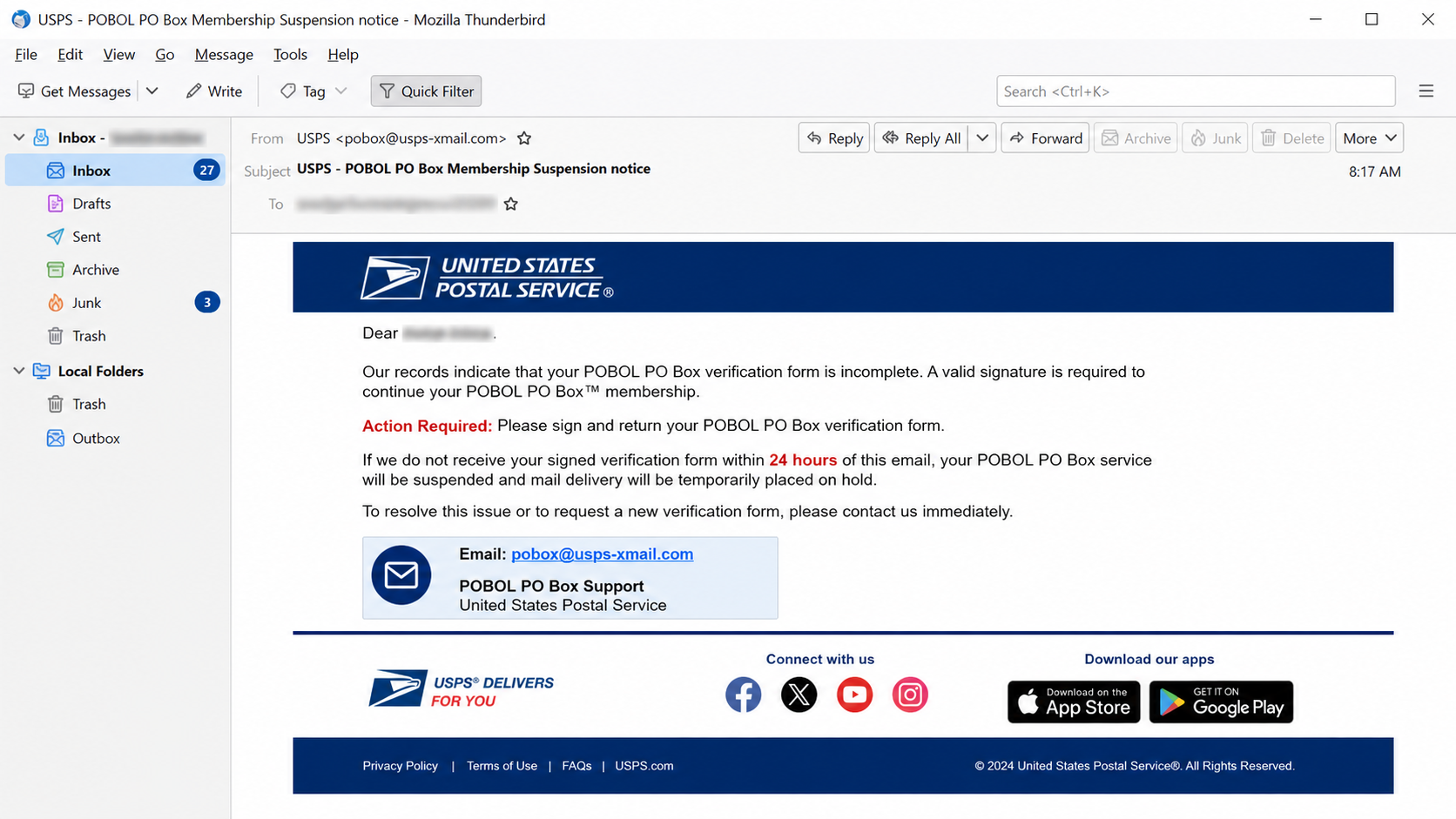
The USPS Signature Required email scam claims a recipient must verify a supposed POBOL PO Box membership.
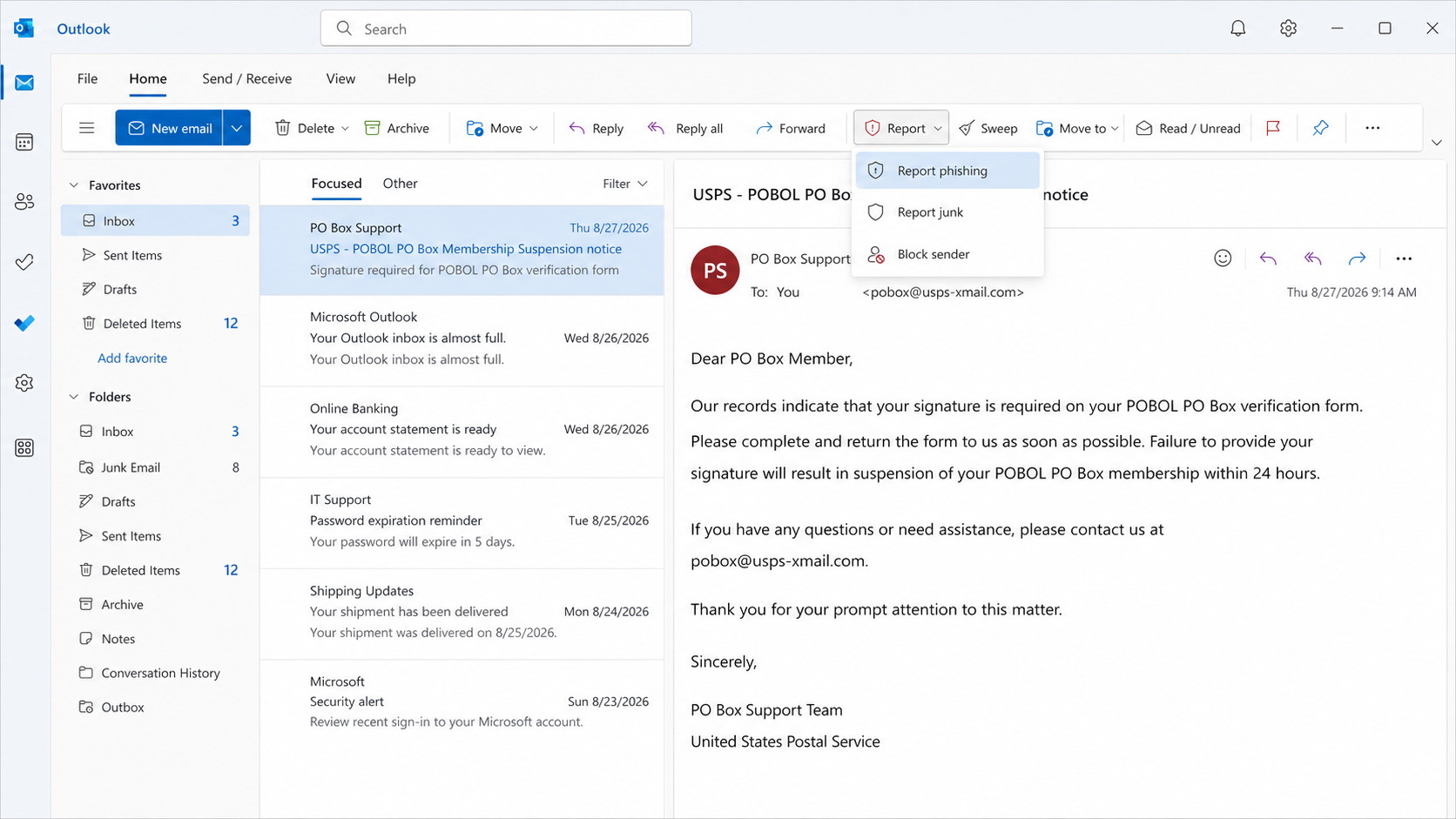
It warns that the service will be suspended within 24 hours unless the owner provides a required signature.
The language sounds procedural, but POBOL PO Box is not a recognized United States Postal Service product.
That invented label gives the campaign flexibility. Recipients may assume it describes an unfamiliar online feature connected with their existing mailbox.
No tracking number, post office location, box number, or verifiable case reference supports the alleged request.
The message sends victims to an unofficial email address
Instead of directing customers to USPS.com, the notice asks them to contact pobox@usps-xmail.com.
The important part is the domain after the @ symbol. USPS-xmail.com is not the official usps.com domain.
A familiar word placed before a hyphen does not establish ownership. Anyone can register a similar-looking domain when it remains available.
Email contact also lets the operator continue the conversation privately. The next request can be adjusted to whatever the victim reveals.
The reply itself confirms that the address is active, monitored, and attached to someone concerned about postal service.
The likely objective is personal and financial information
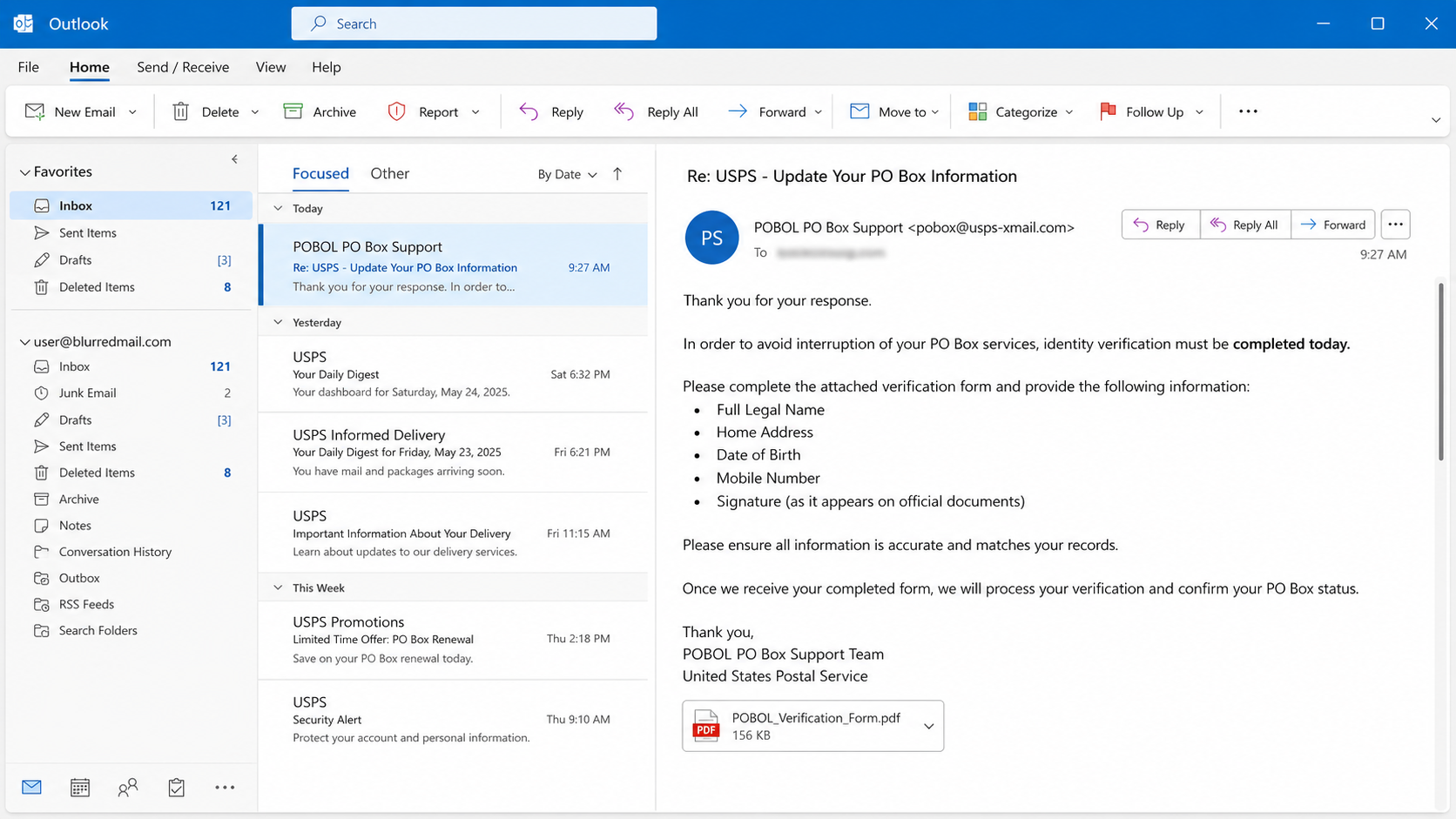
The observed lure begins with a reply request rather than an immediate payment page or credential form.
A follow-up may ask for a name, home address, birth date, telephone number, identification image, or payment details.
Those later demands can vary. Treat them as likely next steps, not as a guaranteed script used in every conversation.
Information collected under a postal pretext can support identity theft, account recovery abuse, payment fraud, or more convincing future scams.
The warning signs are easier to recognize when viewed together:
- The message names a service called POBOL PO Box that USPS does not offer.
- A 24-hour suspension threat creates pressure without verifiable account details.
- The contact address ends in usps-xmail.com instead of usps.com.
- No legitimate tracking number, box number, office, or signed request appears.
- The notice asks for an email reply instead of secure account verification.
- The footer may show an outdated year, weakening the official appearance.
- The sender provides no independent route for confirming the alleged problem.
Receiving the email does not mean USPS has suspended anything. It also does not prove that criminals already possess sensitive information.
The immediate risk begins when a recipient replies, follows new instructions, or provides identity and payment details.
Why a Reply-Based Scam Can Be So Effective
A web form must anticipate every visitor. A live email exchange lets a scammer study each response and shape the next request.
Someone who says they recently moved may receive an address-verification story. A business owner may hear about commercial mailbox compliance.
The operator can answer simple objections, repeat postal vocabulary, and offer reassurance before requesting anything obviously sensitive.
That gradual approach lowers resistance. Each harmless-looking answer makes the following disclosure feel like a continuation rather than a new decision.
Replies also bypass some protection. A later malicious link may arrive inside an ongoing thread that the victim now recognizes.
The scammer might claim a refundable verification fee is required. They may also request card details to prevent suspension.
Another variation could ask for identification supposedly needed to match the box holder’s signature.
Never send an identity document to an address discovered through an unsolicited warning. Copies contain durable information that passwords cannot replace.
How The Scam Works
Step 1: The campaign reaches people with a broadly believable postal concern
The email does not need to know whether every recipient rents a PO Box. Postal messages are familiar enough to attract curiosity.
Some recipients have boxes, receive business mail, recently moved, or expect important deliveries. Those coincidences make the notice feel personally timed.
Bulk campaigns can reach thousands of addresses cheaply. Even a small response rate identifies people willing to discuss the invented issue.
The message may use a recipient’s name or email address. Such details can come from public directories, marketing lists, or earlier breaches.
Personalization proves only that the sender has information, not that USPS created or authorized the notice.
Step 2: An unfamiliar service name discourages confident rejection
POBOL resembles abbreviations used by technical or administrative systems, yet it does not identify a genuine USPS PO Box program.
People often hesitate when they encounter jargon. They may assume the term belongs to an internal system they have never seen.
The scam benefits from that uncertainty. A completely absurd claim would be dismissed, while a vaguely official label invites investigation.
Legitimate USPS services can be confirmed through USPS.com, a local post office, or established customer service channels.
An undefined membership that exists only inside one email should never become the basis for sharing private information.
Step 3: The suspension deadline converts uncertainty into urgency
The notice gives the recipient 24 hours to act. That short window makes independent verification seem inconvenient or risky.
Mail interruption can affect bills, benefits, legal documents, medication, and business correspondence. The threatened consequence therefore feels unusually serious.
Fear narrows attention toward the offered solution. Recipients may stop evaluating why a signature issue arrived through an unfamiliar sender.
A real administrative dispute provides account identifiers, written policies, appeal options, and a contact route that can be verified independently.
The scam substitutes a countdown for evidence. The deadline has no authority beyond the sentence that announces it.
Step 4: The unofficial address moves the conversation away from USPS
The call to action is a reply or message to pobox@usps-xmail.com.
That address contains USPS at the beginning, where hurried readers are most likely to notice it.
Domain ownership is determined by the ending, not by a brand word appearing somewhere before it.
USPS-xmail.com and usps.com are separate properties. A padlock, polished signature, or postal logo cannot merge them.
By moving the exchange onto its own domain, the operator controls the responses and avoids genuine USPS account systems.
Step 5: A reply opens the door to tailored verification demands
The first reply signals concern. It may also reveal a full name, company signature, telephone number, job title, and other useful context.
The operator can then request additional details supposedly needed to locate the account or match the missing signature.
Likely requests include an address, birth date, PO Box number, identification image, or telephone confirmation.
Some conversations may introduce a link to a copied postal page. Others may remain entirely inside email.
Because variations are possible, judge every new demand by the verified organization and channel, not by one expected sequence.
Step 6: Collected details support identity theft or payment fraud
A name and address may seem ordinary, but combined records can help criminals answer account recovery questions and impersonate the victim.
An identification copy can expose a birth date, license number, signature, photograph, and document identifiers.
Card information or a small verification payment creates immediate financial risk. It can also establish a path for unauthorized recurring charges.
Scammers may reuse confirmed contact information in delivery, tax, banking, or technical support lures.
Data can also be sold or shared, producing new approaches long after the postal conversation ends.
Step 7: The operator preserves pressure while making recovery difficult
If challenged, the sender may repeat the deadline, claim a case is already open, or warn that restarting verification will take longer.
Those statements are designed to keep the victim inside the fraudulent conversation instead of calling a real post office.
After receiving information, the operator may stop answering. The victim then has no trustworthy receipt, policy, or accountable business identity.
A fraudulent charge might use an unrelated billing descriptor, making the postal origin difficult to recognize later.
The safest break occurs before replying. Independent verification removes the scammer’s ability to define the problem and its solution.
Sender, Service, Contact, and Identity Checks
Inspect the complete sender and reply address
Expand the sender details instead of trusting the displayed name. Compare both the From and Reply-To domains with usps.com.
Watch for hyphens, added words, altered endings, and brand names placed inside a longer unrelated domain.
A display name reading USPS Customer Support can be typed by anyone. It is not an identity certificate.
Authentication indicators can help administrators, but ordinary recipients should still verify unexpected requests through known channels.
Confirm that the named service actually exists
Search USPS.com directly or contact a local post office using a number found independently.
Ask whether POBOL PO Box is a recognized membership and whether any signature request exists for your real box.
Do not let the sender define the verification method. A genuine organization should be reachable without using details inside the suspicious email.
If the service cannot be found outside the message, the administrative story has failed a basic reality check.
Reject identity requests sent through ordinary email
Do not email a driver’s license, passport, Social Security number, birth date, card image, or handwritten signature to an unknown address.
These records remain useful after a campaign closes. Unlike a password, a birth date or document number may be difficult to change.
Ask why each item is necessary, how it will be protected, and which published policy authorizes collection.
A rushed answer, vague privacy statement, or threat of immediate suspension is a reason to stop.
Separate a postal question from any payment demand
Never pay a verification charge requested during an unsolicited email exchange.
Check real PO Box fees through your existing USPS account, receipt, or local post office.
Wire transfers, gift cards, cryptocurrency, and card details sent by reply provide little protection and are inappropriate for account verification.
If a payment page appears later, inspect its domain and terms independently. A postal logo does not establish who receives the money.
What to Do if You Have Fallen Victim to This Scam
- Stop the conversation. Do not answer additional questions, open new attachments, or use links sent after your first reply.
- Record exactly what was shared. Save the messages, headers, addresses, dates, payment receipts, and a list of every personal detail disclosed.
- Contact USPS independently. Use USPS.com, your local post office, or an established customer service number to verify the real account and report impersonation.
- Call the card issuer or bank. If money or payment details were provided, request fraud review, block further charges, and replace compromised cards.
- Protect your identity. If identification or Social Security information was exposed, place credit freezes and review official identity-theft recovery guidance.
- Change reused credentials. If any password was disclosed, replace it from a trusted device everywhere it was reused and enable multifactor authentication.
- Scan affected devices. If you opened a download, run a full Malwarebytes scan and remove anything detected before resuming sensitive activity.
- Reduce repeat exposure. AdGuard can block many malicious pages and intrusive redirects, but it cannot make an unofficial email conversation trustworthy.
- Warn relevant contacts. Tell household members or coworkers if their information appeared in the exchange or if impostor messages might follow.
- Report the campaign. Mark the message as phishing and submit it to appropriate postal, consumer protection, and law-enforcement reporting channels.
Is Your Device Infected? Run a Free Malware Scan
Slow performance, constant pop-ups, or strange behavior? These are classic signs of a malware infection. A quick way to check is to scan your device with Malwarebytes Free, one of the most trusted malware removal tools available. If you only visited a scam page and didn’t download or install anything, this scan is optional.
The free version detects and removes the most common threats, including:
- Adware — the cause of those annoying pop-ups
- Browser hijackers — unwanted redirects and changed homepages
- Trojans and spyware — hidden programs stealing your data
- Potentially unwanted programs (PUPs) — software you never asked for
👉 Select your device below — Windows, Mac, or Android — then follow the simple steps to download Malwarebytes, scan your system, and remove any threats it finds. The scan usually takes 5 to 20 minutes.
Run a Malware Scan with Malwarebytes for Windows
Malwarebytes is one of the most popular and trusted anti-malware tools for Windows — and it’s completely free for removing infections. It catches threats that many antivirus programs miss, including adware, browser hijackers, and trojans. Follow the steps below to scan your PC and remove what Malwarebytes finds.
Download Malwarebytes
Click the button below to download the latest version of Malwarebytes for Windows from the official source. The free version is all you need — it will scan your computer and remove adware, browser hijackers, and other malicious software at no cost.
Download MalwarebytesOfficial installer for Windows 11 and 10. Your download starts right away.Want real-time protection? See Malwarebytes Premium Malwarebytes Free for WindowsScans and removes malware at no cost
-
Install Malwarebytes
When the download finishes, open your Downloads folder and double-click the MBSetup file. If Windows shows a User Account Control pop-up, click “Yes” to allow the installation.

Follow the On-Screen Prompts to Install Malwarebytes
The setup wizard will walk you through a few quick screens:
-
Choose where you’re installing the program — “Personal Computer” or “Work Computer” — then click Next.

-
Malwarebytes will now install on your device. This usually takes under a minute.

-
When installation is complete, the “Welcome to Malwarebytes” screen will open automatically.

-
On the final screen, click Open Malwarebytes to launch the program.

-
Optional: Check for rootkits with a Custom Scan
You don’t need to change any settings for a normal scan. The standard Threat Scan in the next step is enough for most problems, so you can go straight to it.
If you also want to check for rootkits, use a Custom Scan. In current versions of Malwarebytes, rootkit scanning is only available there:
- On the Scanner tile, click the three-dot menu and select Advanced Scan.
- Choose Custom Scan. In its options, check Scan for rootkits.
- Select your system drive (usually C:\) as the location to scan, then start the scan. It takes longer than a Threat Scan.
- When it finishes, review and quarantine the results as described in the steps below.
Rootkit scanning isn’t available on Windows devices with ARM processors.
Start the Scan
Click the blue Scan button. Malwarebytes will automatically update its virus database and start checking your computer for malware.

-
Wait for the Scan to Finish
The scan checks your entire system for browser hijackers and other malicious programs, so it can take 5 to 20 minutes depending on your computer. Feel free to do something else — just check back occasionally to see the progress.

-
Quarantine the Detected Threats
When the scan is done, you’ll see a list of everything Malwarebytes found — malware, adware, and potentially unwanted programs. Click the “Quarantine” button to remove all of them at once.

Malwarebytes will now remove the malicious files and registry entries and move them safely into quarantine.

-
Restart Your Computer
Some threats can only be fully removed after a reboot. If Malwarebytes asks you to restart, click Yes. Once you’re logged back in, Malwarebytes has finished removing the threats it found.

When the scan is done, check whether the problems you noticed have stopped. If they continue, see the options below.
If you are still having problems with your computer after completing these instructions, then please follow one of the steps:
- Run a computer scan with ESET Online Scanner
- Ask for help in our Windows Malware Removal Help & Support forum.
Run a Malware Scan with Malwarebytes for Mac
Malwarebytes for Mac is a free on-demand scanner that removes the malware other security software tends to miss — adware, browser hijackers, and unwanted programs included. Cleaning an infected Mac with Malwarebytes has always been completely free, and it’s our go-to recommendation. Follow the steps below to scan your Mac and remove what Malwarebytes finds.
-
Download Malwarebytes for Mac
Click the button below to download the latest version of Malwarebytes for Mac.
Download MalwarebytesOfficial installer for macOS. Your download starts right away.Want real-time protection? See Malwarebytes PremiumMalwarebytes Free for MacScans and removes malware at no cost -
Open the Malwarebytes setup file
When the download finishes, open your Downloads folder and double-click the setup file to begin the installation.

-
Follow the On-Screen Prompts to Install Malwarebytes
The Malwarebytes for Mac Installer will guide you through a few quick screens. Click “Continue” and keep following the prompts until the installation completes.



When the installation is complete, Malwarebytes opens to the Welcome to Malwarebytes screen. Click “Get started“.
Malwarebytes needs Full Disk Access to check your whole Mac. When it asks, open System Settings > Privacy & Security > Full Disk Access, turn on Malwarebytes (it may be listed as Malwarebytes Protection), and confirm with your password or Touch ID. Then return to Malwarebytes. On macOS Monterey and earlier, this setting is in System Preferences > Security & Privacy > Privacy.
-
Select “Personal Computer” or “Work Computer”
Malwarebytes will ask what type of computer you’re installing it on. Click either Personal Computer or Work Computer, whichever applies.

-
Start the Scan
Click the “Scan” button. Malwarebytes will automatically update its detection database and begin checking your Mac for malware.

-
Wait for the Scan to Finish
Malwarebytes will scan your Mac for adware, browser hijackers, and other malicious programs. This can take a few minutes, so feel free to do something else — just check back occasionally to see the progress.

-
Quarantine the Detected Threats
When the scan is done, you’ll see a list of everything Malwarebytes found. Click the “Quarantine” button to remove all the threats at once.

-
Restart Your Mac
Malwarebytes will now remove all the malicious files it found. Some threats can only be fully removed after a reboot — if Malwarebytes asks you to restart, allow it. Once you’re logged back in, check whether the problems you noticed have stopped. If they come back, save the scan report and ask for help in our forum.

If the problems you noticed continue after the scan, see the options below.
If you are still experiencing problems while trying to remove a malicious program from your computer, please ask for help in our Mac Malware Removal Help & Support forum.
Run a Malware Scan with Malwarebytes for Android
Malwarebytes for Android scans your phone or tablet for malware, adware, and potentially unwanted apps. The free version scans only when you start a scan. Real-time protection, which checks apps automatically, is part of the paid Premium version.
-
Download Malwarebytes for Android.
You can download Malwarebytes for Android by clicking the link below.
Get Malwarebytes for AndroidOpens Google Play in a new tab.Want real-time protection? See Malwarebytes Premium for AndroidMalwarebytes for AndroidScans your phone and removes malware at no cost -
Install Malwarebytes for Android on your phone.
In the Google Play Store, tap “Install” to install Malwarebytes for Android on your device.

When the installation process has finished, tap “Open” to begin using Malwarebytes for Android. You can also open Malwarebytes by tapping on its icon in your phone menu or home screen.

-
Follow the on-screen prompts to complete the setup process
When Malwarebytes opens, it walks you through a short setup. Tap Get started and follow the prompts. If you see an offer for a trial or a paid plan, read it before you accept. You can skip it and keep using the free scanner.
Malwarebytes will ask for permission to access the files on your phone so it can scan them. Tap Allow, or turn on the permission in the Android screen that opens, then return to Malwarebytes.
-
Run a scan with Malwarebytes for Android
On the main screen, tap Scan now. In some versions, you open the menu, tap Scanner, and then tap Run a scan.
-
Wait for the Malwarebytes scan to complete.
Malwarebytes will now start scanning your phone for adware and other malicious apps. This process can take a few minutes, so we suggest you do something else and periodically check on the status of the scan to see when it is finished.

-
Remove the detected apps.
When the scan has been completed, you will see a list of the threats that Malwarebytes for Android has detected. Next to each detected item, tap the menu icon (three dots), then choose to uninstall the app or delete the file. Android then asks you to confirm. Tap OK or Uninstall to remove the app.
-
Restart your phone.
When the detected apps are removed, restart your phone if Malwarebytes asks you to. Then check whether the problems you noticed have stopped.
If the problems you noticed continue after the scan, see the options below.
If you are still having problems with your phone after completing these instructions, then please follow one of the steps:
- Ask for help in our Mobile Malware Removal Help & Support forum.
- Only as a last resort, reset your phone to factory settings. Read the warning below first.
- Back up your photos, videos, files, and messages, for example to your Google account or a computer.
- Make sure you know your Google account email and password. The phone asks for them after the reset. If you changed the password recently, Google recommends waiting 24 hours before you reset.
- On a Samsung phone, also make sure you know your Samsung account password.
- If you use an authenticator app for two-step verification, move your accounts to another device or save your backup codes first.
Stay Protected: Block Ads and Malicious Sites
No scan can prove a device is completely clean, so it helps to block threats before they reach you. Most infections start with a malicious ad or a fake download button — so blocking them at the source is your best defense.
We recommend AdGuard, which blocks malicious ads, phishing pages, and dangerous redirects before they can reach you.
👉 Download AdGuard and browse safely
Frequently Asked Questions
Is POBOL PO Box a real USPS service?
No recognized USPS service uses that name. Verify current products through USPS.com or a local post office instead of trusting the message.
An unfamiliar acronym should be confirmed before it becomes a reason to disclose information.
Does USPS request signatures by email?
Some legitimate postal notifications can involve delivery signatures, but they should connect to verifiable tracking or account information on official channels.
A vague suspension notice using an unrelated domain does not become genuine because it mentions a signature.
What happens if I only replied?
A simple reply usually does not compromise a device. It confirms an active address and may expose details contained in your signature.
Stop responding, expect follow-up attempts, and tighten spam filtering. Review what the reply automatically included.
Could the sender already know my address?
Yes. Addresses can come from directories, marketing databases, public records, breaches, or earlier correspondence.
Prior knowledge makes the approach more convincing, but it does not prove access to USPS systems.
Should I send identification to prevent suspension?
No. Do not send identity documents to an address introduced by an unsolicited warning.
Confirm any genuine requirement through your local post office and ask for the secure, documented submission process.
What if I paid a small verification fee?
Contact the issuer immediately. A small charge can test whether the payment method works or conceal enrollment in later unauthorized billing.
Monitor statements, replace exposed card details, and challenge transactions you did not knowingly authorize.
The Bottom Line
The USPS Signature Required email scam invents a POBOL PO Box suspension and directs recipients to an unofficial usps-xmail.com address.
The conversation can progress toward identity details, account information, or payment requests shaped around each victim’s responses.
Verify postal concerns through USPS.com or a local post office. Never let an unsolicited sender choose the only route to confirmation.
If information was shared, stop contact, protect financial and identity records, scan downloaded files, and report the impersonation promptly.

Join the discussion
0 commentsShare your experience or ask a question about this article.
Discussion
Start the conversation
Have a question or something useful to share? Add the first comment.