

A document waiting for a signature feels like unfinished business. The promise that completion takes under two minutes makes opening it seem efficient.
The notification uses familiar signing language, but never establishes who created the agreement. That missing relationship deserves a slower look.
Overview
What the signature notification promises
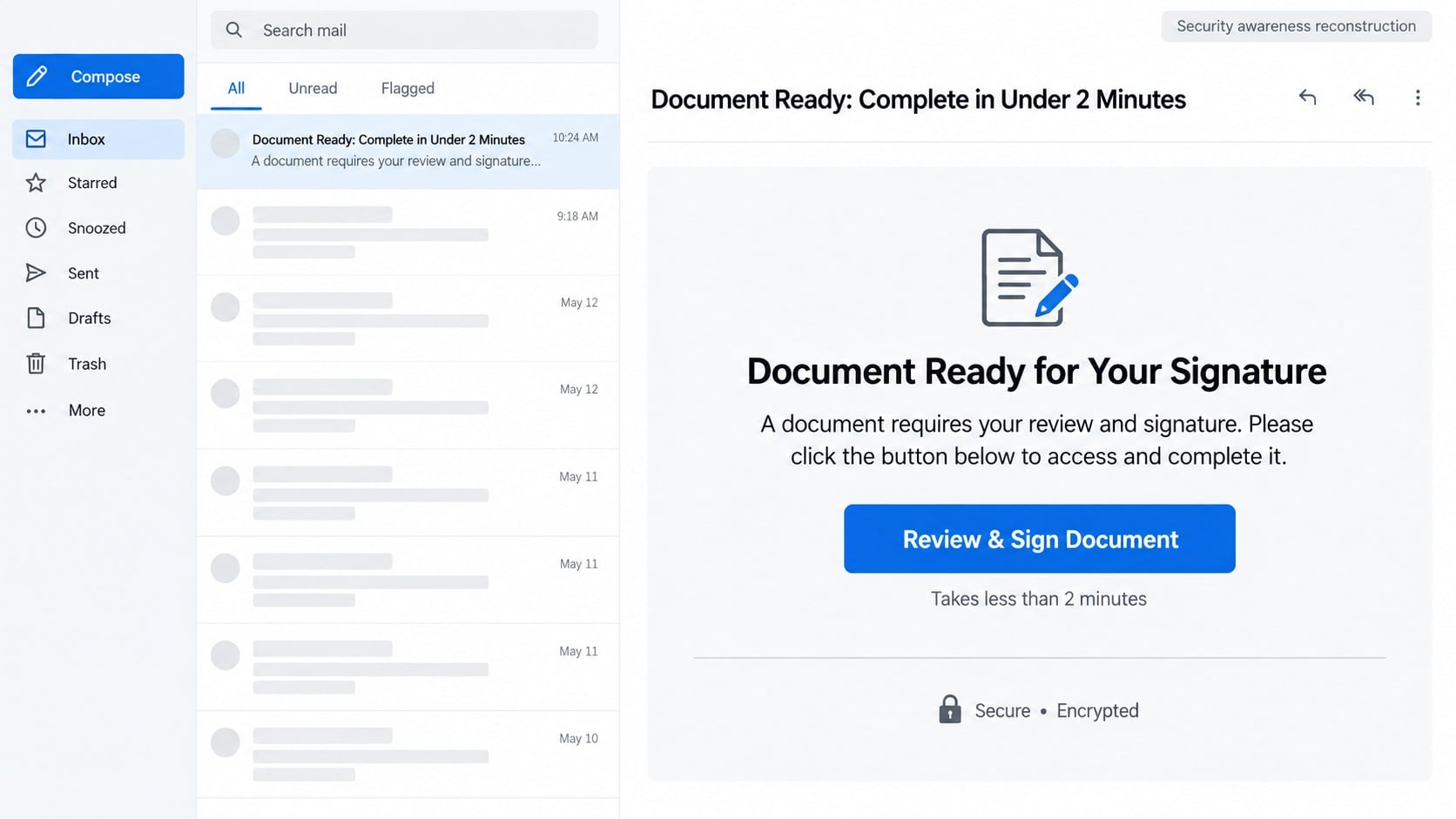
The email says a document requires review and signature. A prominent “Review & Sign Document” button offers immediate access.
The subject may read “Document Ready: Complete in Under 2 Minutes.” Speed becomes a selling point that discourages careful verification.
Labels such as “Secure” and “Encrypted” resemble electronic-signature assurances. They are merely text inside an email controlled by the sender.
Little detail is provided about the sender or agreement. Curiosity fills the gap while the signature request suggests unfinished work awaits.
How the cloud-hosted portal changes its appearance
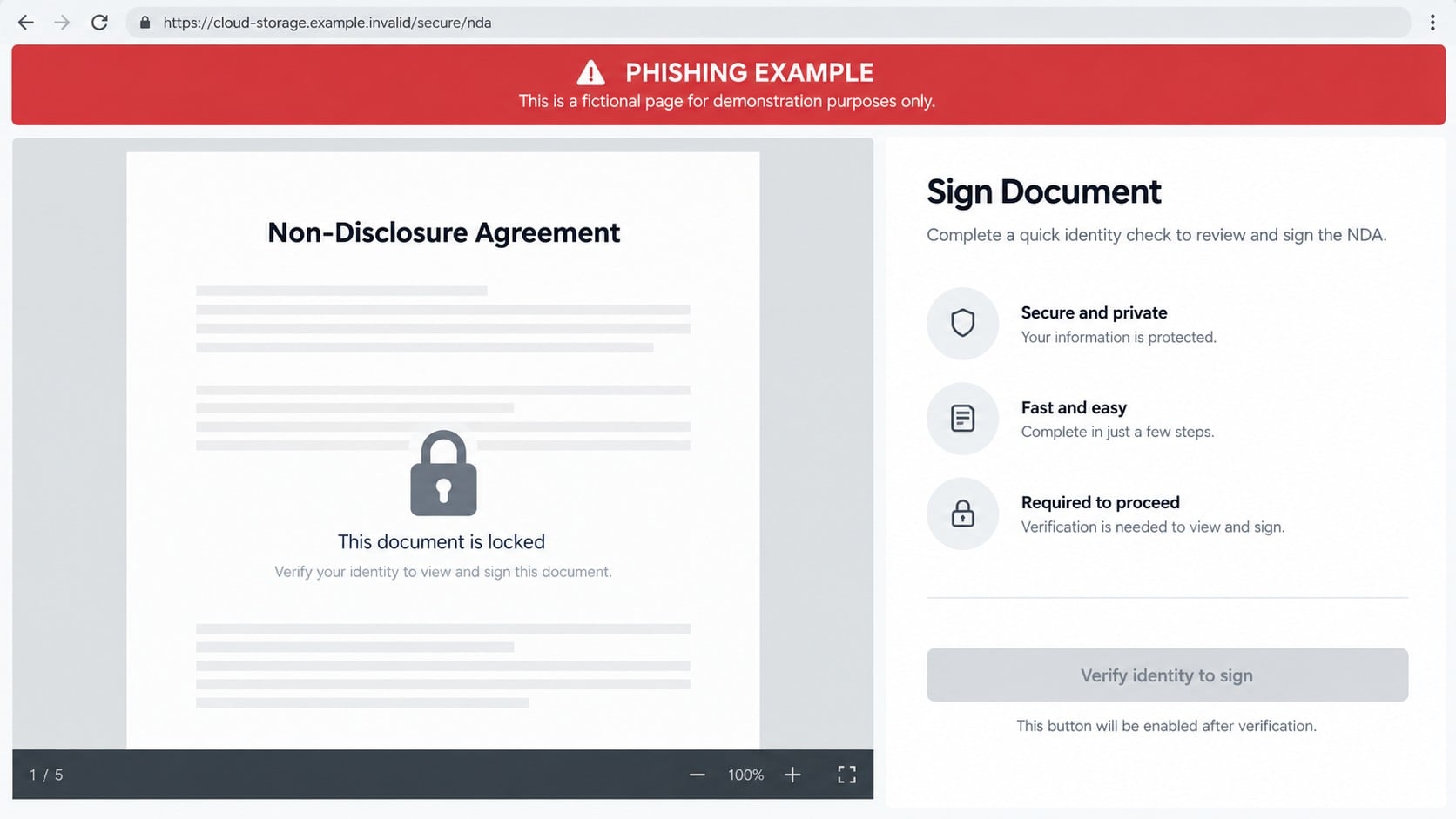
The destination may sit on a legitimate cloud-storage platform abused to host phishing. It can read the visitor’s address from the link.
This adaptive behavior is important. Two recipients clicking the same campaign may see different colors, icons, and instructions based on their addresses.
A Gmail user might see a fake “Verify it’s you” prompt. Another provider can trigger a different imitation from the same campaign.
The page is not displaying a real signature request. It uses embedded information to improve a credential form.
What criminals can do with the result
The request is built to capture email credentials. A successful theft can expose private documents, reset links, contact lists, invoices, calendars, and stored attachments.
- Read confidential legal or employment conversations
- Send more document invitations from a trusted address
- Reset passwords for services connected to the mailbox
- Impersonate executives, attorneys, suppliers, or coworkers
- Create hidden forwarding and message-deletion rules
- Study payment discussions for later financial fraud
The agreement may never exist. Its locked preview is a storytelling device that transforms an unexpected login request into a believable signature task.
Why “Complete in Under 2 Minutes” Creates Pressure
The wording avoids dramatic threats. It implies responsibility, not panic, which suits an employee who regularly approves contracts, policies, or account changes.
Pending tasks are psychologically sticky. People want to clear them, especially when a notification looks connected to a process already used at work.
An NDA or contract strengthens that feeling. The document sounds specific while remaining broad enough to fit many workplace roles.
Many organizations use several document platforms. Employees cannot memorize every notification design, so attackers benefit from normal variation between legitimate services.
The word “secure” can lower skepticism despite offering no evidence. Any webpage can place that term beside a shield icon or locked-document graphic.
A portal may claim the file expires soon. That deadline discourages recipients from waiting for a colleague to confirm the request.
Some versions omit urgency entirely. A quiet, professional notice can be more persuasive because it resembles automated workflow rather than unsolicited advertising.
The correct question is not whether the design looks professional. It is whether the document belongs to a conversation the recipient can independently confirm.
How Adaptive Phishing Personalizes the Login
The button can carry an encoded email address or another identifier. When the page loads, a script reads that value and prepares a tailored display.
The victim may see the email address already entered. Prefilling removes one step and creates the impression that access was intentionally granted.
The domain portion can tell the page which visual treatment to show. This trick does not require access to the provider or the victim’s account.
Company logos can also be collected from public websites. Seeing an employer’s mark on the page may feel convincing, but it only proves the image was copied.
Some pages request only a password because the email address is already known. Others request both fields to accommodate forwarded links or altered parameters.
After submission, the page may report an incorrect password. A second entry can capture another credential that the victim commonly uses.
The operator can test stolen details quickly. Security notifications may arrive minutes later, sometimes while the fraudulent portal still remains open.
That speed makes immediate password replacement essential. Waiting to see whether anything happens gives the intruder valuable time inside the account.
The Damage May Extend Beyond Email
Email often serves as the recovery channel for other accounts. Anyone controlling it may request password resets for storage, payroll, shopping, and social platforms.
A work mailbox can expose signed contracts, identity records, customer lists, tax documents, and proprietary files that were shared as ordinary attachments.
Calendar entries reveal meetings, travel, absences, and reporting relationships. Criminals can time impersonation attempts when a decision maker is unavailable.
Conversation history teaches the intruder how colleagues write. Familiar greetings, signatures, and project references help later messages blend into real threads.
Delegated access may open shared inboxes or calendars. One stolen credential can therefore reach information belonging to an entire department.
Attackers may register recovery methods or connected applications. These additions can preserve access after the victim changes the visible password.
Financial harm often appears later. The initial document lure can quietly support a payment redirection attempted days or weeks afterward.
Organizations should treat confirmed credential submission as a security incident, not merely an embarrassing click.
How the Scam Works
Step 1: A fast signature task appears
The sender announces a document ready for review and signature. The promise of a two-minute process makes postponement feel unnecessary.
The document remains intentionally undefined. That ambiguity lets the same invitation reach accountants, managers, contractors, job seekers, and private consumers.
A formal layout and security language make the notice resemble a platform-generated message rather than a conversation initiated by a stranger.
Step 2: The review button opens cloud-hosted phishing
The link may contain the target’s address in readable or encoded form. It can also redirect through tracking infrastructure before reaching the final page.
Those parameters help the operator measure who clicked. They can simultaneously prefill the counterfeit sign-in experience.
Redirect services make investigation harder because the visible destination can change after a campaign begins receiving complaints.
Step 3: A locked agreement introduces authentication
The site reads the email domain and selects a matching theme. The page may show familiar typography, background colors, and a recognizable account prompt.
This is visual theater, not federation with a legitimate service. The address bar still belongs to infrastructure outside the claimed provider.
A PDF icon and document title keep the victim focused on the promised file rather than the location requesting authentication.
Step 4: The visitor submits credentials
The form sends entered information to the campaign operator or a collection service. It can display any success or failure message afterward.
Nothing requires the page to validate the password. An error is often intentional because it encourages the visitor to try another one.
The visitor might then reach a blank file, genuine provider homepage, or unrelated website, making the incident seem like a temporary technical problem.
Step 5: The stolen mailbox is explored
The intruder checks messages, contacts, cloud files, and connected applications. Searches for financial and identity terms quickly locate sensitive conversations.
New rules may forward incoming mail or conceal security warnings. Recovery details can be altered to complicate account restoration.
Business accounts are especially useful because sent messages inherit the organization’s reputation and existing relationships.
Step 6: Trust is reused against other people
Fresh document lures can be sent to colleagues and contacts. Recipients recognize the compromised sender and may skip checks they would apply to a stranger.
Criminals may also join an active invoice thread, replace banking details, or request confidential files while posing as the account owner.
The campaign therefore expands through trust. One person’s document notification becomes another person’s convincing internal request.
Sender, Signature, Cloud Host, and Login Verification Checks
Look for the agreement behind the signature request
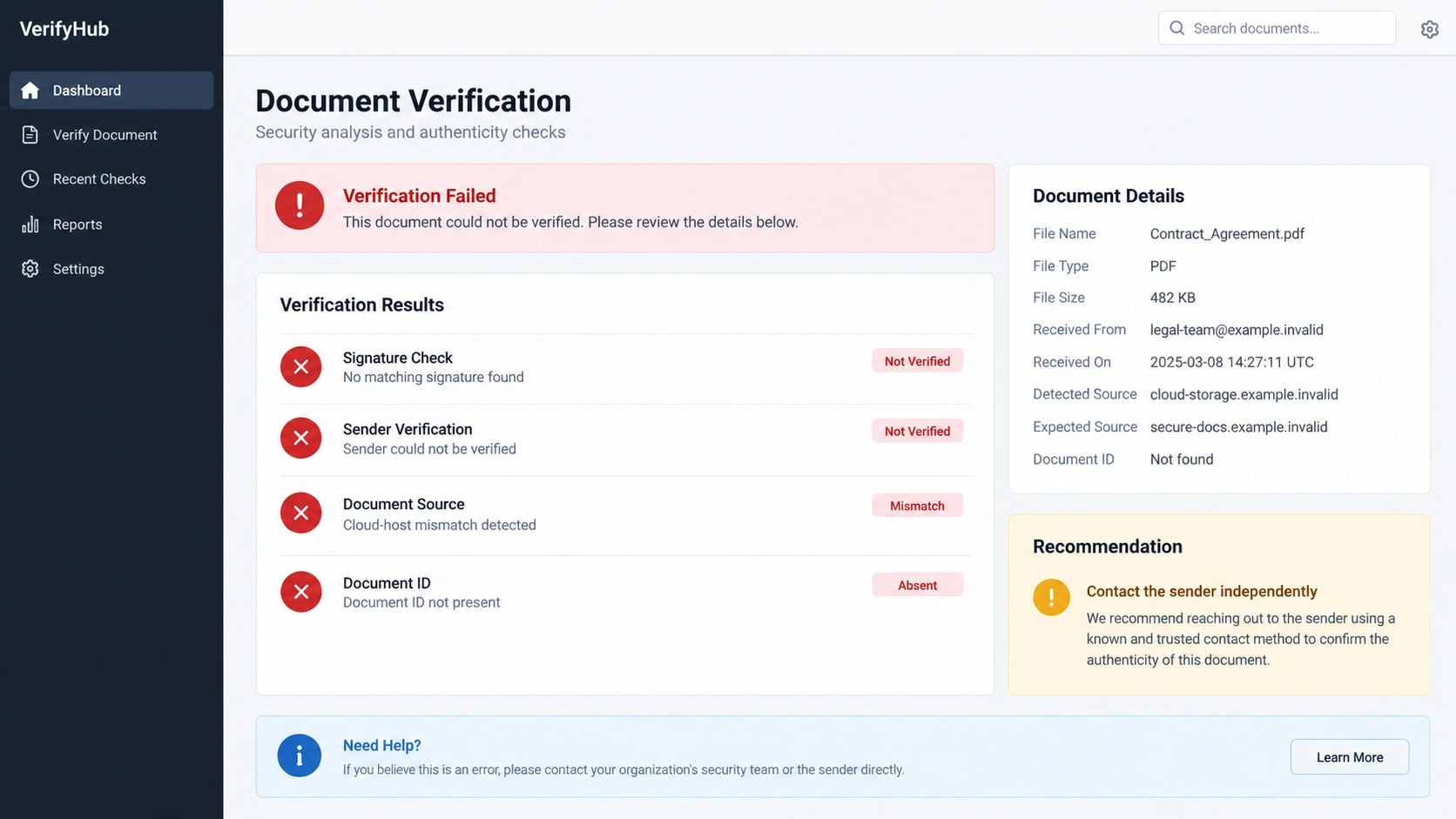
Ask who created the agreement, why it requires review, and which project it concerns. A real document should connect to people and events you recognize.
Search existing messages for the filename or sender. Do not use the suspicious email’s reply button as your only method of confirmation.
Contact the supposed sender through a known number or a fresh message addressed from your directory.
Compare every domain involved
Check the actual sender, reply address, button destination, final webpage, and any support contact. Several unrelated domains indicate a broken chain of trust.
Minor spelling changes and added terms can imitate a provider. Read from the registered domain outward, not from a familiar word buried inside it.
A valid certificate and padlock do not establish ownership. Fraudulent sites routinely encrypt their traffic.
Open the genuine signing service independently
If your organization uses a document platform, type its known address or launch it through the company portal. Check pending tasks there.
An authentic review request should usually appear inside the established account. An email-only task with no portal record needs further investigation.
Ask your administrator whether the claimed platform is approved. Employees should not enter corporate credentials into unknown external forms.
Examine the requested authentication
Notice whether the page asks for a mailbox password rather than using the provider’s normal sign-in flow. That substitution is a major warning.
Password managers can help because they generally refuse to autofill on an unrelated domain. Treat that refusal as useful evidence.
Unexpected multifactor prompts after visiting the page suggest someone may already be testing submitted credentials.
Practical Ways to Reduce This Risk at Work
Organizations should provide one approved method for sharing sensitive documents. Consistency gives employees a reliable baseline when an unfamiliar portal appears.
Mail filters can flag links carrying the recipient’s email address. Security teams can also block newly observed domains and known redirect patterns.
Multifactor authentication limits some account takeovers, but it does not replace awareness. Prompt bombing and session theft can still defeat careless approval.
Conditional access can restrict suspicious locations, unmanaged devices, and legacy authentication. These controls reduce the value of a captured password.
Employees need a quick reporting channel that does not punish mistakes. Fast notification helps administrators revoke sessions before the account is abused.
Document invitations should be verified using context, not appearance. A polished portal can be created in hours, while a genuine workflow leaves an auditable history.
Teams can add a verbal challenge for unexpected agreements. The reviewer asks the known sender to identify a detail that was never included in the invitation.
Legal and human resources departments should publish their approved signing platforms. Employees then know where legitimate assignments must appear.
Shared mailboxes need particular care because several people may assume someone else requested the file. Assigning one owner prevents that ambiguity.
Regular exercises should emphasize domain checking and independent confirmation. Recognizing one old template offers less protection than understanding the decision process.
What to Do if You Have Fallen Victim to This Scam
- Leave the fraudulent portal. Do not retry the form, download additional files, or follow support instructions shown on that page.
- Replace the password immediately. Navigate directly to the real provider and choose a strong, unique password from a trusted device.
- Revoke sessions and tokens. Sign out unfamiliar devices, remove unknown application access, and invalidate app passwords or remembered browsers.
- Turn on multifactor protection. Use an authenticator or hardware key, and reject every sign-in request you did not start.
- Audit mailbox configuration. Review forwarding, filters, delegates, recovery options, automatic replies, and connected cloud services for unauthorized changes.
- Inform your organization. Security staff can review logs, preserve evidence, remove similar messages, and warn contacts before the account is misused.
- Protect related services. Change any reused password and prioritize accounts containing financial, identity, medical, or employment information.
- Check the computer. Perform a full Malwarebytes scan and consider AdGuard for blocking deceptive pages and malicious advertising paths.
- Review sent and deleted folders. Look for document invitations, password resets, or messages you did not create.
- Watch for follow-up fraud. Attackers may exploit captured conversations later, so independently verify unusual file and payment requests.
Is Your Device Infected? Run a Free Malware Scan
Slow performance, constant pop-ups, or strange behavior? These are classic signs of a malware infection. The fastest way to find out is to scan your device with Malwarebytes Free — one of the most trusted malware removal tools available.
The free version detects and removes the most common threats, including:
- Adware — the cause of those annoying pop-ups
- Browser hijackers — unwanted redirects and changed homepages
- Trojans and spyware — hidden programs stealing your data
- Potentially unwanted programs (PUPs) — software you never asked for
👉 Select your device below — Windows, Mac, or Android — then follow the simple steps to download Malwarebytes, scan your system, and remove any threats it finds. The scan usually takes 5 to 20 minutes.
Run a Malware Scan with Malwarebytes for Windows
Malwarebytes is one of the most popular and trusted anti-malware tools for Windows — and it’s completely free for removing infections. It catches threats that many antivirus programs miss, including adware, browser hijackers, and trojans. Follow the steps below to scan and clean your PC in just a few minutes.
Download Malwarebytes
Click the button below to download the latest version of Malwarebytes for Windows from the official source. The free version is all you need — it will scan your computer and remove adware, browser hijackers, and other malicious software at no cost.
Download MalwarebytesOfficial installer for Windows 11 and 10. Your download starts right away.Want real-time protection? See Malwarebytes Premium Malwarebytes Free for WindowsScans and removes malware at no cost
-
Install Malwarebytes
When the download finishes, open your Downloads folder and double-click the MBSetup file. If Windows shows a User Account Control pop-up, click “Yes” to allow the installation.

Follow the On-Screen Prompts to Install Malwarebytes
The setup wizard will walk you through a few quick screens:
-
Choose where you’re installing the program — “Personal Computer” or “Work Computer” — then click Next.

-
Malwarebytes will now install on your device. This usually takes under a minute.

-
When installation is complete, the “Welcome to Malwarebytes” screen will open automatically.

-
On the final screen, click Open Malwarebytes to launch the program.

-
Enable “Scan for Rootkits”
Before scanning, turn on rootkit detection so Malwarebytes can find even the most hidden threats. Click the Settings gear icon on the left side of the screen.

In the settings menu, find “Scan for rootkits” and click the toggle so it turns blue.

Done? Click “Dashboard” in the left pane to return to the main screen.
Start the Scan
Click the blue Scan button. Malwarebytes will automatically update its virus database and start checking your computer for malware.

-
Wait for the Scan to Finish
The scan checks your entire system for browser hijackers and other malicious programs, so it can take 5 to 20 minutes depending on your computer. Feel free to do something else — just check back occasionally to see the progress.

-
Quarantine the Detected Threats
When the scan is done, you’ll see a list of everything Malwarebytes found — malware, adware, and potentially unwanted programs. Click the “Quarantine” button to remove all of them at once.

Malwarebytes will now remove the malicious files and registry entries and move them safely into quarantine.

-
Restart Your Computer
Some threats can only be fully removed after a reboot. If Malwarebytes asks you to restart, click Yes. Once you’re logged back in, Malwarebytes has finished removing the threats it found.

That’s it — your Windows PC is now clean of trojans, adware, and other malware, and should be back to running smoothly.
If you are still having problems with your computer after completing these instructions, then please follow one of the steps:
- Run a computer scan with ESET Online Scanner
- Ask for help in our Windows Malware Removal Help & Support forum.
Run a Malware Scan with Malwarebytes for Mac
Malwarebytes for Mac is a free on-demand scanner that removes the malware other security software tends to miss — adware, browser hijackers, and unwanted programs included. Cleaning an infected Mac with Malwarebytes has always been completely free, and it’s our go-to recommendation. Follow the steps below to scan and clean your Mac in just a few minutes.
-
Download Malwarebytes for Mac
Click the button below to download the latest version of Malwarebytes for Mac.
Download MalwarebytesOfficial installer for macOS. Your download starts right away.Want real-time protection? See Malwarebytes PremiumMalwarebytes Free for MacScans and removes malware at no cost -
Open the Malwarebytes setup file
When the download finishes, open your Downloads folder and double-click the setup file to begin the installation.

-
Follow the On-Screen Prompts to Install Malwarebytes
The Malwarebytes for Mac Installer will guide you through a few quick screens. Click “Continue” and keep following the prompts until the installation completes.



When the installation is complete, Malwarebytes opens to the Welcome to Malwarebytes screen. Click “Get started“.
-
Select “Personal Computer” or “Work Computer”
Malwarebytes will ask what type of computer you’re installing it on. Click either Personal Computer or Work Computer, whichever applies.

-
Start the Scan
Click the “Scan” button. Malwarebytes will automatically update its detection database and begin checking your Mac for malware.

-
Wait for the Scan to Finish
Malwarebytes will scan your Mac for adware, browser hijackers, and other malicious programs. This can take a few minutes, so feel free to do something else — just check back occasionally to see the progress.

-
Quarantine the Detected Threats
When the scan is done, you’ll see a list of everything Malwarebytes found. Click the “Quarantine” button to remove all the threats at once.

-
Restart Your Mac
Malwarebytes will now remove all the malicious files it found. Some threats can only be fully removed after a reboot — if Malwarebytes asks you to restart, allow it. Once you’re logged back in, your Mac is clean.

That’s it — your Mac is now free of adware, rogue browser extensions, and other potentially harmful software.
If you are still experiencing problems while trying to remove a malicious program from your computer, please ask for help in our Mac Malware Removal Help & Support forum.
Run a Malware Scan with Malwarebytes for Android
Malwarebytes for Android automatically detects and removes dangerous threats like malware and ransomware so you don’t have to worry about your most-used device being compromised. Aggressive detection of adware and potentially unwanted programs keeps your Android phone or tablet running smooth.
-
Download Malwarebytes for Android.
You can download Malwarebytes for Android by clicking the link below.
Get Malwarebytes for AndroidOpens Google Play in a new tab.Want real-time protection? See Malwarebytes Premium for AndroidMalwarebytes for AndroidScans your phone and removes malware at no cost -
Install Malwarebytes for Android on your phone.
In the Google Play Store, tap “Install” to install Malwarebytes for Android on your device.

When the installation process has finished, tap “Open” to begin using Malwarebytes for Android. You can also open Malwarebytes by tapping on its icon in your phone menu or home screen.

-
Follow the on-screen prompts to complete the setup process
When Malwarebytes will open, you will see the Malwarebytes Setup Wizard which will guide you through a series of permissions and other setup options.
This is the first of two screens that explain the difference between the Premium and Free versions. Swipe this screen to continue.
Tap on “Got it” to proceed to the next step.
Malwarebytes for Android will now ask for a set of permissions that are required to scan your device and protect it from malware. Tap on “Give permission” to continue.
Tap on “Allow” to permit Malwarebytes to access the files on your phone.
-
Update database and run a scan with Malwarebytes for Android
You will now be prompted to update the Malwarebytes database and run a full system scan.

Click on “Update database” to update the Malwarebytes for Android definitions to the latest version, then click on “Run full scan” to perform a system scan.

-
Wait for the Malwarebytes scan to complete.
Malwarebytes will now start scanning your phone for adware and other malicious apps. This process can take a few minutes, so we suggest you do something else and periodically check on the status of the scan to see when it is finished.

-
Click on “Remove Selected”.
When the scan has been completed, you will be presented with a screen showing the malware infections that Malwarebytes for Android has detected. To remove the malicious apps that Malwarebytes has found, tap on the “Remove Selected” button.

-
Restart your phone.
Malwarebytes for Android will now remove all the malicious apps that it has found. To complete the malware removal process, Malwarebytes may ask you to restart your device.
That’s it — your Android phone is now clean — no more malicious apps, adware, or browser redirects.
If you are still having problems with your phone after completing these instructions, then please follow one of the steps:
- Restore your phone to factory settings by going to Settings > General management > Reset > Factory data reset.
- Ask for help in our Mobile Malware Removal Help & Support forum.
Stay Protected: Block Ads and Malicious Sites
Now that your device is clean, keep it that way. Most infections start with a malicious ad or a fake download button — so blocking them at the source is your best defense.
We recommend AdGuard, which blocks malicious ads, phishing pages, and dangerous redirects before they can reach you.
👉 Download AdGuard and browse safely
Frequently Asked Questions
Does a “Secure and Encrypted” label prove safety?
No. The sender controls those labels, and a phishing email can display them without protecting any real document.
Why did the signature page recognize my provider?
The webpage can read the domain in your address and load matching graphics. That behavior requires no connection to the provider.
Can a legitimate cloud host contain a phishing page?
Yes. Criminals can abuse cloud-storage services, so hosting reputation alone does not authenticate the sender or document.
What if my password manager did not fill the form?
That is a useful warning. Password managers associate credentials with domains and often refuse to fill them on an imitation site.
Could a real contact send the request after compromise?
Yes. That is why sender recognition alone is insufficient. Confirm the document’s context through another established communication channel.
Should I report the email if I never clicked?
Yes. Reporting lets administrators remove identical messages, block the destination, and protect coworkers who received the same campaign.
The Bottom Line
The Document Ready for Your Signature email uses a fast, encrypted-looking workflow and cloud-hosted imitation to capture mailbox credentials.
Confirm the agreement with the sender and open signing services independently. If credentials were entered, secure the account before trusting any apparent error.

Join the discussion
0 commentsShare your experience or ask a question about this article.
Discussion
Start the conversation
Have a question or something useful to share? Add the first comment.