

A contract arrives in your inbox, but you cannot remember negotiating it. The message says a pending marketplace deal is waiting for your signature.
It is brief enough to look routine. That brevity is also why you should pause before treating the request as yours.
Overview
The contract that never explains the transaction
The Marketplace Contract for Signature email scam claims a recipient must review and sign documents to finish a pending marketplace transaction.
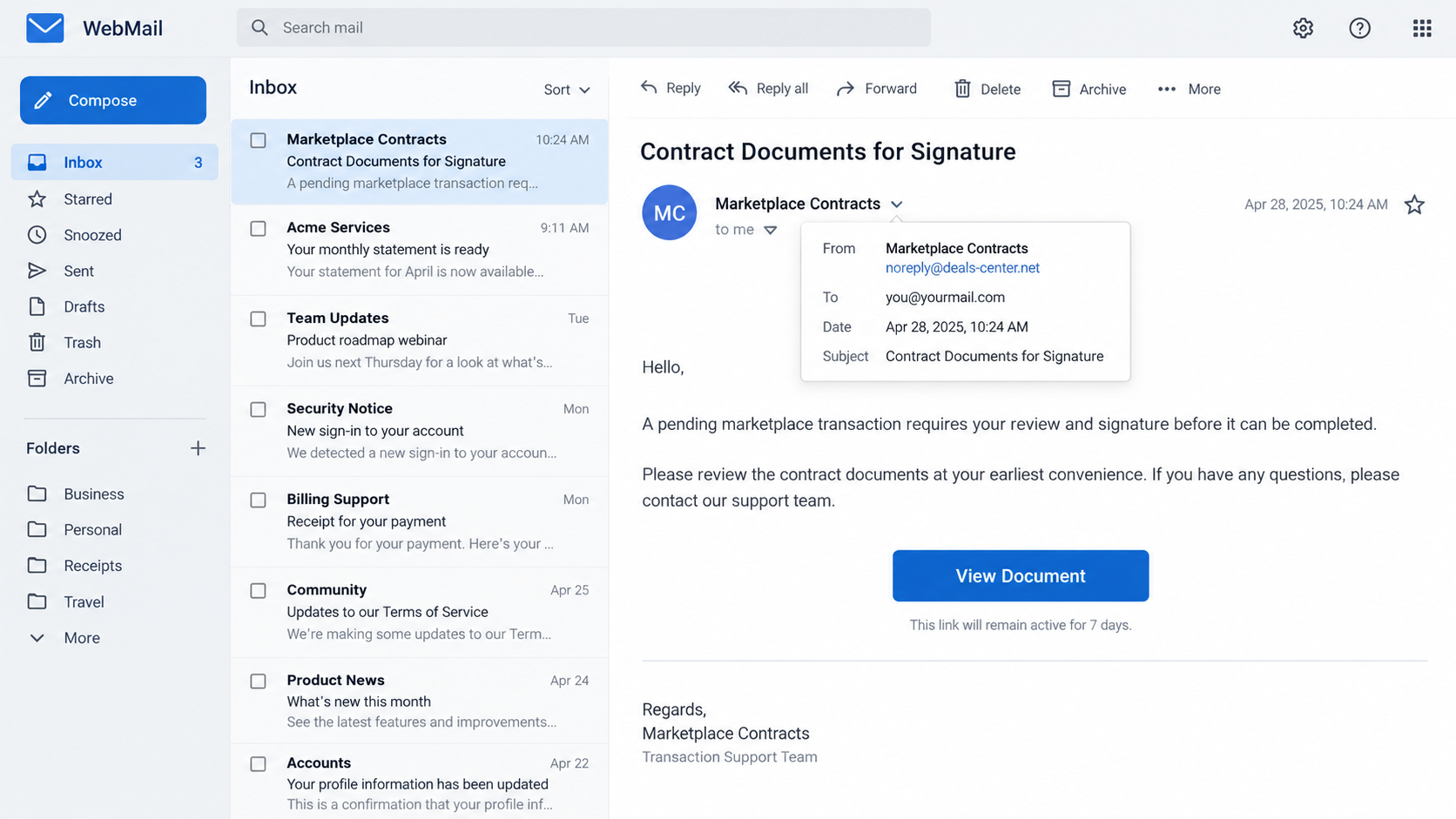
The examined email used the subject “Contract Documents for Signature” and a View Document button. It did not establish a real transaction.
There was no independently verified marketplace account, agreed purchase, or counterparty attached to the message. A generic business tone filled that gap.
Some people buy and sell across several platforms. A short notice can catch them while they are expecting other paperwork.
That context makes the email worth checking, not worth obeying. A genuine deal leaves a trail in your own account and correspondence.
The signing request is a route to a fake login
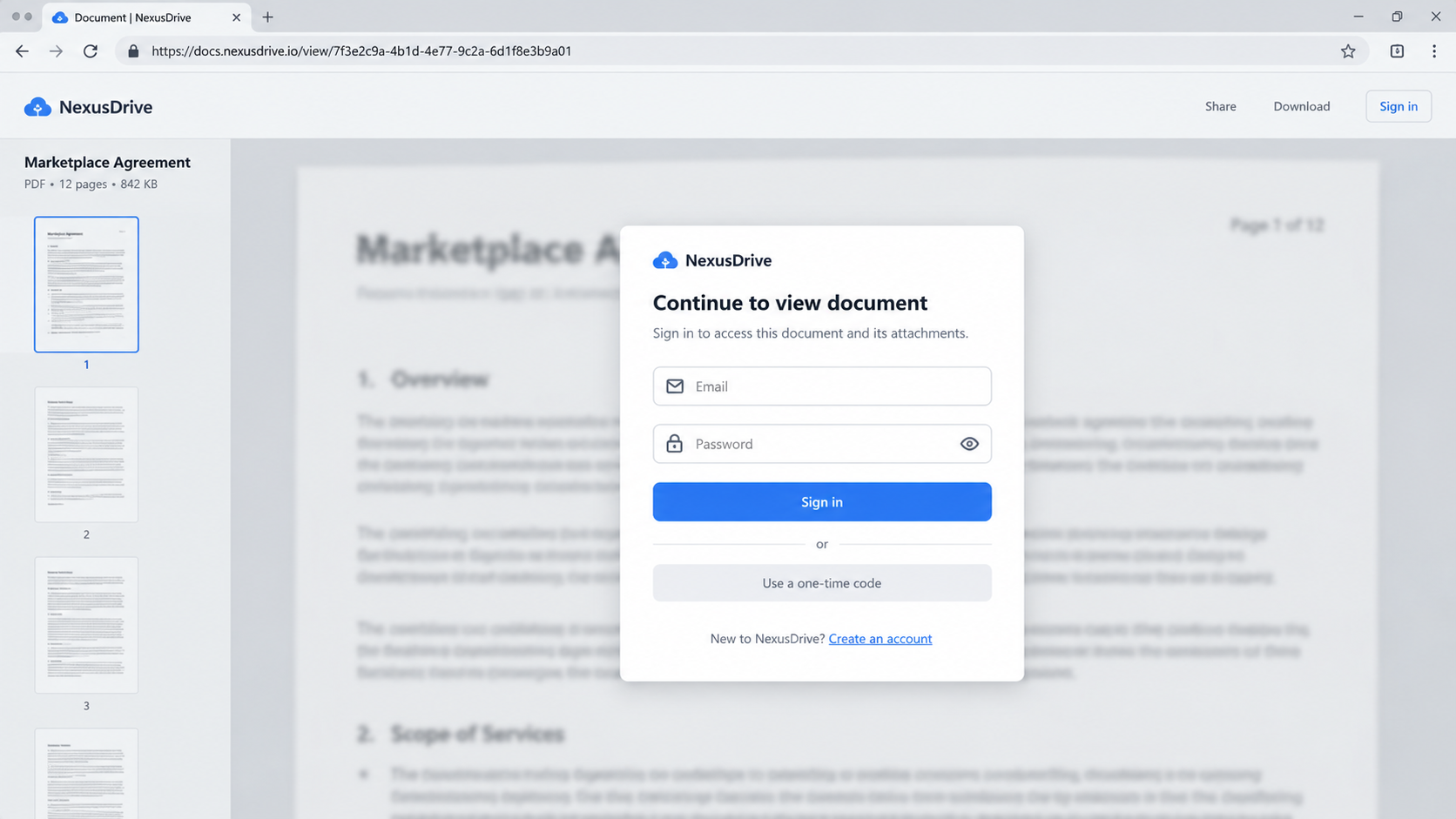
The button led toward a phishing page that imitated an email-provider sign-in. The aim was to collect the recipient’s account credentials.
Signing a contract and signing into email are different actions. An unexpected page asking for your mailbox password should not borrow authority from a deal.
At the time of later analysis, the linked site was unavailable. That limits what can be said about its exact current appearance.
It does not change the observed mechanism: the invitation used a fabricated transaction to steer readers into a credential request.
No evidence in the examined email showed a legitimate marketplace service had sent it or that anyone completed a genuine signature.
Quick checks that cut through the story
- Open the marketplace app through a bookmark and look for the transaction there.
- Ask whether the sender identifies a buyer, seller, item, price, and order number you recognize.
- Preview the View Document destination without submitting a password.
- Contact the other party through the platform’s own messaging system, not the email’s reply address.
Do not use the email’s lack of typos as a safety test. Modern phishing messages can be polished, concise, and grammatically clean.
The important distinction is whether the contract exists in a trusted system you opened yourself.
Why a Vague Signing Request Can Feel Urgent
The email does not need to threaten an account shutdown. It can suggest that an ordinary deal will stall if the recipient fails to sign.
That pressure works because signatures often are time-sensitive. Buyers wait, shipments pause, and paperwork feels like the final administrative hurdle.
A vague message can also make the recipient fill in the missing details. Someone expecting a different purchase may assume this relates to it.
Criminals benefit when readers do that mental work for them. The less specific the email is, the more possible transactions it can appear to fit.
The image above recreates a plausible email interface. It is illustrative, and its invented sender details should not be read as an observed address.
Look at how the single button carries the whole task. The next page, not the message body, becomes the place where the request changes.
The illustration below shows a generic document portal asking for email credentials. It does not claim to reproduce the unavailable linked site exactly.
How the Marketplace Contract for Signature Email Scam Works
Step 1: An ordinary-looking contract notice reaches the inbox
The email opens with a practical task: review a marketplace contract and sign it so a pending transaction can be completed.
This is not a direct demand for money. It is a request to continue a workflow, which can feel less risky.
Check whether the sender names the actual platform. A broad phrase such as “marketplace transaction” is not the same as a verified account notification.
Even a specific platform name would still need checking. Criminals can type brand names into messages without controlling that service.
The email should be judged against your own transaction history, not against how formal its wording sounds.
Step 2: The message relies on the reader’s uncertainty
Many readers will not instantly know whether a colleague started a sale or whether an old purchase requires one last document.
A busy recipient may click simply to find out what the contract is. That curiosity gives the button its power.
The safer way to resolve uncertainty is slower by only a minute: open the known marketplace app or ask the deal owner.
If the email cannot be matched to an item, counterparty, or order, the supposed urgency loses its foundation.
Do not forward the button to a colleague and ask them to check. That can spread the same lure inside an organization.
Step 3: The View Document button leaves the trusted context
A link in an email is not a neutral window onto a contract. It can send the reader anywhere the sender chooses.
The examined campaign used the button to direct readers toward a phishing site. The site’s later unavailability prevents a current live-page walkthrough.
That uncertainty should be stated plainly. It would be wrong to invent a particular logo, timer, file name, or sequence of redirects.
The reliable fact is the destination’s role: it asked the visitor for email account credentials under cover of document access.
Hovering over a link may reveal a mismatch. Still, a plausible-looking URL does not substitute for entering the marketplace directly.
Step 4: A fabricated document gate reframes password entry
At the phishing stage, the visitor is led to believe that an email sign-in is necessary before the contract can be viewed or signed.
A real signing service may require authentication. The critical question is whether the sign-in appeared within your established account workflow.
Here, an unexpected email supplied the route and the reason. That makes it an untrusted chain from the first click onward.
Do not enter a password to “see what the document says.” That is the precise moment the scam seeks.
If you are unsure, close the page. A legitimate contract can be resent or verified through a known channel.
Step 5: Credentials can turn one message into a larger problem
A captured email password may let the attacker attempt a mailbox login, especially where multifactor protection is missing or poorly configured.
Access to mail can expose receipts, conversation history, and password-reset links. It can also make the next phishing message more convincing.
None of those outcomes is guaranteed by a click alone. They are reasons to act promptly if a password was submitted.
Where a business account is involved, security staff should inspect sign-in logs and mailbox changes rather than relying on guesswork.
Any genuine marketplace account associated with the mailbox should be reviewed separately for unusual activity.
Step 6: The campaign can vanish while the risk remains
Phishing pages are often short-lived. A dead link today does not prove the earlier message was harmless or that captured credentials are safe.
Likewise, a different live page tomorrow could use the same contract wording. Do not memorize one host as the entire threat.
Remember the behavioral pattern: an unverified deal, a document button, and an unexpected request for mailbox credentials.
That pattern remains recognizable even if the sender, domain, or page design changes.
Report the original message to your provider or security team so they can block related messages for other recipients.
What a Real Signing Request Should Let You Confirm
A genuine contract has a source you can reach without the email. That may be an order page, a saved signing portal, or an established counterparty.
Start with the transaction itself. Is there a matching item, agreed price, delivery arrangement, and conversation in your own marketplace account?
Next, identify the party asking for your signature. A contract should not remain anonymous until after you enter an email password.
Finally, look for the document through the platform’s native notifications. If the marketplace has no record, ask support before signing elsewhere.
Some small marketplaces send documents through third-party signing services. That can be legitimate, but the independent transaction record still matters.
A business buyer may have a purchasing agent sign on behalf of a team. The agent can check the request with colleagues before touching the button.
Do not let a deadline substitute for verification. If a deal is real, the other party should be able to explain it through the channel already used.
When a signing page asks for your email password rather than sending you to your provider’s known authentication flow, leave the page.
Why a Dead Phishing Link Is Not a Clean Bill of Health
Readers sometimes reopen a suspicious message days later and see a blank page. It is tempting to conclude the email could not have done harm.
That conclusion skips the timing. A phishing site may have been active when the message arrived and removed before you checked it.
It may also show different content by region, device, or visitor. One failed load does not reconstruct what another recipient saw.
If you entered credentials while the page was active, act on that exposure even if today’s link no longer works.
Keep the message and note when you clicked. Email headers and security logs may help a provider identify the earlier destination.
For a workplace mailbox, tell the security team whether you merely opened the link or submitted a password. Those are different response paths.
There is no need to keep refreshing the suspicious URL to see whether it returns. Repeated visits add risk without improving verification.
Ask the real marketplace for any current signing request, then recover the email account if necessary.
Transaction, Document, Sender, and Login Checks
Find the deal in the platform you already use
Open the marketplace from your own saved address or app. Look for a matching order, message thread, contract, and signing task.
If nothing is there, do not let an email create a transaction in your mind. Ask the known buyer or seller through the platform.
Look for details a real counterparty would know
A real contract should identify the parties, goods or services, price, and relevant dates. Generic urgency without specifics deserves skepticism.
Missing details are not conclusive alone, but they raise the burden of verification before you open a link.
Separate the sender label from the destination
Inspect the full sender address and the link target. Neither one is authoritative by itself, especially if an account was compromised.
A domain unrelated to your actual marketplace is a strong reason to stop and verify through a separate channel.
Know when a sign-in prompt is out of place
Your email password belongs on your provider’s known login page. It should not be demanded by a surprise contract preview.
If you already entered it, assume it may have been captured even if the page later displayed an error.
What to Do if You Entered Details on the Fake Signing Page
- Stop using the link and keep the email. Close the page. Preserve the message and, if safe, note the address you visited and approximate time.
- Change the mailbox password directly. Visit the provider through a known bookmark or app from a clean device. Choose a unique password not used elsewhere.
- End unfamiliar sessions and secure recovery options. Review recent sign-ins, multifactor methods, recovery email, phone number, and connected applications. Remove changes you did not make.
- Check for mailbox persistence. Inspect forwarding addresses, hidden rules, sent messages, and deleted folders. Business users should ask administrators to review audit events.
- Verify the marketplace account separately. Open the real platform and check orders, messages, payouts, and linked payment methods. Report unauthorized activity through its support channel.
- Tell people affected by the account. If a business mailbox or seller profile was involved, warn the transaction owner and colleagues about possible follow-up messages.
- Assess any download as a separate exposure. The examined lure targeted credentials. If you also saved or ran a file, scan with Malwarebytes and inspect the device. AdGuard may reduce malicious-page exposure, but it cannot revoke a stolen password.
Is Your Device Infected? Run a Free Malware Scan
Slow performance, constant pop-ups, or strange behavior? These are classic signs of a malware infection. The fastest way to find out is to scan your device with Malwarebytes Free — one of the most trusted malware removal tools available.
The free version detects and removes the most common threats, including:
- Adware — the cause of those annoying pop-ups
- Browser hijackers — unwanted redirects and changed homepages
- Trojans and spyware — hidden programs stealing your data
- Potentially unwanted programs (PUPs) — software you never asked for
👉 Select your device below — Windows, Mac, or Android — then follow the simple steps to download Malwarebytes, scan your system, and remove any threats it finds. The scan usually takes 5 to 20 minutes.
Run a Malware Scan with Malwarebytes for Windows
Malwarebytes is one of the most popular and trusted anti-malware tools for Windows — and it’s completely free for removing infections. It catches threats that many antivirus programs miss, including adware, browser hijackers, and trojans. Follow the steps below to scan and clean your PC in just a few minutes.
Download Malwarebytes
Click the button below to download the latest version of Malwarebytes for Windows from the official source. The free version is all you need — it will scan your computer and remove adware, browser hijackers, and other malicious software at no cost.
Download MalwarebytesOfficial installer for Windows 11 and 10. Your download starts right away.Want real-time protection? See Malwarebytes Premium Malwarebytes Free for WindowsScans and removes malware at no cost
-
Install Malwarebytes
When the download finishes, open your Downloads folder and double-click the MBSetup file. If Windows shows a User Account Control pop-up, click “Yes” to allow the installation.

Follow the On-Screen Prompts to Install Malwarebytes
The setup wizard will walk you through a few quick screens:
-
Choose where you’re installing the program — “Personal Computer” or “Work Computer” — then click Next.

-
Malwarebytes will now install on your device. This usually takes under a minute.

-
When installation is complete, the “Welcome to Malwarebytes” screen will open automatically.

-
On the final screen, click Open Malwarebytes to launch the program.

-
Enable “Scan for Rootkits”
Before scanning, turn on rootkit detection so Malwarebytes can find even the most hidden threats. Click the Settings gear icon on the left side of the screen.

In the settings menu, find “Scan for rootkits” and click the toggle so it turns blue.

Done? Click “Dashboard” in the left pane to return to the main screen.
Start the Scan
Click the blue Scan button. Malwarebytes will automatically update its virus database and start checking your computer for malware.

-
Wait for the Scan to Finish
The scan checks your entire system for browser hijackers and other malicious programs, so it can take 5 to 20 minutes depending on your computer. Feel free to do something else — just check back occasionally to see the progress.

-
Quarantine the Detected Threats
When the scan is done, you’ll see a list of everything Malwarebytes found — malware, adware, and potentially unwanted programs. Click the “Quarantine” button to remove all of them at once.

Malwarebytes will now remove the malicious files and registry entries and move them safely into quarantine.

-
Restart Your Computer
Some threats can only be fully removed after a reboot. If Malwarebytes asks you to restart, click Yes. Once you’re logged back in, Malwarebytes has finished removing the threats it found.

That’s it — your Windows PC is now clean of trojans, adware, and other malware, and should be back to running smoothly.
If you are still having problems with your computer after completing these instructions, then please follow one of the steps:
- Run a computer scan with ESET Online Scanner
- Ask for help in our Windows Malware Removal Help & Support forum.
Run a Malware Scan with Malwarebytes for Mac
Malwarebytes for Mac is a free on-demand scanner that removes the malware other security software tends to miss — adware, browser hijackers, and unwanted programs included. Cleaning an infected Mac with Malwarebytes has always been completely free, and it’s our go-to recommendation. Follow the steps below to scan and clean your Mac in just a few minutes.
-
Download Malwarebytes for Mac
Click the button below to download the latest version of Malwarebytes for Mac.
Download MalwarebytesOfficial installer for macOS. Your download starts right away.Want real-time protection? See Malwarebytes PremiumMalwarebytes Free for MacScans and removes malware at no cost -
Open the Malwarebytes setup file
When the download finishes, open your Downloads folder and double-click the setup file to begin the installation.

-
Follow the On-Screen Prompts to Install Malwarebytes
The Malwarebytes for Mac Installer will guide you through a few quick screens. Click “Continue” and keep following the prompts until the installation completes.



When the installation is complete, Malwarebytes opens to the Welcome to Malwarebytes screen. Click “Get started“.
-
Select “Personal Computer” or “Work Computer”
Malwarebytes will ask what type of computer you’re installing it on. Click either Personal Computer or Work Computer, whichever applies.

-
Start the Scan
Click the “Scan” button. Malwarebytes will automatically update its detection database and begin checking your Mac for malware.

-
Wait for the Scan to Finish
Malwarebytes will scan your Mac for adware, browser hijackers, and other malicious programs. This can take a few minutes, so feel free to do something else — just check back occasionally to see the progress.

-
Quarantine the Detected Threats
When the scan is done, you’ll see a list of everything Malwarebytes found. Click the “Quarantine” button to remove all the threats at once.

-
Restart Your Mac
Malwarebytes will now remove all the malicious files it found. Some threats can only be fully removed after a reboot — if Malwarebytes asks you to restart, allow it. Once you’re logged back in, your Mac is clean.

That’s it — your Mac is now free of adware, rogue browser extensions, and other potentially harmful software.
If you are still experiencing problems while trying to remove a malicious program from your computer, please ask for help in our Mac Malware Removal Help & Support forum.
Run a Malware Scan with Malwarebytes for Android
Malwarebytes for Android automatically detects and removes dangerous threats like malware and ransomware so you don’t have to worry about your most-used device being compromised. Aggressive detection of adware and potentially unwanted programs keeps your Android phone or tablet running smooth.
-
Download Malwarebytes for Android.
You can download Malwarebytes for Android by clicking the link below.
Get Malwarebytes for AndroidOpens Google Play in a new tab.Want real-time protection? See Malwarebytes Premium for AndroidMalwarebytes for AndroidScans your phone and removes malware at no cost -
Install Malwarebytes for Android on your phone.
In the Google Play Store, tap “Install” to install Malwarebytes for Android on your device.

When the installation process has finished, tap “Open” to begin using Malwarebytes for Android. You can also open Malwarebytes by tapping on its icon in your phone menu or home screen.

-
Follow the on-screen prompts to complete the setup process
When Malwarebytes will open, you will see the Malwarebytes Setup Wizard which will guide you through a series of permissions and other setup options.
This is the first of two screens that explain the difference between the Premium and Free versions. Swipe this screen to continue.
Tap on “Got it” to proceed to the next step.
Malwarebytes for Android will now ask for a set of permissions that are required to scan your device and protect it from malware. Tap on “Give permission” to continue.
Tap on “Allow” to permit Malwarebytes to access the files on your phone.
-
Update database and run a scan with Malwarebytes for Android
You will now be prompted to update the Malwarebytes database and run a full system scan.

Click on “Update database” to update the Malwarebytes for Android definitions to the latest version, then click on “Run full scan” to perform a system scan.

-
Wait for the Malwarebytes scan to complete.
Malwarebytes will now start scanning your phone for adware and other malicious apps. This process can take a few minutes, so we suggest you do something else and periodically check on the status of the scan to see when it is finished.

-
Click on “Remove Selected”.
When the scan has been completed, you will be presented with a screen showing the malware infections that Malwarebytes for Android has detected. To remove the malicious apps that Malwarebytes has found, tap on the “Remove Selected” button.

-
Restart your phone.
Malwarebytes for Android will now remove all the malicious apps that it has found. To complete the malware removal process, Malwarebytes may ask you to restart your device.
That’s it — your Android phone is now clean — no more malicious apps, adware, or browser redirects.
If you are still having problems with your phone after completing these instructions, then please follow one of the steps:
- Restore your phone to factory settings by going to Settings > General management > Reset > Factory data reset.
- Ask for help in our Mobile Malware Removal Help & Support forum.
Stay Protected: Block Ads and Malicious Sites
Now that your device is clean, keep it that way. Most infections start with a malicious ad or a fake download button — so blocking them at the source is your best defense.
We recommend AdGuard, which blocks malicious ads, phishing pages, and dangerous redirects before they can reach you.
👉 Download AdGuard and browse safely
Frequently Asked Questions
Is every marketplace contract email fake?
No. Legitimate platforms send contract notices. This message is suspicious because the claimed deal lacks independent confirmation and leads to credential phishing.
Which marketplace was involved?
The examined email used a broad marketplace story. It did not establish that a particular legitimate platform issued the notice.
Can the fake page still be visited?
The linked site was unavailable during later analysis. Attackers can replace destinations, so an unavailable link is not a permanent safety signal.
What if I clicked but entered nothing?
Close the page and report the email. If no file was downloaded and no information was submitted, account theft is less likely.
Why ask for an email password to sign a contract?
The contract is the pretext. The operator wants credentials that may open mail and help with follow-on account access.
Should I reply and ask the sender for proof?
No. A reply goes back to the same unverified source. Use your platform’s messaging system or a previously known contact route.
The Bottom Line
The Marketplace Contract for Signature email uses a possible deal to make a document button feel necessary. The dangerous turn is the unexpected email login.
Find the transaction in your own account first. If you submitted credentials, secure the mailbox immediately and check both email and marketplace activity.

Join the discussion
0 commentsShare your experience or ask a question about this article.
Discussion
Start the conversation
Have a question or something useful to share? Add the first comment.